Best NAS Cloud Backup in 2026: Secure Your Network-Attached Storage
Creating a NAS is easier than ever before, thanks to companies like Synology and QNAP. However, things can go wrong for even the most experienced and advanced users. To ensure your data is kept safe, read on to learn about the top five best NAS cloud backup providers.


Written by Sapphire Fox (Editorial Assistant)
Reviewed by Jackie Leavitt (Editor at Large)
Facts checked by Jasna Mishevska (Lead Fact-Checking Editor)
Last Updated:
All our content is written fully by humans; we do not publish AI writing. Learn more here.
Key Takeaways: Best Online Backup for NAS
- IDrive is a great backup for your network-attached storage (NAS) if you keep it connected to a desktop.
- pCloud is the best backup provider for lifetime plans, with flexible storage capacities.
- CloudBerry Backup is a backup manager that will let you connect your NAS device to an Infrastructure-as-a-Service (IaaS) provider.
- Backblaze B2 is a cheap IaaS provider that works well with many backup managers.
- MEGA is a traditional cloud storage service that can be used for a NAS backup.

Network-attached storage (NAS) is great if you have lots of data to store and want it to be accessible without a physical connection. However, NAS is just as vulnerable to physical damage as an external hard drive, and a fire or a flood will destroy all your data. To prevent this, you should use one of the five best NAS cloud backup services to keep a copy in remote storage.
If you’re up to the task and have the money to pay the upfront cost, network-attached storage devices are a great way to store a local backup, media files or work documents. The files will be accessible from any device that has the right credentials, and NAS is usually faster than cloud storage.
However, you should still budget for a NAS backup in the cloud, because even the best devices set up in a RAID configuration can fail. Since it’s often impossible to recover lost data, setting up your backup as soon as possible is ideal, but first you’ll need to decide which online backup provider you should use.
-
03/16/2022 Facts checked
Updated to reflect changes to the services and replace providers that no longer offer NAS backups.
-
07/25/2022 Facts checked
Updated to reflect an increase in IDrive’s free plan to 10GB of storage.
-
05/23/2023 Facts checked
Updated to remove IDrive’s discontinued free plan and add its new free 30-day trial.
-
11/29/2024 Facts checked
Added new video ranking the best cloud backup for NAS devices.
-
04/11/2025 Facts checked
This article was updated with more information on IDrive, plus features to look for in a cloud backup for NAS.
-
07/14/2025 Facts checked
We updated this article with more details about pCloud and the importance of NAS security and compliance features for businesses.
-
10/10/2025 Facts checked
We expanded our coverage of Backblaze B2 and added more details on NAS backup security.
-
12/29/2025 Facts checked
This article was updated with more details about MEGA and Backblaze B2, and more information about what to look for in a NAS cloud backup service.
Top NAS Cloud Backup Services
- 1
- :
- :
- :
- :
- :
- :
- :
- 2
- 3
- :
- :
- :
- :
- :
- :
- :
- 4
- 5

What Makes the Best NAS Cloud Backup Providers?
The best NAS cloud backup provider should have good transfer speeds and reasonable prices, along with actually being able to back up a NAS device. We also consider aspects like security and privacy, customer support and ease of use.
10,000+ Trust Our Free Cloud Storage Tips. Join Today!
- Demystify cloud storage terminology and key concepts in plain language
- Discover easy-to-implement techniques to securely backup and sync your data across devices
- Learn money-saving strategies to optimize your cloud storage costs and usage
Direct-to-cloud NAS backup capability, where the NAS device connects and uploads directly to cloud servers without requiring an intermediary computer, significantly reduces backup complexity and eliminates potential bottlenecks in multi-terabyte transfers.
Many Synology NAS devices come with built-in backup applications like Hyper Backup, which can connect directly to various cloud storage services. The availability of native integration tools should factor into your decision, as they can significantly simplify the backup process while offering features like scheduled backups, encryption and version control optimized for NAS-to-cloud workflows.
Modern NAS backup solutions are increasingly supporting Docker container backups. Container-aware backup tools can create application-consistent backups of Docker environments running on Synology or QNAP NAS devices, ensuring databases and stateful applications can be restored without corruption. Check whether NAS backup providers offer native integration with Docker volumes and can perform atomic snapshots of container data without stopping services.
For users who want the most seamless experience, Synology’s own first-party service is often the best fit. As we noted in our Synology C2 review, the service is uniquely optimized for Hyper Backup, offering a “set-and-forget” reliability that third-party providers often struggle to match.
The best providers also offer multiple connection methods, including FTP, SMB and WebDAV protocol support, ensuring compatibility with virtually any NAS device regardless of manufacturer. This protocol flexibility allows you to choose the most efficient connection method for your specific network configuration and security requirements.
Many modern NAS devices from manufacturers like Synology and QNAP feature dedicated hardware encryption engines that can perform real-time encryption without performance penalties. When paired with a cloud backup service that supports client-side encryption, this hardware acceleration enables secure backups with minimal impact on transfer speeds or CPU load on your NAS.
The CPU architecture of your NAS device significantly impacts cloud backup performance, particularly when encryption is involved. ARM-based NAS devices (common in budget Synology models) may experience up to 70% slower backup speeds when performing on-the-fly encryption compared to Intel x86-based models with AES-NI instruction support.
When selecting a cloud backup provider for an ARM-based NAS, prioritize solutions that can offload encryption to the cloud service rather than performing it locally, or consider scheduling backups during off-peak hours to minimize the performance impact on other NAS operations.
Look for providers offering multi-threaded uploads, which can significantly accelerate backup speeds by establishing multiple simultaneous connections between your NAS device and the cloud service.
Inline compression algorithms specifically optimized for different file types (like documents, media files or databases) can reduce NAS backup sizes by up to 80% for certain workloads while using minimal CPU resources, allowing for faster backups with lower bandwidth consumption.
Efficient providers also implement incremental backups, transferring only changed portions of files rather than entire datasets, which significantly reduces bandwidth usage and backup completion times.
Pre-backup data deduplication technology identifies and eliminates redundant data before it leaves your NAS, dramatically reducing both bandwidth requirements and cloud storage costs for media-heavy datasets containing multiple similar files.
Advanced NAS backup solutions support synthetic full backup technology, which combines previous full backups with subsequent incremental changes to create new synthetic full backups without transferring all data again, reducing backup windows and bandwidth consumption.
They also offer real-time backup options that continuously monitor for changes and immediately upload modified files, minimizing potential data loss to mere seconds.
Offline seeding services utilize specialized hardware appliances with hardware-accelerated encryption that can be installed directly in your data-center rack to capture the initial full backup locally at wire speeds before being shipped to the provider, eliminating weeks of upload time for initial multi-terabyte backups.
Consider implementing a multi-tiered approach by setting up NAS-to-NAS backup as an intermediary step before cloud backup. This configuration creates a local, high-speed backup target for your primary NAS, which can then be backed up to cloud storage on a less frequent schedule.
For Synology users, the Hyper Backup application can manage both the local NAS-to-NAS backup and the subsequent cloud backup in a unified interface. This approach offers the best of both worlds: rapid local restores for recent data and comprehensive disaster recovery through cloud backups. Services like IDrive and CloudBerry Backup can be configured to recognize and prioritize changed files from your secondary NAS, ensuring efficient bandwidth usage.
However, providers offering customizable bandwidth throttling schedules will automatically adjust upload speeds during different times of day, preventing backup processes from consuming your entire connection during peak usage hours.
Enterprise NAS backup solutions should offer workload-aware scheduling that automatically adjusts backup processes based on resource utilization patterns, pausing during peak database transaction periods or accelerating during idle hours to minimize production impact.
When setting up your NAS for cloud backup, optimizing network and power settings can improve backup reliability. Configure quality-of-service (QoS) settings to prioritize backup traffic during off-peak hours, and connect your NAS to an uninterruptible power supply (UPS) with the appropriate power management settings to prevent corruption during backup processes if power outages occur.
Security
Security is paramount when backing up critical data. End-to-end encryption ensures your files remain protected during transit and while at rest in cloud storage.
Multi-factor authentication (MFA) is another important security measure. When securing your NAS cloud backup with MFA, ensure the provider offers multiple recovery paths, such as backup codes, hardware security keys or administrator override, to prevent permanent lockout scenarios when primary authentication devices are lost or damaged.
When implementing NAS cloud backups, network segmentation can also significantly enhance security. Consider placing your NAS on a dedicated VLAN that restricts access to only authorized backup services and administrative systems.
This network isolation helps protect both your primary data and backup streams from lateral movement attacks, where compromised devices on your network could otherwise intercept or corrupt backup data before it reaches cloud storage.
When implementing cloud backups for a NAS using RAID (Redundant Array of Independent Disks), consider how different RAID configurations affect your backup strategy. While RAID 5 and 6 are popular for balancing storage capacity with redundancy, they can significantly slow down backup performance during array rebuilds after a disk failure.
Cloud backup jobs initiated during RAID rebuilds may time out or consume excessive system resources. To mitigate this, configure your NAS backup software to detect RAID rebuild operations and automatically throttle or reschedule backup jobs, preventing backup failures and ensuring system stability during critical data reconstruction periods.
However, note that RAID doesn’t protect against catastrophic events like fires or floods that could damage all local hardware simultaneously.
In addition, immutable backups, which prevent any modification or deletion of backup data for a specified retention period even by administrators, provide the ultimate defense against threats like ransomware by ensuring attackers cannot alter or compromise your backup files regardless of credential theft.
Therefore, a comprehensive cloud backup strategy also provides essential disaster recovery capabilities, allowing you to restore your entire NAS system quickly in case of hardware failure, theft or natural disasters.
Some NAS backup solutions have self-healing capabilities that can automatically detect and repair backup chain corruption through techniques like checksumming, redundant catalogs and independent metadata verification to ensure recoverability even after partial backup failures.
Implement a structured recovery testing program for your NAS cloud backups to ensure they’re viable when needed. Create a testing schedule that verifies different recovery scenarios quarterly: file-level restores, application data recovery and full NAS configuration restores. Document recovery time objectives (RTOs) for each test to establish baseline performance metrics.
Advanced users should consider using automation tools that can perform scheduled recovery tests on isolated network segments, generating reports that track success rates and restoration speeds over time. This approach transforms backup verification from a manual, error-prone process into a quantifiable security control with measurable effectiveness.
Look for services that perform automated backup integrity verification as well, where the system periodically tests sample file restores to confirm backups remain viable and uncorrupted, providing reports that verify your disaster recovery readiness.
Advanced NAS backup solutions now incorporate automatic malware scanning of backup data before restoration, identifying potential threats that may have been dormant in your files and preventing the reintroduction of malware during disaster recovery.
Regular test restores from your cloud backup are essential to validate backup integrity, with industry best practices recommending quarterly recovery simulations using sample data to identify potential issues before a real disaster occurs.
Advanced solutions should also support bare-metal recovery capabilities, allowing you to restore an entire system to completely new hardware following catastrophic failure without first needing to reinstall the operating system.
NAS Cloud Backup for Business
Enterprise-grade NAS backup services typically offer geographic redundancy, storing multiple copies of your data in physically separated data centers across different regions, thus reducing the risk of data loss even in case of regional disasters.
However, for businesses with multiple physical locations, each with its own NAS deployment, cloud backup solutions offering centralized management become essential.
When evaluating NAS backup providers for global businesses, consider services with data centers on multiple continents to ensure optimal upload speeds and lower latency for all office locations while meeting region-specific data residency requirements.
Look for providers that support consolidated reporting across all backup endpoints, allowing IT staff to monitor backup status, manage retention policies and troubleshoot issues from a single dashboard, regardless of where the physical NAS devices are located.
User access management is another critical factor for businesses implementing cloud backups. The best NAS backup solutions offer role-based permissions that can be mirrored in cloud storage, ensuring that access controls remain consistent across local and cloud environments while maintaining regulatory compliance for sensitive data.
Businesses with regulatory requirements should prioritize backup providers that guarantee data sovereignty compliance as well, which ensures your NAS backups remain stored within specific geographic jurisdictions to meet GDPR, HIPAA or regional data protection laws.
For example, configure your NAS backup software to maintain daily versions for 30 days, weekly versions for one year and monthly versions for seven years or longer. Services like IDrive and Backblaze B2 support custom retention rules that can be mapped to specific compliance frameworks such as SEC Rule 17a-4 for financial records or HIPAA for healthcare data.
Additionally, some providers offer legal hold functionality that can automatically preserve relevant backup sets when triggered by compliance officers, preventing accidental deletion of data subject to regulatory investigation.
When evaluating enterprise NAS backup solutions, look for providers with ISO 27018, SOC 2 or GDPR certification documentation that formally validates their compliance with regional data sovereignty regulations rather than relying solely on marketing claims. In addition, prioritize NAS backup solutions with granular retention policy controls.
Regulated industries like healthcare and financial services should also prioritize NAS backup solutions supporting WORM (write once read many) storage compliance, which physically prevents backup data modification or deletion for predetermined retention periods, satisfying legal evidence preservation requirements.
Healthcare organizations should prioritize NAS backup providers willing to sign business associate agreements (BAAs), which are legally binding contracts that ensure the service provider will appropriately safeguard protected health information as required by HIPAA regulations.
While basic services might only offer simple time-based retention, advanced solutions support complex policies that can automatically flag and preserve data subject to legal holds, apply different retention rules to specific file types or folders, and provide audit trails for compliance verification. These are crucial capabilities for healthcare, financial and legal sectors.
For users running virtual machines on their NAS (supported by high-end Synology and QNAP devices), look for backup solutions that can perform application-consistent virtual machine (VM) backups.
These specialized tools can temporarily quiesce VM operations during backup to ensure database integrity and capture the complete virtual machine state, not just the files. This integration is particularly important for NAS devices serving as small business servers running virtualized applications.
For the most comprehensive data protection strategy, some organizations complement NAS cloud backups with tape archiving. Several enterprise-grade NAS backup solutions offer direct integration with tape libraries, allowing automated tiering where frequently accessed backups remain in cloud storage while older archives move to tape.
This hybrid approach satisfies both the accessibility requirements of cloud storage and the air-gapped security benefits of offline media, providing ultimate protection against ransomware threats.
Another example of an air-gapped backup strategy involves keeping at least one copy of your NAS backup completely disconnected from networks, either through scheduled connection windows or by using cloud providers that support immutable storage with legal hold capabilities.
Many enterprise-grade NAS backup providers also offer physical seeding services, allowing customers to ship encrypted hard drives containing initial full backups that bypass internet upload constraints. This is beneficial for multi-terabyte datasets with limited upload bandwidth.
Many of the best online backup providers don’t offer any way to back up a NAS device. Others, such as Carbonite (read our Carbonite review), can back up these devices, but it’s incredibly expensive to do so. Here are our top five NAS backup providers.
- IDrive — A backup service that’s cheap, easy to use and works well with any NAS
- pCloud — A cloud storage provider with flexible lifetime plans
- CloudBerry Backup — A versatile management tool for power users
- Backblaze B2 — Cheap IaaS storage with a long compatibility list
- MEGA — Solid cloud storage that works well with the right NAS box
IDrive is our top provider. As a relatively cheap provider with cloud storage and online backup features, it’s no surprise to see it at the top of this list. However, it’s closely followed by pCloud — another solid cloud storage service that offers flexible lifetime storage plans, and CloudBerry Backup — a provider that focuses on giving users as much control as possible.
In fourth and fifth places are Backblaze B2 and MEGA. Backblaze B2 is a provider that’s incredibly easy to use and isn’t too expensive, while MEGA is a relatively simple solution for QNAP and Synology NAS devices that has great security.
The 5 Best Cloud Storage & Online Backup Providers for NAS Devices
Between dedicated online backup providers, management software and cloud storage services that are compatible with common NAS operating systems, there are plenty of options to pick from. Without further ado, here are the best cloud backups for NAS.
1. IDrive
More information about IDrive:
- Pricing: 10GB free, 5TB for $69.66 per year
- Website: idrive.com
Pros:
- Fast transfer speeds
- Zero-knowledge encryption
- Great cloud storage features
Cons:
- Requires a desktop connection
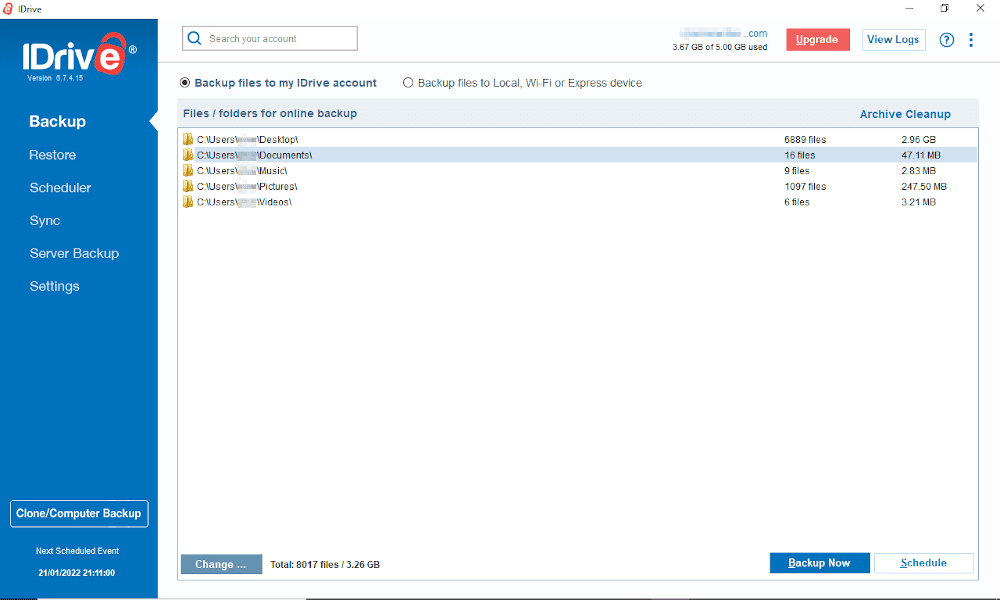
IDrive is the best online backup provider overall, so it makes sense that it also ranks in our top five services for NAS devices. The 5TB and 10TB personal plans include the option to back up a NAS device of any kind. You can also use the smartphone apps to back up mobile devices and access files you’ve backed up.
Disappointingly, you’ll have to connect your NAS to a desktop for a backup to run, as you have to include it in the backup set for your PC. This probably won’t affect anything if you regularly connect it long enough for a backup to run, but if you mount your NAS for only a few minutes at a time, the backup could easily become outdated.
However, you’ll also be getting one of the fastest online backups and a great feature set with plenty of backup and cloud storage features — including the ability to sync and share files. There’s even zero-knowledge encryption, in case you’re worried about the security of your data in the cloud.
Using advanced delta sync technology, IDrive transfers only the modified portions of files after the initial backup, significantly reducing bandwidth usage and accelerating subsequent backup operations.
To maximize delta sync efficiency with NAS devices, consider implementing file organization strategies that group frequently changed files separately from rarely modified data. This approach reduces the scan time required to identify changes and helps the backup client prioritize critical files during limited backup windows.
Additionally, for large media collections, maintaining consistent file-naming conventions prevents unnecessary re-uploads when files are simply renamed or moved within the directory structure.
IDrive offers sophisticated snapshot chain management that intelligently handles the relationship between full and incremental backups, preventing corruption issues where damage to one backup in the chain could compromise all subsequent backups.
In addition, IDrive’s robust file-versioning capabilities let you restore previous versions of files for up to 30 days, providing protection against accidental changes or ransomware attacks.
Hybrid Cloud Storage for NAS Devices
One benefit of NAS is how easy it can make sharing files between devices. Including IDrive makes it a hybrid solution, as you’ll have your files available on your local network and across the internet.
IDrive’s hybrid approach brings the benefit of automatic data synchronization across devices, ensuring any changes made to files are reflected everywhere almost instantly. This synchronization capability bridges the gap between traditional NAS functionality and cloud accessibility, meaning your files remain consistent whether you’re accessing them locally or remotely through IDrive’s interface.
Not only is this great for protecting your backup, but it also means you can go into your backup from outside your network by simply connecting to your IDrive account. This means you’ll never be without your files, even if something stops you from connecting to your NAS back home.

One of the most impressive features of IDrive is its pricing. At just $69.66 per year for 5TB of storage, with discounts often available for the first year, IDrive costs around $0.00116 per gigabyte per month. That’s cheaper than archive storage with Microsoft Azure (read our Microsoft Azure review), if you use all of your storage.
Whether you want a nice selection of features, great security, low prices or a service that’s easy to use, IDrive is great for almost anyone. Read our IDrive review to learn more, and be sure to check out the 30-day free trial to see if you like this service as much as we do. We also have a comprehensive IDrive alternatives guide.
- No credit card required.
- 10GB
- One user.
- 100GB
- One user, multiple computers. Plans starting from 5TB up to 100TB. Big discount for first-time signup.
- 5TB
More plans
- 5 computers, 5 users. Starting at 5TB up to 500TB. Big discount for first-time signup.
- 5TB
- Monthly Plan storage starts at 1.25TB up to 50TB Unlimited users, multiple computers and servers. NAS devices. 250GB storage. Starting at 250GB up to 50TB. Large discount for first-time signup.
- 250GB
- 5TB
2. pCloud
More information about pCloud:
- Pricing: 10GB free; 2TB for a one-time payment of $399
- Website: pcloud.com
Pros:
- Lifetime plans
- EU servers
- Fast speeds
Cons:
- Limited connection options
- Limited control over backups
pCloud is a high-speed, secure cloud storage service with affordable lifetime plans. You can opt for EU servers when creating your account, and it has a fairly clean privacy policy. There’s also an option for zero-knowledge encryption, though it costs extra and doesn’t apply to backups.
pCloud has enhanced its security features by adding fingerprint authentication for the Crypto folder, along with an auto-lock function that secures private data after a user-defined period of inactivity. This adds an extra layer of protection for sensitive NAS backup data.
As a cloud storage service, pCloud allows you to double up and use any extra storage for your other devices. You can sync files between devices or save space by moving files to the cloud. It also has some powerful tools for sharing files and folders with other people.
The automatic upload feature preserves your local folder structure when uploading to the cloud, making it easier to maintain the same organization between your NAS and cloud backup.
In addition, the manual upload feature is accessible from both the user interface and the context menu, giving users more control over the backup process. This feature allows for more deliberate file selection when backing up data from your NAS.
pCloud has improved its “exclusions” list interface as well, making it easier to specify which files and folders should be excluded from your NAS backup. This can help you optimize storage usage by backing up only essential data.
pCloud Drive includes a built-in search tool that allows you to quickly locate files within your NAS backup, making it easier to find and restore specific data when needed.
There are limited methods for connecting pCloud to your NAS device. WebDAV is the best direct way to do it, but you can also connect your NAS device as an external drive to a PC and back it up that way.
For users who access their NAS backups via mobile, pCloud now offers document-scanning capabilities that allow you to scan documents and save them directly to your pCloud storage, which can then sync with your NAS backup structure.
pCloud’s mobile app features a customizable home screen where users can show, hide or reorder sections, making it easier to access NAS backups and frequently used files when on the go. It also supports drag-and-drop functionality between pCloud and third-party apps, streamlining the process of moving files between your backed-up NAS content and other applications.
When troubleshooting issues with your NAS backup, pCloud now offers automatic diagnostics that can be sent directly to the support team, streamlining the resolution process.
New users will appreciate pCloud’s interactive onboarding screens that guide them through setting up their NAS backup connection and other important features of the service.
Lifetime Plans with pCloud
pCloud offers lifetime plans for personal and family accounts. These one-time payments give you access to your storage indefinitely — or at least until the company goes bankrupt. Note that pCloud was founded in 2013, so it has already been around for longer than a decade.
You can get either 500GB, 2TB or 10TB of storage with the personal lifetime plans. However, you aren’t stuck with these amounts. If you buy a second lifetime plan, pCloud adds that amount to your total. This lets you flexibly expand your backup storage to match your NAS.
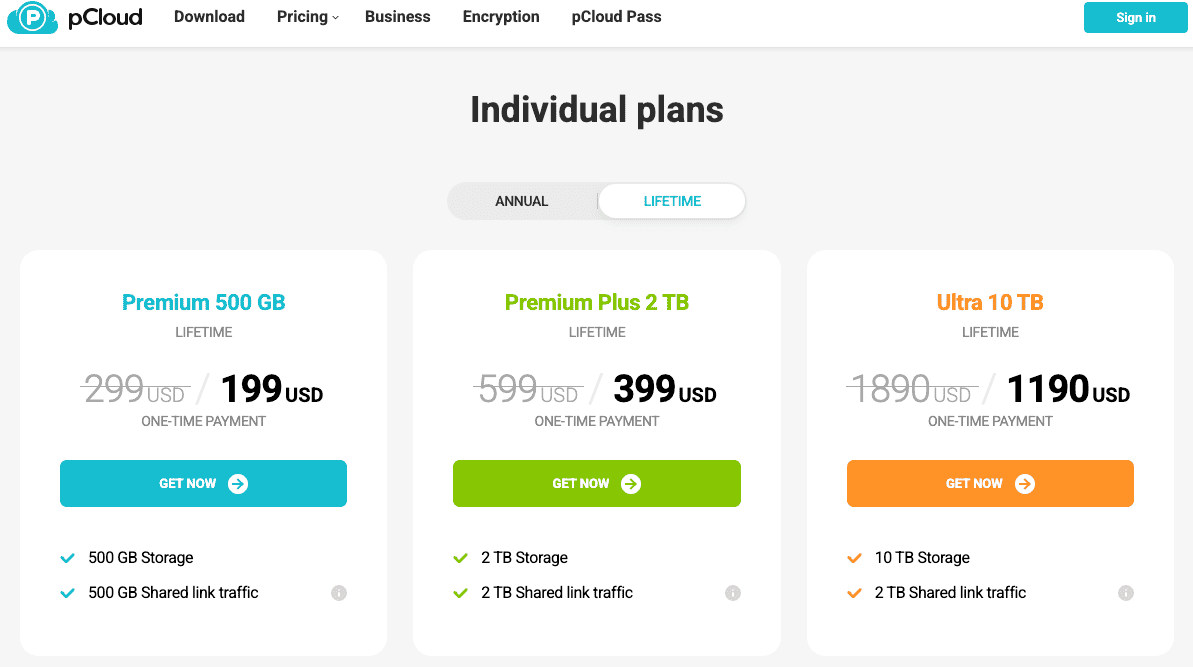
In addition to 10GB free, pCloud’s smallest plan is 500GB for $4.99 per month, $49.99 per year or a one-time payment of $199.
The 2TB plan costs $8.33 per month on an annual plan. That’s around $0.004 per GB per month, which is cheaper than most IaaS options. The lifetime option costs $399, which is cheaper than the annual plan after about four years.
If you need to protect your data and want a trusted, proven provider that’s easy to use, comes with some nice features and isn’t too expensive, read our pCloud review to learn more.
- 10GB
- 500GB
- 2TB
More plans
- 10TB
- + FREE Encryption
- 2TB
- + FREE Encryption
- 10TB
- Price per user (minimum 3)
- 1TB
- Price per user (minimum 3)
- 2TB
- Encryption for pCloud Drive
3. CloudBerry Backup
More information about CloudBerry Backup:
- Pricing: 200GB free; $29.99 per year for 5TB storage management
- Website: msp360.com/backup.aspx
Pros:
- Versatile management tools
- Compatible with most IaaS providers
- Zero-knowledge encryption
- Can use cold storage
Cons:
- No built-in storage
- Difficult to use
CloudBerry Backup is a little different from the other providers on this list, because it doesn’t actually give you any storage space. We’ll go into that later, but to start, let’s look at what it does offer.
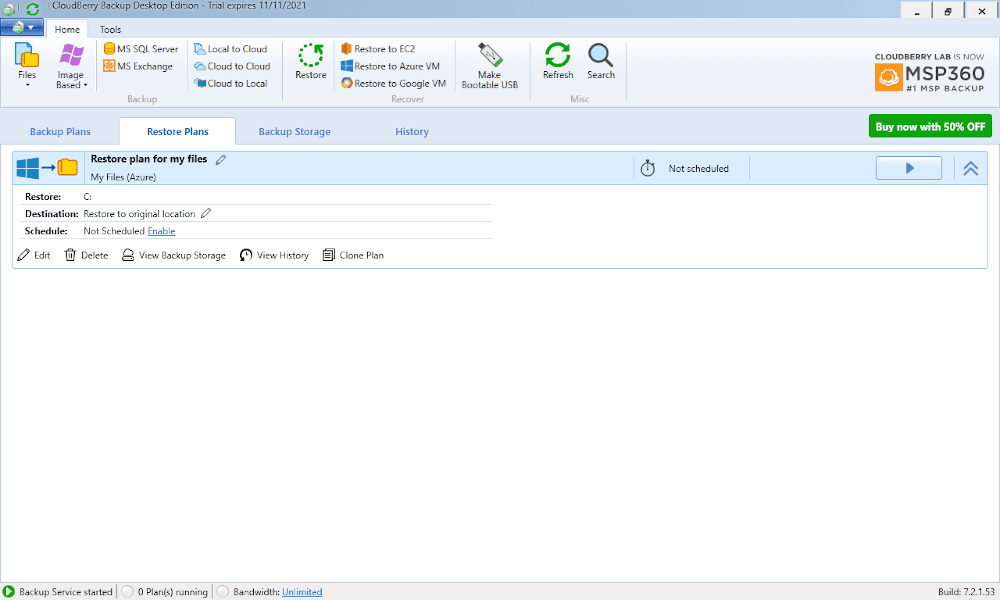
As a cloud storage management service, CloudBerry Backup lets you connect to Infrastructure-as-a-Service (IaaS) providers and gives you the tools to control your backup in ways that the service itself might not allow or make easy.
This includes the ability to set schedules and separate your files into different storage plans. You can also manage unlimited devices — including external drives and NAS drives — with backup space across multiple cloud services.
For tech-savvy users, CloudBerry offers Docker container support, allowing deployment as a containerized application on NAS devices that support Docker, such as Synology and QNAP models. This offers significant advantages beyond mere compatibility.
Running backup agents in containers provides isolation from the host system, enables version-controlled deployments and allows for resource limiting to prevent backup processes from consuming excessive system resources during intensive operations. This approach also simplifies updating your backup software without risking configuration changes to your core NAS environment.
Storage With IaaS Providers
CloudBerry Backup is compatible with pretty much every well-known cloud computing provider and lots of lesser-known services. It also gives you access to features like zero-knowledge encryption when the provider you’re using offers it.
You can even mix services. This means you can split your data into hot and cold storage, set up redundant backups across multiple providers or put your sensitive data into a more secure backup space while everything else is in faster or cheaper storage.
CloudBerry Backup implements data deduplication technology, identifying and eliminating redundant data before transfer to minimize storage consumption and reduce backup costs.
With CloudBerry’s customizable retention policies, you can define exactly how long different versions of your files are preserved in the cloud, balancing storage costs against recovery needs.

CloudBerry charges a small one-time fee to get access to the tool. If you want a free alternative, read our Duplicati review, but as it is, CloudBerry is pretty fairly priced. You can also take advantage of prices below $0.01 per GB per month if you choose a cheaper service like Microsoft Azure’s “cool” and “archive” storage.
If you want to juggle multiple computers and IaaS providers to get the best mix of account security, cheap backup space and advanced features, read our CloudBerry Backup review for more information. Just remember that it’s not the easiest provider to get into, so test out the free version before committing.
- 200GB
- 5TB
- $6 annual maintenance fee
- 5TB
More plans
- $6 annual maintenance fee
- Unlimited GB
- 1TB
- $16 annual maintenance fee
- 5TB
- 1TB
- Unlimited GB
- $30 annual maintenance fee
- Unlimited GB
- 2 sockets included ($89.99 per socket)
- Unlimited GB
4. Backblaze B2
More information about Backblaze B2:
- Pricing: 10GB free; $0.005 per GB per month
- Website: backblaze.com/b2
Pros:
- Low per-GB cost
- Fast courier backup system
- Decent compatibility list
Cons:
- Poor zero-knowledge integration
- A little hard to use
If you’re using a pre-built NAS device or an operating system made for NAS, there’s usually a backup manager included. For example, you can back up a Synology NAS device with its HyperBackup software.
This software comes pre-installed on Synology NAS devices and integrates seamlessly with Backblaze B2, allowing users to set up automated versioned backups with custom retention policies directly from their NAS interface. This functionality is great, but you’ll need a service to actually store your data. That’s where Backblaze B2 comes in.
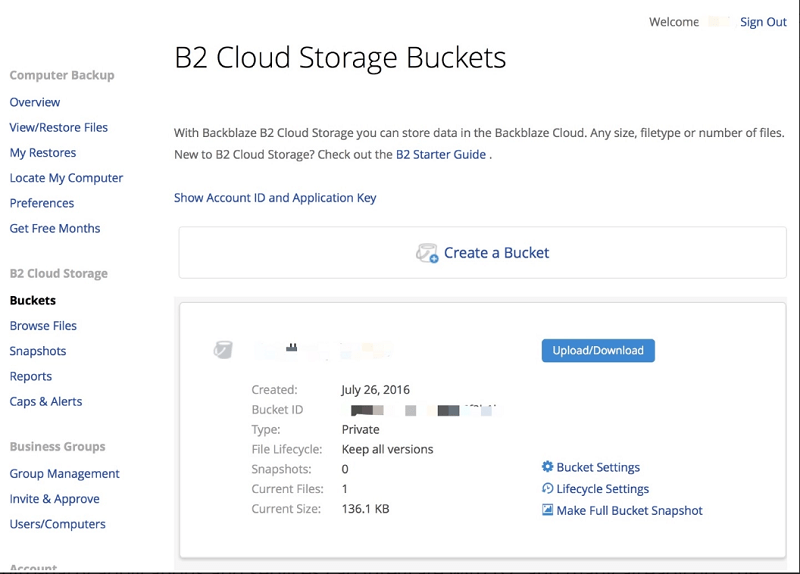
Backblaze B2 isn’t as easy to use as the standard Backblaze client (read our Backblaze review for more), but it’s compatible with a wide selection of backup managers and is often one of the easiest and cheapest options available.
This means it’s a good choice for most NAS setups, especially if you’re using a common OS like TrueNAS or a prebuilt device from a supported vendor. For example, QNAP’s Hybrid Backup Sync utility provides a comprehensive backup management system that works efficiently with Backblaze B2, offering features like deduplication and compressed backups to optimize cloud storage usage.
The utility also offers QuDedup technology, which performs inline deduplication during backup tasks, significantly accelerating backups of large media libraries commonly stored on NAS devices. When configuring QNAP and Backblaze B2 integration, users can specify deduplication block sizes between 4KB and 128KB to optimize for either storage efficiency or performance.
In late 2023, Backblaze released version 9.0 of its Computer Backup software, which introduced a dedicated Restore app for both macOS and Windows. This app enables users to initiate restores directly from their desktop with no size limits for restores, eliminating the need to worry about having enough space to download and unzip large backup files.
The Restore app complements the existing web-based and mobile app restore options, giving NAS users more flexibility when recovering their backed-up data. Unlike the web-based restore option, which has a 500GB per request limit, the desktop Restore app lets you browse your file tree and initiate restores of any size directly from your computer.
Backblaze’s native applications for Mac and Windows operate without Java or middleware dependencies, resulting in better performance and reliability when backing up NAS devices. This ensures the backup client remains lightweight on system resources, which is important when managing large NAS datasets.
Backblaze B2 also comes with some nice security options, like two-factor authentication and zero-knowledge encryption — just be sure to enable them. The private encryption is somewhat annoying to use, though, as you have to choose it and enter the key manually every time you upload files. Standard server-side encryption is easier to enable, as it’s done per bucket.
For business users backing up NAS devices, Backblaze now offers single sign-on (SSO) integration with Google and Microsoft accounts. This improves security while reducing the number of credentials users need to remember, making it easier for organizations to manage multiple NAS backup accounts.
Backblaze B2 works especially well with TrueNAS (formerly FreeNAS), offering native integration through the built-in cloud sync feature for straightforward backup configuration.
Plus, Backblaze B2’s cold storage tiering automatically moves infrequently accessed NAS backup data to more cost-effective storage classes, reducing long-term storage costs while still maintaining accessibility for potential restoration needs.
Backblaze offers a “forever” file version retention option as well for an additional fee. This feature is great for NAS users who need to maintain historical versions of important files indefinitely for compliance or archival purposes, beyond the standard version history periods.
The Backblaze Fireball
One advantage of using Backblaze B2 storage is that you can order the Backblaze Fireball. You can connect this 96TB external drive to your NAS device and import all of your data. Since it can transfer at up to 10 Gbps through an Ethernet cable, your initial backup can be done in just hours. You can even back up multiple NAS devices.
This much backup space comes at a cost. The $75 shipping fee, $550 30-day rental and $3,000 refundable deposit aren’t cheap. However, if you’re looking to back up your NAS after years of use and want to protect your data without uploads that take weeks, this is a great option. It would take more than 100 days to back up 96TB on an 80 Mbps connection, after all.
You can also order 8TB hard drives with your data on them if you want a fast download. This costs $189 per hard drive, but that money is refunded when you return the device.
At just $0.005 per GB per month, Backblaze B2 is one of the cheapest hot storage providers available. There is a $0.004 charge for 10,000 “class B” and 1,000 “class C” API calls once you’re past the free 2,500 daily limit, but these are pretty reasonable compared to other IaaS providers.
API access enables custom integration with monitoring systems, allowing automated verification of backup completion status or the creation of custom dashboards that track backup health across multiple NAS devices.
If you’ve already got some kind of backup manager and aren’t a power user looking for every feature and option possible, Backblaze B2 is cheap, easy to use and compatible with a wide range of devices and operating systems. Read more in our Backblaze B2 review.

5. MEGA
More information about MEGA:
- Pricing: 20GB free; approximately $33 per month for 16TB
- Website: mega.nz
Pros:
- Great security
- Large, cheap plans
Cons:
- Very poor compatibility
MEGA is currently compatible only with Synology and QNAP NAS snapshot backups, which allows for point-in-time recovery options. This captures the entire system state, including file permissions and configurations.
However, MEGA — or, more accurately, MEGA CMD — is still a great way to back up your storage. The larger plans are dirt cheap if you need the space, MEGA’s security is among the best, and you’ll get all the sharing and syncing features it offers as a cloud storage service.
MEGA has expanded its service offerings with MEGA S4, an S3-compatible object storage platform that offers cost-effective storage for about $3 per TB. This makes MEGA more versatile for NAS backup workflows, as it now provides direct compatibility with popular backup tools like Rclone, Restic, Duplicati and TrueNAS SCALE. The service boasts 99.999999999% durability, ensuring exceptional reliability for your NAS backups.
In 2025, MEGA launched Transfer.it, a complementary service that allows for easier file sharing without the browser-side decryption requirements of their standard service. This could be useful for sharing NAS backups with recipients who are less tech-savvy, as it eliminates compatibility issues while still maintaining server-side encryption for security.
MEGA has also introduced a new remote cloud drive explorer with a sleek, easy-to-use interface. This enhancement makes browsing and managing your NAS backups more efficient, with improved file and folder navigation that simplifies the process of locating and restoring specific data.
Plus, a new hidden files and folders feature that provides an extra layer of privacy for sensitive NAS backups. This allows users to keep certain backed-up data invisible during normal browsing while maintaining access when specifically needed, which is particularly useful for confidential business files or personal documents.
MEGA’s desktop clients have received a significant visual upgrade with the introduction of dark mode and a refreshed, more intuitive user interface. These improvements make managing your NAS backups more comfortable, especially during extended sessions or in low-light environments.
However, we would like to see compatibility with more providers, particularly with common operating systems like TrueNAS. If you are using a Synology or QNAP device, though, it’s worth considering MEGA.
MEGA’s Security
If you want to keep your data secure, MEGA has long been one of the best providers. With zero-knowledge encryption using the AES 256-bit standard as the default setting, in theory only you can access your data.
In late 2024, MEGA introduced MEGA Pass, a zero-knowledge encrypted password manager that is now included with all Pro plans. This addition enhances MEGA’s overall security ecosystem, providing an integrated solution for users who want comprehensive protection for both their files and account credentials.
However, we need to mention a 2022 report that found serious underlying issues with MEGA’s encryption process. The company seems genuinely motivated to fix these issues, though — at least in the short term.
There’s also two-factor authentication and servers across Canada, New Zealand and the EU, which helps protect your data from natural disasters. With MEGA, the security and privacy protections are great at keeping your files safe.

MEGA isn’t the cheapest. However, it increased the storage and transfer quotas for all Pro plans in 2025. Pro I now offers 3TB of storage and transfer (up from 2TB), Pro II provides 10TB (up from 8TB) and Pro III delivers 20TB (up from 16TB). This makes MEGA even more competitive for large NAS backup needs, with the Pro III plan offering storage at approximately $1.50 per TB per month on an annual plan.
For users with larger NAS devices or changing storage requirements, MEGA now offers a Pro Flexi plan that starts with 3TB of storage and allows for flexible expansion as needed. This pay-as-you-go approach charges about $3 per additional TB used, making it an economical option for backing up large NAS systems with unpredictable growth.
Overall, MEGA CMD’s compatibility is still limited to just two companies’ devices. However, if you have one of these devices and want a large amount of cheap storage space that comes with plenty of security, MEGA may be for you. Read our MEGA review to see what this provider can do for you. You can also give its 20GB free plan a try.

- 20GB
- File transfer: 3TB (Monthly plan) 36TB (yearly plan)
- 3TB
- File transfer: 10TB (monthly plan), 120TB (yearly plan)
- 10TB
More plans
- File transfer: 20TB (monthly plan) 240TB (yearly plan)
- 20TB
- Price per user (minimum 3) 3TB Transfer quota
- 100TB
Honorable Mention
For Synology NAS owners specifically, Synology’s own C2 cloud backup service offers seamless integration with Synology devices through the HyperBackup app.
With plans starting at $9.99 per year for 100GB and ranging to $59.99 annually for 1TB, C2 provides client-side encryption and an intuitive interface designed specifically for Synology hardware. While not as versatile as multipurpose providers, the native integration makes it worth considering for dedicated Synology users.
In addition, open-source backup tools like Duplicati, Kopia and Restic offer free NAS backup solutions with robust encryption and deduplication capabilities that can connect to virtually any S3-compatible storage provider, making them excellent options for technically-inclined users seeking maximum flexibility without subscription fees.
Final Thoughts
Whether you prefer the option of cloud storage features or you want a dedicated backup service, there are plenty of ways to back up NAS to cloud storage. You can use a larger provider for long-term reliability, a smaller service for a unique feature or dedicated management software to mix and match other services.
When choosing between our recommended providers, consider the security trade-off: while cloud services typically implement enterprise-grade encryption and security protocols, keeping data local on a NAS device gives you complete physical control.
The ideal solution combines both approaches — using zero-knowledge encrypted cloud backup for off-site protection while maintaining NAS control for day-to-day access and management.
Consider implementing a cross-provider backup strategy that distributes your NAS backups across multiple cloud vendors, ensuring continued data access even if one provider experiences service disruptions, price increases or policy changes.
To maximize data protection, we recommend following the industry-standard 3-2-1 backup rule: maintain three copies of your data (original plus two backups), store backups on two different storage types (like your NAS and cloud storage) and keep one copy offsite (which cloud backup naturally provides).
This approach delivers comprehensive protection against hardware failure, local disasters and other data loss scenarios. Regardless of which method you choose, it’s important to keep backups of your data or you risk losing it all.
If you want to find out more about how to backup your NAS or which home NAS device is the best, then be sure to read our other articles.
Do you have a NAS device at home? Have you backed it up to the cloud? Did you use any of these services? Let us know in the comments below. Thank you for reading.
FAQ
There isn’t a one-size-fits-all backup solution, but we think IDrive comes pretty close to being the best service for most users.
NAS is a fantastic way to back up your files, especially if your file system is too large for standalone external drives. However, it will be vulnerable to failure and physical damage, so keeping a second cloud backup is still a good idea.
A Synology NAS will come with a piece of software called HyperBackup, which will let you back up your NAS to most common online backup and cloud storage services.
If you can find a good backup manager (such as CloudBerry Backup) that’s compatible with your device, you can back up any NAS with any cloud service.