How to Remove Google Photos Duplicates: Finder & Cleaner in 2026
Duplicate photos in your storage can take up precious space or ruin your organization methods. In this article, I go over how to remove Google Photos duplicates and what causes them.



Written by Rebecca White (Writer)
Reviewed by Kate Hawkins (Editor, Writer)
Facts checked by Simona Ivanovski (Fact-Checker, Formatter)
Last Updated:
All our content is written fully by humans; we do not publish AI writing. Learn more here.
Google Photos is a convenient cloud storage service for photos, especially since it can automatically back up photos straight from your device’s camera. The downside is that it may be backing up almost identical images.
A Google Photos duplicate finder can help you find and delete duplicate files. In this article, I’ll go over how to find duplicate photos and how to prevent duplicates in the future. There are multiple ways to remove Google Photos duplicates, such as using a third-party tool or manually deleting them.
Note that Google Photos is a different tool than Google Drive, though we also consider Drive to be one of the best cloud storage services for photos.
-
12/28/2025 Facts checked
We rewrote this guide to update information on what can cause Google Photos duplicates. We also updated our guides on how to use third-party tools to remove duplicates.
Google Photos Duplicated Everything? Why This Happens
Duplicate photos in Google Photos aren’t very common. The main reason they appear is if you’ve accidentally uploaded photos twice or made copies while editing. Sync errors may produce temporary duplicate files, and some users have reported a duplicate bug when they add a new device to Google Photos.
10,000+ Trust Our Free Cloud Storage Tips. Join Today!

- Demystify cloud storage terminology and key concepts in plain language
- Discover easy-to-implement techniques to securely backup and sync your data across devices
- Learn money-saving strategies to optimize your cloud storage costs and usage
How to Delete Duplicate Photos in Google Photos
Google Photos doesn’t upload photos with the same metadata as photos that are already in the library. If you see duplicates, they’re likely similar images. However, if you’re seeing the exact same image more than once in Google Photos, the solutions below can help fix it.
Use Identical Duplicate Detection With Google Photos
Google Photos uses photos’ metadata to upload each file only once. You can’t manually enable a duplicate detection feature in the Google Photos app. However, there are some steps you can take to understand why duplicates or similar images are being uploaded.
- Check Uploaded Photo Information
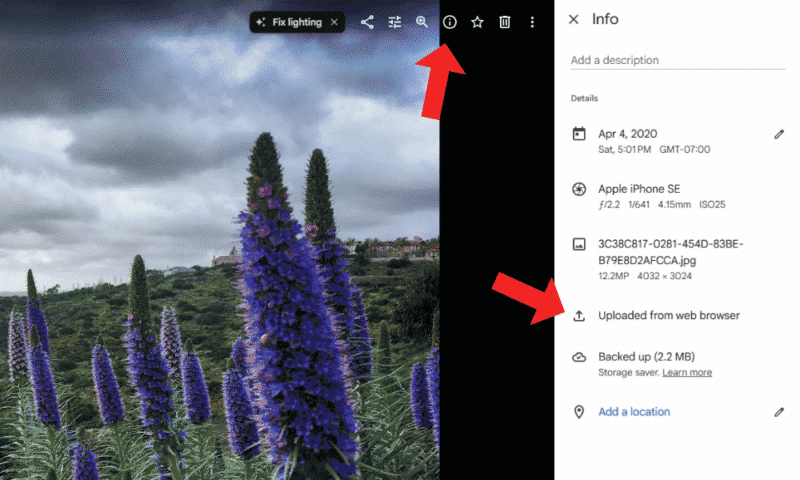
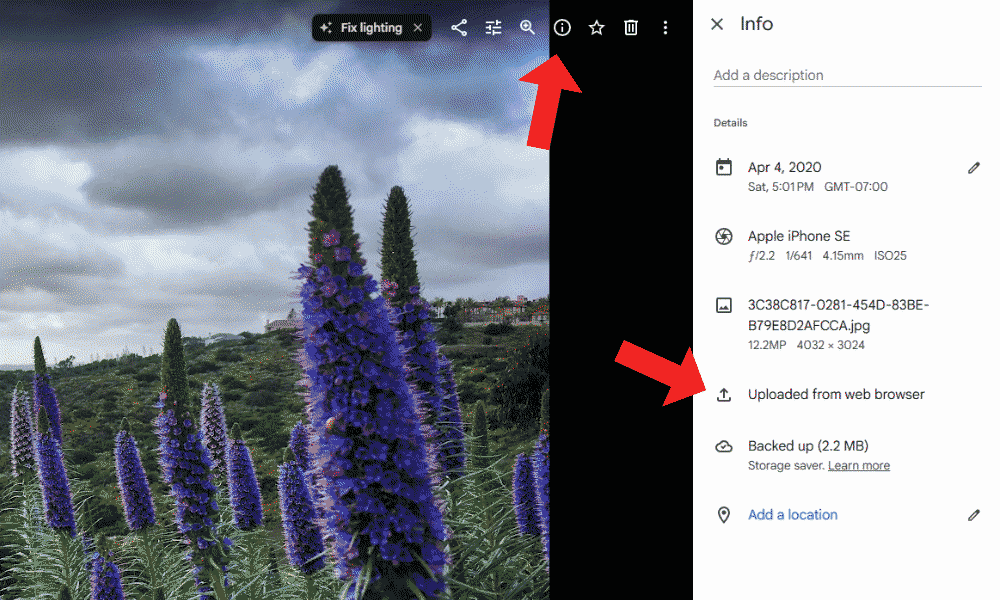
Select the image in the library, tap the information icon in the top right and see how the image was uploaded. Your duplicates may be a case of backups taking place from multiple devices.
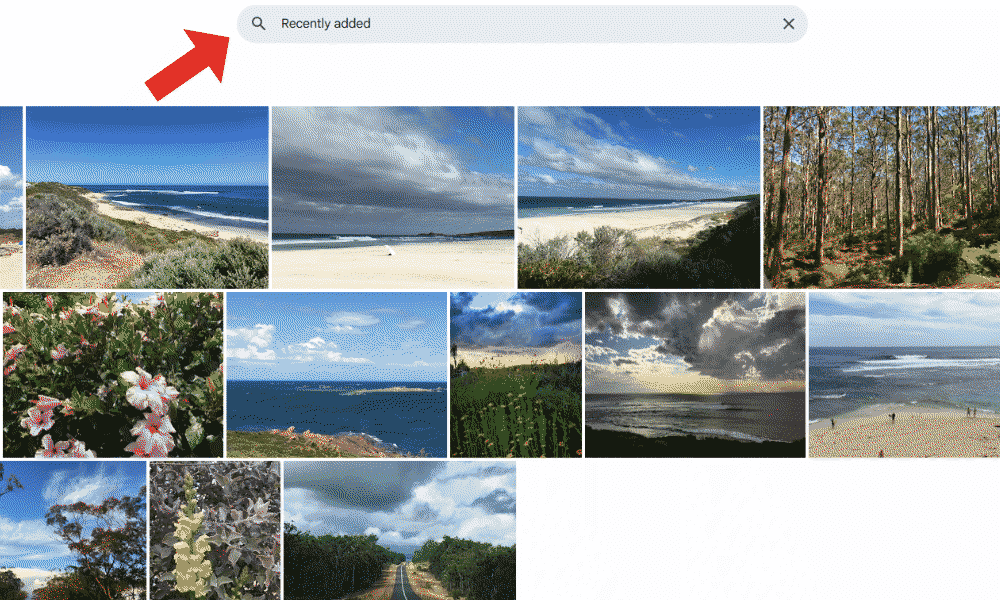
- Check Recently Uploaded Photos
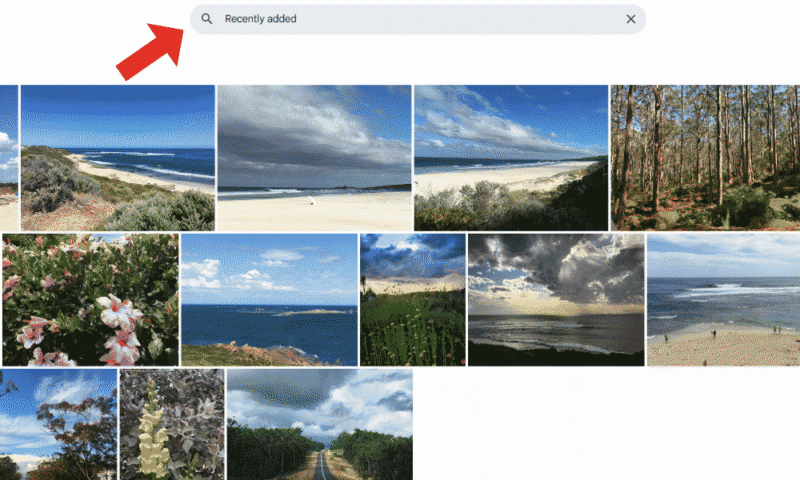
Take a look at your recently added images. This can help pinpoint errors in your backup system or identify manual upload mistakes.
- Verify Duplicate Detection Is Working
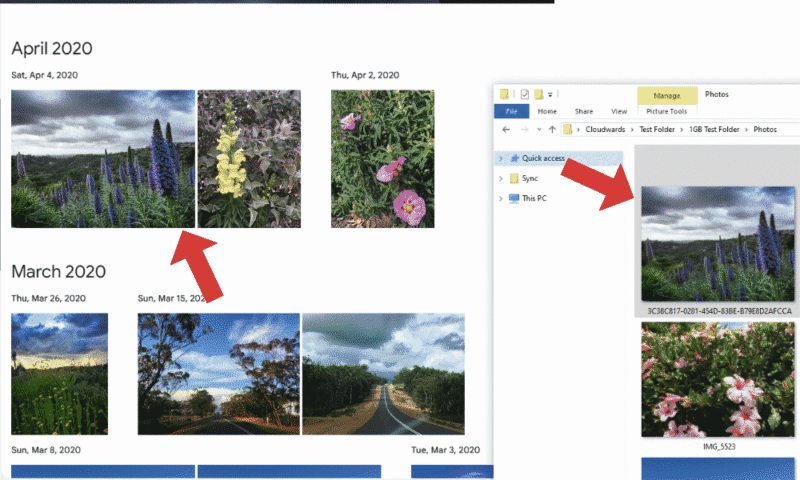
You can verify for yourself that Google Photos’ duplicate detection feature is working as it should. To do so, attempt to upload an image you know is already in your backup library. If the system is working, the upload shouldn’t go through.

Use a Third-Party Google Photos Duplicate Finder
You can try a third-party tool to identify and batch-delete Google Photos duplicates. This will cut down on image duplicates before they’re uploaded, reducing the likelihood of copies appearing in your Google Photos library.
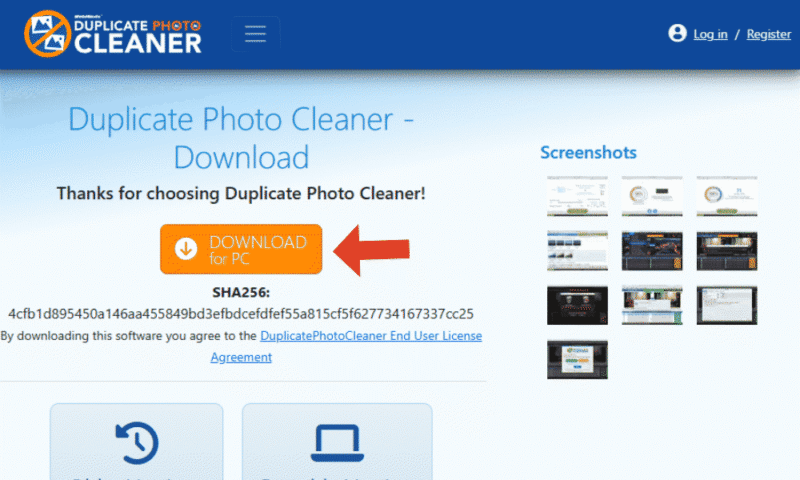
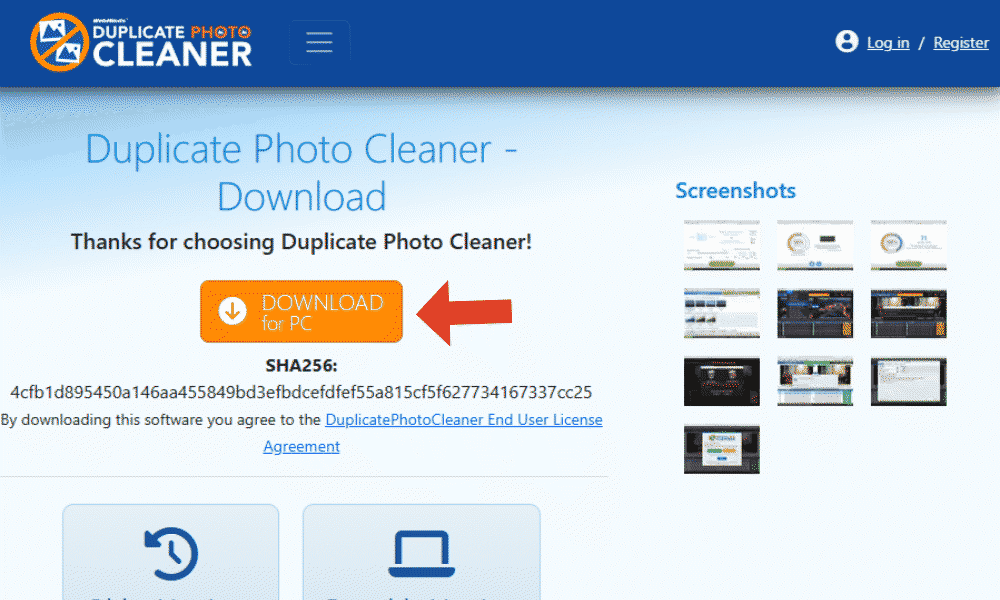
- Get a Duplicate Photo Cleaner
Find and download a third-party tool that identifies duplicate photos. I’m using Duplicate Photo Cleaner in this guide, but any tool should have a similar process.
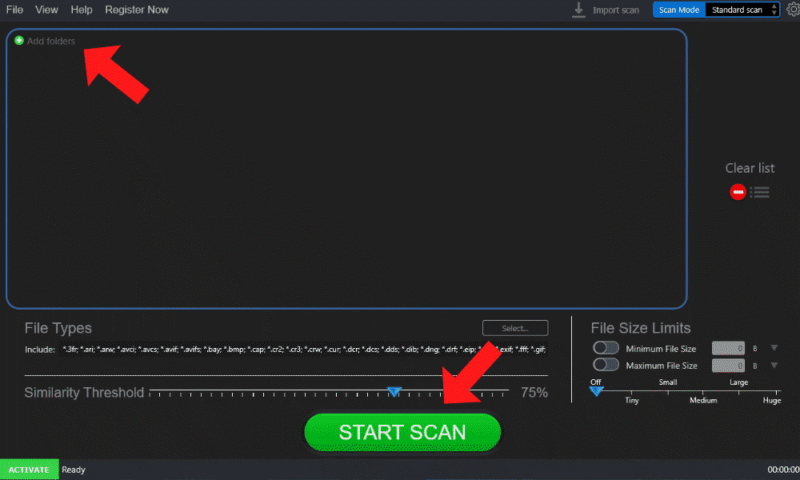
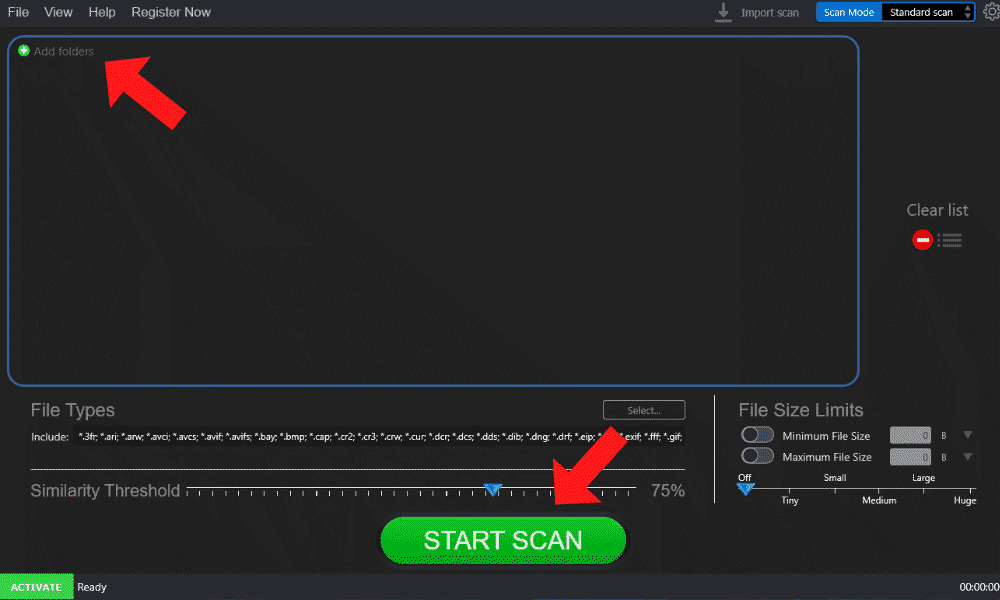
- Upload Your Photos Folder
Upload the folder that contains your photos before they’re uploaded to Google Photos. Tweak the settings to get the results you want, such as setting a similarity threshold. Then, start the scan.
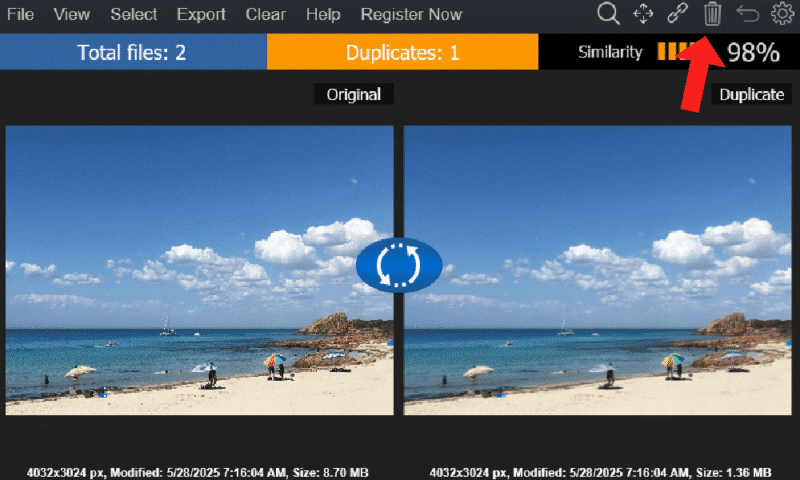
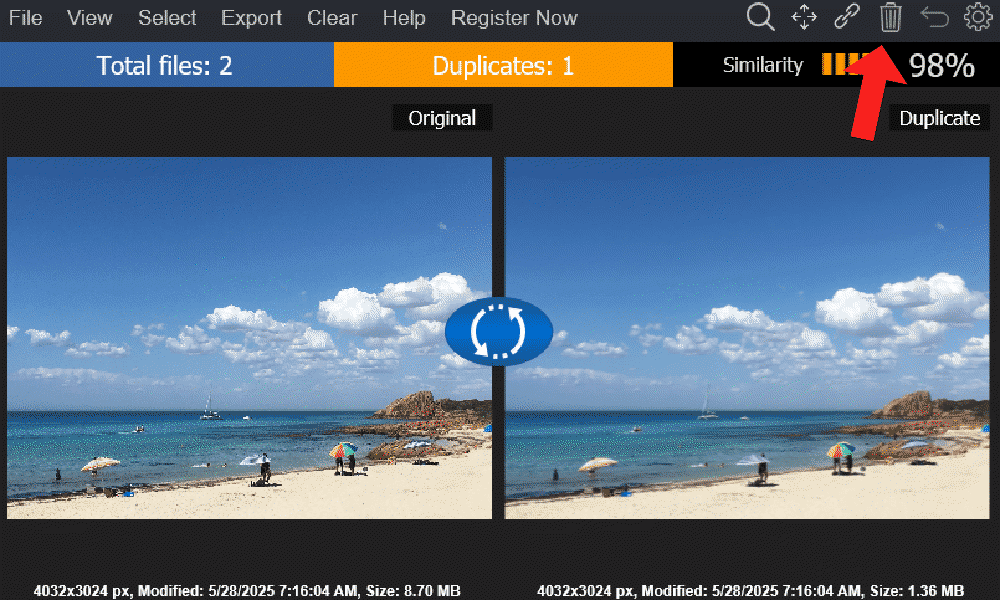
- Delete Duplicates
Once the scan is complete, you can review the duplicates the tool found. To remove duplicates, tap the trash can icon in the top right.
Manually Delete Duplicate Google Photos
If you’ve tried the previous two methods with no luck, you may have to go through your photos manually and pick out copies.
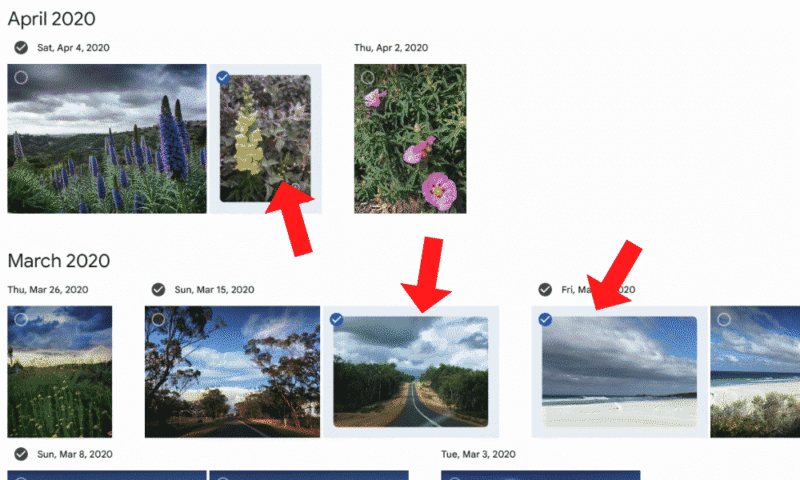
- Manually Delete Duplicate Google Photos
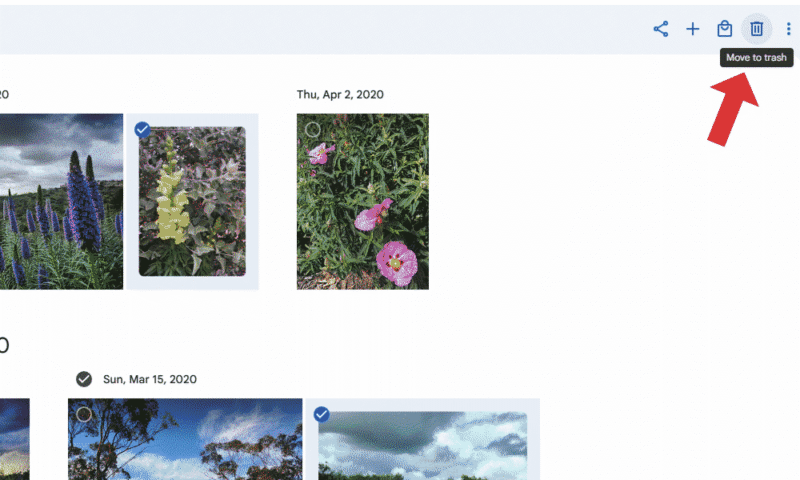
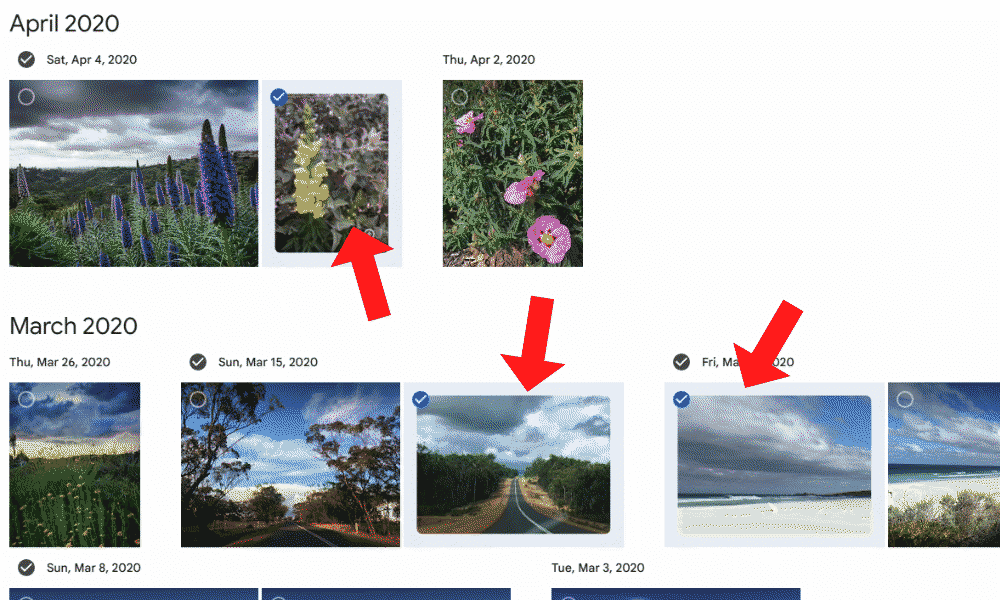
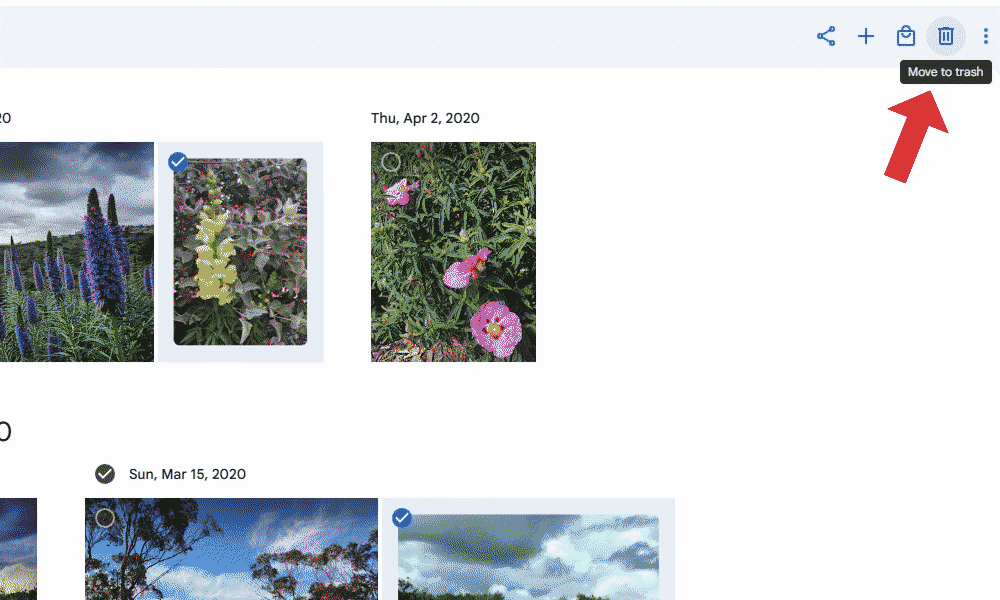
Scroll through your Google Photos library and select any photos that are duplicated or similar to other photos.
- Delete Duplicates
With your photos selected, tap the trash can in the top right to move the photos to the trash.
How to Avoid Google Photos Duplicates
If you find duplicates in your Google Photos library, it’s likely a result of manual uploads, photo editing or a temporary bug. These are rare issues, but they do sometimes occur. The methods below can help you avoid Google Photos duplicates:
- Configure backup settings: Manually backing up your photos may lead to accidentally uploading multiple copies. To avoid this, use a third-party tool to check for duplicates to optimize your backup strategy. If you’re moving your library to another account or cloud service, follow our guide on how to transfer Google Photos to avoid manual uploads.
- Delete similar photos: Duplicates may actually be different, albeit very similar, images. If you take burst photos, go through and delete the ones you don’t like.
- Remove original files: If you edit your photos, you might be saving new copies instead of overwriting the original. Delete original copies, or try a cloud storage service with photo-editing features.
Final Thoughts
Duplicates in Google Photos can quickly take up valuable storage space, which may prevent you from backing up your most important photos. You can use a third-party app or manually delete photos to create space in your photo library.
Do you often find duplicate photos in Google Photos? Which method do you use to delete duplicates? Is Google Photos the only photo storage you use? Let us know in the comments, and thanks for reading.
FAQ: How to Remove Duplicate Photos
You can get a lot of duplicate photos in your Google Photos account if they are manually uploaded more than once, are synced incorrectly or if you accidentally take multiple photos of the same subject.
Google Photos can’t find duplicates. It doesn’t upload photos that have the same metadata as already-uploaded photos, which is how it prevents duplicates, but there isn’t a feature that can automatically find duplicates.
Yes, you can use free third-party duplicate photo finders to find and remove extra copies of your photos.