Discord Not Working: 2026 Troubleshooting Guide
Discord is arguably the most popular online voice chat app at the moment. That being said, it’s far from perfect, with users having problems with their mic, audio, overlay and a variety of other things. Here are some common reasons for Discord not working, and how to solve them.


Written by Andrej Hadji-Vasilev (Writer)
Reviewed by Aleksandar Kochovski (Writer)
Last Updated:
All our content is written fully by humans; we do not publish AI writing. Learn more here.
If you’ve used Discord at any point, you’ve probably noticed that the platform isn’t perfect. Discord not working is a common occurrence for many users, and there are a variety of issues that might plague your experience. If you depend on the platform for any reason — whether that’s casual gaming or getting schoolwork done — this might be a serious issue.
Key Takeaways:
- Discord is the go-to voice chat app for millions of users, but some users have been dealing with issues on the platform.
- Some of the most common problems include Discord not working at all, the Discord overlay not working, not being able to connect to voice and video channels, or your microphone or audio not working.
- Most of the common Discord issues are easy to deal with, even for users who aren’t tech savvy.
Issues with Discord can happen for a variety of reasons. Maybe Discord is having a server issue, or maybe your operating system is causing problems with the app due to corrupt or damaged files. It may even be that a Discord update messed something up within the app itself. Stick with us as we show you how to fix Discord when it has its most common issues.
-
10/01/2024
We refreshed this guide with updated step-by-step instructions and revised VPN rankings.
Is Discord Not Working? How to Fix Discord Big Issues
If Discord is not working, there are a few trouble shooting steps you can use, such as restarting the app, checking if the servers are down, or running the system file checker.
With so many things that could impact your Discord experience, there isn’t a universal solution to all of them. Before we even discuss the common issues, it’s imperative to ensure you get the basics right. For example, make sure you installed the app correctly, see our guide on how to install Discord.
In this article, we decided to cover some of the most common issues with the platform, the major reasons behind them, and show you general fixes for how to solve them and get Discord to work properly.
Discord Outage: Is Discord Down?
To check if there’s a Discord outage, this page shows if there are any error reports or an open error the team is trying to resolve. You can also check Downdetector for any reports on known issues.
If nothing seems amiss on those pages, you could also ask some of your friends or schoolmates whether the same thing is happening to them.
Discord’s servers tend to be fairly reliable, but every once in a while you’ll notice that your app keeps loading, you aren’t getting new messages (and you can’t send them either) and you’re unable to do anything at all.
When this happens, chances are the Discord service is down. The app will stay in “loading” mode, with the Discord icon spinning but nothing else happening.
Why Won’t Discord Open?
Discord won’t open due to several common issues including corrupted files on your system, another app causing issues with Discord or the app itself being stuck. Common causes for this include corrupted files on your system, another app causing issues with Discord or the app itself being stuck. Fortunately, all of these issues are rather simple to fix.
How Do You Fix Damaged or Infected Files?
You can fix damaged or infected files that cause Discord issues by running system repair tools. To make matters more interesting, oftentimes they aren’t even Discord files — they’re files within your system that cause issues when you try to open Discord. Here’s how to fix them.
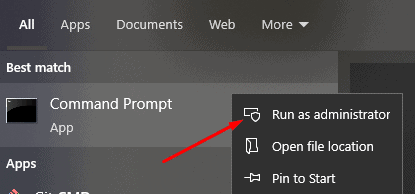
- Open Command Prompt
Click the “start” button, and type “cmd” in the search bar. Right-click on the command prompt result, and click “run as administrator.”
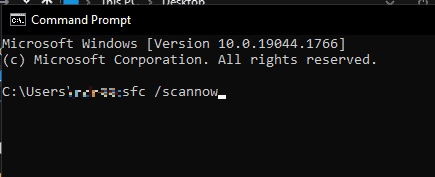
- Run “sfc /scannow”
When the command prompt loads, type in “sfc /scannow” and press “enter.” This may take a few minutes to run, so give it time. Once it’s done, you should be able to run Discord.
How Do You Close Discord Completely?
You can close Discord completely by ending all Discord processes in Task Manager when the app appears stuck open. To solve this, you need to close the app completely.
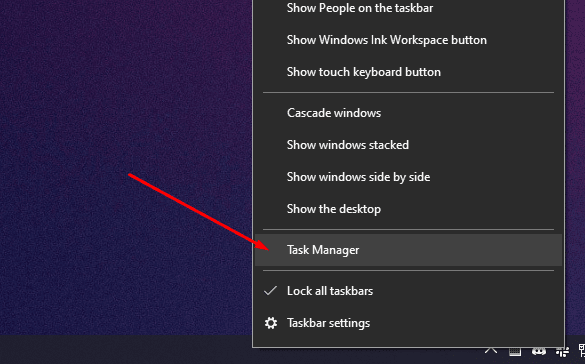
- Open Task Manager
Right-click on your taskbar, and click “task manager.”
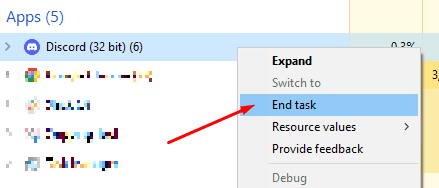
- End the Discord Task
In the processes tab, find Discord in the list of apps. Right-click it, and click “end task.” Try to open Discord again; it should be working now.
Should You Restart Your Computer?
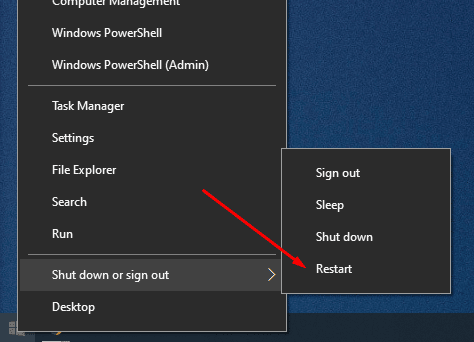
You should restart your computer as a last resort when Discord won’t open due to background apps or games causing conflicts. If there is a background app or game that’s causing issues with Discord, restarting your computer will close it, and you’ll be able to open the app again.
Right-click the “start” button, and from the “shut down or sign out” menu, choose “restart.” Wait for your device to restart and try running Discord again.
Why Is Discord Overlay Not Working?
Discord overlay is not working usually because overlay isn’t enabled for the game you’re playing, or hardware acceleration is causing issues with the overlay feature. It takes up minimal space on your screen and you can customize its size and placement. However, it sometimes fails to load when you open your game, which can be frustrating.
The two most common reasons for this are if overlay isn’t enabled for the game you’re playing, or hardware acceleration is causing issues with the overlay feature.
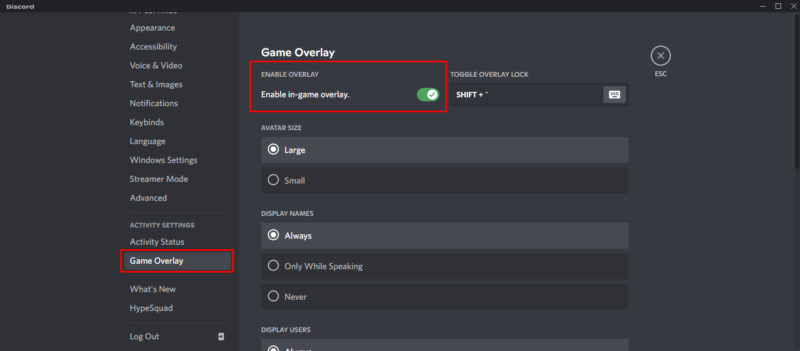
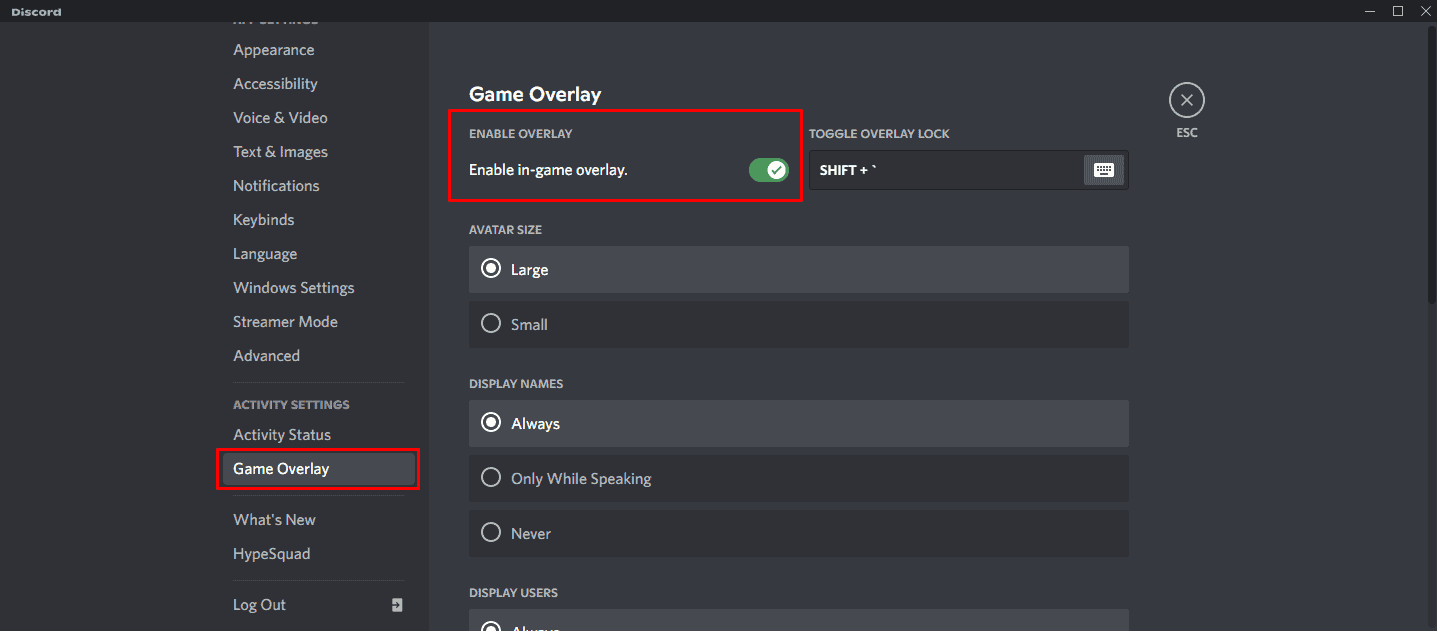
- Enable In-Game Overlay
Click “user settings,” which is the gear icon next to your username. From the left-hand pane, click on “game overlay” and make sure “enable in-game overlay” is toggled on.
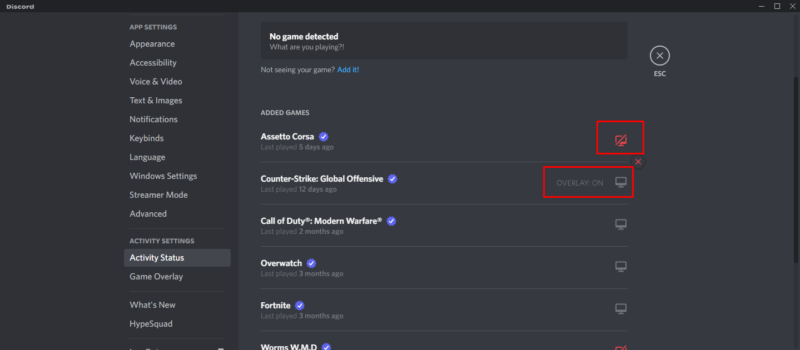
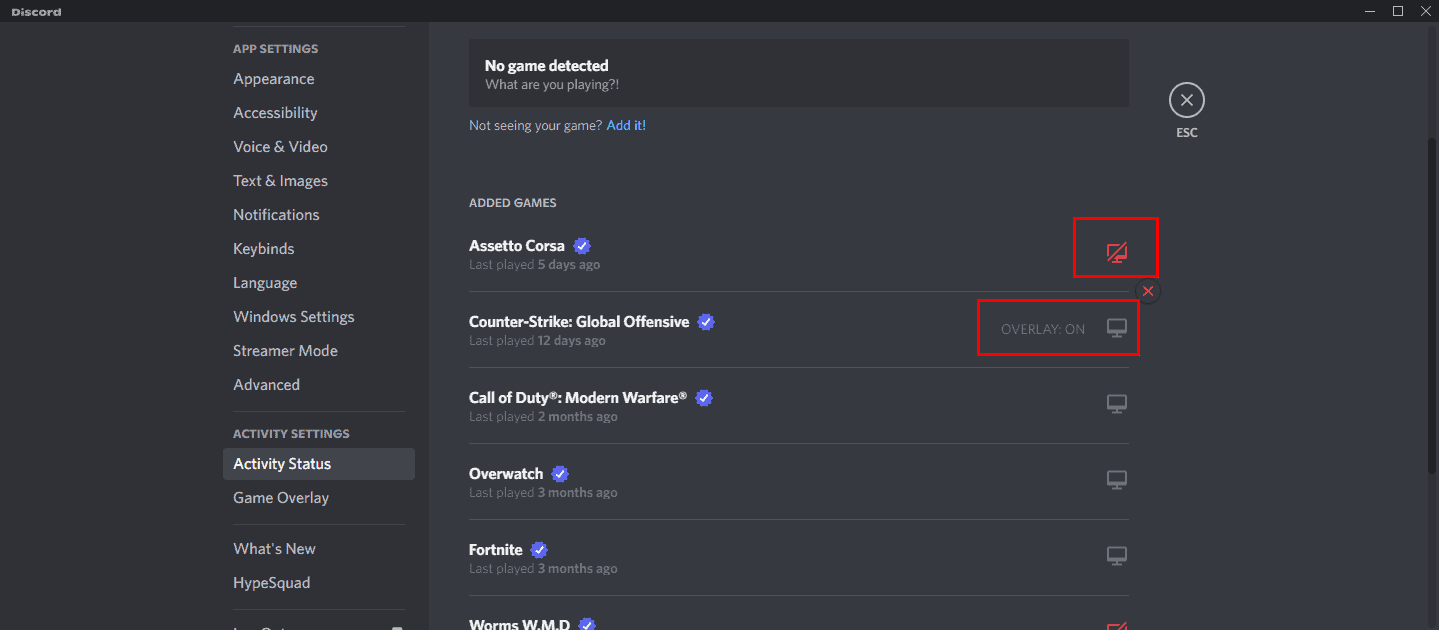
- Make Sure Overlay is Enabled for Your Game
Then, click on “activity status” and make sure that the overlay icon isn’t red and crossed out — this means the overlay is disabled for your game. Instead, it should be gray.
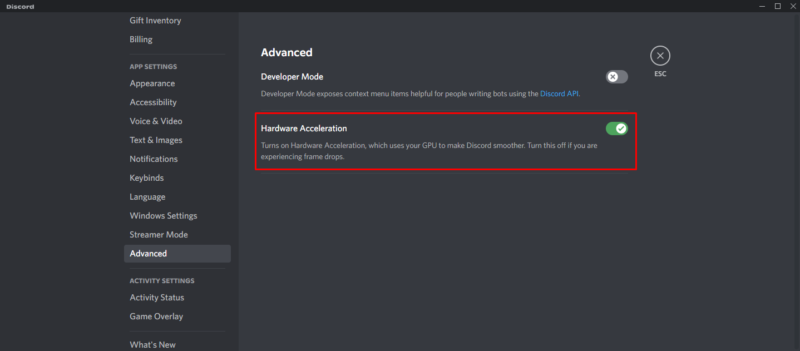
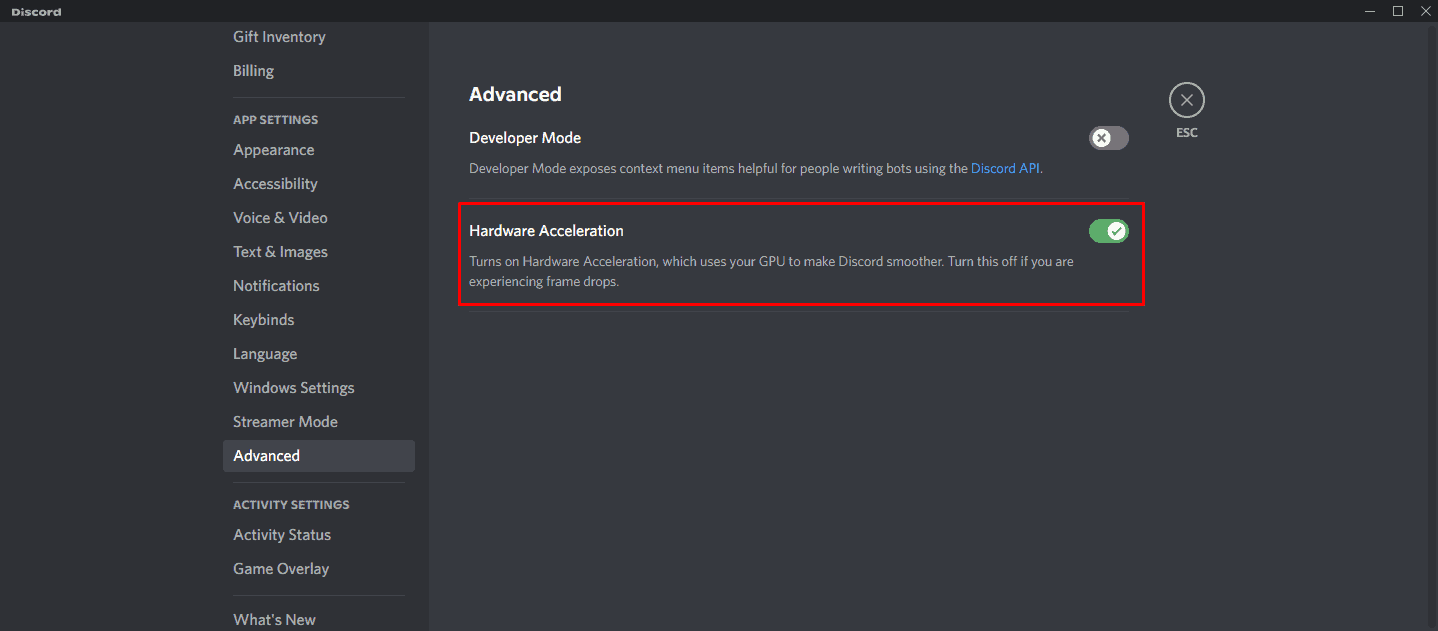
- Disable Hardware Acceleration
If the first two steps don’t fix the issue, click “advanced” from the left-hand pane in the settings, and toggle off “hardware acceleration.” Click “okay” on the button that pops up and restart Discord.
Why Is Your Discord Mic Not Working?
Your Discord mic is not working typically due to incorrect input device settings or Discord-specific configuration issues, even when the microphone works in other applications. They can hear everyone else when they join a voice chat, but nobody can hear them. There isn’t a known reason for this happening, but fortunately, there is an easy solution.
Before we get into the actual steps, you’ll first want to verify that it is a Discord issue, rather than an issue with your microphone or operating system. To do this, try using your microphone in another app, such as a voice recording software, to see if it works. If it does, the problem is with Discord.
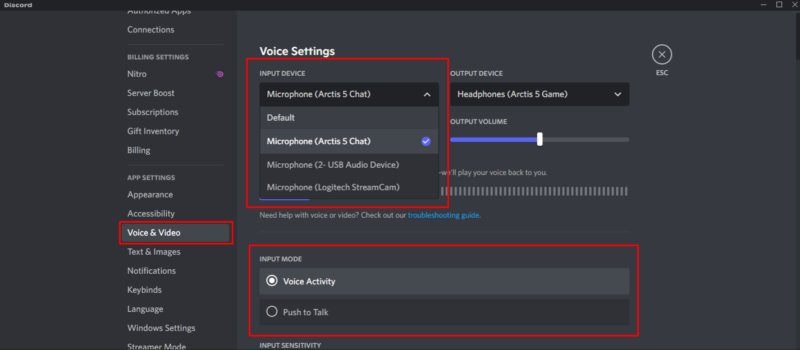
- Check That You’re Using the Right Device
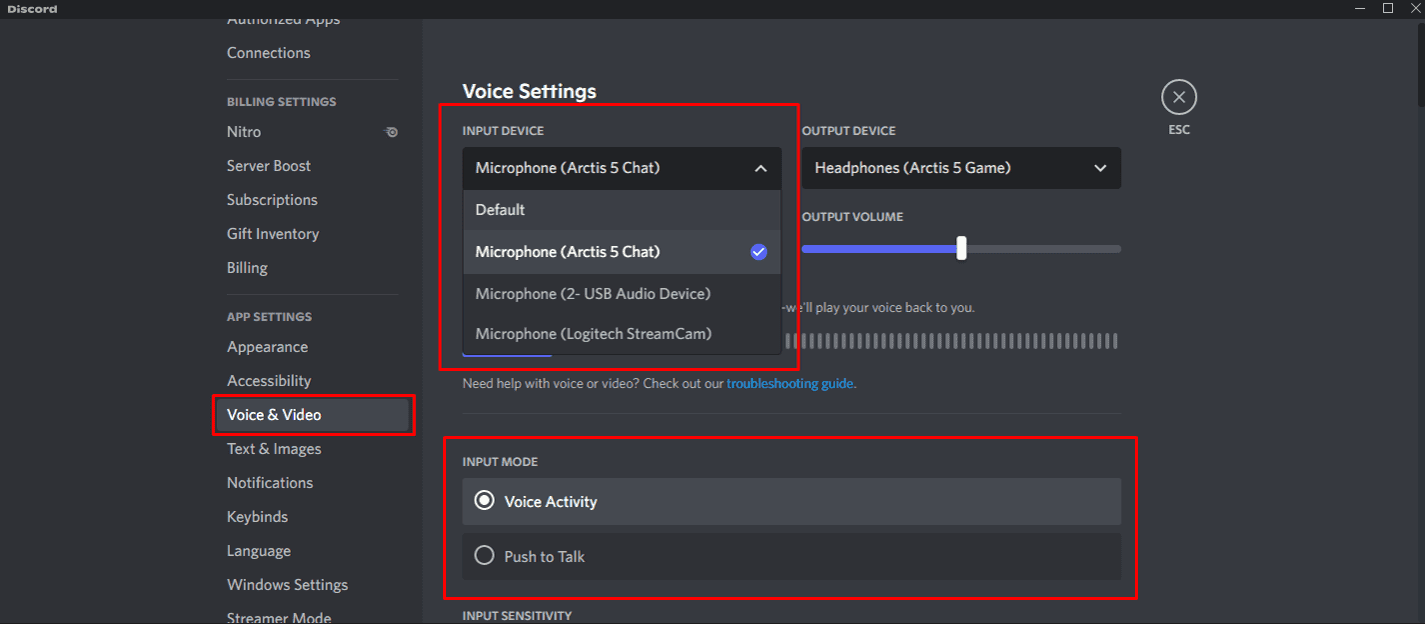
Click the “user settings” gear icon, and from the left-hand pane, click on “voice & video.” Click the “input device” dropdown menu and make sure that the device you select is the microphone you’re trying to use.
Then check if you have accidentally set “push to talk” as your input mode — this might be why nobody can hear you.
- Reset Voice Settings
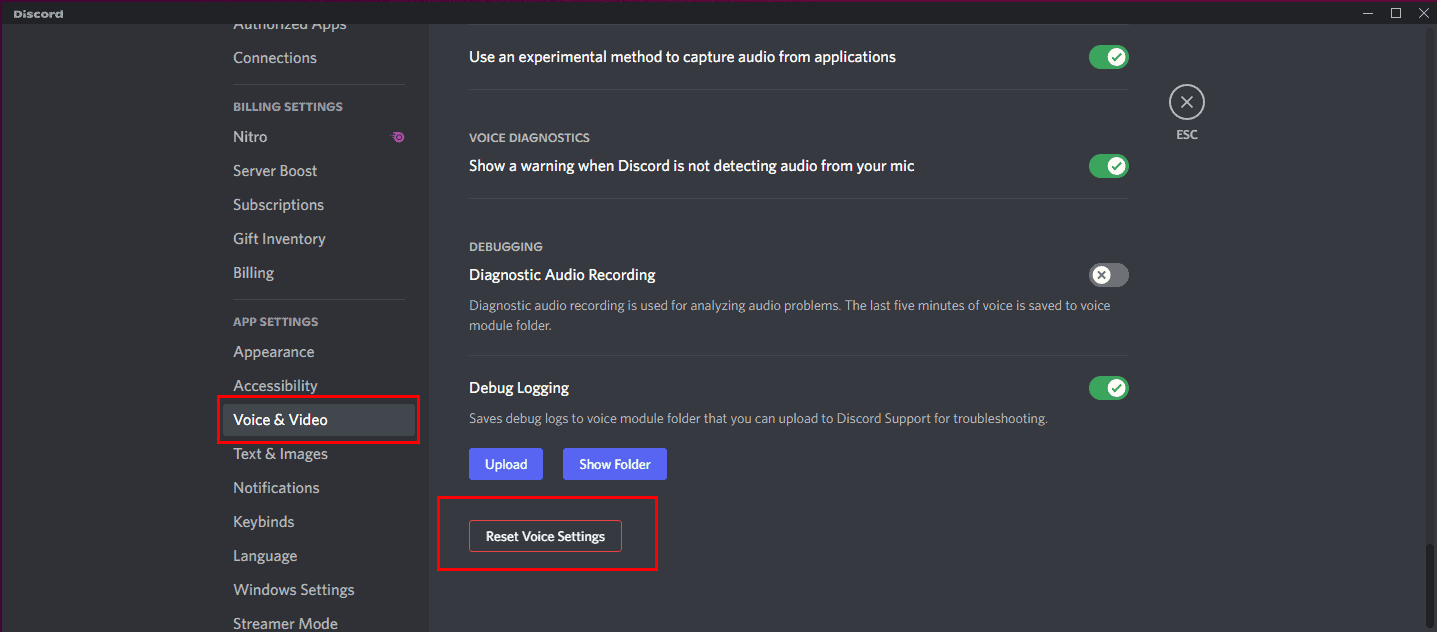
If step one doesn’t fix the issue, scroll down to the bottom of the right-hand pane and click “reset voice settings.” Click “okay” on the button that pops up.
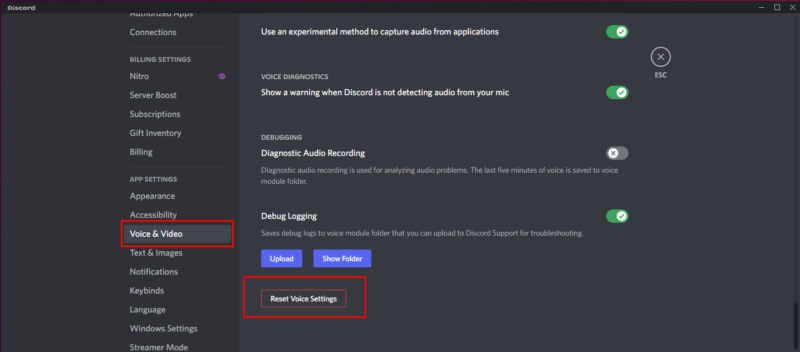
- Run Discord With Administrator Privileges
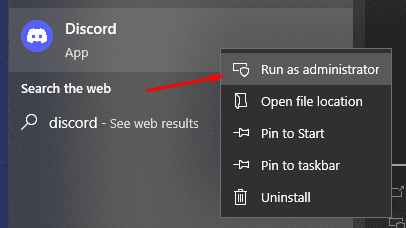
If steps one and two don’t fix the issue, you should try running Discord as an administrator. Close Discord, right-click the app shortcut, and choose “run as administrator.”
Why Is Your Discord Audio Not Working?
Your Discord audio is not working usually due to incorrect output device settings or Discord-specific audio configuration problems. Just like the mic, however, audio not working is another common pain point for many Discord users. Everyone can hear you, but you can’t hear them.
You should first make sure it’s not a problem with your audio device. You can do this by trying to play something through the speakers or headset you’re using with Discord, and verifying that the device works.
- Check That You’re Using the Right Device
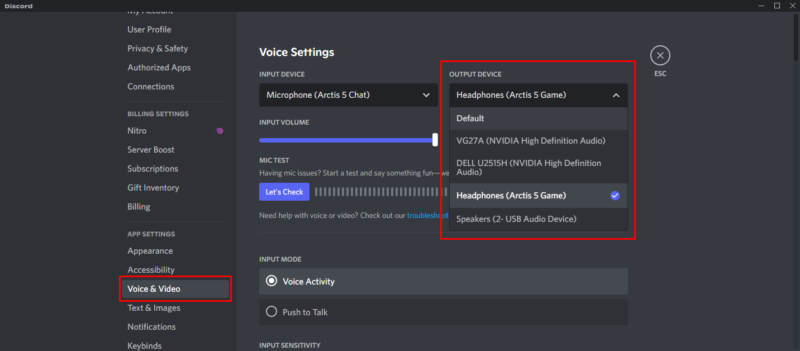
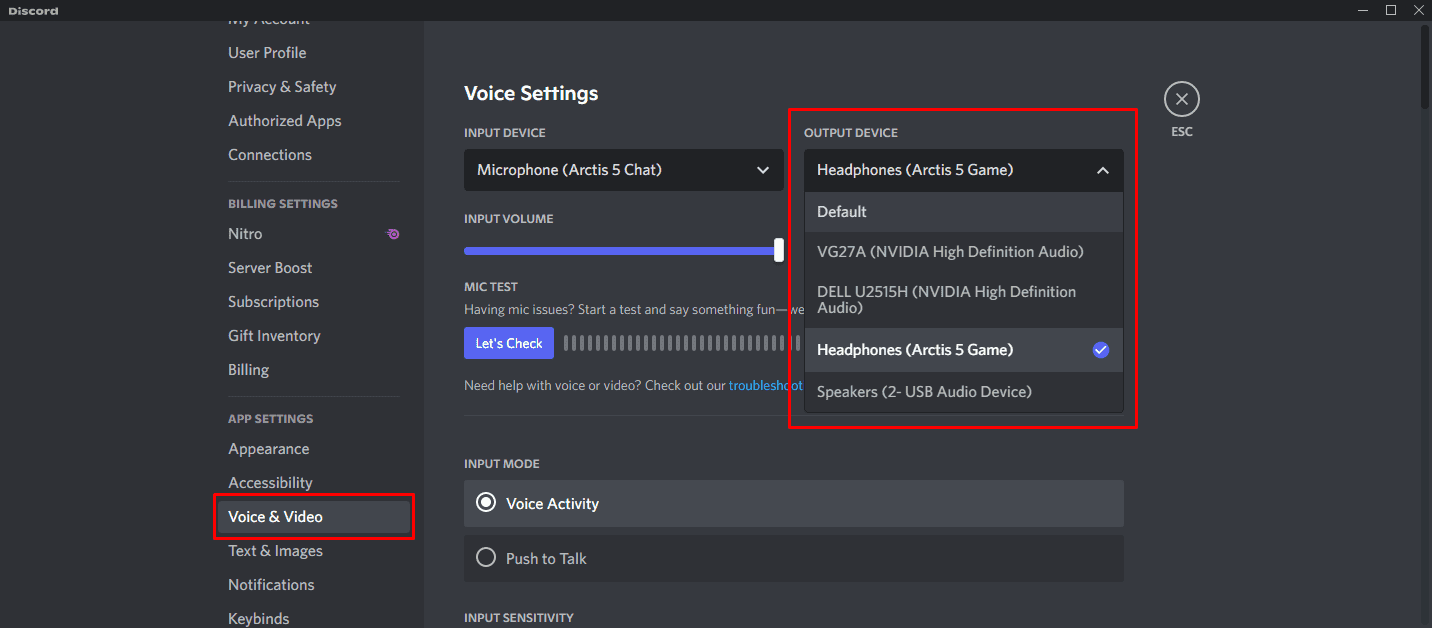
Click the “user settings” gear icon and click on “voice & video” from the left-hand pane. Click the “output device” dropdown menu and choose the device you’re using, whether that’s your headset or speakers.
- Reset Voice Settings
If step one doesn’t help, use steps two and three from the section above to first reset your voice settings, and then try to open Discord as administrator.
How Do You Reset Your Discord Password?
You can reset your Discord password using two easy methods: through the desktop app if you’re logged in, or through Discord’s website if you don’t have app access.
The first one assumes you have access to the Discord app and you’re logged in, while the second one is on Discord’s website and doesn’t require the app, nor to be logged in.
How Do You Change Your Discord Password on the Desktop App?
You can change your Discord password on the desktop app by accessing User Settings and navigating to the password change section.
- Open My Account Settings
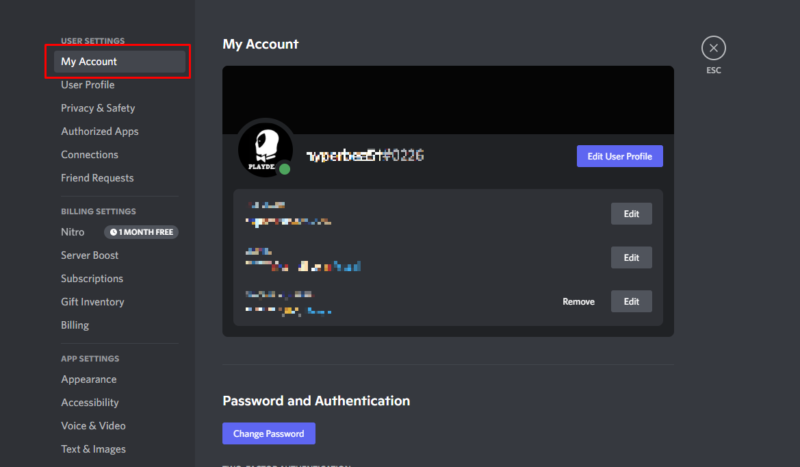
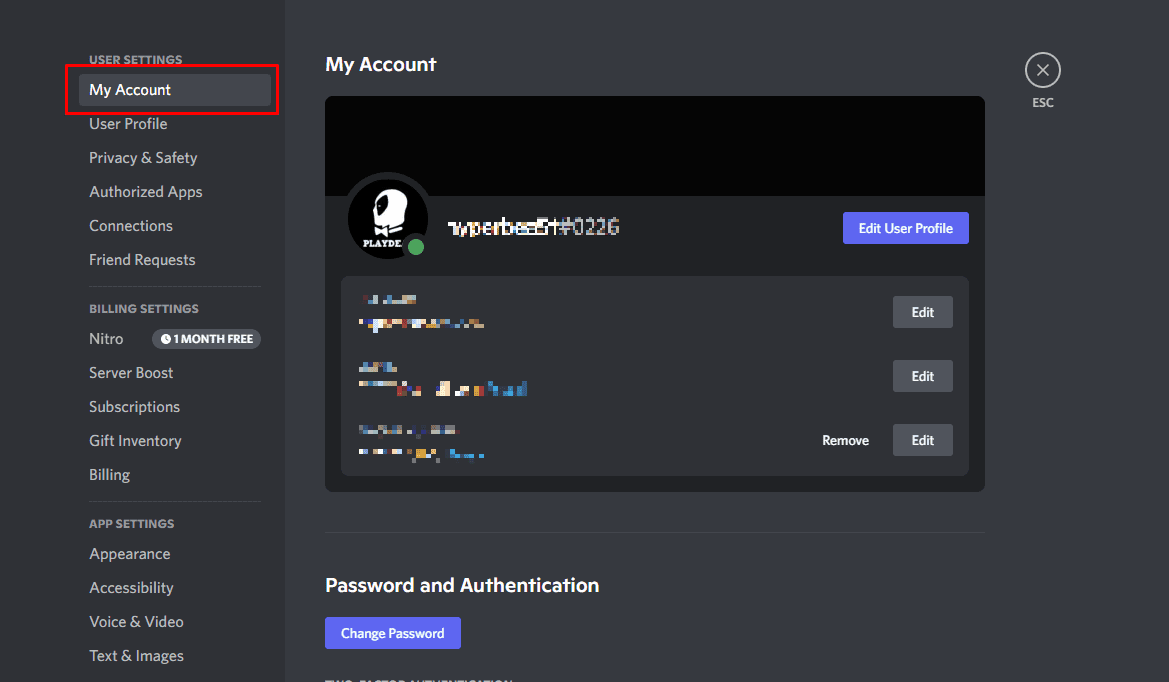
Click the “user settings” icon, and from the left-hand pane, click “my account” right at the top.
- Change Password
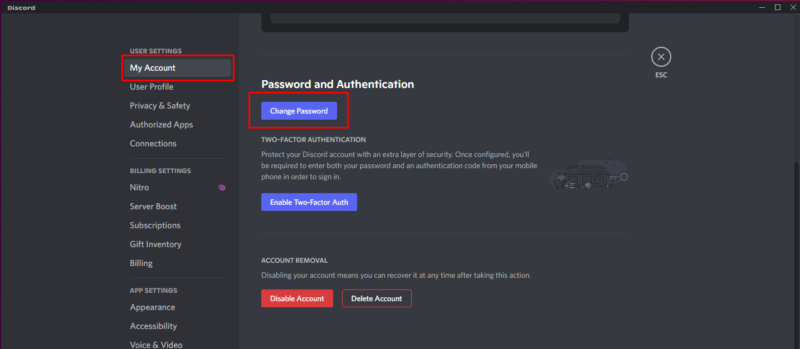
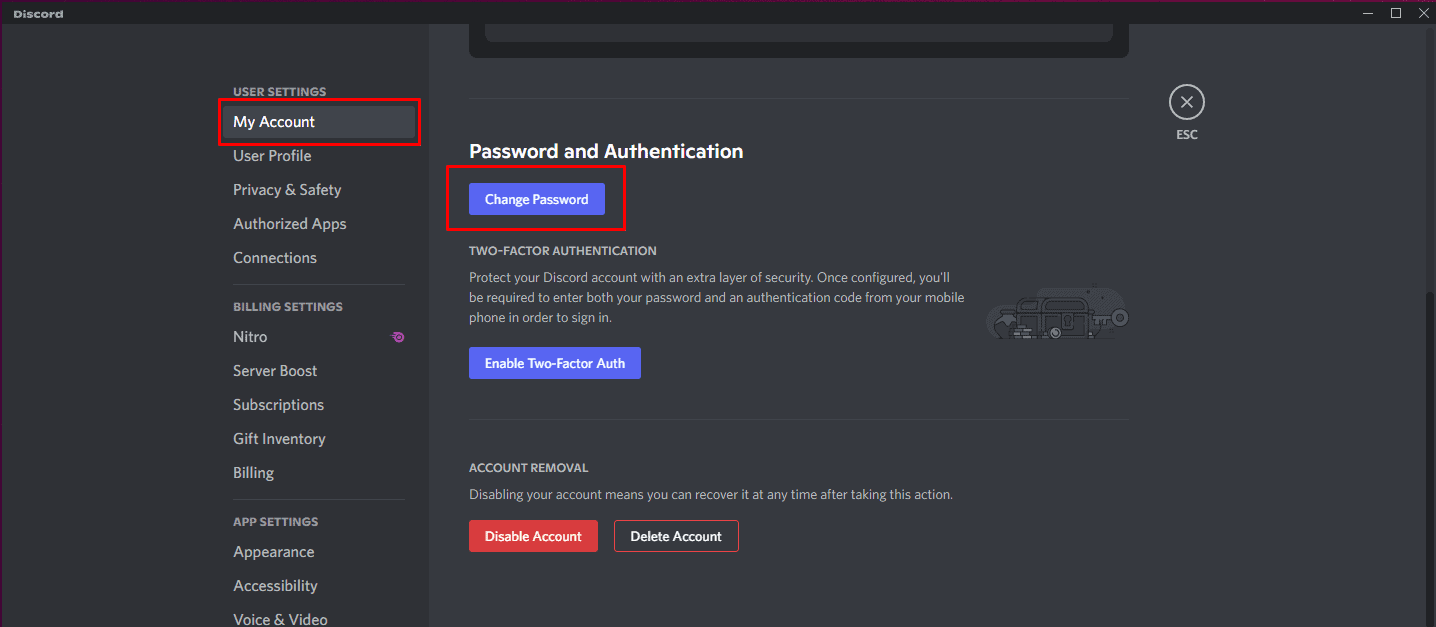
Scroll down to the “password and authentication” section and click “change password.”
- Set a New Password
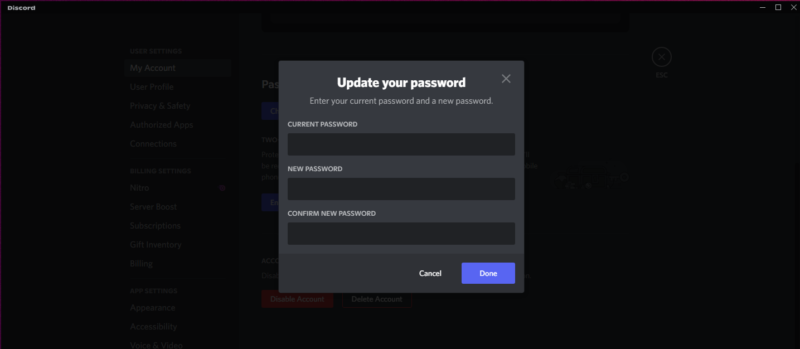
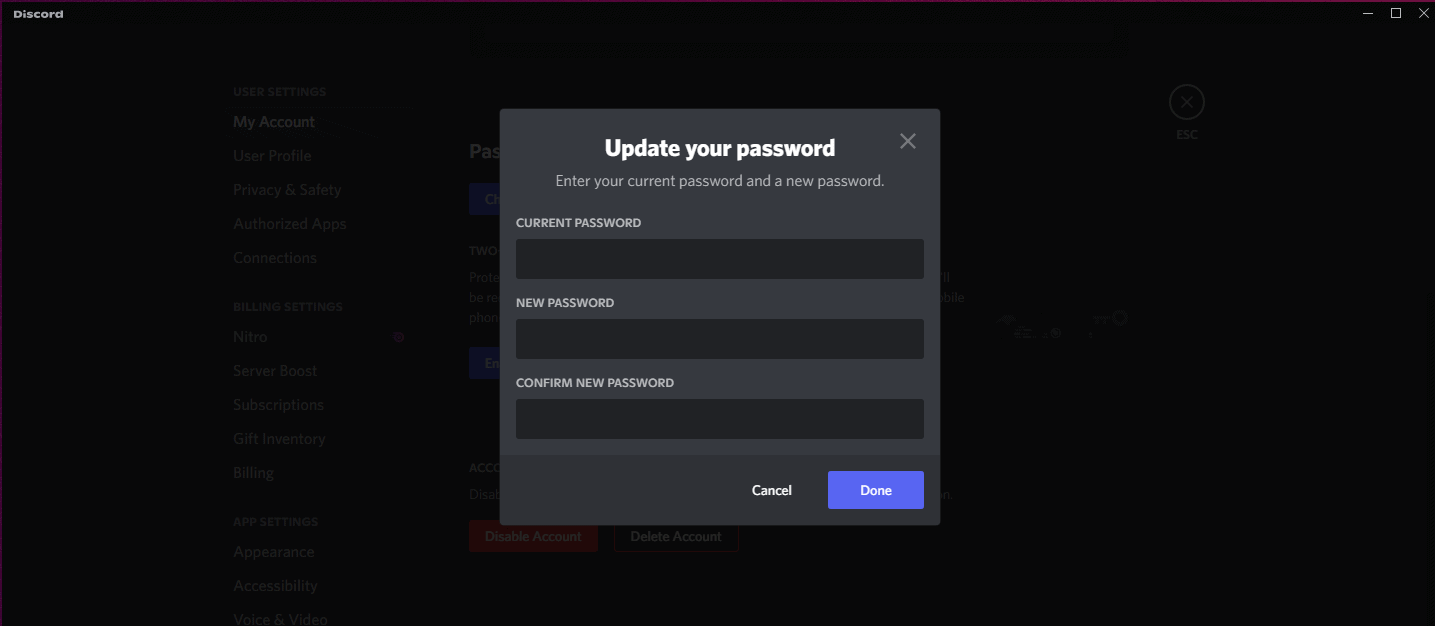
Input your current password, and then input your new password. Click “done” and Discord will save your new password.
How Do You Change Your Discord Password on the Website?
You can change your Discord password on the website by visiting the login page and using the forgot password option.
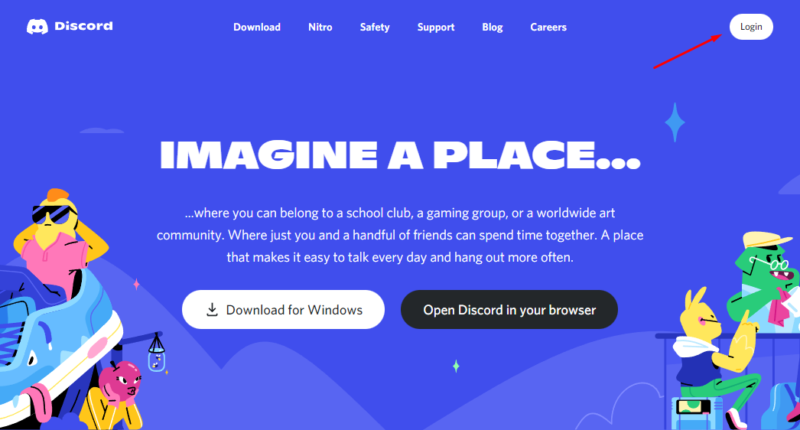
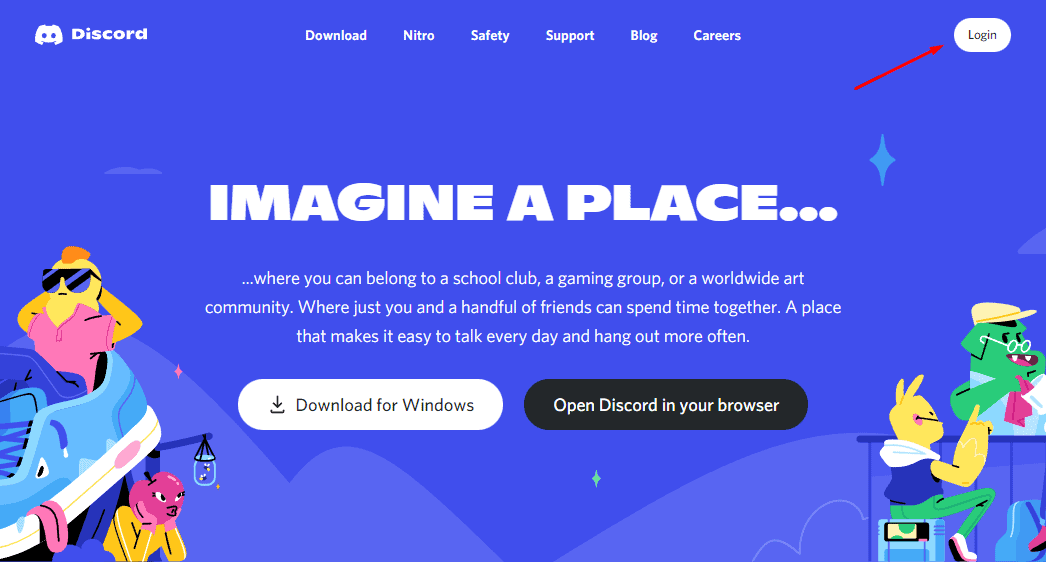
- Go to the Discord Website
Navigate to the Discord website. In the top-right corner is a “login” button — click that.
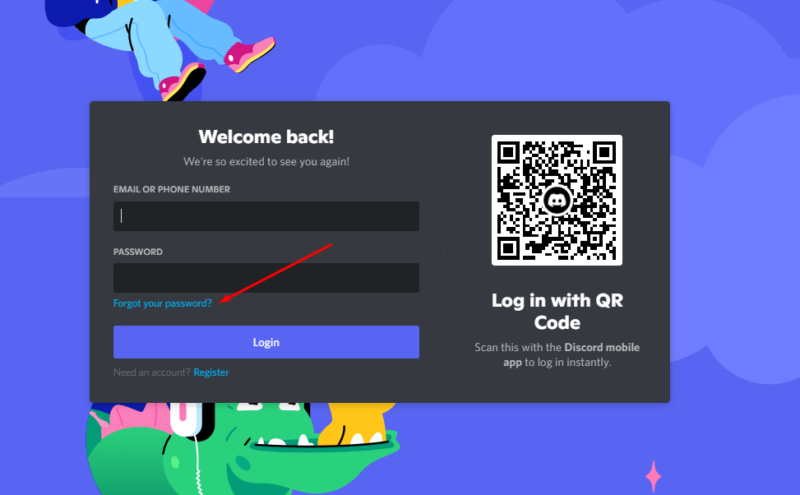
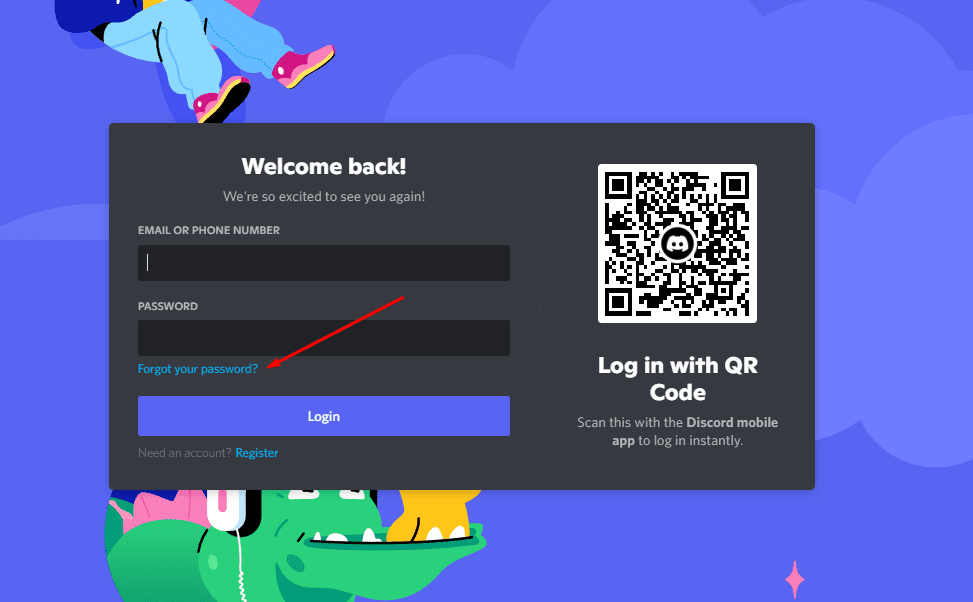
- Click Forgot Your Password
On the login screen, you’ll see an email or phone number input field, a password input field and a “forgot your password” clickable link. Note that you’ll need to input your email or phone number before you can click “forgot your password.”
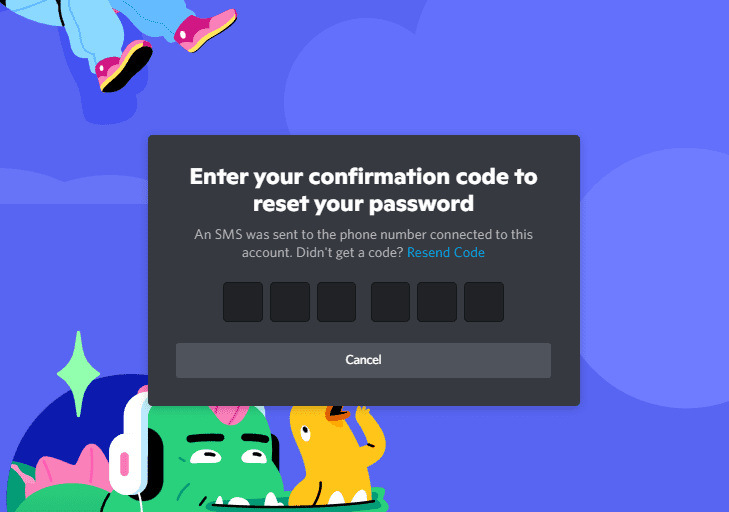
- Input the Confirmation Code
You’ll receive a confirmation code, either to your email address, or your phone number. Input the code on the next screen and you’ll be taken to a screen where you can set a new password.
What Is Discord’s Accidental Rate Limiting?
Discord’s accidental rate limiting occurs when you perform actions too quickly, triggering spam protection that temporarily prevents you from sending messages or performing other actions. One of the tools for this is called “rate limiting,” which prevents you from doing a single action too many times without enough time between attempts.
For example, if you send a single message too many times in quick succession, you may get this error message from Discord: “You are being rate limited.”
If this happens, you’ll be logged out of your account and you won’t be able to log in again for anywhere from 15 minutes to an hour. Your best course of action is to wait it out, but if you’re impatient, here are two alternatives.
- Connect to a mobile hotspot
Discord applies rate limits as IP bans, and connecting via a different IP address can help bypass the rate limit ban. - Use a Discord VPN
A VPN will give you a new IP address, but it will also encrypt your connection, adding some much-needed security. We have an article on the best Discord VPNs — anyone on that list will do, and we included a how-to in the article. However, if you’re looking for a quick answer, NordVPN is our top VPN suggestion
How Can You Fix Discord Issues?
You can fix Discord issues by following the troubleshooting steps for common problems like the app not opening, microphone not working, or audio problems. If Discord won’t open or your mic or audio isn’t working, there are a variety of Discord- and Windows-related issues (or any other operating system, for that matter) that may adversely affect your experience.
The issues we listed above are some of the most common ones we’ve come across, and we hope you know how to solve them if they happen to you.
Have you had any serious issues with Discord, or has it all been smooth sailing so far? If you have had issues, how did you deal with them? Let us know in the comments, and as always, thank you for reading.
FAQ
If Discord doesn’t open, there may be an app or game in the background that is blocking it, or you might have corrupt system files that won’t allow the app to open.
You will need an invite to join a specific Discord server. If you don’t have an invite, you can try joining a public server first by using the “explore public servers” feature.