How to Remove DRM From Kindle Books in 2026
If you’ve bought an ebook from Amazon but want to read it with a device or program that doesn’t support the Amazon Kindle format, you’ll need to remove the ebook DRM before converting it to other ebook formats, as this guide will show you.


Written by Aleksander Hougen (Chief Editor)
Reviewed by Aleksandar Kochovski (Writer)
Last Updated:
All our content is written fully by humans; we do not publish AI writing. Learn more here.
Important update: Amazon stopped supporting the Legacy Kindle app, previously called Kindle for PC, on June 30, 2026. As a result, the older Kindle for PC method described in previous versions of this guide is no longer a current option.
Before trying to remove DRM, check whether your book has DRM at all. Since Jan. 20, 2026, Amazon has allowed verified purchasers to download eligible DRM-free Kindle books directly as EPUB or PDF files from the Manage Your Content and Devices page. If that option is available for your book, you don’t need to remove DRM or use Calibre to convert it.
Kindle books are convenient, but reading them outside Amazon’s ecosystem can be difficult. Kindle titles may use digital rights management (DRM), which can restrict how and where you access your purchases. You may want to read a book on a non-Kindle e-reader, create a personal backup, or convert it to a different format for accessibility.
The first step is to check whether Amazon offers an official DRM-free download. Since Jan. 20, 2026, verified purchasers may be able to download eligible DRM-free Kindle books as EPUB or PDF files through the Manage Your Content and Devices page. This is the simplest option because it doesn’t require DRM removal or conversion software.
If Amazon doesn’t provide an EPUB or PDF download, the book may be DRM-protected. In that case, the available options depend on the book’s licensing, your device, and the software currently supported by Amazon. This guide explains how to identify the applicable restrictions and choose an appropriate way to access your legally purchased books for personal use.
What Works in 2026?
The easiest option in 2026 is to check whether Amazon provides an official EPUB or PDF download before trying any DRM-removal method. Other approaches may still work with certain Kindle books and devices, but compatibility varies depending on the file format and DRM used.
| Method | Still Works in 2026? | What You Need | Main Limitation |
|---|---|---|---|
| Amazon EPUB/PDF download | Yes, for eligible books | Purchased DRM-free Kindle book | The publisher must enable DRM-free downloads |
| Calibre + DeDRM/KFX plugins | Sometimes; compatibility is changing | Current Calibre and compatible plugins | Compatibility depends on the Kindle file and DRM type |
| Kindle + serial number | Sometimes | Compatible Kindle device, serial number and Calibre | Doesn’t work with every Kindle format or newer DRM implementation |
| Kindle for PC/Mac 1.17 | No | Legacy Kindle desktop software | Amazon no longer supports the legacy app |
I recommend trying Amazon’s official download option first. If an eligible purchased book is DRM-free, you can download it directly as EPUB or PDF without using Calibre or removing DRM.
The older Kindle for PC workflow should no longer be treated as a current solution. Amazon ended support for its Legacy Kindle app on June 30, 2026, so instructions that depend on old Kindle desktop versions may no longer work reliably.
How Do I Remove DRM From Kindle Books?
To remove DRM from Kindle books, you’ll need to use Calibre with the DeDRM plugin. The DRM-removal process isn’t super easy, so that’s why we created step-by-step instructions on how to check if your Kindle book has DRM protection, and if it does, how to remove it.
How Do I Check if a Kindle Book Has DRM Protection?
The easiest way to check a Kindle book you already purchased is through Amazon’s Manage Your Content and Devices page. Find the book and check whether Amazon gives you the option to download it as an EPUB or PDF file.
Amazon introduced these downloads for eligible DRM-free Kindle purchases in January 2026. If EPUB or PDF download options are available, the book is DRM-free and you don’t need to remove DRM before reading it with compatible software or transferring it to another e-reader.
If those download options aren’t available, don’t rely solely on the book’s “Simultaneous device usage” listing to determine its DRM status. Amazon’s current guidance ties EPUB and PDF downloads directly to confirmed DRM-free books, making the download option a clearer indicator for purchased titles.
There is one caveat: older DRM-free books may not automatically offer EPUB or PDF downloads unless the publisher has confirmed the appropriate DRM-free setting with Amazon. Kindle Unlimited and other borrowed books also aren’t eligible for EPUB or PDF downloads, even when the title itself is DRM-free.
Can You Download DRM-Free Kindle Books Directly From Amazon?
Yes. Since Jan. 20, 2026, Amazon has allowed verified purchasers to download eligible DRM-free Kindle books directly as EPUB or PDF files. You can check for these options in the Manage Your Content and Devices section of your Amazon account.
If an EPUB or PDF download is available, use it instead of trying to remove DRM with Calibre. The feature applies only to eligible DRM-free purchases, and availability depends on the publisher’s DRM settings.
Kindle Unlimited and other borrowed Kindle books aren’t eligible for direct EPUB or PDF downloads.
How Do I Remove DRM With Calibre?
You can remove DRM from a Kindle book is to use an app called Calibre along with the DeDRM plugin. Calibre is a reading app that by itself serves as an example of why you might want to remove the DRM from your Kindle book. It sports far more features than the Kindle app, but the only feature we’re looking at today is the ability to add extensions to the program.
That’s because Calibre doesn’t offer free Kindle DRM removal on its own. For that, we’ll need the DeDRM plugin. Calibre is available on Windows, Mac and Linux, but only the first of our two methods will work on Linux devices.
How Do I Remove DRM From Kindle Books With Calibre?
You can still remove DRM from some Kindle books with Calibre, but the process is less reliable in 2026 than before. Calibre itself doesn’t remove Kindle DRM; the DeDRM plugin handles DRM removal, while the KFX Input plugin lets Calibre process compatible books in Amazon’s KFX format.
The current setup requires a recent version of Calibre, the maintained DeDRM plugin and, for KFX books, the KFX Input plugin. However, installing all three doesn’t guarantee that a Kindle book can be decrypted. Amazon regularly changes its Kindle formats and DRM, and compatibility depends on how the book was delivered and the DRM scheme protecting it.
DeDRM attempts to decrypt a compatible book when you import it into Calibre. For books downloaded for a compatible E-Ink Kindle, you may also need to add that Kindle’s serial number to the DeDRM plugin so it can derive the key associated with the book.
KFX books require an additional step: install the KFX Input plugin through Calibre’s plugin manager. KFX Input handles the KFX format and conversion after compatible DRM has been removed; it isn’t a replacement for DeDRM and doesn’t remove DRM by itself.
I don’t recommend using old Kindle for PC or Mac versions to obtain files for this process. Amazon stopped supporting its Legacy Kindle app in June 2026, and older desktop-app workflows no longer provide a dependable way to download current Kindle purchases.
Before trying any Calibre method, check Amazon’s Manage Your Content and Devices page for an official EPUB or PDF download. If Amazon provides one, the purchased book is eligible for a DRM-free download and there’s no reason to remove DRM with Calibre.
How Do I Remove Kindle DRM With Calibre and a Kindle E-Reader?
This method may work with some books downloaded to a compatible E-Ink Kindle. You’ll need your Kindle, a USB cable, Calibre and the DeDRM plugin; KFX books also require the KFX Input plugin.
- Download & Install Calibre
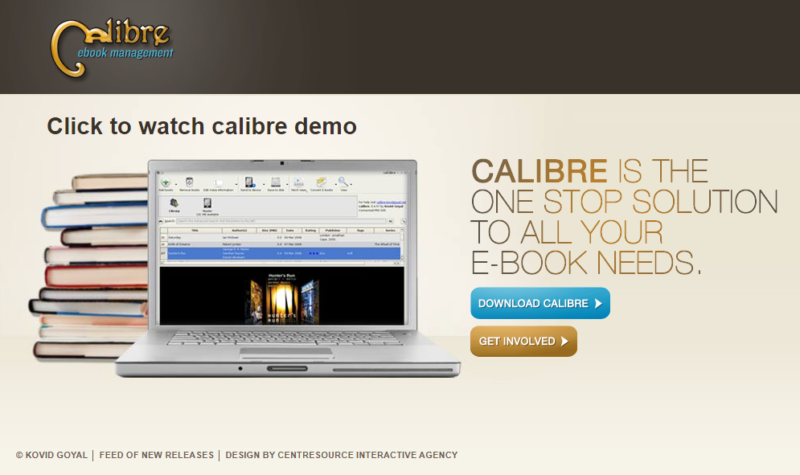
Use a web browser to go to Calibre’s download page and download the version for your operating system. Run the installation file and follow the instructions.
- Download & Install the DeDRM Plugin
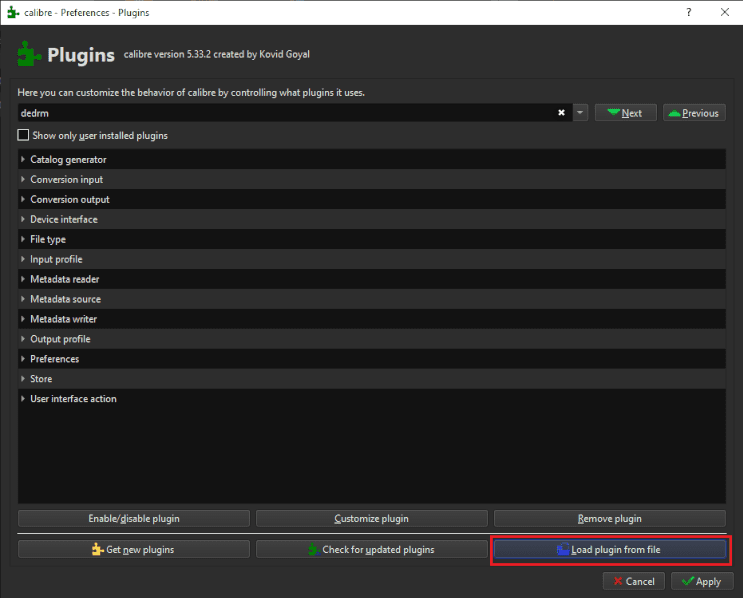
Next, download DeDRM from the official GitHub page. Extract the zip file wherever you want and then launch Calibre. Click on “preferences” in the top right-hand corner of the window and then on “plugins.” Here, you need to click “load plugin from file” and select the “DeDRM_plugin.zip” file you just extracted.
- Find Your Kindle’s Serial Number
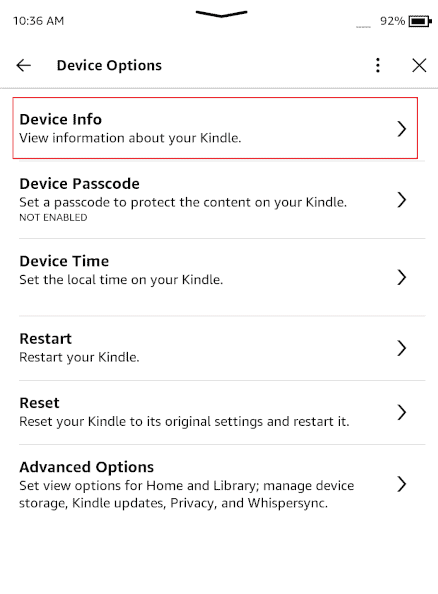
Unlock your Kindle and navigate to the settings menu by tapping the three dots in the top right-hand corner and selecting “settings.” Tap “device options” and then “device info.” This should bring up a panel displaying your Kindle serial number. Write it down without spaces.
- Configure the DeDRM Plugin
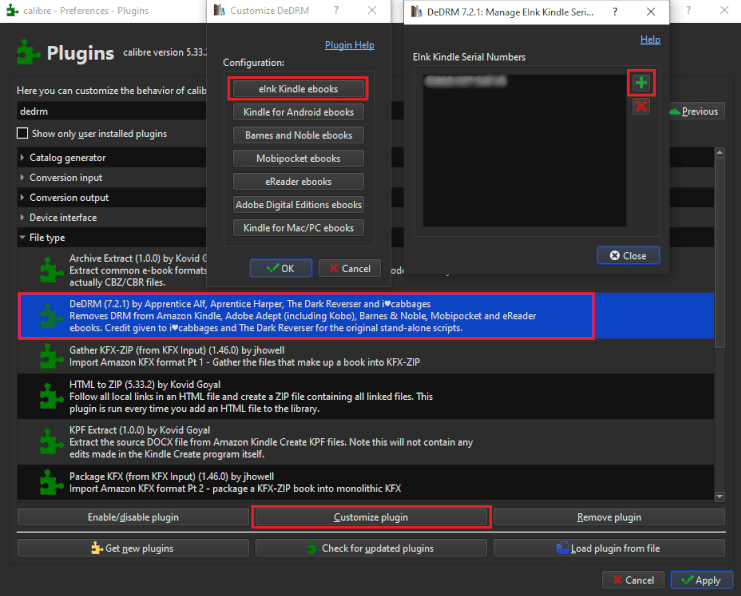
In the same plugin window as the second step, expand the section called “file type” and find the entry in the list for DeDRM. Select it and click on “customize plugin.” Select “eInk Kindle ebooks” and then click the green plus icon. Enter the serial number you found in the previous step and click “OK.”
- Add the KFX Input Plugin
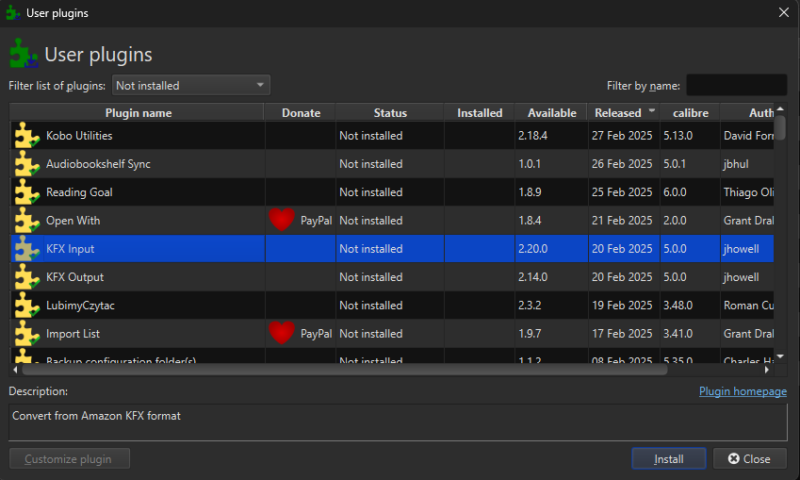
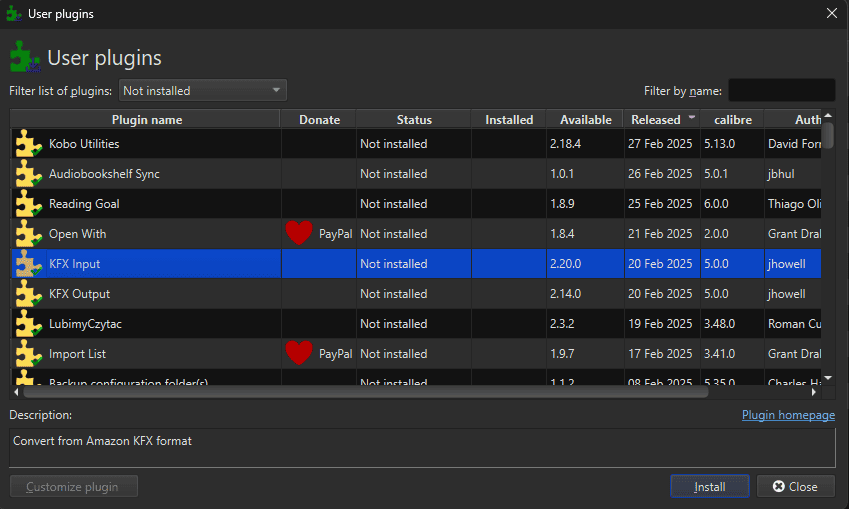
Go back to the main plugin window and choose get new plugins. Select KFX input and “install.” You’ll need to restart Calibre for the installation to finalize.
- Connect Your Kindle and Import the Book
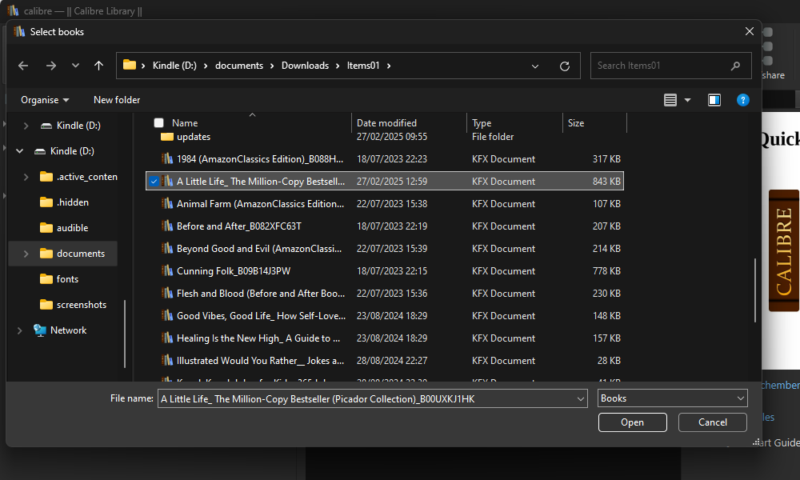
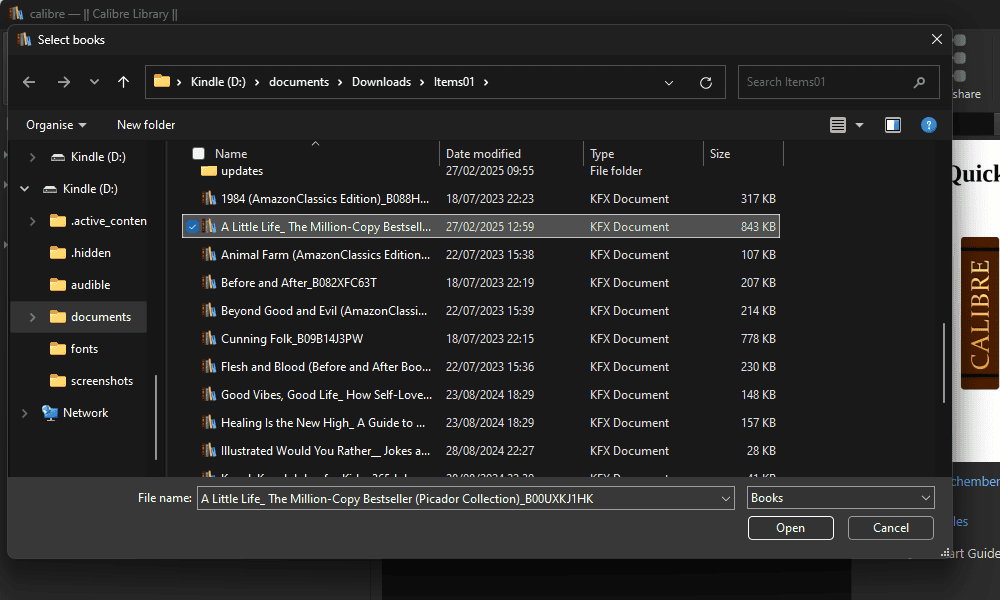
Connect your Kindle to your computer with a USB cable and locate the book files stored on the device. Their location and format can vary depending on your Kindle model, firmware and how Amazon delivered the book, so don’t assume every Kindle will use the same folder structure.
Import the relevant book into Calibre. DeDRM will attempt to remove supported DRM during the import process, while KFX Input handles compatible KFX files.
Don’t assume that seeing the book or a KFX file type in Calibre means DRM removal succeeded. Try opening the imported book in Calibre or converting it to another format; if Calibre reports that the book is DRM-protected, the current DeDRM setup wasn’t able to decrypt that file.
Why Isn’t DeDRM Working With My Kindle Book?
DeDRM may fail even when Calibre and the plugins are installed correctly. Kindle formats and DRM change over time, so a book that imports successfully isn’t necessarily one that the current DeDRM tools can decrypt.
| Problem | Likely Cause | What to Check |
|---|---|---|
| Book imports but still has DRM | Unsupported or newer DRM | Check your DeDRM version and whether the book’s DRM is currently supported |
| Book imports as KFX-ZIP | KFX container or DRM wasn’t successfully processed | Check the file source, DeDRM and KFX Input compatibility |
| Kindle serial number doesn’t work | Wrong device key, file source or unsupported DRM | Confirm the serial number belongs to the Kindle the book was downloaded for |
| KFX book won’t import or convert | Missing/incompatible KFX support | Check that KFX Input is installed and up to date |
| Old Kindle desktop app won’t download books | Legacy Kindle app is no longer supported | Don’t use the old Kindle for PC/Mac workflow |
If a book appears as KFX-ZIP, don’t assume that DeDRM succeeded. KFX Input can package KFX content for Calibre, but that doesn’t mean the underlying DRM was removed; try opening or converting the book to confirm that Calibre can actually process it.
If DeDRM fails, first check that Calibre, DeDRM and KFX Input are the versions you’re currently testing. For an E-Ink Kindle, also confirm that you’ve entered the serial number for the same device the book was downloaded for.
If everything is configured correctly and the book still reports DRM, the problem may simply be compatibility with Amazon’s current DRM. I wouldn’t recommend downgrading to the unsupported legacy Kindle desktop app as a workaround.
How Do I Remove Kindle DRM With Calibre and the Kindle for Windows App?
The old Kindle for PC method is no longer a current option. Amazon stopped supporting the Legacy Kindle app, previously called Kindle for PC, on June 30, 2026, and now directs Windows 11 users to its newer Kindle for Windows app.
There are newer community-developed methods for working with books downloaded through the current Windows app, but the process has changed substantially and compatibility continues to shift as Amazon updates the app and its DRM. We’re currently testing the new workflow and won’t recommend step-by-step instructions until we’ve reproduced it reliably.
For now, I recommend checking whether Amazon offers an EPUB or PDF download for your purchased book first. If it doesn’t, the Kindle e-reader method above may work with compatible devices and DRM versions.
Final Thoughts: DRM-Free Kindle Books
If you want a DRM-free copy of a Kindle book you’ve purchased, I recommend checking Amazon’s direct download option first. Eligible DRM-free purchases can be downloaded as EPUB or PDF files without using additional software.
If a direct download isn’t available and you’re dealing with a DRM-protected book, Calibre with DeDRM and KFX Input may work, depending on the book’s format and DRM. As we’ve seen, compatibility isn’t guaranteed, so it’s worth checking the troubleshooting section if your book still shows DRM after importing it.
Ultimately, the best method depends on the book and how Amazon delivered it. Have you tried any of the methods in this guide? Let us know what worked in the comments below, and as always, thanks for reading.
If you accidentally purchased a Kindle book or are unhappy with it, you might be eligible for a refund. We have a separate guide on how to return a Kindle book. Otherwise, if you are looking to end your Kindle Unlimited subscription we have a handy guide on how to cancel Kindle Unlimited.
What did you think of our guide to free Kindle DRM removal? Did it give you a clear idea of how to remove DRM for Kindle books, or does the process seem too convoluted and cumbersome? Is there another piece of software you like that supports removing DRM from Kindle books? Let us know in the comments below. Thank you for reading.
FAQ: Strip DRM From Kindle Books
Some Kindle books are DRM-free, but many are DRM-protected. For eligible DRM-free purchases, Amazon may provide EPUB or PDF download options in Manage Your Content and Devices.
Kindle DRM essentially stops you from opening or editing a book unless you’re using Amazon’s hardware or software to do so. The aim of this is to make it harder to illegally distribute the ebook files outside of the Amazon store.
The main reason you’d want to remove DRM from your Kindle books — besides piracy — is to use a third-party e-reader or reading software other than Amazon’s Kindle applications.
It depends on where you live and why you’re removing the DRM. Laws governing DRM circumvention vary by jurisdiction, so even removing DRM from a book you legally purchased may be restricted in some places.
Check the laws that apply where you live before removing DRM from a Kindle book.