How to Jailbreak Firestick Devices in 2026
Jailbreaking your Firestick is quick, safe and easy and will allow you to use tons of third-party apps on your Firestick. Check out our guide for how to jailbreak Firestick devices to learn more about the great apps available and how to get them.


Written by Brian Murray (Writer)
Reviewed by Jackie Leavitt (Editor at Large)
Last Updated:
All our content is written fully by humans; we do not publish AI writing. Learn more here.
The Amazon Firestick is a great way to stream content directly to your TV. However, Amazon sets up every Firestick to work only with apps from the Amazon app store. While this covers most major streaming platforms like Netflix and Hulu, it leaves out tons of third-party apps. That’s why we’ll show you how to jailbreak Fire stick devices and access tons of apps that aren’t in Amazon’s app store.
If you want to jailbreak Fire stick devices, it’s not only easier than you might expect, but also takes just a few minutes. We’ll also take a quick look at how to install third-party apps from an app library, like Unlinked, and address what happened to Google Play store on Fire stick after we go through the Fire stick jailbreaking steps.
What Does It Mean to Jailbreak a Firestick?
“Jailbreaking” a Fire TV Stick doesn’t actually jailbreak, root or otherwise modify the device’s operating system. In this guide, jailbreaking simply means enabling Developer Options on a compatible Fire OS device and allowing an app such as Downloader to sideload apps from outside the Amazon Appstore.
Jailbreaking a Fire stick means opening up your Fire TV device for use with third-party apps and downloads, meaning apps that are not on the Amazon app store. While this can be a security risk — part of the reason that Amazon doesn’t allow it by default — as long as you only install apps from trusted sources, it should be fine.
Every Amazon Fire TV Stick — also known as a “Firestick” — runs on a modified version of the Android operating system. This OS is used in a wide variety of devices, and most people have heard of it running on phones.
While the standard Amazon Fire TV experience is built around the official app store, unlocking these third-party capabilities significantly expands the device’s utility
Since Google made the OS open source, though, other companies are free to take it and alter it to suit their needs, so Amazon used Android as the basis for the OS used on Firesticks. This means that the Fire stick is technically capable of running just about any app designed for Android.
However, the Amazon app store is actually quite limited when compared to other Android app stores. Companies usually prefer to keep their hardware locked down to their own app stores for a number of reasons. By jailbreaking your streaming device, you can access apps that are not officially sanctioned by Amazon for use on Fire stick.
Why Should You Jailbreak Your Fire TV Stick?
You should jailbreak your Fire TV Stick for several compelling reasons. First is privacy. During the setup process for jailbreaking, we turn off some of the data monitoring and reporting that the device sends back to Amazon. Making this change, even when using the device normally, will improve your privacy by preventing Amazon from being able to track your activity on the device and will result in noticeably fewer targeted ads.
The second reason, and the one that most people are really looking for, is that it gives you access to Fire Stick channels or apps that are not found on Amazon’s official app store.
The best VPNs for Firestick have apps for Android devices, meaning you can use them if you have a jailbroken Fire stick. VPNs on streaming devices are a great way to access content on services that might not be available in your region.
Access to Streaming Apps
Media players like Kodi and the Cinema HD app are also popular for jailbroken Fire sticks. These free streaming apps can give you access to huge libraries of free entertainment ranging from live TV channels to classic movies.
It is worth noting that some of the content on Kodi and other media player apps is pirated. Jailbreaking your Fire stick and using apps like Kodi is completely legal; however, you should be careful not to access pirated content while doing so.
Can You Jailbreak Every Fire TV Stick?
You can sideload apps on Fire TV Stick models that run Fire OS, including recent Fire TV Stick 4K and 4K Max models. However, Amazon has begun moving new Fire TV Sticks to Vega OS, which doesn’t support the Android APK sideloading method covered in this guide.
Check your model below before following the steps.
| Fire TV Stick model | OS | Does this guide work? |
|---|---|---|
| Fire TV Stick HD (2026) | Vega OS 1.1 | No — APK sideloading isn’t supported |
| Fire TV Stick 4K Plus (2025) | Fire OS 8 | Yes |
| Fire TV Stick 4K Select (2025) | Vega OS 1.1 | No — APK sideloading isn’t supported |
| Fire TV Stick HD (2024) | Fire OS 7 | Yes |
| Fire TV Stick 4K Max (2nd Gen, 2023) | Fire OS 8 | Yes |
| Fire TV Stick 4K (2nd Gen, 2023) | Fire OS 8 | Yes |
| Fire TV Stick 4K Max (1st Gen, 2021) | Fire OS 7 | Yes |
| Fire TV Stick (3rd Gen, 2020) | Fire OS 7 | Yes |
| Fire TV Stick Lite (2020) | Fire OS 7 | Yes |
| Fire TV Stick 4K (1st Gen, 2018) | Fire OS 6 | Yes |
Vega OS caveat: Amazon says all future Fire TV Sticks starting with the Fire TV Stick 4K Select will run Vega OS. That means the traditional Fire stick “jailbreak” process is becoming a Fire OS-specific method, so I’ll keep this guide updated as Amazon moves more of its line up away from Fire OS.
Before You Start
Before you begin, confirm that your Fire TV Stick runs Fire OS rather than Vega OS. You’ll also need an internet connection, your Fire TV remote and enough free storage for Downloader and any apps you plan to sideload.
Install the Downloader app from the Amazon Appstore before continuing. The steps below will show you how to enable the permissions Downloader needs to install apps from outside the Appstore.
How Do You Jailbreak Firestick Devices?
The steps below apply to compatible Fire TV devices running Fire OS. Amazon has changed the Fire TV interface since this guide was first published, and Developer Options may be hidden by default. Some newer Fire TV devices run Vega OS instead of Fire OS and don’t support Android APKs, so check your device and operating system before continuing.
- Open Settings
From the Fire TV home screen, open Settings. On the current interface, you can access settings from the top navigation area rather than following the old “Find” tab used in previous versions of Fire TV.
- Open My Fire TV
In Settings, select My Fire TV, then select About.
- Enable Developer Options
Highlight your Fire TV device name under About and press the center/select button on your remote seven times. You should see a message confirming that you’re now a developer. Press the back button to return to the My Fire TV menu, where Developer Options should now appear.
- Allow Downloader to Install Apps
Open Developer Options and select the option for installing unknown apps. Find Downloader in the app list and allow it to install apps from outside the Amazon Appstore.
- Search for Downloader
Return to the Fire TV home screen and select the Search icon. Search for Downloader, then select the Downloader app from the results.
- Install Downloader
Select Download or Get to install Downloader. Once installation finishes, open the app and follow any initial prompts.
With all this done, your Fire stick won’t report back to Amazon on how you’re using your device and what kind of apps you have installed. Now you’re free to install any apps you please from the downloader app or any other app store.
How Do You Install Apps Outside of the Amazon Appstore?
You can install apps outside the Amazon Appstore by sideloading them with the Downloader app. I recommend downloading APK files directly from the app developer’s official website when possible, rather than relying on third-party app libraries.
Below, I’ll show you how to use Downloader to download and install an APK from a direct URL. Downloader codes are another option, but because codes can change, you should verify them through a current community-maintained source before using them.
- Open the Downloader App
Open Downloader on your Fire TV Stick and select the URL field on the home screen.
- Enter the App Developer’s URL
Enter the official download URL for the app you want to sideload. Whenever possible, I recommend downloading APK files directly from the developer rather than an app library or other third-party source.
- Download the APK File
Select the download option on the developer’s website. Downloader will download the APK file, and your Fire TV Stick should prompt you to install it when the download finishes.
- Install the App
Select “install” when prompted. Once installation is complete, select “done” to return to Downloader or “open” to launch the app.
- Delete the APK File
After installing the app, you can delete the downloaded APK file from Downloader. The installation file is no longer needed, and removing it frees up storage space on your Fire TV Stick.
Note: Some sideloading guides use Downloader codes or third-party app libraries instead of direct URLs. These codes can change, so I recommend checking a current community-maintained source if you need one and verifying where the APK comes from before installing it.
How Do You Add Google Play Store to Your Firestick?
You can add Google Play Store to your Fire stick because all Fire TV devices run on a version of Android that has been altered in various ways by Amazon. This means that Fire sticks are compatible with almost anything that can run on other Android devices — such as phones — which includes the apps on the Google Play Store.
That said, while there is still an APK available online for putting the Google Play Store on Fire stick and other devices that don’t come pre-loaded with it, this APK can no longer work properly on Fire sticks. Sadly, with recent updates to the Fire stick OS it is no longer possible to get the Google Play Store working on Fire stick devices until someone discovers a new work around.
Fire TV Stick Jailbreak Not Working? Common Fixes
If you can’t sideload an app after following the steps above, the problem is usually a hidden setting, a failed download or a broader Fire TV connection issue. Try these fixes before repeating the entire process:
- Developer Options is missing: Go to Settings > My Fire TV > About, highlight your device and press the select button seven times. Return to My Fire TV and Developer Options should appear.
- Downloader can’t install an APK: Check that Downloader has permission to install unknown apps under Developer Options. This permission is granted per app on current Fire OS versions.
- The APK won’t install: Make sure the APK supports Fire OS and your device. APK sideloading doesn’t work on Vega OS devices, and an outdated or incompatible APK may fail even on Fire OS.
- Downloader won’t download the file: Double-check the URL and try restarting the Fire TV Stick. If the device itself is having connectivity problems, see our Firestick not working guide.
- The Fire TV Stick is slow or unresponsive: Restarting or clearing app caches can help.
What Are the Best Apps for Jailbroken Firestick Devices?
The best apps for jailbroken Fire stick devices include many popular options that you can download using the downloader app and the Unlinked APK app store, even though the Google Play Store is no longer available. We’re going to briefly look at two of the best apps for jailbroken Fire sticks that you can’t normally get on Fire sticks.
Kodi
Kodi is an incredibly robust media player that is completely free and open source. It uses a “ten-foot user interface,” meaning it’s purpose-built to be used on a TV with a remote control from a reasonable distance away. This makes it great for managing your digital library in your media center.
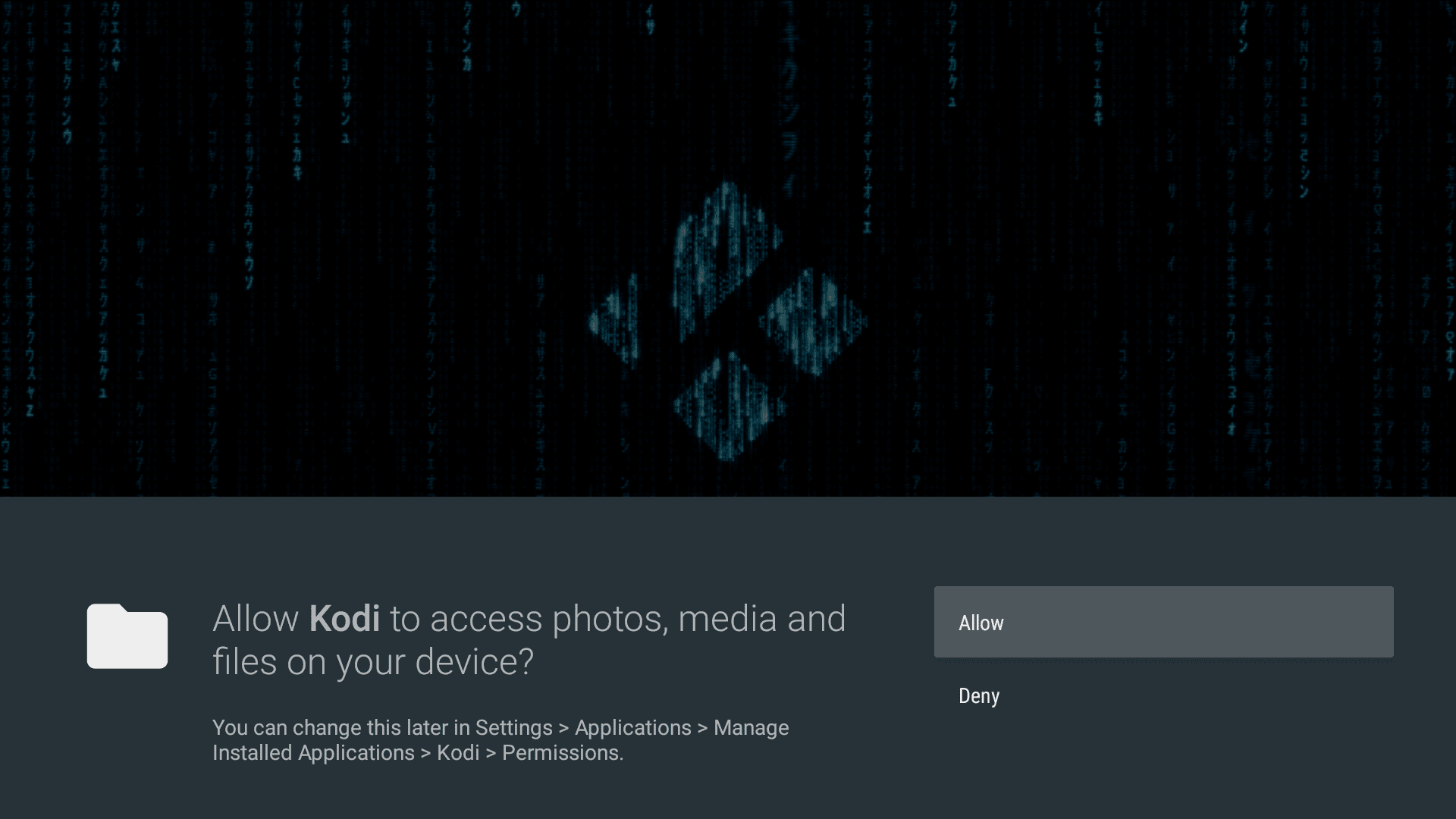
permissions so it can access your media library.
Kodi is able to play almost any form of media, including podcasts, music and videos from both local and network storage media as well as streaming content from the internet.
Using third-party Kodi add-ons will allow you to access free streaming content online, some of which might be illegal. That’s why Amazon does not want Kodi listed on the Fire TV Stick app store despite its widespread popularity.
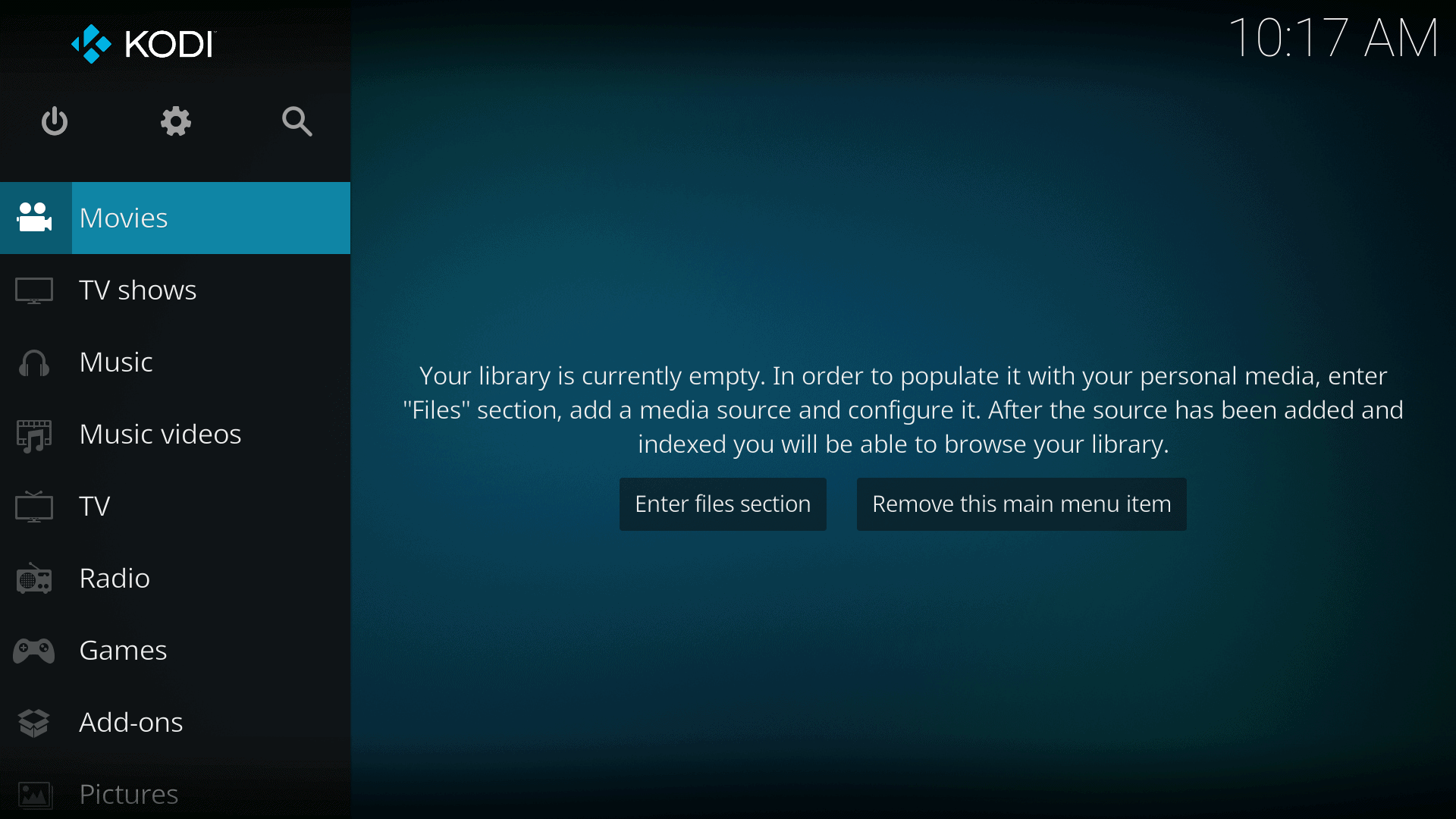
offers a sleek user-friendly interface.
Most of the apps that are banned or not listed on the Amazon app store are left off because they handle third-party content. While this in itself isn’t illegal, some of the streaming add-ons are used to illegally share copyrighted content. As long as you’re not using Kodi for this reason, it makes a fantastic and legal media player for any television.
Real-Debrid
The other app that is very popular with jailbroken Fire stick users is called Real-Debrid. This app is used to optimize your streaming to ensure that you are connecting to the best available server. This app pairs especially well with Kodi, which is presumably the main reason it can’t be found on the standard Fire stick app store.
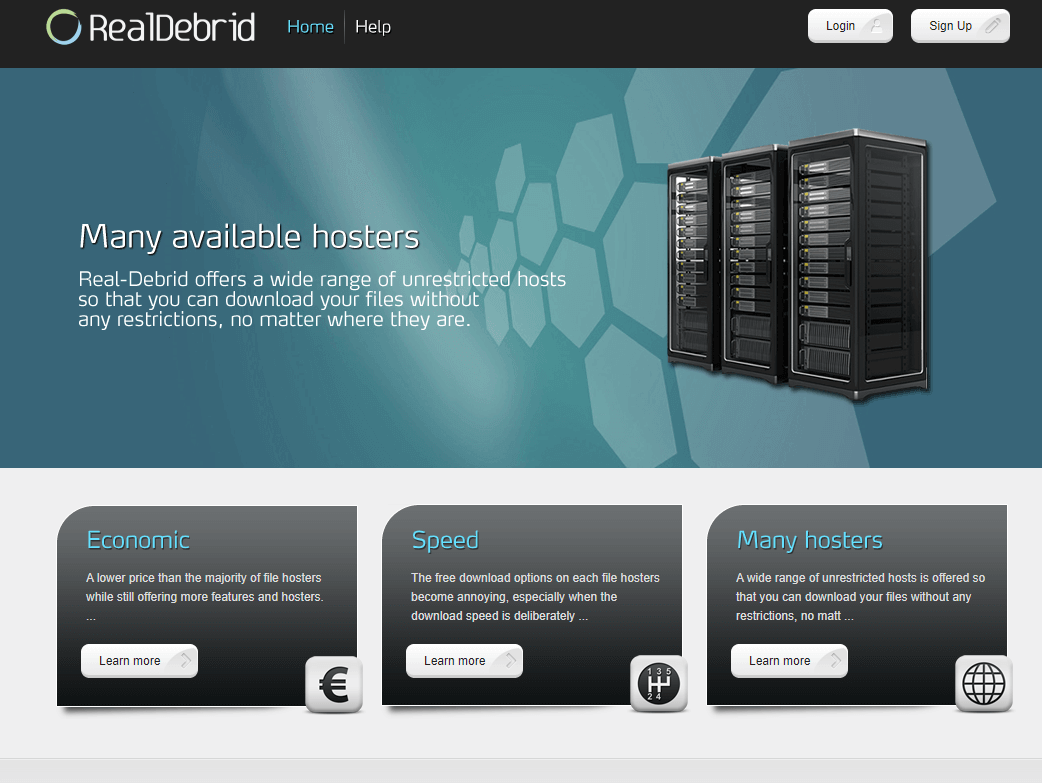
it does charge a monthly fee for the service.
If you’re having issues with videos scrubbing while you stream or downloads taking excessively long, Real-Debrid can be a huge help. It ensures you are connected to the best server possible and also gives you access to additional unrestricted servers.
This means that you can download files with the full speed of your internet rather than being limited by the speed of the server you’re downloading from.
However, because it does give you access to more servers, there is a subscription fee for using the full features of Real-Debrid. It only comes out to about $5 a month, but for those who have frequent problems with Kodi buffering or downloading slowly this can be a tremendous help.
Final Thoughts: Jailbreak Firestick Devices
Now that you know how to jailbreak Fire stick devices, you can start enjoying all the apps that Android has to offer right on your TV. Plus, with a jailbroken device, Amazon won’t be able to see what it is you watch and do with your Fire stick.
If after jailbreaking your device you encounter any issues with your streaming device, refer to our guide on how to fix Firestick stuck in boot loop.
Was it harder or easier than you expected to jailbreak a Fire stick? Have you jailbroken another device before? What apps do you plan to use now that your device is jailbroken? We look forward to your answers in the comments below and, as always, thanks for reading.
FAQ
It depends on what you plan to do with the device but, in many cases, yes. Jailbreaking your Fire stick will give you more control over what apps you can put on it and improve your privacy by reducing the device’s reporting back to Amazon regarding your usage.
It’s perfectly legal to jailbreak Fire stick devices. You cannot be caught or get in trouble using a jailbroken Fire stick. However, it is illegal to access pirated content online, so be sure you aren’t using your Fire stick to access anything that could be pirated.
Jailbreaking your Fire stick will allow you to install third-party apps on the device, including media players like Kodi. Jailbreaking the device will also improve your privacy slightly by reducing the amount of data the device sends back to Amazon.
Jailbreaking your Fire stick device will allow you to access huge libraries of streaming apps, including tons of live TV channels. Larger networks and channels will have a streaming app available.