Ransomware Backup Explained: 5 Best Cloud Services to Protect Your Data in 2026
Explore the best ransomware backup software options and learn how to craft the perfect protection strategy for your business in this guide.


Written by Aleksandar Kochovski (Writer)
Reviewed by Valentina Bravo (Managing Editor)
Facts checked by Eugenie Tiu (Editorial Assistant)
Last Updated:
All our content is written fully by humans; we do not publish AI writing. Learn more here.
Key Takeaways: These Are the Best Ransomware Backup Cloud Services
- IDrive — Flexible, affordable and secure ransomware backup. Try IDrive’s 10GB free plan.
- pCloud — Fast cloud storage with backup for ransomware protection. Try pCloud’s 10GB free plan.
- Proton Drive — Swiss-based privacy suite with up to 10-year version history. Try Proton Drive’s free plan.
- CrashPlan — HIPAA-compliant cloud backup for ransomware recovery. Try CrashPlan’s 14-day free trial.
- Backblaze — Secure cloud backup with unlimited storage. Try Backblaze’s 15-day free trial.
- Acronis Cyber Protect — Enterprise-grade ransomware backup. Try Acronis Cyber Protect with its 30-day free trial.
Facts & Expert Analysis About Cloud Backup With Ransomware Protection:
- Security features: To remain safe from ransomware, a cloud backup needs features like client-side encryption and two-factor authentication.
- Login and content access: Because social engineering is the prime vector for ransomware infections, restricting user access and maintaining login integrity is key to protection.
- The importance of versioning: Keeping older versions of backed-up files is the most important safeguard against ransomware, as it ensures you can roll your files back to an uninfected version.
Ransomware attacks can cost you or your company thousands of dollars in recovery efforts, with no guarantee you’ll get those files back. Using a ransomware backup service is the best way to keep your files safe. In this article, I’ll list the best cloud backup services for ransomware recovery, highlighting their protection capabilities.
-
08/24/2022 Facts checked
Updated IDrive’s pricing information.
-
10/26/2022 Facts checked
Updated Carbonite’s prices.
-
05/23/2023 Facts checked
Updated to remove IDrive’s discontinued free plan.
-
07/11/2025 Facts checked
We expanded the list to have six backup options.
-
02/17/2026 Facts checked
We rewrote this article to better reflect our latest backup software performance testing data.
Cloudwards’ Choice: IDrive
 Cloudwards' Choice: IDrive
When considering the threat of ransomware attacks, my top storage suggestion is IDrive because of its broad feature set that lets you create backups — with unlimited version history — of pretty much any device you can think of, including server devices. Best of all, it’s more affordable than most backup solutions, with unlimited users on the business plan.
What Are Ransomware-Proof Backups and Why Do You Need Them?
Ransomware-proof backups are specialized backup systems that prevent cybercriminals from encrypting or deleting your data during a ransomware attack. While all backups protect against ransomware attacks, some services offer features that are especially helpful, such as extended versioning or malware protection.
For example, if a ransomware attack is successful at encrypting on-device files, a backup lets you simply restore them from a backed-up version on the cloud. However, if the backup service has overwritten your backed-up files with the new encrypted versions, the backup data will be useless. That’s why it’s crucial for the service to keep multiple versions of files.
Integrated malware protection is another way to protect backups from becoming infected, but it isn’t essential. You still have to restore the backup, so it is functionally the same as using a non-malware-protected backup.
10,000+ Trust Our Free Cloud Storage Tips. Join Today!
- Demystify cloud storage terminology and key concepts in plain language
- Discover easy-to-implement techniques to securely backup and sync your data across devices
- Learn money-saving strategies to optimize your cloud storage costs and usage
How Attackers Target Backup Systems & Why Traditional Backups Fail
Cybercriminals have become wise to traditional backup strategies and evolved their methods beyond targeting only your data. They now target backup systems to eliminate recovery options and force businesses to pay out. Not hedging against modern ransomware strategies can lead to the following failures:
- Improper access management exploits: If employees have direct access to backups, they present a potential vector for compromising those backups.
- Network-attached backup attacks: Local backups, such as on network-attached storage (NAS) or on-premises servers, are particularly vulnerable, as they are just one more part of the already compromised network.
- Insufficient retention or versioning: Versioning is key to a proper ransomware backup strategy, so providers that lack it are especially vulnerable.
What Are the Best Ransomware Cloud Backup Strategies?
Effective ransomware protection requires backups that are fundamentally inaccessible to attackers — not just online copies of your data but also copies that are impossible to reach without physical access.
A good ransomware backup strategy relies on four design principles: immutability, air-gapping, isolation and separate credentials.
- Immutable storage refers to the inability for anyone to alter a backup, even administrators who have full access to your organization’s backups.
- Air-gapped backups are backups stored on offline physical media, such as flash drives and external hard drives kept under lock and key. Air-gapping is the only true way to protect against a ransomware infection. However, recovery from physical media can be laborious, so it shouldn’t be your first line of defense.
- Isolating production environments from backup systems ensures your backup remains safe even if the network is compromised.
- Keeping separate credentials for production and backup environments is crucial to enforcing the principle of isolation. Employees should use one account and set of credentials for necessary company resources. If they need access to backup data, their credentials must differ from those of the other account.
Cost, Risk and Business Value: Choosing the Right Level of Protection
Backup systems can quickly become costly if you go all out. There’s a huge difference in the sensitivity of data that a law firm and a retail store keep, and your company’s strategy should reflect this.
The key is matching the level of backup protection to your business’ realistic risk exposure and cost of downtime. After all, a brick-and-mortar shop will likely function perfectly fine without access to company files for a while, but an online store can be completely incapacitated by a ransomware attack.
- Healthcare: Due to HIPAA regulations, the highest level of protection is an absolute must for healthcare providers and medical companies dealing with patient data.
- Legal: Data leaks can compromise attorney-client privilege and regulatory compliance, and data loss can further compromise ongoing cases or instances in which the company would require previous case files. The highest level of protection is essential in the legal field.
- Software and tech: The entire business of a software company is its data. Data loss is catastrophic to a tech company, though there’s no legal culpability. I recommend making monthly or quarterly air-gapped backups of code repositories.
- Small business: Smaller businesses rarely have the resources for a full backup strategy, but thankfully, commercial cloud backup software with business plans is usually enough for their needs.
How Do You Choose a Cloud Backup Provider With Ransomware Protection Features?
Ransomware backup software can be complicated, with a ton of features that may confuse you more than aid you. My recommendation to small business owners is to use a commercial solution with the following features:
- Administrative access controls: You need to be able to restrict access to your backup servers. In the event that an employee’s account or device becomes compromised, it will be fully isolated from your backup.
- Two-factor authentication: Two-factor authentication further protects logins, even if an attacker gets hold of a user’s credentials.
- Unlimited or extended version history: Keeping an unlimited number of versions for an unlimited amount of time means you always have a clean version of your files to restore.
- Diverse backup options: Businesses that store their data on a central server will require a service with server backups, while local backups are crucial for air-gapping.
- Client-side encryption: While this isn’t crucial for ransomware protection, client-side encryption does prevent your backup provider from accessing your files — crucial for storing sensitive data.
The Best 5 Ransomware Backup Cloud Services — Quick Comparison
| Provider: | Free Storage | Best Price | Users & Devices | Version History | Limitation |
|---|---|---|---|---|---|
 | 10GB | $5.81 per month (one-year plan) for 5TB | 5 users, 5 devices | Unlimited | Only 30 file versions |
 | 10GB | $7.99 per month (one-year plan) for 1TB | 3+ users, no device limit | 365 days | Extra fee for longer versioning |
 | 5GB | $3.99 per month (one-year plan) for 200GB | 1 user, no device limit | 10-year paid plan | Free plan limited to 7-day versioning. |
 | No, 14-day free trial | $6.58 per month (two-year plan) for Unlimited GB | 1 user, 1 device | Unlimited | Some reliability issues |
 | No, 15-day free trial | $7.88 per month (two-year plan) for Unlimited GB | 1 user, 1 device | 365 days | Not truly zero-knowledge |
 | No, 30-day free trial | $4.17 per month (one-year plan) for 1 computer; no cloud storage | 1 user, 1 device | Unlimited* | No cloud storage included |
Lab Data & Hands-On Testing
Speed Test Comparison (5GB Folder)
| Provider: | Download Avg. | Upload Avg. |
|---|---|---|
| 0:06:58 | 0:06:45 |
| 0:06:52 | 0:07:06 |
| 0:07:11 | 0:07:15 |
| 0:07:09 | 0:16:54 |
| 0:07:37 | 0:19:17 |
| 0:07:00 | 0:07:04 |
Speed is crucial for disaster recovery, as it means less downtime for your business operations. pCloud and IDrive are the fastest performers on this list. Proton Drive has seen significant speed improvements in 2026 and is now highly competitive.
The data for Acronis Cyber Protect applies only if you’re using its own (very expensive) cloud storage add-on.
Security & Privacy Analysis
| Provider: | Encryption Type | Client Encryption | 2FA Options | Server Locations | Compliance |
|---|---|---|---|---|---|
| AES-256 | Yes | SMS, email, app-based | EU, U.S., Singapore | SOC 2, ISO 27001, GDPR, HIPAA |
| AES-256 | Yes, single folder | SMS, app-based | EU, U.S. | SOC 2, ISO 27001, GDPR |
| AES-256 | Yes | SMS, App-based | Switzerland | GDPR, HIPAA |
| AES-256 | Yes | App-based | Global | SOC 2, ISO 27001, GDPR, HIPAA |
| AES-256 | Partial | SMS, app-based | EU, U.S. | ISO 27001, GDPR |
| AES-256 | Yes | App-based | Global | SOC 2, ISO 27001, GDPR, HIPAA |
Client-side encryption is the most important data security feature. It encrypts the files on your device before they’re sent to the cloud, ensuring the company storing your data can’t decrypt and access it.
All of my top choices have client-side encryption. However, pCloud covers only one folder, and Backblaze asks for your encryption key if you need to recover your files, which defeats the purpose. Proton Drive and Internxt both offer true zero-knowledge encryption.
What Are the Best Backup Options to Protect Against a Ransomware Attack?
My top software options for companies to back up their data in case of a ransomware attack include IDrive, pCloud, Proton Drive, Internxt, Backblaze, CrashPlan and Acronis Cyber Protect.
1. IDrive — Best Ransomware Backup Overall

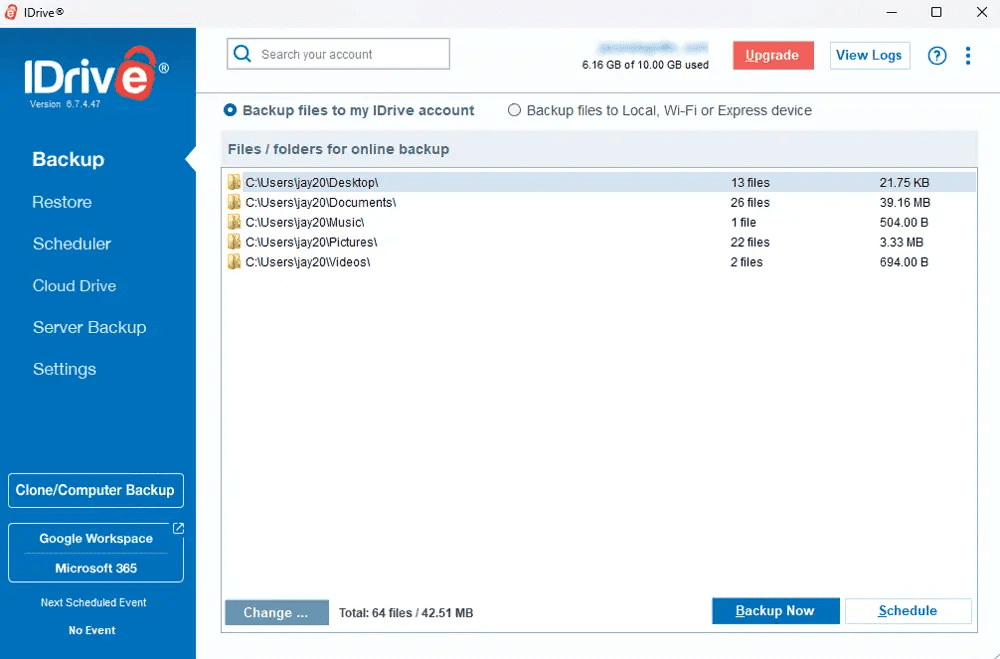
IDrive is the best backup for ransomware protection thanks to its extended versioning, the option to back up to external drives and the wide variety of backup types, including servers. The business plan covers an unlimited number of users and devices at no extra cost and comes with decent administrative controls.
What Makes IDrive Special?
When Should You Choose IDrive?
IDrive is ideal for small to medium-sized businesses that need ransomware protection on a budget. Its ease of use means you don’t need a skilled admin to set everything up. The one-year Business plan costs $5.80 per month for storage starting at 250GB. Read our IDrive review for more.
- No credit card required.
- 10GB
- One user.
- 100GB
- One user, multiple computers. Plans starting from 5TB up to 100TB. Big discount for first-time signup.
- 5TB
More plans
- 5 computers, 5 users. Starting at 5TB up to 500TB. Big discount for first-time signup.
- 5TB
- Monthly Plan storage starts at 1.25TB up to 50TB Unlimited users, multiple computers and servers. NAS devices. 250GB storage. Starting at 250GB up to 50TB. Large discount for first-time signup.
- 250GB
- 5TB
2. pCloud — Best Ransomware Protection With Cloud Storage

pCloud is a secure and private cloud storage service based in Switzerland, a country with some of the strictest data privacy laws in the world. It lets you back up data continuously and boasts the highest speeds we’ve tested.
What Makes pCloud Special?
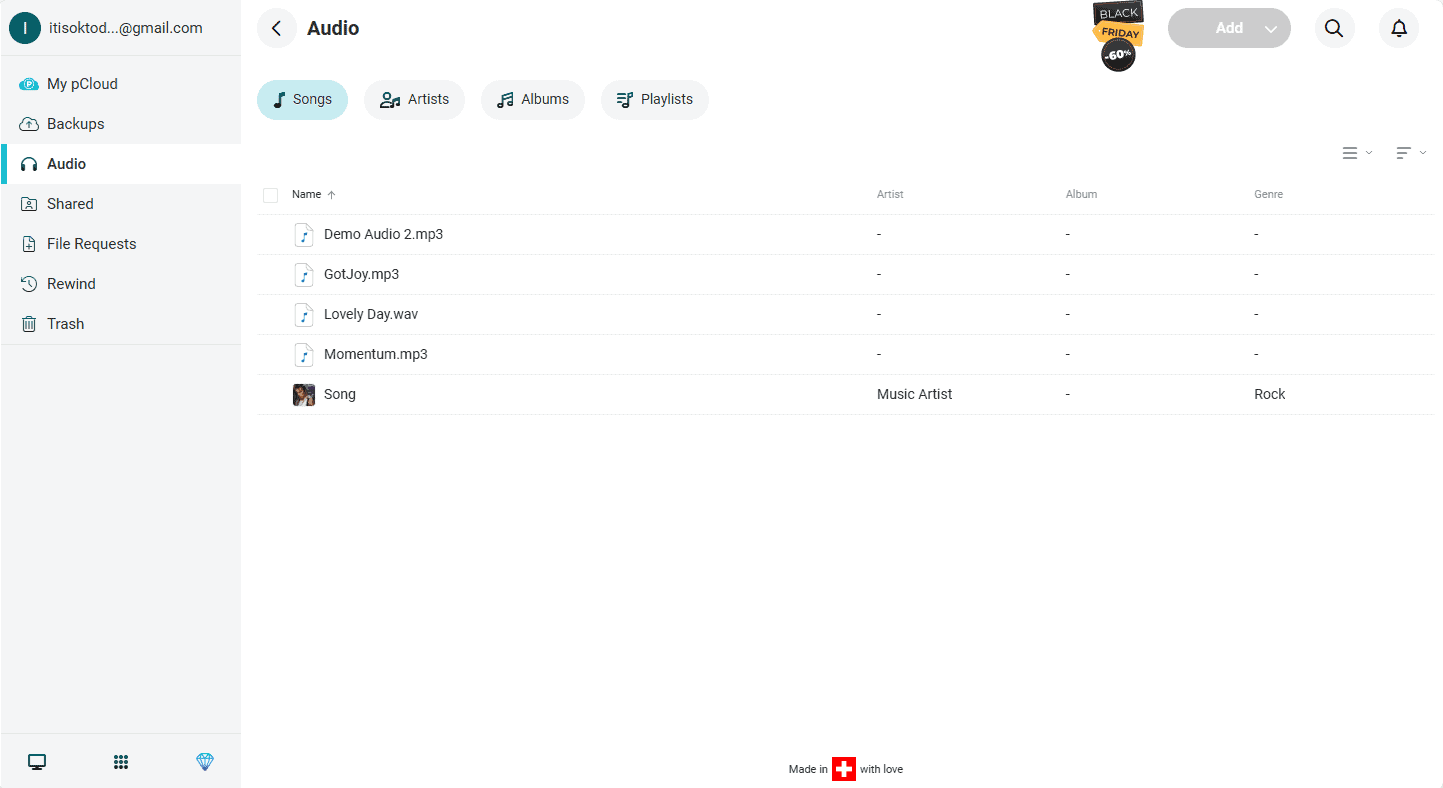
pCloud’s business plans keep an unlimited number of previous versions for up to 180 days. You can pay extra to extend that period to 365 days. Similar to IDrive, pCloud lets you roll back your entire account to a point in history via its rewind feature.
When Should You Choose pCloud?
pCloud is great for low-risk small businesses in need of a fast and flexible service that’s easy to use. pCloud’s 1TB business plan costs $7.99 per month for two years. Read our full pCloud review for more.
- 10GB
- 500GB
- 2TB
More plans
- 10TB
- + FREE Encryption
- 2TB
- + FREE Encryption
- 10TB
- Price per user (minimum 3)
- 1TB
- Price per user (minimum 3)
- 2TB
- Encryption for pCloud Drive
3. Proton Drive — Best Privacy-Focused Ransomware Backup
![Video thumbnail for the video: I Tested Proton Drive to See If It's as Private as It Claims [2024 REVIEW]](https://img.youtube.com/vi/XWmsFdm-VLg/maxresdefault.jpg)
Proton Drive is a privacy-focused cloud storage service from Switzerland, offering true zero-knowledge encryption and version history of up to 10 years on paid plans. In our stress tests, it handled large file uploads smoothly with no conflicts during sync war testing.
What Makes Proton Drive Special?
Proton Drive’s 10-year version history on paid plans is exceptional for ransomware recovery — far exceeding IDrive’s 30 versions. Our testing confirmed very stable performance with low CPU usage.
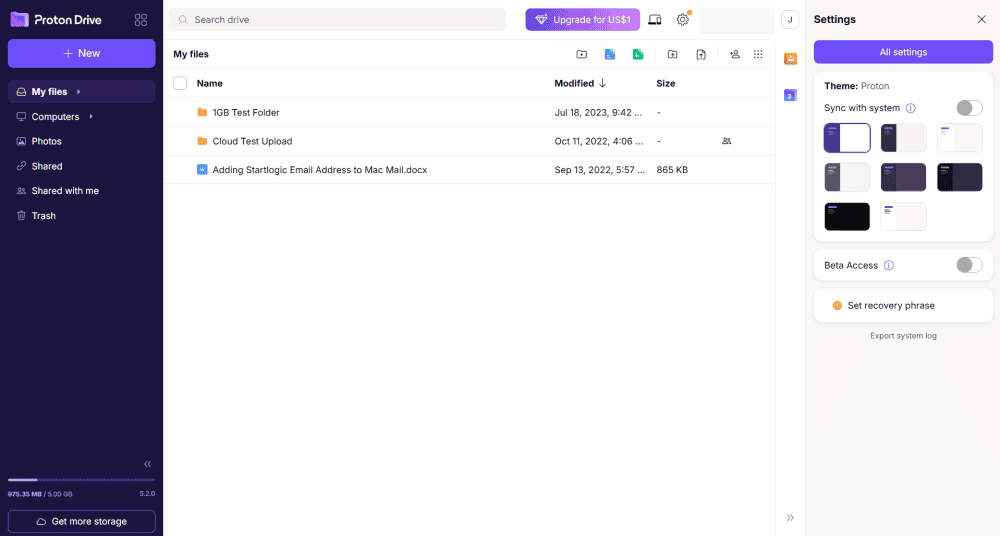
it less stressful to recover from a ransomware attack.
When Should You Choose Proton Drive?
Proton Drive is ideal for privacy-conscious users and small businesses needing long-term file versioning. Note that the free plan only keeps versions for 7 days. Read our Proton Drive review for more.
- 5GB
- 200GB
- 500GB
More plans
- 2TB
- 3TB
- per user
- 1TB
- per user, minimum of 2 users
- 1TB
- 1TB
4. CrashPlan — Best Ransomware Backup With Unlimited File Versioning

CrashPlan is an unlimited cloud backup provider with advanced ransomware protection and the option to back up to external hard drives for air-gapping. It’s secure enough to be HIPAA compliant and store very sensitive information. However, its uploads can be a bit slow.
What Makes CrashPlan Special?
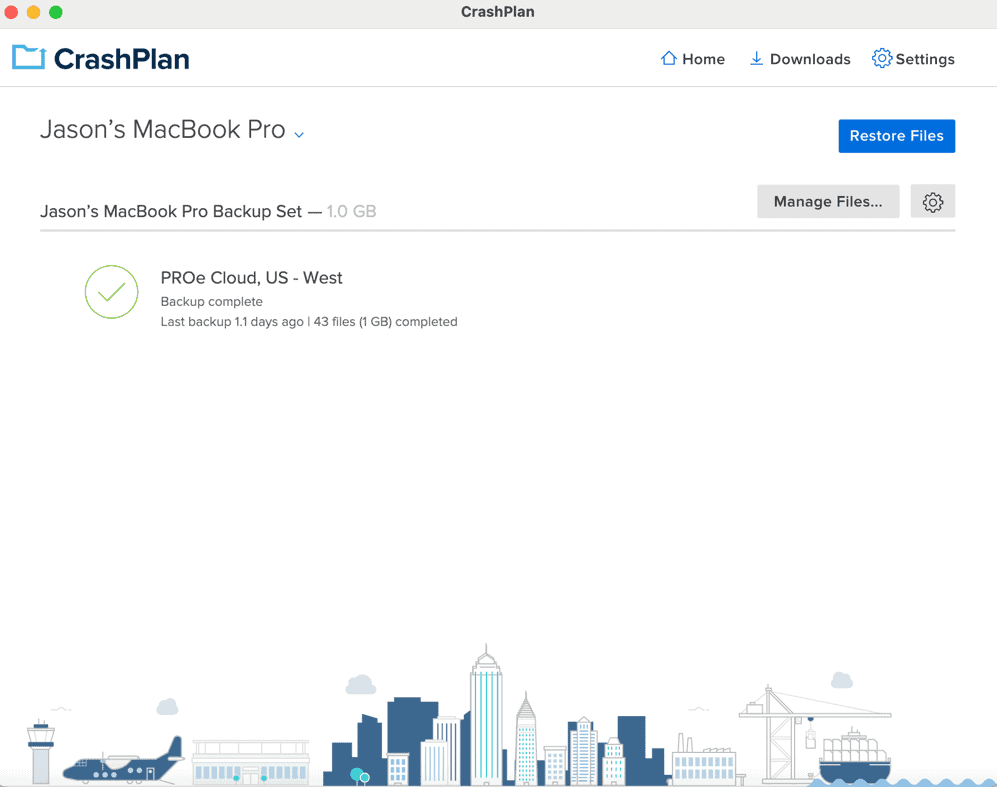
CrashPlan’s versioning is truly unlimited by default — you can store an unlimited number of versions indefinitely. For easier management, you can configure the software to cull old versions periodically. Backups are immutable for ransomware protection purposes.
When Should You Choose CrashPlan?
CrashPlan is a good choice for businesses that store sensitive data, such as those in the legal and medical industries. CrashPlan is affordable too, costing just $6.58 per month on a two-year plan for unlimited data. Read our CrashPlan review for more.
- Storage & price is per user Up to 2 devices per user 30-Day Deleted File Retention
- 200GB
- Price is per user Up to 2 devices per user 90-Day Deleted File Retention
- Unlimited GB
- Price is per user Unlimited Deleted File Retention
- Unlimited GB
5. Backblaze — Simple Unlimited Ransomware Protection

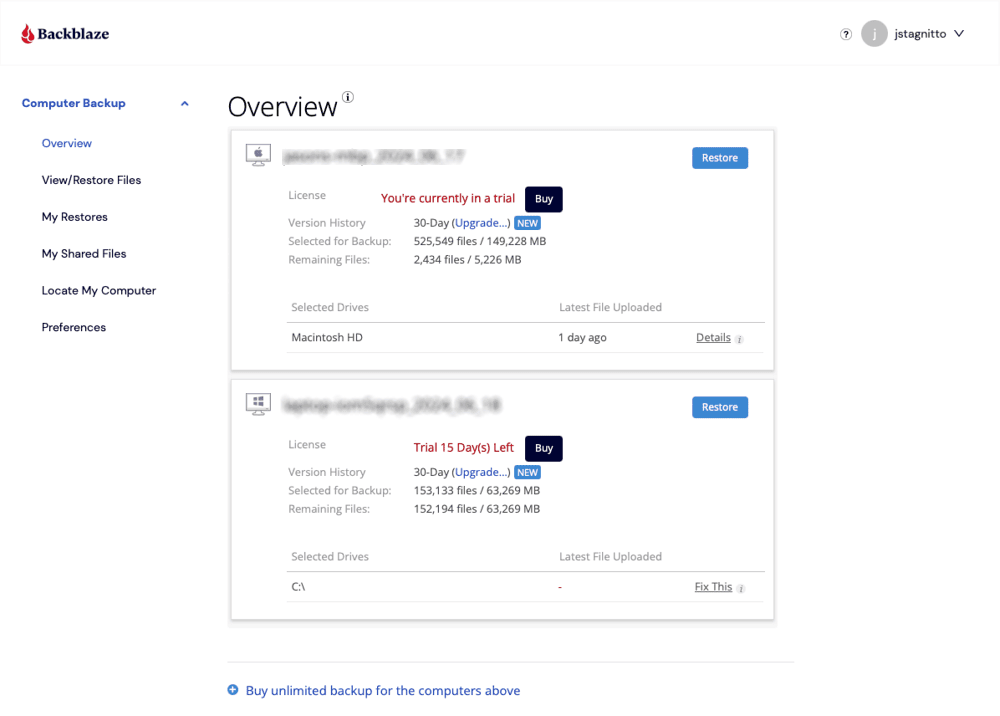
Backblaze is a speedy ransomware-proof backup with unlimited storage. Business plans come with admin controls and support for multiple workstations, though you can’t back up servers or NAS devices.
What Makes Backblaze Special?
Backblaze offers unlimited everything. You get as much storage as you need for your backups and an unlimited number of previous versions. For a fee, you can keep those previous versions forever.
When Should You Choose Backblaze?
Backblaze is perfect for businesses with large amounts of data spread across several computers and businesses that don’t rely on servers. Its two-year business plan costs $7.88 per month. Read our full Backblaze review for more.
- Unlimited GB
6. Acronis Cyber Protect — Best Ransomware Backup for Enterprises

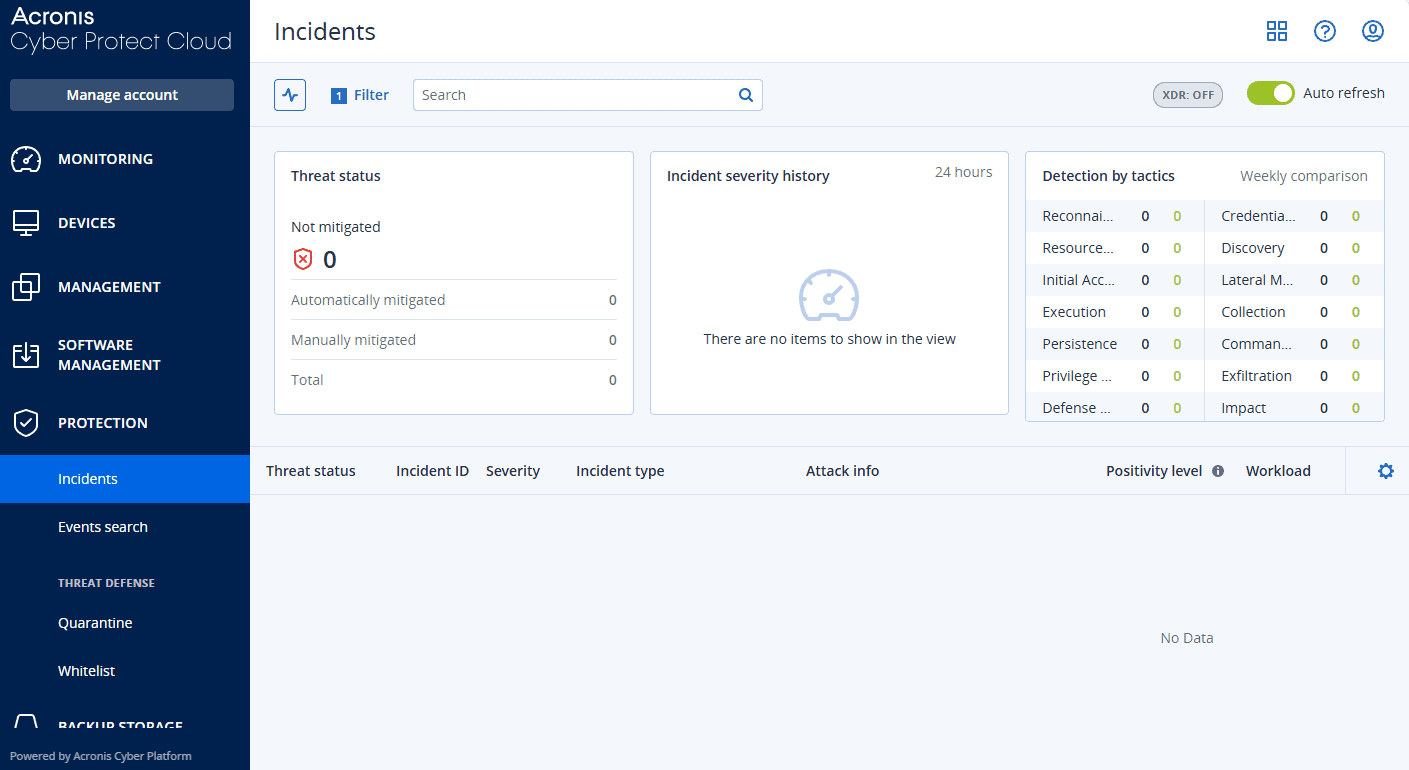
Acronis Cyber Protect is an enterprise backup solution with detailed user access controls. It offers advanced backup and recovery features, including server backups and bare-metal restores. However, it does not come with cloud storage by default, instead letting you connect your preferred cloud provider or purchase Acronis storage for a relatively high price.
What Makes Acronis Cyber Protect Special?
Acronis Cyber Protect comes with dedicated ransomware protection, which detects infections and refuses to upload infected files to prevent significant data loss. You can customize the number of versions to keep and for how long, with the option to keep them forever.
When Should You Choose Acronis Cyber Protect?
Acronis Cyber Protect is probably the most capable service on this list, though the price limits its use mostly to the enterprises that can afford it. The cheapest plan with ransomware protection costs $4.17 per license on a one-year plan, which does not include storage. Read our Acronis Cyber Protect review for more.
- Flexible backups: full image to file-level Active disk cloning Universal restore and fast recovery Ransomware protection
- Flexible backups: full image to file-level Active disk cloning Universal restore and fast recovery Ransomware protection + Block viruses and malware Cloud backup and features Automatic replication of data in the cloud Microsoft 365 backups
- 50GB
- Flexible backups: full image to file-level Active disk cloning Universal restore and fast recovery Ransomware protection + Block viruses and malware Cloud backup and features Automatic replication of data in the cloud Microsoft 365 backups
- 250GB
More plans
- Flexible backups: full image to file-level Active disk cloning Universal restore and fast recovery Ransomware protection + Block viruses and malware Cloud backup and features Automatic replication of data in the cloud Microsoft 365 backups
- 500GB
- Flexible backups: full image to file-level Active disk cloning Universal restore and fast recovery Ransomware protection + Block viruses and malware Cloud backup and features Automatic replication of data in the cloud Microsoft 365 backups + Blockchain certification of files Electronic signatures on files Ability to add up to 5TB of cloud storage
- 1TB
- Flexible backups: full image to file-level Active disk cloning Universal restore and fast recovery Ransomware protection + Block viruses and malware Cloud backup and features Automatic replication of data in the cloud Microsoft 365 backups + Blockchain certification of files Electronic signatures on files Ability to add up to 5TB of cloud storage
- 5TB
Methodology: How Did I Test the Best Cloud Backup With Ransomware Protection?
Before putting pen to paper, I worked with the Cloudwards software-testing team to find the best possible backup services for ransomware recovery and tested them thoroughly.
Final Thoughts: Cloud Backup Ransomware Protection
That’s it for this roundup of the best ransomware backup software. Hopefully you’ve learned enough about ransomware-resistant backups to choose the right service for your business and craft your own ransomware backup strategy.
My top pick is IDrive, which you can get for just $5.80 per month, annually, for 5TB. For privacy-focused users, Proton Drive’s 10-year versioning makes it a compelling alternative.
Do you agree with my list? Has your company ever experienced a ransomware attack? How did you deal with it, and did you manage to recover the affected data? Let me know in the comments below, and as always, thank you for reading.
FAQ: Cloud Ransomware Protection
Yes, in fact, cloud backup is the only surefire way to protect against ransomware, as it lets you restore files to their original state.
A cybercriminal will first gain access to a company’s internal network via social engineering attacks and then infect company files. They encrypt the files and make them inaccessible to the company, with the offer to restore them for a large fee.
The 3-2-1 rule means keeping three copies of your data, with two copies on different media and one kept off-site. In practice, this involves keeping one production copy, one cloud backup and one off-site physical backup.83232