Facebook Privacy Settings: How to Make Facebook Private, Lock Your Profile & Make Yourself Unsearchable
Facebook has seen its fair share of privacy related scandals. Luckily, there are things you can do to protect your digital privacy without going as far as deleting your entire account. We've got step-by-step guides on all the different methods for how to make Facebook private, or at least as private as it can be.


Written by Wisdom Sablah (Writer)
Reviewed by Samuel Chapman (Writer, Editor)
Facts checked by Igor Kurtz (Fact-checking editor)
Last Updated:
All our content is written fully by humans; we do not publish AI writing. Learn more here.
Key Takeaways: How to Make Your Facebook Profile Private
- Open Facebook’s “privacy checkup” page by clicking on your profile icon at the top right of your screen and choosing the “settings and privacy” tab.
- Click “who can see what you share” to find options to change who can see your posts and profile and to block people.
- Click “how people can find you on Facebook” and tweak the displayed options to make your account unsearchable on Facebook and search engines.
- You can lock your Facebook profile by selecting “lock your profile” under “audience and visibility,” which you can access from settings and privacy.
Facts & Expert Analysis: Facebook Privacy Settings
- Privacy Checkup doesn’t cover everything: Facebook’s Privacy Checkup is a useful starting point, but some privacy controls sit outside it. This guide explains which settings are worth reviewing, what they protect and where to find them.
- Facebook’s default privacy settings are not strong: Facebook’s default settings don’t offer the best privacy. For instance, your relationship status, education and the default audience for your posts and stories are set to “public.”
- Many privacy scandals: Facebook has been mired in many scandals, including when it revealed the details of up to 87 million users to the political consulting firm Cambridge Analytica in 2018.1
- The option to deactivate: If you don’t plan to use Facebook for a while, you can deactivate your account without fully deleting it. That way, people can’t see your Facebook timeline or search for you. You can reactivate your account whenever you want.2
- Using a data removal tool: If you want to remove your existing data from Facebook and other sites that collect data, subscribing to a data removal tool like Incogni is your best option.

Facebook is one of the world’s most popular social media platforms, but it can be a place where stalkers and scammers try to take advantage of you. Whether you want to avoid intruders or just want to keep your details secure, we advise learning how to make Facebook private and combining strong privacy settings with the best Facebook VPN.
We’ll go through step-by-step guides on how to make your timeline, profile, stories and posts private. For example, you can lock your profile, block certain users and make your profile unsearchable. We’ve included annotated images in our guides to make them easy to follow.
-
11/03/2021 Facts checked
Updated guide to reflect changes in the Facebook privacy settings, added information about Facebook removing facial recognition software, and replaced the images.
-
04/23/2024 Facts checked
Added video guide for deleting or deactivating your Facebook account.
-
03/26/2025 Facts checked
We’ve rewritten the article with easy-to-follow and annotated guides for readers on how to adjust Facebook privacy settings.
-
09/21/2026
Updated to ensure all guides are still accurate on Facebook web app, iOS app and Android app.
Where Are Your Facebook Privacy Settings?
Your Facebook privacy settings are available in the privacy center in the settings and privacy tab of your account menu. The privacy center has a privacy checkup tool that helps you decide who can view your profile, posts and stories. You can also block people so they can’t add you as a friend, start conversations, see your posts or tag you.
With the privacy checkup tool, you can decide who can send you friend requests, control who sees you as a suggested friend and toggle whether search engines can link to your profile. You can also review the apps and websites you’ve used to log in to Facebook and remove the ones you no longer want to use.
Your account menu is also where you’ll find your ad preferences, which you can use to stop ads on Facebook — though a VPN with an ad blocker is likely to be more effective.
How Do I Change Privacy Settings on Facebook Mobile?
To change Facebook privacy settings on mobile, you need to navigate to the privacy center through your device’s Facebook app. Here’s how to do so on Android and iOS.
On Android: Open the Facebook app on your Android device and tap the hamburger menu. This should be at the top or bottom right, depending on your device. Scroll down and tap “settings and privacy.” Open the privacy center and you’ll find options to change various privacy settings.
On iPhone: Open the Facebook app on your iPhone. Tap the hamburger menu, which should be at the top or bottom right of the screen. Scroll down until you see “settings and privacy” and tap on it. Tap the “privacy center” tab first, then “privacy checkup.” You’ll find options to change your privacy settings.
Does Meta Use Your Facebook Data for AI?
Meta can use certain information from its platforms to develop and improve its generative AI models, making your audience settings more important than they once were. This can include public information such as posts and comments, depending on your location and Meta’s applicable policies.
Setting posts to Friends instead of Public reduces their general visibility, but it shouldn’t be treated as a complete opt-out from Meta’s AI data practices. I recommend limiting public posts primarily because it gives you more control over who can access and reuse what you share.
Which Facebook Privacy Option Should You Use?
For most people who still want to use Facebook, tightening audience and search settings is the least disruptive option; locking goes further, while deactivation and deletion are for stepping away from Facebook temporarily or permanently.
| Option | What it does | What friends see | What strangers see | Reversible? |
|---|---|---|---|---|
| Make private | Limits posts and profile details to your chosen audience | Content you share with friends | Limited profile information | Yes |
| Lock profile | Restricts much of your profile to non-friends | Most profile content | A limited view of your profile | Yes |
| Make unsearchable | Makes your profile harder to find through searches and contact details | Your profile and shared content | Reduced ability to find you | Yes |
| Deactivate | Temporarily disables your Facebook profile | Your profile is generally hidden | Your profile is generally hidden | Yes |
| Delete | Permanently removes your account and data after Meta’s deletion period | Nothing once deletion is complete | Nothing once deletion is complete | Only during the cancellation period |
How Do I Make My Facebook Account Private?
To make your Facebook account private, you can use Facebook’s privacy settings to decide who can see your profile information, posts and stories. It also gives you the option to block people so they can’t see your timeline or interact with you at all. If you don’t want to delete Facebook altogether, this is the next-best option.
Making Facebook content public now has implications beyond who can view it. Meta says it uses public information from adults, including public posts and comments, to develop and improve its generative AI models.
I recommend limiting posts and profile information to Friends or Only me when you don’t need them to be public. Depending on where you live, Meta may also provide controls to object to or restrict certain uses of your information, but these options vary by region.
If your app looks different, Facebook is rolling out a new layout. However, the setting is still under Settings & Privacy.
- Log In to Facebook
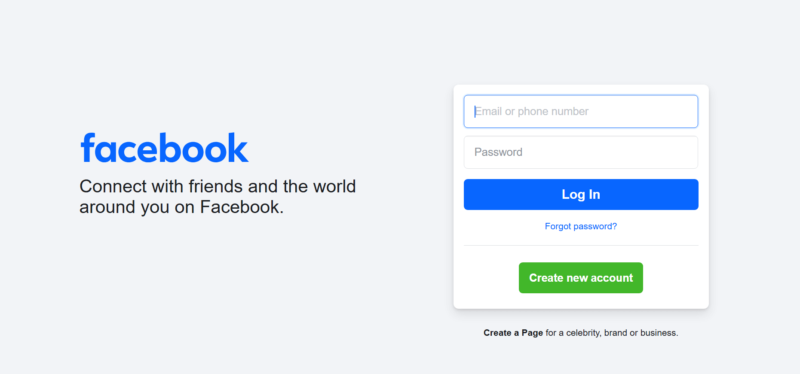
Open Facebook in a web browser and log in. You’ll need your email or phone number and password to access your Facebook account.
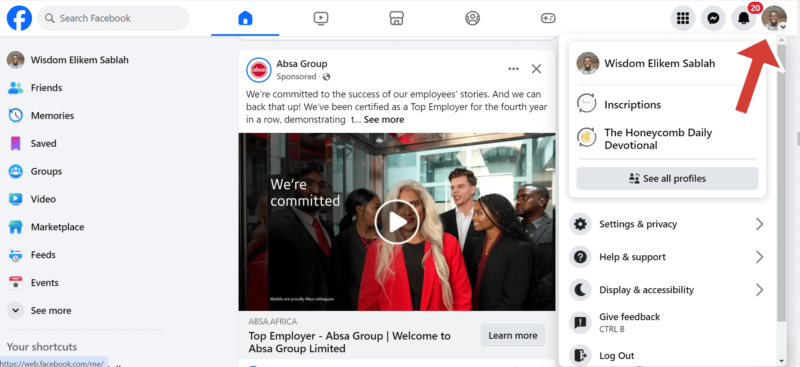
- Click on Your Profile Icon
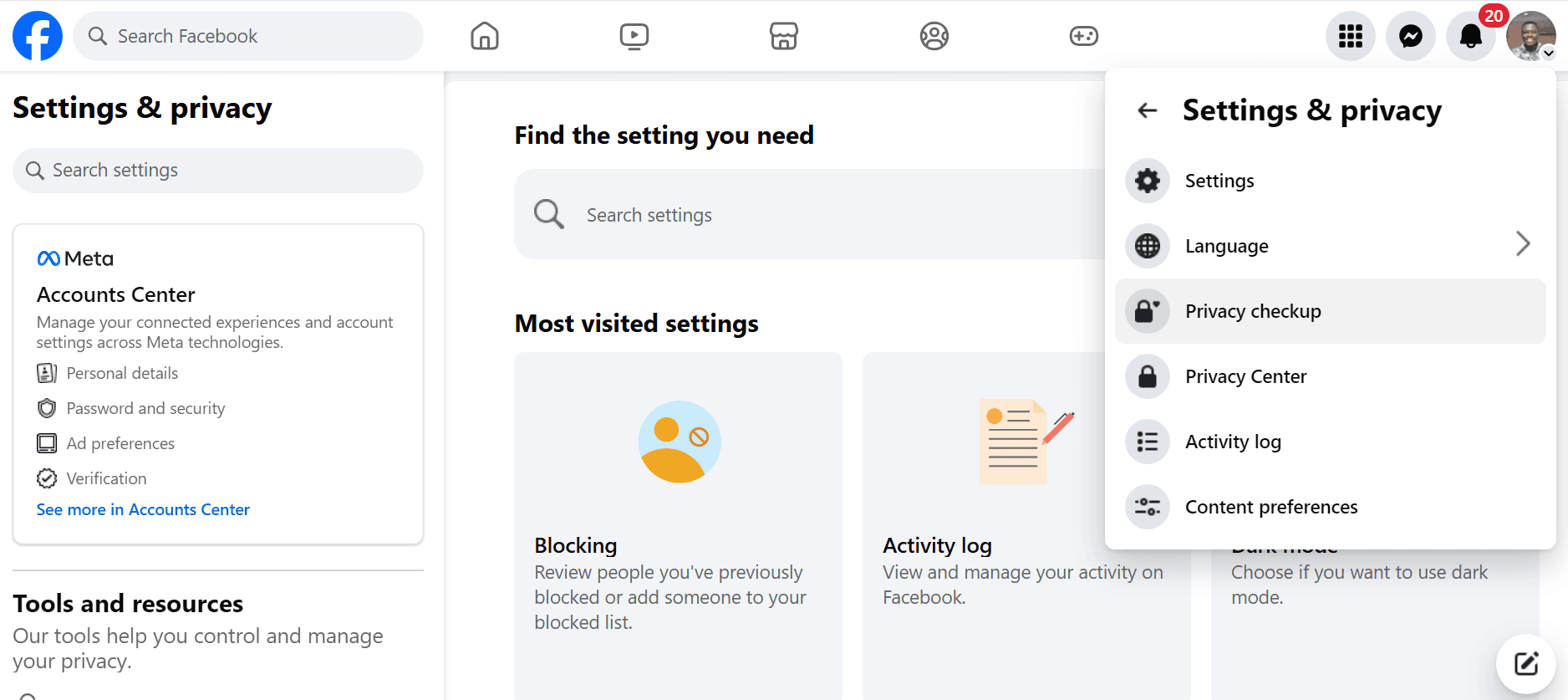
Click on the profile icon on the right-hand side of your screen. A drop-down menu will open. Scroll down and click “settings and privacy.”
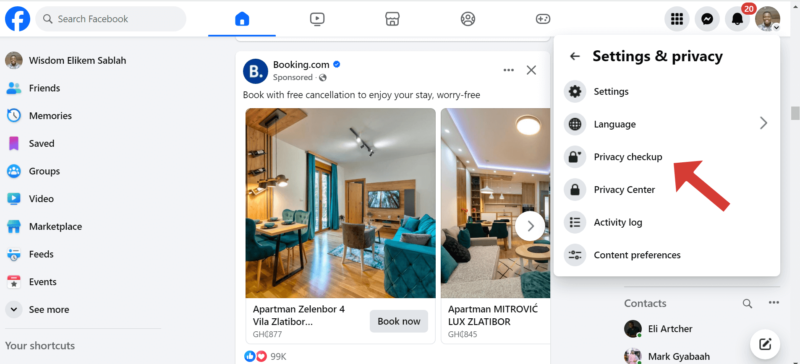
- Click “Privacy Checkup”
Click “privacy checkup” under “settings and privacy.” You can also access it through the privacy center.
- Change Who Views What You Share
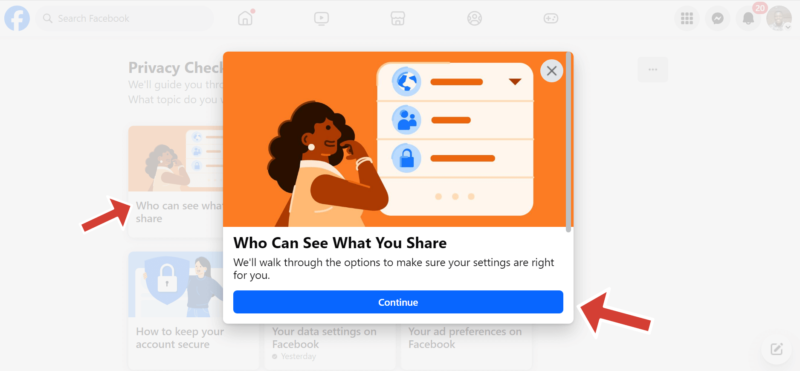
Click on the “who can see what you share” tab; a pop-up will appear. Click “continue” to open a new tab asking you to review your profile information.
- Review Who Can See Your Profile Information
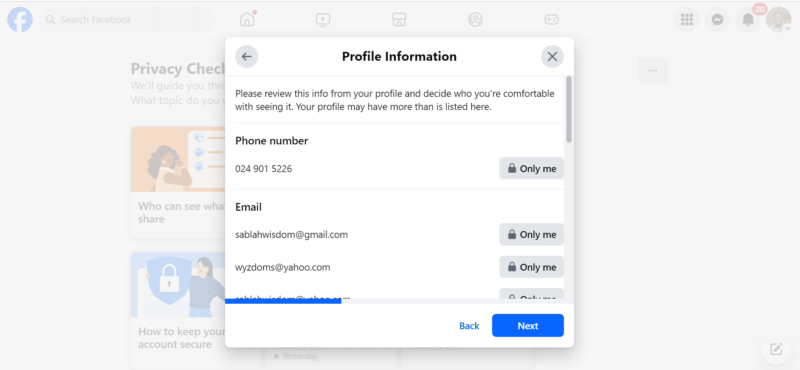
You can change who can view your personal details, including your phone number, email, birthday, hometown, relationship, current city, education and friends. You can set the views to “only me,” “friends” or “friends except acquaintances,” or create a custom list of viewers. “Public” is also an option, but that leaves you with no privacy protections at all.
- Review Who Can See Your Profile Information
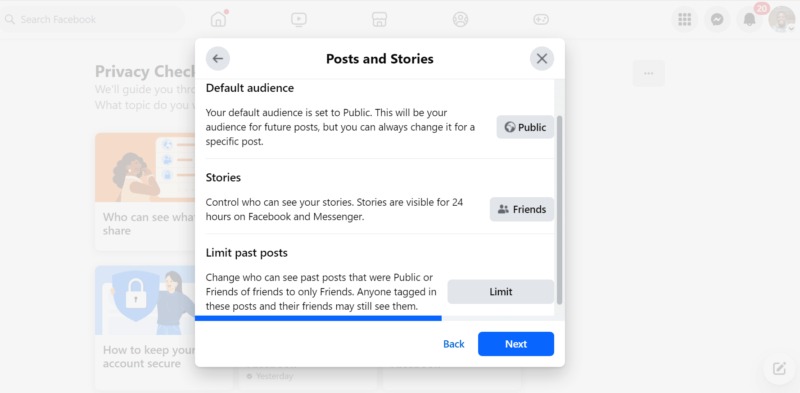
You can set a default audience for your posts and decide who can see your stories. You can also change the settings on past posts that were set to “public” and make it so only your Facebook friends can see them.
- Block People If You Wish
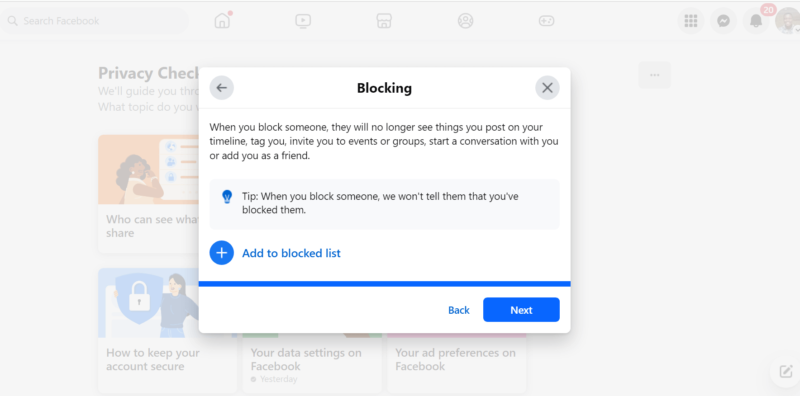
You can block people from viewing your Facebook posts or interacting with you on the platform.


How Do I Lock My Facebook Profile?
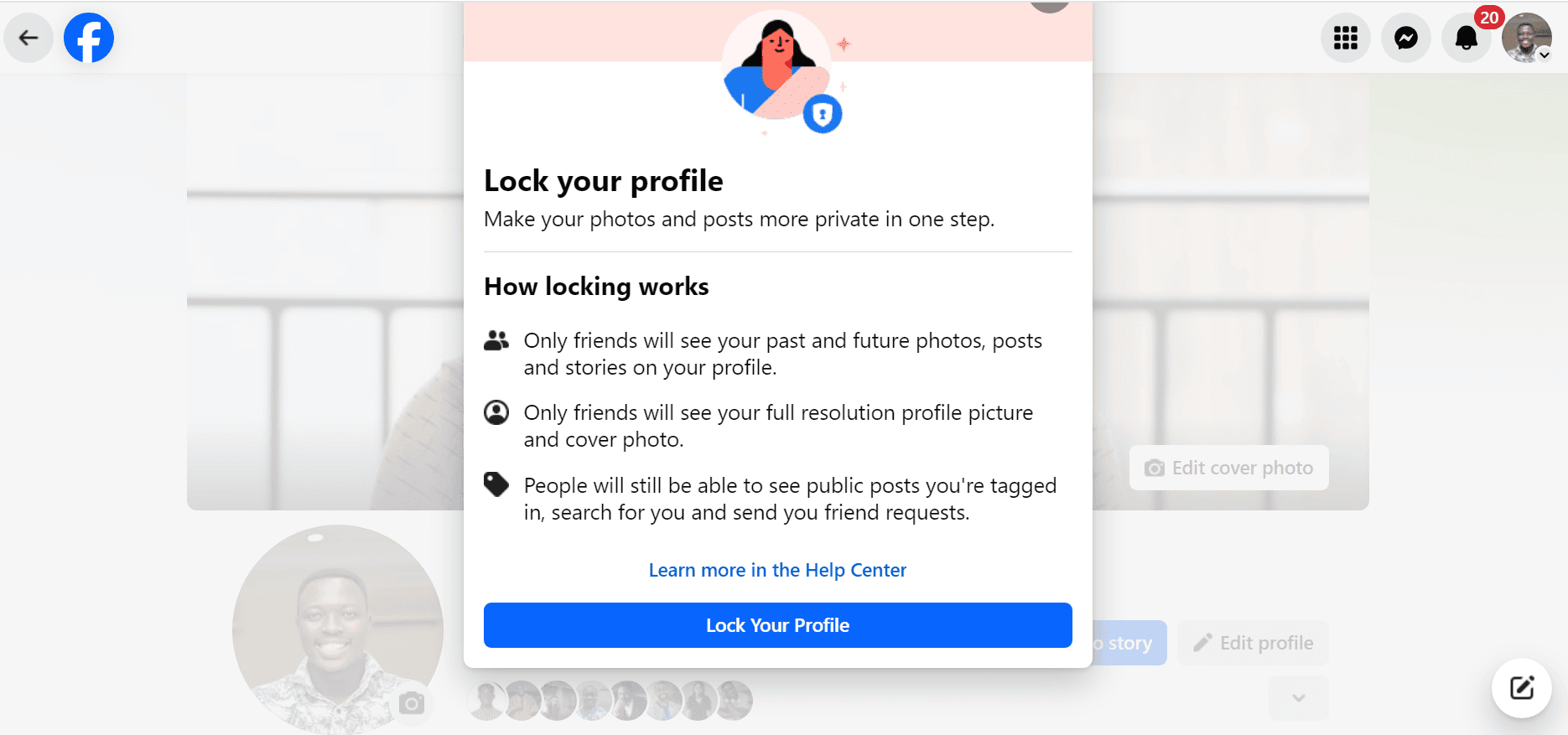
To lock your Facebook profile, you need to access privacy settings that make your photos and posts more private. Only your friends will be able to see your past and future posts, stories and cover photos.
Facebook’s profile-locking feature isn’t available to everyone. If you don’t see Lock Profile in your profile menu, use Facebook’s individual audience and visibility settings instead to restrict what non-friends can see.
This is a great choice that can improve your online privacy and help you build a healthier relationship with social media in general. Here are the steps to follow to lock your Facebook profile.
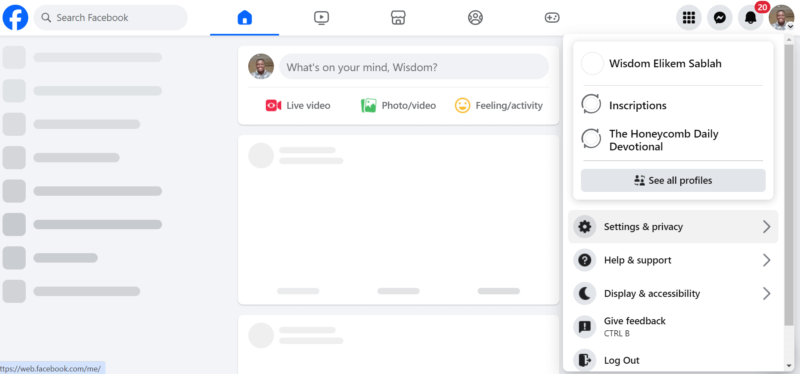
- Log In to Your Facebook Account and Go to “Settings and Privacy”
Click on your profile picture icon to reveal a drop-down menu. Scroll down until you see “settings and privacy” and click on it.
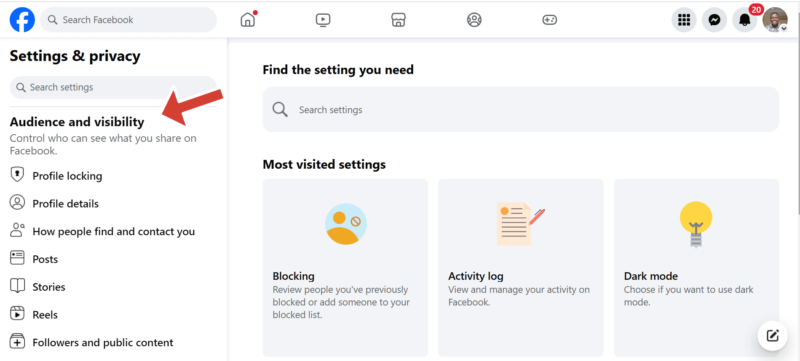
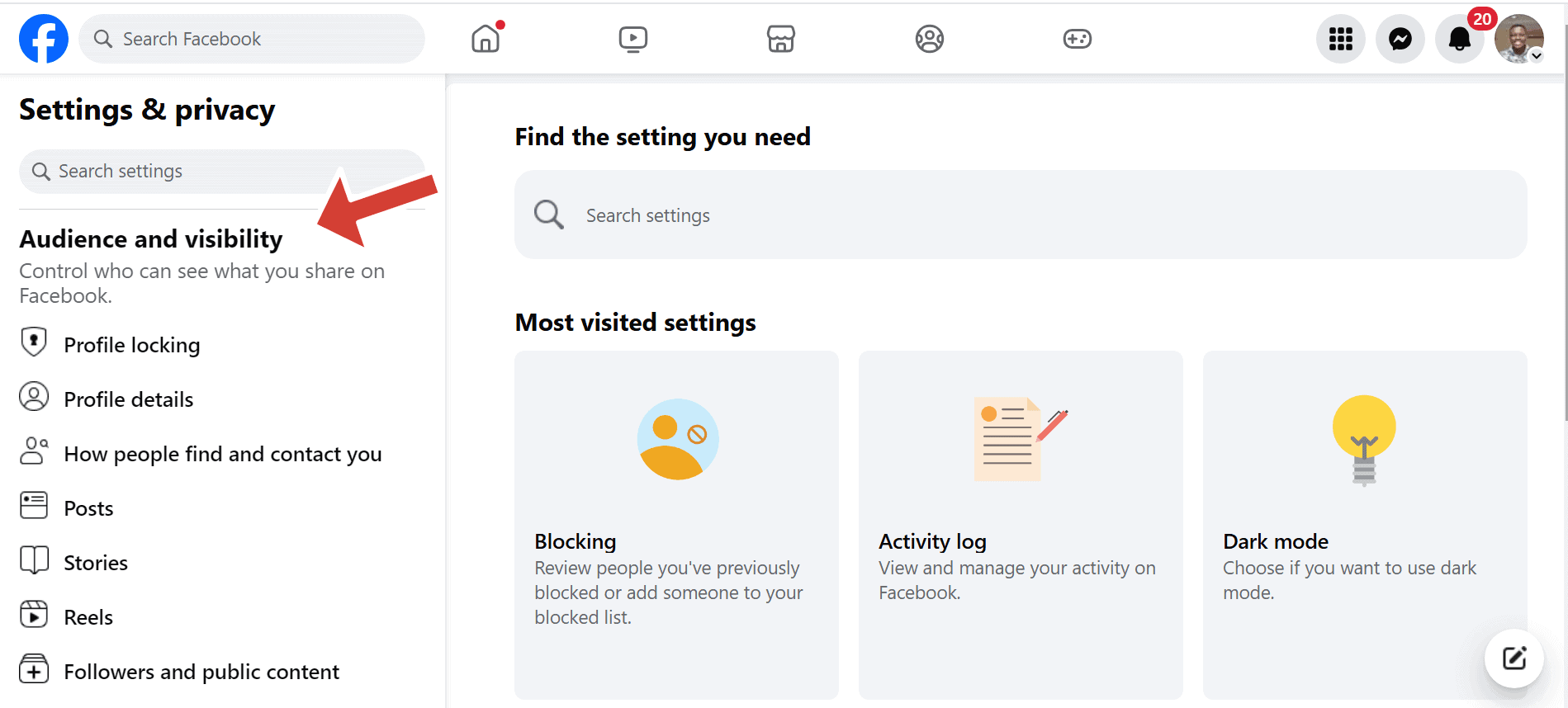
- Scroll to “Audience and Visibility”
Go to the left side of the settings and privacy page and scroll down until you find “audience and visibility.” Click “profile locking.”
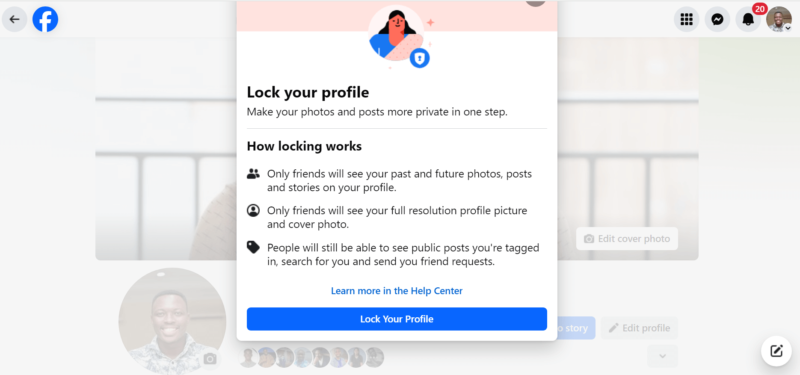
- Lock Your Profile
Click “lock your profile” to lock your Facebook profile. You’ll follow the same process to unlock your profile, but the button will read “unlock your profile.”

How Do I Make My Facebook Unsearchable?
To make your Facebook unsearchable, you need to access the options under “how do people find me” on the privacy checkup page. Below is a step-by-step guide on how to make your profile invisible to others.
- Log In to Facebook and Click “Settings and Privacy”
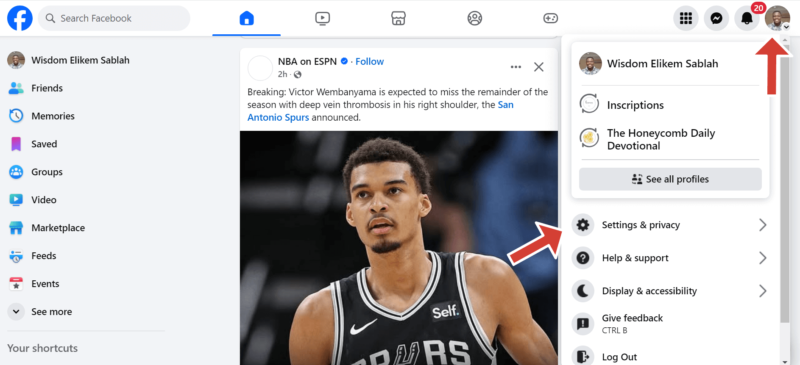
Click on the profile icon in the top-right corner of your screen. Afterwards, click “settings and privacy.”
- Click “Privacy Checkup”
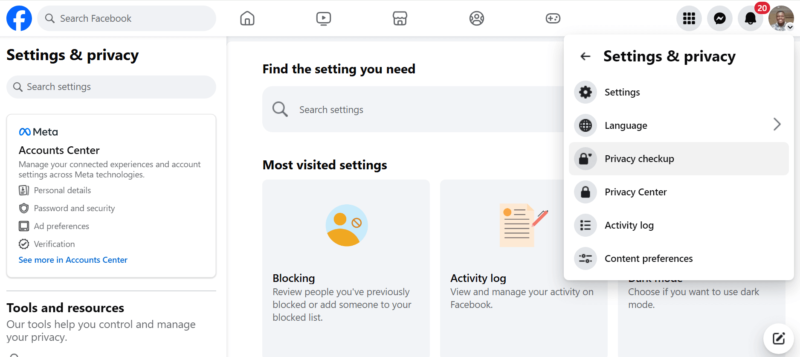
Click on the “privacy checkup” tab to open a page where you can make your Facebook account unsearchable.
- Change Who Can Find You on Facebook
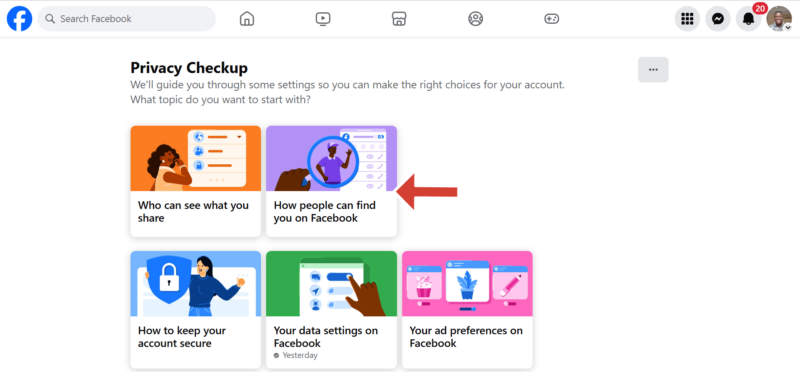
Click “how people can find you on Facebook.” A pop-up page will appear; click “continue” to proceed.
- Review Friend Requests
You can change who can send you friend requests to either everyone or friends of friends.
You can change who can send you friend requests to either Everyone or Friends of friends. While you’re here, set Who can see your friends list? to Only me if you want to hide your full friends list from other users.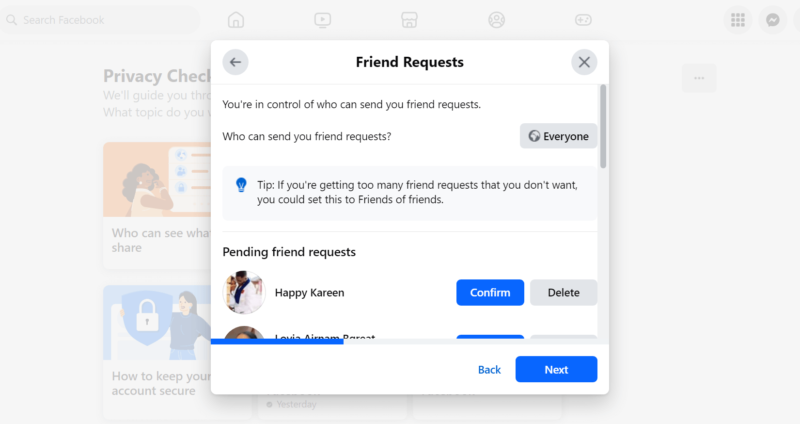
- Review to Whom Facebook Can Suggest Your Profile
You can change the friend suggestion fields in which your Facebook profile appears. You can allow or deny two categories: those with your phone number and those with your email address.
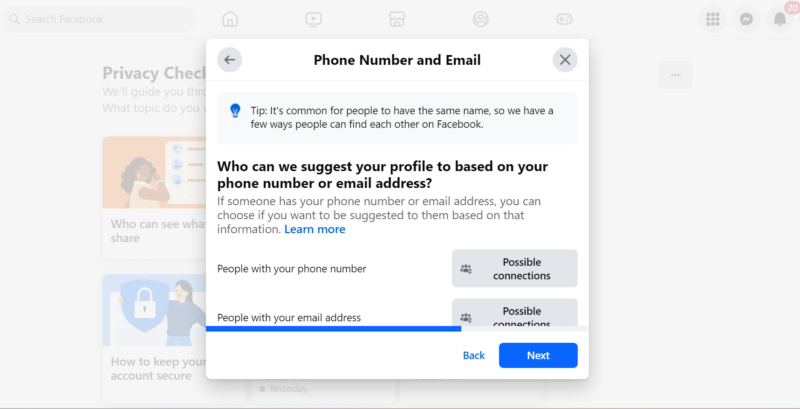
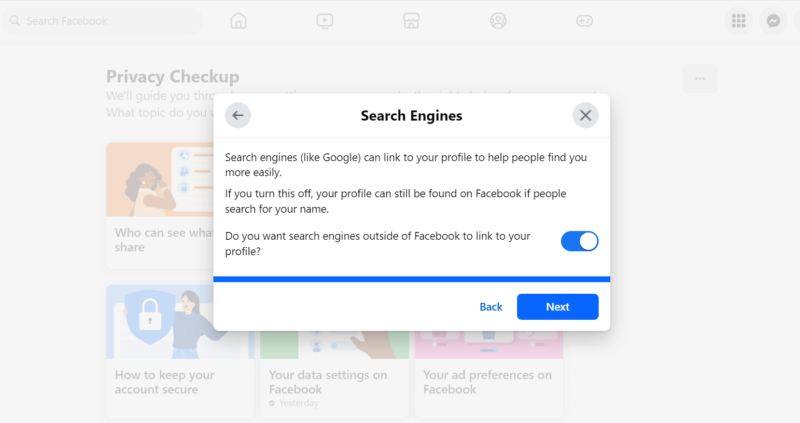
- Adjust How Search Engines Display Your Profile
Toggle off the button in the “search engines” window to stop search engines from linking to your profile outside of Facebook.



Hide Your Friends List
Select Who can see your friends list? and change the audience to Only me if you don’t want other people to see your full friends list. Facebook notes that people may still see mutual friends and friendships visible elsewhere on the platform.
Removing Data from Online Brokers
If you’ve had loose privacy settings for a long time, your data is already out there on the internet. The best way to get rid of this is with a data removal service like Incogni. Simply sign up for the service, enter your data and let Incogni send out removal requests to 420 data brokers.
What Stays Visible After You Make Facebook Private?
Tightening your privacy settings doesn’t make you invisible on Facebook. Depending on your settings, people may still see information such as your name, profile and cover photos, mutual friends, public group activity and posts you’re tagged in. Limiting friend requests and reviewing tags separately can reduce some of this exposure.
Changes also don’t necessarily undo previous exposure. Search engines may take time to remove already indexed information, and changing a post from Public to Friends shouldn’t be treated as a way to withdraw information Meta has already used for AI development. Use View As after making your changes to check what strangers can still see.
Check Your Facebook Privacy Settings
Once you’ve finished, open your Facebook profile, click the three-dot menu next to Edit Profile and select View As. Facebook will show you how your profile appears to people who aren’t your friends, so you can check that posts, photos and profile information you intended to hide are no longer publicly visible.
Final Thoughts
Facebook allows you to make your account private. You can restrict people from viewing your profile, posts and stories. You can also make your Facebook profile unsearchable on Facebook and search engines. If you want to avoid someone altogether, you can block that person from viewing your profile or Facebook activity.
What are your reasons for considering making your Facebook more private? Were the steps in this article easy enough to follow? Are there any privacy settings you’d like Facebook to add? Share your thoughts and experiences with us in the comments section below. As always, thanks for reading.
FAQ: How to Make Facebook Private
No, people won’t know that you viewed their Facebook story if you’re not their Facebook friend. If their story privacy is set to “public,” they’ll be able to see the number of viewers but not the specific names.
To make Facebook completely private to non-friends, set all your privacy settings to “only me.”
You can change your Facebook posts to private by setting the audience to “only me.”