How to Send a Large Video Through Email in 2026: Guide to Avoiding the File Size Limit
If you want to know how to send a large video through email, you can use a cloud storage service or third-party video file transfer tool. Read our guide to learn how to share video files with any of these options.


Written by Samuel Okoruwa (Writer)
Reviewed by Samuel Chapman (Writer, Editor)
Facts checked by Jasna Mishevska (Lead Fact-Checking Editor)
Last Updated:
All our content is written fully by humans; we do not publish AI writing. Learn more here.
If you’re looking to send a large video through email, don’t worry. There are several services that make it easy to share large video files just by clicking a button. Generally, you can either use a cloud storage service or third-party transfer tool to email large video files. Both categories of services get the work done, but each have their own limitations.
In this guide, we’ll show you how to send large video files, using Sync.com, a cloud storage service, and a third-party file-sharing tool called WeTransfer. We’ll also give a breakdown of some of the best cloud storage services to send large video files, which include pCloud, Sync.com, Proton Drive, Internxt and Dropbox..
To see our full list of the best cloud storage for video files, read our best cloud storage services for video guide. You can also learn more about how Dropbox and WeTransfer stack up against each other by reading our Dropbox vs WeTransfer comparison.
How to Send a Large Video Through Email
Follow these steps to share a large video via an email platform using Sync.com. This process is similar on other cloud storage services.
10,000+ Trust Our Free Cloud Storage Tips. Join Today!

- Demystify cloud storage terminology and key concepts in plain language
- Discover easy-to-implement techniques to securely backup and sync your data across devices
- Learn money-saving strategies to optimize your cloud storage costs and usage
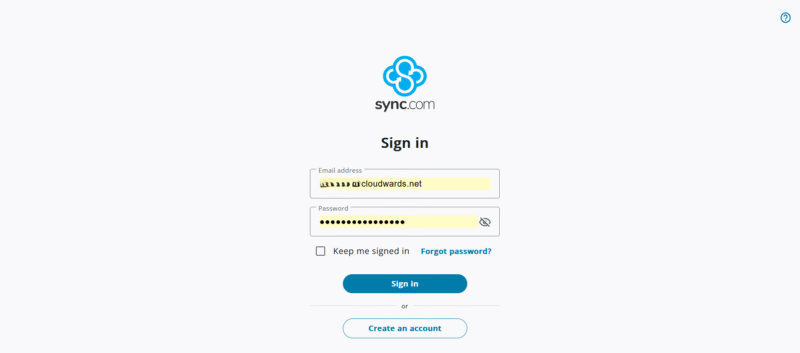
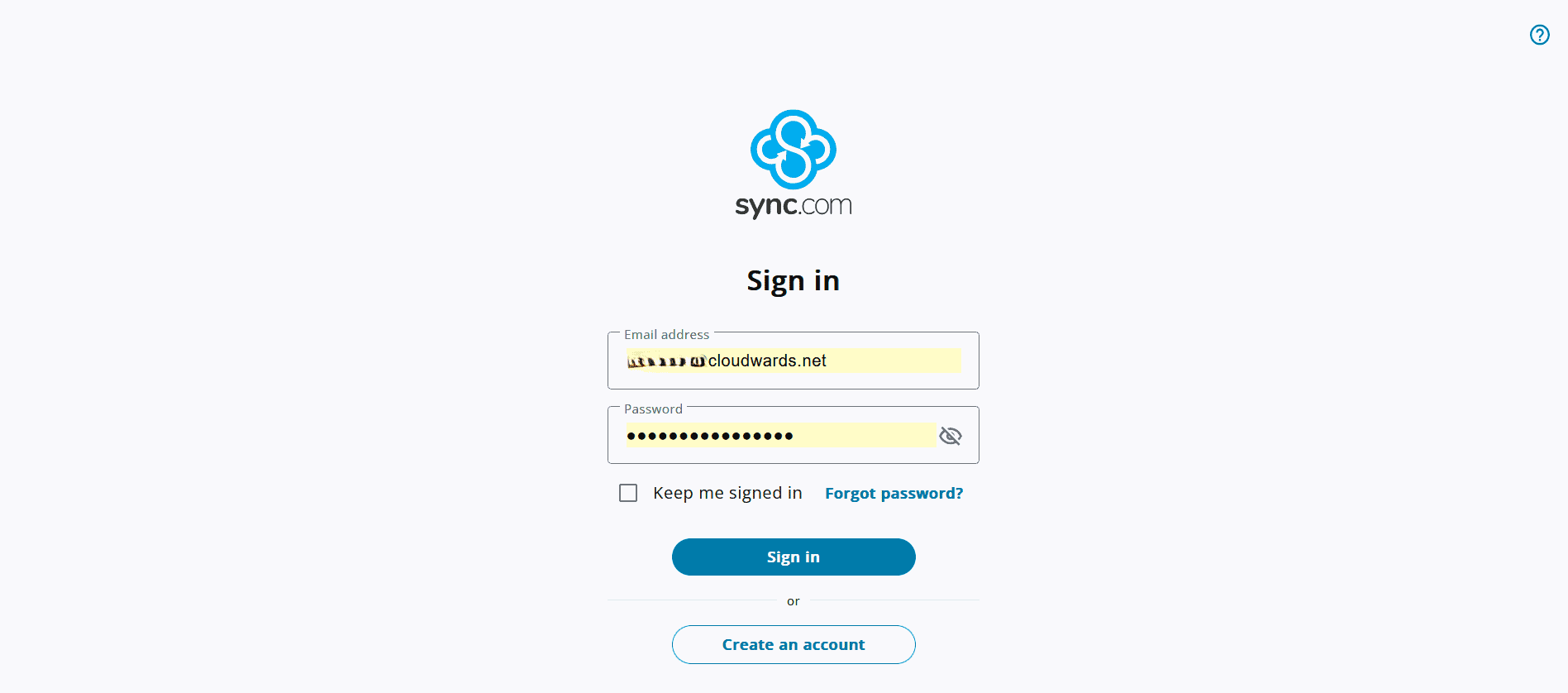
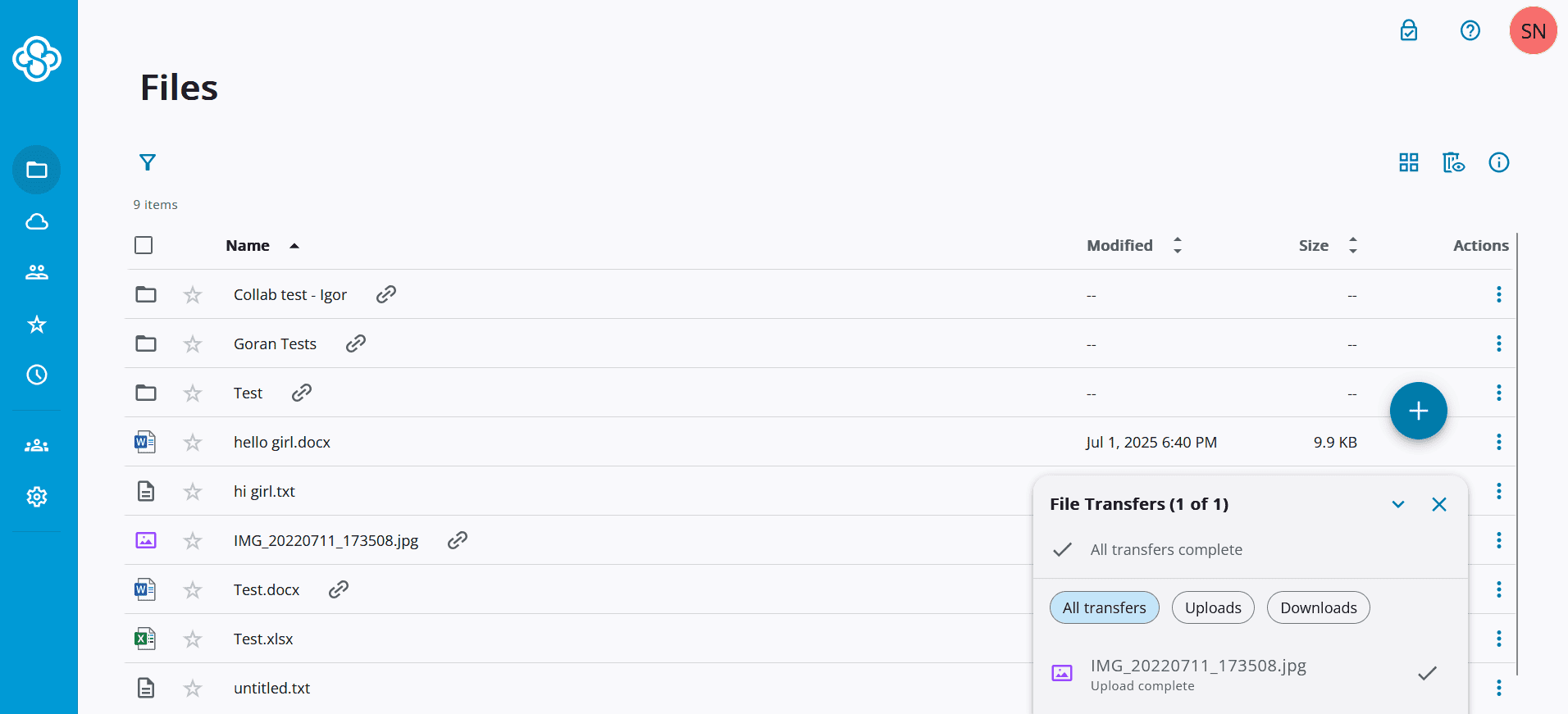
- Sign In to Your Sync.com Account
Visit sync.com and sign in to your account.
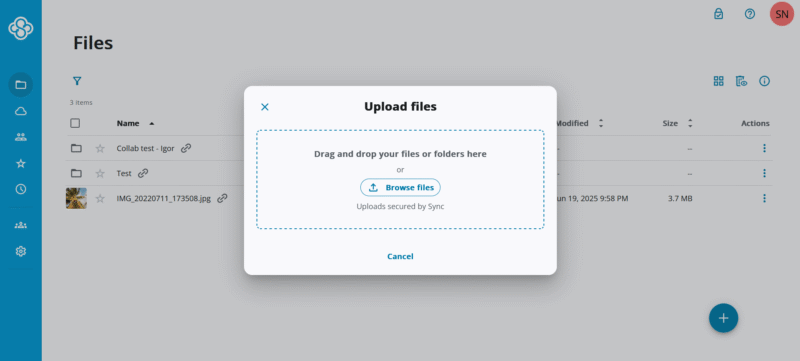
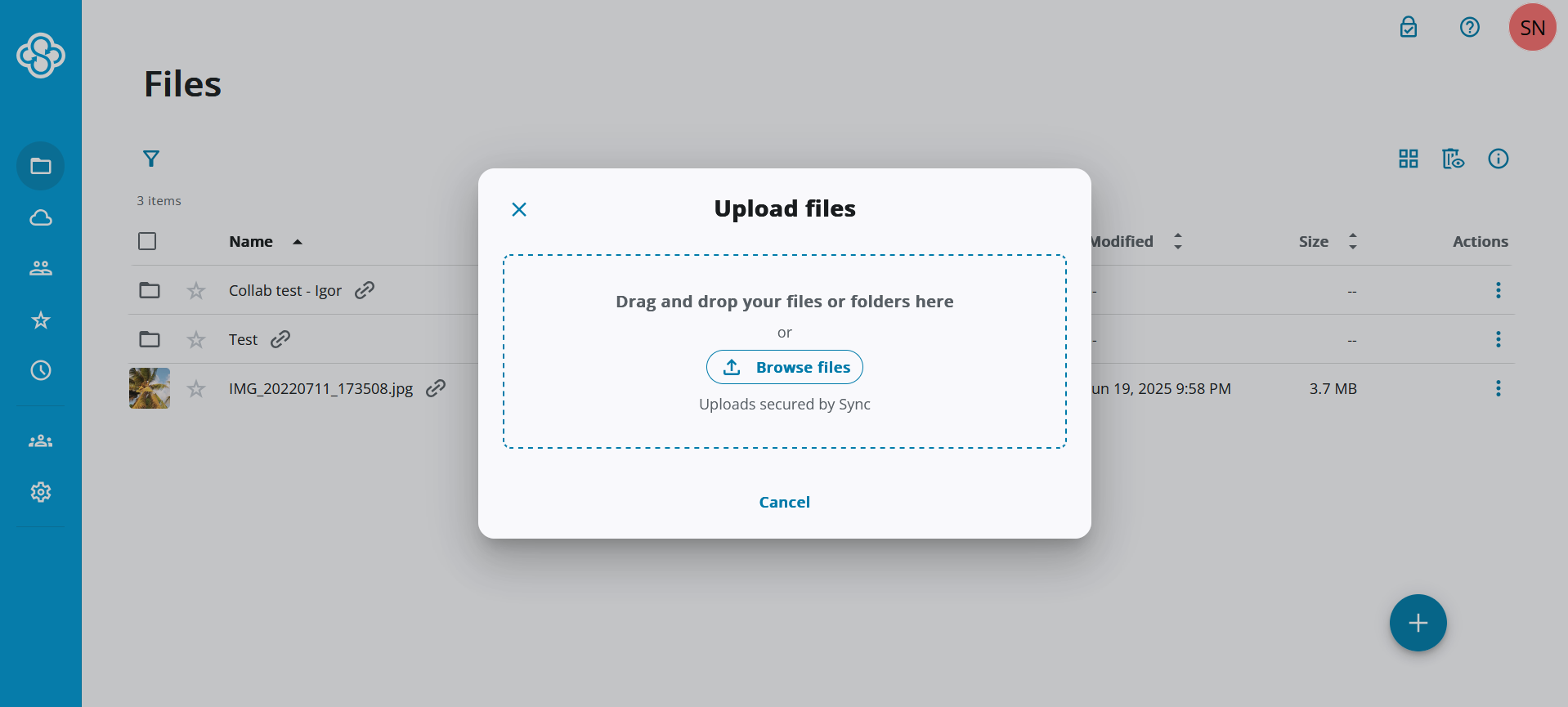
- Click “Upload”
Click “upload” at the right-hand corner of the screen. Then, click “choose files.”
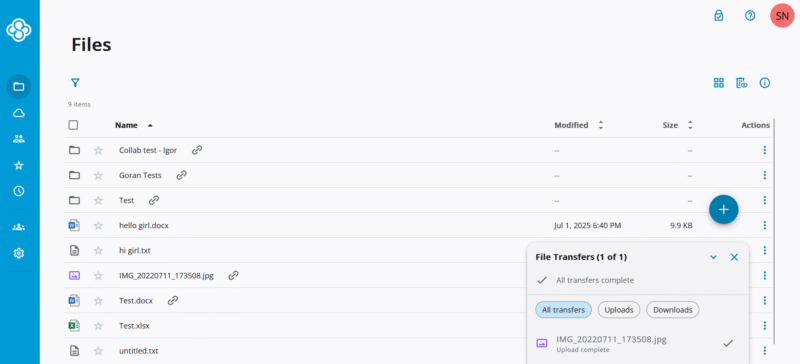
- Select and Upload the Video File
This will take you to file explorer. Select the video file you want to upload. Double-click on it to upload it to Sync.com.
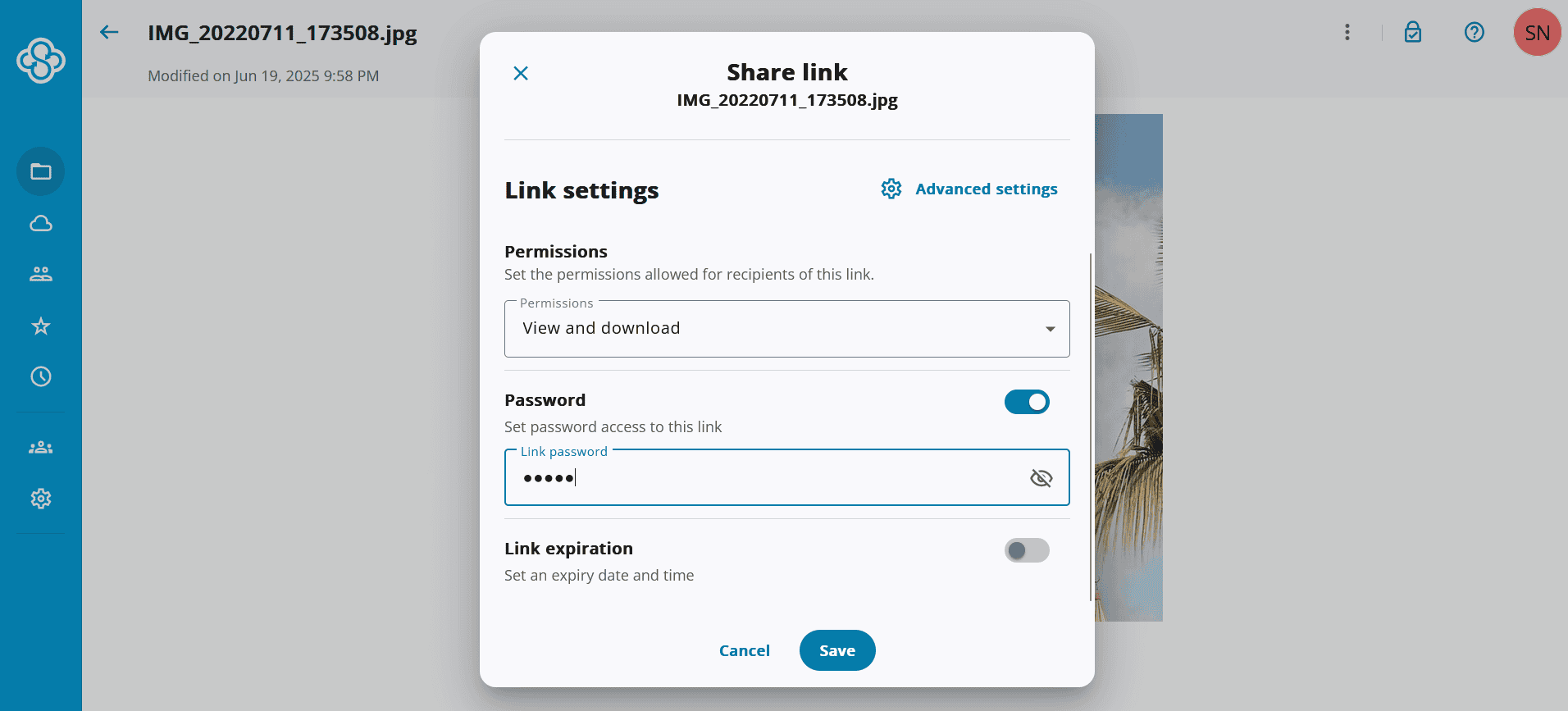
- Click “Share”
Locate the uploaded video file you want to share on the Sync.com homepage. Click on the share icon next to the file. Then, click “manage link.”
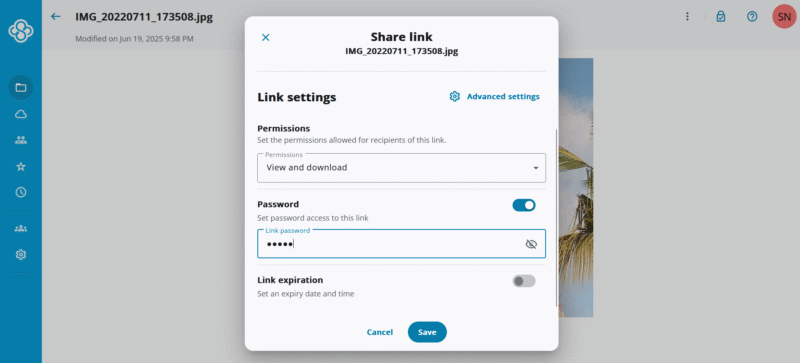
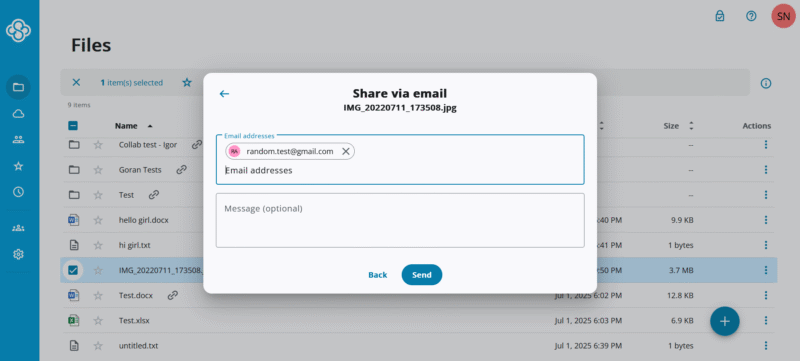
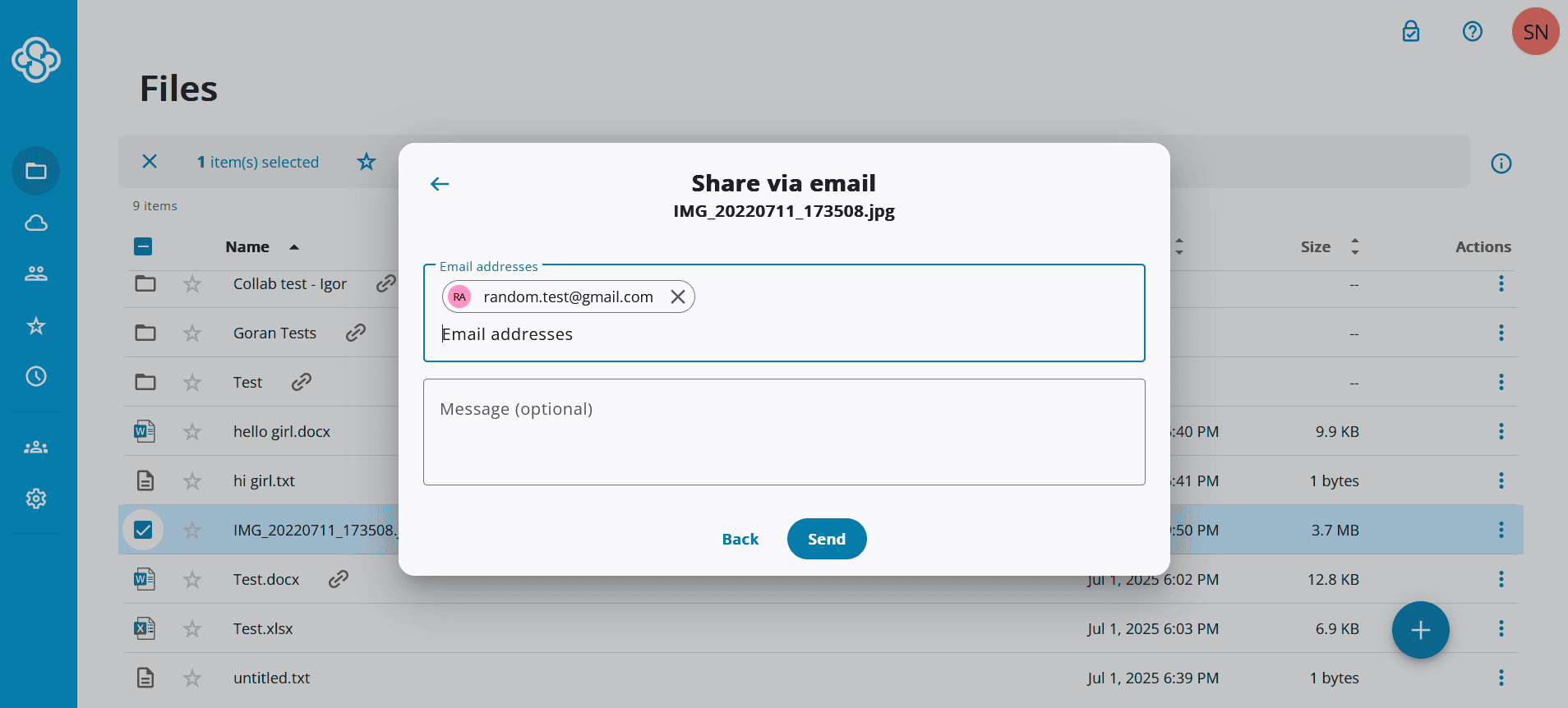
- Enter the Email Address
Under the “send this link to” heading, type the email address of your intended recipient. Next, click on “send email.”
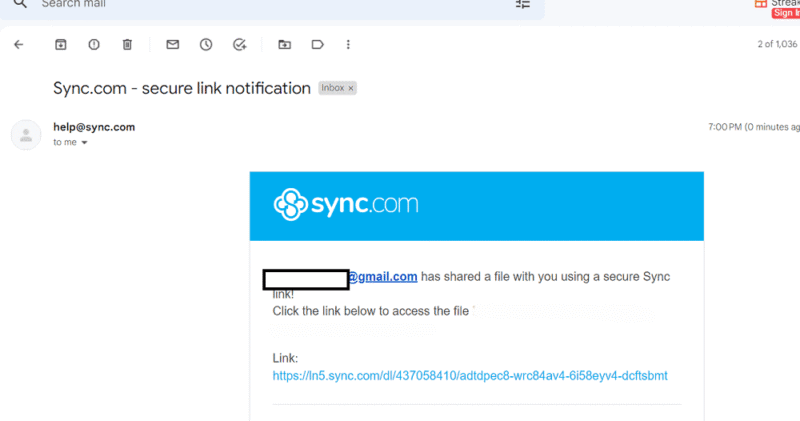
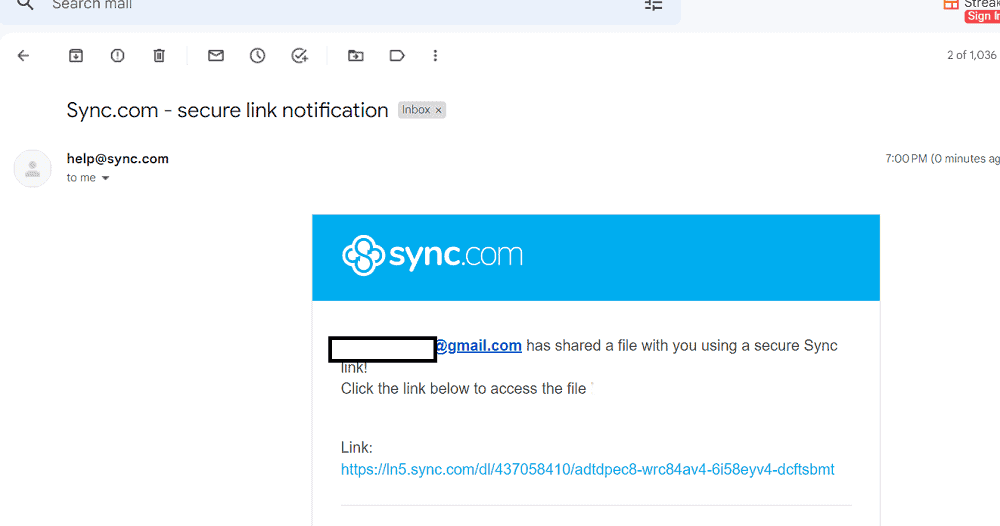
- Check Email for the Link
The link should arrive in the intended recipient’s inbox.
How to Send Large Video Files With Third-Party Software
WeTransfer is our favorite third-party tool for sharing files because it allows you to send files without needing to sign up. However, this option gives you just 2GB of storage space. To get more storage, you have to create an account. Files you send using WeTransfer are available to the recipient for seven days.
Follow these steps to send a large video using WeTransfer.
- Upload the File At WeTransfer.com
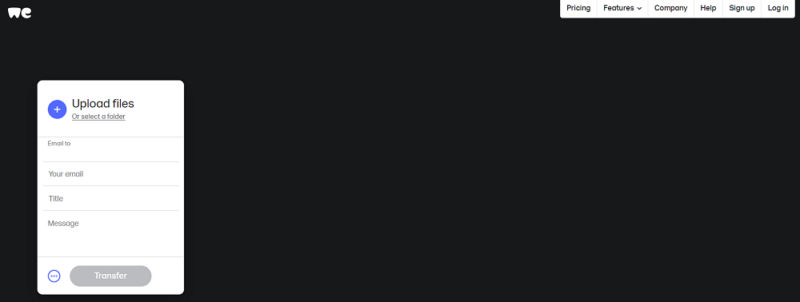
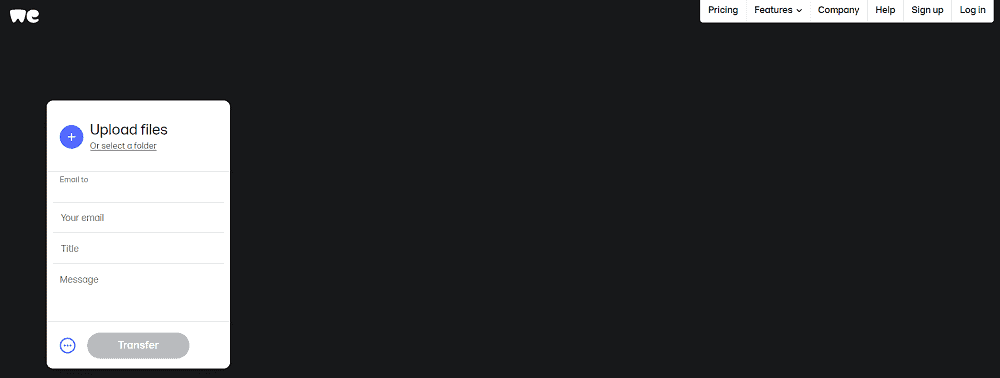
Visit wetransfer.com. To upload the file, click on “upload files or select a folder.” Next, enter your email address, the email address of the recipient, the title of the file and an optional message. Click “transfer.”
- Confirm Your Email Address
Before the upload begins, WeTransfer will ask you to confirm your email address. Go to your email account and open the email from WeTransfer. Copy the verification code and paste it into the text field. Then click on “verify” and wait for the file to finish transferring.

- Confirm That the File Has Been Sent
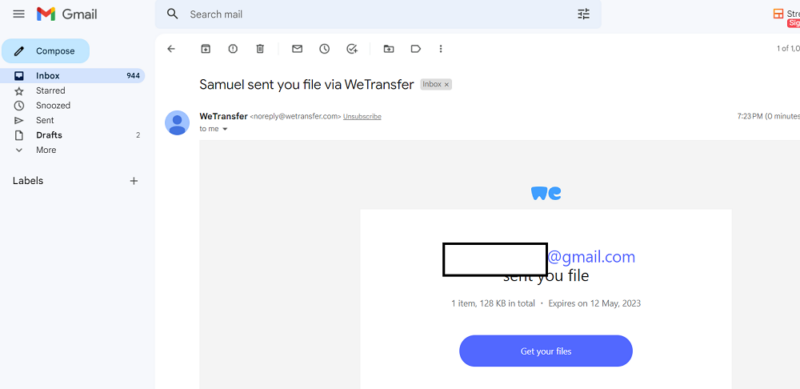
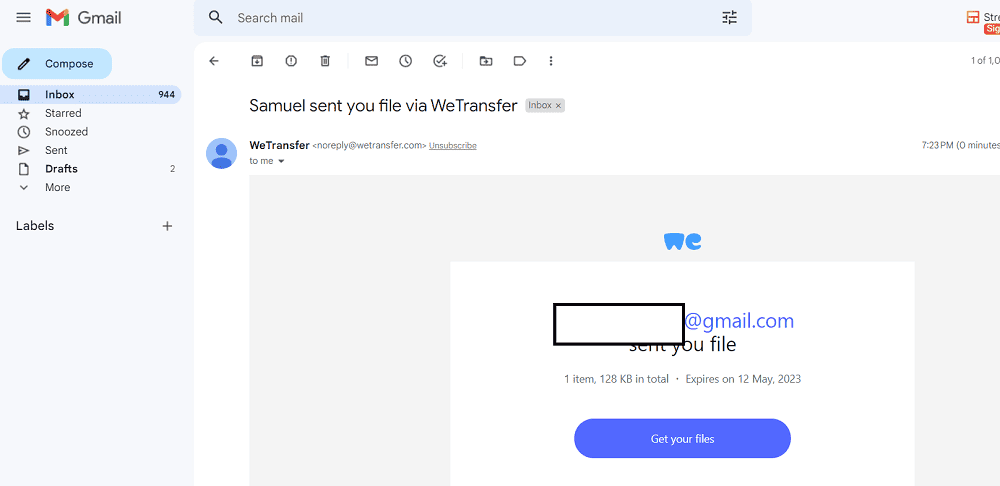
Once the transfer finishes, you will get an email from WeTransfer containing the link and confirming that the video file has been sent. Click on “get your files” to access it.

Best Cloud Storage Service to Send a Large Video File
The five top services we recommend for sending large video files are pCloud, Sync.com, Proton Drive, Internxt and Dropbox. These services excel in the areas needed for seamless transfer of large videos.
To effectively judge their performance, we used criteria such as the amount of storage space they provide, their maximum size limit for files, upload/download speeds and their cost.
1. pCloud


pCloud is one of the fastest cloud storage services around, making it a great option for sending long videos. pCloud is a no file-size limit provider and, as a bonus, pCloud has a built-in media player that lets you watch your saved videos on your preferred web browser.
pCloud is on another level in terms of security and makes it onto our list of the most secure cloud storage. One of its most outstanding security features is zero-knowledge encryption, which makes the encryption keys to your files stored on pCloud’s servers accessible only to you.
However, there’s one caveat: pCloud’s zero-knowledge implementation, which it calls “pCloud Crypto,” comes at an additional cost. pCloud Crypto costs $49.99 yearly, and the lifetime option costs $150, which is a one-time payment. However, pCloud Crypto is available for free for pCloud Business users.
pCloud has a generous free plan, offering 10GB of storage and a 50GB transfer limit. While that may work for two or three long videos, you’ll have to upgrade to one of pCloud’s paid plans if you plan on sharing many large video files. pCloud’s pricing starts with the 500GB Premium annual plan, which costs $49.99 yearly. You can also sign up to the Premium Plus 2TB annual plan at $99.99 per year.
- 10GB
- 500GB
- 2TB
More plans
- 10TB
- + FREE Encryption
- 2TB
- + FREE Encryption
- 10TB
- Price per user (minimum 3)
- 1TB
- Price per user (minimum 3)
- 2TB
- Encryption for pCloud Drive
2. Sync.com


Sync.com offers secure file transfer and syncing with no maximum file size limit or bandwidth cap. This means you can send large video files of any length. Sync.com offers anywhere from 5GB to unlimited storage space, depending on how much you pay.
Sync.com also comes with advanced sharing features. For time-sensitive video files, you can set an expiry date, after which the shared link will become inaccessible. You can also protect shareable links with passwords and monitor the video links you’ve shared with the help of notifications and download statistics.
Sync.com has an excellent free plan that comes with 5GB of storage. While this may be enough to send a full movie, it likely won’t let you share more than a few large video files. For more space, you can upgrade to a paid plan, starting with the 2TB Solo Basic plan, which costs $4.80 per month, billed annually. With the Solo Professional plan, you pay $11.67 monthly (billed annually) for 6TB of storage space.
- 5GB
- 2TB
More plans
- 6TB
- per user, per month, billed annually
- 1TB
- Priced per user (3 users minimum)
- Unlimited GB
- Minimum 100 users, custom requirements, account manager, training options
3. Internxt

Internxt offers strong security with zero-knowledge encryption on all plans, making it a privacy-focused option for sharing video files. The service includes a bundled VPN and antivirus, adding extra value for security-conscious users.
However, it’s important to note that in our 2026 speed tests, Internxt showed some limitations when handling large files. Our testing revealed that the service struggles with large files and zips, with speeds dropping below 5MB/s during uploads of bigger video files.
For smaller video files or users who prioritize privacy over raw speed, Internxt remains a solid choice. The 1TB Essential plan is exceptionally affordable at $20 per year for the first year. The service offers password-protected file sharing and folder sharing capabilities.
Internxt’s free plan provides only 1GB of storage, which is quite limited for video files. For regular video sharing, you’ll want to upgrade to a paid plan. Check out our complete Internxt review.

- 1GB
- Post-quantum encryption Zero-knowledge encryption Two-factor authentication Backup your computer Password-protected file sharing Encrypted VPN Antivirus
- 1TB
- Everything in Essential plus; Cleaner Invite, share & collaborate File versioning (coming soon) Cleaner
- 3TB
More plans
- Everything in Premium plus CLI & WebDav support NAS & Rclone support Meet Mail (coming soon)
- 5TB
- Annual Price is per user
- 1TB
- Annual Price is per user
- 2TB
4. Proton Drive
![Video thumbnail for the video: I Tested Proton Drive to See If It's as Private as It Claims [2024 REVIEW]](https://img.youtube.com/vi/XWmsFdm-VLg/maxresdefault.jpg)

Proton Drive is an excellent choice for sending large video files securely. In our 2026 speed tests, Proton Drive demonstrated very stable and fast performance with low CPU usage, making it ideal for uploading large video files without system slowdowns. The service averaged upload speeds of around 25MB/s without throttling, peaking at 33MB/s.
Security is where Proton Drive truly shines. All files are protected by zero-knowledge encryption on every plan, meaning Proton cannot access your video files. The service is headquartered in Switzerland, benefiting from strong privacy laws, and complies with GDPR and HIPAA.
Proton Drive integrates seamlessly with the broader Proton ecosystem, including Proton VPN, Proton Mail and Proton Calendar. This makes it an excellent option if you’re looking to replace multiple Google services with privacy-focused alternatives.
The free plan offers 5GB of storage, which is enough for a few large video files. Paid plans start at competitive rates and include access to the full Proton suite. Link sharing supports editor or viewer permissions, though it lacks password protection and expiry dates found in some competitors. To learn more, read our Proton Drive review.

- 5GB
- 200GB
- 500GB
More plans
- 2TB
- 3TB
- per user
- 1TB
- per user, minimum of 2 users
- 1TB
- 1TB
5. Dropbox
![Video thumbnail for the video: Should You Still Use Dropbox in 2024? [Updated Review]](https://img.youtube.com/vi/bwy8HZ1Uvnk/maxresdefault.jpg)
Dropbox remains a reliable option for sending large video files thanks to its block-level file syncing, which only syncs chunks of video files that have changed, speeding up the transfer process significantly. In our testing, Dropbox handled stress tests without any issues, demonstrating excellent reliability.
Dropbox Transfer is a standout feature, allowing you to send large files of up to 2GB on the Dropbox Plus plan and 100GB on the Dropbox Professional plan. The service also offers advanced video features including the ability to trim videos, generate transcripts and add comments through Dropbox Replay.
Unfortunately, Dropbox doesn’t have advanced file sharing features like Sync.com for video file links, lacking expiry dates and password protection specifically for video files (though they’re present for other file types). The free plan offers just 2GB of storage, and paid plans are more expensive compared to alternatives on this list.
For users who need reliable syncing and don’t mind the premium pricing, Dropbox’s polish and feature set make it a worthy consideration. We have more in our Dropbox review.

- 1 user
- 2GB
- 1 user
- 2TB
- up to 6 users
- 2TB
More plans
- (Formerly Dropbox One) 1 user Signature requests and eSignature templates
- 3TB
- 3 users minimum
- 5TB
- 3 users minimum
Final Thoughts
Sending a large video file is a breeze, provided you do it with the right tool. To recap, pCloud is the best option, with fast transfer speeds, affordable plans and a built-in media player. Go for Sync.com if you need unlimited storage space, advanced file sharing features and excellent privacy.
Internxt is a budget-friendly, secure option, though be aware it can struggle with very large files. Proton Drive is your best option if privacy is your top priority — it offers stable, fast uploads with zero-knowledge encryption included on all plans. Dropbox remains excellent for reliability and collaborative video work, though it comes at a premium price.
Were you able to share your video file? What’s your best service for sharing videos? Let us know in the comment section below, and as always, thank you for reading.
FAQ
You can email an extremely large video file using a cloud storage service like pCloud, Sync.com, Proton Drive, Internxt or Dropbox, or through a third-party software option like WeTransfer.
You can send a video file over 25MB through email using a popular cloud storage service like pCloud, Sync.com, Proton Drive, Internxt and Dropbox, or a third-party software tool like WeTransfer.
To email a video file of enormous size via Gmail, you may have to sign up to any of the premium plans of popular cloud storage services like pCloud, Sync.com, Proton Drive, Internxt and Dropbox or a third-party tool like WeTransfer.