Best Windows Cloud Backup Solutions: Keep Your PC Files Safe
I compared the best Windows cloud backup solutions based on features, security, speed, performance and pricing. Learn why IDrive is my top pick for a Windows cloud backup solution.


Written by Kevin Kiruri (Writer)
Reviewed by Kate Hawkins (Editor, Writer)
Facts checked by Eugenie Tiu (Editorial Assistant)
Last Updated:
All our content is written fully by humans; we do not publish AI writing. Learn more here.
Key Takeaways: These Are the Best Windows Cloud Backup Services
- IDrive — The best overall cloud backup service, offering a versatile mix of cloud storage and backup features. Get 10GB for free or get 75% off on the 5TB Personal plan.
- Backblaze — The best Windows backup solution for unlimited storage. Start your risk-free 15-day trial today.
- pCloud — The best value for lifetime cloud storage. Stop paying monthly fees and get up to 10TB forever with a Family Lifetime plan.
- Proton Drive — A privacy-focused option with stable sync performance and up to 10 years of version history on paid plans.
- Internxt — The best privacy-focused option, featuring open-source code and post-quantum encryption. Get the 1TB Lifetime plan today for just $300.
- Acronis Cyber Protect — The most secure option, combining full-image backups with active anti-ransomware protection. Get started today with Acronis’ 30-day free trial.
Facts & Expert Analysis: What Makes the Best Cloud Backup Service for Windows?
- Backup architecture and automation: The service should support continuous backups and background operation with minimal user intervention.
- Restore flexibility and recovery speed: A good backup service allows for version rollbacks, file-level restores and full-system recovery.
- Encryption, account security and ransomware protection: The service should offer end-to-end encryption, two-factor authentication (2FA) and optional zero-knowledge modes.
Backing up your Windows PC is no longer optional; it is essential. Your files and data are at risk from hardware failure, ransomware and accidental deletions. This makes it essential to have a reliable Windows backup service to ensure that you never lose your data.
Choosing the right cloud backup service can be confusing. In this guide, I analyze the five best providers for Windows, covering pricing, security and storage options, to help you make an informed choice when choosing a Windows cloud backup service.
-
08/24/2022 Facts checked
Updated IDrive’s pricing information.
-
10/26/2022 Facts checked
Updated Carbonite’s prices.
-
05/23/2023 Facts checked
Updated to remove information on IDrive’s free plan and add its new free 30-day trial.
-
01/07/2024 Facts checked
Updated IDrive’s pricing information, including the free plan that is active again.
-
06/19/2025 Facts checked
We updated the article to account for changes in different backup services.
-
02/19/2026 Facts checked
We rewrote this guide and updated our list of the best Windows backup solutions.
Cloudwards’ Choice: IDrive
 Cloudwards’ Choice: IDrive
IDrive stands out as the best all-around Windows backup service. It balances ease of use with advanced features such as disk image support, multi-device backup and file versioning. This makes it an ideal option for casual and advanced users alike. To get started, try IDrive’s free plan or take advantage of the discounted premium plans.
The 7 Best Backup Services for Windows Computers Table
| Service: | Free Storage | Best Price | Server Locations | E2E Encryption | Collaboration | Advanced Sharing | Security |
|---|---|---|---|---|---|---|---|
 | 10GB | $6.22 per month (two-year plan) for 5TB | U.S., Asia, Europe | Google Workspace, Microsoft 365 | 2FA, continuous backup, versioning | ||
 | No; 15-day free trial | $7.88 per month (two-year plan) for Unlimited GB | U.S. | * | Google Workspace, Microsoft 365 | Versioning, 2FA | |
 | 10GB | $399 for 2TB Lifetime | EU, U.S. | Google Workspace, Microsoft 365 | File versioning, TLS/SSL | ||
 | 5GB | $3.99 per month (one-year plan) | EU, Switzerland | Proton Docs & Sheets | AES-256, TLS/SSL | ||
 | 1GB | $300 for 1TB Lifetime | EU | Google Workspace, Microsoft 365 | Zero-knowledge encryption, post-quantum cryptography | ||
 | 250GB per server license | $4.17 per month (one-year plan) for 1 computer | U.S., EU, APAC | Google Workspace, Microsoft 365 | Ransomware protection, 2FA |
1. IDrive — Best Overall Windows Cloud Backup

IDrive provides full disk image backups, which capture your entire system and allow for complete recovery after crashes or hard drive failure. The service supports multiple Windows computers under one account, centralizing multi-device backup. Scheduled and continuous backups run automatically in the background, keeping files protected at all times.
IDrive Hands-On Testing
IDrive offers a very practical user experience. The setup process is straightforward, and I like that the software clearly explains each step, from choosing folders to setting schedules. Once everything is in place, backups run quietly in the background, which makes it easy to forget about them.
10,000+ Trust Our Free Cloud Storage Tips. Join Today!
- Demystify cloud storage terminology and key concepts in plain language
- Discover easy-to-implement techniques to securely backup and sync your data across devices
- Learn money-saving strategies to optimize your cloud storage costs and usage
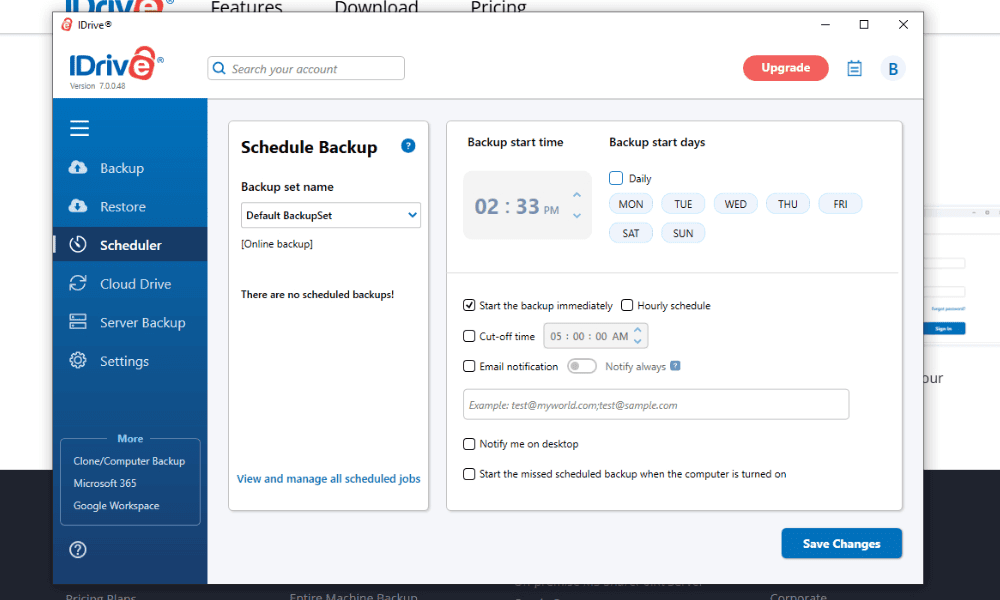
The desktop app gives you granular power over your data. You can set per-folder rules, manage file versioning, adjust snapshot frequency and create separate backup sets for each device. For multi-device users, these controls help prevent data loss and make recovery simple when files need to be restored.
Notes From the Lab: IDrive Speed Test Results (5GB Folder)
| 1st Test (100 Mbps) | 2nd Attempt (100 Mbps) | Average (100 Mbps) | Unthrottled Test (1 Gbps) |
|---|---|---|---|---|
| Upload | 0:06:45 | 0:06:44 | 0:06:45 | 0:05:00 |
| Download | 0:06:50 | 0:07:06 | 0:06:58 | 0:04:57 |
IDrive was very fast during our upload and download tests, reaching top speeds on both throttled and unthrottled internet connections. CPU usage stayed low, and speed drops were barely noticeable. Overall, it felt fast and reliable.
Notes From the Lab: IDrive Security Analysis
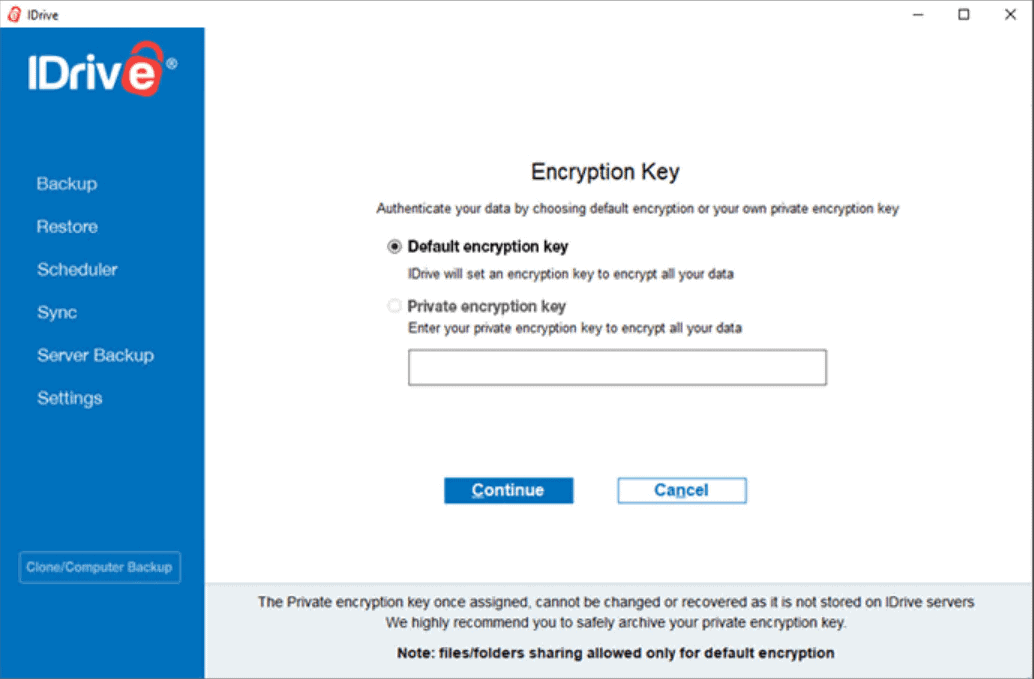
IDrive’s security approach balances strong protocols with flexibility. It delivers powerful encryption, secure data centers and optional client-side encryption. Two-factor authentication (2FA) adds another layer of protection, while sharing controls help protect files sent to clients or team members.
| Encryption Type | Encryption Protocols |
|---|---|
| At rest | AES-256 |
| In transit | SSL/TLS |
IDrive Pricing & Value
IDrive offers a flexible pricing structure that suits both businesses and personal users, including a 10GB free plan. IDrive provides different plans for personal, team or business use, supporting multiple devices. Read our IDrive review to learn more.
- No credit card required.
- 10GB
- One user.
- 100GB
- One user, multiple computers. Plans starting from 5TB up to 100TB. Big discount for first-time signup.
- 5TB
More plans
- 5 computers, 5 users. Starting at 5TB up to 500TB. Big discount for first-time signup.
- 5TB
- Monthly Plan storage starts at 1.25TB up to 50TB Unlimited users, multiple computers and servers. NAS devices. 250GB storage. Starting at 250GB up to 50TB. Large discount for first-time signup.
- 250GB
- 5TB
2. Backblaze — Best Unlimited Storage Windows Cloud Backup

Backblaze is ideal for users who want cloud-based protection without worrying about storage caps, as it’s one of the few backup options with unlimited storage. It continuously backs up data on Windows 10 and 11 as well as external drives, which ensures that your data is always safe.
Backblaze Hands-On Testing
Backblaze makes the backup process on Windows smooth and effortless. Setup takes just a few minutes, and the service immediately starts backing up files. It also manages bandwidth intelligently, so backups run in the background without slowing down other work.
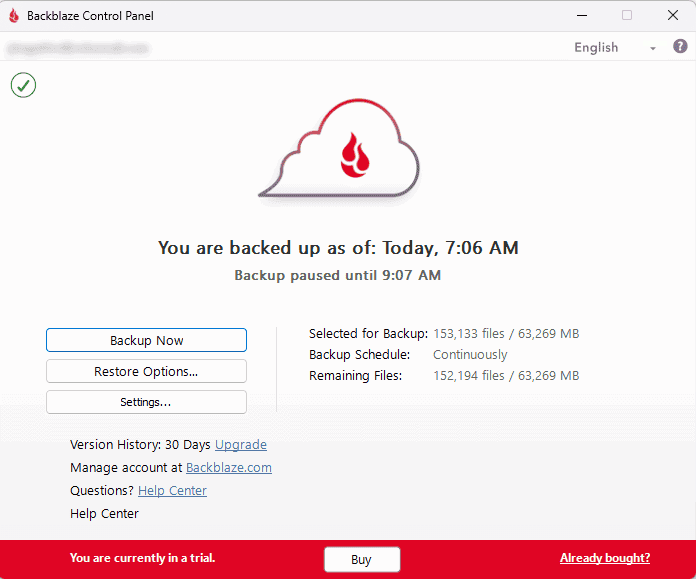
A major drawback is the inability to restore files directly via the desktop app — you must instead use the web interface to generate and download ZIP archives. This is frustratingly inefficient for large datasets or full-system recovery, as downloading and unzipping massive files is slow and error-prone compared to a direct in-app restore process.
Notes From the Lab: Backblaze Speed Test Results
| 1st Test (100 Mbps) | 2nd Attempt (100 Mbps) | Average (100 Mbps) | Unthrottled Test (1 Gbps) |
|---|---|---|---|---|
| Upload | 0:17:00 | 0:16:47 | 0:16:54 | 0:16:55 |
| Download | 0:07:10 | 0:07:08 | 0:07:09 | 0:06:15 |
Uploads took longer to initiate with Backblaze, most likely due to initial file scanning. However, once the process was up and running, speeds were steady, with occasional peaks. Downloads were fast and stable, reaching near-maximum speeds.
Notes From the Lab: Backblaze Security Analysis
Backblaze provides excellent security through strong encryption, secure data centers and optional private encryption keys. Security settings like 2FA add protection, though the file-sharing tools are basic compared to other services.
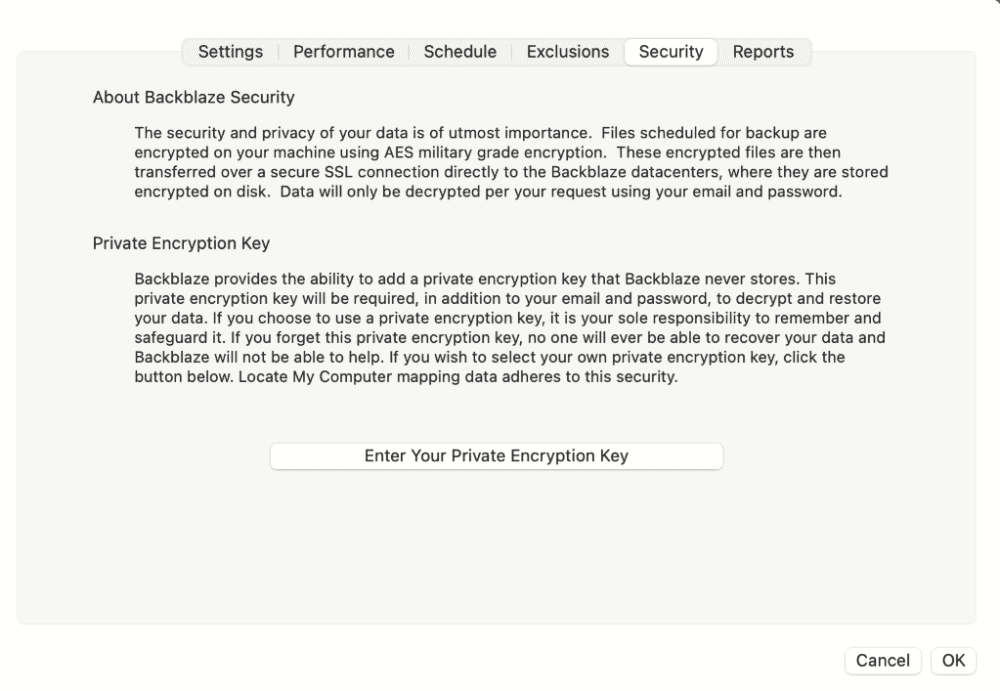
| Encryption Type | Encryption Protocols |
|---|---|
| At rest | AES-256 |
| In transit | SSL/HTTPS |
Backblaze Pricing & Value
Backblaze uses simple flat-rate pricing covering unlimited data for one Windows computer. It offers a 15-day free trial, a monthly plan for $9, a yearly plan for $99 and a two-year plan for $189. Learn more about the service in our Backblaze review, or try the service risk-free with a 15-day free trial.
- Unlimited GB
3. pCloud — Best Affordable Lifetime Windows Cloud Backup

pCloud straddles the line between online backup and cloud storage services. pCloud Backup offers a simple option of manual or scheduled uploads. pCloud allows you to back up important data from your laptop or desktop and restore it as needed. It contains great sharing and collaboration tools, and it allows imports from third-party services.
pCloud Hands-On Testing
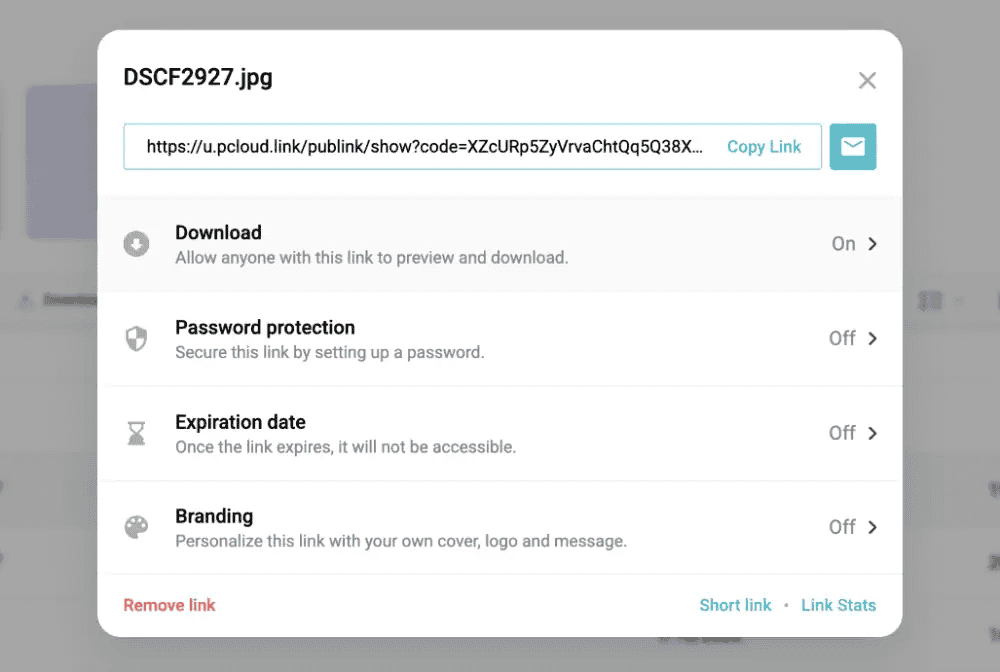
Using pCloud on Windows feels smooth. The desktop app integrates with the file system, making it easy to drag, drop and manage files without changing how you work. In the event that a file is accidentally changed, you can recover it within 30 days or up to 365 days with the extended history add-on.
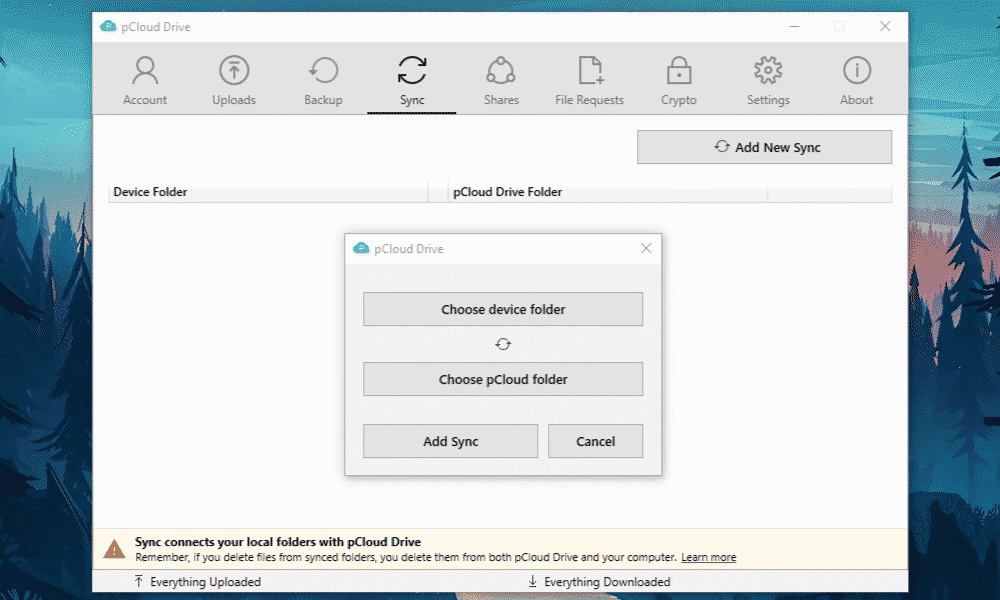
Unlike most other tools, where everything is private by default, pCloud offers client-side encryption for a specific folder only, called “Crypto.” For maximum security, you must drag your files into this folder. Although files outside of this folder are also secure, in theory the provider can access them for thumbnail generation.
Notes From the Lab: pCloud Speed Test Results
| 1st Test (100 Mbps) | 2nd Attempt (100 Mbps) | Average (100 Mbps) | Unthrottled Test (1 Gbps) |
|---|---|---|---|---|
| Upload | 0:07:02 | 0:07:10 | 0:07:06 | 0:02:06 |
| Download | 0:06:50 | 0:06:53 | 0:06:52 | 0:02:33 |
pCloud showed very fast upload and download speeds, using moderate CPU. The unthrottled connection was also fast but dropped for larger files.
Notes From the Lab: pCloud Security Analysis
pCloud’s standard security offering is robust enough to protect your data on its servers. Zero-knowledge encryption is available if you purchase the pCloud Crypto add-on.
| Encryption Type | Encryption Protocols |
|---|---|
| At rest | AES-256 |
| In transit | TLS |
pCloud Pricing & Value
pCloud offers a 10GB free plan. If you run out of space, you can upgrade to the Premium 500GB, Premium Plus 2TB or Ultra 10TB plans, which come in monthly, annual and lifetime pricing packages. A pCloud lifetime 2TB plan is available for only $399. For a deep dive into the service, check out our pCloud review.
- 10GB
- 500GB
- 2TB
More plans
- 10TB
- + FREE Encryption
- 2TB
- + FREE Encryption
- 10TB
- Price per user (minimum 3)
- 1TB
- Price per user (minimum 3)
- 2TB
- Encryption for pCloud Drive
4. Proton Drive — Best Stable Privacy-Focused Windows Cloud Backup
![Video thumbnail for the video: I Tested Proton Drive to See If It's as Private as It Claims [2024 REVIEW]](https://img.youtube.com/vi/XWmsFdm-VLg/maxresdefault.jpg)
Proton Drive offers a privacy-first approach to cloud backup with zero-knowledge encryption enabled by default on all files. The service integrates with Proton’s broader ecosystem, including encrypted email and calendar, making it appealing for users who want a unified privacy suite.
Proton Drive Hands-On Testing
Proton Drive delivers a surprisingly polished experience on Windows. The desktop app handles the “sync any folder” feature cleanly, allowing you to back up specific directories with two-way sync. In our stress test with 1 million files, Proton Drive passed without issue, uploading files alphabetically with smooth scrolling through folders and no hangs.
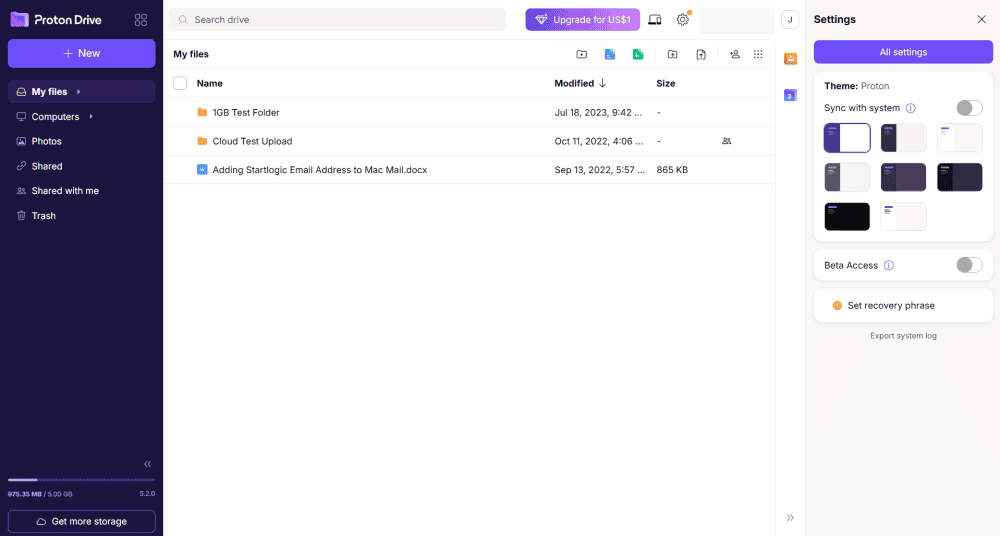
the complexity of other backup tools.
In our sync test, Proton Drive handled conflicts well. Changes reflected immediately, files were renamed or replaced correctly, and original versions remained accessible in version history. Paid plans offer up to 10 years of version history, which is exceptional for file recovery.
Notes From the Lab: Proton Drive Speed Test Results (5GB Folder)
| 1st Test (100 Mbps) | 2nd Attempt (100 Mbps) | Average (100 Mbps) | Unthrottled Test (1 Gbps) |
|---|---|---|---|---|
| Upload | 0:07:17 | 0:07:13 | 0:07:15 | 0:03:20 |
| Download | 0:07:06 | 0:07:16 | 0:07:11 | 0:03:48 |
Proton Drive showed very stable upload and download speeds with low CPU usage. We noted average speeds of 25MB/s with no throttling detected.
Notes From the Lab: Proton Drive Security Analysis
Proton Drive encrypts all files client-side before upload, meaning even Proton cannot access your data. This zero-knowledge approach is enabled by default, unlike competitors that charge extra for private encryption.
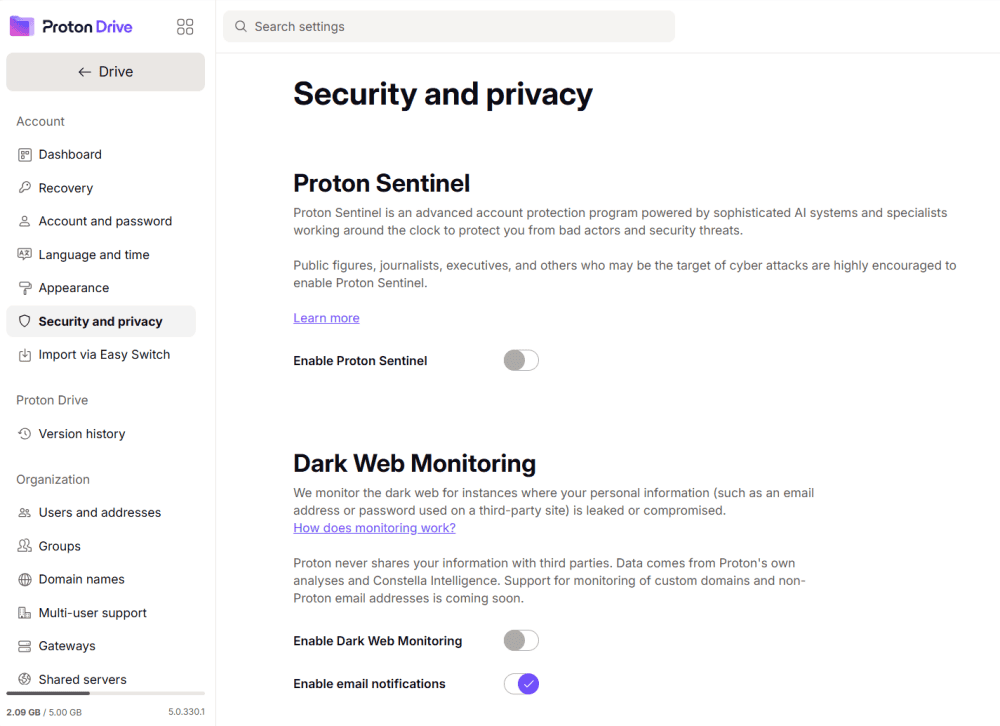
without requiring add-ons or extra fees.
| Encryption Type | Encryption Protocols |
|---|---|
| At rest | Zero-knowledge AES-256 |
| In transit | TLS |
Proton Drive Pricing & Value
Proton Drive offers a 5GB free plan. Paid plans start at 200GB and scale up to 3TB, with options for monthly or annual billing. Learn more about the service in our Proton Drive review.
- 5GB
- 200GB
- 500GB
More plans
- 2TB
- 3TB
- per user
- 1TB
- per user, minimum of 2 users
- 1TB
- 1TB
5. Internxt — Best for Privacy-First Windows Cloud Backup

Internxt operates as a privacy-focused cloud storage service that also supports secure backups of key files and folders. Files are encrypted locally before they leave your device. This zero-knowledge encryption approach helps protect files from unauthorized access, including from ransomware or server breaches.
Internxt Hands-On Testing
Internxt has a simple-to-use interface. The desktop app lets you choose folders to upload and back up securely, and files stay protected with end-to-end encryption. You can also access your files through the web or mobile apps, giving you the flexibility to work from anywhere and restore files as needed.
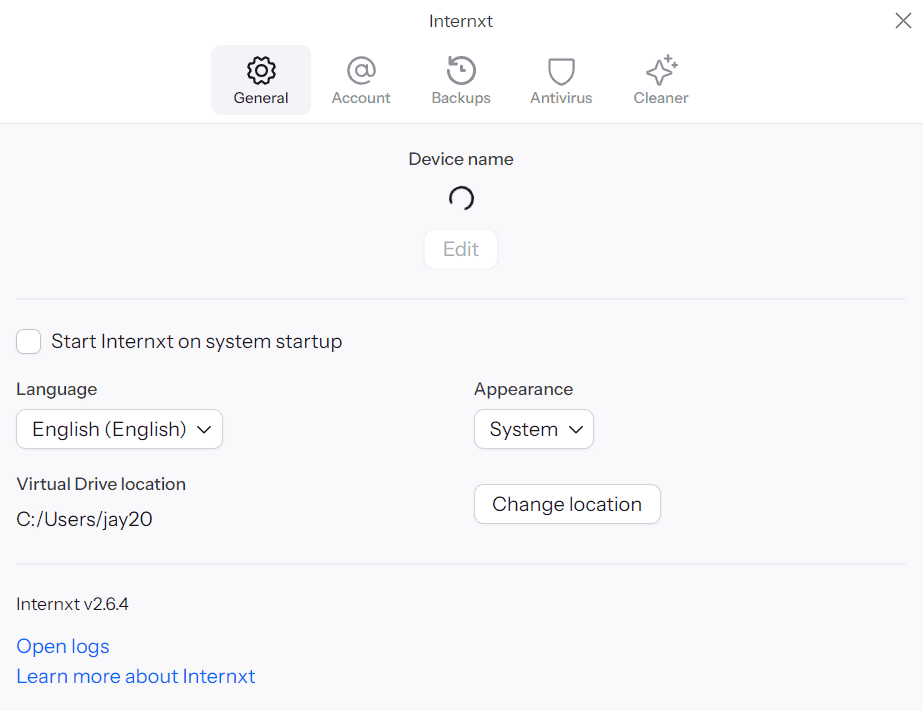
Relying on Internxt as a standalone solution may be restrictive for managing large datasets, though, primarily due to the lack of deep automation and full-disk protection. Internxt works best as a secure cloud storage companion alongside a dedicated backup service.
Notes From the Lab: Internxt Speed Test Results
| 1st Test (100 Mbps) | 2nd Attempt (100 Mbps) | Average (100 Mbps) | Unthrottled Test (1 Gbps) |
|---|---|---|---|---|
| Upload | 0:07:57 | 0:08:05 | 0:08:01 | 0:07:48 |
| Download | 0:09:26 | 0:09:30 | 0:09:28 | 0:09:27 |
Internxt delivered moderate upload and download speeds and used moderate CPU, though performance dropped with large files.
Notes From the Lab: Internxt Security Analysis
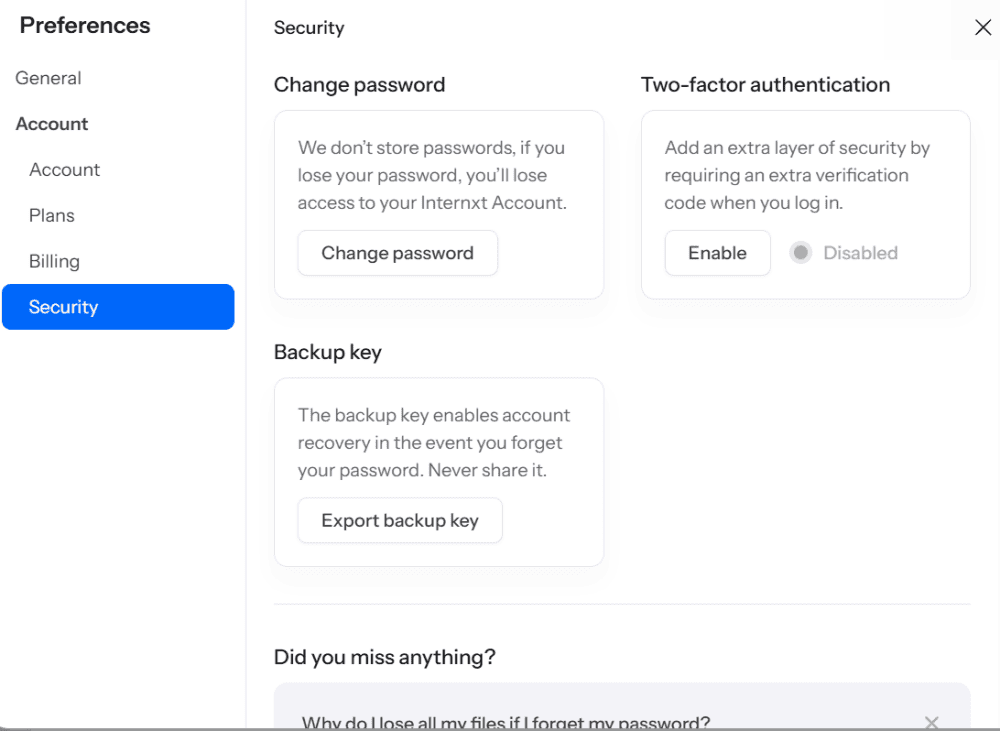
Internxt stands out for its zero-knowledge encryption with post-quantum cryptography. This security strategy makes your files unreadable to anyone but you and future-proofs them against emerging threats.
| Encryption Type | Encryption Protocols |
|---|---|
| At rest | Zero-knowledge AES-256 with post-quantum cryptography |
| In transit | TLS/SSL |
Internxt Pricing & Value
Internxt offers a basic free plan with 1GB of storage. It also provides annual and lifetime plans ranging from 1TB to 5TB of cloud storage. Paid plans include an encrypted VPN and antivirus software. Try out the 1GB free plan, or learn more about the service in our Internxt review.
- 1GB
- Post-quantum encryption Zero-knowledge encryption Two-factor authentication Backup your computer Password-protected file sharing Encrypted VPN Antivirus
- 1TB
- Everything in Essential plus; Cleaner Invite, share & collaborate File versioning (coming soon) Cleaner
- 3TB
More plans
- Everything in Premium plus CLI & WebDav support NAS & Rclone support Meet Mail (coming soon)
- 5TB
- Annual Price is per user
- 1TB
- Annual Price is per user
- 2TB
6. Acronis Cyber Protect — Best Advanced Windows Cloud Backup and Ransomware Protection

Acronis Cyber Protect brings together traditional backup and proactive security tools. It’s designed to safeguard your data and defend against threats like ransomware and malware. The software includes continuous data protection, full-system imaging and rapid file or system recovery after data loss.
Acronis Cyber Protect Hands-On Testing
Acronis Cyber Protect feels robust and professional. After installation, the interface presents a rich dashboard where you can configure backups, view security statuses and set recovery options. The backup scheduler and image-level tools make it possible to protect entire systems.
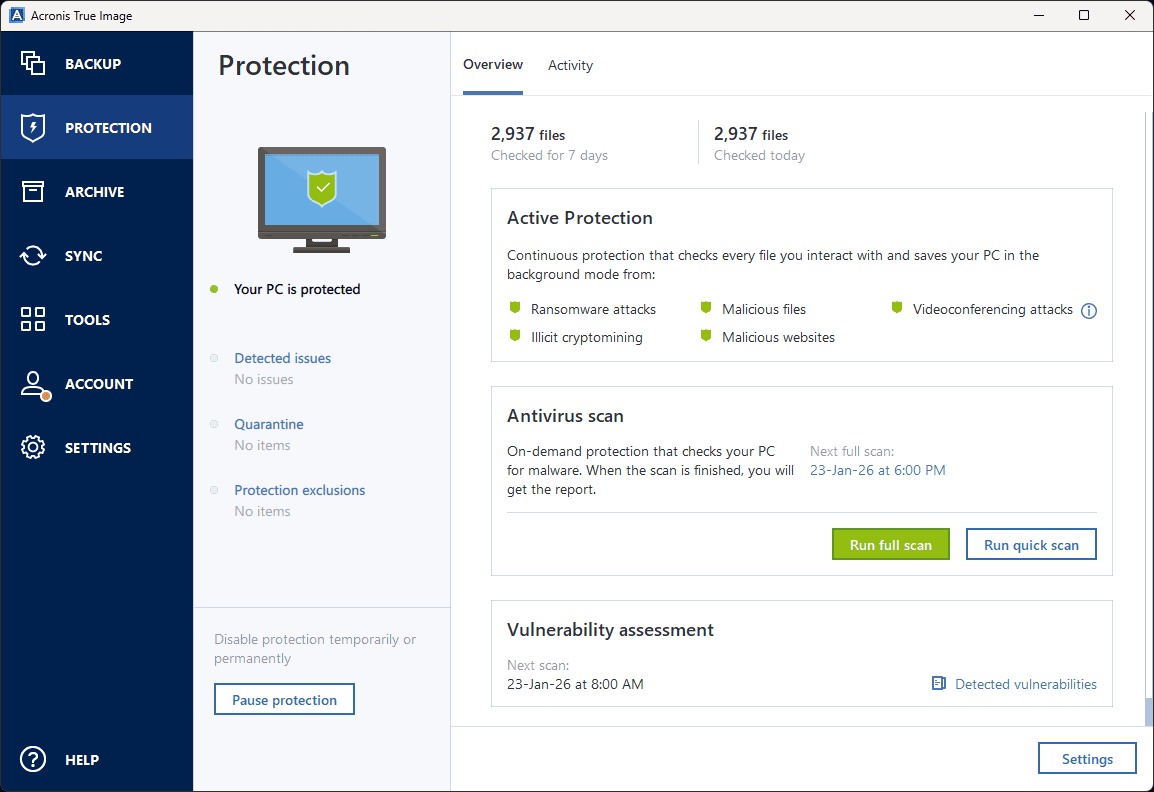
built-in security to protect your system.
However, Acronis requires more attention than simpler backup software. During testing, I spent a lot of time navigating menus and understanding how the backup and security features fit together. I also felt the weight on my system, as the software consumed noticeably more CPU and RAM than other backup services.
Notes From the Lab: Acronis Cyber Protect Speed Test Results
| 1st Test (100 Mbps) | 2nd Attempt (100 Mbps) | Average (100 Mbps) | Unthrottled Test (1 Gbps) |
|---|---|---|---|---|
| Upload | 0:07:05 | 0:07:02 | 0:07:04 | 0:06:45 |
| Download | 0:06:58 | 0:07:02 | 0:07:00 | 0:03:25 |
Acronis demonstrated fast upload and download speeds, though performance was unstable. Speeds improved in the unthrottled test but still showed fluctuations.
Notes From the Lab: Acronis Cyber Protect Security Analysis
Acronis defaults to strong encryption both in transit and at rest, ensuring that backups are protected from unauthorized access. It also includes “active protection” that detects and blocks ransomware attacks.
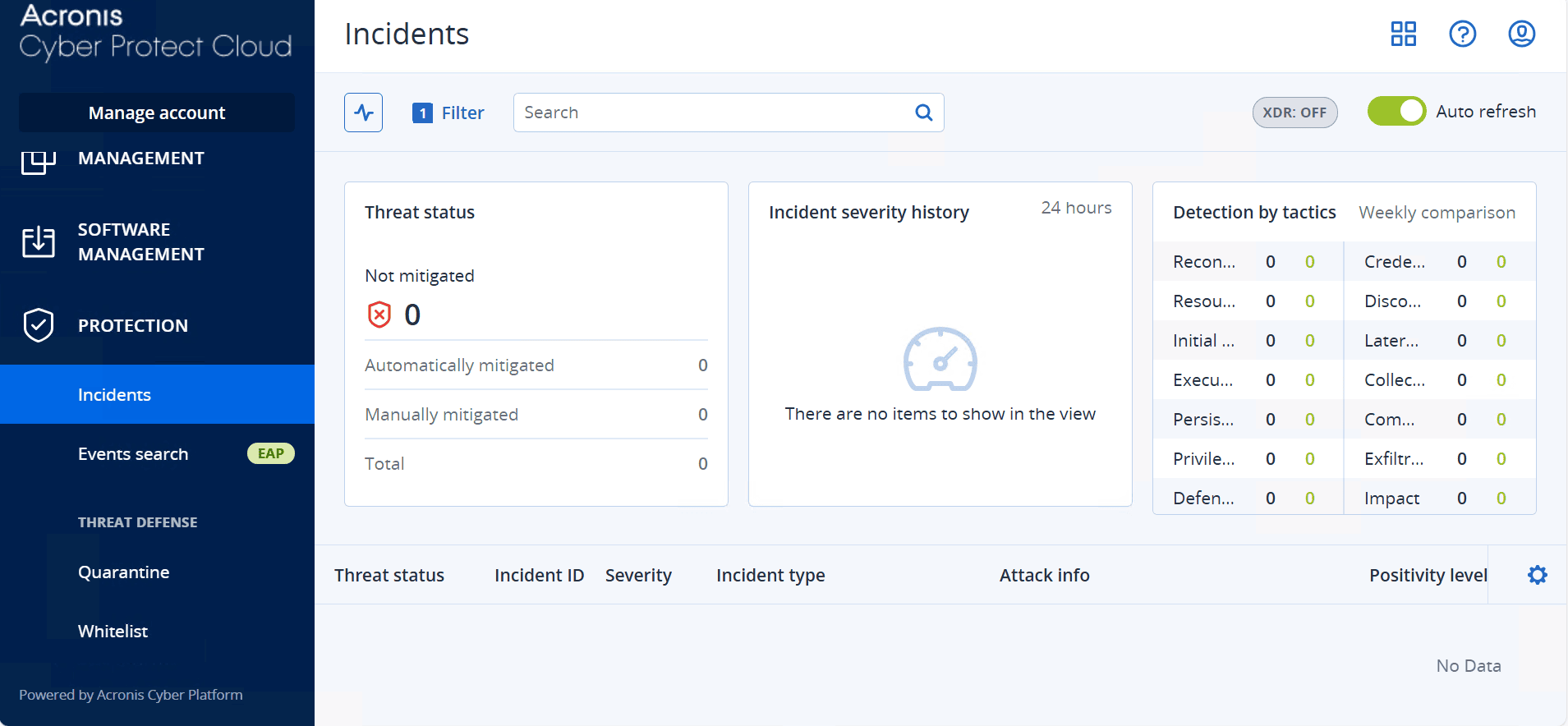
ransomware and malware protection.
| Encryption Type | Encryption Protocols |
|---|---|
| At rest | AES-256 |
| In transit | TLS/SSL |
Acronis Cyber Protect Pricing & Value
Acronis Cyber Protect offers a tiered pricing model. Backup for one computer costs $49.99 per year, with plans increasing for more cloud storage. Sign up for an Acronis Cyber Protect Standard plan today, or read our Acronis Cyber Protect review to learn more about the service.
- Flexible backups: full image to file-level Active disk cloning Universal restore and fast recovery Ransomware protection
- Flexible backups: full image to file-level Active disk cloning Universal restore and fast recovery Ransomware protection + Block viruses and malware Cloud backup and features Automatic replication of data in the cloud Microsoft 365 backups
- 50GB
- Flexible backups: full image to file-level Active disk cloning Universal restore and fast recovery Ransomware protection + Block viruses and malware Cloud backup and features Automatic replication of data in the cloud Microsoft 365 backups
- 250GB
More plans
- Flexible backups: full image to file-level Active disk cloning Universal restore and fast recovery Ransomware protection + Block viruses and malware Cloud backup and features Automatic replication of data in the cloud Microsoft 365 backups
- 500GB
- Flexible backups: full image to file-level Active disk cloning Universal restore and fast recovery Ransomware protection + Block viruses and malware Cloud backup and features Automatic replication of data in the cloud Microsoft 365 backups + Blockchain certification of files Electronic signatures on files Ability to add up to 5TB of cloud storage
- 1TB
- Flexible backups: full image to file-level Active disk cloning Universal restore and fast recovery Ransomware protection + Block viruses and malware Cloud backup and features Automatic replication of data in the cloud Microsoft 365 backups + Blockchain certification of files Electronic signatures on files Ability to add up to 5TB of cloud storage
- 5TB
Does Windows Have a Cloud Backup?
Yes, Windows 10 and Windows 11 come with a built-in feature called “Windows backup” that integrates with Microsoft OneDrive cloud storage.
The main disadvantage of using OneDrive — and why it’s not on this list — is that it is a cloud storage synchronization tool. If a file is deleted or overwritten and the change syncs across devices, recovery options can be limited. You can read our OneDrive review for more information about the service.
How Secure Are Online Backup Services?
Online backup services are designed to safeguard your data from everyday risks such as hardware failure, accidental deletion, theft and ransomware attacks. When you back up files to a cloud-based platform, your data is encrypted before it leaves your device and remains protected during transfer and storage. Providers use strong encryption standards and secure data centers to reduce the risk of unauthorized access.
However, online backups cannot protect against weak passwords or someone gaining access to your account credentials. This is why features such as 2FA, zero-knowledge encryption and secure sharing controls are important. When paired with good security habits, online backup services offer reliable security and peace of mind.
Have You Ever Experienced Data Loss? Why You Should Do Backups
Data loss usually hits when you least expect it. Common reasons why cloud backups are essential include:
- Hardware failure: SSDs and hard drives can fail without warning. Backing up the data on them ensures that you’ll never lose it.
- Ransomware and malware: A secure backup means having clean versions of your data in the event that an attacker targets your computer.
- Device loss: Backups ensure that data survives even if the device does not.
Without a backup, data recovery can take days or fail completely. With a cloud backup solution, you can restore your files or even the whole system if necessary. To learn more about Windows backups, read our article on how to back up Windows 10 and 11.
Can You Restore Folders and Files With Backup Software?
Yes, you can restore files and folders after data loss. Modern backup services are designed to keep multiple versions of your data, so if a file is overwritten, deleted or corrupted, you can roll back to an earlier version.
Our Methodology: How We Tested the Best Windows 10 & 11 Online Backup Services
To find the best online backup services for Windows, I focused on real-world use cases. A good backup tool should make the restore process easy, protect your data and back up reliably in the cloud. The main components I looked for include:
- Backup features and automation: I tested how easy it is to set up automatic backups, choose folders or entire drives, and run backups in the background without the system operating more slowly.
- Security and encryption: I tested how different services handle encryption at rest and in transit. I checked for client-side encryption and how each provider handles ransomware protection and account security.
- Reliability and performance: I tested the upload and download speeds on typical home and office connections, and I checked for missed or failed backups.
- Pricing and limits: I compared pricing plans, storage limits, refund policies and long-term costs to see which service offers the best value for money.
Final Thoughts
Choosing the best cloud backup service for Windows comes down to security and reliability. A good backup tool should run automatically, keep your data safe from ransomware and hardware failure, and make it easy to recover your data if the need arises.
Of the services I tested, IDrive stands out as the top choice due to its feature set, competitive prices and top-notch security. You can try IDrive with the 10GB free plan.
Which solution comes to mind when you want to back up computer files? Have you ever had to restore files from your windows server or machine? Drop your thoughts in the comment section below. Thank you for reading.
FAQ: Backup PC to Cloud
Yes, you can back up your entire computer to the cloud. Most professional cloud backup services allow you to back up the full system.
The general disadvantages of OneDrive are that it has limited file versioning, no zero-knowledge security and limited customer support.