NordVPN Firestick Tutorial: How to Install & Use NordVPN on Your Firestick
Streaming sticks are a cheap way to stream on a TV, and using a VPN is a great way to access foreign content libraries. However, setting up a VPN on a Firestick isn’t always easy. I put together this NordVPN Firestick tutorial to show you how to install NordVPN on Firestick devices.



Written by Sapphire Fox (Editorial Assistant)
Reviewed by Sandra Pattison (Editor, Writer)
Facts checked by Eugenie Tiu (Editorial Assistant)
Last Updated:
All our content is written fully by humans; we do not publish AI writing. Learn more here.
Key Takeaways: How to Install NordVPN on a Firestick
- Create a NordVPN account.
- Search the Amazon app store for NordVPN.
- Find, download and install the NordVPN app.
- Open the app and connect to a NordVPN server.
Best VPNs for Amazon Firestick:
- NordVPN: A natural choice for Fire TV users, NordVPN can get into any streaming service and has servers in 118 countries. Try NordVPN out today for as little as $2.99 per month with its 30-day money-back guarantee.
- Surfshark: My recommendation for a more affordable VPN is Surfshark. It includes an ad blocker and supports unlimited simultaneous connections. Surfshark costs just $1.99 per month on the two-year Starter plan, with a 30-day money-back guarantee.
- Proton VPN: The best free VPN for Fire Stick is Proton VPN, which offers 10 servers and unlimited data to free users. Get started with Proton VPN’s free plan today.
- ExpressVPN: ExpressVPN is a perfect VPN for beginners. Although it’s on the pricier end for a VPN, starting at $3.49 per month, the 30-day money-back guarantee means you can try it out risk-free.

Whether you prefer Netflix, Amazon Prime Video or HBO Max, you can expand your streaming options using the best VPN for Fire Stick. A VPN helps you avoid geoblocking and access content libraries from other countries. However, using a VPN on your Fire Stick isn’t always simple, so I wrote this NordVPN Firestick tutorial to help you get started.
Although I focus on the Amazon Fire TV Stick, this process works on most smart TVs — NordVPN supports plenty of devices.
-
11/14/2023 Facts checked
Updated the article to reflect ExpressVPN’s expansion of server presence from 94 to 105 countries.
-
09/15/2024 Facts checked
We optimized this article’s user guide and recalibrated the VPN rankings for accuracy.
-
10/01/2024 Facts checked
We refreshed these rankings based on the latest VPN testing and market analysis.
-
01/26/2025 Facts checked
Added more details on the top VPNs for Firestick.
-
03/20/2026 Facts checked
We rewrote this article to add troubleshooting tips and more information on using APKs.
How to Install NordVPN on Amazon Fire TV Stick: Direct Method
NordVPN is the best VPN for Firestick. The easiest way to install the NordVPN app on a Fire Stick is by downloading it from the Amazon app store.
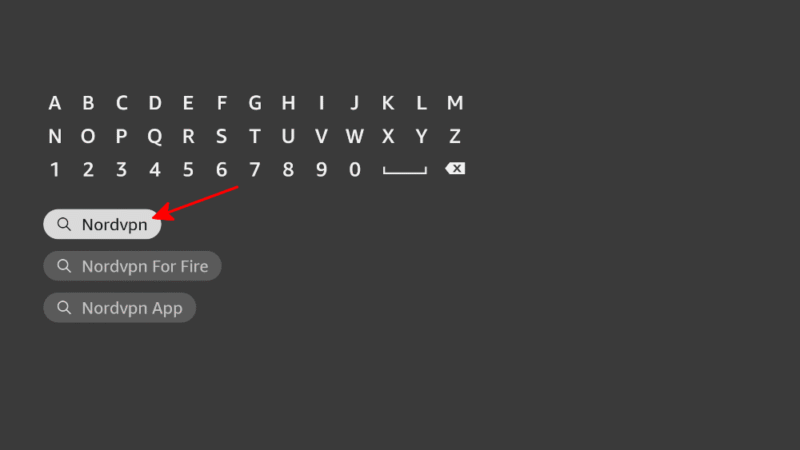
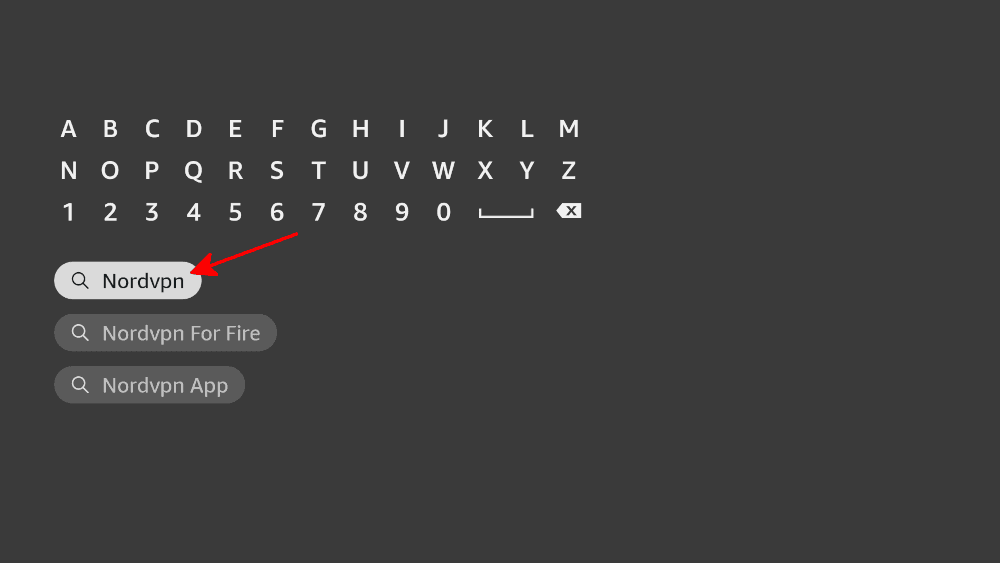
- Search for NordVPN
From the Fire TV Stick’s home screen, select the search bar and enter “NordVPN.”
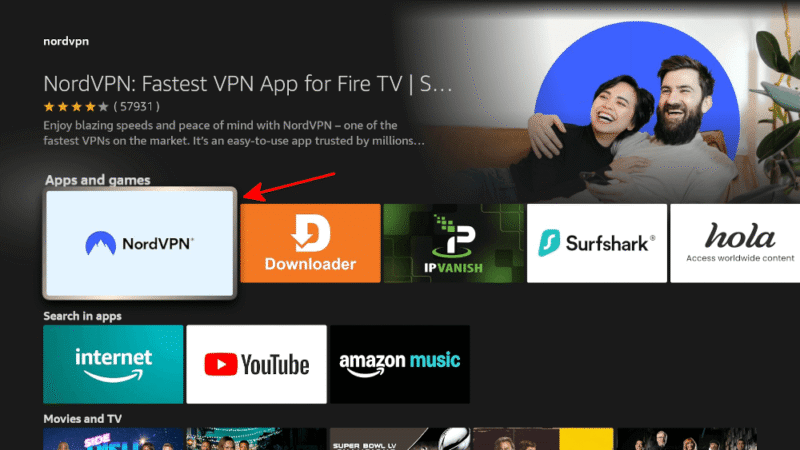
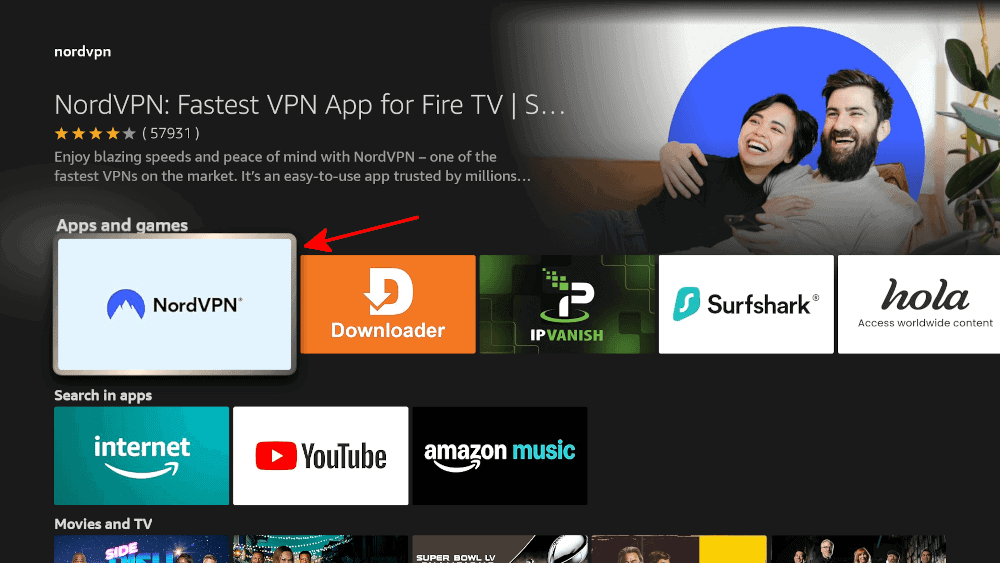
- Find the NordVPN App
Find and select the official NordVPN app. It should be the first option that appears. You can also look for the mountain logo.
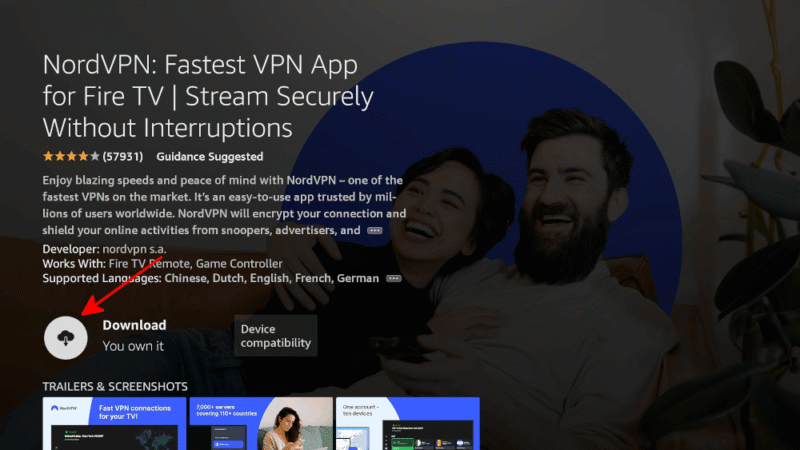
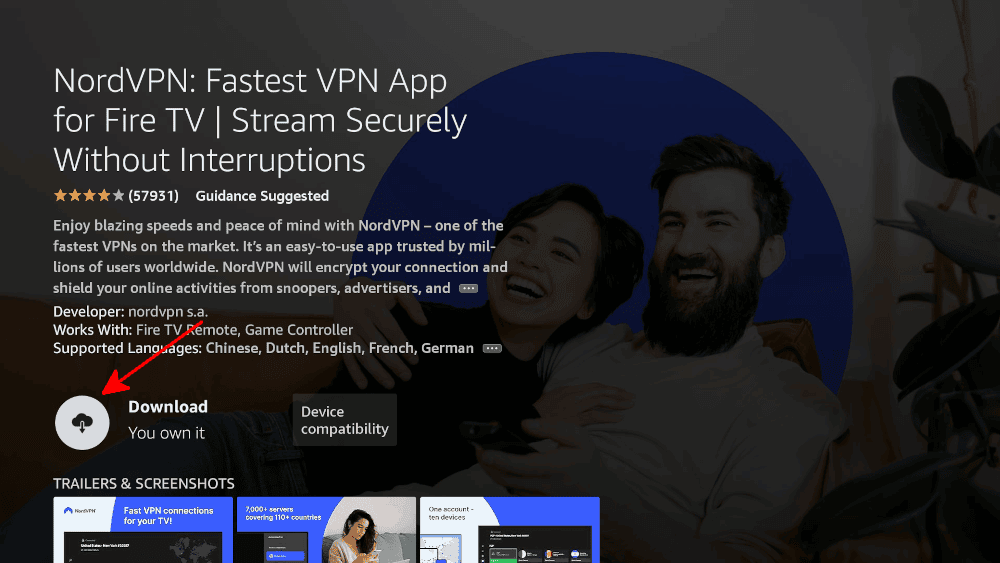
- Install NordVPN
Click the “download” button to start the installation. Once the installation is finished, NordVPN will be ready to go on your Fire Stick.
How to Install NordVPN APK on Amazon Firestick: Manual Method
You can install the NordVPN app through its Android package kit (APK), though it isn’t the easiest process. This method is best for services like NordVPN that have an app in the official app store. If the app you want isn’t in the app store, follow the instructions below to install it using an APK.
Protect Your Privacy. Get Our Free VPN Guide Now!
- Comprehend the essential role a VPN plays in safeguarding your digital life
- Gain a deep understanding of how VPNs function under the hood
- Develop the ability to distinguish fact from fiction in VPN promotions
- Go to the “my Fire TV” settings menu and find the “about” section.
- Select your device name several times until you see the message “no need, you are already a developer.”
- Leave the “about” section and enter the developer options. Turn on both “ADB debugging” and “apps from unknown sources.”
- Install and open the Downloader app, or get an alternative program for downloading files.
- In the search bar, type in “NordVPN” and hit enter.
- Navigate to the page where you can download the APK. For NordVPN, this is the Android downloads page.
- Begin the download and follow the on-screen instructions to install the app.
- Go to your application settings and enter the “manage installed applications” section. You will find the app on the alphabetical list.
Is It Safe to Use APK Files?
It is safe to use an APK file from a known and trusted source like the NordVPN website. However, APKs can contain malware. Think of using APKs like installing a program on a regular computer — avoid sketchy sources and questionable websites.
How to Set Up & Use NordVPN on Amazon Firestick
Once you’ve installed the official VPN app, using NordVPN on a Fire Stick is easy. Follow these simple steps and you’ll be connected in no time.
- Sign Up for NordVPN
Sign up for NordVPN using a separate device, such as a PC or mobile device.
- Open NordVPN and Log In
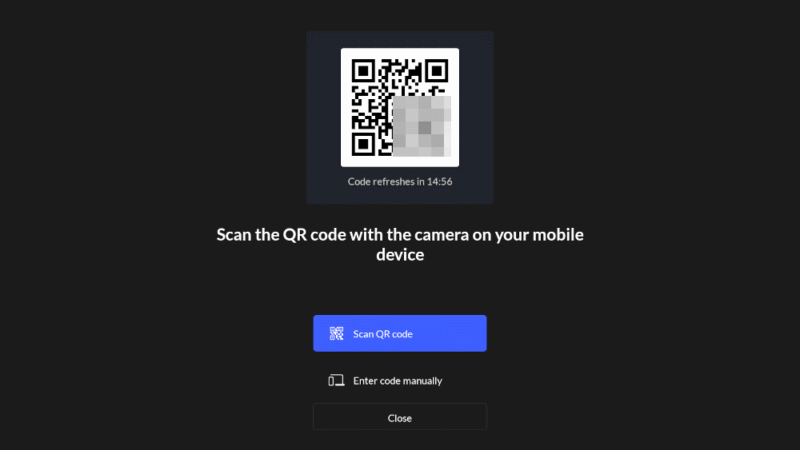
On your Firestick, open NordVPN and click the “log in” button. A QR code will appear. Scan it with your mobile device and log in. This will also sign you in on your Fire Stick. Note that you can get a code to do this on a computer if you can’t scan a QR code.
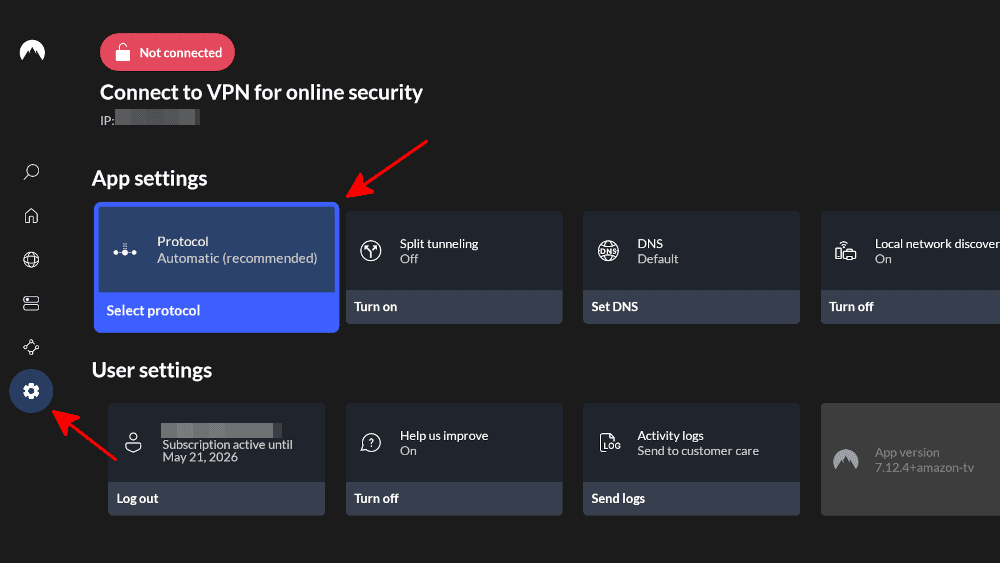
- Open the NordVPN Settings Menu
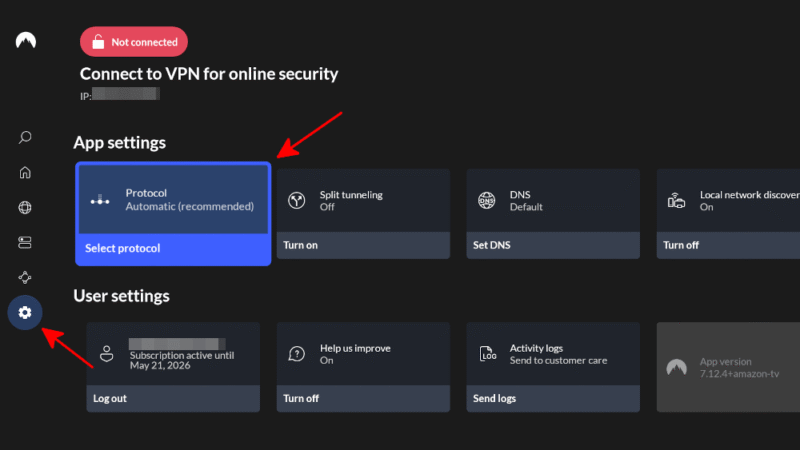
Use the list on the left-hand side of the screen to navigate to the settings menu. Once there, you can turn on useful features like split tunneling or select a preferred protocol.
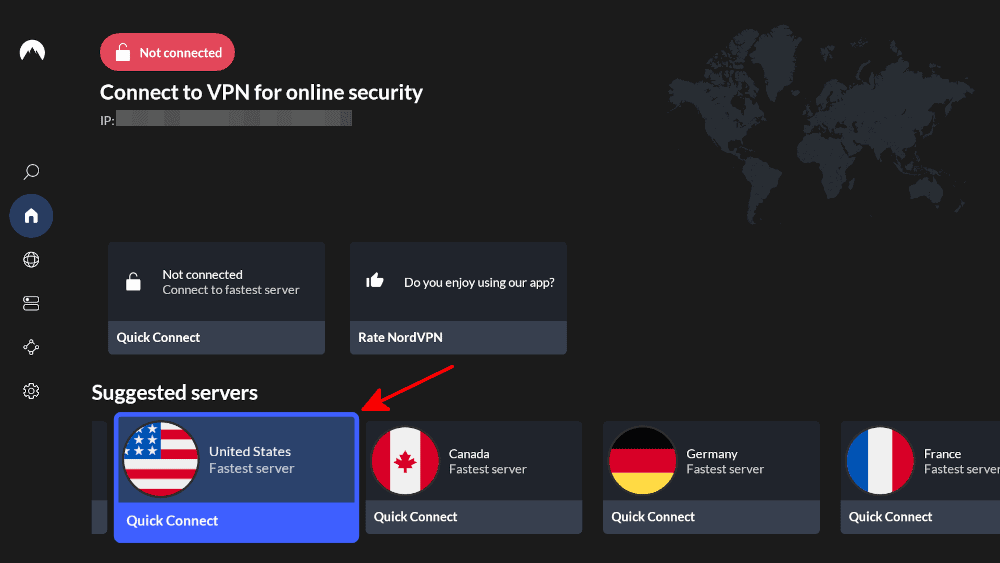
- Connect to a VPN Server
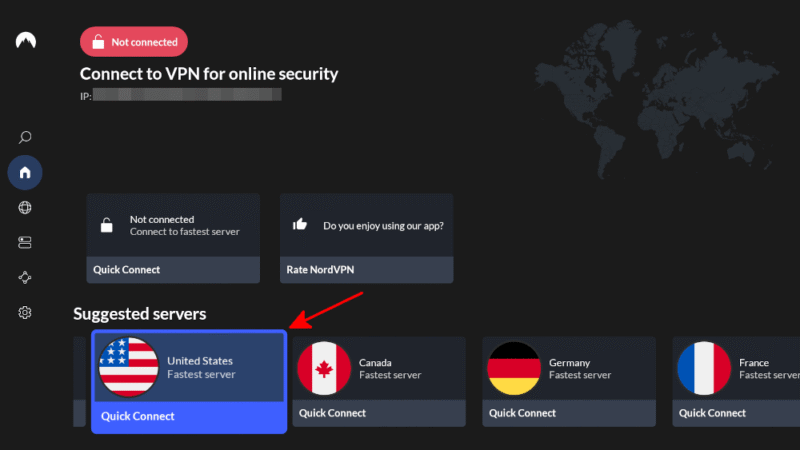
Back on the main page, you’ll find a long list of countries to connect to. Find the country with the content library you want and select it to connect to a local server.


How to Uninstall NordVPN From Your Firestick
If you’ve decided you no longer want to use NordVPN on your Fire Stick, follow these simple steps to uninstall the VPN app and save some space. Remember to cancel NordVPN if you’ve stopped using it completely.
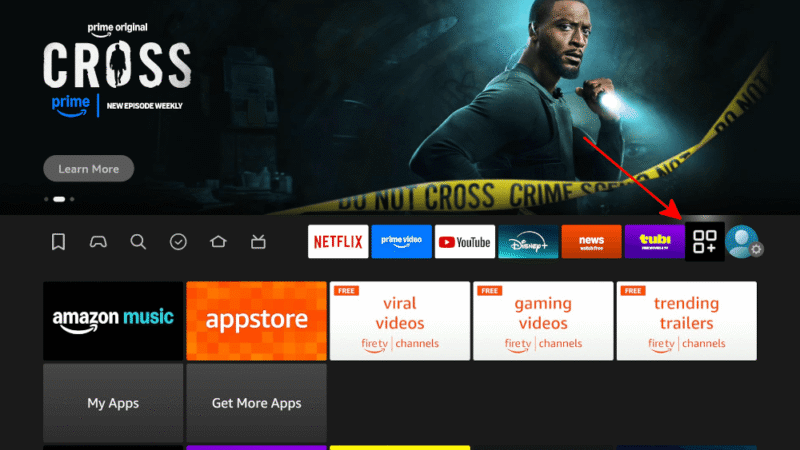
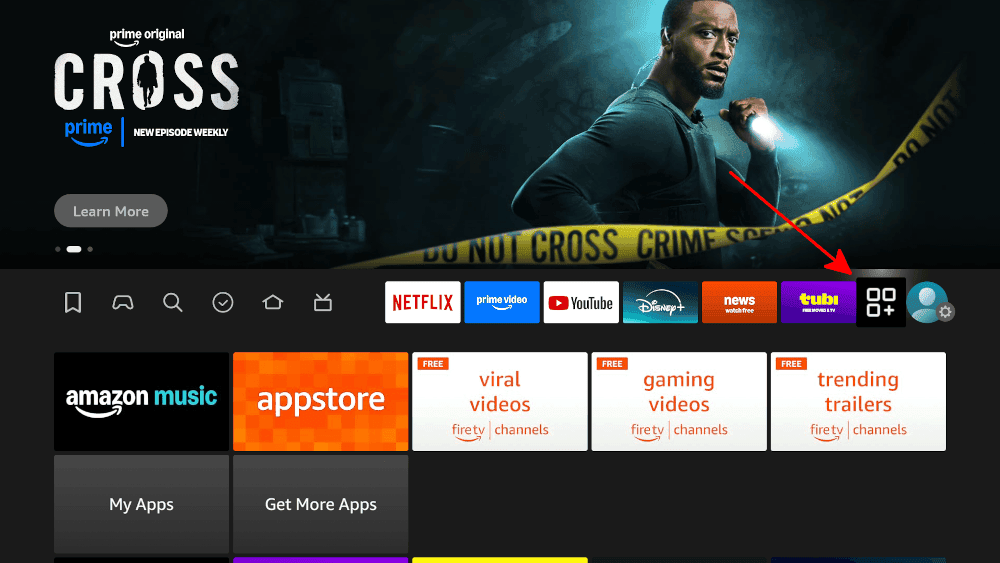
- Go to Your Apps & Channels
On the Fire TV home screen, go to the “your apps & channels” page.
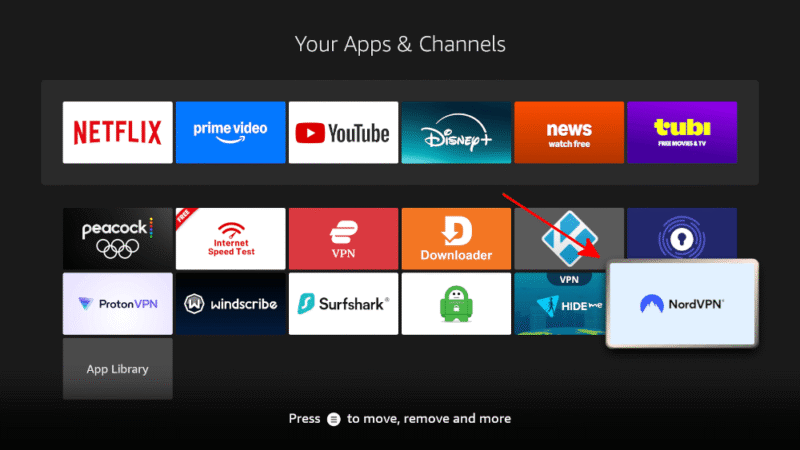
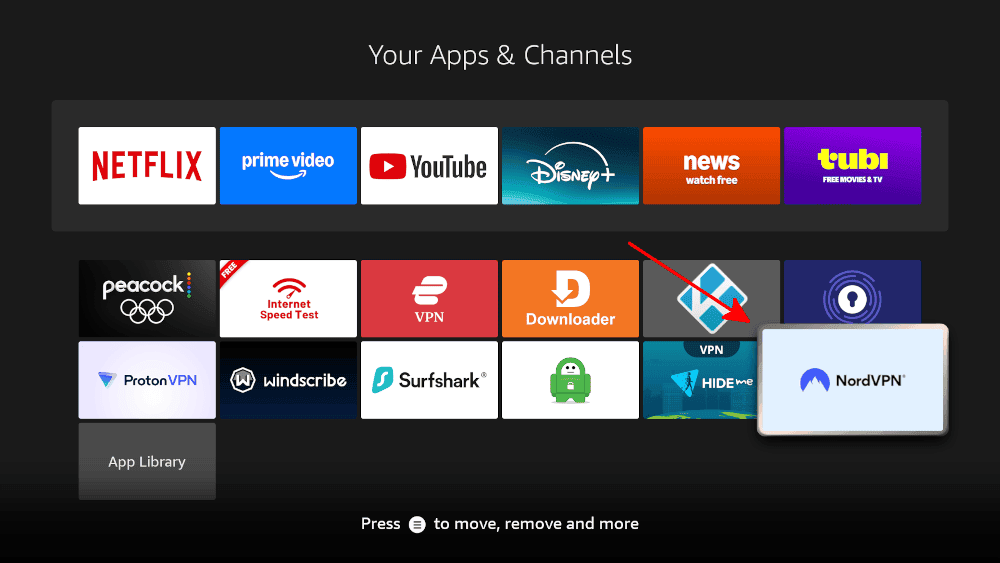
- Find the NordVPN App and Open the App Settings List
Scroll down to find the NordVPN app and press the hamburger button on your remote to open the app settings list.
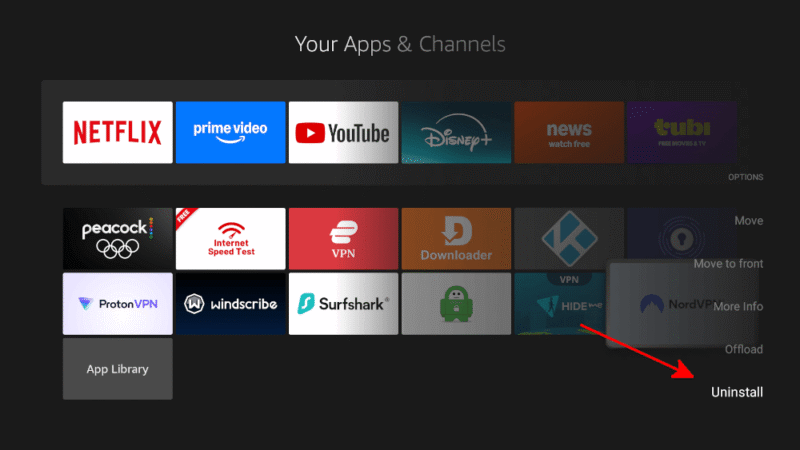
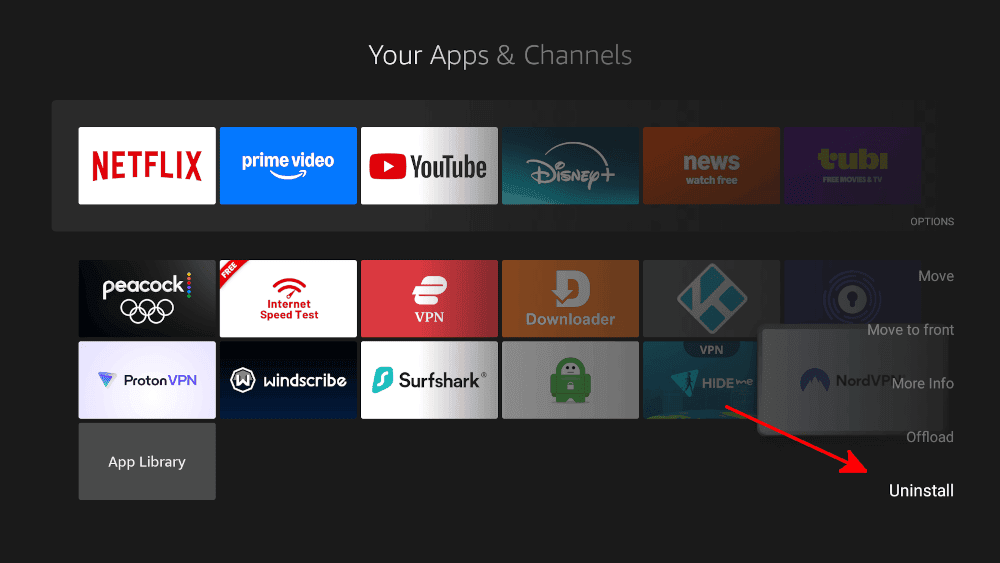
- Uninstall NordVPN
Select “uninstall” in the app settings list. You’ll then see a second “are you sure” screen. Click “uninstall” again to confirm you want to remove the app.
Troubleshooting Tips: NordVPN Not Working With Firestick
If NordVPN isn’t connecting or you can’t access streaming services while connected to a VPN server, follow these troubleshooting steps to get it working again.
- Check the service without a VPN: If a streaming service has gone down, it won’t work even with a VPN. Turn off your VPN and try to connect to the streaming service to see if your VPN is the problem.
- Change VPN servers: Streaming services sometimes block specific servers. Pick a new server in the same country to get around the block.
- Update your Fire Stick: Go to the Fire Stick settings and check for software updates. If your Fire Stick is out of date, it might not connect properly.
- Change VPN protocols: If your VPN connection isn’t great, changing the protocol in the settings can help.
- Reinstall NordVPN: Updates don’t always install correctly, and app permissions can sometimes be changed by mistake. Reinstalling your VPN app should fix all of these issues.
Why Use a VPN on My Fire TV Device?
The main reason to use a virtual private network on Fire TV is to access content that isn’t usually available in your home country due to geoblocking. However, using a VPN is a good idea for several other reasons as well.
- Access foreign content libraries: Using a VPN on your Fire TV lets you access content libraries and services that are geoblocked in your country. It also lets you continue watching shows while travelling, even if they aren’t usually available in your destination.
- Avoid ISP throttling: In some countries, Internet service providers can throttle your connection to certain services, causing buffering or lower-quality streams even on a fast connection. VPNs hide what you’re connected to and prevent throttling.
- Ad blocking: Many top VPNs include ad blocking for premium users. This feature allows you to save money with an ad-supported streaming subscription without actually watching the ads.
- Security and privacy: Good VPNs encrypt your connection and don’t keep logs. This means that no one can snoop on your streaming habits or other online activities.
Do VPNs Work on All Kinds of Fire TV Devices?
Almost all Fire TV devices support VPNs. The only exception is the first-generation Fire Stick, which doesn’t officially support VPNs due to hardware limitations. You can still install VPN apps through the APK, but you’ll likely encounter an error when you try to connect. If you’re using a first-generation Fire Stick, I recommend installing the VPN on your router instead.
NordVPN Alternatives for Firestick
Although NordVPN is my top recommendation for a Fire Stick VPN, other VPN providers — including Surfshark, Proton VPN and ExpressVPN — are great NordVPN alternatives. All of these services have a 30-day money-back guarantee, so you can try them out risk-free. You can also read our NordVPN review to learn more about its features.



Final Thoughts
If you want to expand your Amazon Fire TV Stick’s capabilities, NordVPN is a great place to start. It can help you access streaming sites and content libraries from other countries, and you can set it up in a few simple steps. Plus, NordVPN helps secure your internet connection by encrypting your online traffic. All NordVPN plans come with a 30-day money-back guarantee.
Have you used NordVPN on your Fire Stick device? Did you install it on your router to protect multiple devices? Is there another VPN service you like more? Let me know in the comments below. Thanks for reading!
FAQ: NordVPN Firestick Guide
Yes, NordVPN works on Firestick. You can use the native app or sideload the APK to use NordVPN on your Firestick.
VPNs are legal in most countries, although some limit VPN use. It’s against the terms of service of most streaming platforms to use VPNs to avoid geo-restrictions, but it’s rare for accounts to be suspended just for using a VPN.
Some free VPN providers work on Firesticks. However, free VPNs often have security issues or bandwidth limits, so you need to pick a reputable one, such as PrivadoVPN.