How to Bypass Screen Time Restrictions in 2026: 6 Ways Kids Bypass iOS Parental Controls
Apple screen time is super handy for limiting what your child can do on their device, but what if they know how to hack screen time? They might have found a way to bypass the restrictions even after downtime kicks in. This guide will show you how to stop them.


Written by Sandra Pattison (Editor, Writer)
Reviewed by Jackie Leavitt (Editor at Large)
Last Updated:
All our content is written fully by humans; we do not publish AI writing. Learn more here.
Key Takeaways: How to Bypass Screen Time Restrictions
- Steal Your Screen Time Password
- Use an App Like AnyUnlock
- Change Date and Time
- Delete and Reinstall Restricted Apps
- Send Messages Through Siri or Contacts
- Watch YouTube Through iMessage
Facts & Expert Analysis: How to Remove Screen Time Restrictions
- Apple Screen Time allows you to set up restrictions on your child’s device, but there are ways your child can bypass them.
- Thankfully, there are ways to stop your child from sidestepping Screen Time settings.
- Talk with your child so they understand why the Screen Time settings are important and why bypassing them might put them at risk.

Restricting your child’s iOS device is easy with Apple Screen Time, from limiting the content they can access to capping their total screen time per day. It not only prevents your child from being exposed to explicit content, but also helps them be mindful of how much time they’re spending on their device.
What if your child has worked out how to hack Screen Time restrictions, though?
Unfortunately, there are a few ways children can bypass the restrictions you set. In this guide, we’ll set out the different tricks your child might use to hack Screen Time settings, and how you can stop your little online Houdini from doing so. Let’s get into it.
-
02/20/2025 Facts checked
This article was updated with additional details on how children circumvent Screen Time limits and how parents can prevent it.
-
05/20/2025 Facts checked
We updated this article with more details on Screen Time bypassing hacks, such as “recovery mode” and the “ignore limit” bug.
-
08/14/2025 Facts checked
We expanded our coverage of Screen Time hacks, such as using partial restore, DNS settings or a VPN.
-
11/20/2025 Facts checked
We added more information about advanced bypassing techniques and included a new section on techniques for communicating with your child.
Can My Child Turn Off Screen Time? 6 Methods and Counters
From our research, there are six distinct ways that Screen Time restrictions can be circumvented on iOS devices. Fortunately, there are also counters to all of these. First, we’ll show you how the kids do it and then provide the solutions for countering these hacks.
1. Steal Your Screen Time Password
The main factor keeping your child from adjusting the settings is the Screen Time passcode, so make sure they don’t see it. Enter the passcode discreetly — don’t just assume your little angel won’t look. Kids are clever and may watch you in a reflection or look over your shoulder.
If you’ve previously set up the “Screen Time passcode recovery” feature with your Apple ID, you can use this official method to reset your passcode by going to “settings” > “Screen Time” > “change Screen Time passcode” > “forgot passcode.” This is actually an important feature for parents to be aware of, as it provides a legitimate way to recover access if you forget your passcode.
Once you have regained access via your Apple ID, you may want to completely disable the restrictions to start fresh; you can find a walkthrough on how to turn off parental controls on iPhone here.
In addition, consider removing the Screen Time widget from the “today view” to prevent quick access to usage statistics and limit modifications.
Your child might also try to get their hands on your Screen Time passcode by using the screen recording feature while you enter it. Look out for a red icon at the top of the screen (shown below). You can also swipe down to open the control center and check the screen record icon — if it’s red, it’s recording.
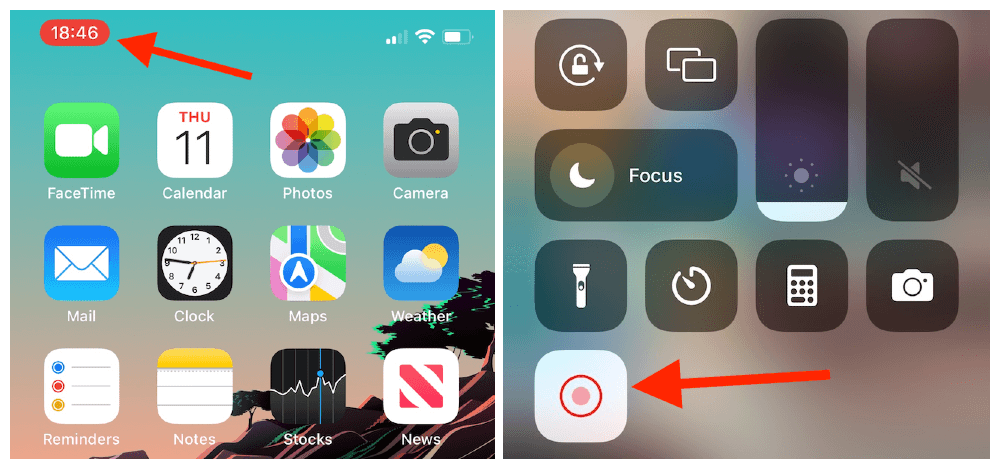
If you see either of these, you need to stop the screen recording by swiping down to open the control panel and tapping on the screen recording icon. You must then delete the screen recording and talk to your child about the importance of screen restrictions.
If you want to prevent your kid from doing this — or if they’ve already tried it — you can disable screen recording. You can further restrict access by adjusting Game Center restrictions, which prevents screen recording and other gaming-related workarounds.
Adjust the Game Center restrictions specifically in the Screen Time settings under “content & privacy restrictions” > “game center.” Disable screen recording, multiplayer games, adding friends and connecting with nearby players to close these potential loopholes that bypass standard app restrictions.
Parents can also enable screen recording notifications in the control center settings to receive an alert whenever screen recording begins, providing real-time awareness of potential password theft attempts. This additional layer of protection helps ensure that tech-savvy kids can’t use gaming features to circumvent your established controls.
Below are the steps to disable screen recording:
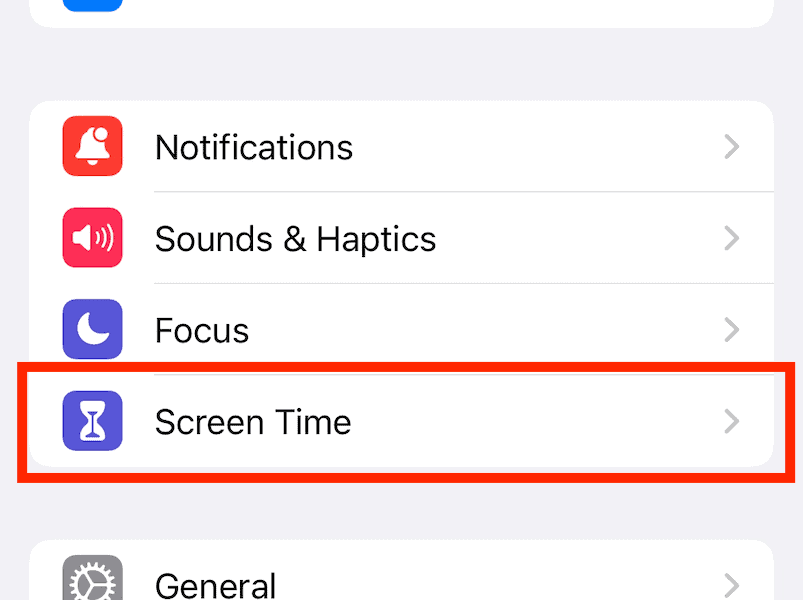
- Go to “Screen Time”
Go to “settings” and tap on “Screen Time.”
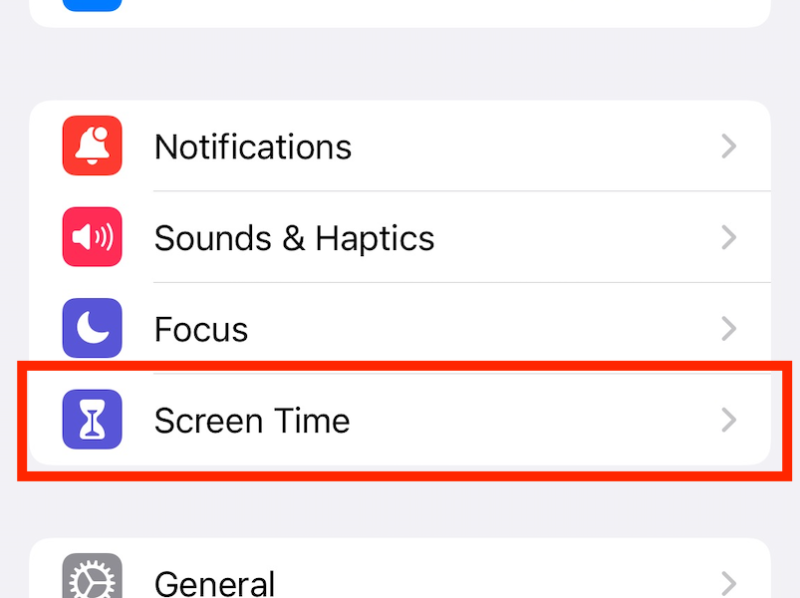
- Go to “Content and Privacy Restrictions”
Now tap on “content and privacy restrictions” and enter your Screen Time passcode if prompted.
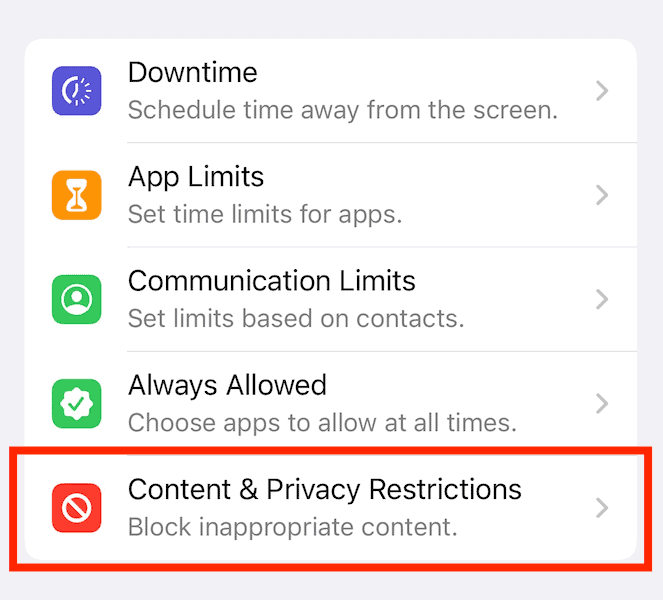
- Go to “Content Restrictions”
Tap on “content restrictions.”
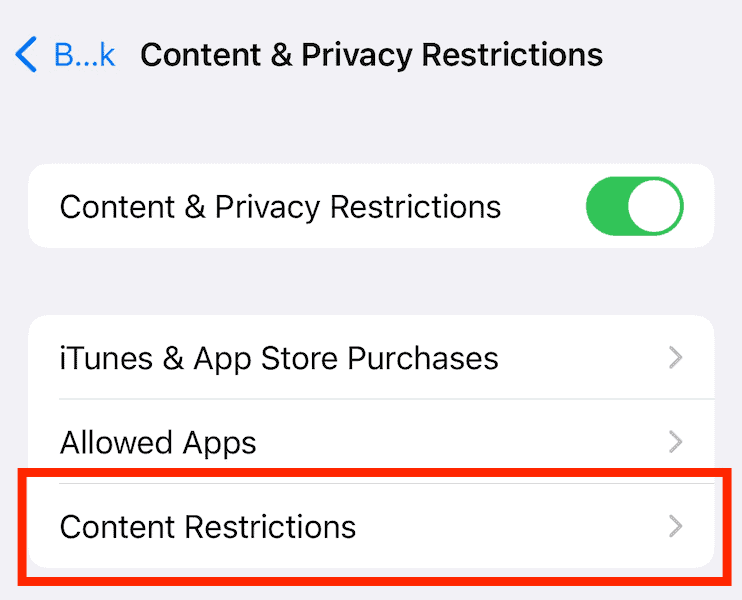
- Go to “Screen Recording”
Tap on “screen recording.”
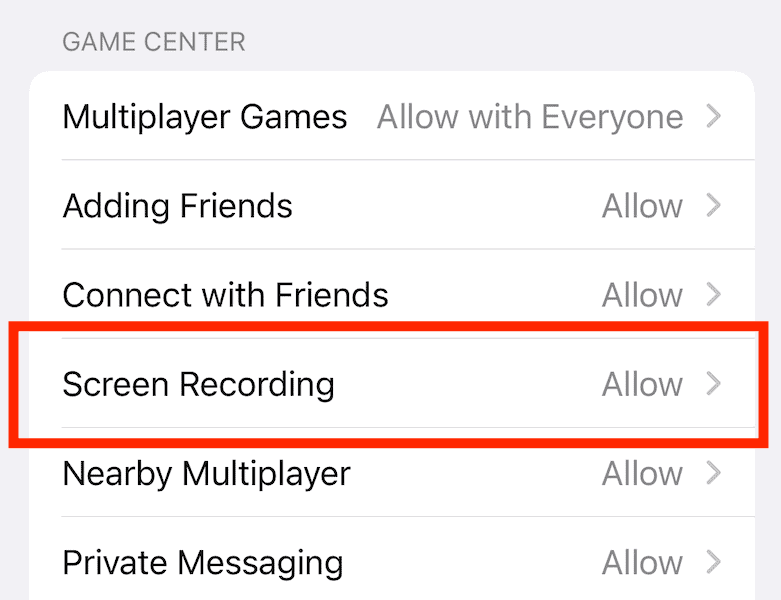
- Disallow the Screen Recording Setting
Tap on “don’t allow.” Your child won’t be able to record your screen now.
You need to be just as careful with your device’s general unlock code. If you share a device or use an unlock code to control your child’s access to a device, never give out the code. For iPhones with Touch ID, if your child knows how to unlock the device, they can go into the settings and add a new fingerprint. By doing that, they can easily unlock the device whenever they want.
Some children may also exploit the “ignore limit” bug that allows app usage time to be extended beyond restrictions by repeatedly selecting “ignore limit for today” when prompted. Be sure to check usage reports regularly to identify any unusual patterns that might indicate this type of exploitation.
Tech-savvy kids might even try to manipulate “family sharing” group settings by creating a new Apple ID and attempting to join it to the family group with different permissions. For example, they could create a secondary ID with a falsified age to join the family sharing group as an adult member and grant themselves administrator privileges that override Screen Time restrictions set by the genuine parent account.
Some teenagers can also exploit a verification loop vulnerability by creating fake Apple IDs with similar names to parent accounts, then sending repeated family sharing invitations that, when incorrectly accepted, can override or reset existing parental controls.
Ensure you monitor family sharing requests carefully and maintain control over the family organizer account. If you’re managing multiple devices through the family sharing settings, make sure all connected accounts have proper restrictions enabled to prevent circumvention through other family members’ devices.
2. Use a Screen Time Remover App Like AnyUnlock
If your child is determined to remove the restrictions on their device, they might try an unlocking app such as AnyUnlock.
All they have to do is install the software on a computer, connect their device to the computer with a USB cable and use the software to unlock the Screen Time passcode — a simple task for any tech-savvy kid. Once they’ve done that, they can access the settings menu and remove any restrictions.
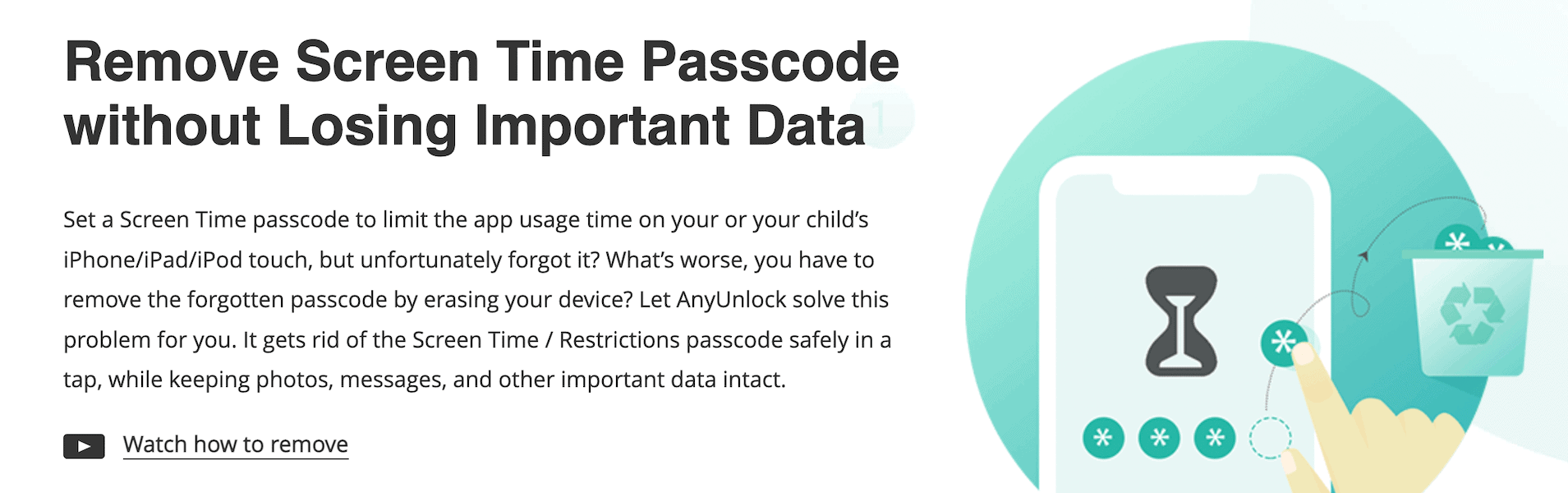
AnyUnlock has a free version, but it’s limited and doesn’t include the feature for unlocking a Screen Time password. That’s included with a premium plan only, which starts at $45.99 for three months. It’s highly likely that your child won’t be able to pay for such an app, but there’s still a chance they might find a different free app to unblock their device.
To stop this from happening, check for unlocking apps on any device that your child has access to. Beyond desktop applications like AnyUnlock, there are also web-based tools that claim to bypass Screen Time restrictions by exploiting iOS vulnerabilities. Several other third-party apps on the market also claim to bypass Screen Time restrictions, including LockEraser and EaseUS MobiUnlock.
Some unlocking tools may require putting the device in “recovery mode,” which is a technical procedure that parents should be aware of, as it indicates an attempt to bypass restrictions.
Advanced users can exploit recovery mode in conjunction with third-party software to perform what’s known as a “partial restore,” which preserves personal data while removing Screen Time restrictions without leaving evidence in the backup history.
Another advanced method is using the DFU (device firmware update) recovery mode alongside third-party software to perform what security researchers call a “forensic extraction,” which can preserve all user data while removing Screen Time restrictions without triggering Apple’s tamper detection systems.
Parents should routinely verify Screen Time settings are still active, enable notifications for any device restores via the Apple ID associated with the device and consider using physical device inspection tools that can detect tampering with system files even when performed through recovery mode.
Keep your child’s device updated to the latest iOS version to protect against these exploits, and regularly check their browsing history for such tools. It could be a mobile app that is installed on their device, or it could be a software that they’ve downloaded to their computer. If you find anything, uninstall it and speak with your child.
3. Change Date and Time
With the downtime and app limit settings in Screen Time, you can regulate how much time your child spends on their device, limit access to certain apps and even set a schedule. However, while the device is in uptime, your child can change the device’s time zone, delaying when downtime kicks in.
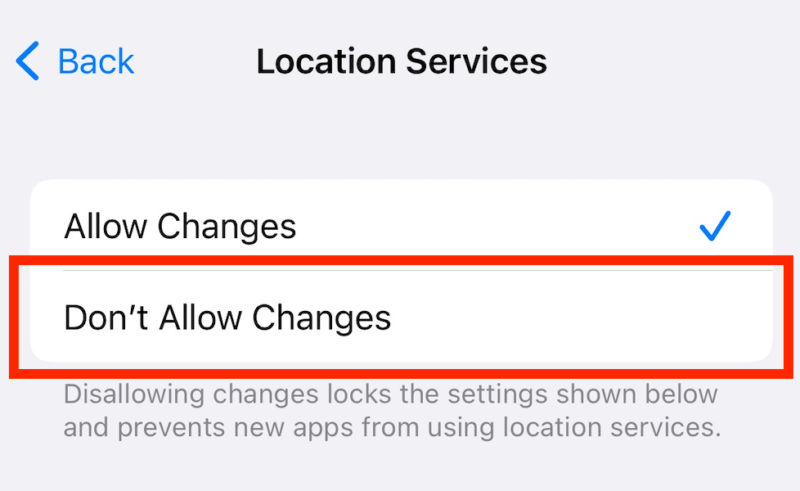
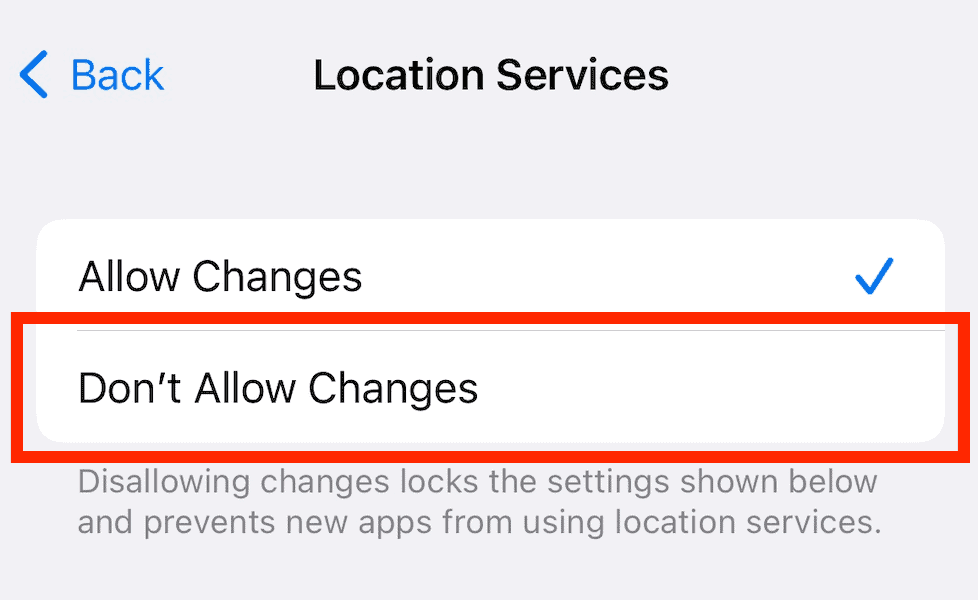
You can stop your child from doing this by going to the location services settings and tapping “don’t allow changes.” Here’s how to do that:
- Go to “Screen Time”
Go to “settings” and tap on “Screen Time.”
- Go to “Content and Privacy Restrictions”
Tap on “content and privacy restrictions.” Enter your password if needed.
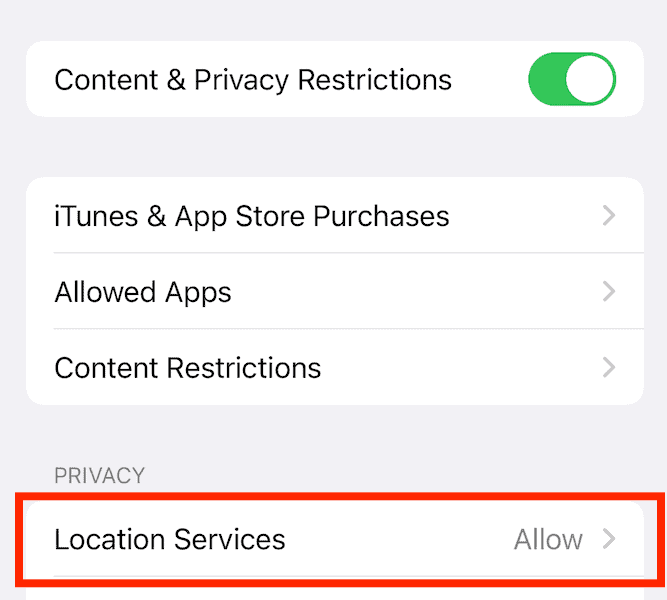
- Go to “Location Services”
Tap on “location services.”
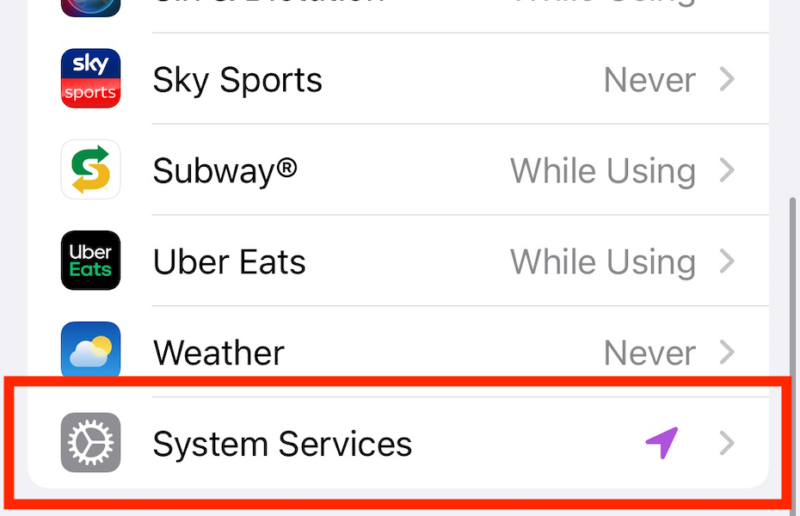
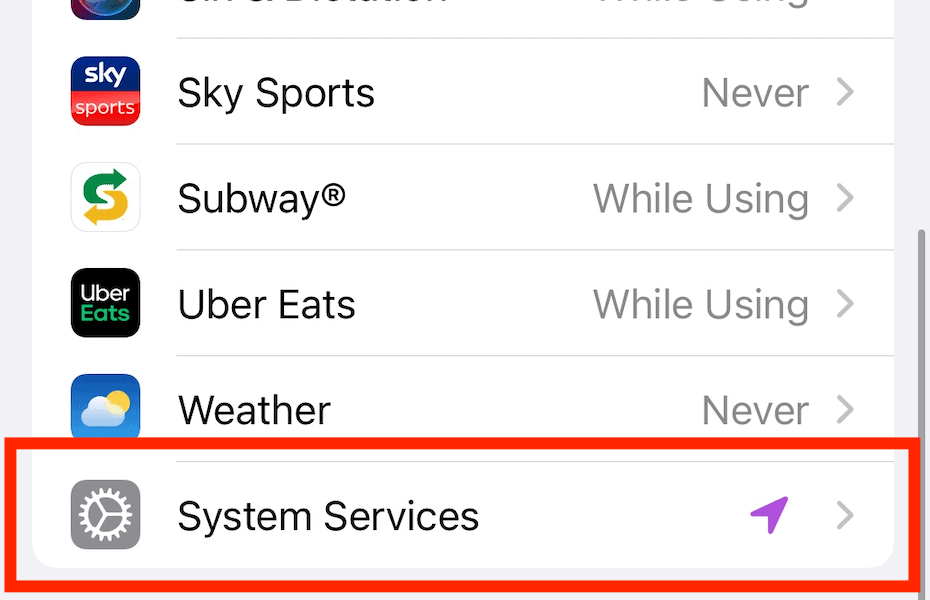
- Go to “System Services”
Tap on “system services.”
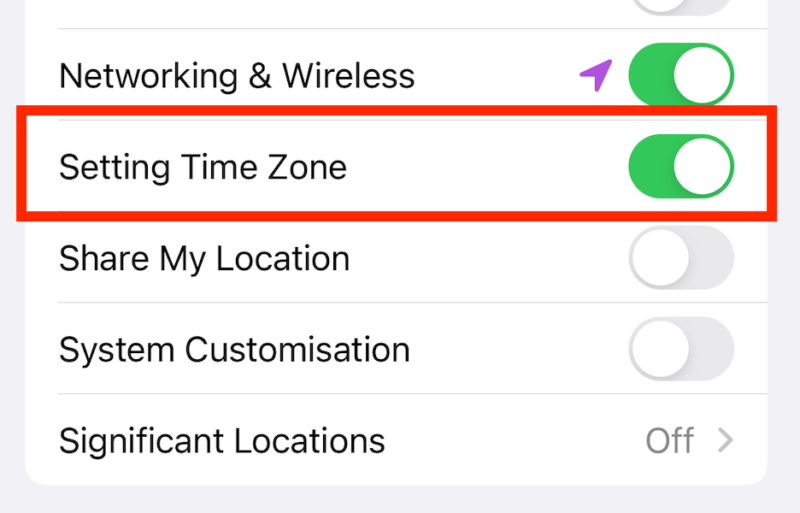
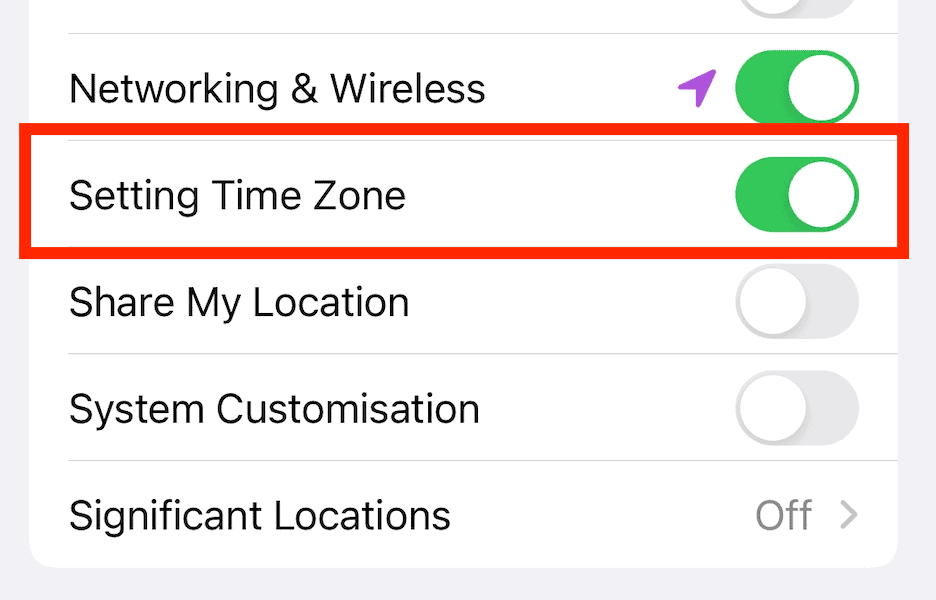
- Ensure the Setting for Changing the Time Zone Is Off
Make sure “setting time zone” is toggled off. Now tap “back.”
- Disallow Changes to the Location Services Settings
At the top of the location services screen, check “don’t allow changes.” Everything should now be grayed out except for “system services.” If you tap that, “setting time zone” should be grayed out. The setting for “date and time” should also be grayed out in the general settings.
4. Delete and Reinstall Restricted Apps
Some kids have found a loophole where they can simply delete and reinstall an app to wipe its Screen Time restrictions. This won’t matter if you’ve set a downtime schedule for the device as a whole, but it’s a clever workaround for restrictions set on specific apps. Once the app is reinstalled, your child can use it whenever they like.
Thankfully, it’s pretty simple to stop this. You can block your child from deleting or installing apps in the settings. Here’s how to do that:
- Go to the “Screen Time” Menu
Tap on “settings” and then “Screen Time.”
- Go to “Content and Privacy Restrictions”
Tap on “content and privacy restrictions” and input your Screen Time passcode if you need to.
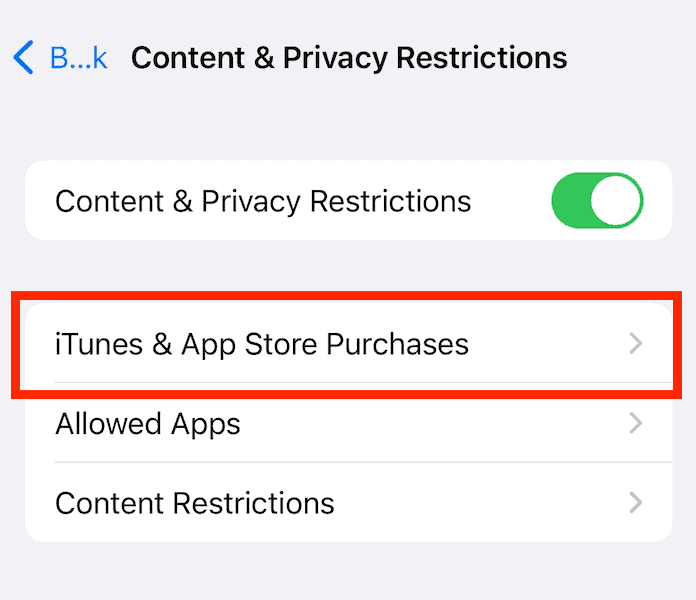
- Go to “iTunes and App Store Purchases”
Tap on “iTunes and app store purchases.”
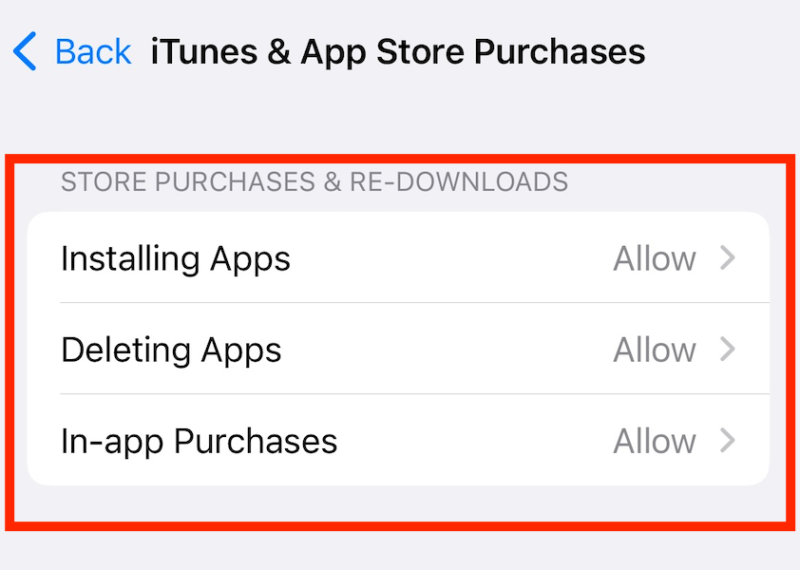
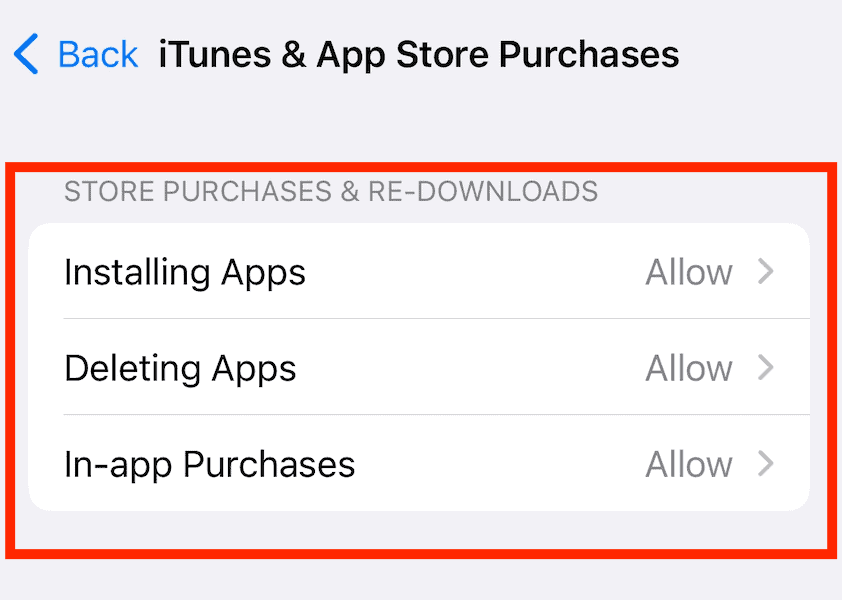
- Disallow Installing Apps, Deleting Apps and In-App Purchases
Tap on “installing apps,” “deleting apps” and “in-app purchases” and select “don’t allow” for each option.
Another method children might use is restoring their device from an old iCloud backup made before restrictions were enabled. To prevent this, ensure you maintain control over your child’s iCloud account and regularly update the backup after setting restrictions.
Similarly, children may exploit the “guided access” feature (designed for focusing on a single app) by enabling it on an unrestricted app before downtime begins, thereby maintaining access to that app even after restrictions kick in.
Some children may also attempt to install iOS beta versions, which occasionally contain security vulnerabilities that haven’t yet been patched. This could potentially allow Screen Time restrictions to be temporarily bypassed until Apple releases updates.
Particularly determined teenagers might attempt to jailbreak their iOS devices — a risky process that removes Apple’s built-in security protections while allowing complete circumvention of Screen Time controls and exposing the device to malware. Parents should regularly check for telltale signs of jailbreaking attempts, such as the presence of Cydia or Sileo app stores, unusual battery drain patterns or system instability.
In extreme cases, some children might attempt a factory reset of their devices to remove all restrictions, though this requires technical knowledge and would delete all data on the device.
5. Send Messages Through Siri or Contacts
If your child is constantly messaging friends, you can imagine how they feel when downtime kicks in or they reach a set limit on the messaging app. There are a few ways your child can circumvent Screen Time restrictions to continue using the iMessage app. We’ll go over each one here and tell you how to stop it.
Stop Access to iMessage Through Siri
Your child can ask Siri to send a message even when iMessage is blocked by Screen Time restrictions. Siri will happily oblige and ask you who you want to send the message to.

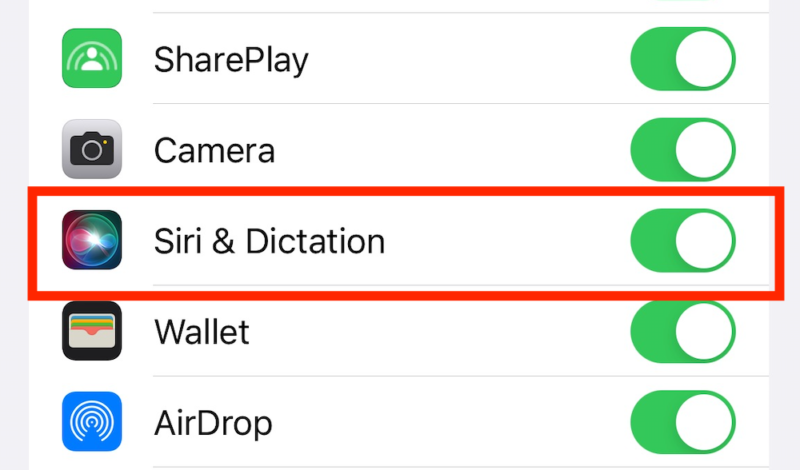
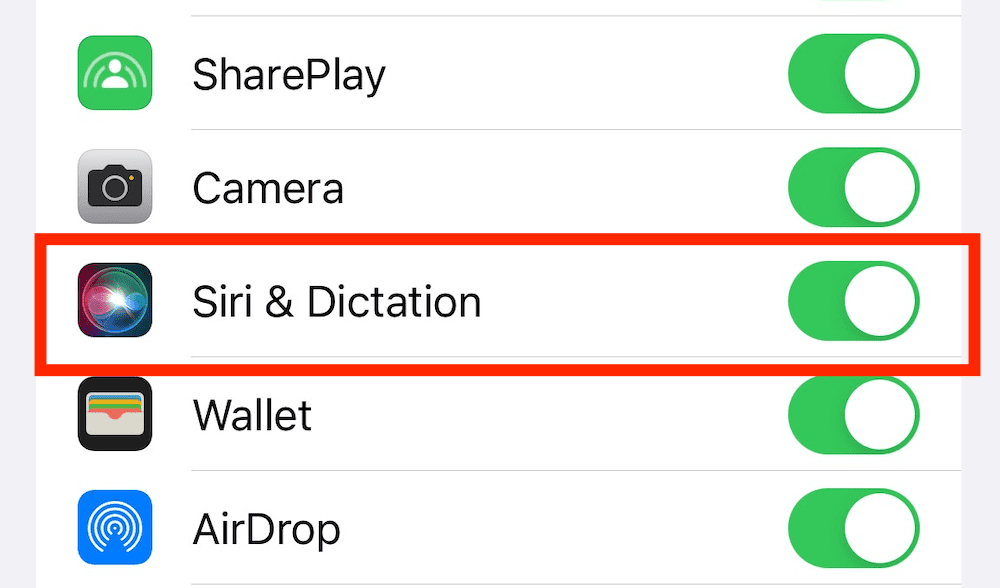
You can stop this workaround by turning “Siri and dictation” off in the settings. Here’s how:
- Go to “Screen Time”
Tap on “settings” and then tap “Screen Time.”
- Tap “Content and Privacy Restrictions”
Tap on “content and privacy restrictions” and enter your PIN if needed.
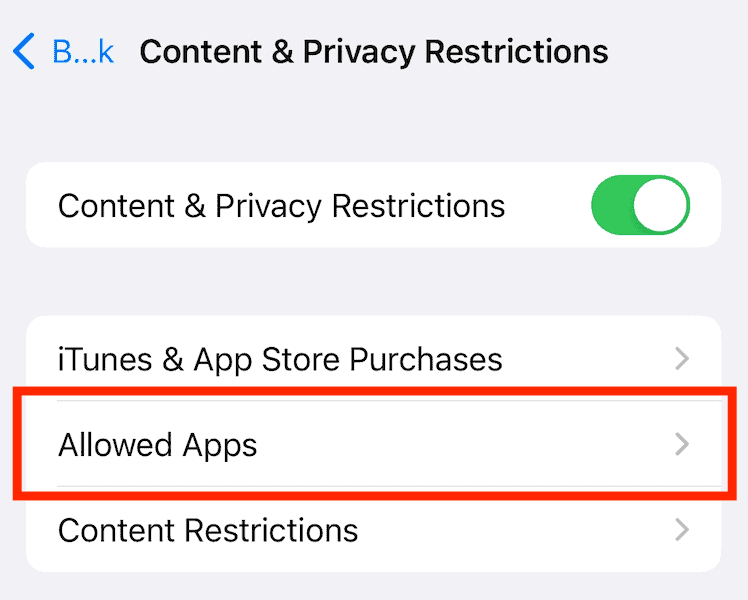
- Go to “Allowed Apps”
Tap on “allowed apps.”
- Turn Off “Siri and Dictation”
Toggle off the “Siri and dictation” setting.
Stop Access to iMessage Through the Contacts App
Children can access iMessage during downtime by taking a shortcut through the contacts app. If they share a contact via text, the iMessage app opens. You can stop this by setting a time limit on the contacts app itself.
- Go to “Screen Time” Settings
Go to the settings app and tap on “Screen Time.”
- Go to “App Limits”
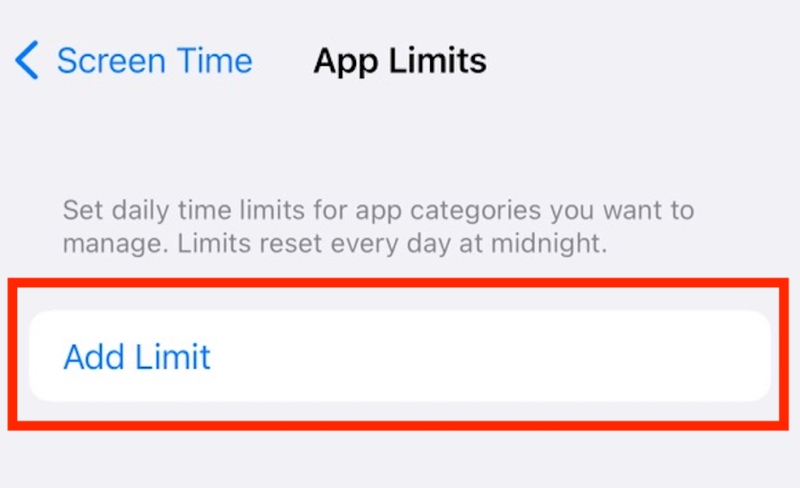
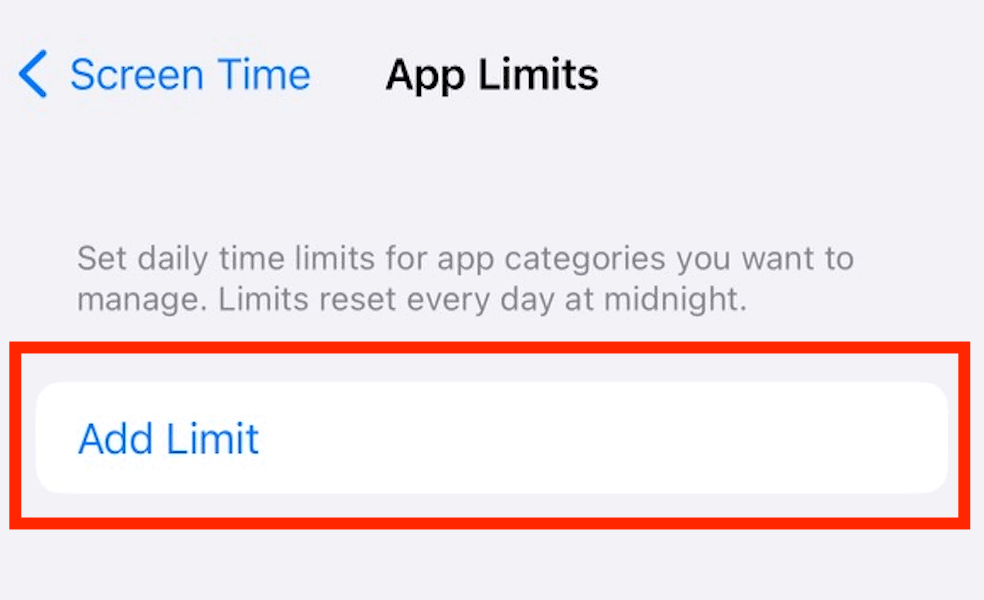
Tap on “app limits.”

- Tap on “Add Limit”
Tap “add limit” to set up a new app limit.
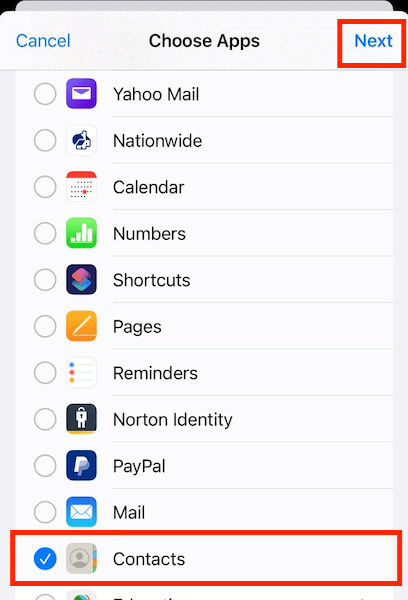
- Select the “Contacts” App
Select the “contacts” app and tap “next.”
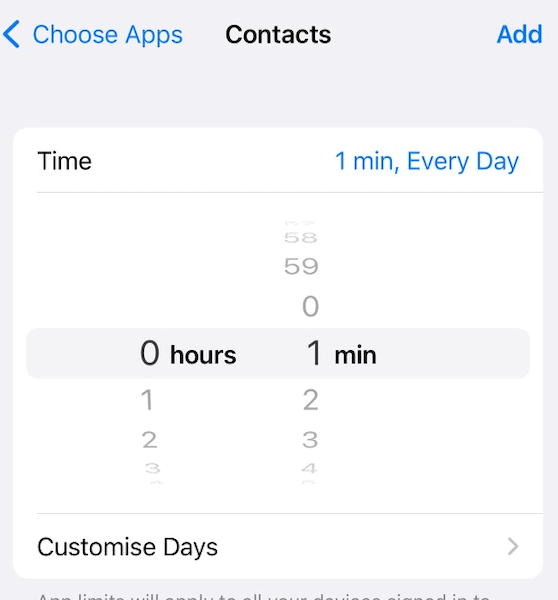
- Set the Time to the Lowest Setting
Set it to one minute — the lowest time possible. The app should be grayed out after one minute.
Similar to iMessage, children can also make FaceTime calls during downtime by using the contacts app or Siri. You can prevent this by adding FaceTime to the list of restricted apps and removing it from the “always allowed” list.
Kids might also try to bypass messaging restrictions using AirDrop to share content with nearby devices. Turn off AirDrop in the network settings on your phone to prevent this.
Stop Access to iMessage via Screenshot
Even with downtime or app restrictions, your child can access iMessage by taking a screenshot and selecting “send.” Once they do that, iMessage pops up.
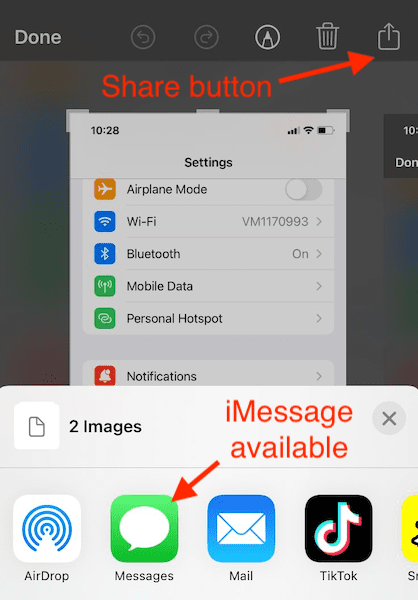
The best option is to remove iMessage from the “always allowed” list. Removing it from this list will mean your child cannot access iMessage once they reach app limits or downtime. Here’s how to do that:
- Go to “Screen Time”
Go to “settings” and tap on “Screen Time.”
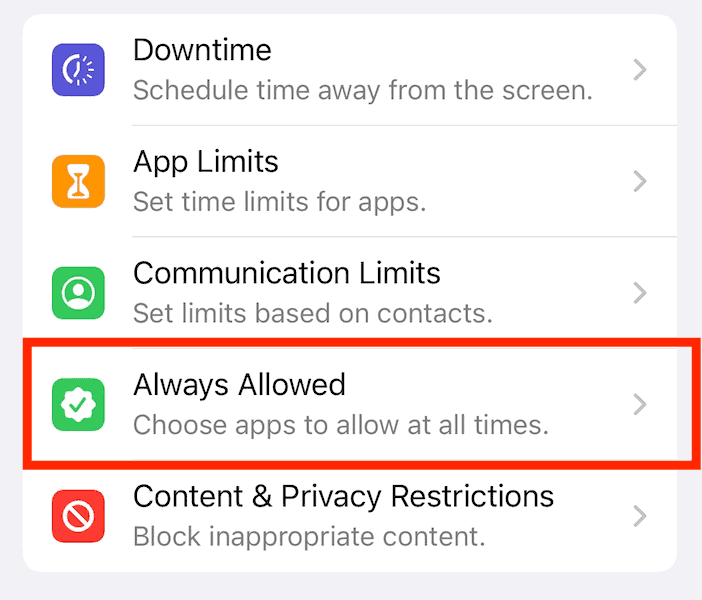
- Go to “Always Allowed”
Tap “always allowed.”
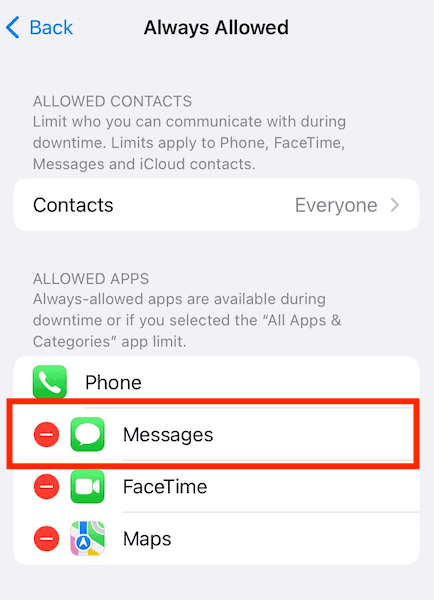
- Disallow the iMessage App
Tap the minus icon next to iMessage to remove it from the “always allowed” list.
Stop Access to iMessage From the Notifications Panel
If your child has a message left in their notification panel after downtime or app limits kick in, they can simply swipe down and tap the notification to open it again.
Unfortunately, there’s no real fix for this other than removing iMessage from the “always allowed” list like in the section above. You can also check your child’s device personally to ensure there are no iMessage notifications left once downtime kicks in. Any messages received during downtime won’t be visible until the device can be used again.
6. Watch YouTube Through iMessage
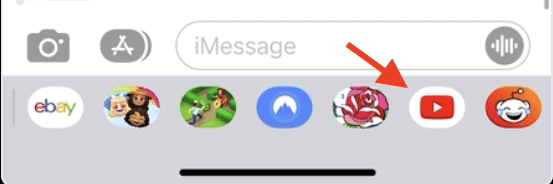
You may have blocked the YouTube app, but your child can still watch YouTube videos if they receive a link on iMessage. Once they click on the link, the YouTube video loads on iMessage. You can prevent this by blocking the YouTube website.
- Go to “Screen Time”
Go to “settings” and tap “Screen Time.”
- Go to “Content and Privacy Restrictions”
Tap on “content and privacy restrictions.”
- Go to “Content Restrictions”
Tap on “content restrictions.”
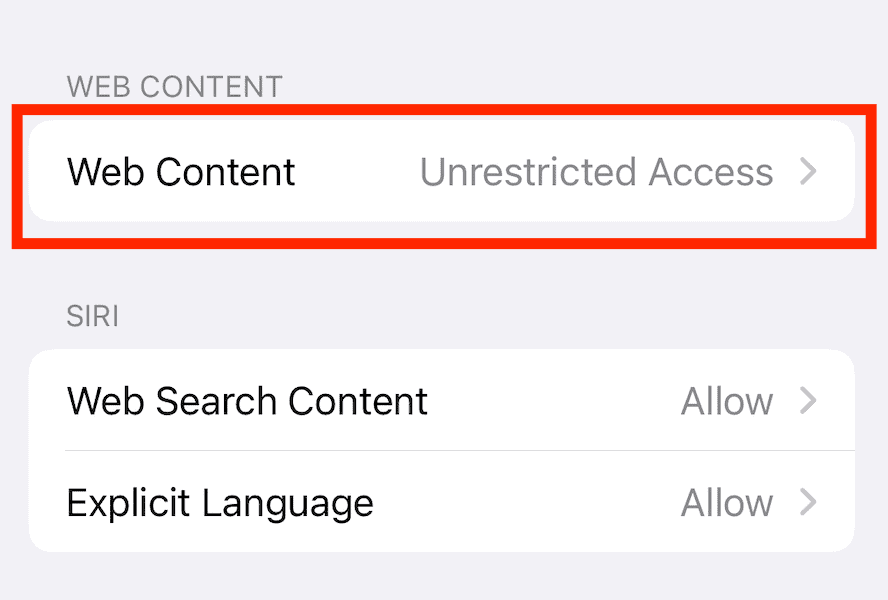
- Go to “Web Content”
Tap on “web content.”
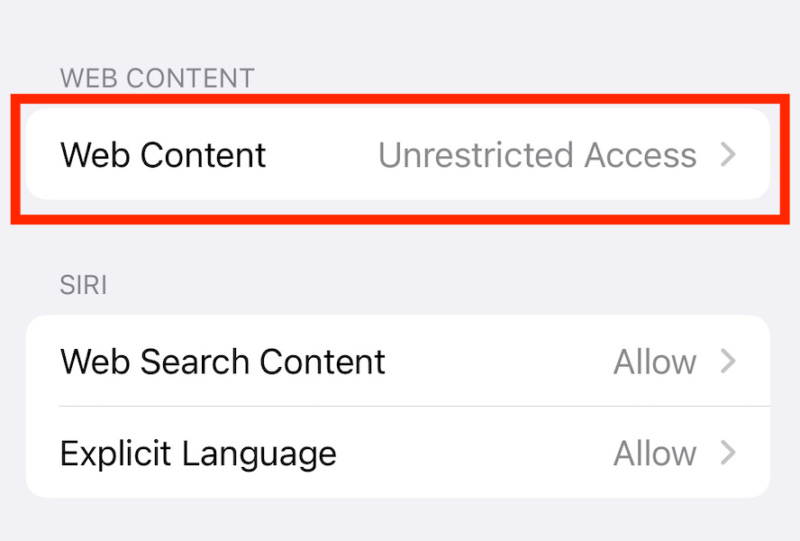
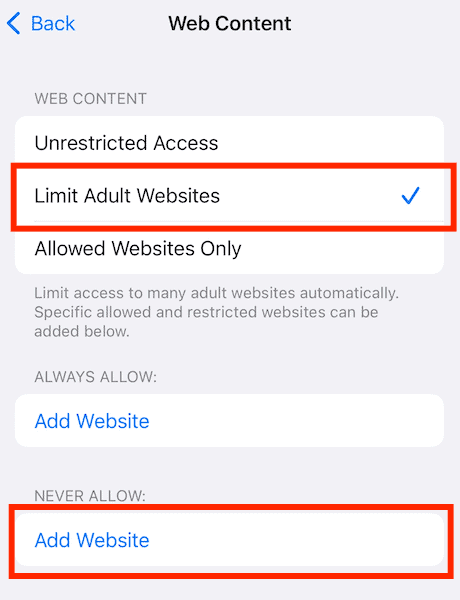
- Select “Limit Adult Websites”
Tap “limit adult websites” to select it. Then, under “never allow,” tap “add website.”
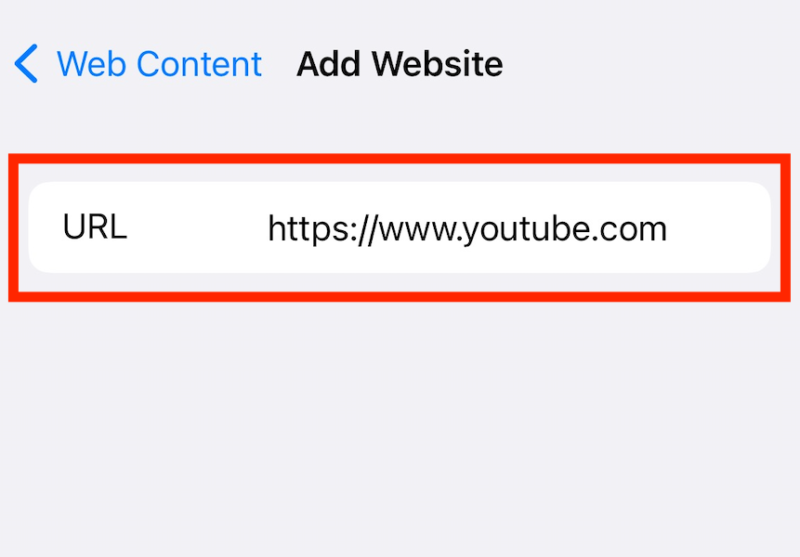
- Add the YouTube URL
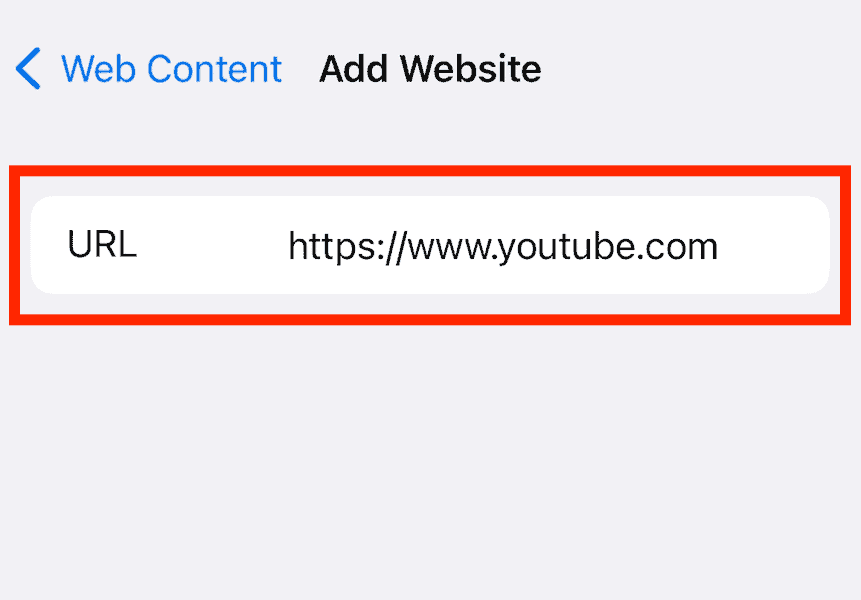
Type the following YouTube URL into the URL box: https://www.youtube.com. It has to be exact or it won’t work.
It’s also possible to watch YouTube videos through the iMessage widget. There’s no way to stop this other than to remove iMessage from the “always allowed” list, just like we showed in the “stop access to iMessage via screenshot” section.
Tech-savvy teenagers might attempt to change DNS server settings to bypass content filtering, effectively circumventing web restrictions while still appearing to comply with Screen Time limits.
Advanced users may also utilize VPN tunneling to redirect their internet traffic through external servers, thus circumventing content-filtering mechanisms while maintaining access to restricted websites like YouTube.
To prevent this, restrict the ability to modify network settings in the “content & privacy restrictions” menu, regularly check for unauthorized VPN profiles in “settings” > “general” > “VPN & device management,” and consider using router-level restrictions that can’t be bypassed by device-level changes.
Another advanced method is modifying local host files or establishing SSH tunneling to external servers, creating encrypted pathways that bypass both Screen Time restrictions and content filtering at the device level without triggering detection by parental monitoring systems.
Effective Communication Strategies
Setting up a technology usage contract with clear consequences for circumvention attempts can establish mutual expectations and build trust. Rather than simply imposing restrictions, involve your child in determining reasonable screen time boundaries, explaining the reasons behind limits and discussing potential online dangers in age-appropriate ways.
This collaborative approach gives children appropriate agency while maintaining parental oversight, potentially reducing their motivation to hack around restrictions in the first place.
For optimal restriction enforcement, parents should maintain complete separation between their personal Apple ID and their child’s account, as shared payment methods, family purchases or backup credentials often create authentication vulnerabilities that sophisticated users can exploit.
Regularly analyze your child’s Screen Time reports to identify suspicious usage patterns that may indicate restriction bypassing. Look for unusual gaps in activity followed by spikes in usage, app usage times that don’t match scheduled downtime periods or dramatic changes in app usage distribution.
Compare the Screen Time data with your child’s known schedule and activities. If the Screen Time report shows zero usage during times when you know your child had their device, it might indicate they’ve found a workaround. Setting calendar reminders to review these reports weekly helps maintain consistent oversight without becoming overly intrusive.
In addition, keep in mind that many children have access to school-provided cloud services like Google Workspace for Education or Microsoft 365 Education, which include web-based messaging platforms not controlled by Screen Time restrictions. They may use these school accounts on browsers to communicate with friends or access restricted content while appearing to do homework.
To address this, maintain open communication with school IT administrators about acceptable use policies, request parental access to school account activity reports where available and consider setting up supervised browsing specifically for school-related websites while blocking access to messaging components.
Best Parental Control Apps
If you want more control or options than the built-in iOS apps offer, then these three parental control apps are great tools for protecting your child online.
1. Surfshark


Surfshark’s parental controls are a great way to limit the content that your child can access online without prying too much into their private search history. You simply select the categories you want to block — such as adult content or gambling — and Surfshark does the rest.
With Surfshark One, you don’t just get parental controls. You will also be able to protect your child’s device with a VPN, antivirus, tracker blocker and more. All this costs just $2.49 per month on the two year plan. Read our full Surfshark review to learn more.
- Unlimited GB bandwidth, Unlimited devices, Secure VPN, Ad blocker, Cookie pop-up blocker. Pricing for the annual and biennial plans only apply for the first payment. Renewal fees vary.
- Unlimited GB
- Unlimited
- Yes
- Everything in Starter, plus Antivirus protection, Identity protection, Email Breach and Credit Card Alerts, Online Alias Pricing for the annual and biennial plans only apply for the first payment. Renewal fees vary.
- Unlimited GB
- Unlimited
- Everything in One, plus Data removal Pricing for the annual and biennial plans only apply for the first payment. Renewal fees vary.
- Unlimited GB
- Unlimited
2. Qustodio
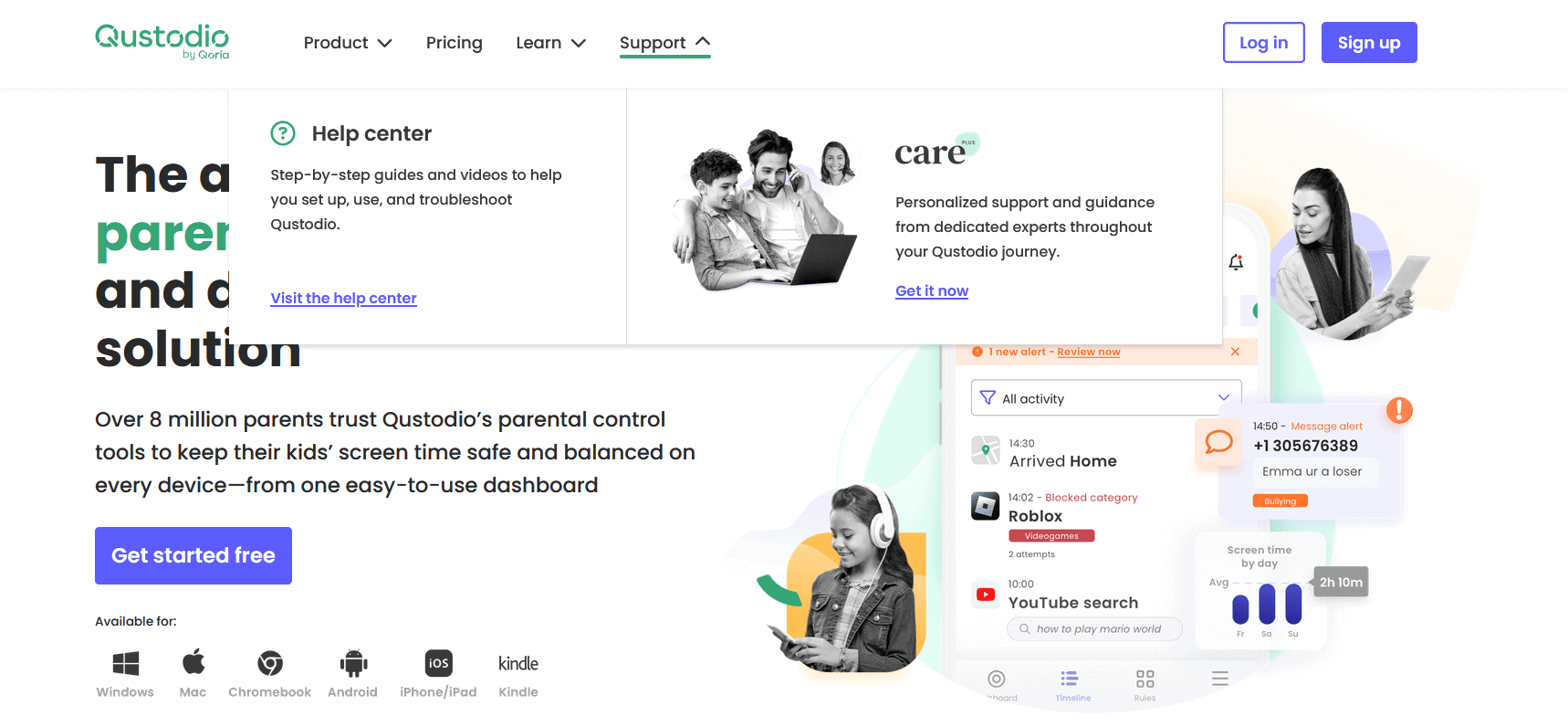

Qustodio is a parental control app that’s bursting with features. Alongside the ability to filter and block certain content, you can monitor your child’s messages, manage their screen time and even track their location. You can also find detailed reports of your child’s internet usage on the Qustodio dashboard.
If you need an app with advanced features and are willing to put the work in to set it up and monitor everything, Qustodio is the best option for you. There’s also a free plan that lets you manage a single device, which is a great way to learn the app and test it out.
3. OurPact
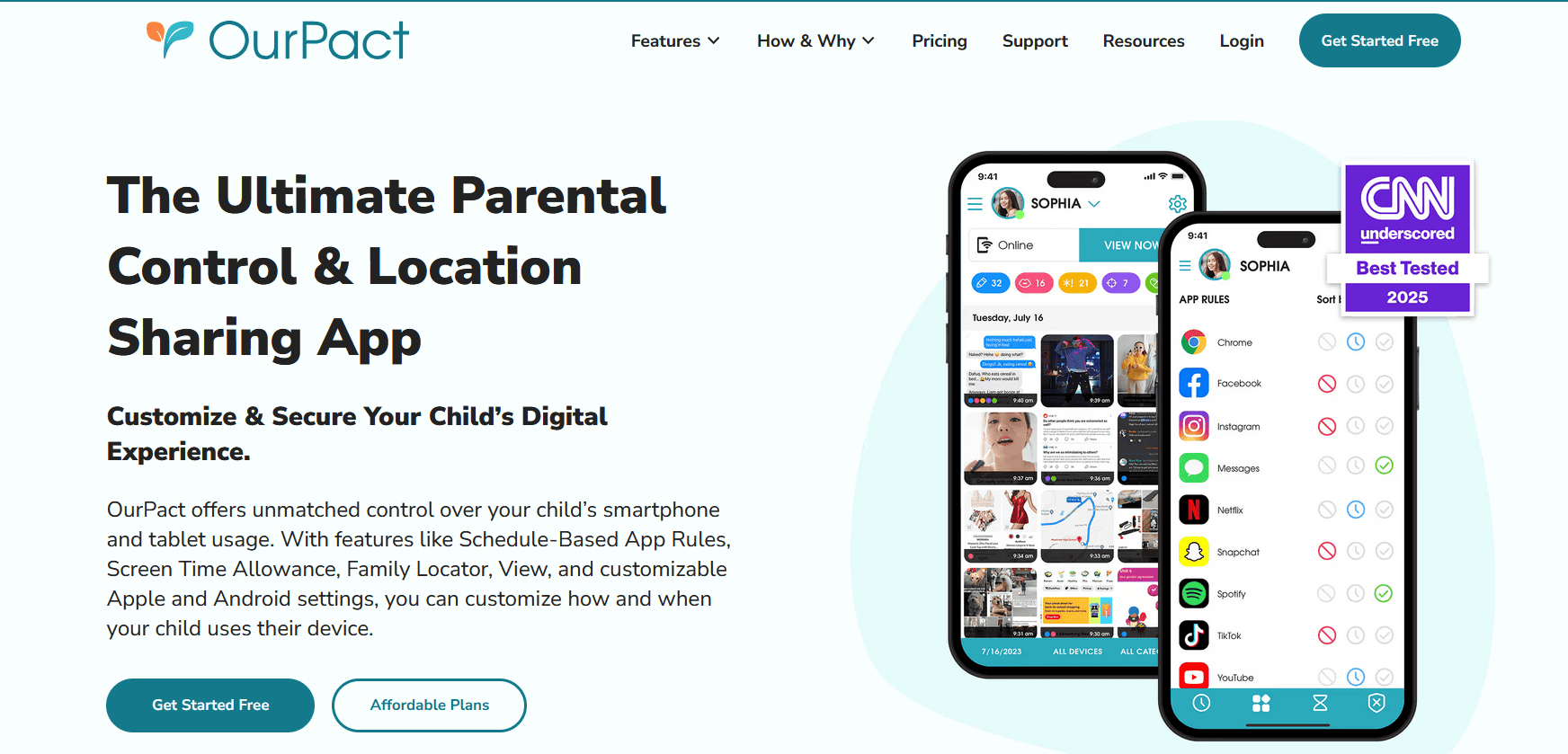
iPhones and offers some unique features.
OurPact has many of the standard parental control features, including content filters, location tracking and screen time limits. However, it also offers some unique features, such as the automatic screenshot capture. This allows you to take screenshots at regular intervals or on-demand from the parent device.
You can also block text messages on iMessage with OurPact, a feature that is usually only available for Android users. There’s a free plan if you only need to manage a single device, but the Premium plan allows up to 20 devices for only $69.99 per year.
| Plan: | Price | Features |
|---|---|---|
| Premium | $6.99 per month $69.99 per year* | Unlimited schedules, Unlimited blocks, Unlimited grants, Unlimited app rules, Unlimited allowance, Unlimited family locator, Unlimited block texting, Unlimited app alerts, Up to 20 devices |
| Premium+ | $9.99 per month $99.99 per year* | Everything in Premium & screenshot captures |
Final Thoughts
We hope this guide has opened your eyes to what your kids might still be up to after downtime starts. Although Apple’s Screen Time feature is super handy, there are a couple of loose ends Apple needs to fix. Thankfully, you can take a few steps to ensure your children remain safe online and stay within the limits you’ve set.
If you want something more bulletproof, with additional features and options, you might be better off with a third-party parental control app. Take a look at our list of the best parental control apps for iPhone and iPad.
What do you think of Apple Screen Time? Do you know of another way your child can bypass the restrictions? Do you think Apple should invest more time in perfecting Screen Time? Let us know in the comment section and, as always, thank you for reading.
FAQ: How to Remove Screen Time Restrictions
Yes, there are a few ways you can bypass Screen Time on iPhone. Thankfully, though, parents or guardians can take countermeasures to further secure Apple devices.
Kids can use an app like AnyUnlock to unlock Screen Time without needing a password.
If you don’t know the Screen Time passcode, the only way you can turn off Screen Time limits is by using an app such as AnyUnlock.