How to Manage Your Files From Anywhere: Remote File Access Guide 2026
Whether you’re traveling for work or you want your media available on any device, accessing files over the internet can be incredibly useful. However, this can be intimidating if you’ve never done it before, so read on to learn how to access your files from anywhere.


Written by Sapphire Fox (Editorial Assistant)
Reviewed by Aleksander Hougen (Chief Editor)
Last Updated:
All our content is written fully by humans; we do not publish AI writing. Learn more here.
There are plenty of solutions for remote file access. However, options like setting up a private VPN server or creating custom FTP servers are often far too complicated for an average user who just wants a few terabytes of storage. Luckily, there are three easy ways to access your files from anywhere.
Our favorite option to access files remotely is cloud storage. You can quickly and easily increase your storage space, there’s less risk of physical damage to the drives and you can test it for free with just a few clicks.
However, if you prefer to be in control of your own data or you’re not a fan of monthly subscriptions, you can also create a NAS or use remote access software like TeamViewer. These let you keep your storage device at home and access it through your laptop or mobile devices.
-
04/09/2024 Facts checked
Updated to reflect changes in Icedrive’s pricing plans and storage offers.
Option 1: Use Cloud Storage for Remote File Access
Cloud storage services give you access to a small amount of remote storage space — usually between 5GB and 5TB depending on the service and the plan you choose. This lets you access files over the internet and can come with additional benefits, like keeping them safe from physical harm and broken drives.
10,000+ Trust Our Free Cloud Storage Tips. Join Today!
- Demystify cloud storage terminology and key concepts in plain language
- Discover easy-to-implement techniques to securely backup and sync your data across devices
- Learn money-saving strategies to optimize your cloud storage costs and usage
Although features like zero-knowledge encryption and file sharing are nice, the core of any cloud storage is the ability to access files or do a file transfer from anywhere in the world. Luckily, this is really easy to do with any decent service, and all you need is an internet connection.
You could also check out some online backup services, like Backblaze (read our full Backblaze review). An online backup is similar to cloud storage but is better for protecting the data on a single device from physical damage, so you can restore it after something goes wrong.
Step 1: Choose a Cloud Storage Service
If you haven’t yet chosen the cloud storage service you want to use, then you should check out our full breakdown of the best cloud storage services. However, if you just want a quick suggestion, we think these three are the best options for most users.
- Sync.com — A balanced service that does almost everything well; 2TBfor $4.80 per month
- pCloud — A close second to Sync.com, as long as you’re willing to pay extra for privacy; 2TB for $9.99 per month
- Icedrive — A newer service that shows a lot of promise but lacks some features; 1TB for $4.92 per month (one-year plan)
- Internxt — Privacy-first storage with post-quantum encryption; lifetime plans available with up to 80% off
- Proton Drive — End-to-end encrypted storage from Swiss privacy leaders; Get 5GB of free storage with the free plan
- Icedrive — Fast, modern storage with included encrypted folder; 5TB for $199 per year
Step 2: Use Cloud Storage to Remotely Access Your Files
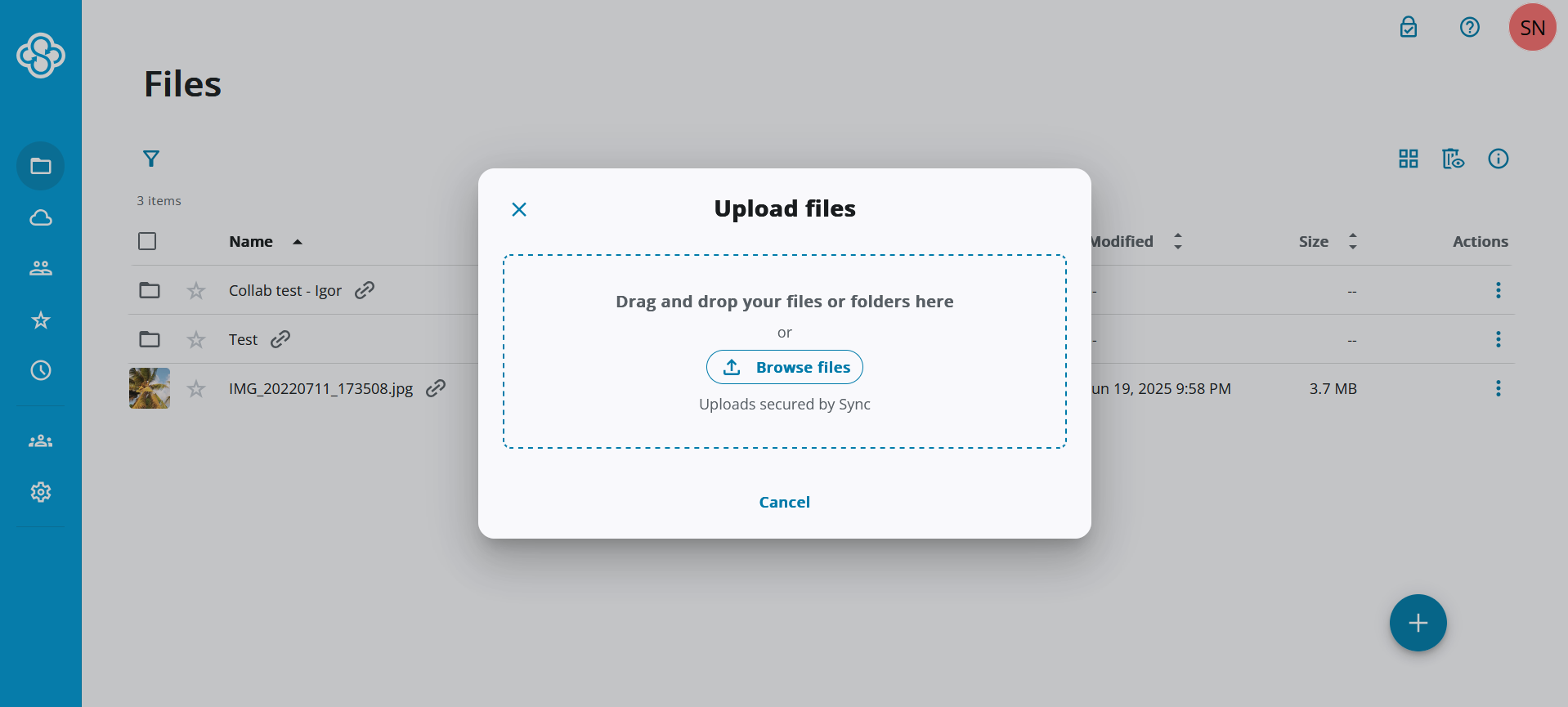
- Upload Your Files
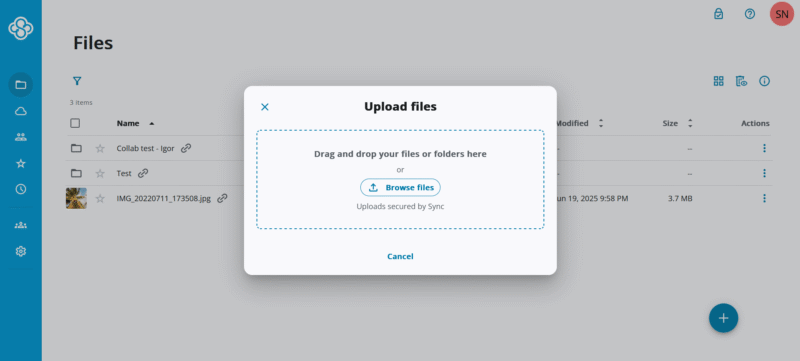
First, you’ll need to upload your files to a cloud storage service, like Sync.com. You can usually drag and drop your files through the service’s website or add the files into the sync folder created by its desktop app.
- Open the Website on Your Second Device
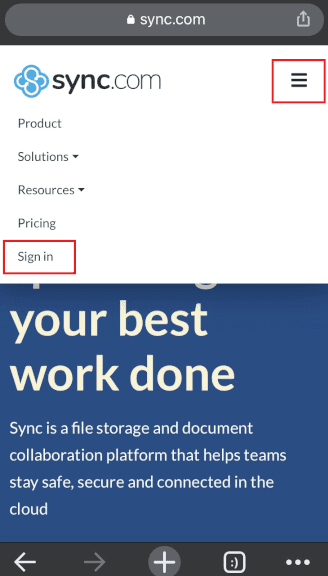
On a second device, such as your mobile phone, you can open your web browser and go to the provider’s website. You can also download and use the mobile app if the service you’re using has one.
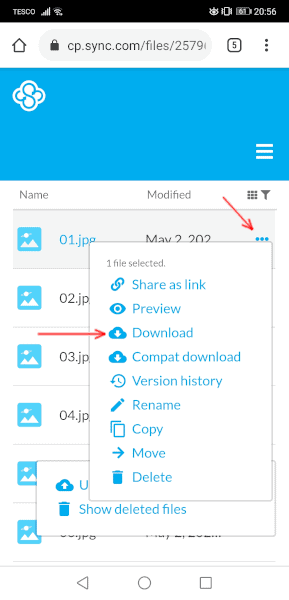
- Download the Files You Want to Access
There will either be a download button or a dropdown menu with a download option next to the file names. This will save the files to your device, so you can view and edit them.
Option 2: Access a File Server Remotely With NAS
Although cloud storage is great, some people prefer to keep their data out of a company’s hands — especially since even reputable companies like Dropbox can have security issues. Here, portable external hard drives are a good option. You can read more about their differences in our cloud vs hard drive guide. However, if you don’t want to carry any more weight than necessary, then a dedicated NAS is the way to go.
Network-attached storage (NAS) is just a small remote file server you keep in your house and contains all of your data. It can be a little difficult to set up, but companies like Synology offer premade NAS devices and software to help you get started moving your files to it.
If you want to access your NAS over the internet, you should use the software that comes with a prebuilt NAS — such as Synology’s “quickconnect” — to get started. However, if you set up your own NAS, then the best option is usually to go through a free dynamic DNS service to access the NAS remotely.
Option 3: How to Access Files on Another Computer Over the Internet
Being able to access files remotely is useful, but some users will want to use their whole computer while they’re away. For this, you’ll need to use some kind of remote access software. These are basically screen-sharing programs that also allow you to pass inputs through to the computer.
There are plenty of ways to remotely access your computer. Windows 10 Pro has a “remote desktop” for professionals who want to work on their home computer, and Google has a Chrome “remote desktop” aimed more at personal users. Other options include TeamViewer and GoToMyPC by LogMeIn.
However, regardless of which program you choose, the process is pretty similar. Just make sure your computer is on and the program is loaded, then you can log in on your other computer or mobile device. You’ll need to enter the ID or PIN code for the connection to start. Once you connect to the computer, you can control it and access all of your files.
What Is the Best Cloud Storage for Remote File Access?




![Video thumbnail for the video: I Tested Proton Drive to See If It's as Private as It Claims [2024 REVIEW]](https://img.youtube.com/vi/XWmsFdm-VLg/maxresdefault.jpg)

![Video thumbnail for the video: Ultimate Icedrive Review [2024 Pros and Cons Revealed]](https://img.youtube.com/vi/iVGsDxYVV-Y/maxresdefault.jpg)

Final Thoughts
Accessing your files over the internet may not have been something you’ve thought about before, but with how powerful and lightweight modern mobile phones and laptops have become, remote file access has never been more important.
Cloud storage services are easy to use and risk-free to try, with most popular providers — like Sync.com, pCloud and Icedrive — offering 14- or 30-day free trials. They also give you the option of simple and secure file sharing. However, a NAS or remote access software are both great options, especially for users who want more control.
If all you want is to ensure remote employees access company resources securely, worry not. We have a comprehensive remote access VPN guide.
Do you regularly use computers that aren’t on your home network? Have you tried to access your files over the internet? Which method did you use? Let us know your thoughts in the comments section below. Thanks for reading.
FAQ
Yes. Just upload the files to a cloud storage service, open the second computer’s web browser, find the service’s webpage and log in to your account.
Software like TeamViewer or Chrome “remote desktop” let you remotely access your home computer from another device, as long as the computer is on and you have the right ID code.
You’ll need to make your server accessible over the internet — usually through a dynamic DNS service — and then you can connect to it and access your files.
If you’re not a fan of carrying your drive with you, the best option is to plug it directly into your router. Then you should change the router settings so you can access it through its IP address.