Best Mobile Backup Solutions in 2026 With How-To Guides
Good mobile backup software can be hard to find, as most services can’t run full backups of app data. This list covers the best options and includes guides on how to back up your iPhone or Android device.


Written by Aleksandar Kolichoski (Developer)
Reviewed by Kate Hawkins (Editor, Writer)
Facts checked by Igor Kurtz (Fact-checking editor)
Last Updated:
All our content is written fully by humans; we do not publish AI writing. Learn more here.
Key Takeaways: These Are the Best Services for Mobile Data Backup
- IDrive — Private mobile backup for your iOS or Android device. Get 10GB of free IDrive backup storage space.
- pCloud — A good, secure automatic backup for photos and videos. pCloud includes 10GB of free cloud storage.
- Proton Drive — A privacy-focused option with excellent media organization and reliable auto-upload for iOS and Android.
- Internxt — An affordable open-source option, though its mobile app lacks automatic upload features.
- Google Drive — Android’s default mobile backup service, but with numerous privacy concerns. Get 15GB of free Google Drive storage for backups.
- iCloud — The only service compatible with full iPhone backups, but with limited privacy options. iCloud offers 5GB of free storage.
Facts & Expert Analysis About Mobile Backup Solutions:
- Security and privacy: Your phone contains a lot of sensitive data, so it’s important to back it up to a private service.
- Backup features: Only a handful of services let you carry out a full backup of your mobile device — most can back up only photos and videos.
- Differences between Android and iOS backups: While Android apps have more access to the operating system, iOS has guardrails that prevent apps from running a complete backup.
Whether you’re planning on switching to a new phone, need to free up device storage space or just want an emergency mobile data backup, you’ll need dedicated mobile backup software. It’s hard to find a service that covers all the bases, but I’ve chosen six providers with unique features so you can make the right choice for your needs.
iPhones and Android phones come with default backup options: iCloud and Google Drive, respectively. However, their privacy isn’t perfect, so I’ll be focusing on other solutions with better encryption and security standards. If you need a service for desktop backups, check out our best cloud backup article.
-
08/24/2022 Facts checked
Updated IDrive’s pricing information.
-
05/23/2023 Facts checked
Updated to remove IDrive’s discontinued free plan and add its new free 30-day trial.
-
02/26/2024 Facts checked
Updated IDrive’s pricing information.
-
05/26/2024 Facts checked
Updated the amount of free storage Degoo offers.
-
06/20/2025 Facts checked
We adjusted the list to add pCloud as one of the top backup providers.
-
11/22/2025 Facts checked
We rewrote this article to focus on backup guides and added new provider recommendations.
Cloudwards’ Choice: IDrive
 Cloudwards’ Choice: IDrive
I like IDrive because it can back up everything that services like Google Drive can, while also offering client-side encryption for maximum data protection. Plus, if you opt for a paid plan, you get one of the most powerful computer backup services as well. It even adds extra quick-access cloud storage to your account at no additional charge.
This is particularly useful for those who do a lot of their coursework on mobile devices. You can see how this compares to other academic-friendly services in our guide to the best online backup for students.
Why Do You Need to Back Up Your Phone?
Phone backups generally have three main uses:
- Media backups: Backing up your photos and videos to the cloud means you’ll never lose the memories of your most important moments.
- Data loss prevention: If you lose your phone, or if it gets stolen or simply stops working, a backup will let you recover your data.
- Phone migration: Whenever you switch to a new phone, it’s always good to have a backup handy to make the transition process smoother and easier.
How to Back Up Your Phone: Android and iOS Without iCloud or Google Drive
I believe IDrive is the best service to back up data from your phone to the cloud, so I’ll be using it for the following guide. The IDrive app is available for both iOS and Android and works the same way on both.
10,000+ Trust Our Free Cloud Storage Tips. Join Today!
- Demystify cloud storage terminology and key concepts in plain language
- Discover easy-to-implement techniques to securely backup and sync your data across devices
- Learn money-saving strategies to optimize your cloud storage costs and usage
- Sign Up for an IDrive Account
Sign up for a free IDrive account, which comes with 10GB of storage. This should be enough for your app data, calendar and contacts. If you want to back up your photos and videos, you can purchase a plan for as little as $0.25 per month for 100GB of storage.
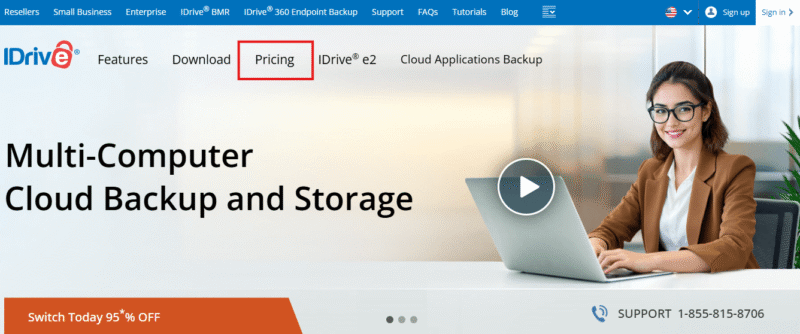
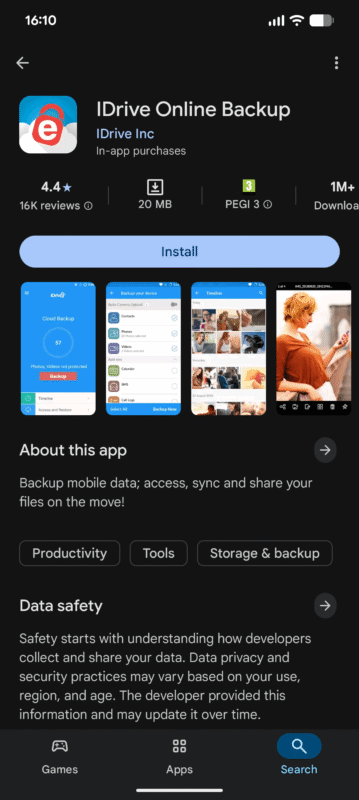
- Download and Install IDrive
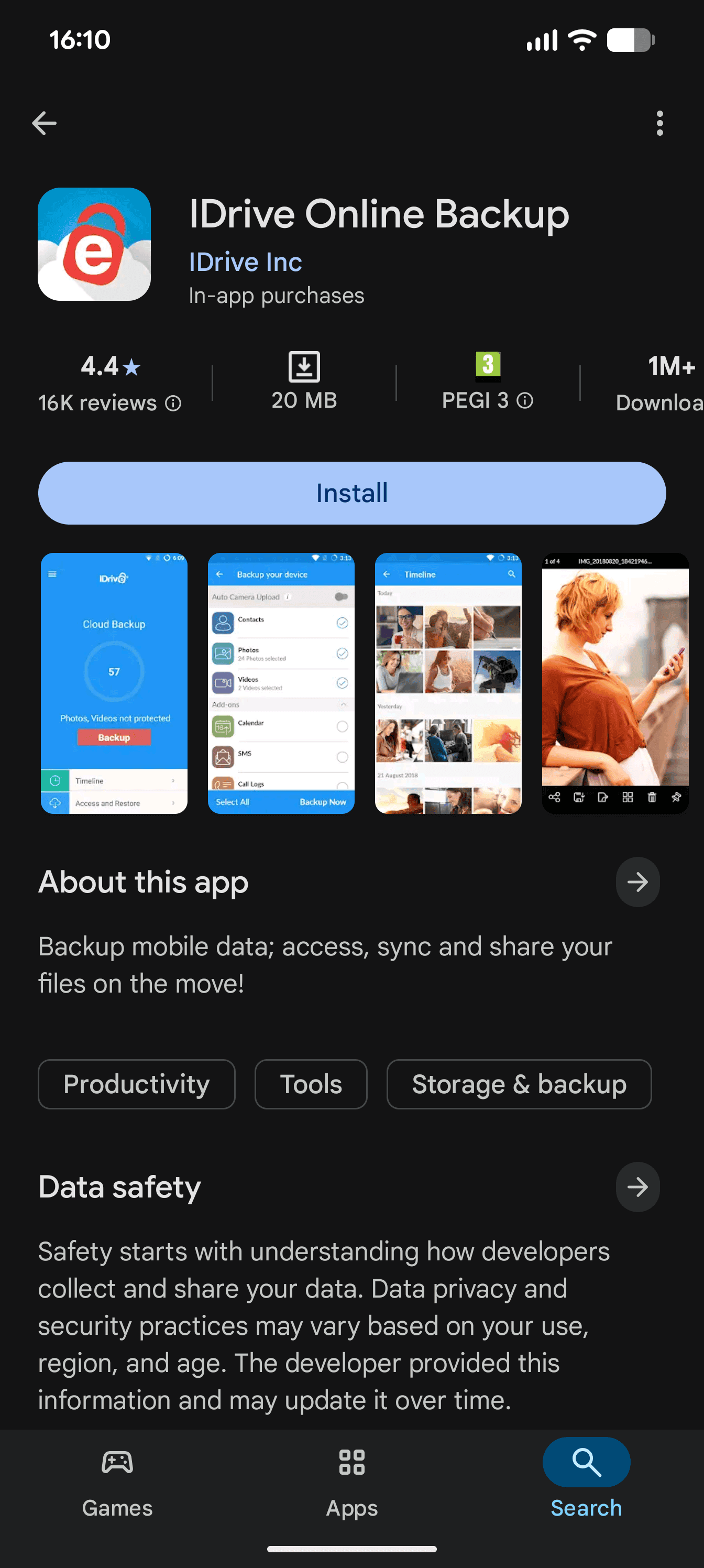
Go to the Play store on Android or the Apple app store on iOS and download the IDrive mobile app.
- Customize Your Backup Settings
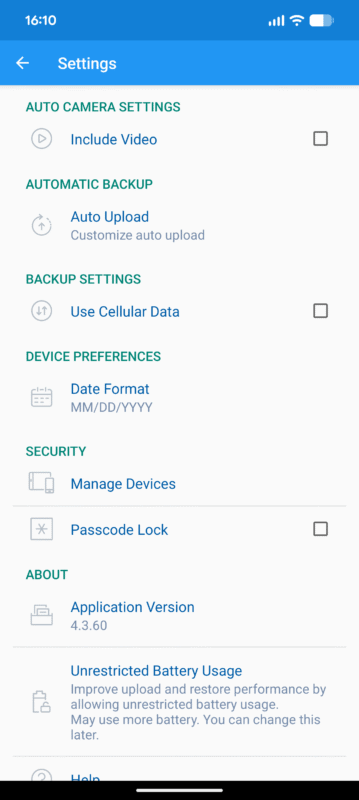
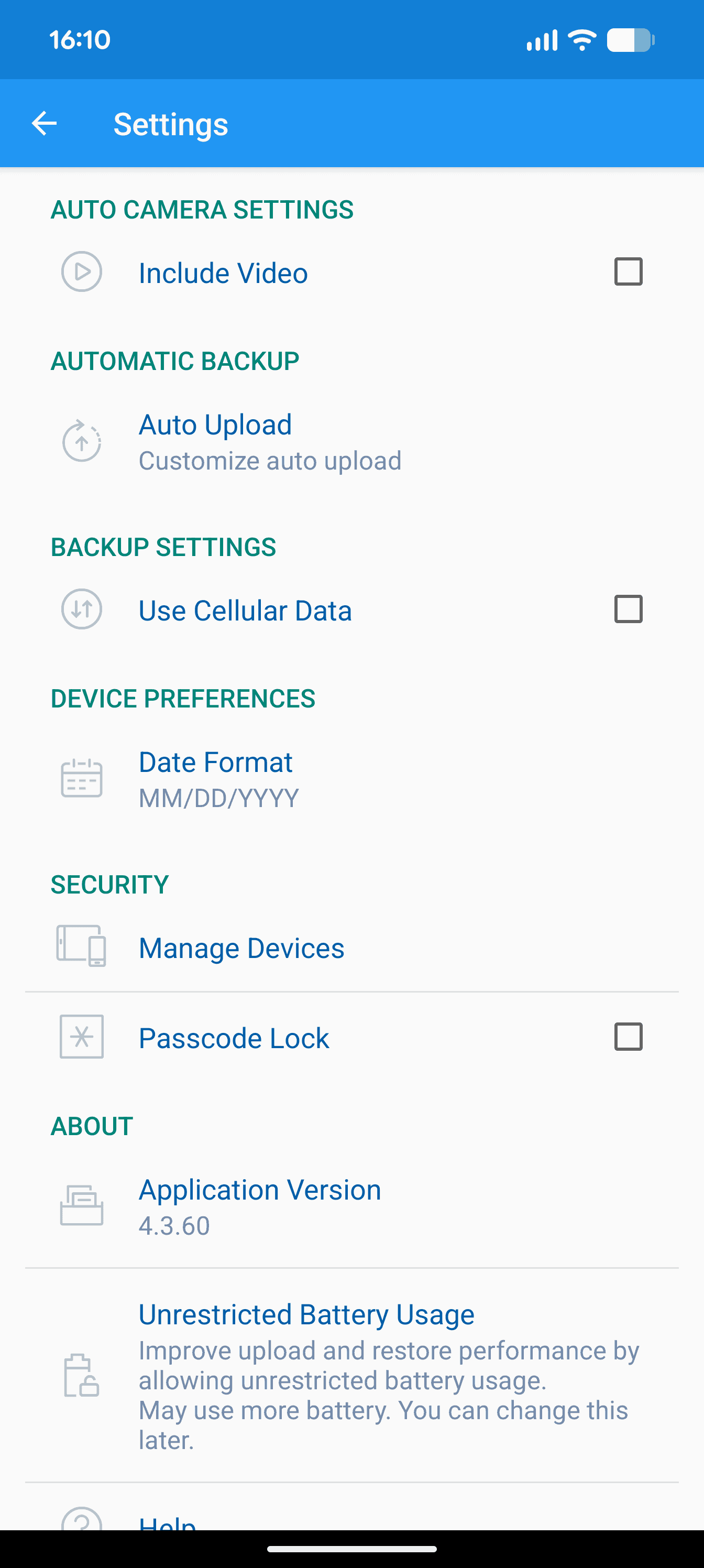
In the IDrive app, open the settings and go through the options you want to customize, such as setting a backup schedule and adjusting cellular data usage.
- Set Up and Start Your Backup
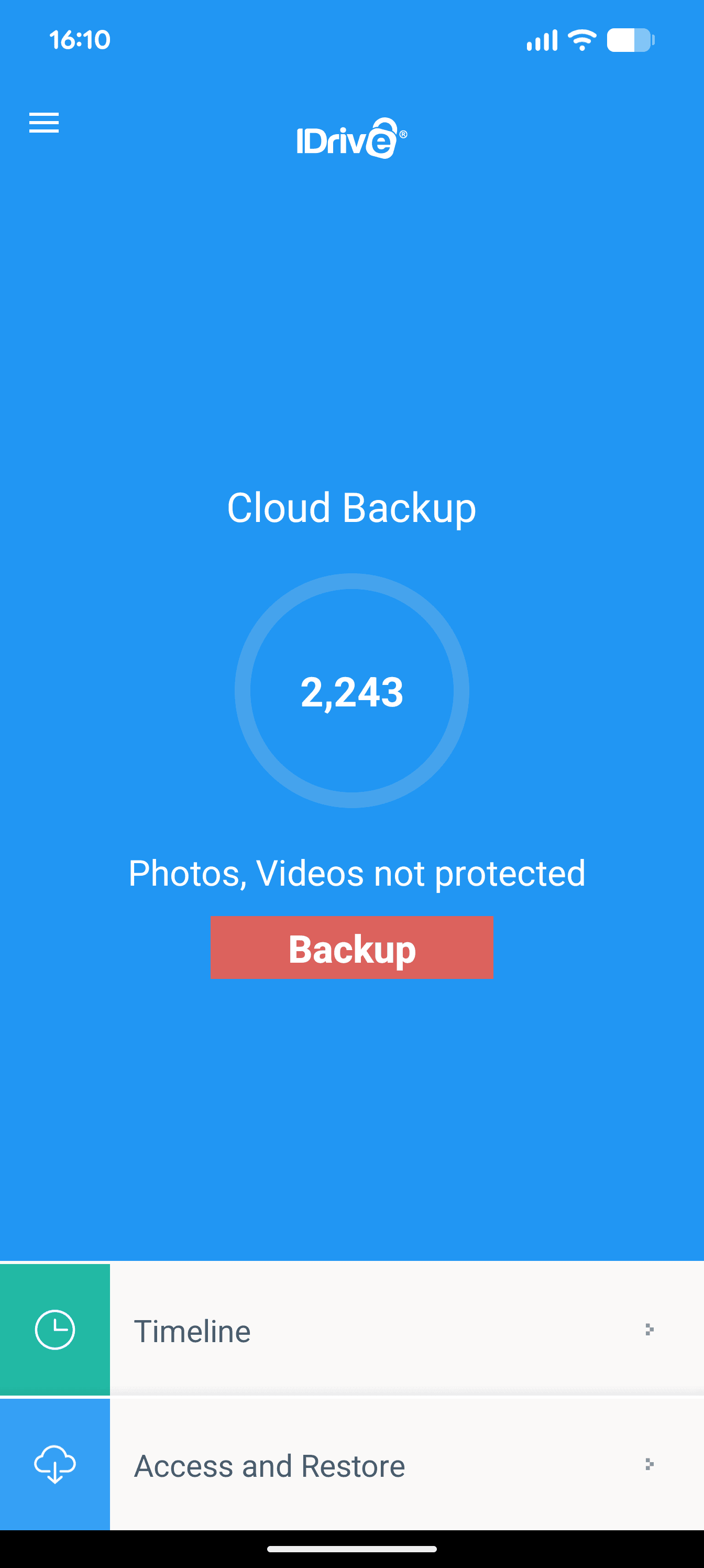
On the main screen of the IDrive mobile app, tap on the “backup” button. This shows everything you can back up, such as photos, videos, contacts, the calendar, call logs, text messages, music and other files. On Android devices, this encompasses all of your phone storage, including documents and installed apps. Tap “backup now,” and you’ll be all set.
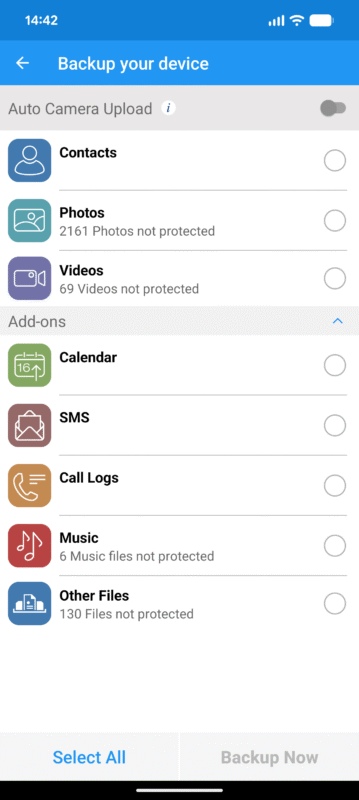

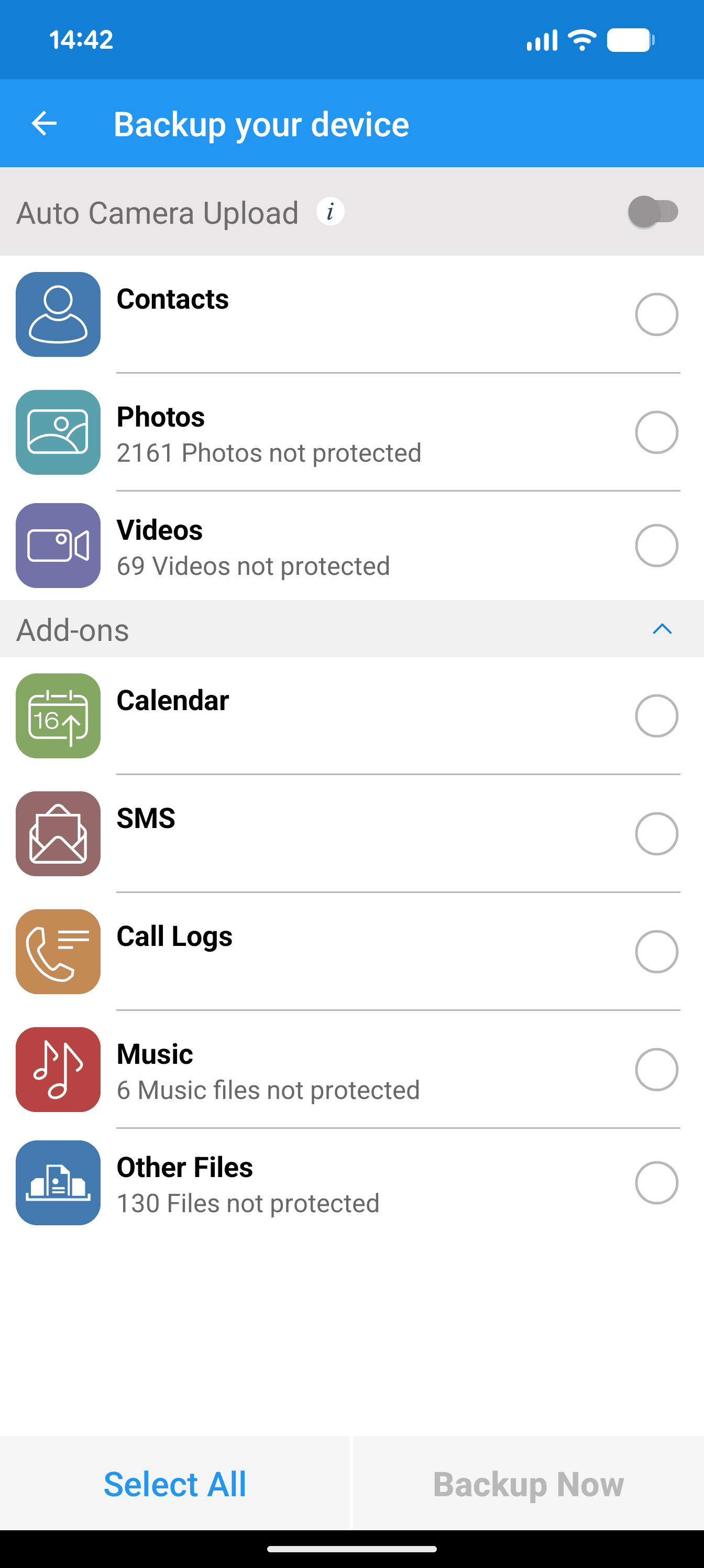
One major caveat is that iOS is much more restrictive than Android. Although you can back up some iOS data using third-party apps, only iCloud can create a full backup of your iPhone. Because of this, the screen in step four with backup data options on iOS will display only your contacts, calendar, photos and videos.
How Do You Back Up iPhone With iCloud?
The default way to back up your iPhone is using iCloud. As I’m a stickler for privacy, this isn’t necessarily my preferred way to back up an iPhone.
iCloud offers what it calls Advanced Data Protection, which is a limited form of client-side encryption, and thankfully covers your iCloud backup. However, iCloud has had several prior login data leaks, including one in 2025 and a high-profile breach in 2014.
While Apple’s security was not likely the issue in these cases, these leaks underscore how frequently hackers target iCloud users, as well as the risk of storing your backup on Apple’s servers.
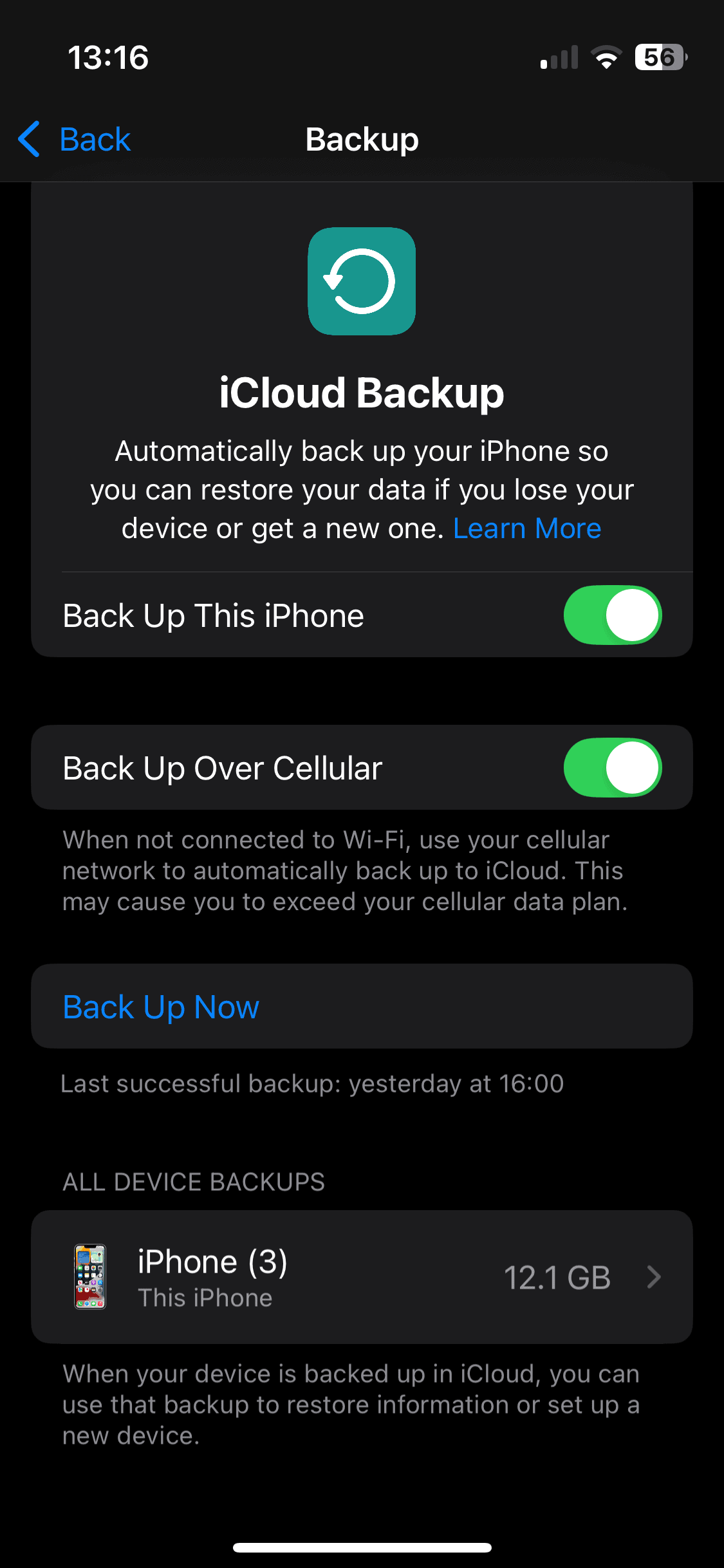
Despite this, there’s no denying that iCloud is the only way to create a complete iPhone backup, so I’ll show you how to use it in the following guide. For an alternative, read our article on the best iPhone backup apps.
- Locate the iCloud Backup Menu
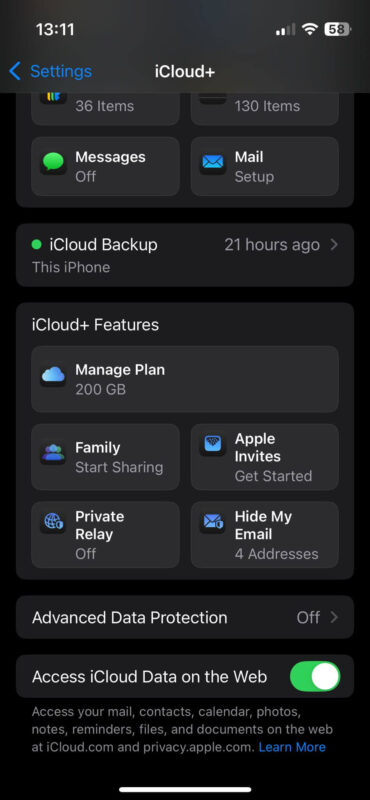
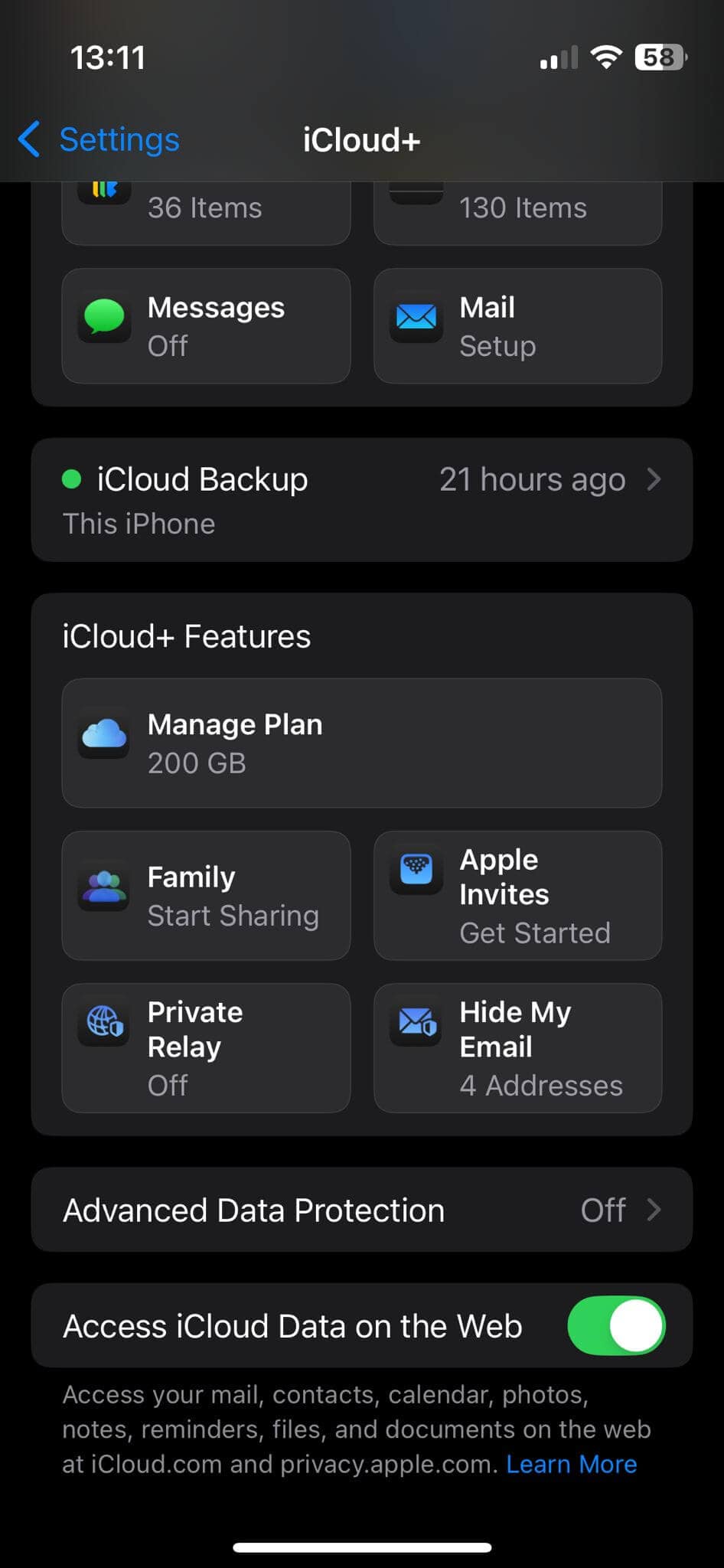
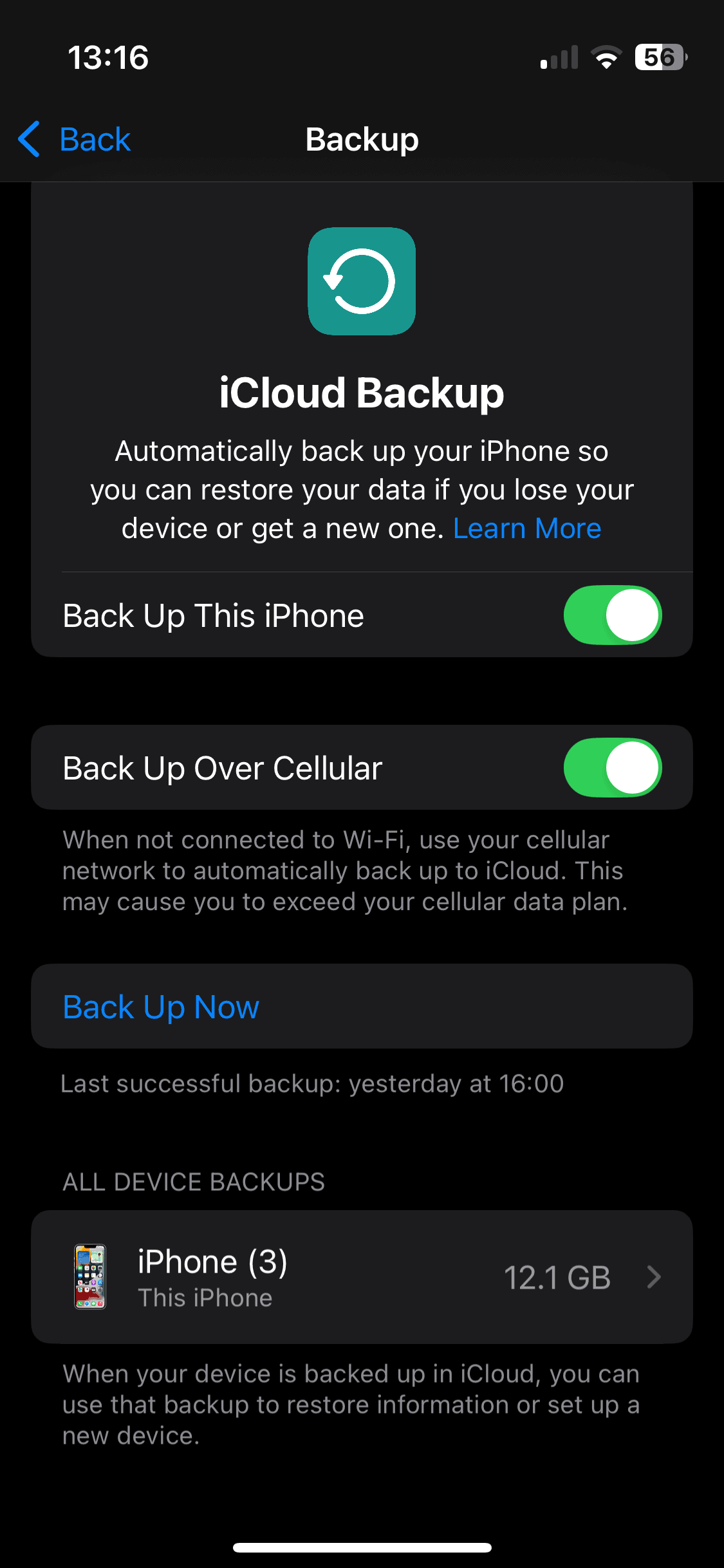
In your iPhone’s settings app, tap on “iCloud,” then “iCloud backup.”
- Start the Backup
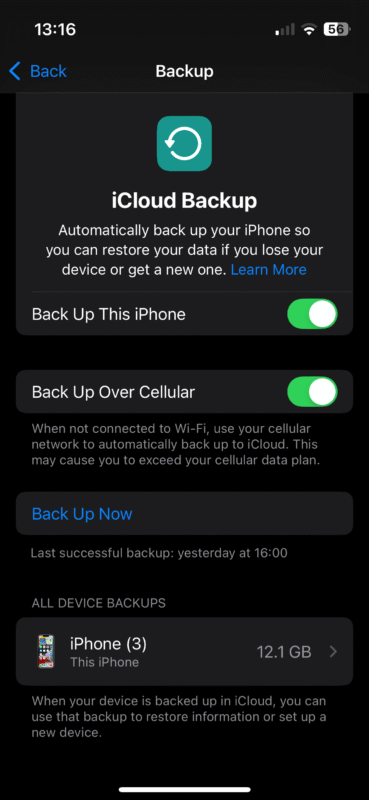
iOS doesn’t let you choose what to back up before you start — the only options are to toggle automatic backups on or off, or start a manual backup. Tap on “back up now” to start the backup process. You can choose to turn off syncing for certain kinds of files later in the same menu.
How Do You Back Up an Android Device With Google Drive?
Google Drive likely has even more privacy issues than iCloud — Google’s main source of revenue is data collection and advertising, after all. However, since nearly all of your Android data is tied to your Google account, I feel obligated to cover this backup method as well. For alternatives, give our list of the best Android backup apps a read.
- Locate Your Phone’s Backup Settings
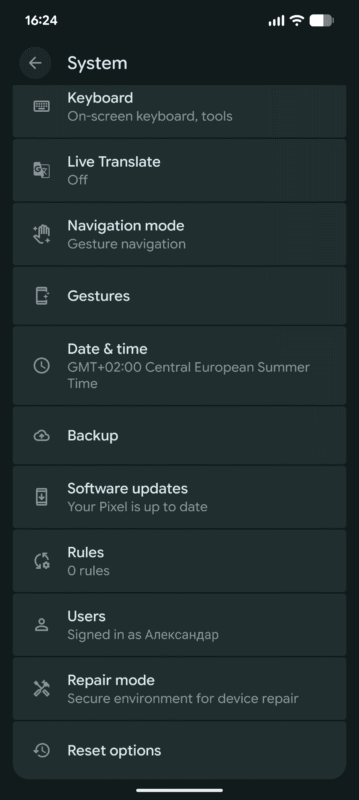
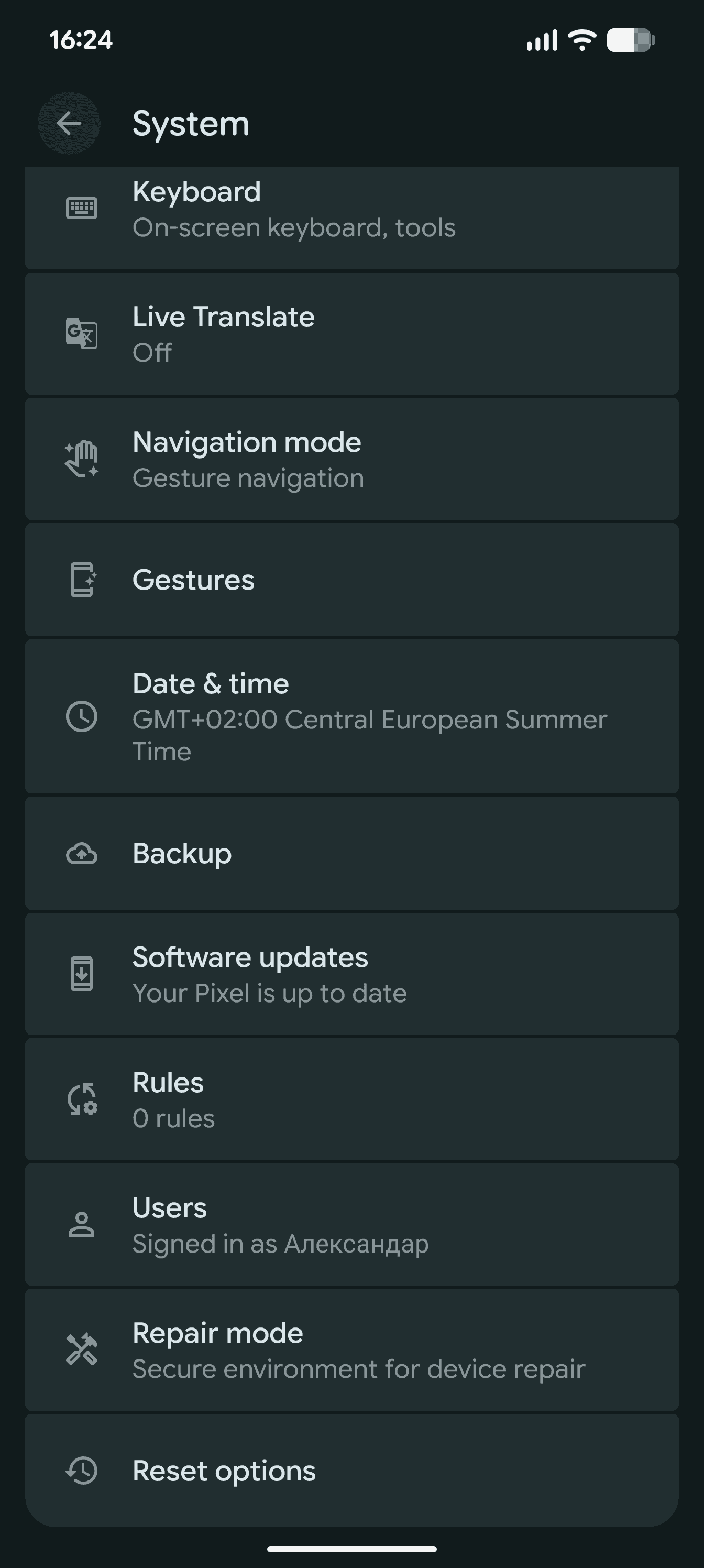
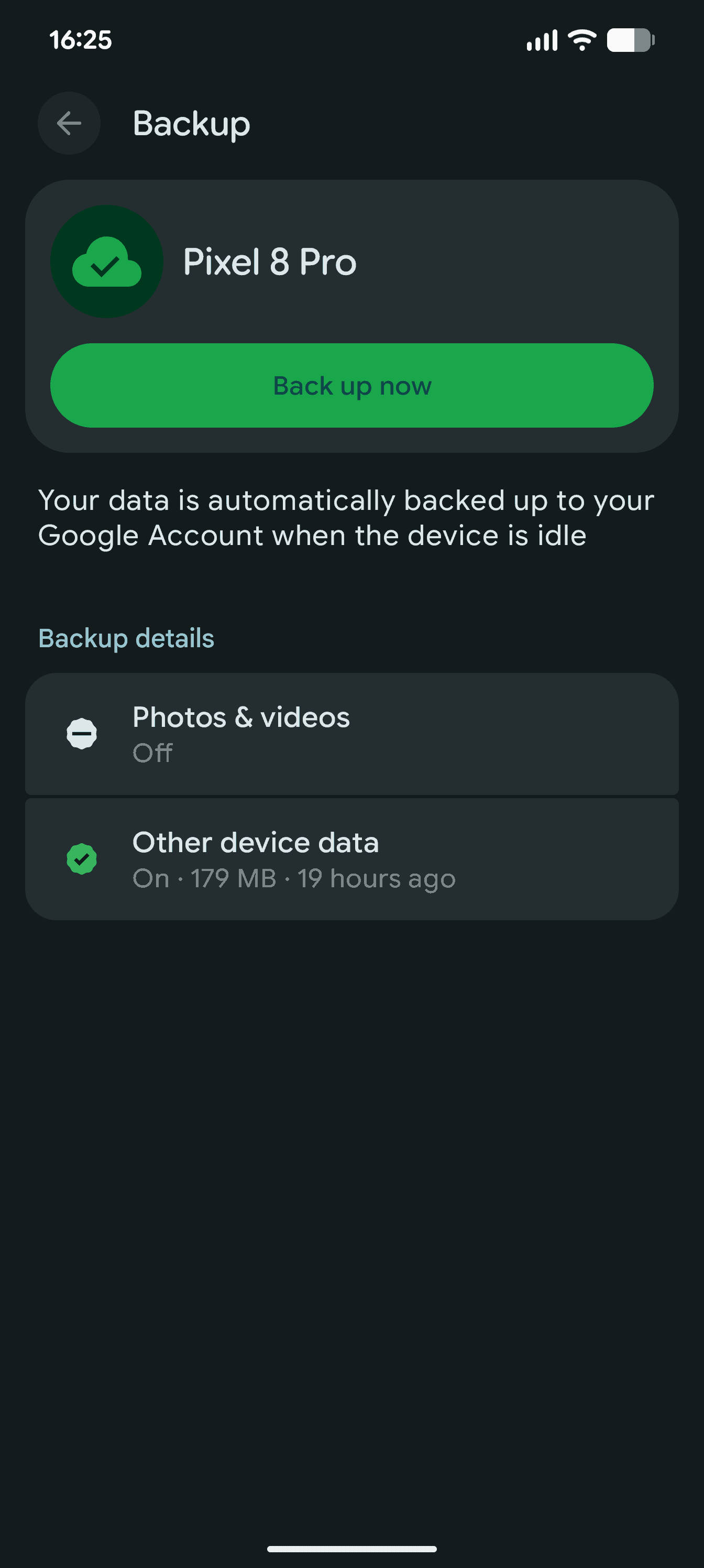
Go into your Android phone’s settings app and tap on “system.” In that menu, tap on “backup” to pull up the backup settings. On certain phones, the backup menu might be located under “Google,” then “all services,” then “backup and restore.”
- Choose What to Back Up and Start the Backup
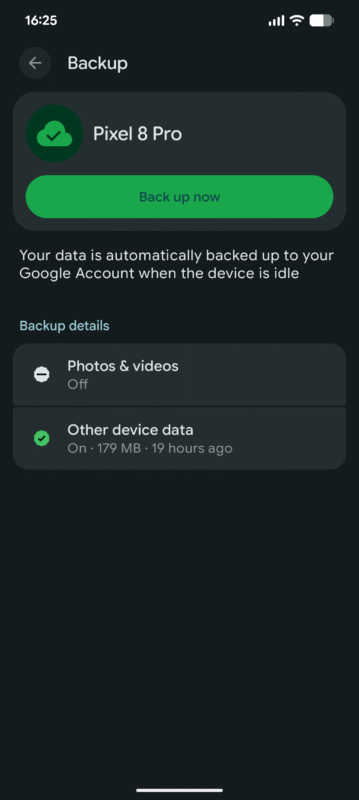
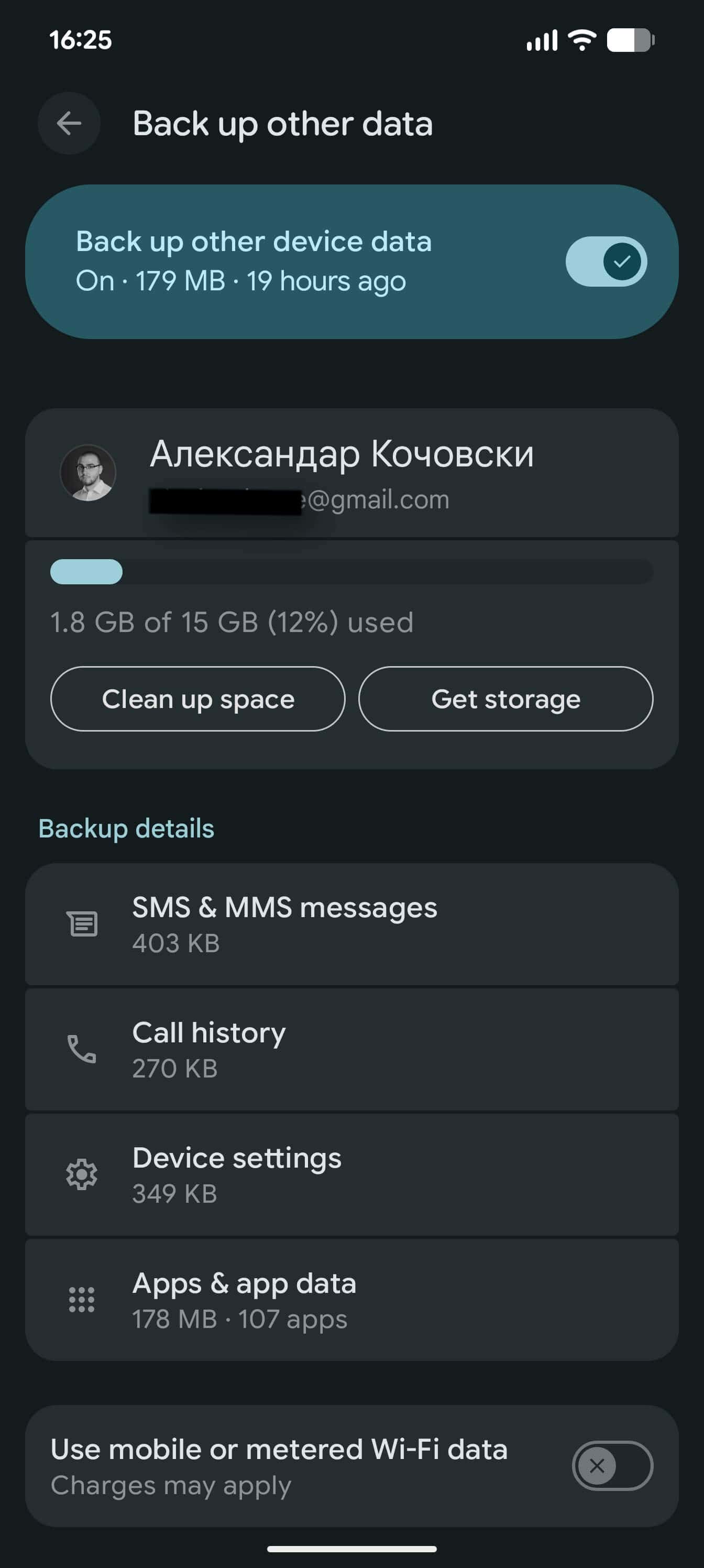
Select what you want to back up. The options are “photos and videos”and “other device data,” which includes app data, contacts, messages and system settings. Once you’ve selected what you want to back up, just tap on “back up now” to start the backup.
Quick Comparison: What Are the 6 Best Mobile Data Backup Services Compared?
Now that I’ve gone over the ways to back up your phone, let’s compare my top choices for the best mobile backup solution.
| Service: | Free Storage | Best Price | Best For | Standout Feature | Limitation |
|---|---|---|---|---|---|
 | 10GB | $0.25 per month (one-year plan) for 100GB | Secure, comprehensive backups | Wide variety of backup features for a low price | Can’t access full iOS system for backups |
 | 10GB | $4.17 per month (one-year plan) for 500GB | Secure photo and video backup | Fast speeds and reliable photo and video uploads | No call, message, app data or system settings backup |
 | 5GB | $3.99 per month (one-year plan) for 200GB | Privacy-focused media backup | Excellent media organization with Live Photos & RAW support | No link sharing on mobile; email invites only |
 | 1GB | $20 (one-year plan) for 1TB | Affordable privacy storage | Zero-knowledge encryption at a low price | Mobile app lacks automatic uploads |
 | 15GB | $1.67 per month (one-year plan) for 100GB | Android backup | Full Android data backup | No full backup on iOS |
 | 5GB | $2.99 per month (one-month plan) for 200GB | iPhone backup | Full iOS data backup | Not available on Android |
Lab Data & Hands-On Testing
The information below shows all of the data our testers gathered to make this comparison as fair and objective as possible.
Speed Test Comparison (5GB Folder)
IDrive, pCloud and Google Drive are all very fast services, with similar performance for downloads and uploads over a 100 Mbps connection. Proton Drive performed very stably with low CPU usage, averaging 07:15 for upload and 07:11 for download on our 5GB test.
Internxt struggled with stability during our tests, with speeds dropping below 5MB/s mid-usage. pCloud is the only service that performed exceptionally well over faster connections, while iCloud trailed behind the rest in every test.
Security & Privacy Analysis
Three of the services I chose for this comparison offer client-side encryption, which ensures that not even the cloud company itself can access your data. For IDrive, this covers all of your storage, whereas pCloud offers client-side encryption for only a single folder.
Proton Drive offers full zero-knowledge encryption and is headquartered in Switzerland, with servers also located there. It’s a strong choice for privacy-conscious users.
Internxt also claims zero-knowledge encryption, but our Wireshark tests detected traffic routed to servers in the US (Google LLC) and France (OVH), rather than its claimed Spain-only infrastructure. This may be a potential concern for users prioritizing EU-only data residency.
iCloud’s Advanced Data Protection covers your backup with client-side encryption, but unfortunately does not include mail, contact and calendar data. Google Drive, on the other hand, offers no client-side encryption at all. Furthermore, it collects a lot of personal data from users, making it the worst cloud storage for privacy.
Backup Features Overview
| Provider | Android Backup | iOS Backup |
|---|---|---|
| Photos, videos, contacts, calendar, messages, call logs, music, system files | Photos, videos, contacts, calendar |
| Photos, videos | Photos, videos |
| Photos, videos (with folder selection | Photos, videos (including Live Photos, RAW & Panoramas) |
| Photos, videos (manual upload only) | Photos, videos (manual upload only) |
| Photos, videos, contacts, messages, calendar, device settings, apps, app data | Photos, videos (via Google Photos app) |
| Not available on Android | Photos, videos, contacts, messages, calendar, device settings, app data, notes, home screen layout, Apple Watch data |
It’s obvious that the native solutions for Android and iOS offer the most flexible options, though IDrive comes close, especially the Android version. Proton Drive stands out for iOS users with its advanced media categorization, including Live Photos, RAW, and Panoramas.
pCloud can back up only photos and videos, which is also the case for Google Drive on iOS. Internxt’s mobile app currently lacks automatic upload functionality, requiring manual file selection.
The Online Mobile Backup Options in Detail
Below are the best online backup options for mobile, with my top recommendation being IDrive due to its operating system compatibility and its strong privacy and security features.
1. IDrive — Best Mobile Backup Solution

IDrive is the only app that allows for true mobile backup close to the level of Google Drive and iCloud. It’s also completely end-to-end encrypted for maximum privacy. On top of that, IDrive is outrageously cheap — you won’t have to worry about breaking the bank if the 10GB free plan isn’t enough to back up all of your mobile data.
When to Choose IDrive
Thanks to its client-side encryption using zero-knowledge encryption, IDrive is one of the most secure cloud services. It’s also extremely affordable, especially since the added cloud storage space is equal to the amount of backup space your plan provides; so for the singular price, you get 100GB of cloud backup and a separate 100GB of cloud storage capacity.
Try IDrive’s 10GB free plan or get a 100GB plan for just $0.25 per month, billed yearly. Read our full IDrive review for more.
- No credit card required.
- 10GB
- One user.
- 100GB
- One user, multiple computers. Plans starting from 5TB up to 100TB. Big discount for first-time signup.
- 5TB
More plans
- 5 computers, 5 users. Starting at 5TB up to 500TB. Big discount for first-time signup.
- 5TB
- Monthly Plan storage starts at 1.25TB up to 50TB Unlimited users, multiple computers and servers. NAS devices. 250GB storage. Starting at 250GB up to 50TB. Large discount for first-time signup.
- 250GB
- 5TB
2. pCloud — Best Mobile Backup App for Photos and Videos

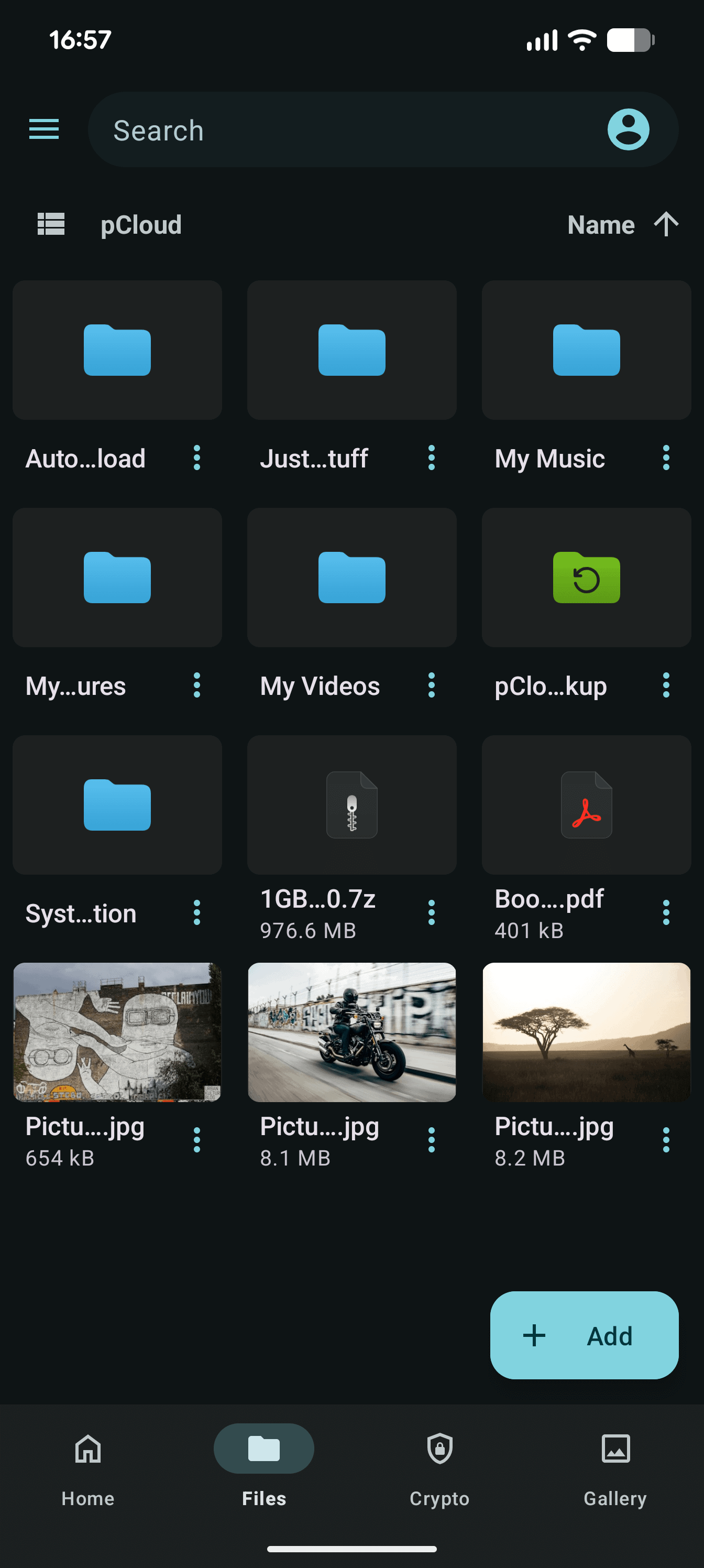
pCloud is a secure cloud storage service. As such, it can back up only photo and video files. It conforms to a high standard of privacy because it is based in Switzerland, a country with some of the strictest privacy laws. However, its servers are located in the EU, which means your sensitive files also benefit from GDPR protection.
When to Choose pCloud
While pCloud can’t back up your entire device, it’s perfect for backing up videos and photos, especially if privacy is a priority for you. It’s also one of the best cloud storage services out there, and it comes at an affordable price. You can get even more value out of pCloud by opting for a lifetime plan.
Try pCloud with the 10GB free plan, or sign up for a 500GB paid plan for $4.17 per month on a yearly subscription. Read our full pCloud review for more.
- 10GB
- 500GB
- 2TB
More plans
- 10TB
- + FREE Encryption
- 2TB
- + FREE Encryption
- 10TB
- Price per user (minimum 3)
- 1TB
- Price per user (minimum 3)
- 2TB
- Encryption for pCloud Drive
3. Proton Drive — Best Privacy-Focused Mobile Backup
![Video thumbnail for the video: I Tested Proton Drive to See If It's as Private as It Claims [2024 REVIEW]](https://img.youtube.com/vi/XWmsFdm-VLg/maxresdefault.jpg)
Proton Drive is a strong option if privacy is your top priority for mobile backups. It’s based in Switzerland and uses zero-knowledge encryption, meaning not even Proton can access your files.
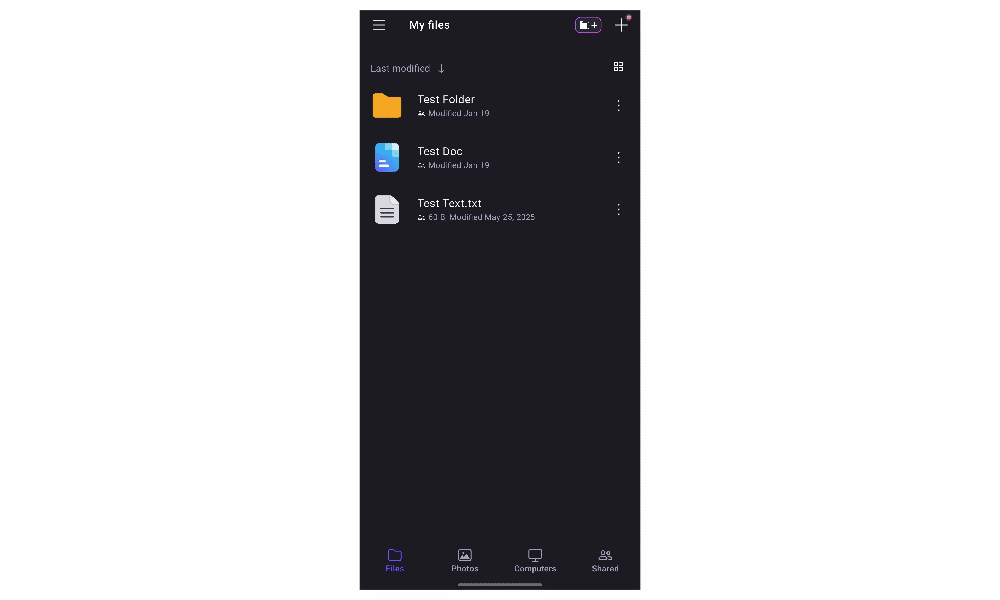
The mobile app now supports automatic camera upload with excellent organization options, including separate tabs for screenshots, videos, selfies, Live Photos, RAW, and panoramas. This is a standout feature for iOS users who struggle to back up these formats outside of iCloud.
categories like Live Photos, RAW, and Panoramas.
When to Choose Proton Drive
Choose Proton Drive if you want Swiss privacy protections and zero-knowledge encryption for your photo and video backups. It’s particularly well-suited for iOS users who need Live Photos and RAW support without relying on iCloud. Note that sharing is limited to email invites on mobile. Additionally, there’s no link-sharing option currently available.
Try Proton Drive with the 5GB free plan, or sign up for a 200GB plan for $3.99 per month on a yearly subscription. Read our full Proton Drive review for more.
- 5GB
- 200GB
- 500GB
More plans
- 2TB
- 3TB
- per user
- 1TB
- per user, minimum of 2 users
- 1TB
- 1TB
4. Internxt — Affordable Privacy Storage (With Mobile Limitations)

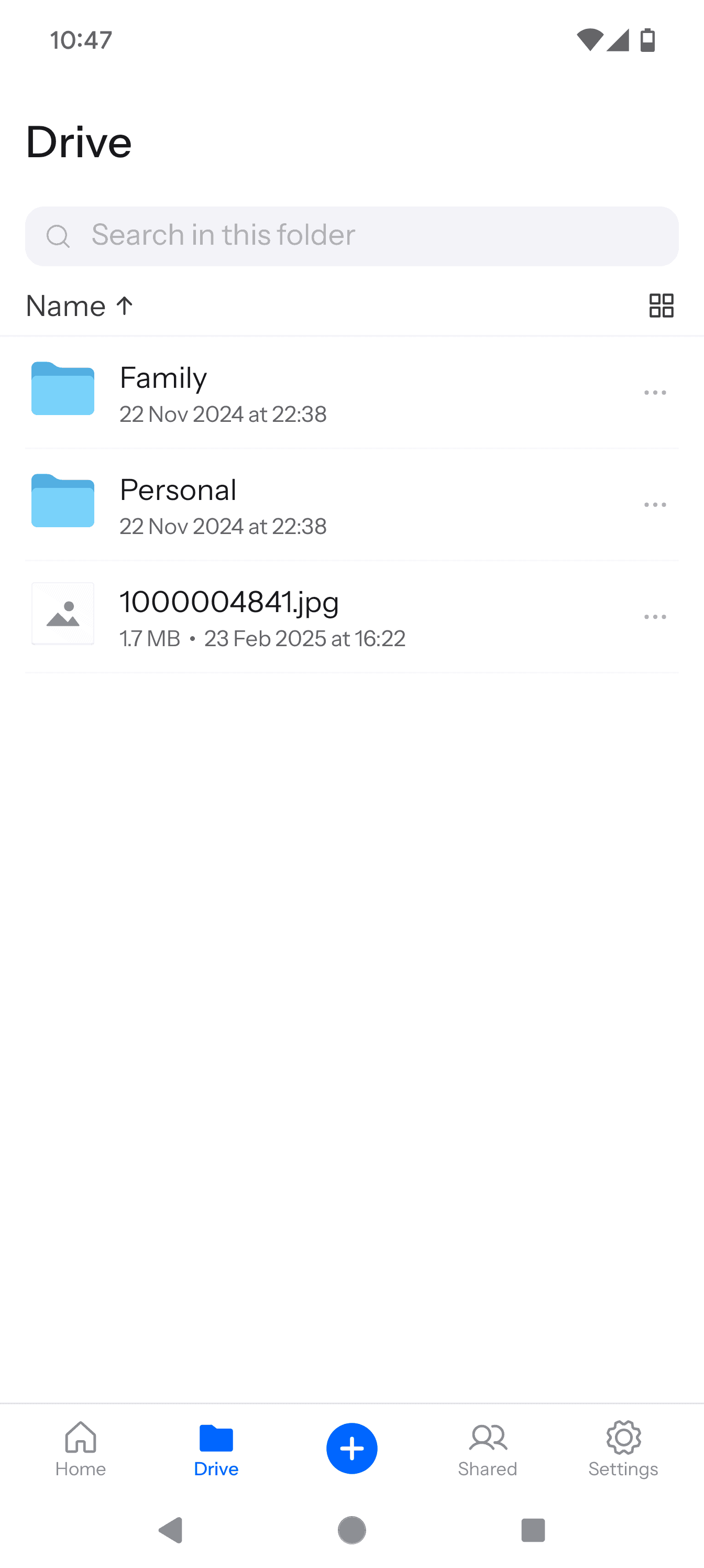
Internxt offers zero-knowledge encryption at one of the most affordable price points on this list, making it an attractive option for privacy-conscious users on a budget. The service uses AES-256 encryption and is fully open-source, so security researchers can verify its claims. It’s headquartered in Spain and benefits from GDPR protections.
which makes it seem stuck in the early 2000s.
When to Choose Internxt
Choose Internxt if you want affordable zero-knowledge encryption and don’t mind manually selecting files to upload from your mobile device. The mobile app currently requires manual file selection rather than automatic camera upload, so it’s best suited for users who prefer hands-on control over their backups or who primarily access their storage from desktop.
Try Internxt with the 10GB free plan, or sign up for a 1TB plan for $20 for the first year. Read our full Internxt review for more.
- 1GB
- Post-quantum encryption Zero-knowledge encryption Two-factor authentication Backup your computer Password-protected file sharing Encrypted VPN Antivirus
- 1TB
- Everything in Essential plus; Cleaner Invite, share & collaborate File versioning (coming soon) Cleaner
- 3TB
More plans
- Everything in Premium plus CLI & WebDav support NAS & Rclone support Meet Mail (coming soon)
- 5TB
- Annual Price is per user
- 1TB
- Annual Price is per user
- 2TB
5. Google Drive — Android Mobile Data Backup App

As the main backup provider for Android, Google Drive deserves a mention but also a word of caution. Google Drive scans every file you upload to its platform, and the full text of its privacy policy grants it permission to share your account data with third parties such as advertisers.
When to Choose Google Drive
Google Drive is the best choice for your Android device if you don’t want to bother with a third-party app and don’t care about the privacy of your data. You can get 100GB of Google Drive storage for $1.99 per month if you find the 15GB free plan isn’t enough for your backup needs. Read our full Google Drive review for more.
- Free plan
- 15GB
- 100GB
- *The plan is “hidden.” To find the 200GB plan, you need to be subscribed to one of the other plans, upgrade or downgrade to the 200GB through your account’s settings.
- 200GB
More plans
- 2TB
- 2TB
- 5TB
- 10TB
- 20TB
- 30TB
6. iCloud — iPhone Data Backup App
![Video thumbnail for the video: Should You Still Be Using iCloud in 2024? [FULL REVIEW WITH SPEED TESTS]](https://img.youtube.com/vi/xBGsOT5tjFA/maxresdefault.jpg)
In my humble opinion, iCloud isn’t a very good cloud storage service. I’ve got to admit, though — it’s the best option for iPhone backups. More specifically, it’s the only option for carrying out a full backup on iOS thanks to Apple’s strict app access policies.
When to Choose iCloud
If you’re an iPhone user and need a complete backup, it’s a no-brainer to use iCloud. However, if you want to back up just your photos or maybe also your contacts and calendar, you could opt for the more secure and private IDrive or pCloud instead.
iCloud comes with 5GB of free storage, but you can upgrade to a 200GB plan for $2.99 per month if you need more backup storage. Read our full iCloud review for more.
- 5GB
- 50GB
- 200GB
More plans
- 2TB
- 6TB
- 12TB
Methodology: Testing Framework & How You Choose
I tested each service by examining backup features and comparing pricing plans, security and speed. I used our standard hands-on testing practices as well as special software to test security features and encryption.
Final Thoughts
That’s it for my guide to mobile backups. My top choice is IDrive for its high security and privacy, as well as for its comprehensive backup features. pCloud comes in at a close second for its fast and reliable media backups.
What do you think of my choices? Did I miss your favorite mobile backup service? What do you use phone backup services for? Let me know in the comments below, and as always, thank you for reading.
FAQ: Best Phone Backup Solutions
A mobile backup is a copy of your phone’s data that’s stored in the cloud. It can include data types such as media files, app data, contacts, calendar information, text messages and documents.
The best way to back up a mobile phone is to use dedicated backup software like IDrive. If you’re on iOS, it might be best to use iCloud to create a full backup.
The location of your phone backup depends on the service you used to back it up. It’s usually in a separate menu dedicated to backups.