AxCrypt Review
AxCrypt is a solid piece of encryption software that we enjoyed using. However, it will require some tweaking and know-how to get it to work optimally, as you can read in this full AxCrypt review.

AxCrypt is a file encryption tool that has been around since 2001, offering an easy way to protect individual files and folders with strong encryption. Its simple interface and cloud storage integrations make it an appealing option for users who want straightforward file encryption without the complexity of more advanced tools.
Although AxCrypt is secure and easy to use, many of its best features are locked behind a paid subscription. Users looking for full-disk encryption or advanced encryption options may find better value in alternatives such as VeraCrypt or Cryptomator.
Before diving into my full AxCrypt review, I’ve answered some of the most common questions about its security, ideal use cases, free versus premium plans and how it compares to alternatives like VeraCrypt.
-
07/21/2026 Facts checked
I’ve updated this review with the latest information on AxCrypt’s security, ideal use cases, pricing plans and whether it’s still worth using in 2026 compared to other encryption tools.
Is AxCrypt Safe?
Yes, AxCrypt is safe to use in 2026. It uses AES-256 encryption to protect your files and follows a client-side architecture, meaning only you have access to your encryption password.
AxCrypt is open source, so its code can be publicly reviewed for security issues. However, unlike VeraCrypt and Cryptomator, it hasn’t undergone as many widely publicized independent security audits.
AxCrypt doesn’t store your encryption keys or passwords, making it trustworthy for encrypting sensitive personal and business files. As always, your security ultimately depends on using a strong password and following good security practices.
Is AxCrypt Still Worth Using in 2026?
Yes, AxCrypt is still worth using in 2026 if you want simple file encryption and don’t mind paying for premium features. It remains actively developed and is one of the easiest encryption tools for beginners to use.
That said, it isn’t the best for everyone. Users who want full-disk encryption, advanced privacy features or a completely free solution may prefer an alternative like VeraCrypt or Cryptomator.
Who Should Use AxCrypt?
AxCrypt is best for users who want easy file encryption without a steep learning curve.
Individuals Encrypting Personal Files
AxCrypt makes it easy to encrypt documents, photos and other personal files with just a few clicks. It’s a great option for strong security without having to learn more advanced encryption software.
Small Businesses
Small businesses can use AxCrypt to protect sensitive documents and financial records. Its simple interface makes it accessible for teams without dedicated IT staff.
Teams Sharing Encrypted Files
AxCrypt’s Premium plan allows users to securely share encrypted files with others. This makes it useful for small teams that regularly exchange confidential information.
Cloud Storage Users
AxCrypt integrates with popular cloud storage services, letting users encrypt files before storing them online. It’s an easy way to add a layer of privacy to existing cloud storage workflows.
Who Shouldn’t Use AxCrypt?
AxCrypt isn’t the right choice if you need advanced encryption features or a powerful free plan.
Users Looking for Full-Disk Encryption
AxCrypt only encrypts individual files and folders. If you want to encrypt an entire drive or operating system, VeraCrypt is a better option.
Users Who Only Need a Free Encryption Tool
The free version of AxCrypt is quite limited compared to its Premium offering. Users who don’t want to pay for encryption software may find more value in a different platform.
Users Needing Advanced Privacy Features
AxCrypt lacks advanced features such as hidden volumes and encrypted containers. Privacy-conscious users with more demanding security requirements should consider other encryption tools.
Users Who Want Cross-Platform Compatiblity
Although AxCrypt supports multiple platforms, some features are limited depending on the operating system. If you regularly switch between devices, you may prefer a service that offers a more consistent experience.
AxCrypt Free vs Premium
The free version of AxCrypt is best for users who only need basic file encryption. However, it lacks many of the features that make AxCrypt stand out, including advanced sharing and cloud storage capabilities.
AxCrypt Premium adds AES-256 encryption, secure file sharing, password management and cloud storage integrations. It’s worth considering if you regularly work with sensitive files or need to share encrypted documents with others.
AxCrypt vs VeraCrypt
AxCrypt is the better choice for users who want simple file encryption and an intuitive interface. It’s useful for encrypting and sharing files stored in cloud services without dealing with advanced settings.
VeraCrypt is a better choice if you need full-disk encryption, encrypted containers or more advanced security features. It offers significantly more flexibility, but comes with a steeper learning curve than AxCrypt.
Strengths and Weaknesses
Strengths:
- Free plan available
- Inexpensive
- AES-256 encryption
- Doesn’t require internet
- Active community forums
Weaknesses:
- Some usability issues
- Weaker encryption on free plan
- Strange default settings
What Are AxCrypt’s Features?
AxCrypt has a few unique features, but the most exciting ones don’t deliver in the ways we’d hope. The most interesting feature is file wipe. When choosing a file in AxCrypt, you can permanently decrypt it, temporarily decrypt it or securely delete the file.
This function is similar to any “shredding program,” such as the one seen with Bitdefender Antivirus. Essentially, it will overwrite the data that you delete so files can’t be recovered using hard drive forensics.
File wipe is only available to Premium subscribers who also have access to the rest of AxCrypt’s features, including cloud storage awareness, password management, subfolder encryption and key sharing. We’ll talk more about all of those throughout this review.
The AxCrypt Password Manager
One of AxCrypt’s prominent features is a password manager, though it’s no better than our own password generator and a spreadsheet. You can enter information in a text field about the password and generate a password for whatever you entered, but that’s it. The information is secure, but it’s rudimentary at best compared to our best password managers.
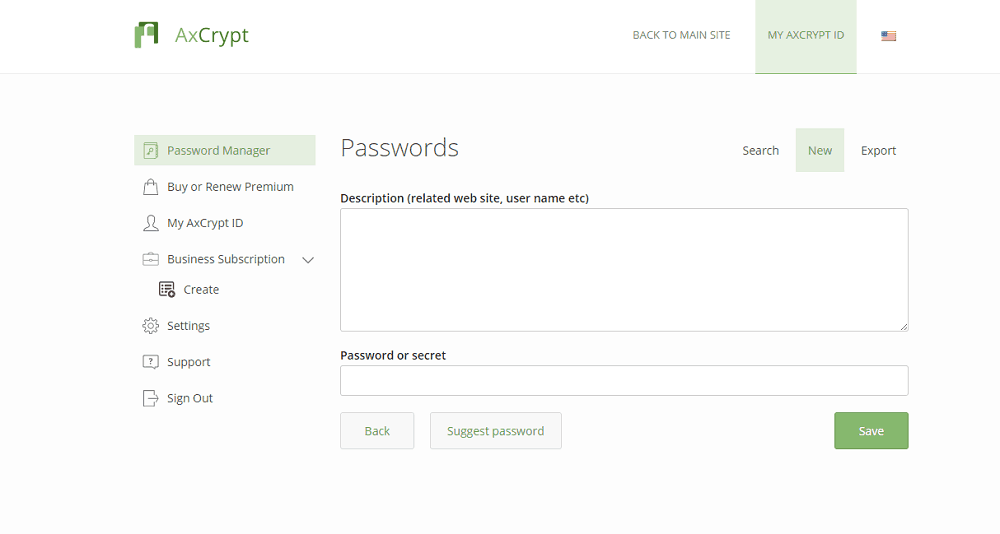
There’s no autofill, no browser extension, nothing of the sort. AxCrypt’s “password manager” is an encrypted place to store passwords that you can recall through your browser. Although not a bad feature, there are plenty of better options, even for free (read our Dashlane review if that’s what you’re after).
Differences Between AxCrypt 1.7 and 2.x
A couple years back, AxCrypt updated to version 2, and although we wouldn’t normally point that out, there were enough changes to warrant mention. The previous 1.7 version, which was very popular, allowed users to store key files that would unlock their vaults. These files could be stored on a USB drive and used to decrypt the AES-128 key.
In addition to upping the encryption to AES-256 — more on that in the “security” section below — AxCrypt also did away with key files in favor of a master password. Although you can still decrypt version 1.7 files with version 2.x, the same is not true the other way around.
AxCrypt Overview
| Features |  |
|---|---|
| Devices | Unlimited |
| File size limit | Unlimited |
| File extension restrictions | |
| Sharing | |
| Zero-knowledge | |
| Cloud storage integration | |
| Payment methods | Credit cards, PayPal |
| Refund policy | 30 days |
| Knowledgebase | |
| User forum | |
| Live chat | |
| Phone support | |
| Email support | |
| 24/7 support | |
| Encryption | AES-256 |
| Sharing encryption | RSA-4096 |
| Master password hashing | PBKDF2-HMAC-SHA512 |
How Much Does AxCrypt Cost?
AxCrypt is much cheaper than the competition and offers a decent free plan, to boot. For full protection, you’ll need to upgrade to the Premium plan. Although there are free alternatives that provide better security, AxCrypt’s asking price isn’t too high.
- Can only decrypt already encrypted files (view-only)
- Prices are billed in Euros Unlimited devices & passwords.
- Prices are billed in Euros File Limit: unlimited Data Limit: unlimited
- Prices are billed in Euros File Limit: unlimited Data Limit: unlimited
There are three plans to choose from, two of which are relevant to individual users. In addition to a free and paid individual plan, AxCrypt offers a business plan, though it’s pricey. You’re charged nearly $90 per member per year. Thankfully, AxCrypt offers up to a 25-percent discount, depending on your team size.
The same billing cycle is present for individual plans, as well as a six-month cycle. Although the price is cheaper than the competition, the limited billing options means it’s less flexible than a service like NordLocker (read our NordLocker review). It’s also worth noting that AxCrypt defines a year as 360 days, so you’re technically purchasing a little less than a year.
AxCrypt Free vs. Premium
Most users will land with the Free or Premium plan, though we’d urge you toward the paid option. The Free plan comes with unlimited storage and no file data limits, but it uses a 128-bit key instead of a 256-bit one (read our description of encryption for more on that). Furthermore, the free plan lacks sharing, password management and file name encryption.
If you don’t care about the bells and whistles, there are plenty of free options, including VeraCrypt and Cryptomator (read our VeraCrypt review and Cryptomator review). AxCrypt sits behind other free encryption software, so if you’re looking for a free advanced encryption tool, it’s best to stick with those two.
The paid plan is worth it, though. AxCrypt includes multiple encryption tools to keep your files safe, including the higher-grade AES-256 encryption, secured folders and subfolder encryption. Additionally, you can automatically encrypt files stored in cloud storage with the Premium plan, which we’ll talk more about in the “file sharing” section below.
Still, you can start with a free plan. Whenever you sign up for an account, AxCrypt will automatically start a free 30-day trial so you can see how you like it before putting money down. If you decide to buy right away, AxCrypt stands by a no-questions-asked 30-day refund policy.
How Secure Is AxCrypt?
Although AxCrypt uses sound encryption algorithms, a few choices in how the application functions could put your files at risk. That said, as long as you update the relevant settings, AxCrypt is safe to use.
AxCrypt uses AES-256 encryption for your files as long as you’re a Premium subscriber. Everything is tied to your master password, which AxCrypt doesn’t store or see, meaning it has zero knowledge of what you have encrypted. Unlike other advanced encryption services, AxCrypt only requires a single master password.
This means that once you unlock your account, all of your encrypted files are unlocked until you sign out. It’s important to note this because AxCrypt won’t automatically sign you out. Either you have to sign out manually or set a time when AxCrypt automatically boots you. This is one of many small decisions that could put your data at risk.
Technically, AxCrypt is sound, as is outlined in its technical documentation. However, leaving the user signed in and, as we’ll get to in the next section, not automatically encrypting subfolders could leave the user exposed.
If you didn’t know you needed to sign out and check the “include subfolders” option, someone could easily view your encrypted files in a decrypted form while you thought they were safe.
What to Do if You Forgot Your AxCrypt Password
Everything is tied to your master password, so it’s important you remember it. Your master password has a key created from a PBKDF2-HMAC-SHA512 key derivation function. That key is used in a key-wrapping algorithm to protect the master encryption key (used to decrypt your files).
Although it’s a similar setup to most file encryption software, the extra step of a key-wrapping algorithm protects you against brute force attacks. Your master password is used to authenticate locally, but if you choose to connect AxCrypt’s servers, your email address, operating system, IP address and language are logged.
If you forget your master password, you’re sorely out of luck. Although AxCrypt allows for a password reset, any files you had previously encrypted will be lost.
You can update your master password by entering an old and new phrase, which will apply to your previously encrypted files. However, without the private half of the RSA-4096 key used for sharing or the master key file, your data is locked.
The only exception is if your password is very short. AxCrypt says in its FAQ that it can write and adapt a specific program that will essentially brute force your password. This only works if there are limited combinations of what your password could be.
How Easy Is AxCrypt to Use?
AxCrypt isn’t a difficult app to use, but its nontraditional approach to encrypting files can make the process confusing. Still, as long as you take the time to learn about AxCrypt’s quirks, the software is fairly straightforward.
Signing up for AxCrypt is surprisingly confusing. The website looks and functions simply, but only if you already have an AxCrypt ID. If you don’t, you need to go through the process like someone renewing their subscription — hitting “buy now” under the relevant product — and sign up for an account separately.
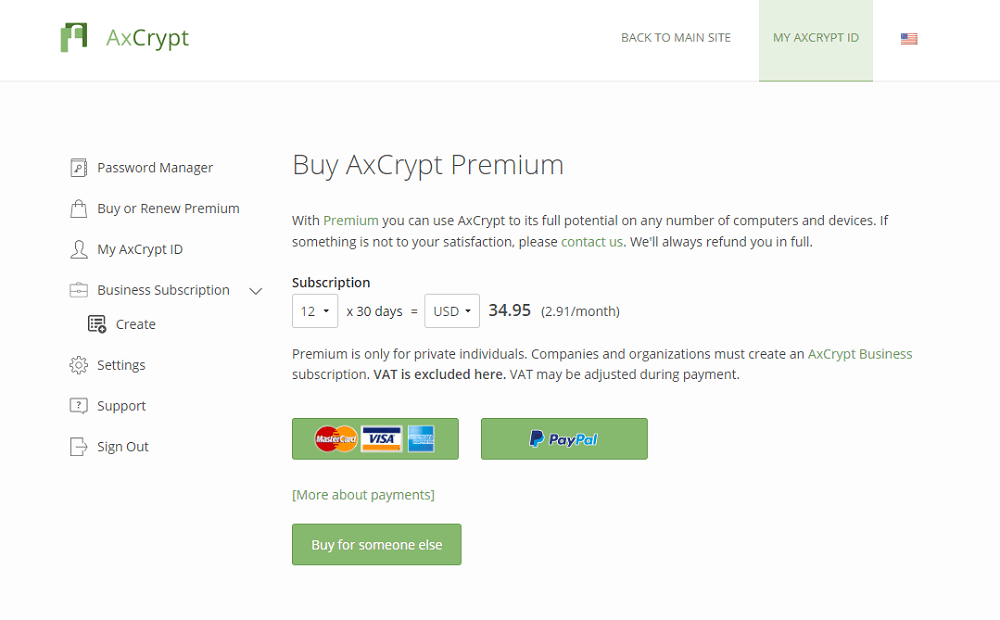
Instead of entering your email and setting a password, AxCrypt just asks for your email. You’ll be sent a verification link, which, upon clicking, will open a password creation page. It’s not like this process is broken, but it’s a little too cute. Surely AxCrypt could allow you to set an email and password before verifying.
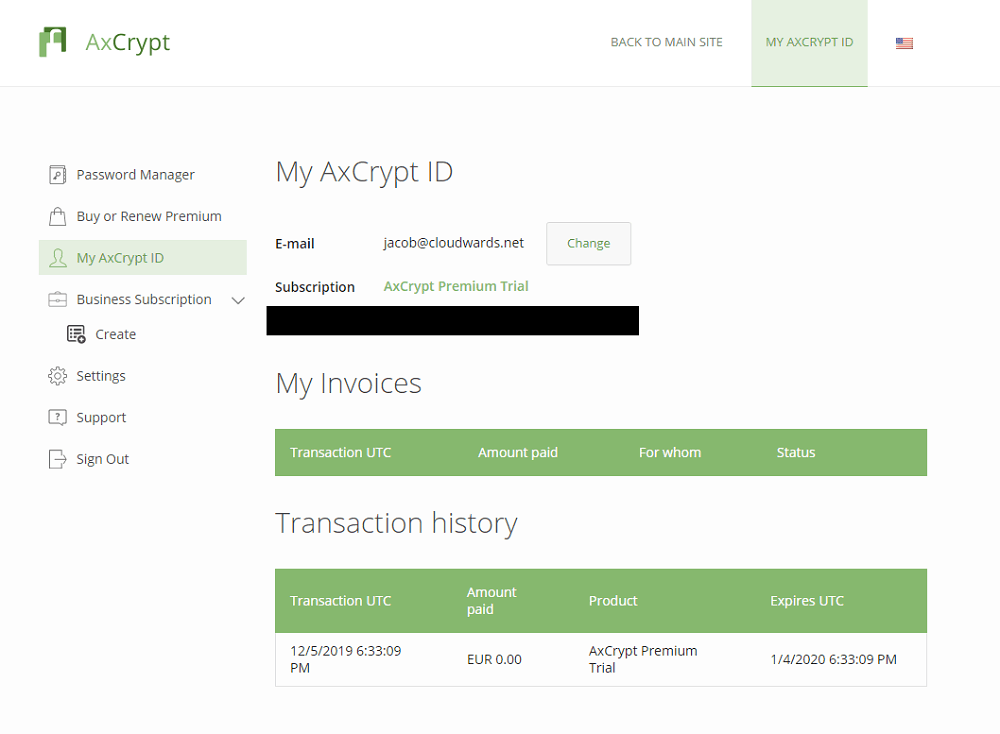
Once set, you can sign in to your dashboard, which is where you can activate your free trial or purchase a Premium membership. The entire process feels a bit backwards. You verify your email before signing up for an account, and you sign up for an account before purchasing a subscription. Still, the process isn’t too difficult.
Downloading AxCrypt on Windows and Android
Downloading is also strange, with installers available on the main website, not in your dashboard. Still, the downloads page is nicely organized, which is a welcome change of pace from most open-source encryption software (many TrueCrypt alternatives fall victim). AxCrypt only displays its latest version, and our installation went off without any issues.
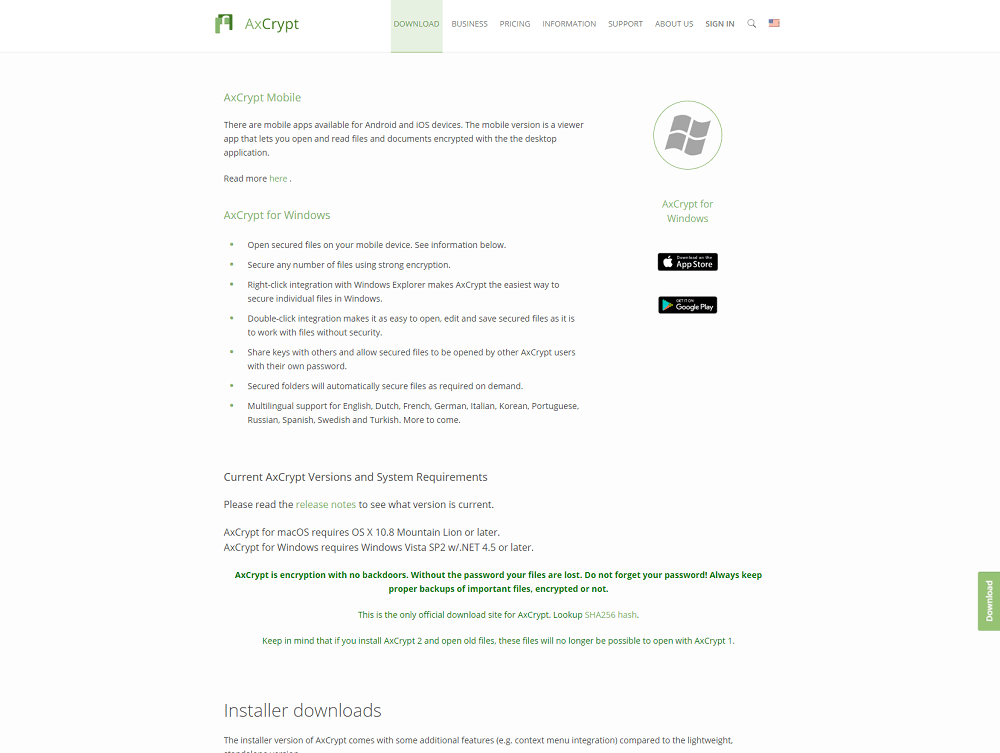
AxCrypt also has a “portable” version available for Windows. You don’t need to install this standalone application in order for it to run. Simply load up the executable on a USB drive and pop it into any PC.
We also downloaded the Android app, which is only available for Premium subscribers. The app functions, but it’s more of a reference than anything else. It can decrypt files and show passwords stored in your account, but it can’t encrypt files on your phone. We’ve also seen a few user reviews about compatibility issues, though we didn’t run into any ourselves.
Learning How to Use AxCrypt
AxCrypt has a bit of a learning curve. It doesn’t function in the same way as other encryption software. Rather than creating a virtual drive where you’ll store all of your encrypted files, AxCrypt actually replaces the files or folders on your hard drive with the encrypted version. By default, it creates a folder in your documents, as well as a folder in each cloud storage location on your machine.
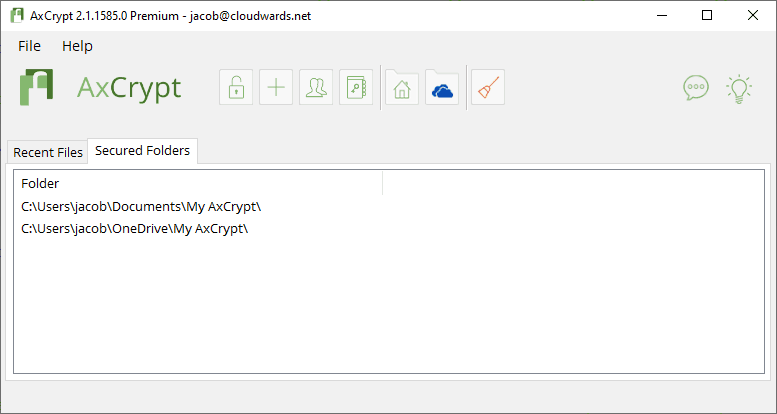
There are a handful of buttons, but from our experience, it’s best to skip past those and get familiar with your right-click. AxCrypt has a lot of options, and some of the buttons available aren’t relevant. For instance, there’s a button that opens the password management page in your web browser, but not one to add an encrypted folder.
You can encrypt files or folders, with recent files showing up in the “recent files” tab and folder locations in the “secured folders” tab. New files can be encrypted using the application, but it’s easier just to find the file or folder in Windows Explorer. Right-clicking on any file or folder will allow to encrypt and replace it.

Things get messy when talking about secured folders. Premium users can add secured folders, where all files added to that folder are automatically encrypted. However, any subfolders are not encrypted by default. You have to turn on the “include subfolders” option in the menu to do that.
We point that out after having spent some time trying to understand why our cloud storage folders weren’t encrypted. The secured folders encrypt files, but not additional folders with the default settings. That means you could, on accident, drag a handful of subfolders into a “secured” folder only to find that the files inside aren’t encrypted.
How Does AxCrypt Handle File Sharing & Storage?
File sharing and syncing is only an option for paying AxCrypt subscribers, which is true for most file encryption software. Sharing is handled by matching key pairs with other users. Essentially, you send someone your half of a key pair, they match it up with theirs and the file is unlocked. That way, the receiving user can use their own password to unlock the file.
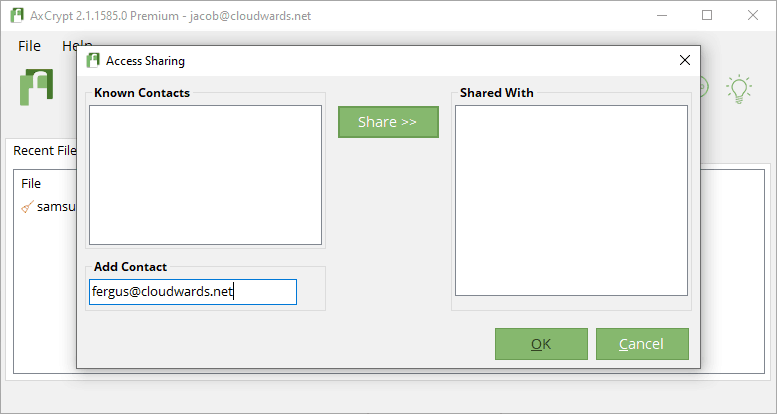
You can share files or folders, but only if you’re a Premium subscriber. Otherwise, if you want to share encrypted files, you’ll need to manually share the file and give the recipient the proper key to decrypt it.
Syncing AxCrypt Files with OneDrive, Dropbox and Google Drive
As long as you have a Premium subscription, AxCrypt will automatically detect cloud storage services on your device, and your folders show up right away. That said, AxCrypt doesn’t make it clear which services are supported.
Testing with OneDrive, Dropbox and Google Drive, AxCrypt picked them up without any issues, automatically generating a folder in each location. The same may not be true for all cloud storage providers, but the more prominent services, such as Sync.com, should show with little fuss (read our Sync.com review).
Auto-detect is a Premium-only feature, but that doesn’t mean free users can’t sync with cloud services. You just have to manually add your cloud storage folders and move files there. They’ll automatically be encrypted and replace the existing file inside your cloud storage service.
What Support Does AxCrypt Offer?
Direct support through live chat and email is only available to Premium subscribers (more on live chat in a minute). However, in the footer of the website, AxCrypt makes its [email protected] email address available, saying only that it prioritizes Premium subscribers.
AxCrypt says it has live chat on the pricing page, though we couldn’t find it anywhere. Even when logged in, there’s no option to start a chat. Perhaps this is a contact route AxCrypt is going to support in the future. Regardless, it’s not available now.
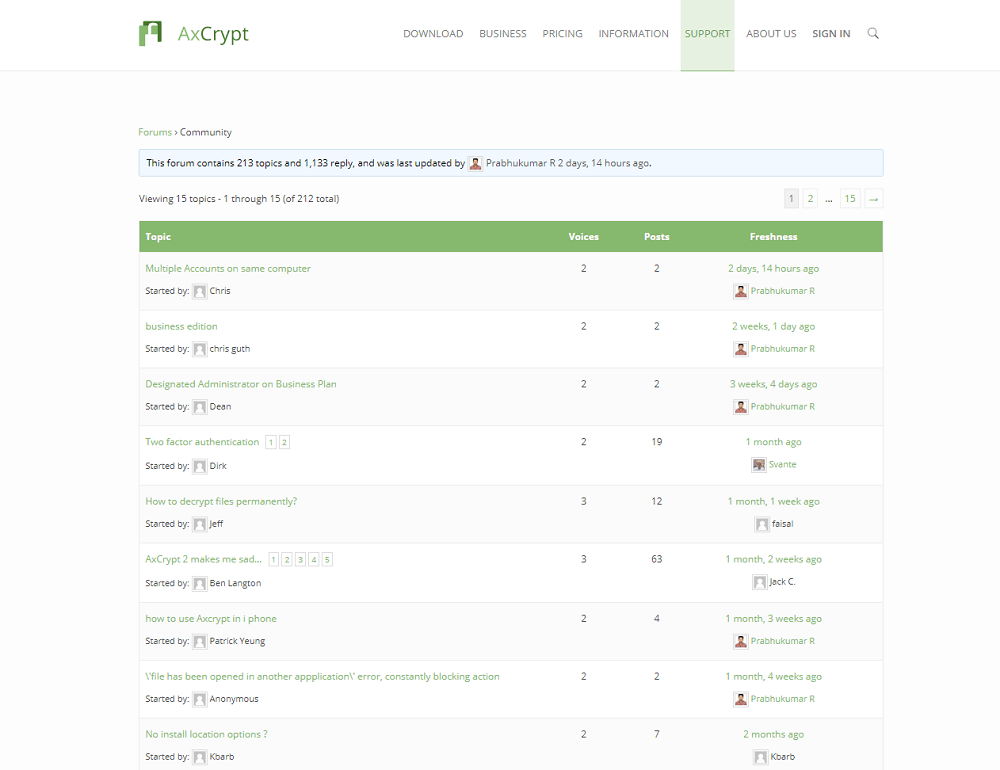
If you don’t want to wait for an email, you can ask questions on the forum, no matter if you’re a Premium subscriber or not. The forum is fairly active, with a few new threads popping up each week. Not only do moderators address questions on the forum, but the creator and co-founder of AxCrypt, too.
Otherwise, there’s a FAQ page in place of a knowledgebase. The FAQ covers a lot of ground, answering questions about why AxCrypt requires certain information and what to do if you forget your password. It’s thorough enough, though it doesn’t include any information about troubleshooting the application.
The Verdict: Is AxCrypt Still Worth Using in 2026?
Yes, AxCrypt is still worth using in 2026 if you want simple file encryption and secure file sharing. In this updated review, I’ve covered its security, who should use it, the differences between plans and how it compares to alternatives.
AxCrypt remains a good choice for individuals, small businesses and cloud storage users that want an easy-to-use encryption tool. However, if you need full-disk encryption or more advanced privacy features, you may prefer an alternative like VeraCrypt.
Have you used AxCrypt before, or are you considering trying it? Would you opt for the free or Premium plan? Leave a comment with your thoughts below, and thank you for reading.
AxCrypt FAQ
- AxCrypt is a file and folder encryption tool that’s been around since 2001. It’s on version 2, which brings sharing functionality, file wipe and more. A Premium subscription is available for $35 per year, but there’s a free plan, too.
- You can change your AxCrypt password from your account dashboard. You’ll need your old password to change it, though. If you forget your password, AxCrypt can do an account reset, but any files you have encrypted with AxCrypt will be lost.
- AxCrypt is inexpensive while abiding by the latest in encryption. It’ll keep your files safe either for very cheap or for free, depending on the plan you choose. That said, there are a few issues when it comes to usability.