How to Save Videos From the Internet: Twitter, Instagram, Facebook and YouTube Download Guide
Saving videos from social media platforms isn’t as straightforward as you might think. Platform restrictions often limit the direct download of videos. In this article, I’ll show you how to save videos using third-party tools.


Written by Rebecca White (Writer)
Reviewed by Kate Hawkins (Editor, Writer)
Facts checked by Igor Kurtz (Fact-checking editor)
Last Updated:
All our content is written fully by humans; we do not publish AI writing. Learn more here.
Key Takeaways: How to Save Videos From the Web
- Choose a third-party tool to download your videos from social media. Make sure you pick a tool specific to the platform, as they’re all different.
- Copy the video URL from Twitter, Instagram, Facebook or YouTube and paste it into your chosen tool.
- After downloading the video, upload it to a cloud backup platform to store it long term and protect it against data loss.
Facts & Expert Analysis About Online Video Downloads
- Online security: Multiple third-party tools are available for each platform, but not all apps are safe. Many have malicious ads or invasive privacy policies. Always check the reputation of a third-party downloader before using it.
- Platform restrictions: Twitter, Instagram, Facebook and YouTube each have different content management systems, which means a tool that works for one platform won’t necessarily work for another. Double-check that the tool you’re using matches the platform from which you’re trying to download a video.
- Data management: Videos can take up a lot of your digital storage space. If you need more storage or want to save video files long term, consider investing in a cloud backup service.

We often come across helpful videos online, but most social media platforms don’t provide a way to download them. Knowing how to save videos from social media can help you archive them or even watch them offline.
Third-party tools and browser extensions can download videos from websites — you just have to make sure you choose the appropriate tool. You can also use a cloud backup service if you need a place to store your downloaded videos. In this article, I’ll go over how to download video content from social media platforms and store it in the cloud.
-
09/03/2021 Facts checked
Added cloud storage for backup. Added hardware backup solutions.
-
06/24/2022 Facts checked
Updated to show that Sync.com has monthly plans.
-
10/26/2022 Facts checked
Updated Carbonite’s pricing.
-
10/30/2025 Facts checked
We rewrote this guide to focus on how to download and save videos from social media platforms, including steps on saving video files to cloud backup services.
How Do I Save Video Files From Twitter/X?
You can save videos from X (formerly Twitter) if you have a Premium subscription or by using a third-party tool. X subscribers can download videos, but only if the uploader allows it. If you want to save a video and the creator doesn’t allow downloads or you don’t have a Premium plan, you’ll need a third-party tool.
Multiple tools are available that allow you to download videos from X. Once you’ve chosen a tool, you’ll need to find the video URL. I’ll show you how to get the URL and download videos using SSSTwitter.
10,000+ Trust Our Free Cloud Storage Tips. Join Today!

- Demystify cloud storage terminology and key concepts in plain language
- Discover easy-to-implement techniques to securely backup and sync your data across devices
- Learn money-saving strategies to optimize your cloud storage costs and usage
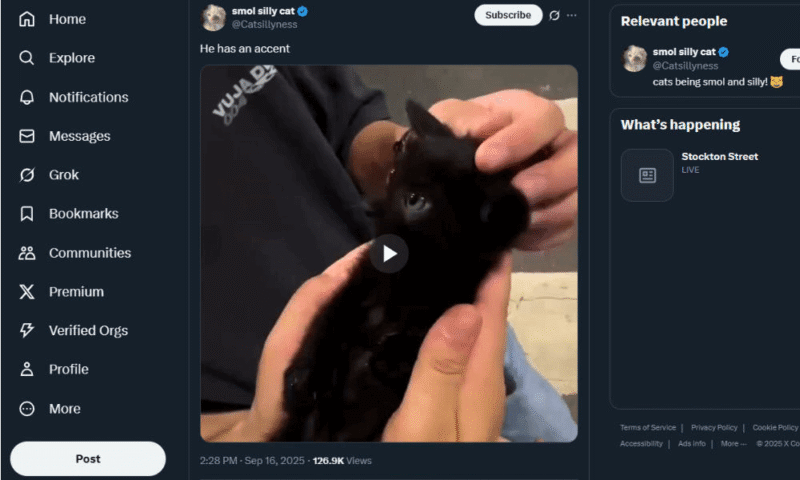
- Find the Video
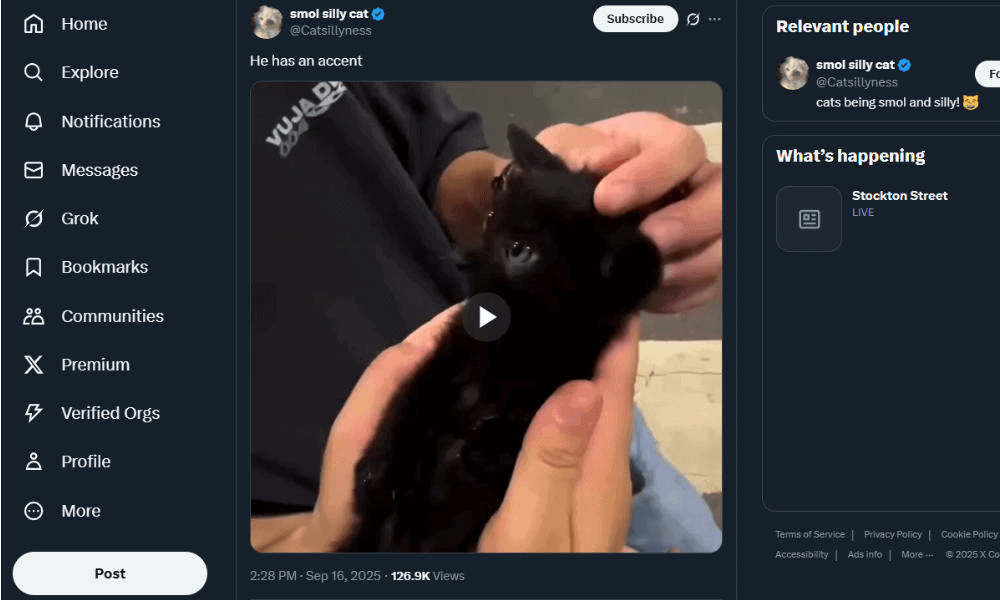
Find the video you want to download, either by scrolling your feed or by using the search bar.
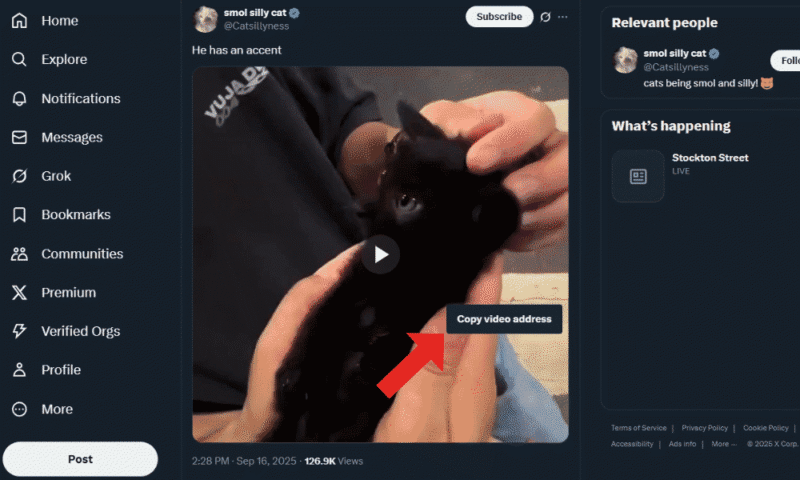
- Copy the Video URL
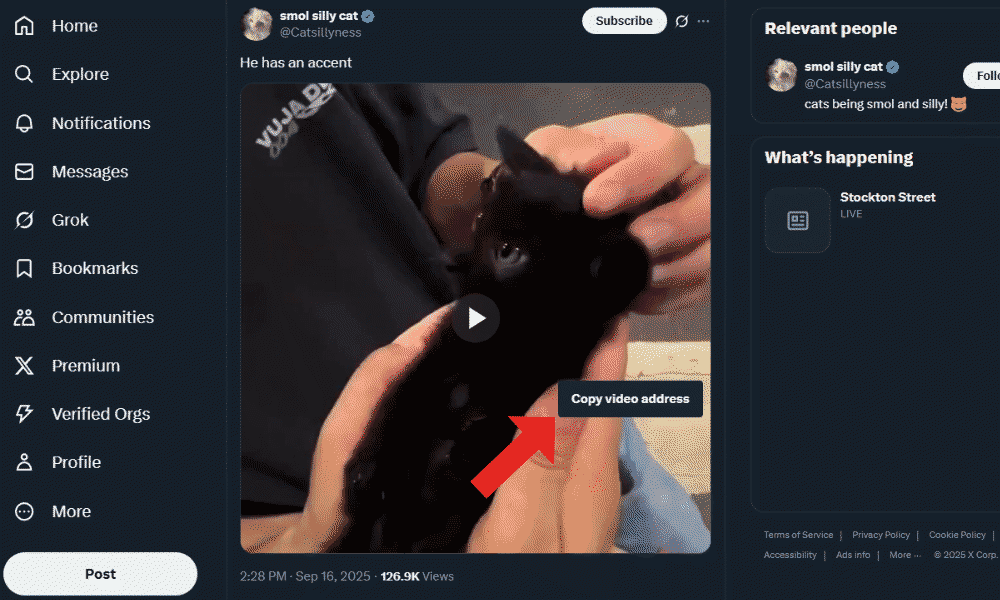
If you’re on desktop, right-click the video to bring up the context menu. From there, you can copy the video address. Mobile users can click the three dots to find the option to copy the post link.
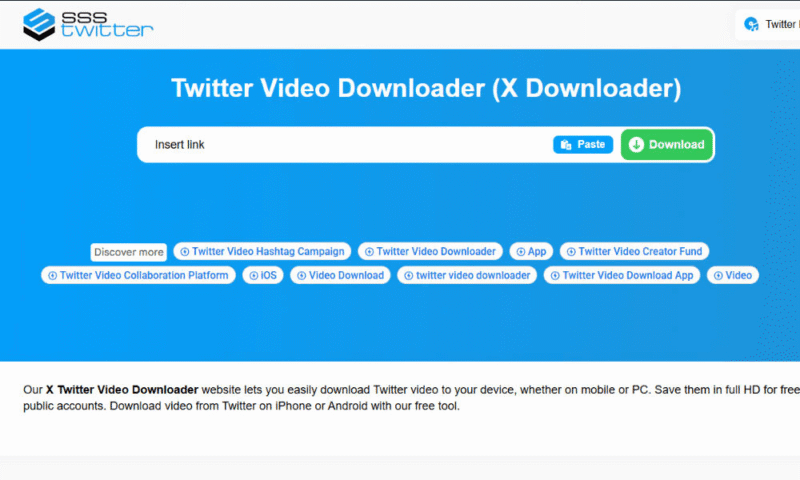
- Open the Twitter Video Downloader
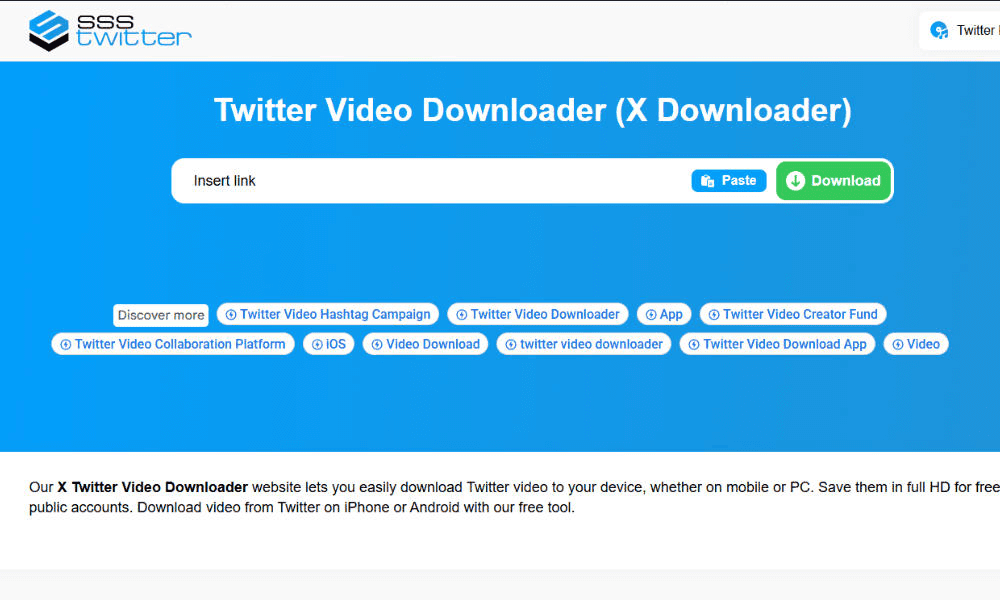
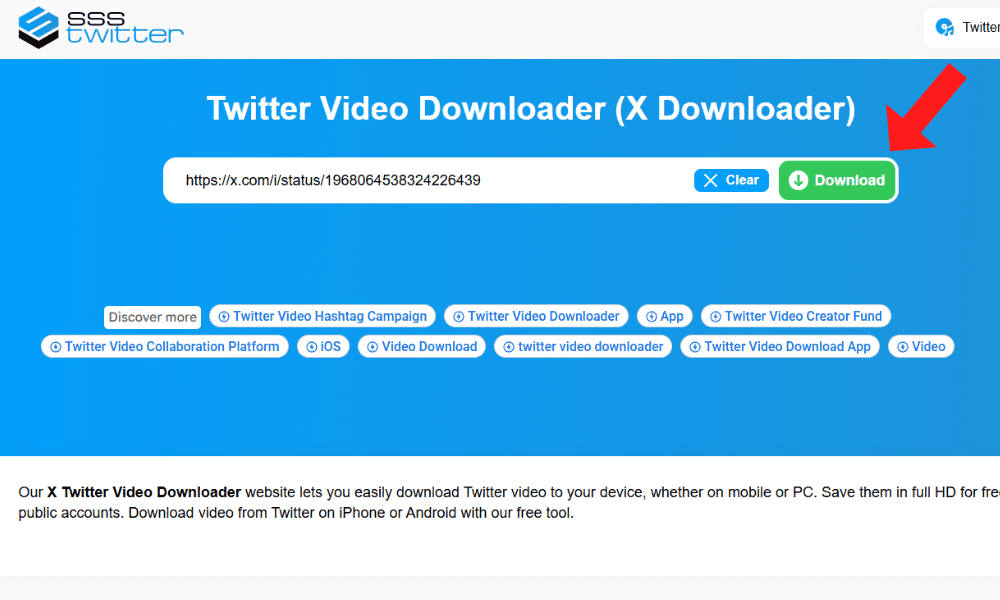
Open the tool you’ve chosen to download videos. I’m using SSSTwitter for this guide, but any top-rated and reliable option will be similar. Note that you shouldn’t have to sign in with your Twitter credentials. In fact, doing so can increase your risk of being hacked.
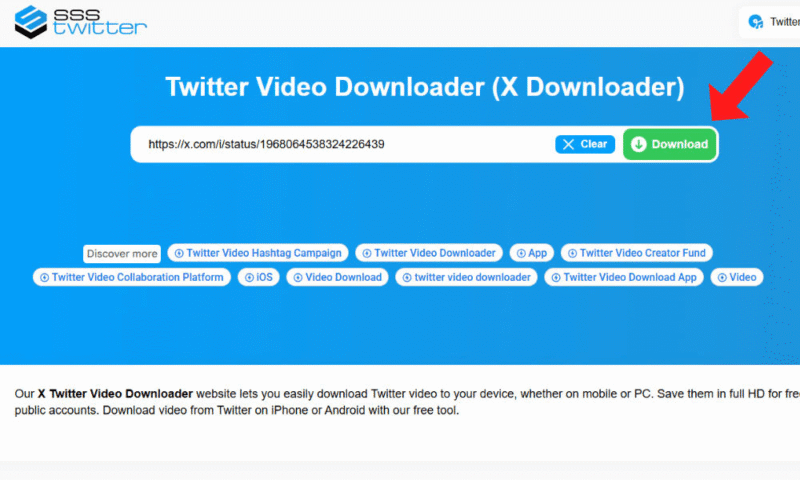
- Paste the URL Into the Text Field
Paste the URL of the Twitter video into SSSTwitter and click the download button to start generating a video link.
- Download the Video
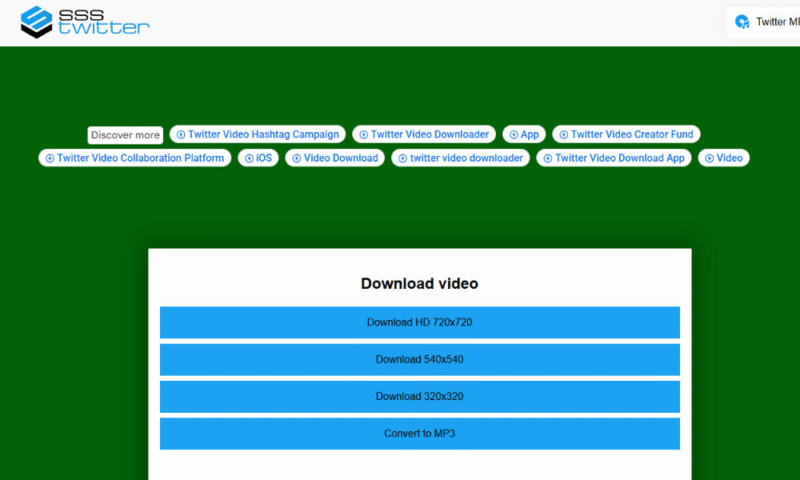
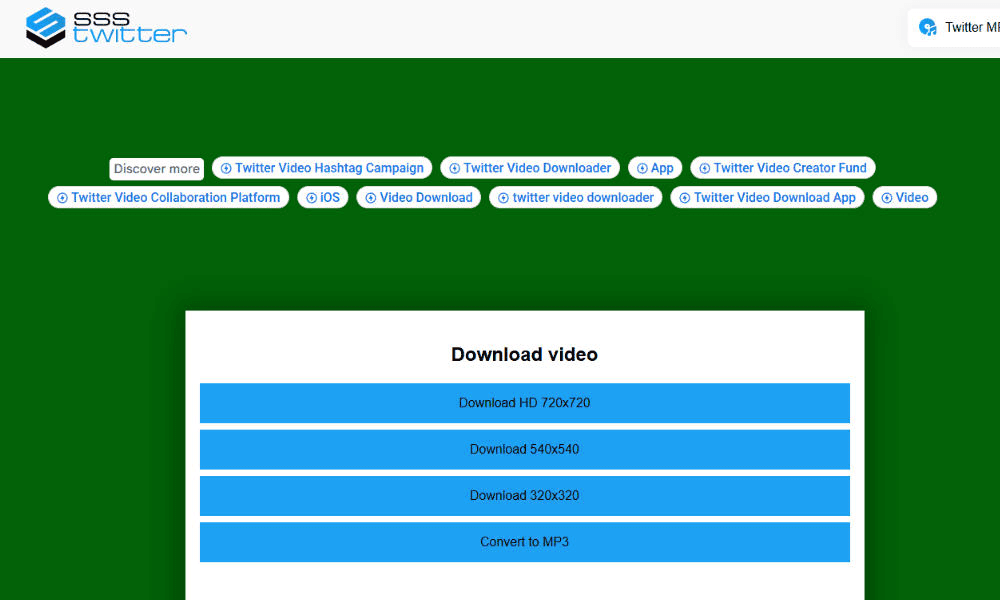
Once the tool has finished generating the download link, you can download the video. Some tools, including SSSTwitter, allow you to choose the quality for the downloaded video.
How Do I Save Videos From Instagram?
Similar to X, some Instagram creators allow iPhone and Android phone users to download videos to their devices. However, if you’re using Instagram in your browser or the video isn’t available for download, you can use a download tool. I’ll show you how to download Instagram videos using the Save Free tool.
- Find the Video
Locate the video on Instagram that you want to download.

- Go to the Post Options
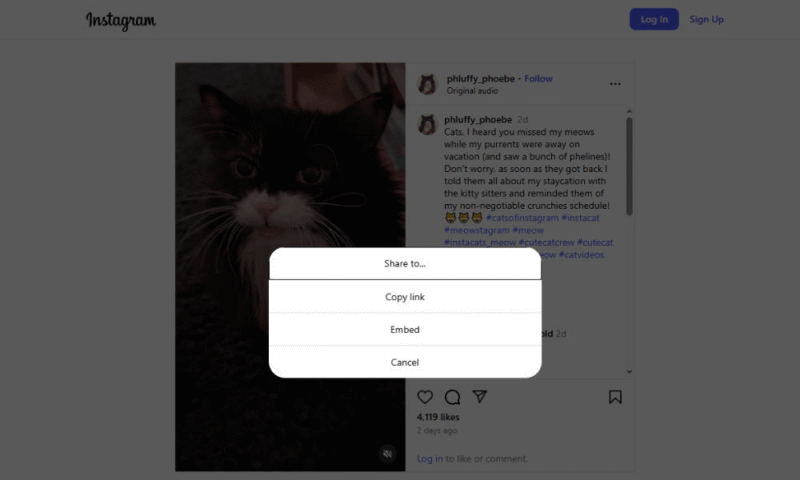
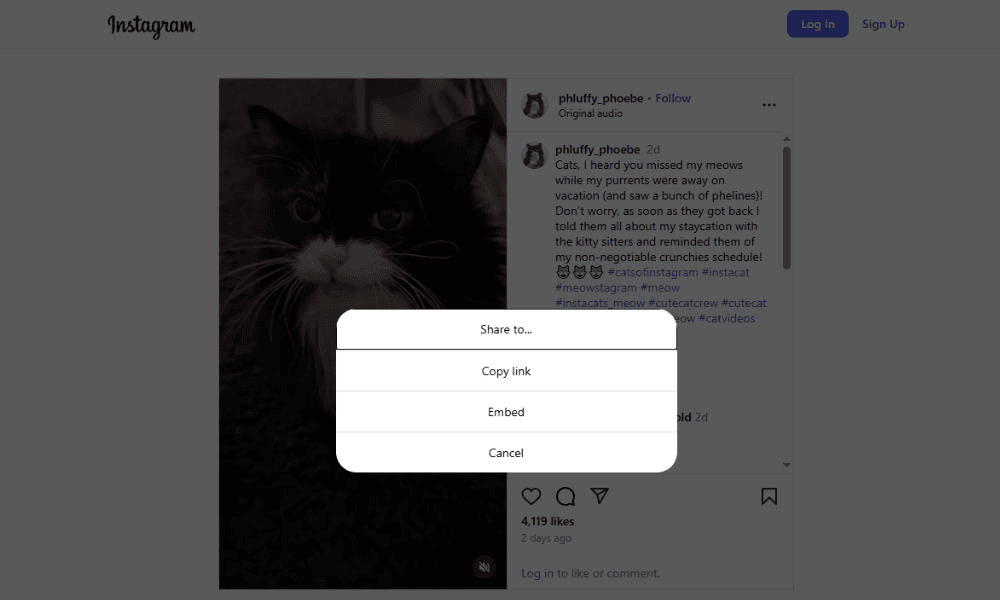
Click the three dots to bring up the post options. You can find these in your browser at the top right next to the creator info. On mobile, you can get the link by clicking the paper plane icon.

- Copy the Video Link
For browser users, click “copy link” in the menu that pops up. If you’re on mobile, you should see an option in the menu to download the video. If you don’t see a download option, click “copy link” and keep following this guide.
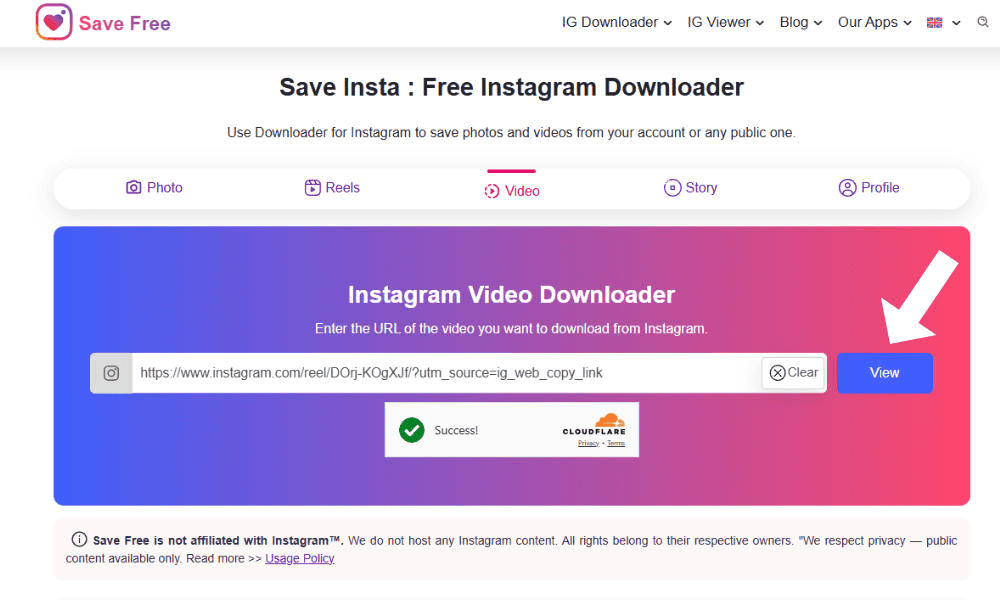
- Go to the Instagram Download Tool
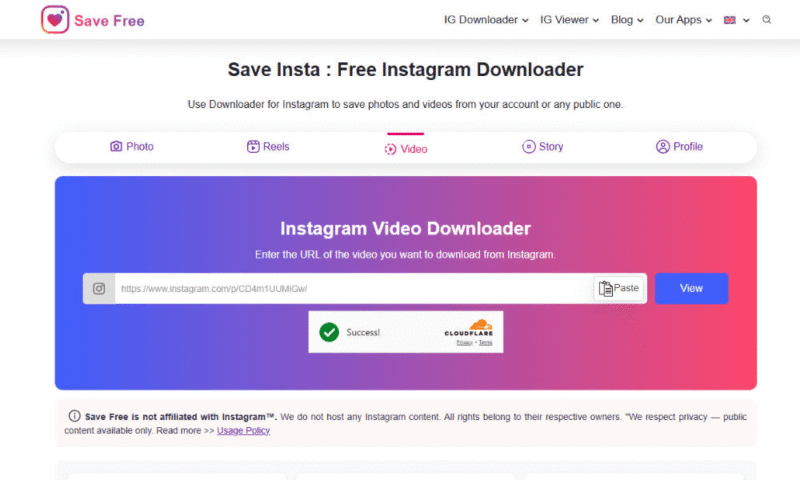
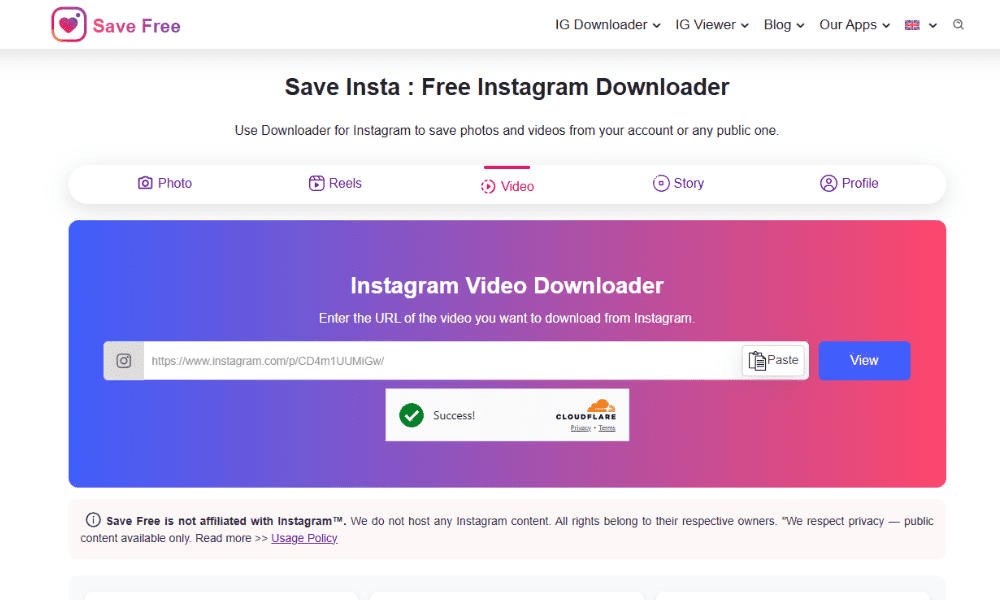
Navigate to the tool you’ve chosen to download Instagram videos. Make sure you pick one that asks for minimal personal information. You should need to provide only the video link.
- Paste the Video Link
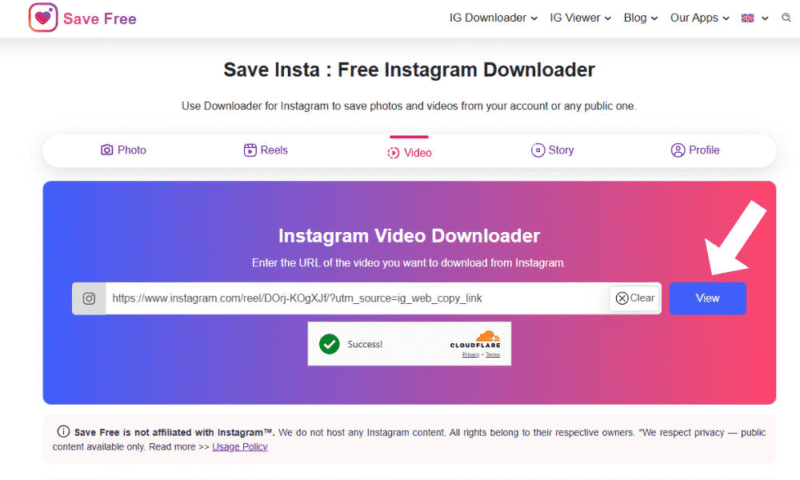
Paste the Instagram video link into the text field and click “view.” This may appear as a download button depending on the downloader tool.
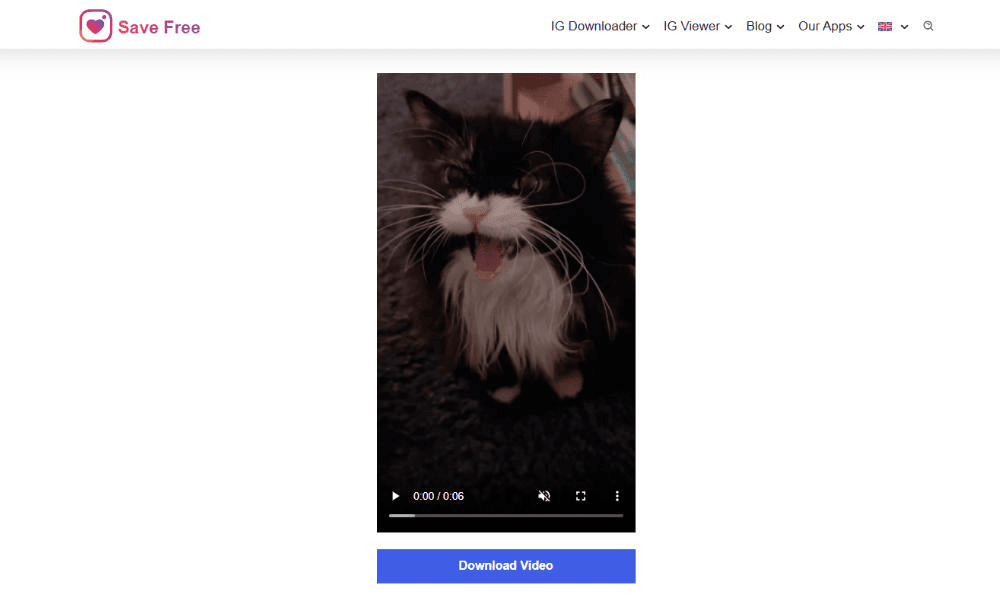
- Download the Video
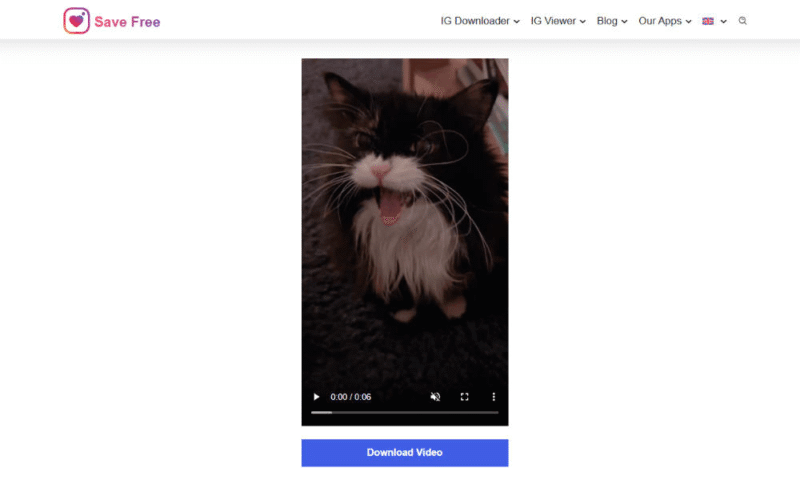
Once the link is ready, click “download video” to save the Instagram video to your device.


How Do I Save Video From Facebook?
While Facebook lets you bookmark videos to watch later, it doesn’t provide a way to download videos to your device if you want to watch them offline. To save videos to your device, you’ll have to use a third-party tool.
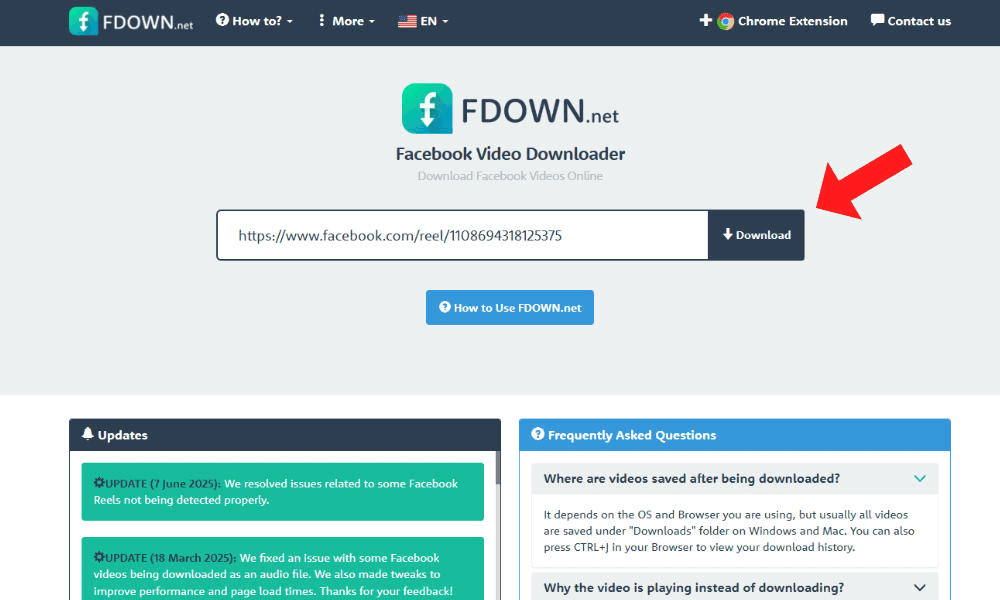
In this guide, I’ll show you how to use the FDown tool to save Facebook videos to watch offline.
- Find the Video
Click on the video you want to download from Facebook.

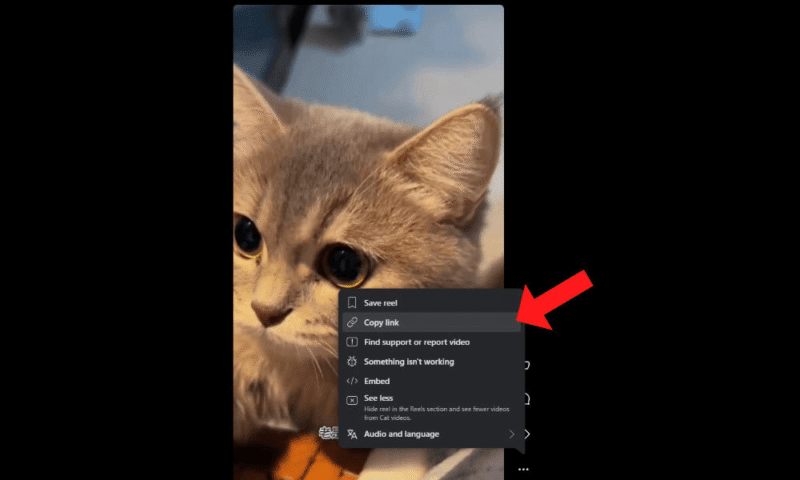
- Open the Video’s Options Menu
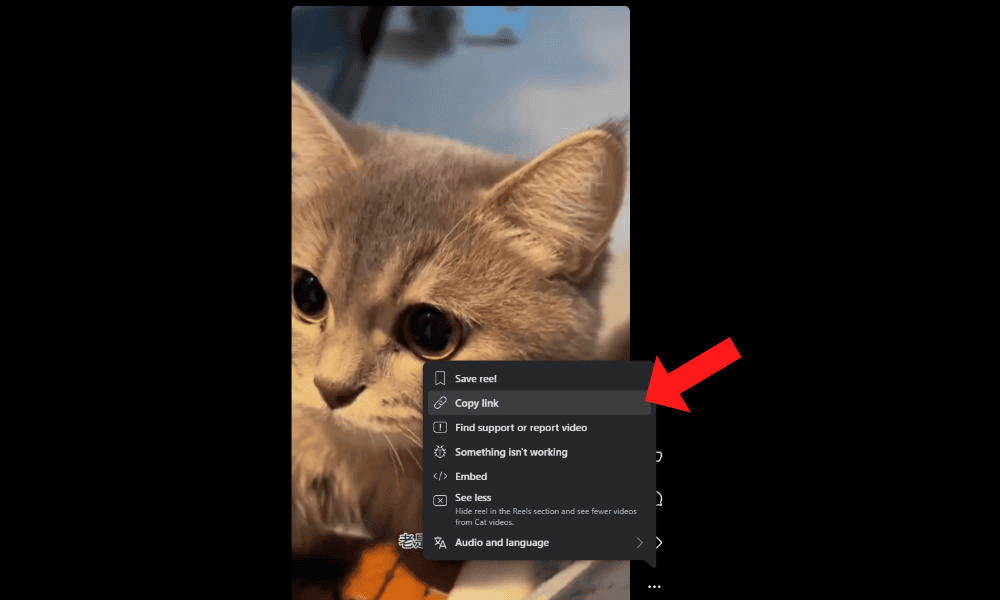
Click the three dots to see the video’s options.

- Copy the Video Link
Copy the link to the video by clicking “copy link.” Note that the “save reel” option will save the video to your Facebook account, not to your device.
- Open the Facebook Video Downloader
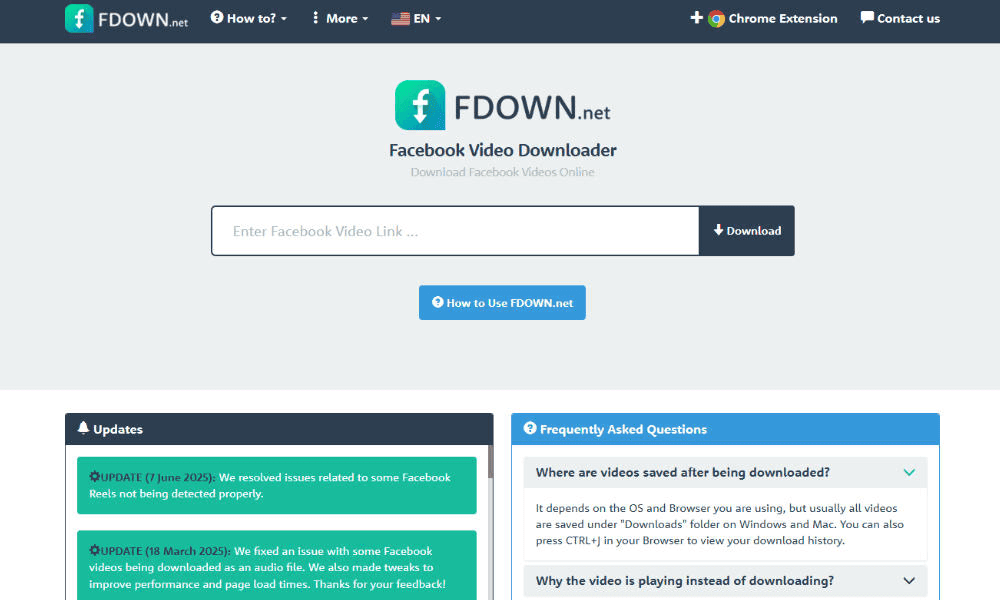
Go to your chosen Facebook video downloader. I’m using FDown for this guide. If you pick a different option, make sure to choose one that doesn’t require you to sign in with Facebook, as this can pose a security risk.
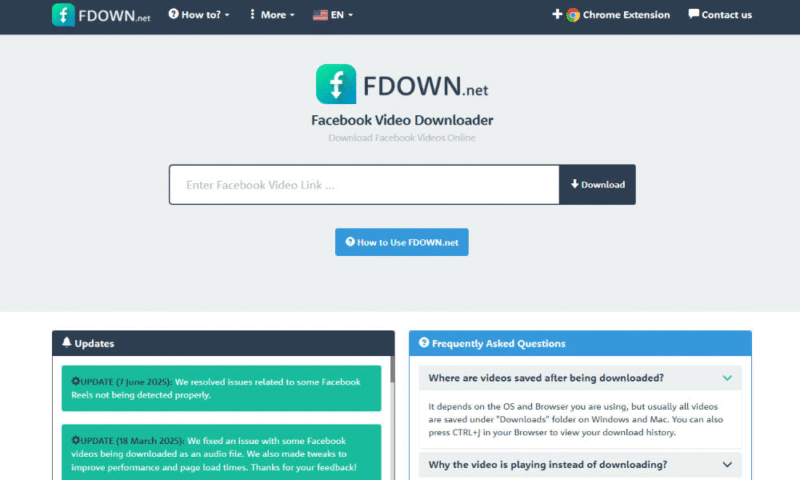
- Paste the Link
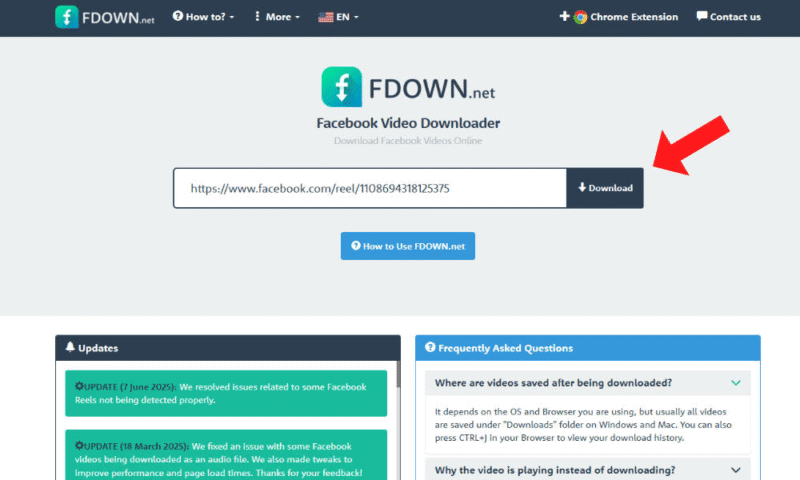
Paste the video URL into the text field and click “download.”
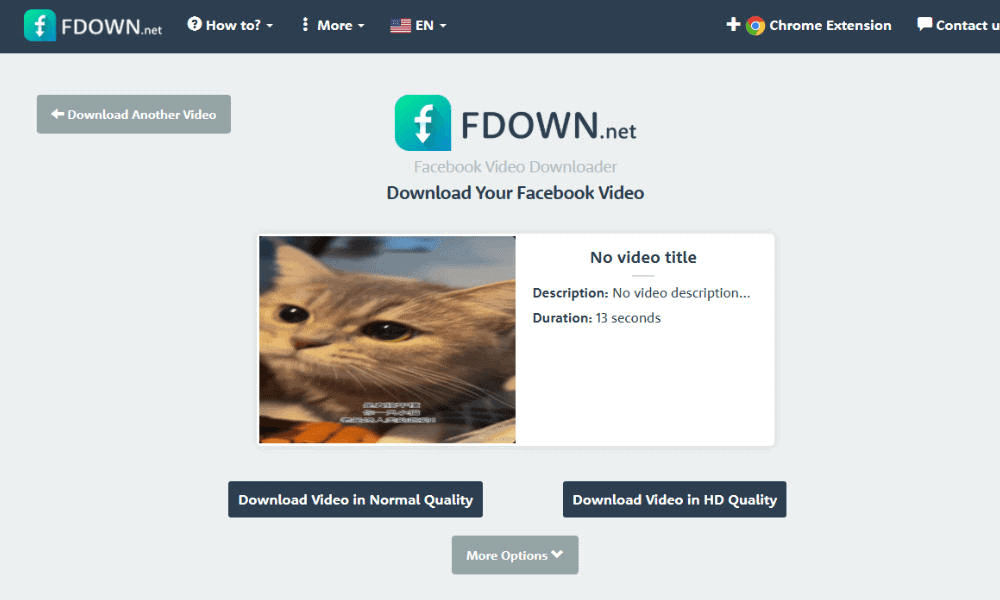
- Download the Video
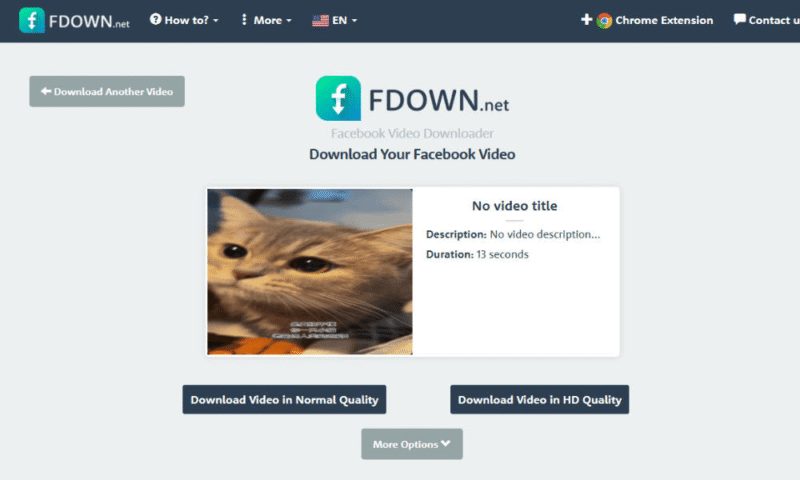
Once the link has finished processing, you can download the file. If you use FDown, you can also choose your desired video quality at this point in the process.


How Do I Download YouTube Video Files?
You can download YouTube videos if you’re subscribed to YouTube Premium. Alternatively, as with the social media platforms I covered previously, you can use a third-party app to save videos from YouTube.
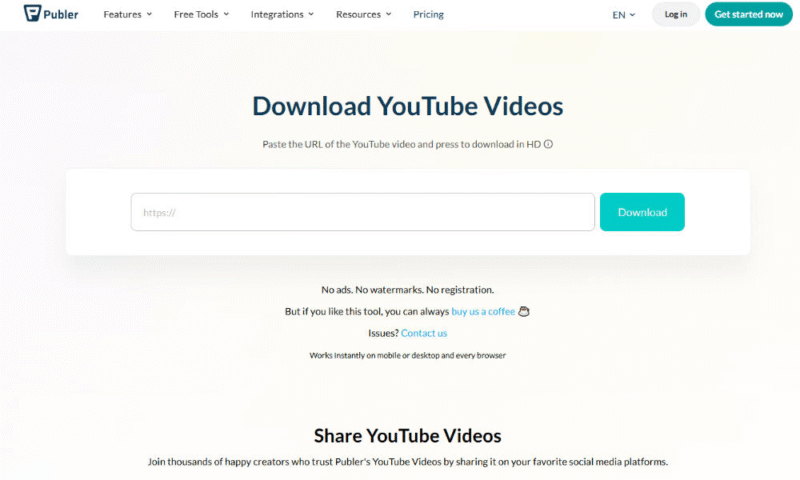
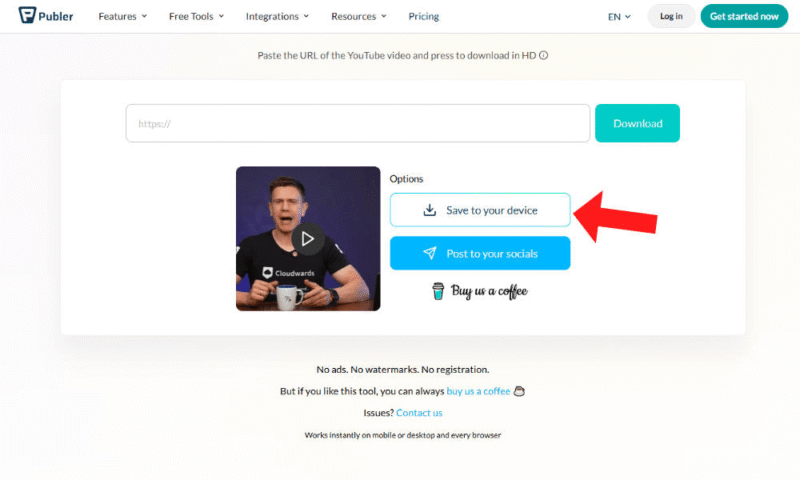
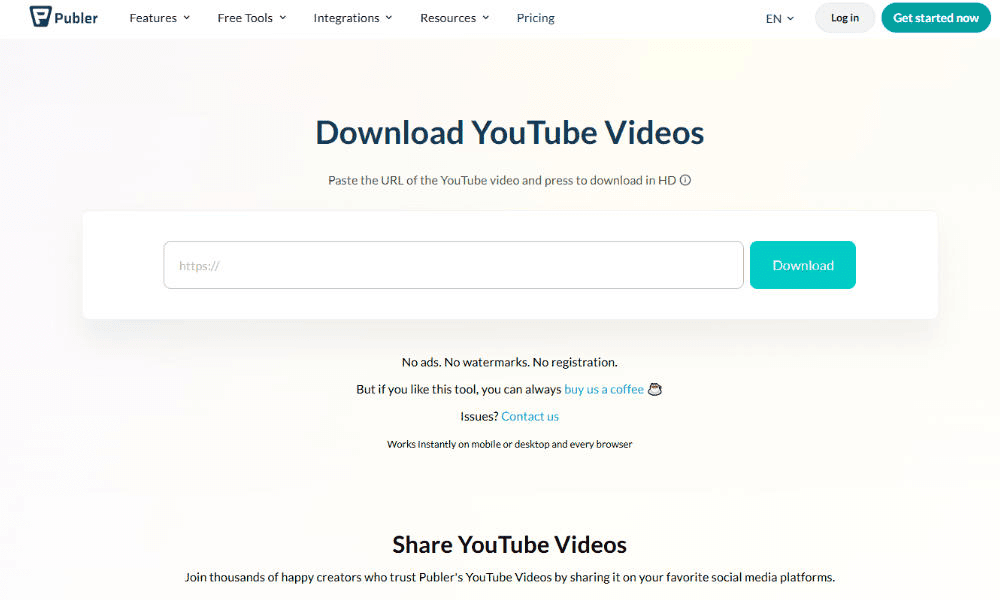
I use Publer in this guide, as it’s reliable and doesn’t require you to sign in. Always prioritize your security when saving videos.
- Open the YouTube Video
Go to the YouTube video you want to download.

- Find the Video URL
On mobile or in a browser, click the share button to bring up the video’s sharing menu. From there, you can copy the video URL.

- Go to the YouTube Video Downloader
Open the YouTube video downloader of your choice. As mentioned, I’m using Publer in this example.
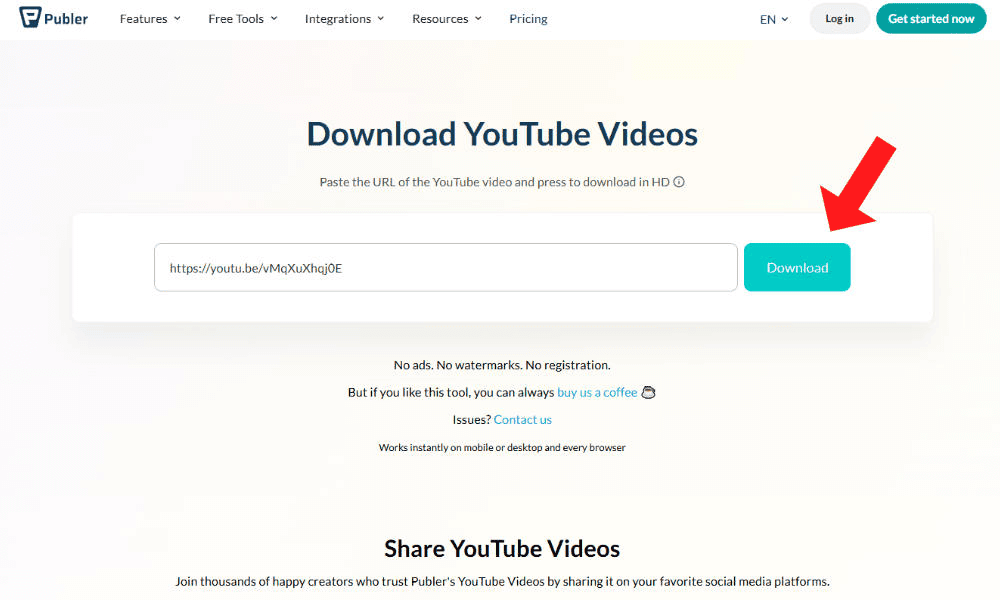
- Generate the Video Download Link
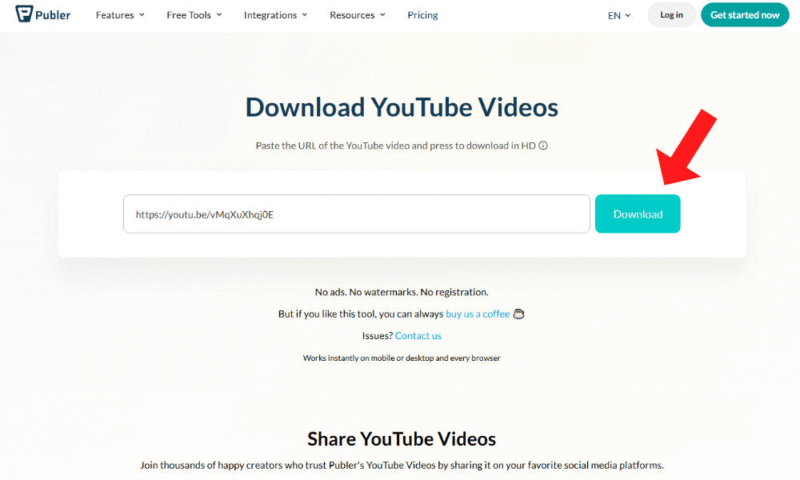
Paste the video URL into the text field and click “download.” You may have to wait a few minutes for the video to finish processing.
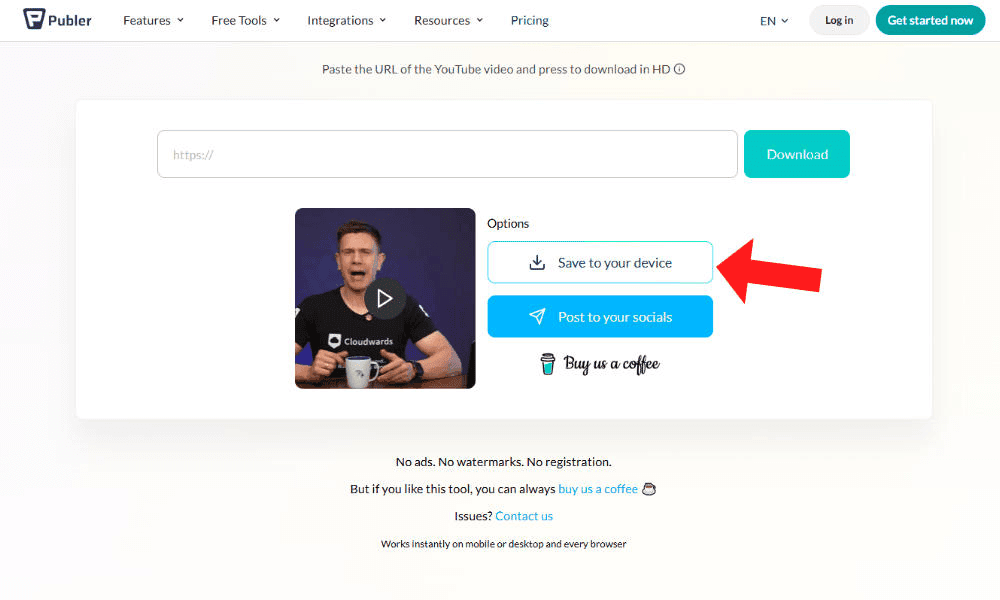
- Save the Video
You’ll be able to download the video after it has finished processing. Review the video and select “save to your device” to download it.


What Is the Best Cloud Backup for Internet Videos?
Videos can take up a lot of space. If you’re downloading many of them, you’ll need a place to store them. Although you can save video content to your device’s local storage, you may run into space limitations or be at increased risk of hardware failure.
A cloud backup account provides scalable storage, with better data redundancy and security than your device’s local storage. Below is a brief overview of five of my favorite cloud backup solutions for storing videos.




Final Thoughts
Third-party downloading tools help you save videos from social media to your device. This makes it easier to watch videos offline, as some social media sites require internet access to watch saved videos. However, to avoid having videos take up all your storage space or to prevent accidental deletion, consider using a cloud backup service — I recommend IDrive.
Which social media platforms do you like to download videos from? Have you used any of the methods I explained in this article? What is your preferred way to store saved videos? Let us know in the comments, and thank you for reading.
FAQ: How to Download Videos From the Internet
The best way to save a video from the internet is with a third-party downloader. While you need to be careful of malicious ads, downloaders offer a convenient way to download videos.
To save a video from the internet, copy the video’s URL and paste it into a downloader tool such as SSSTwitter or FDown.
You can download YouTube videos if you have an active Premium membership or by using a third-party downloader. Be aware that using unofficial tools comes with the risk of malware.
You can download YouTube videos from the official app if you have a Premium account. Otherwise, you can copy and paste the video’s URL into a downloader such as Publer.