Microsoft 365 Review
Microsoft 365 offers apps for document editing, data analysis and cloud storage. If you’re wondering whether it’s worth it, read this Microsoft 365 review for my take on its features and performance.

— Last Updated: 2026-01-26T14:18:05+00:00 Facts checked by Goran Nikolić
Key Takeaways: What Is Microsoft 365 & Is It Good to Use?
- Microsoft 365 is a Software-as-a-Service (SaaS) platform that offers cloud storage, collaboration, task management, document creation and productivity apps.
- Microsoft 365 provides a diverse range of tools for advanced tasks like animation, design, video editing and data analytics.
- The full features of Microsoft 365 are accessible only on the Windows desktop version. The web app has most features but doesn’t include Microsoft Access.
Top Use Cases for Microsoft 365:
- Cloud storage: Get up to 6TB of storage space on OneDrive to store and share your files and photos.
- Document creation: With Microsoft Word you can create documents in various formats, including PDF, and with PowerPoint you can create highly visual presentations.
- Online meetings: Microsoft Teams is one of the most popular online meeting tools and can also be used for internal communication.
Microsoft 365 (MS 365) is one of the most popular office suites in the world, with over 400 million users.1 Known for its scalability, security and global reach, it is a leading Software-as-a-Service (SaaS) provider and the standard for many similar tools.
In this Microsoft 365 review, I examine its features, pros and cons. I also highlight its security, compliance and ease of integration.
What Is Microsoft 365 & Who Is It For?
Microsoft 365, formerly known as Microsoft Office, is a Software-as-a-Service platform offering collaboration and productivity tools. It’s suitable for companies of all sizes, including global teams, schools, families and individuals.
- Release date: June 28, 2011, as Office 365; renamed Microsoft 365 on April 21, 2020
- Developer: Microsoft
- Platforms: Desktop and mobile
- Operating systems: Windows, macOS, Android and iOS
- Notable features: Word, Excel, PowerPoint and OneDrive
- Pricing: Monthly and annual subscriptions
The Cloudwards Expert Opinion
 The Cloudwards Expert Opinion
If I can’t find a feature on Microsoft 365, the chances of finding it elsewhere are low — that’s how comprehensive it is. You’d think it would be difficult to navigate Microsoft 365 because it’s so feature-rich, but the user interface is sleek. That said, there are many elements to learn as a first-timer, which can be exhausting. Test it out with a one-month free trial.
Microsoft 365 Pros & Cons
Microsoft 365 Alternatives
- 1
- :
- : 5 GB
- :
- :
- :
- :
- 2
- :
- : 100 GB
- :
- :
- :
- :
- 3
- :
- : 50 GB
- :
- :
- :
- :
- 4
- :
- : Unlimited GB
- :
- :
- :
- :
- 5
- :
- : 100 GB
- :
- :
- :
- :
- 6
- :
- : 50 GB
- :
- :
- :
- :
- 7
- :
- : 20 GB
- :
- :
- :
- :
$20 / month(All Plans) - 8
- :
- : 150 GB
- :
- :
- :
- :
- 9
- :
- : 100 GB
- :
- :
- :
- :
- 10
- :
- : Unlimited GB
- :
- :
- :
- :
$24 / month(All Plans) - 11
- :
- : Unlimited GB
- :
- :
- :
- :
- 12
- :
- : Unlimited GB
- :
- :
- :
- :
- 13
- :
- : Unlimited GB
- :
- :
- :
- :













Key Features & Tools: What Can Microsoft 365 Do?
Microsoft 365 offers a broad suite of tools with a level of depth few competitors can match. It covers everything from document creation and cloud storage to task management and AI-powered features.
Document Creation & Editing Features
Microsoft 365 has several tools for document creation and editing, including Word, Excel, PowerPoint and OneNote.
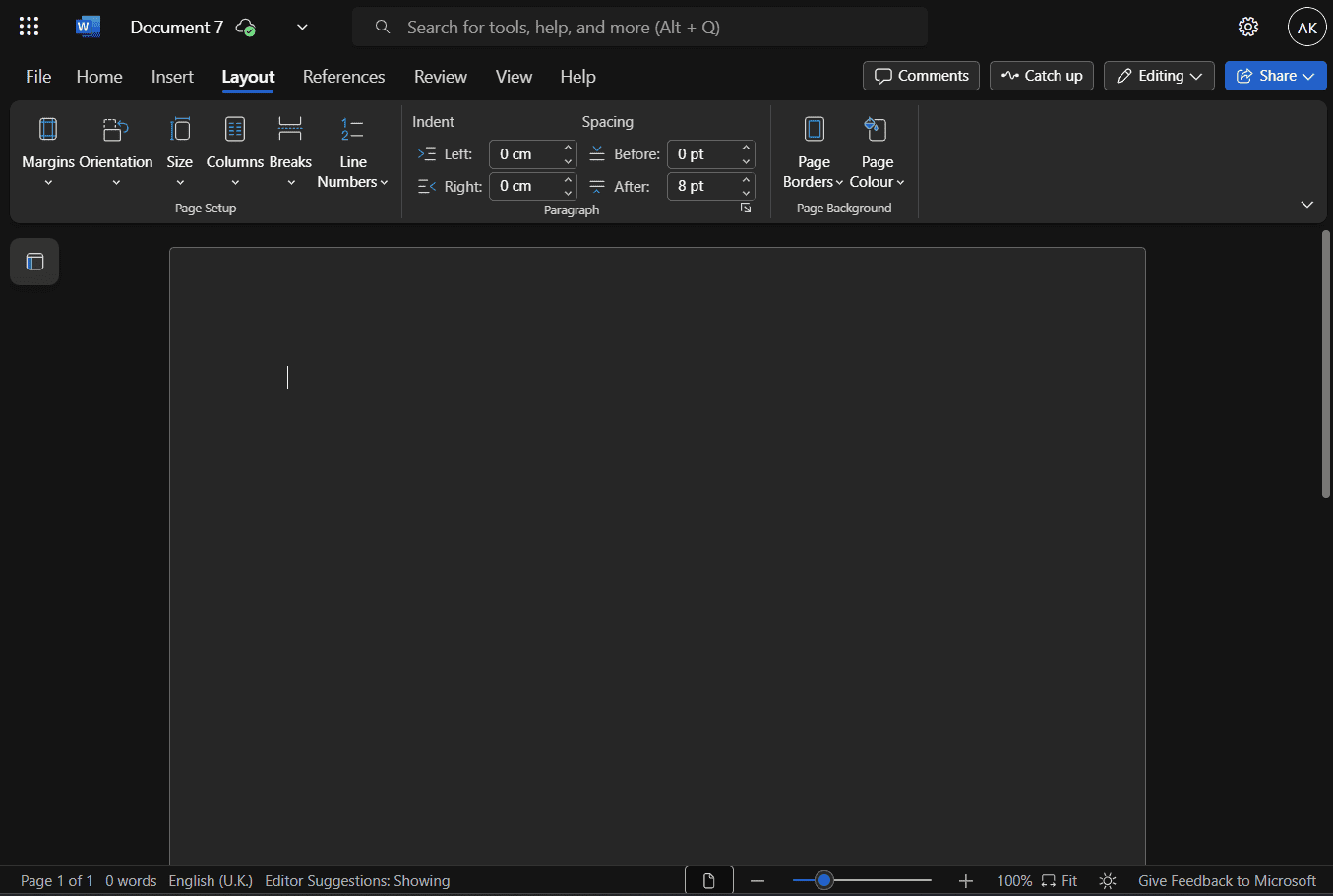
the whole interface between light and dark mode.
Word
Word is the most feature-rich document editor I’ve used. Tasks that require clunky workarounds in other tools, such as inserting tables or shapes just to add page borders, are built in natively.
Word also lets me upload audio files for transcription, whereas other productivity software solutions allow only spoken transcription. I can also save and export documents in a range of formats.
That depth comes at a cost, though, as all the Word tools can feel overwhelming at first. Still, the ribbon-based toolbar makes the interface more visual and easier to navigate.
Excel
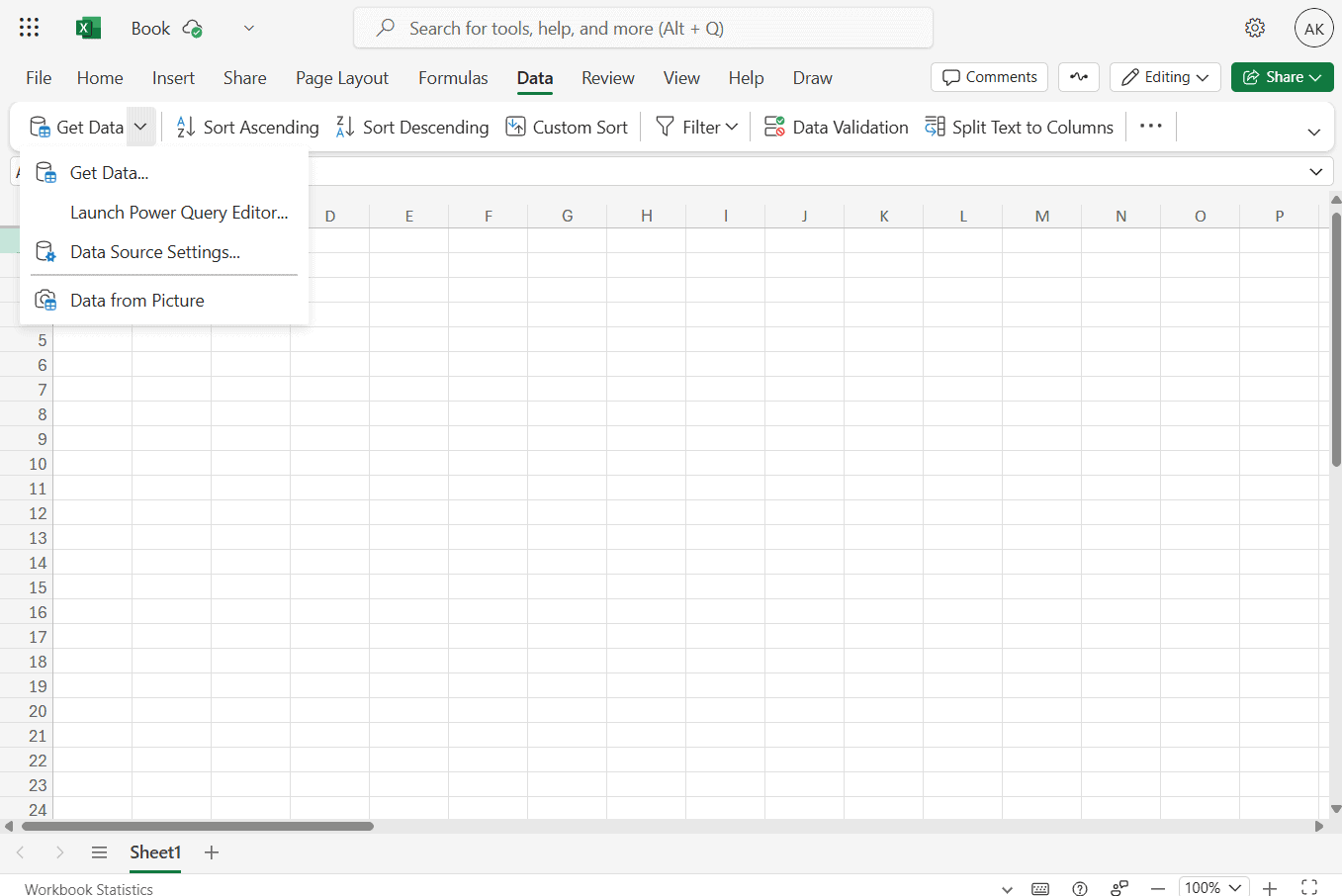
Microsoft Excel handles data aggregation much like other spreadsheet tools, but it pulls ahead with advanced features like external data imports, automation and scripting.
Excel works smoothly with large datasets as well, though I’ve found that its performance depends heavily on the hardware. Excel has a steep learning curve overall, but it’s easy to get up to speed if you focus on specific functions.
PowerPoint
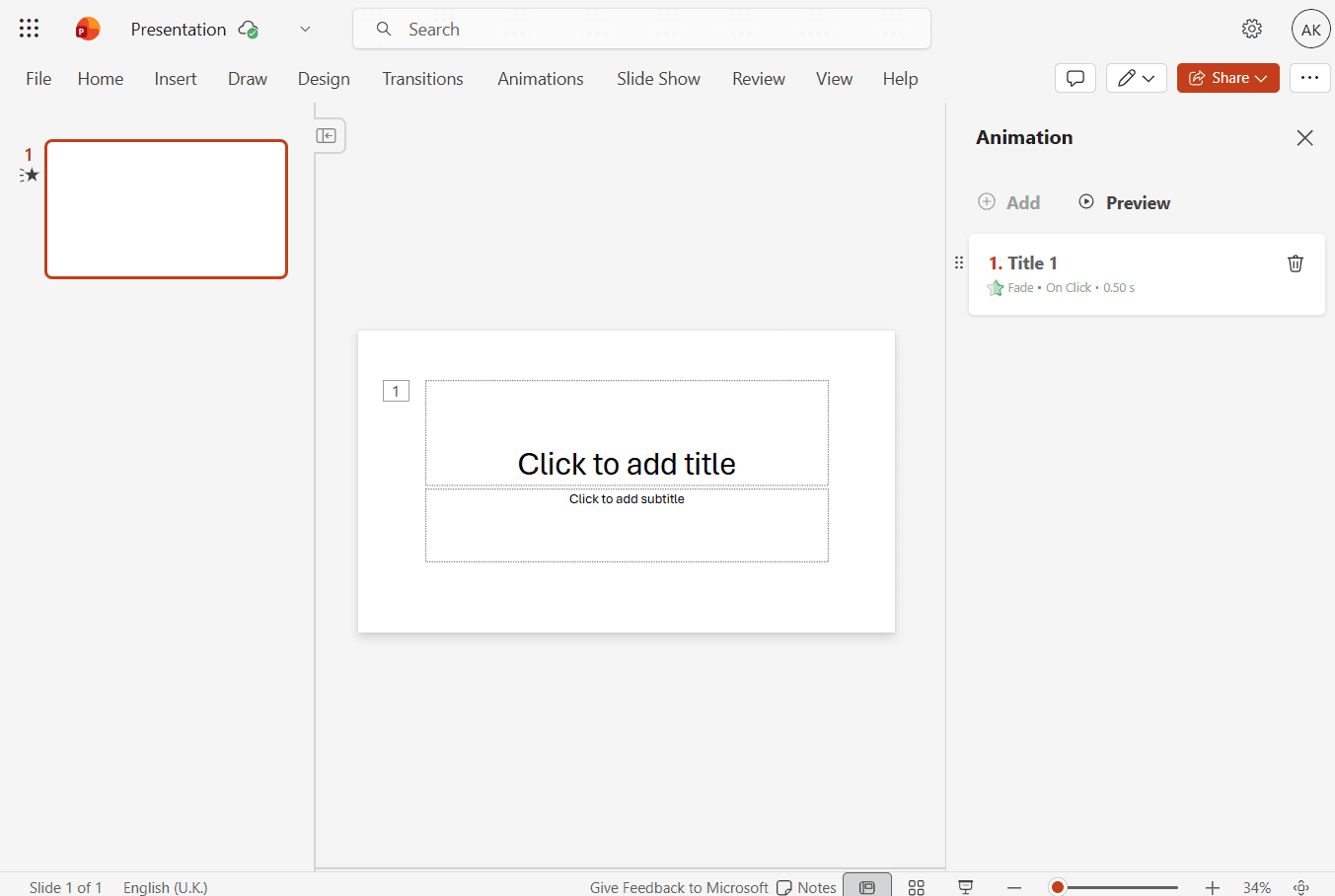
presentations ahead of time.
PowerPoint offers more themes and transitions than most alternatives. Despite its depth of features, I find it easy to navigate due to the familiar ribbon layout. If you find the classic ribbon too space-hungry, you can switch to a simplified single-line version.
Additionally, PowerPoint’s animation tools are especially powerful, with granular controls for duration, delay and start timing. The software also includes a larger selection of animation templates than the vast majority of competitors and supports common video and audio file formats.
OneNote
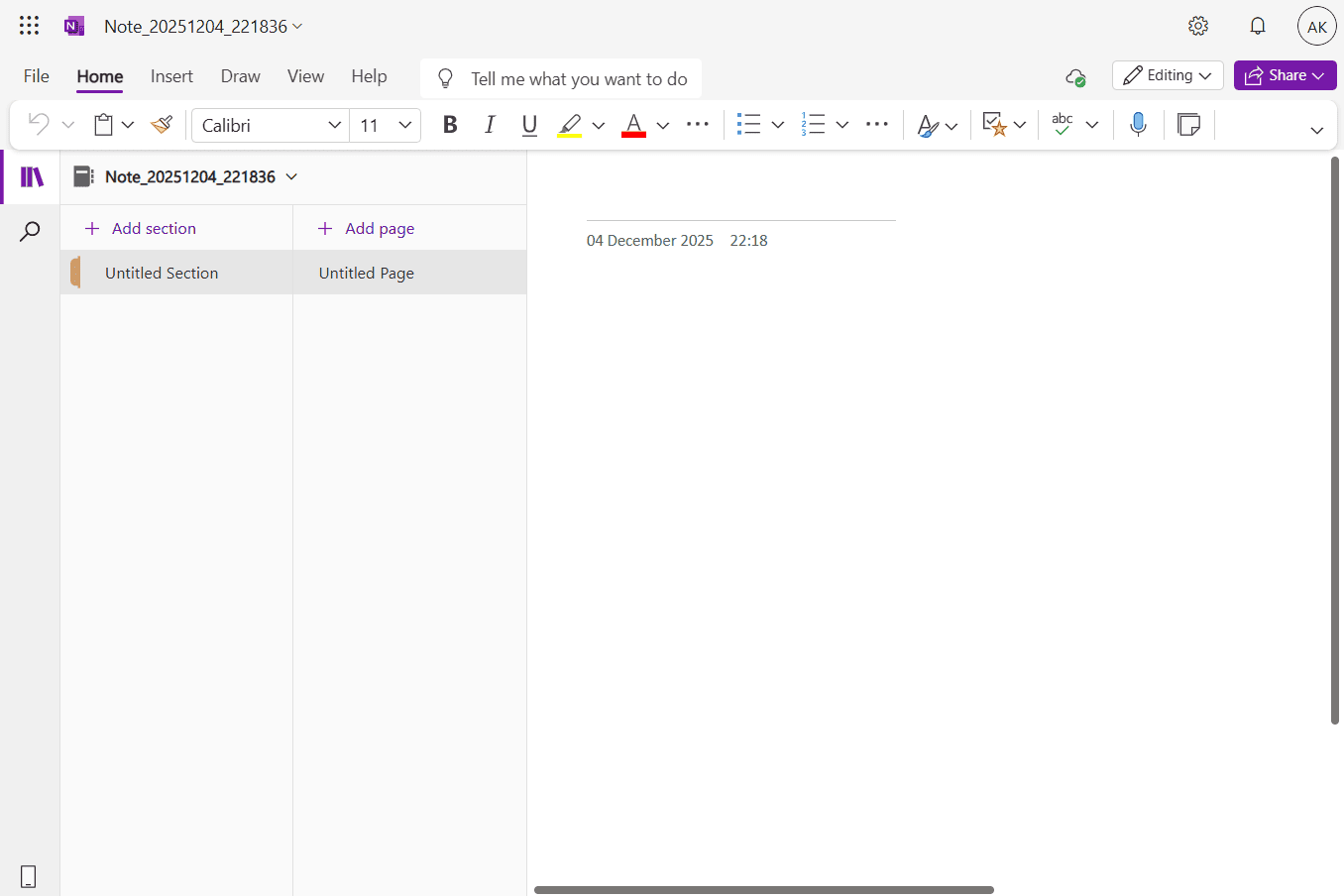
Although primarily a note-taking app, OneNote provides extensive text-formatting options — almost as many as a word processor. This flexibility gives me more room to sketch ideas and structure notes without them feeling rigid or flat.
OneNote also excels at organization. I can break notes down into sections and pages, add tags and build multi-layered hierarchies that are easy to navigate. Plus, the free-form canvas lets me create unstructured notes and sketches when I don’t want to follow a strict layout. Read more in our OneNote review.
Collaboration & Integration Features
Microsoft 365’s collaboration and integration tools include Teams, Loop and Lists.
Teams

Microsoft Teams is a versatile tool for audio and video meetings and chats. It lets you create a Slack-like environment for announcements, conversations, event planning and file sharing. Despite its broad feature set, Teams’ core functions are easy to navigate.
Loop
Loop is a collaborative digital notebook that supports real-time document creation and management. It offers granular access controls at the page and workspace level, along with flexible sharing options like link-based permissions, passwords and expiration dates.
Lists
Lists makes it easy to track issues, content and assets, with templates and CSV imports that speed up setup. Sharing is also flexible; I can grant access to individuals or groups, share via links, control who can edit lists and set link passwords and expiration dates.
Productivity & Task Management Features
Although Microsoft 365 does not have a full project management tool, it does offer more task management through To Do, as well as Microsoft Editor.
To Do
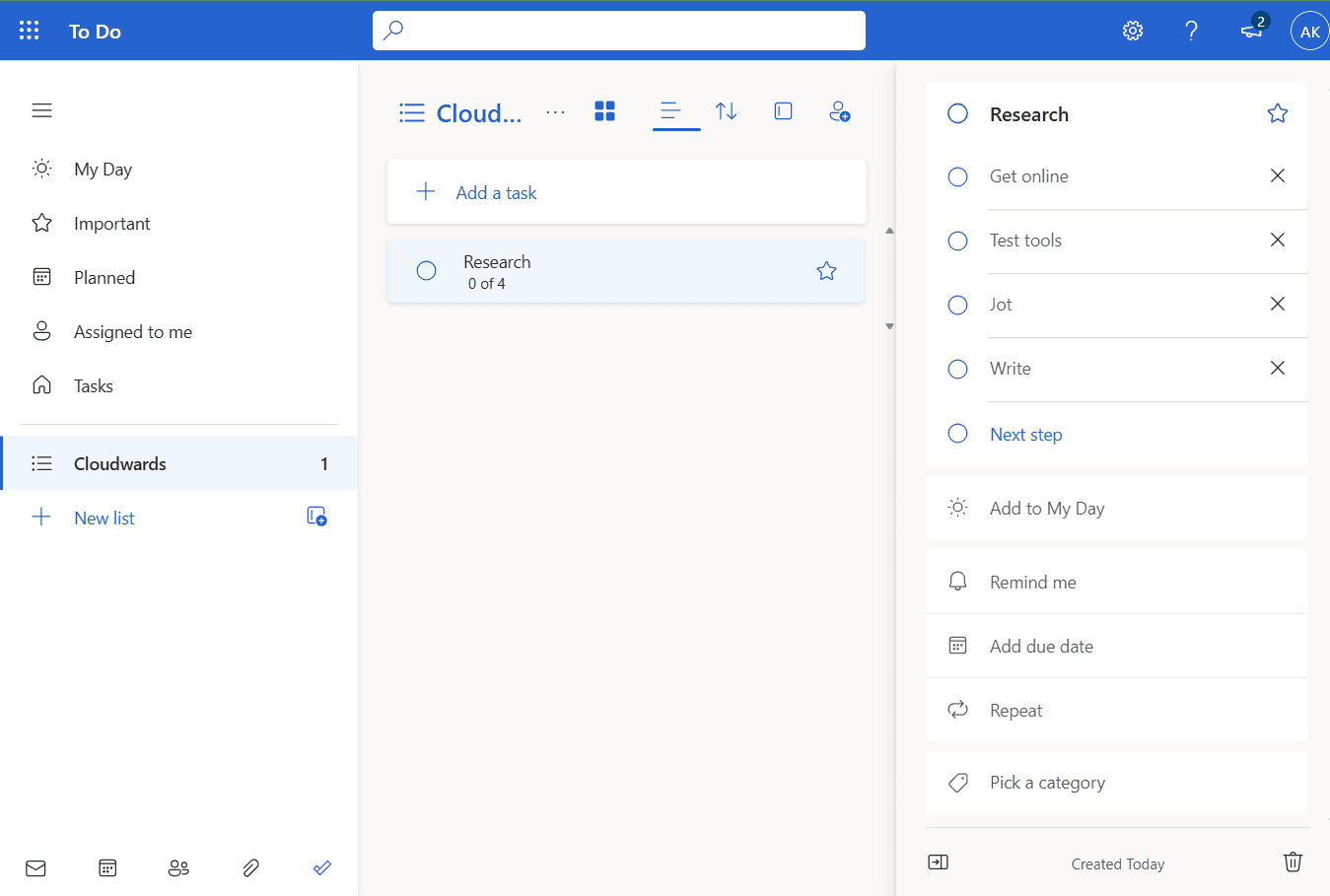
With To Do, I can create tasks for just myself, and in each task I can define the steps required for completion. I can also create a list of tasks, share them with team members and assign specific tasks on the list to each person. To Do integrates with other MS 365 apps, such as Outlook, where it imports flagged emails as tasks.
Microsoft Editor
Microsoft Editor checks spelling and grammar while also improving clarity, concision and subject-verb agreement. It analyzes tone, suggests neutral language for sensitive topics and includes tools to help flag plagiarism.
File Storage, Management & Sharing Features
Microsoft 365 offers OneDrive and ShareDrive for file storage, management and sharing.
OneDrive
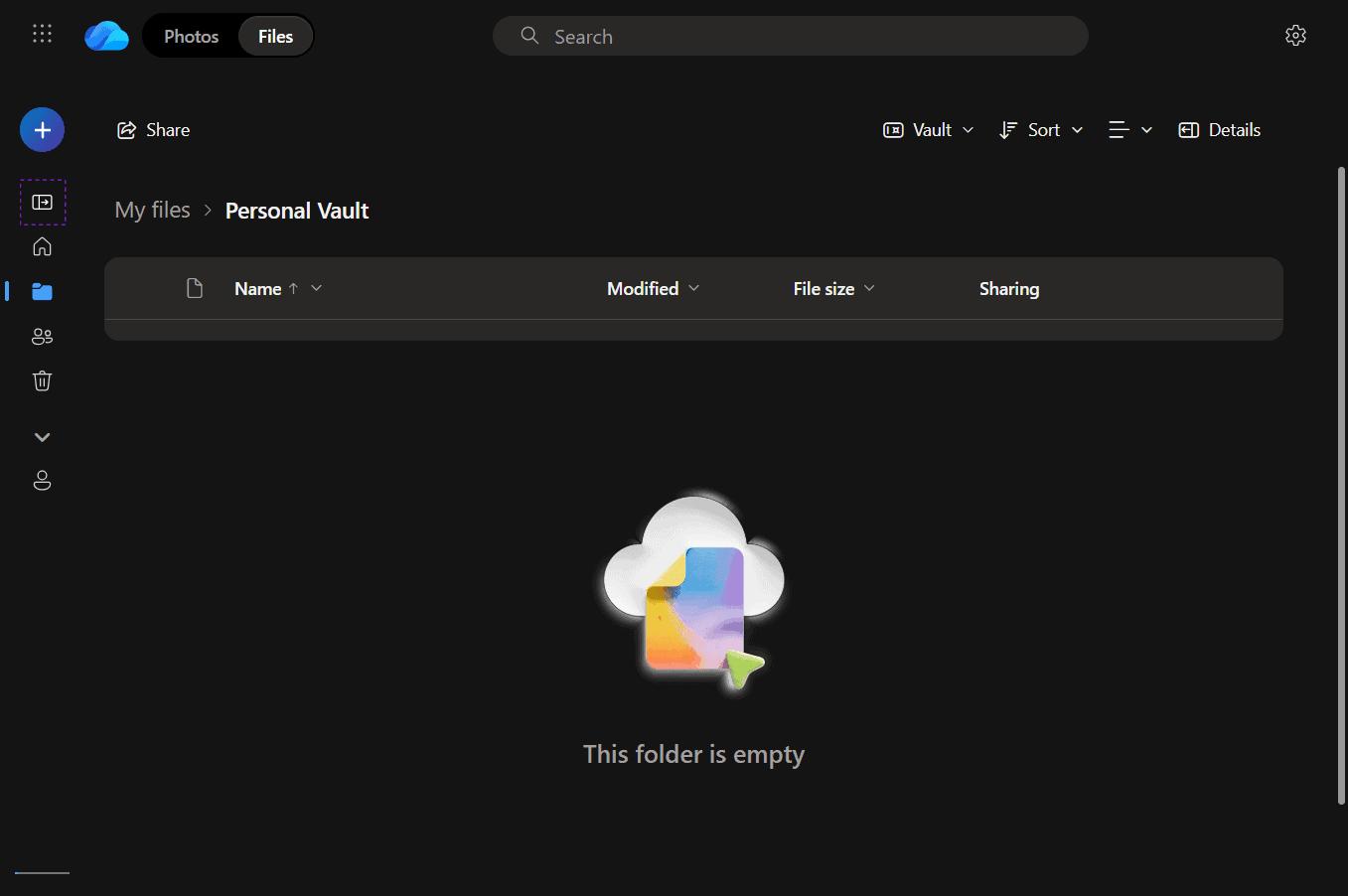
one-time code or biometric verification.
OneDrive stores files across all MS 365 apps and allows users to filter them by app of origin. It also offers multiple file-sharing options with access control, including password-protected links and links with expiration dates.
I like that the personal vault offers an extra authentication step for sensitive files. OneDrive’s storage limit (up to 5TB) is one of the best I’ve seen for comparable cloud storage providers. Read our full OneDrive review for more details.
SharePoint
With SharePoint, you can share files or folders in your document libraries and control edit and download permissions in a few steps. In addition to file sharing, SharePoint supports real-time collaboration for team members, internal announcements and private collaboration spaces for subteams.
AI Features

reference with Copilot in PowerPoint.
Microsoft 365 Copilot is a proprietary AI tool that helps with research, drafting, rewriting and summarizing content in Word. However, I found that it struggles with documents that contain tables.
In Excel, Copilot assists with data importing and sorting, and it can explain how formulas work and when to use them. In PowerPoint, it can create, rewrite and summarize presentations. Copilot can also generate slides in a single language per prompt.
Other AI Features
Microsoft 365’s AI features are primarily driven by Copilot, but Copilot features like “agent mode” and “researcher” are worthy of special mention. Agent mode helps with advanced work like drafting complete documents and analyzing data. The researcher feature conducts research across various fields and delivers information quickly.
Microsoft 365 Features Overview
| Features |  |
|---|---|
| Dedicated sync folder | |
| Customizable sync folder | |
| Virtual Drive | |
| Selective Sync | |
| Block-Level Sync | |
| Folder Sharing | |
| Sharing Permissions | |
| Upload Links | |
| Password Protected Sharing | |
| Expiry Dates | |
| Download Limits | |
| Sharing Statistics | |
| Text Documents | |
| Spreadsheets | |
| Presentations | |
| Forms & Surveys | |
| Real-Time Collaboration | |
| Suggested Edits | |
| Commenting | |
| Whiteboarding | |
| Version History | |
| Task Management | |
| Shared Calendars | |
| Group Chats | |
| Video Creation/Editing | |
| Website Builder | |
| AI Assistant | |
| AI Content Generation | |
| AI Summarization | |
| AI Data Analysis | |
| Worfklow Automation | |
| E-Signatures | |
| Booking & Schedueling | |
| Note-Taking App | |
| Mail Client | |
| Chat Client | |
| Video Calls | |
| Audio Calls | |
| Email Notifications | |
| Personal Calendar | |
| Third-Party Integrations | |
| No-Code Integrations | |
| Project Management Tool Integration | |
| CRM Integration | |
| API Access | |
| At-Rest Encryption | AES 256-bit |
| In-Transit Encryption | TLS/SSL |
| Multi-Factor Authentication | |
| Data-Loss Prevention | |
| Client-Side Encryption | |
| Conditional Access Policies | |
| Advanced Threat Protection | |
| Information Rights Management | |
| Endpoint Management | |
| eDiscovery & Auditing Tools | |
| Data Residency Options | |
| Support Tickets | |
| Email Support | |
| Chat Support | |
| Phone Support | |
| 24/7 Support | |
| Dedicated Support Agent | |
| Help Center / Knowledge Base Quality | |
| Desktop App | Windows, Mac |
| Mobile App | Android, iOS |
| Web Interface | |
| Command-Line Interface | |
| Free Trial Offered | |
| Money-Back Guarantee | |
| Accepted Payment Methods |
User-Friendliness, Interface & Hands-On Testing
Microsoft 365 apps like Word, Excel and PowerPoint have many features, so their interfaces can seem overwhelming. However, you can adjust the layout of the toolbar, making the interface simpler. Being familiar with one tool often makes navigating others easier.
Microsoft 365 on Desktop: macOS & Windows Apps
The Windows desktop version of Microsoft 365 offers the full feature set, while the macOS version lacks a few apps, such as Access and Publisher. For lighter tasks like document editing, email and task management, the macOS apps are sufficient. However, Windows is the better choice for advanced workloads.
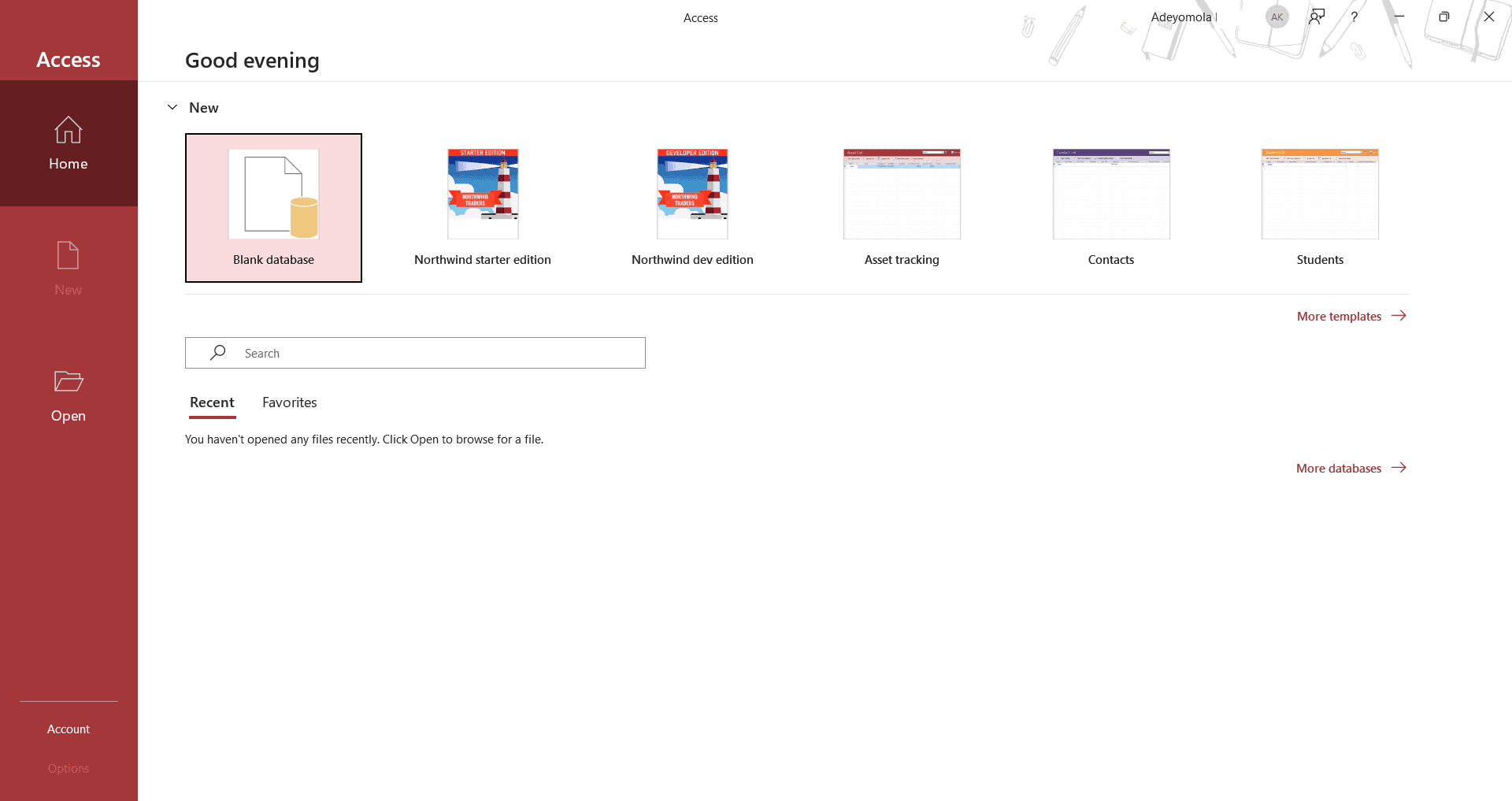
MS 365 doesn’t offer desktop apps on other operating systems. In those cases, the web app is the only option.
Microsoft 365 on Mobile: Android & iOS Apps
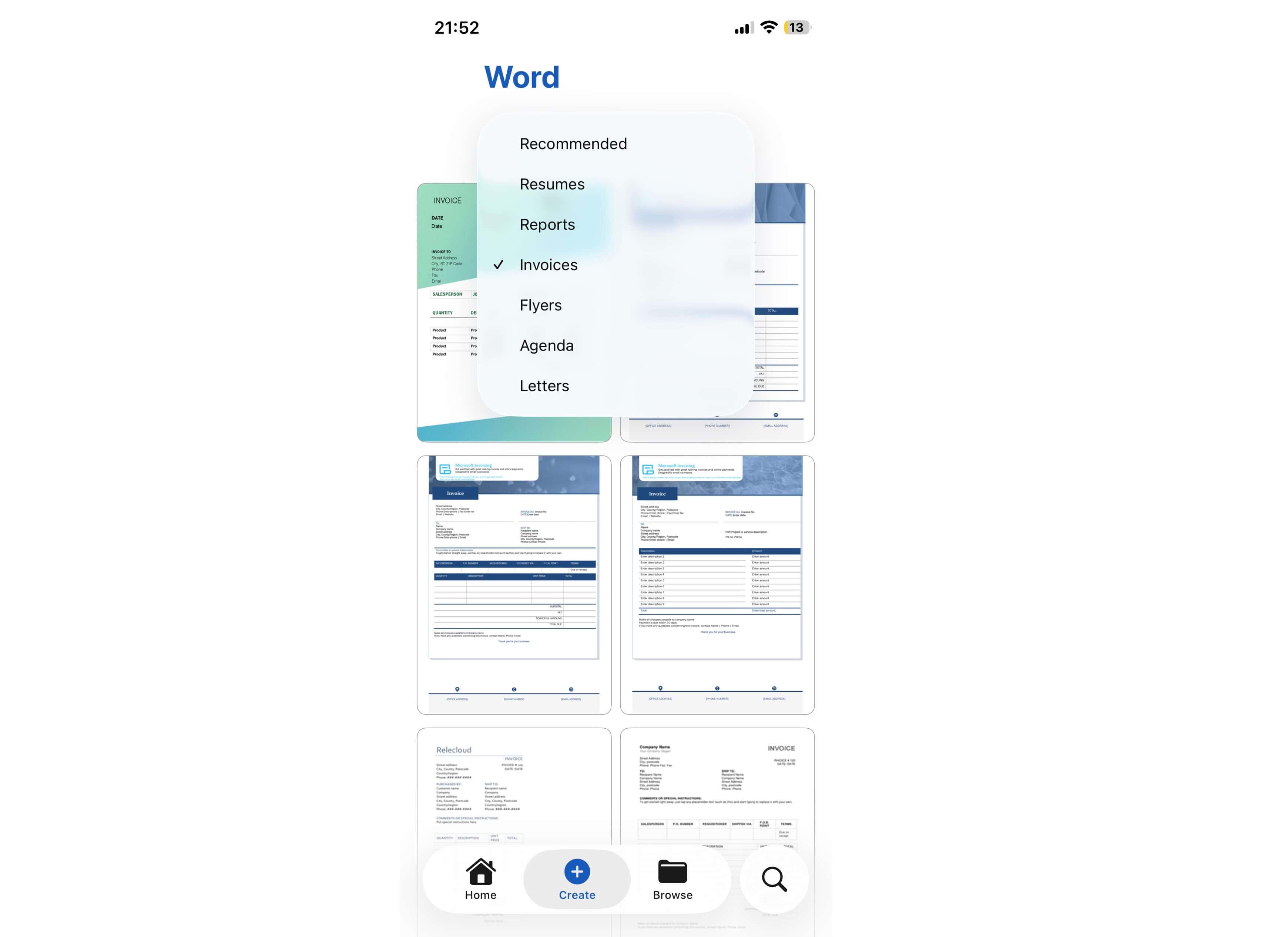
I didn’t have any issue finding my way around the mobile versions of the MS 365 apps. However, I noticed slight variations in the features available on both platforms. For example, the Microsoft Word app for iOS has more templates than its Android counterpart. However, the Android version can apply more colors for formatting.
Microsoft 365 Pricing: How Much Does Microsoft 365 Cost?
Microsoft 365 offers a wide variety of plans for individuals, families and businesses, but the business plans generally have higher service limits to support more users, higher volumes of data and more demanding workloads.
- One user
- Multiple users
- Higher Copilot usage limits & exclusive Copilot features
More plans
- Price and storage is per user Up to 300 users
- Price and storage is per user Up to 300 users
- Price and storage is per user Up to 300 users
- Price and storage is per user Up to 300 users
- Price and storage is per user Up to 300 users
- Price and storage is per user Up to 300 users
- Price and storage is per user Up to 300 users
Does Microsoft 365 Have a Free Plan?
Yes, Microsoft 365 has a free plan, which grants access to mobile and browser-based versions of tools like Word, Excel, PowerPoint, Outlook, OneDrive, Teams, To Do and OneNote. While these apps are also included on paid plans, the free versions have lower limits. For instance, OneDrive offers 5GB of storage on the free plan, and Word is web-only.
Pricing Plan Breakdown
MS 365 has plans for individuals and families, which can be paid annually or monthly. For businesses, it offers a plan with the Teams app, one without Teams, one with Copilot and a special rate for nonprofits.
You can get Office Home 2024 on a perpetual license, but it is limited to one device and has no Copilot integration. It includes Excel, Word, PowerPoint and OneNote.
Individual Pricing
Individual MS 365 plans (Personal, Family and Premium) provide access to apps like Designer, Editor, Word, Teams and Forms. The Family and Premium plans support up to six people, while Personal is for one person. The Premium plan has more advanced Copilot features than the Personal and Family plans.
Business Pricing
Business plans provide access to apps like SharePoint, ClipChamp, Exchange and OneDrive. Plans with Teams are generally more expensive than those without Teams. Nonprofits get even lower rates.
| Plan: | Pricing | Storage | Phone & Web Support | Users | Features |
|---|---|---|---|---|---|
| Business Basic without Teams | $4.40, paid yearly | 1TB per employee | Up to 300 | Custom business email, Spam & malware filtering | |
| Business Standard without Teams | $9.29, paid yearly | 1TB per employee | Up to 300 | Everything in Business Basic without Teams, plus desktop apps, design features & video-editing tools | |
| Business Premium without Teams | $18.79 per month, paid yearly | 1TB per employee | Up to 300 | Everything in Business Standard without Teams, plus enterprise-level security features | |
| Microsoft 365 Apps for business | $8.25 per month, paid yearly | 1TB per user | Up to 300 | Desktop apps, excluding chat & calling | |
| Business Basic | $5.92, paid yearly | 1TB per user | Up to 300 | Teams call, chat & video conferencing, plus the features of Business Basic without Teams | |
| Business Standard | $12.50, paid yearly | 1TB per user | Up to 300 | Webinars with attendee reporting & registration, plus the features of Business Basic | |
| Business Premium | $22 per month, paid yearly | 1TB per user | Up to 300 | Enterprise-level security, plus the features of Business Standard |
Microsoft 365 Security, Privacy & Compliance
Perhaps the biggest privacy concern with Microsoft 365 is the use of personal data to train AI models. You can opt out and share limited data when using Copilot, though. On a more positive note, the platform has robust security, offering tutorials and multiple security tools to help you avoid common vulnerabilities.
Microsoft 365 Security Tools
Microsoft 365 has several built-in security tools. Microsoft Defender handles threat detection, remediation, sentiment analysis and security posture optimization.
For on-premises environments, Advanced Threat Analytics helps identify suspicious behavior and potential insider threats before they escalate. While these tools don’t replace a dedicated security suite, they add a useful layer of protection.
Microsoft 365 Customer Support
Customer support options available to Microsoft 365 users include web chat, phone support, a knowledgebase and FAQs.
Live Chat vs Phone Support Speed & Quality
Getting through to phone support can feel almost impossible. However, you can sometimes connect within a few minutes. Live chat support is relatively more accessible than phone support, but it connects you with a chatbot first; you have to take extra steps to contact a human agent.
Microsoft 365 vs Other Suites
Let’s compare MS 365 to similar suites, highlighting where it exceeds them and where it falls short:
- Microsoft 365 vs Google Workspace: Microsoft 365 surpasses Google Workspace when it comes to application range and feature depth. However, Google Workspace offers more storage than Microsoft 365 and has a more intuitive user experience. Learn more in our Google Workspace review.
- Microsoft 365 vs Zoho Workplace: Microsoft 365 has more apps, deeper features and higher service limits than Zoho Workplace. However, Zoho Workplace is cheaper and has desktop apps for various operating systems, including Linux. Read more in our Zoho Workplace review.
- Microsoft 365 vs LibreOffice: LibreOffice is a free open-source suite that offers word-processing, database, spreadsheet and presentation tools, among others. Notably, it doesn’t have native collaboration tools like MS 365.
Community Feedback: Microsoft 365 Reviews on Reddit & Social Media
Reddit users agree that Excel is a powerhouse and that the OneDrive storage limit is exceptional:
“…MS office/365 Excel is the best high performance spreadsheet you can get, but do you need it?“
However, some are not impressed with the phone support:
“The last one I raised, they gave me a local support number for Windows 365 which I have called over 20 times and gave up.”
The Verdict: Is Microsoft 365 Worth It?
Microsoft 365 is worth it if you want office apps with large cloud storage limits, advanced data analysis capabilities and many native features. You may want to consider alternatives for light usage, but for heavy usage with Windows computers, MS 365 is a good option.
Do you currently use a different office suite than MS 365? If so, why did you choose it? After reading this review, will you stick with your current tool or switch to Microsoft 365? Share your thoughts in the comments below. Thanks for reading.
FAQ: Disadvantages & Benefits of Microsoft 365
Office 365 is not bad; it offers a robust suite of productivity apps that can do the same or more than other similar tools.
The disadvantages of Office 365 include internet dependence, Windows platform bias and complexity due to the variety of features.
A Microsoft 365 subscription gets you access to up to 50 apps, including Word, Excel and Outlook, and up to 1TB of storage.