How to Find Passwords on Mac in 2026: Access Mac Passwords in iCloud Keychain
Since iOS 15 and macOS Monterey, Apple has included a password management feature that synchronizes with your iCloud account. Read on to learn how to find passwords on Mac, store sensitive data, autofill usernames and passwords, and stay secure with Apple’s embedded Keychain.



Written by Mauricio Preuss (CEO & Co-Founder)
Reviewed by Aleksander Hougen (Chief Editor)
Facts checked by Jasna Mishevska (Lead Fact-Checking Editor)
Last Updated:
All our content is written fully by humans; we do not publish AI writing. Learn more here.
Key Takeaways: Best Password Managers for Mac
- Proton Pass – A privacy-focused, open-source password manager with unlimited free passwords, integrated email aliasing and passkey support.
- LastPass – A well-known manager with emergency access and integrated 2FA.
- 1Password – The gold standard for Apple ecosystem integration with flawless Safari, Touch ID and Apple Watch support.
Facts & Analysis:
- The iCloud Keychain is free and embedded in the macOS system for great ease of use
- An iCloud account is required to use the automated sharing features of iCloud Keychain
- You can’t use the iCloud Keychain to enable two-factor authentication for non-Apple sites

Apple maintains a strong emphasis on security, continually beefing up its operating systems with secure software features. In this article, we’ll look at its password storage feature called iCloud Keychain.
We’ll explain how it works, how to find passwords on Mac and whether it’s worth using Apple’s password management capabilities.
To start, there are two easy methods for accessing your iCloud Keychain. You can find saved passwords from system preferences or by using your Safari browser. Before you start, make sure to enable your iCloud account if you haven’t already — saved passwords won’t sync over an internet connection unless you’re logged in.
In this article, we won’t explain finding passwords with third-party software, such as web browsers or password managers. Visit our review on password managers for Mac for steps to use those tools.
How Do I Find Passwords on Mac with System Preferences?
The macOS Keychain Access app is embedded in your system preferences. Use these steps to use it to view saved passwords.
- Open System Preferences
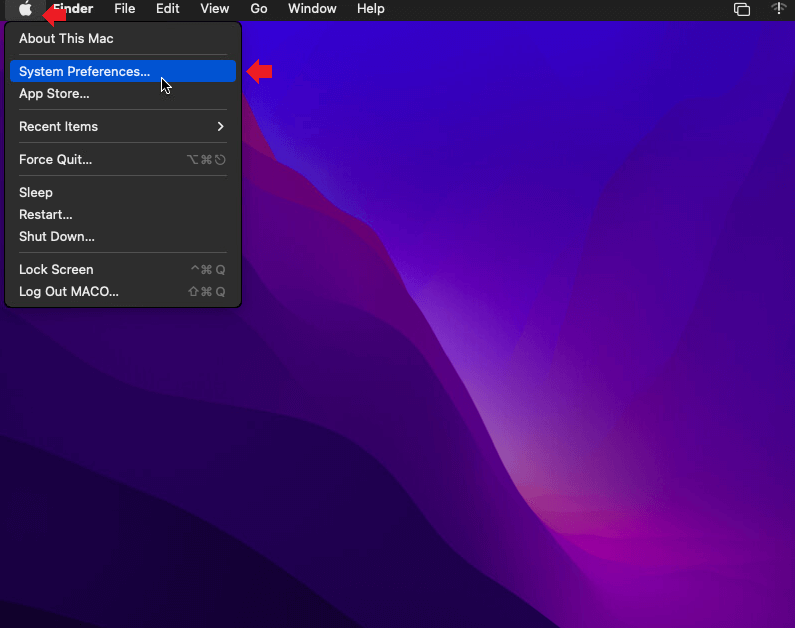
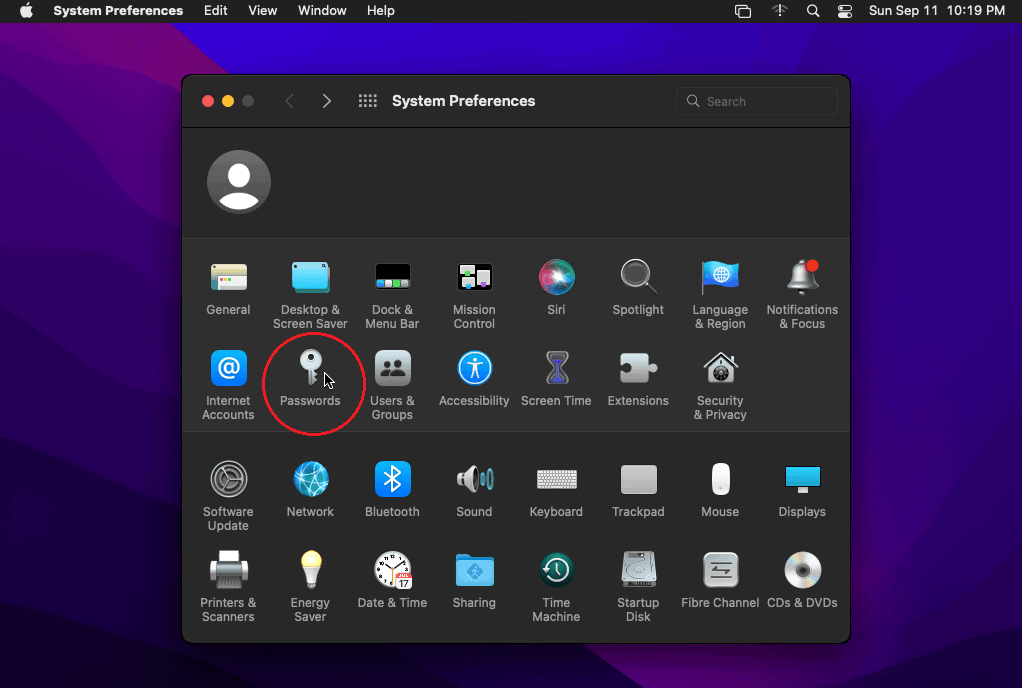
All macOS core settings can be tweaked in the “system preferences” menu, which is also where you’ll find your saved passwords. To start, click your Apple menu bar and click “system preferences.”
- Click the Key Icon
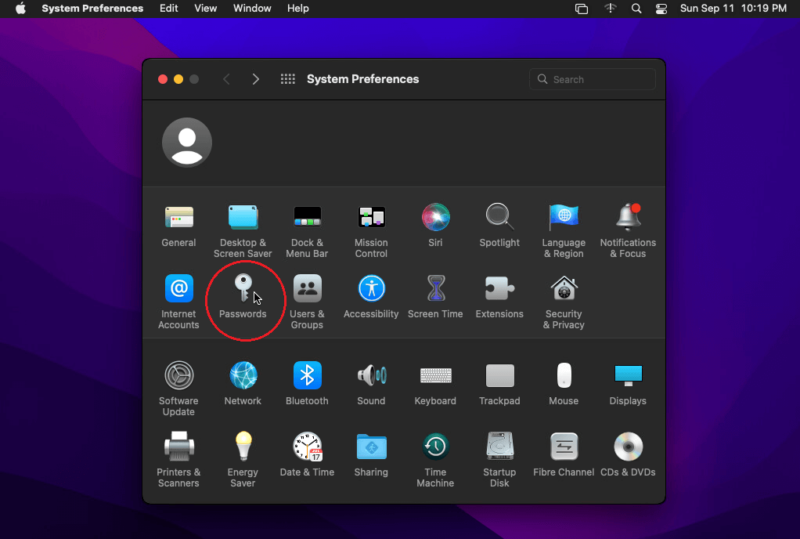
About halfway down the “system preferences” page, look for a key icon labeled “passwords.” Click it to open and manage your saved passwords. If you aren’t signed in to iCloud, you’ll have to use Safari to view saved credentials from other devices. The macOS system keychain won’t sync with your iCloud Keychain if you aren’t logged in.
- Sign in With Your Admin Password
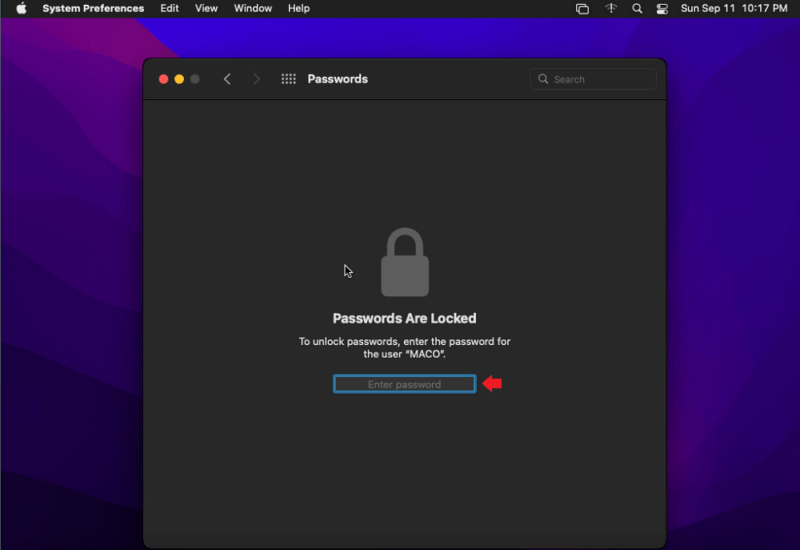
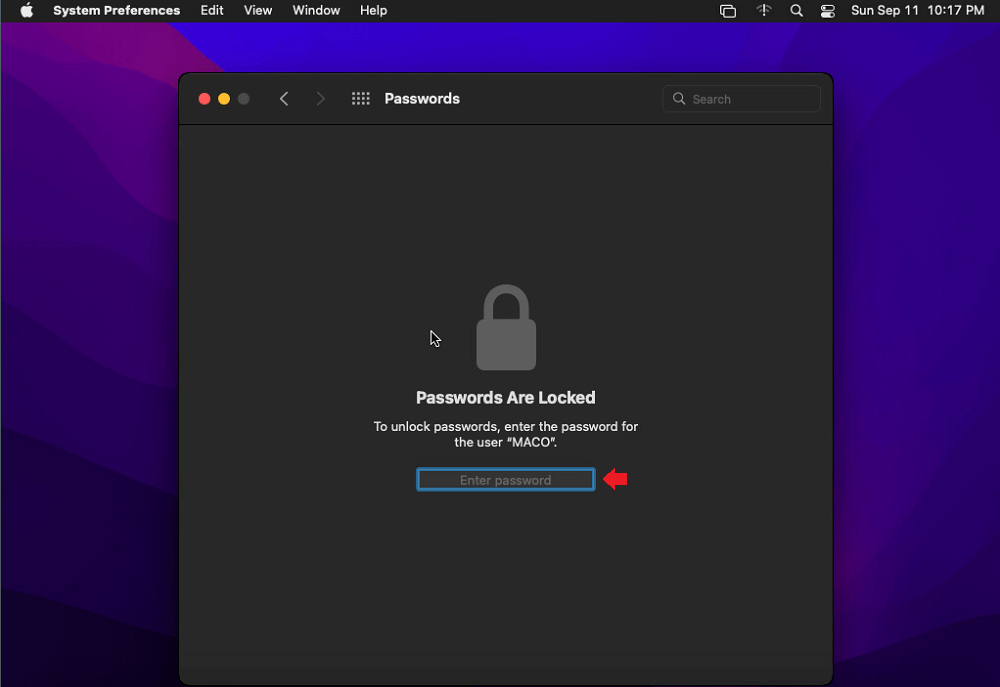
Next, you’ll be asked to sign in with your Mac user password — this keeps your sensitive data secure. All of your passwords and usernames will show once you get keychain access. Enter your account ID and password, use biometrics, or log in with an Apple Watch.
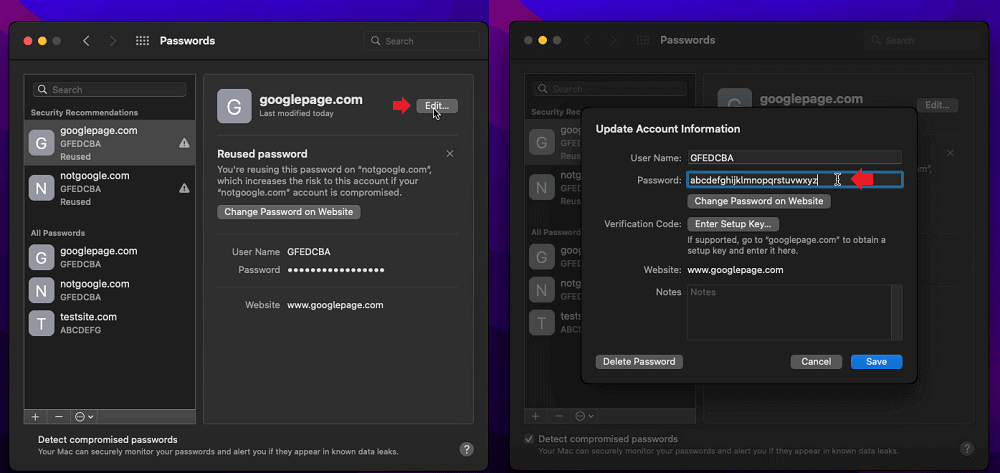
- Select the Website to Edit
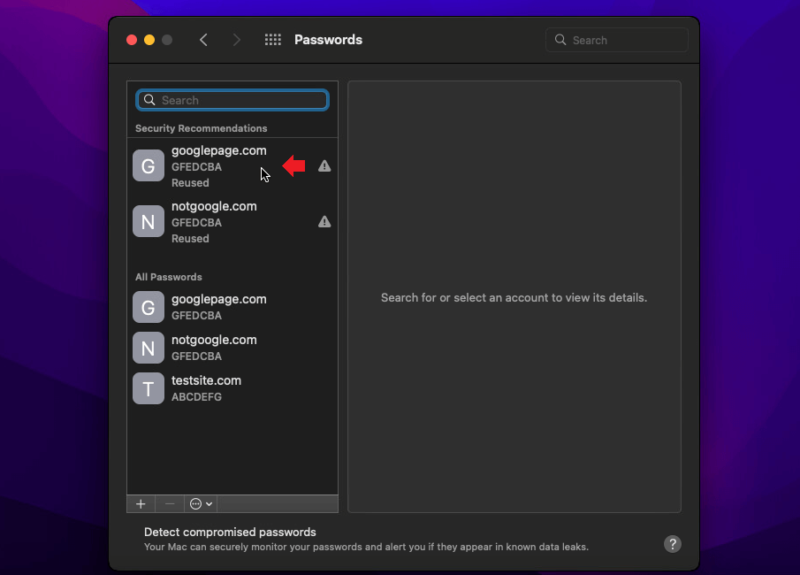
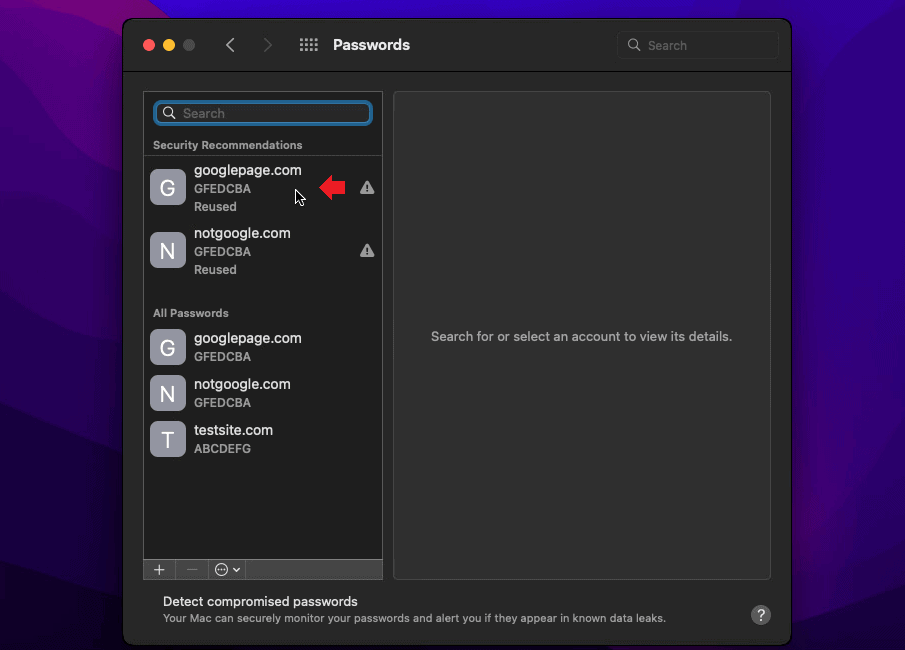
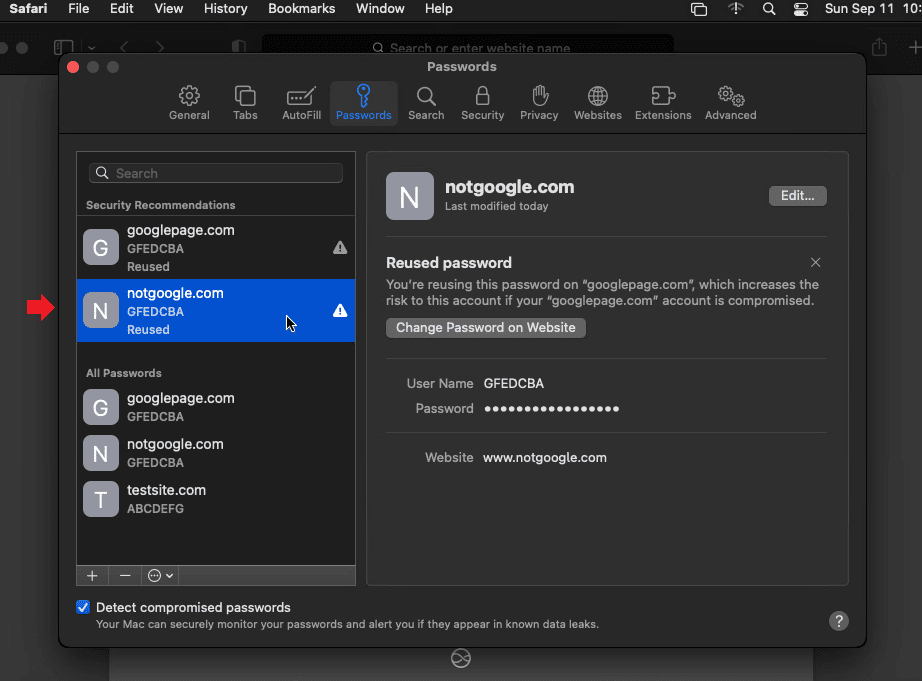
A new window will open that has a list of websites and credentials. As a neat feature, keychain places an exclamation point next to reused passwords. When enabled, both the local and iCloud keychains will also show compromised passwords. Select a website to view its details.
- View, Edit and Save Your Password
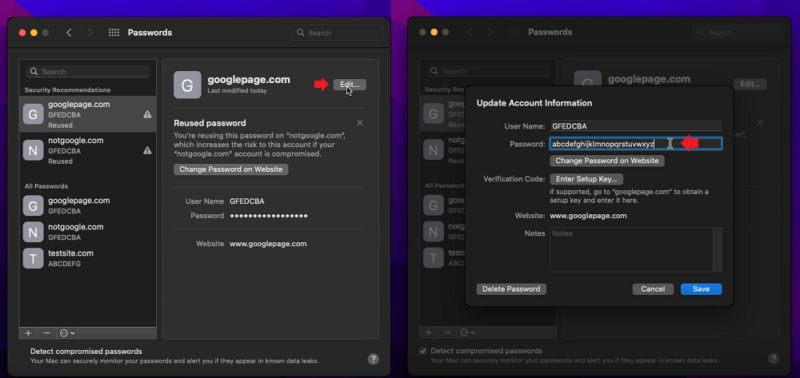
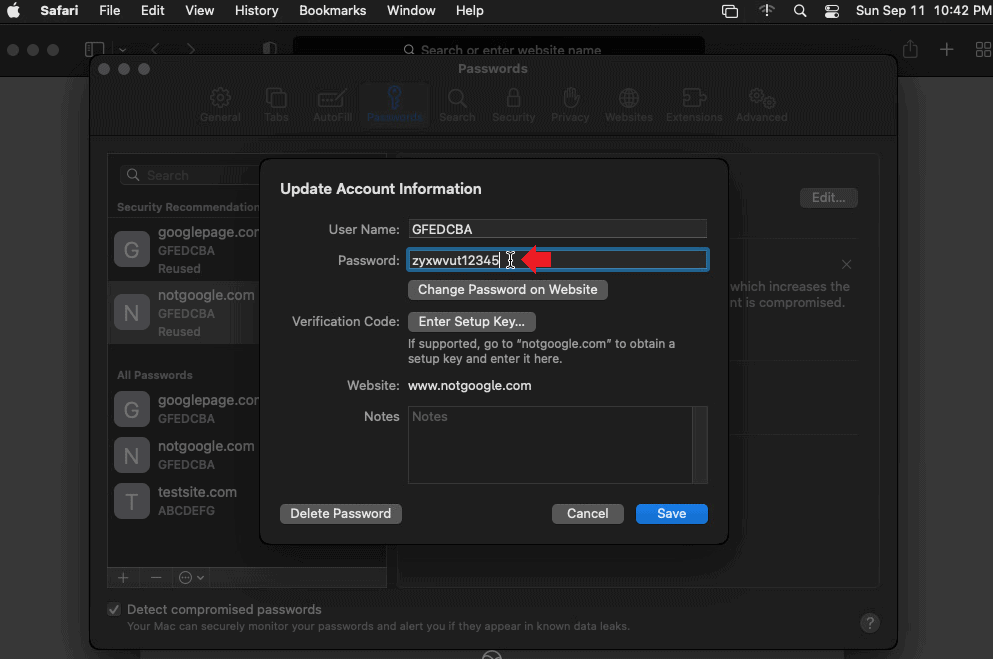
At first, you’ll only see masking dots for passwords on your Mac. Click the “edit” button to change or view a saved password. Making a change here only changes the stored passwords. You’ll still need to change your password on the relevant site. Click “save” and your changes will be safely stored in the keychain.
How Do I Find Saved Passwords on Mac with Safari?
With Safari, you can still find your passwords if you don’t have iCloud or the macOS keychain enabled. This is handy if you’re away from home, on your phone or just borrowing someone’s computer.
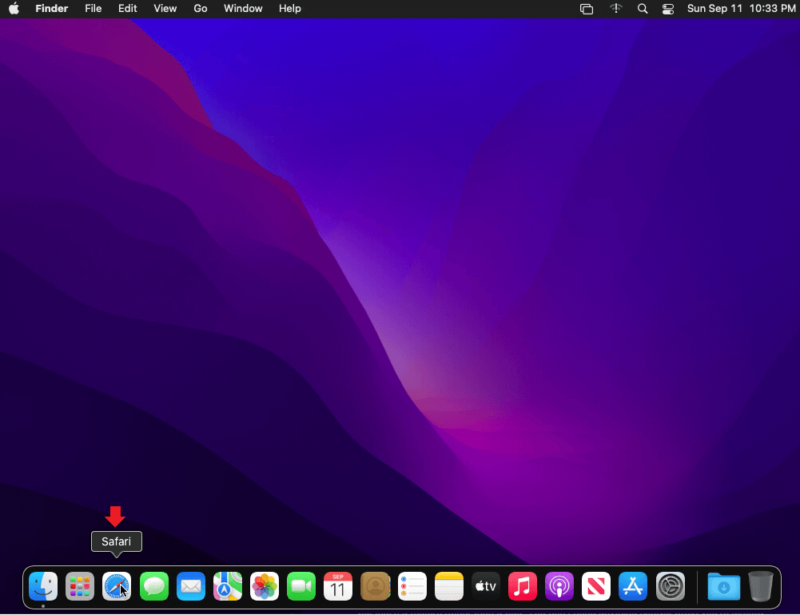
- Open the Safari Browser
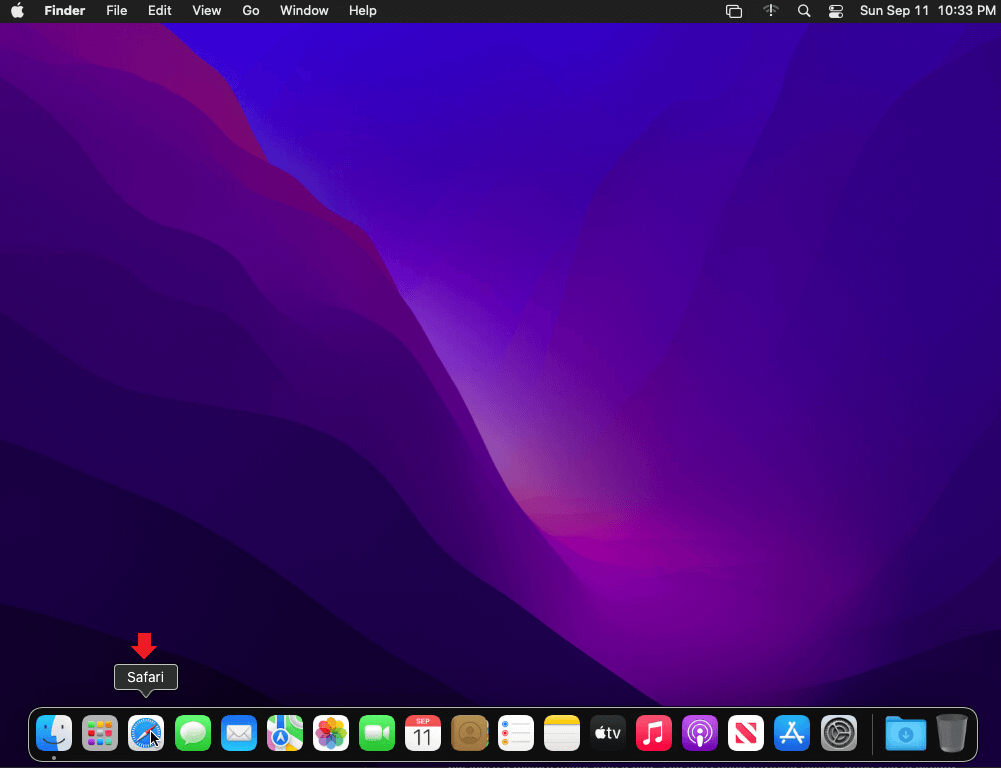
Whether on your computer or phone, open the Safari browser. You can’t use this feature on other browsers like Google Chrome or Microsoft Edge.
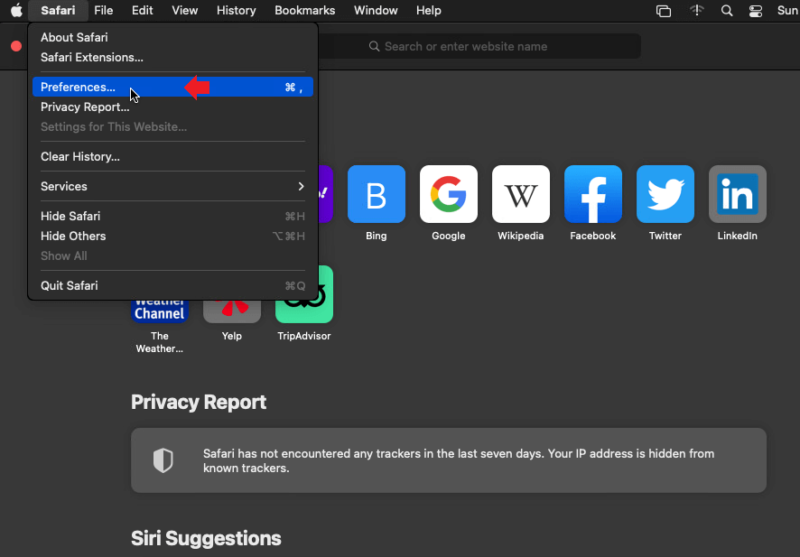
- Open “Preferences” From the Top Menu Bar
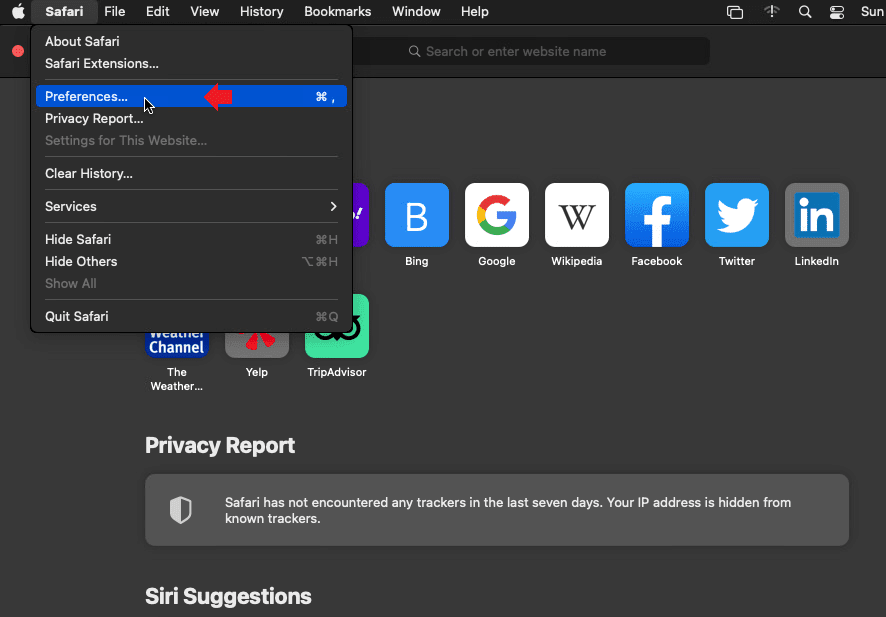
Along the top of your screen, click the Safari menu bar and then click “preferences.”
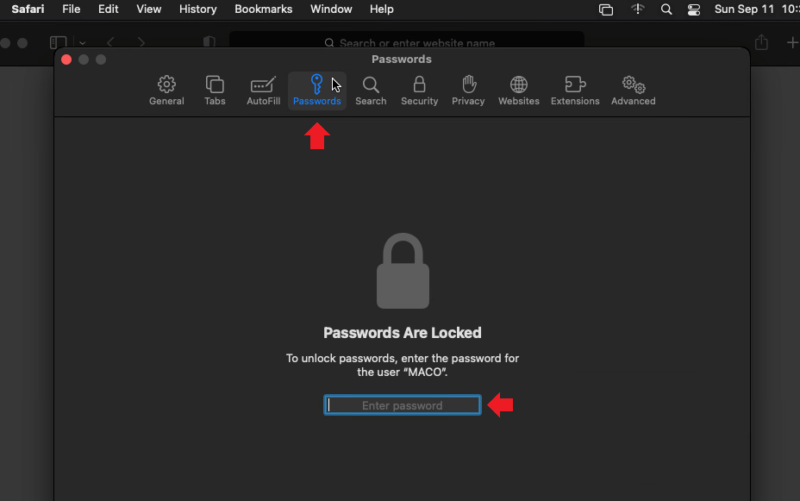
- Sign in to Your Account
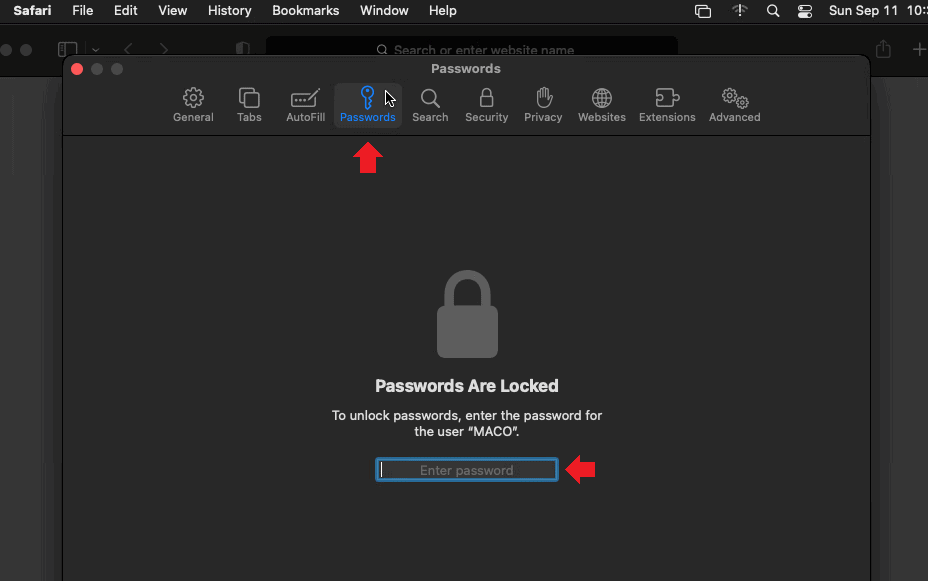
In the next pop-up menu, click the “passwords” key icon. Whether on your own computer or not, input your admin password to get keychain access. This makes sure it’s really you and keeps your credentials secure. Sign in with biometrics, use your username and password, or log in with an Apple Watch.
- Choose the Site to View or Edit
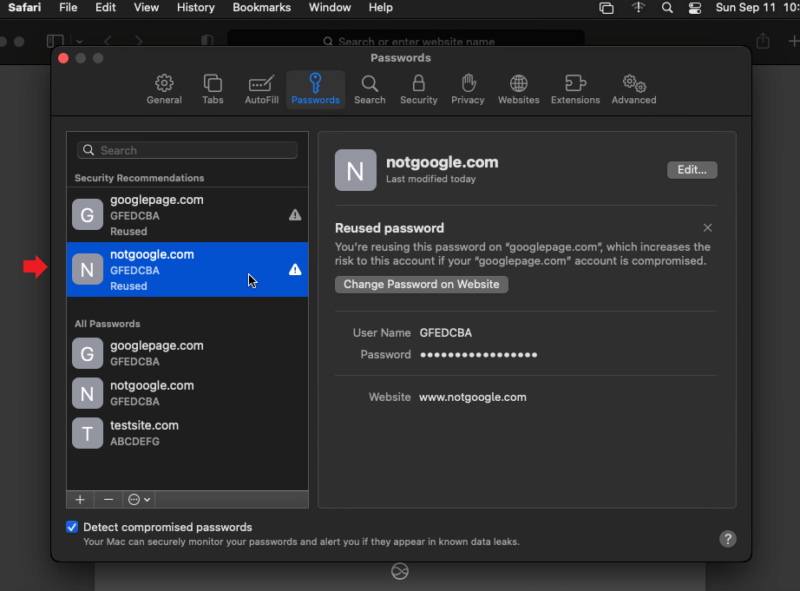
You’ll get a list of sites with all your saved passwords, just like in the “system preferences” menu. This includes saved credentials for all sites you’ve visited. Click a site for the password you want to view or edit.
- View, Edit and Save Your Password
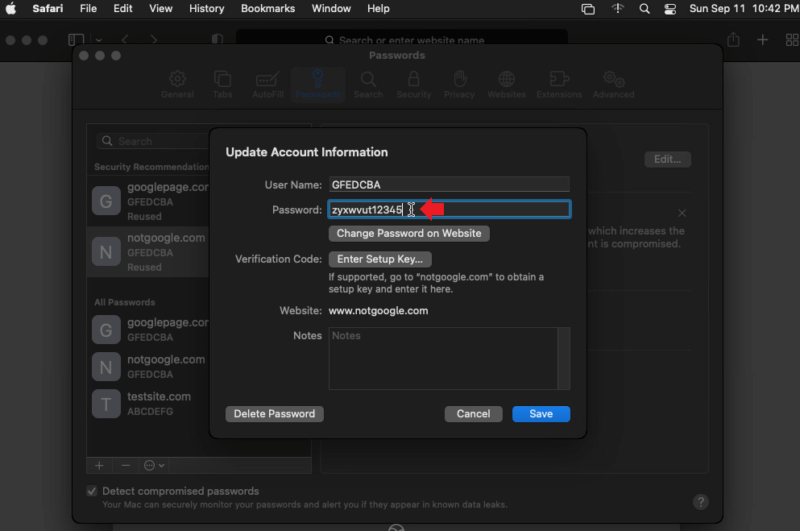
Only masking dots will show when the website details pop up. Click the “edit” button to make changes or view the unmasked password. After you’re done editing, click “save” to store the change. Make sure to also change passwords on the relevant site. You can also get to this menu by saying, “Hey Siri, show my passwords.”
Is iCloud Keychain the Best Password Manager for macOS?
In a lot of ways, iCloud Keychain is a streamlined and well-built embedded feature for password management. However, the macOS keychain system is also very basic. It’s missing fancier features that are well-implemented by services like Proton Pass, LastPass and 1Password.
As examples, you won’t see a family vault, and there’s no way to integrate multi-factor authentication for non-Apple accounts. While you could view Keychain’s simplicity as a feature, rather than a bug, password managers in general are dead simple to use, so you’re not really gaining much in usability by going for an inferior service.

Nonetheless, it’s worthwhile to give iCloud Keychain a try. Yes, it’s incredibly simple, but that’s a feature rather than a bug. You don’t need new apps or a browser extension when you’re using the macOS ecosystem.
Your vault is already protected by Apple’s cloud encryption, and you can save and share that data with other Apple users through AirDrop.
What Are the Best Third-Party Password Managers for Mac?
While iCloud Keychain handles the basics well, it lacks critical features. If you need more from your Mac password manager, here are our top three recommendations.


Final Thoughts: Mac User Password Management
Apple devices have always been a tightly-knit ecosystem of apps designed to work well together. The iCloud Keychain fits this pattern by integrating into the macOS menus and apps. However, if you need features beyond what iCloud Keychain offers, we recommend looking at a dedicated third-party password manager.
Our top pick for Mac users is Proton Pass, which offers unlimited passwords on unlimited devices for free, a strong open-source security posture and fast autofill on both macOS and Safari.
Of course, you can always export passwords from iCloud Keychain to one of these tools. We hope this guide helped you find your Mac passwords, and the right manager to protect them going forward. We’re also interested in your opinions on the iCloud Keychain. Do you use it with your Mac? If not, what pushed you away from the service? Otherwise, thanks for reading and have a great day.
FAQ
A Mac with iCloud enabled stores the keychain in your encrypted cloud account. Passwords are stored in a local encrypted database if you don’t have the iCloud Keychain.
The iCloud Keychain is a solid password manager that provides all the basic features for a secure vault. It’s not the most robust, but it is very easy to use.
For most Mac users, we recommend Proton Pass as the best option, offering unlimited passwords, email aliasing and passkey support with strong open-source credentials.