How to Turn Off Parental Controls on iPhone: Disable Screen Time Easily in 2026
If you no longer need parental monitoring or want to access apps and features that are currently blocked, you need to know how to disable parental controls on iPhone. In this guide, you’ll find the easiest way to disable controls in a couple of minutes.



Written by Kate Hawkins (Editor, Writer)
Reviewed by Samuel Chapman (Writer, Editor)
Facts checked by Simona Ivanovski (Fact-Checker, Formatter)
Last Updated:
All our content is written fully by humans; we do not publish AI writing. Learn more here.
You can use parental control apps, like the screen time feature, to create healthier habits when using iPhones. However, it’s important to know how to disable parental controls on iPhone when you’re ready to give your child more freedom. You may want to revoke some controls so you or your kids can access different settings or make iTunes app store purchases.
In this guide, we’ll show you how to switch off parental control options with and without a password. It only takes a couple of minutes. Afterward, you can allow unrestricted access to Google Play and iTunes, let your child play multiplayer games and configure other settings however you want.
Everything we explain in this guide is built into iOS, but if you’d like further control, check out our full list of the best parental control apps for iPhone.
How Do I Disable Parental Controls on iPhone Devices?
To remove parental control settings from an iPhone, take the following steps.
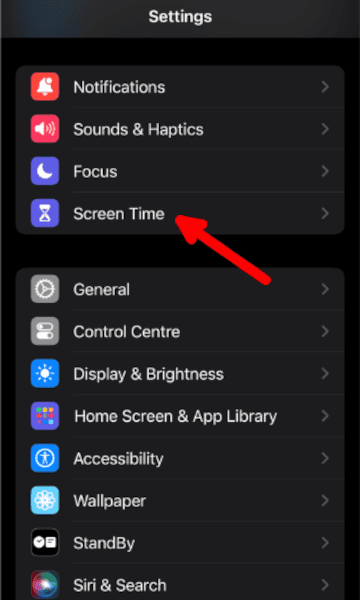
- Open “settings” and tap “screen time.”
All parental control options are in the “screen time” feature menu.
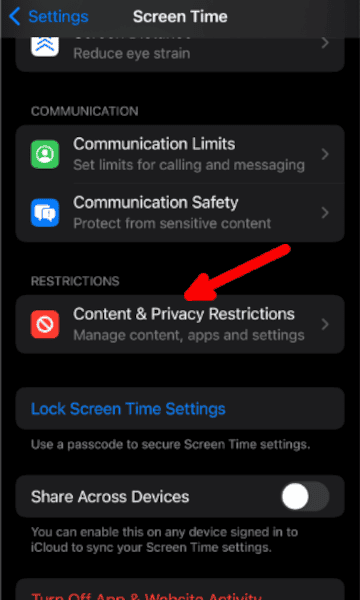
- Tap “Content & Privacy Restrictions.”
You’ll be prompted to enter your screen time passcode before you’re taken to the menu, which is a list of all settings, apps and content available to customize and control.
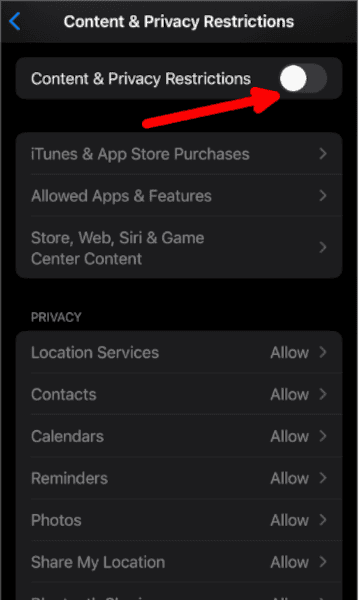
- Toggle Off the “Content & Privacy Restrictions” Option.
Tap “content restrictions” into the “off” position. The settings will turn gray to indicate they are no longer active.
How Do I Delete Some Parental Controls on iPhone Using Screen Time Settings?
When disabling parental controls, you don’t have to switch all the settings off completely. Instead, you can limit access to some iPhone settings (like purchases in the game center or sites with explicit language) while allowing access to other content.
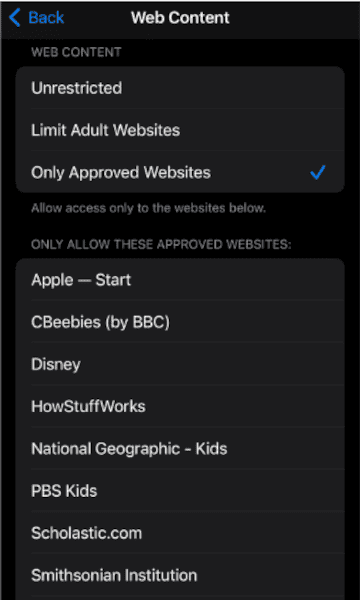
- Tap “Content & Privacy Restrictions” But Don’t Toggle the Feature Off
Instead, scroll down to customize specific apps or allow access to certain content. For example, by picking “only approved websites,” you can specify the kind of web content that is accessible.
How Do I Turn Off Parental Controls on iPhone Without a Password?
There are a couple of ways to turn off parental controls without a password. For most options, you’ll need to know the Apple ID account details. Some methods involve resetting the iPhone to factory settings, resulting in data loss — make sure you create a backup of your iPhone first.
You can:
- Reset the screen time password
- Restore your iPhone to factory settings in iTunes
- Factory reset your device
- Use a third-party tool
Be warned that some of these techniques are also available to tech-savvy kids. See our article on how to hack screen time to make sure they aren’t used against you.
If you don’t know the password and don’t want to lose your data, you can switch off parental controls by changing the password itself. Here’s how.
How to Reset iPhone Screen Time Password
- In the “Screen Time” Options, Tap “Change Screen Time Password.”
You’ll see options to change or turn off the passcode. Tap an option to change it.
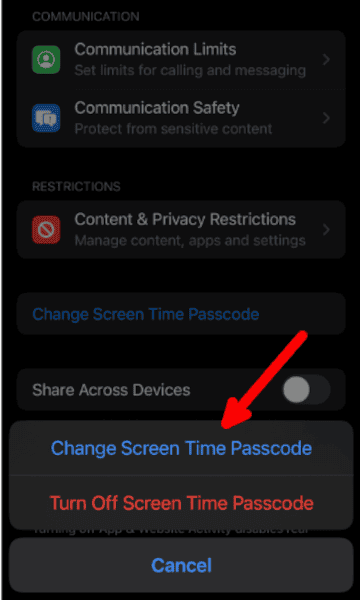
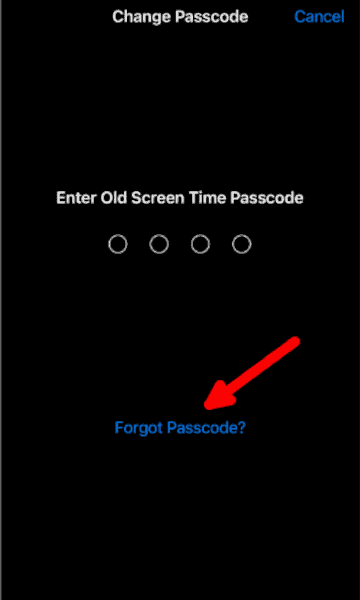
- When Prompted to Enter the Old Password, Tap “Forgot Passcode?”
This takes you to a new screen for which you’ll need to know the Apple ID information to reset the password.
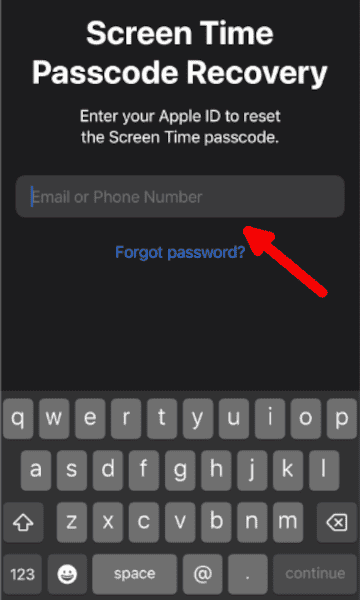
- Enter Your Apple ID Account Details to Reset Your Passcode.
You can now enter a new password and use this new code to switch off the parental control feature.
What Are the Best Parental Control Apps for Mobile Phones?
If you’re looking to replace the default parental control tools with a third-party app, then these are our top three choices.
1. Surfshark


If your child is getting older, you might want to protect them while still offering them privacy around their online activities. Surfshark is the best way to do this, by blocking categories of content that are inappropriate for them. Surfshark also includes a VPN, antivirus, tracker blocker and more. These are great ways to secure your child’s devices.
You can also keep your own data private with Surfshark, thanks to the unlimited simultaneous connections. All this costs just $2.49 per month on the two-year plan. Read our full Surfshark review to learn more, or try it out with the 30-day money-back guarantee.
- Unlimited GB bandwidth, Unlimited devices, Secure VPN, Ad blocker, Cookie pop-up blocker. Pricing for the annual and biennial plans only apply for the first payment. Renewal fees vary.
- Unlimited GB
- Unlimited
- Yes
- Everything in Starter, plus Antivirus protection, Identity protection, Email Breach and Credit Card Alerts, Online Alias Pricing for the annual and biennial plans only apply for the first payment. Renewal fees vary.
- Unlimited GB
- Unlimited
- Everything in One, plus Data removal Pricing for the annual and biennial plans only apply for the first payment. Renewal fees vary.
- Unlimited GB
- Unlimited
2. Qustodio
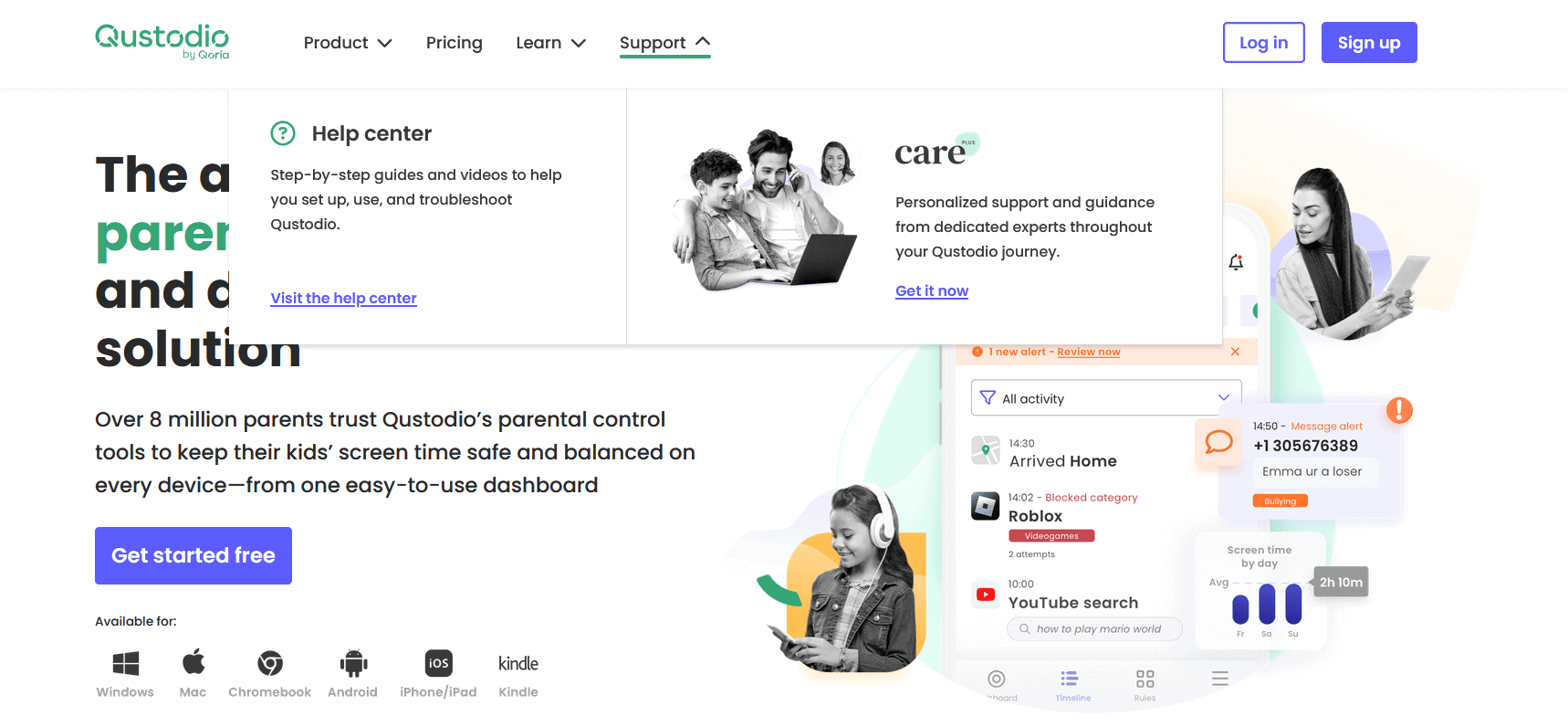
features than the built-in tools.

Qustodio is a great parental control tool if you need more control over your child’s devices. There are screen time limits, content filtering, website blocking, location monitoring and more. You can monitor your child’s messages and set up custom alerts for if your child searches certain key words.
If you want to test it out, Qustodio offers a free plan for monitoring a single device. The Basic plan increases this to 5 devices for $54.95 per year or you can get the Complete plan for $99.95 per year for unlimited devices. $54.95.
3. OurPact
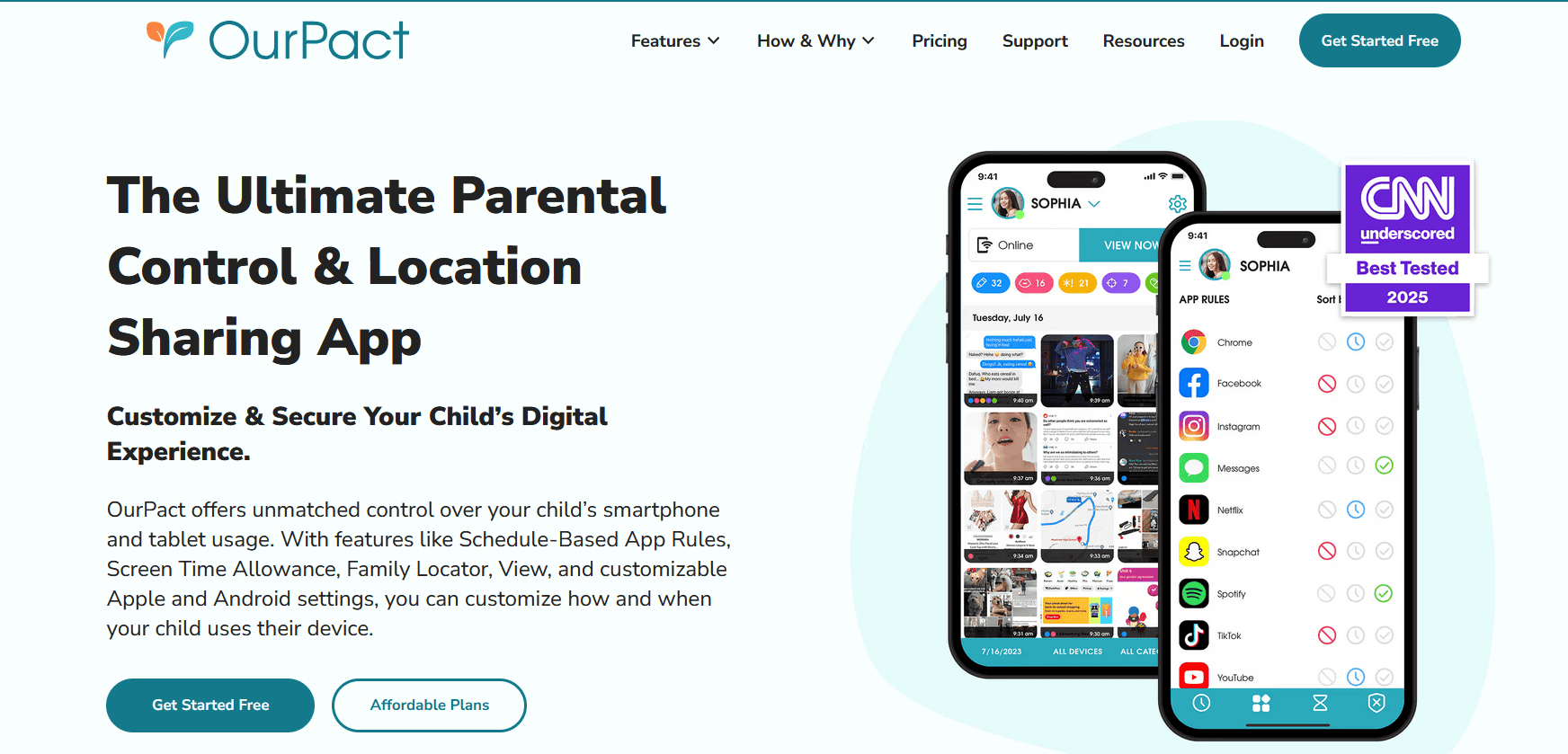
OurPact is a more iPhone-focused parental control app, with a wide array of features for monitoring your child. This includes the ability to block adult content, restrict app use, manage screen time and monitor your child’s location. You can easily grant extra time or add restrictions as you go and receive alerts when your child searches for banned content
One of the more unique features that OurPact offers is automated screenshot captures. This lets you take screenshots, either on a schedule or on-demand, and monitor them on the parent device. You can test OurPact out on a single device for free, or get the Premium plan for $69.99 per year with two years free.
| Plan: | Price | Features |
|---|---|---|
| Premium | $6.99 per month $69.99 per year* | Unlimited schedules, Unlimited blocks, Unlimited grants, Unlimited app rules, Unlimited allowance, Unlimited family locator, Unlimited block texting, Unlimited app alerts, Up to 20 devices |
| Premium+ | $9.99 per month $99.99 per year* | Everything in Premium & screenshot captures |
Final Thoughts: Turn Off iPhone Parental Controls
Content restrictions work well when you want your kids to avoid certain apps or websites, but it can be frustrating to encounter blocks when you want to make changes to settings. Fortunately, it’s pretty easy to turn off controls, as long as you know your passwords or Apple ID account details.
Have you used parental controls for your devices or a family member’s? Do you think they’re effective, or are these restrictions too easy to bypass? Let us know what you think in the comments. Thank you for reading.
FAQ: Remove Parental Controls Without a Screen Time Passcode
Parental controls allow parents to manage how their children use iPhones. This includes settings like restricting app store purchases and access to inappropriate content, limiting screen time and blocking specific apps (like multiplayer games or social media).
You can turn off parental controls in the screen time settings by toggling off “content & privacy restrictions.” You may need to enter your device password to turn off the setting.
Most parental settings turn off automatically when the owner of the Apple ID turns 18. If the account is part of a family sharing group with “ask to buy” enabled, the family organizer must disable it.
The top parental control apps for iPhone include Qustodio, Net Nanny, the screen time feature and Mobicip.