5 Best Windows Cloud Storage Services
OneDrive is Windows’ recommended cloud storage service. However, I know of several alternatives that may suit you better. I’ll go over the best Windows cloud storage services in this article.



Written by Rebecca White (Writer)
Reviewed by Kate Hawkins (Editor, Writer)
Facts checked by Simona Ivanovski (Fact-Checker, Formatter)
Last Updated:
All our content is written fully by humans; we do not publish AI writing. Learn more here.
Key Takeaways: These Are the 5 Best Cloud Storage Services for Windows
- Sync.com — The best Windows cloud storage with Office 365 integration. Get a 2TB plan for $4.80 per month.
- pCloud — Includes an integrated media viewer and organizer. Try its 2TB plan for $8.33 per month.
- Internxt — Open-source, secure cloud storage. Get a one-year 1TB plan for $1.67 per month.
- Proton Drive — Comes with additional productivity tools, including Docs and Sheets, with the 200GB plan costing $3.99 per month.
- OneDrive — The default cloud storage software for Windows. Get a 1TB annual plan for $8.33 per month.
Facts & Expert Analysis About the Best Cloud Storage for Windows:
- OneDrive alternatives: The best cloud storage services for Windows need to be on par with or better than Windows’ own cloud storage, OneDrive. The options on this list offer competitive pricing, storage limits or feature sets.
- Strong security: The security of your files is important, and any cloud storage alternatives should offer comparable security or better. The options in this article improve on OneDrive by offering client-side encryption.
- Guaranteed privacy: Microsoft doesn’t have the best reputation for privacy. The cloud service alternatives I recommend have better, more dependable privacy.
OneDrive is a very good cloud storage service for Windows, especially with its integration with the Office 365 apps. However, if you’re looking for something different, perhaps with more security and privacy, our list of the best cloud storage services has plenty of Windows-focused options.
In this article, I go over some of the top Windows cloud storage providers. While my personal favorite is Sync.com for its security, OneDrive still makes the list, plus three other services. Read on to learn all the details.
-
12/11/2021 Facts checked
Completed a fresh evaluation of the best cloud storage options for Windows.
-
06/24/2022 Facts checked
Updated to include Sync.com’s month-by-month option.
-
12/08/2023 Facts checked
Updated MEGA’s price offerings.
-
04/11/2024 Facts checked
Updated to reflect changes in Icedrive’s pricing plans and storage offers.
-
03/14/2025 Facts checked
Added video ranking of the Best OneDrive Alternatives.
-
09/18/2025 Facts checked
We updated the article to reflect Icedrive’s new pricing structure.
-
03/13/2026 Facts checked
We updated our ranking based on new testing results, pricing structures and feature sets.
Cloudwards’ Choice: Sync.com
 Cloudwards’ Choice: Sync.com
My top choice for Windows cloud storage is Sync.com due to its compatibility with Office 365 and strong encryption standard. As I frequently work with Office documents, Sync.com’s ability to open and edit Word, Excel and PowerPoint files is a time-saver when I’m collaborating with others. You can get an annual 1TB subscription for $6 per month.
How Do You Choose the Best Windows Cloud Storage?
Windows is the most common desktop operating system, so the majority of cloud storage options offer at least one type of Windows compatibility. Basic Windows compatibility is the bare minimum you should consider for cloud storage.
To find the best Windows cloud storage solution for your needs, you should also think about security, storage size options, privacy and the ability to view, edit or even create Office 365 files.
10,000+ Trust Our Free Cloud Storage Tips. Join Today!

- Demystify cloud storage terminology and key concepts in plain language
- Discover easy-to-implement techniques to securely backup and sync your data across devices
- Learn money-saving strategies to optimize your cloud storage costs and usage
What Are the 5 Best Windows Cloud Storage Providers?
| Service: | Free Storage | Best Price | Server In | E2EE* | Collaboration | Sharing | Security |
|---|---|---|---|---|---|---|---|
 | 5GB | $2.65/month | Canada | Yes | MS Office | | AES-256, TLS/SSL |
 | 10GB | $5.53/month | Texas, Luxembourg | Yes (paid) | None | | AES-256, TLS/SSL |
 | 1GB | $1.67/month | Spain | Yes | None | | Kyber-512, AES-256, TLS/SSL |
 | 5GB | $3.99/month | Norway, Germany Switzerland | Yes | Proprietary | | ECC Curve25519, OpenPGP, TLS/SSL |
 | 5GB | $1.67/month | Worldwide | No | MS Office | | AES-256, TLS |
1. Sync.com — Best Windows Cloud Storage

Sync.com is the best overall cloud storage for Windows. Its Office 365 support means you can edit any uploaded Word documents. Upload and download speeds are slow, but this is due to strong security and client-side encryption, which encrypts your files, protecting them from everyone, including Sync.com itself.
Sync.com Hands-On Testing
One of my favorite features of Sync.com is the collaboration tools. You can upload and view Office 365 files and even create and share documents straight from your cloud storage. Easy access to these shared files facilitates real-time collaboration among teams.
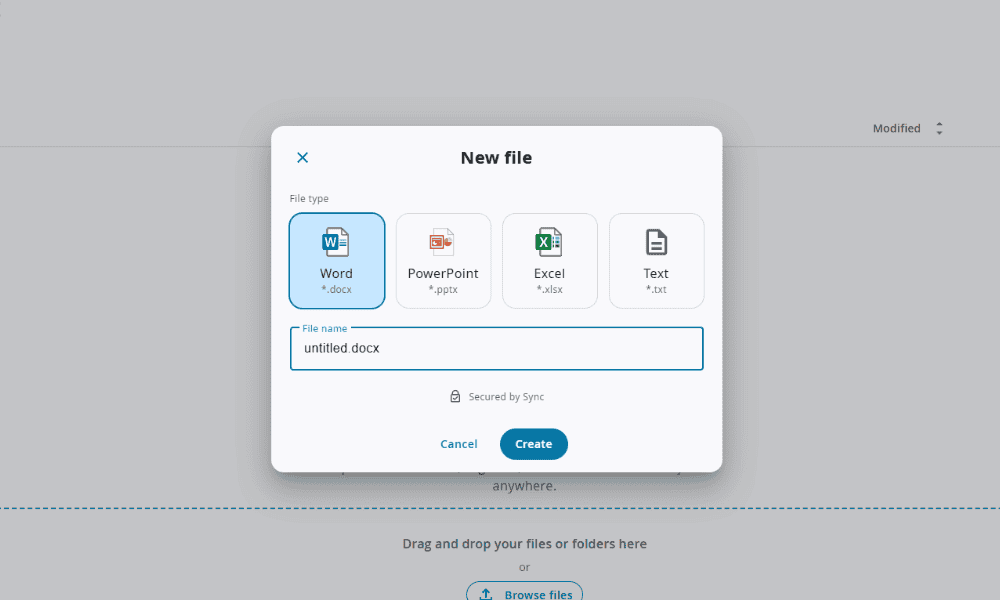
However, I find that Sync.com’s sharing could be improved. Although you can create upload folders for anyone to share files with you, Sync.com doesn’t offer a way of downloading folders or multiple files at once. You’ll either have to download each file individually or set up the app on your desktop to sync the folder to your device.
Notes From the Lab: Sync.com Speed Test Results
| First Test | Second Test | Average |
|---|---|---|---|
| Upload Speeds | 09:43 | 09:51 | 09:47 |
| Download Speeds | 11:48 | 12:04 | 11:56 |
Our team tests cloud storage speeds with a 5GB folder of mixed media types, which is uploaded and downloaded on a connection throttled to 100 Mbps. Although Sync.com’s speeds tend to improve every time we run these tests, it is one of the slowest options. It’s also not very stable and uploads larger files at a slower rate than smaller ones.
Notes From the Lab: Sync.com Security Analysis
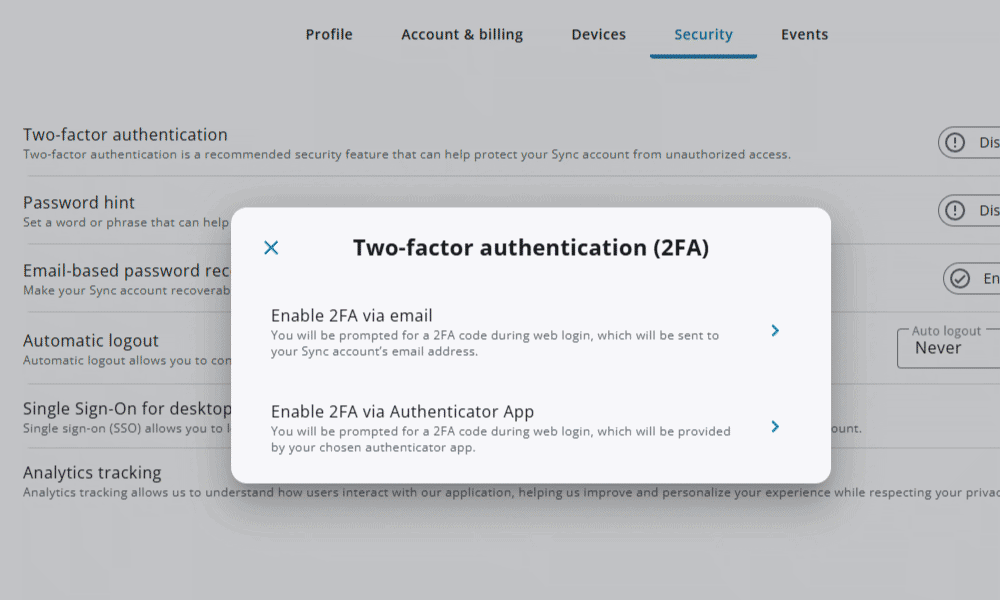
strong account security measures.
| Encryption Type: | Encryption Protocols Used |
|---|---|
| Encryption at rest | AES-256 |
| Encryption in transit | TLS/SSL |
Sync.com has very strong security, with AES-256 bit encryption protecting files at rest. It also implements free client-side encryption across your entire storage space.
What Is Sync.com’s Pricing and Value?
Sync.com is an affordable service if you’re after long-term storage. You can get 5GB for free, with annual plans starting at $2.65 per month for 200GB. Storage options go all the way up to unlimited storage on the Pro Teams+ plan for $15 per month, annually. For more information, read our Sync.com review.
- 5GB
- 2TB
More plans
- 6TB
- per user, per month, billed annually
- 1TB
- Priced per user (3 users minimum)
- Unlimited GB
- Minimum 100 users, custom requirements, account manager, training options
2. pCloud

pCloud is a great choice for Windows users who work with photos and audio or video files, particularly as part of a team. It includes a built-in media viewer that you can use to preview images, MP3s or MP4s without downloading them.
pCloud Hands-On Testing
pCloud comes with basic photo-editing tools, such as crop and color rebalance. It has the most impressive image-processing features I’ve seen from a cloud storage service. You can save any changes you make to the original image or as a copy. I find this useful for making quick adjustments to images before sharing them with others.

You can even access these features on pCloud’s free tier, which offers up to 10GB of free storage. When I created an account, I was granted 2GB of free storage, with the option to expand up to 10GB through referrals and by downloading the app.
Notes From the Lab: pCloud Speed Test Results
| First Test | Second Test | Average |
|---|---|---|---|
| Upload Speeds | 09:43 | 09:51 | 09:47 |
| Download Speeds | 11:48 | 12:04 | 11:56 |
pCloud had very high speeds during testing, making it one of the fastest services on this list. However, the speeds aren’t the most stable — the software may slow down significantly during large file transfers. It also had a bigger impact on CPU than other services.
Notes From the Lab: pCloud Security Analysis
| Encryption Type: | Encryption Protocols Used |
|---|---|
| Encryption at rest | AES-256 |
| Encryption in transit | TLS/SSL |
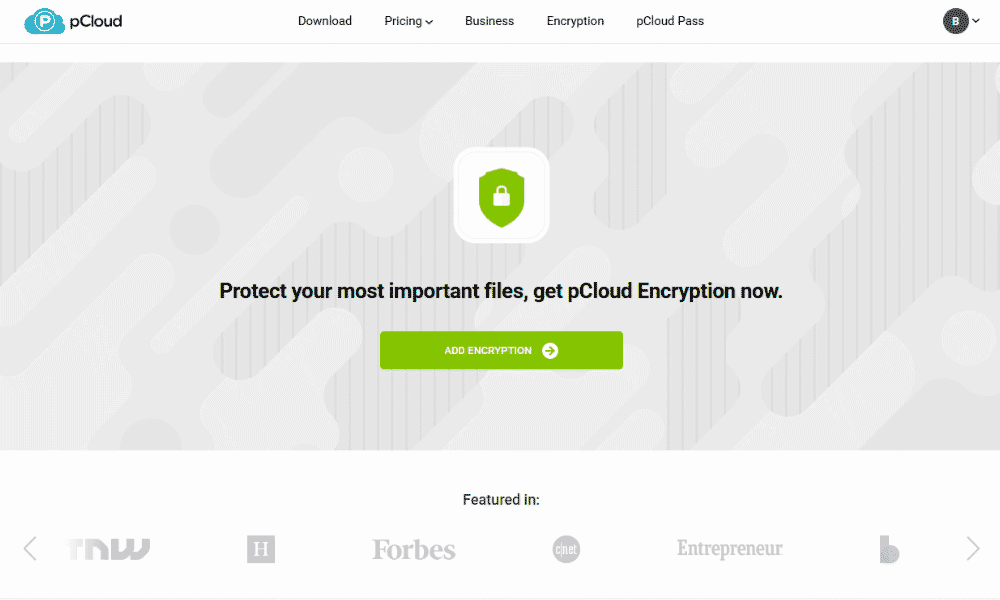
Like most cloud storage services, pCloud implements AES 256-bit encryption for storage. However, client-side encryption is locked behind a paywall and isn’t integrated into the main storage or free plan.
What Is pCloud’s Pricing and Value?
pCloud is a good option for long-term storage. It is one of the best options for lifetime plans, with 2TB of storage available for a one-time payment of $399. The provider also has good annual plans. A one-year 2TB subscription costs $8.33 per month.
The only downside to pCloud is that its client-side encryption is an additional expense via an add-on feature. It costs an extra $49.99 per year on the annual plan. Read our pCloud review for more information about the service.
- 10GB
- 500GB
- 2TB
More plans
- 10TB
- + FREE Encryption
- 2TB
- + FREE Encryption
- 10TB
- Price per user (minimum 3)
- 1TB
- Price per user (minimum 3)
- 2TB
- Encryption for pCloud Drive
3. Internxt— Best Security-Focused Cloud Storage for Windows

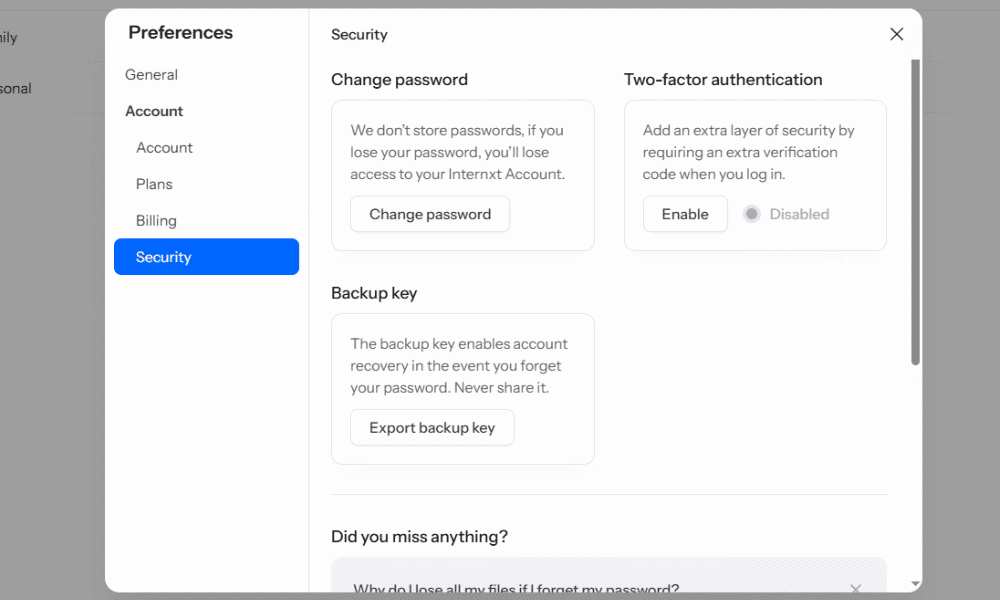
Internxt is one of the most secure Windows cloud storage providers. On top of client-side encryption, it implements post-quantum Kyber-512 encryption. This means its security can stand up to quantum computing threats. As a bonus, all of Internxt’s coding is open source, and its security claims are verifiable.
Internxt Hands-On Testing
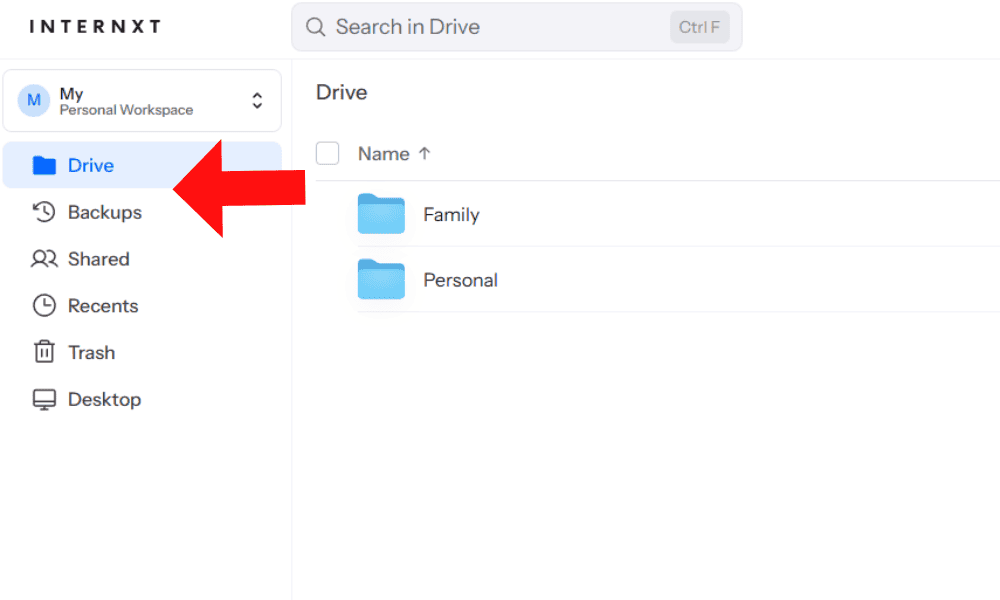
Internxt’s web client and desktop app are user-friendly, with a clean and minimalistic interface that I found easy to navigate while uploading and syncing files. The Windows app comes with a backup service, and you can go to the web client to view your backed-up devices.
Beyond its cloud storage offering, I appreciate that Internxt comes with other privacy-focused security tools. For example, its VPN helps you protect your internet activities, and its antivirus safeguards your device against viral attacks.
Notes From the Lab: Internxt Speed Test Results
| First Test | Second Test | Average |
|---|---|---|---|
| Upload Speeds | 07:57 | 08:05 | 08:01 |
| Download Speeds | 09:26 | 09:30 | 09:28 |
Internxt’s upload speeds were decent during testing, but its download speeds were on the slower side. The speeds were not very stable, either. The software struggled to maintain high speeds with larger files, and it had a moderate impact on CPU. This could be due to the encryption standard in place.
Notes From the Lab: Internxt Security Analysis
| Encryption Type: | Encryption Protocols Used |
|---|---|
| Encryption at rest | Kyber-512 & AES-256 |
| Encryption in transit | TLS/SSL |
Internxt stands out for its post-quantum Kyber-512 encryption protocol, which it uses alongside AES-256. It also implements client-side encryption across the entire storage space free of charge.
What Is Internxt’s Pricing and Value?
Internxt has an attractive starting price of $1.67 per month for an annual 1TB plan. Although this is a very affordable introduction to cloud storage, be aware that the price goes up substantially after the first year. The same annual 1TB plan increases to a heftier $11 per month upon renewal. Check out our Internxt review for more details.
- 1GB
- Post-quantum encryption Zero-knowledge encryption Two-factor authentication Backup your computer Password-protected file sharing Encrypted VPN Antivirus
- 1TB
- Everything in Essential plus; Cleaner Invite, share & collaborate File versioning (coming soon) Cleaner
- 3TB
More plans
- Everything in Premium plus CLI & WebDav support NAS & Rclone support Meet Mail (coming soon)
- 5TB
- Annual Price is per user
- 1TB
- Annual Price is per user
- 2TB
4. Proton Drive— Best Windows Cloud Storage for Collaboration
![Video thumbnail for the video: I Tested Proton Drive to See If It's as Private as It Claims [2024 REVIEW]](https://img.youtube.com/vi/XWmsFdm-VLg/maxresdefault.jpg)
Proton Drive is a good choice for Windows users who need secure collaboration for teams. With a Proton Drive plan, you also gain access to other productivity tools, such as Docs and Sheets. You can also opt for the full Unlimited Proton privacy suite, including Mail, Calendar and more.
Proton Drive Hands-On Testing
Installing Proton Drive on Windows is straightforward. The automatic installation process adds a dedicated sync folder to the Windows file explorer, which I find makes it easier to drag and drop files to sync.
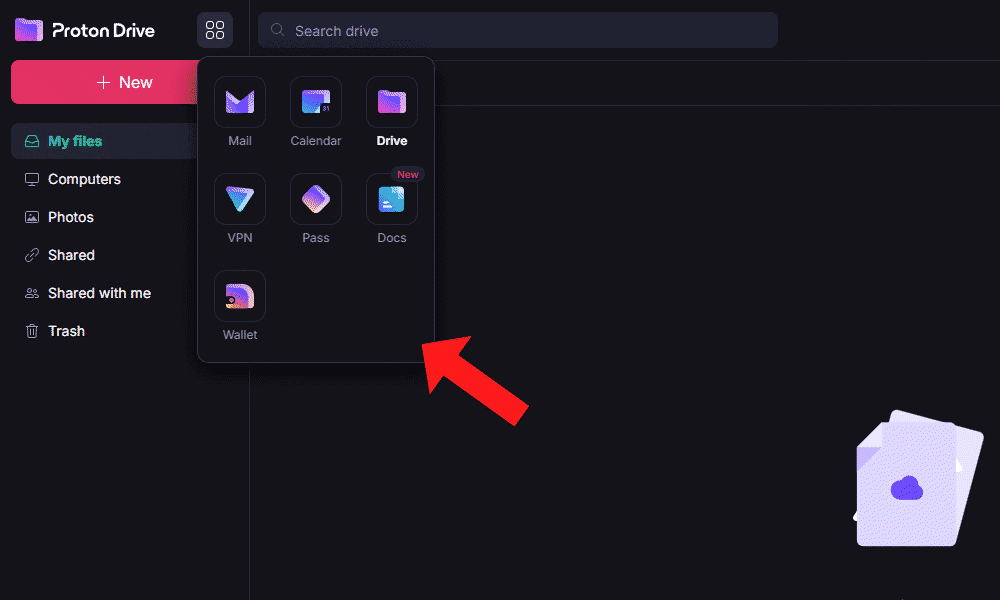
I also like that the Windows app includes a section for shared files. This makes collaboration among teams more seamless, as you don’t need to open the web client to access documents that your colleagues are working on.
Notes From the Lab: Proton Drive Speed Test Results
| First Test | Second Test | Average |
|---|---|---|---|
| Upload Speeds | 07:17 | 07:13 | 07:15 |
| Download Speeds | 07:06 | 07:16 | 07:11 |
Proton Drive’s speeds are impressive. The 5GB test file transferred quickly over a stable connection. Considering its low CPU usage, Proton Drive is a good choice for continual file uploads.
Notes From the Lab: Proton Drive Security Analysis
| Encryption Type: | Encryption Protocols Used |
|---|---|
| Encryption at rest | ECC Curve25519, OpenPGP |
| Encryption in transit | TLS/SSL |
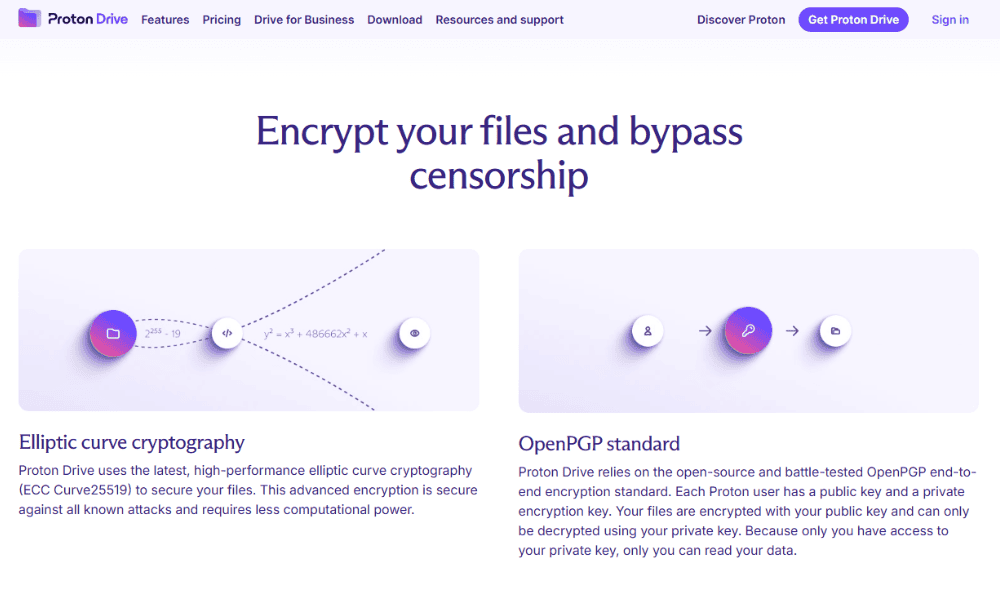
Proton Drive uses ECC Curve25519 and OpenPGP, which are among the strongest encryption standards available, to encrypt files at rest. Like Internxt, Proton Drive is open source, which means anyone can audit its security claims.
What Is Proton Drive’s Pricing and Value?
Proton Drive is one of the pricier options on this list, but it comes bundled with other Proton apps, depending on the plan. The Drive Plus plan starts at $3.99 per month for 200GB, including Docs and Sheets. The Unlimited plan provides 500GB with all the Proton apps for $9.99 per month. Read our Proton Drive review for more information.
- 5GB
- 200GB
- 500GB
More plans
- 2TB
- 3TB
- per user
- 1TB
- per user, minimum of 2 users
- 1TB
- 1TB
5. OneDrive — Best Default Cloud Storage for Windows

OneDrive is Windows’ default cloud storage, so it offers native integration with both the Windows operating system and Office 365. You can create Word, Excel, PowerPoint and OneNote documents straight from your storage and share them with others.
OneDrive Hands-On Testing
OneDrive gives you two storage spaces, one for photos and another for files. As I frequently work with documents and my photos often get buried, I appreciate having separate storage spaces. The OneDrive mobile app works especially well for photos, allowing you to automatically upload into OneDrive picture folders.
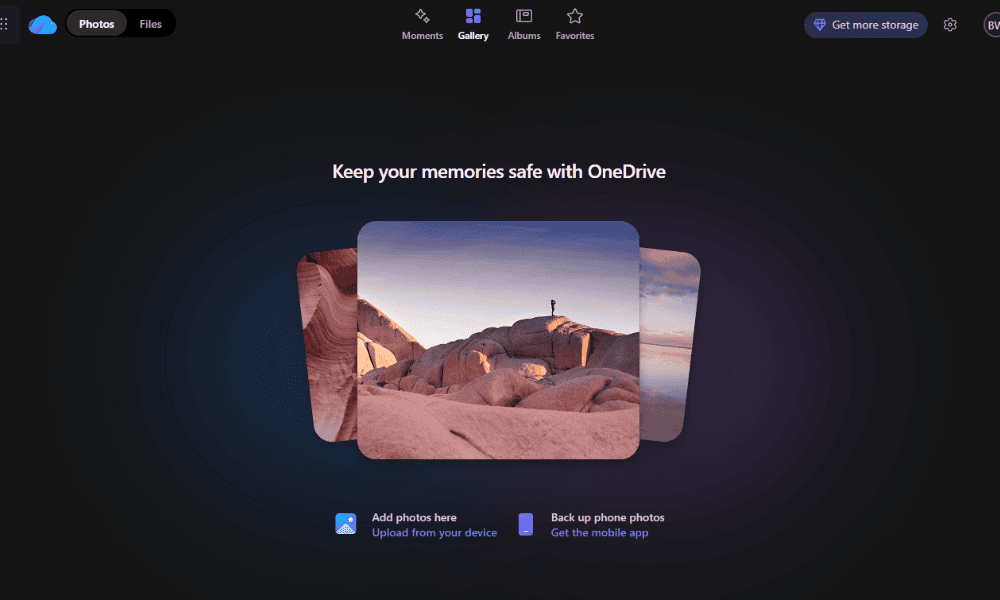
I find OneDrive’s best feature is “files on-demand,” which I used to clear some space on my physical drive and store my files only in the cloud. Although this option won’t always work when you have poor internet or none at all, it makes it easier to work on a team without using up your device’s storage.
Notes From the Lab: OneDrive Speed Test Results
| First Test | Second Test | Average |
|---|---|---|---|
| Upload Speeds | 07:12 | 07:27 | 07:20 |
| Download Speeds | 07:16 | 07:20 | 07:18 |
OneDrive was very fast during testing, if a little slower than pCloud and Proton Drive. As a bonus, it demonstrated minimal CPU usage.
Read Notes From the Lab: OneDrive Security Analysis
| Encryption Type: | Encryption Protocols Used |
|---|---|
| Encryption at rest | AES-256 |
| Encryption in transit | AES-256 |
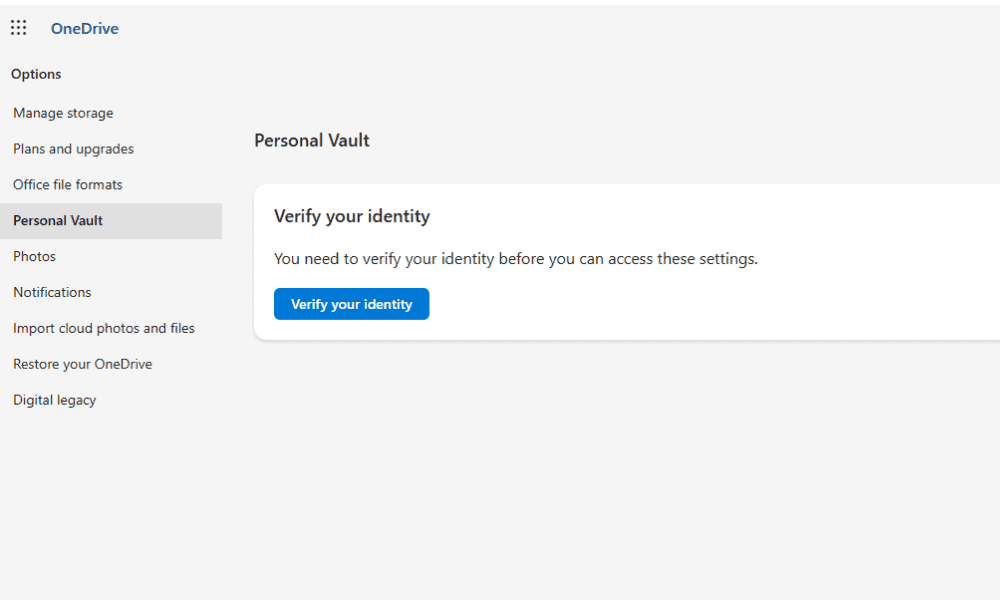
OneDrive uses the AES-256 encryption security standard to protect your files. The one major downside of the service is the lack of client-side encryption. This means the provider has access to your encryption keys, which introduces the possibility of internal snoopers viewing your files.
What Is OneDrive’s Pricing and Value?
OneDrive has a decent 5GB free tier, but it offers great value with its Office 365 integration. For $8.33 per month on annual billing, you get 1TB of storage, the Office suite, Teams, Designer and Clipchamp. Take a look at our OneDrive review for more information.
- For one person
- 5GB
- 100GB
- Comes with Office 365 Personal
- 1TB
More plans
- Comes with Office 365 Home
- 6TB
- Price per user
- 1TB
- 1TB
- Price per user
- 1TB
Our Methodology: How Did We Test the Best Windows Cloud Storage?
To find the best cloud storage services for Windows, I tested each provider using the following criteria:
- Speeds: I picked services that offer high speeds, stability or low CPU usage based on upload and download speeds from our rigorous speed testing.
- Microsoft compatibility: I looked into how well each service integrates with the Windows operating system and checked for Office 365 compatibility.
- Productivity and sharing: I tested how easy it is to use the sharing features and collaboration tools that each platform provides.
- Security: I made sure each provider implements the AES 256-bit encryption standard at a minimum. Most providers also offer some form of client-side encryption.
- Privacy: I picked services that prioritize user privacy, with consumer-friendly policies, clear data collection regulations or privacy-focused jurisdictions.
How Do You Use the Best Windows Cloud Storage?
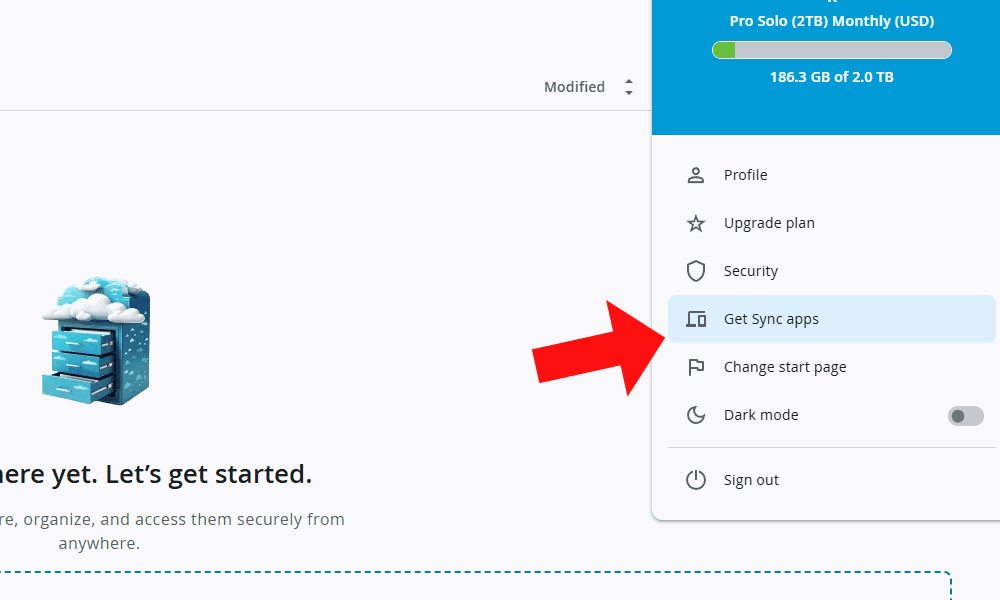
Setting up and using cloud storage on Windows is simple. I use Sync.com in the steps below, but most providers follow a similar setup process.
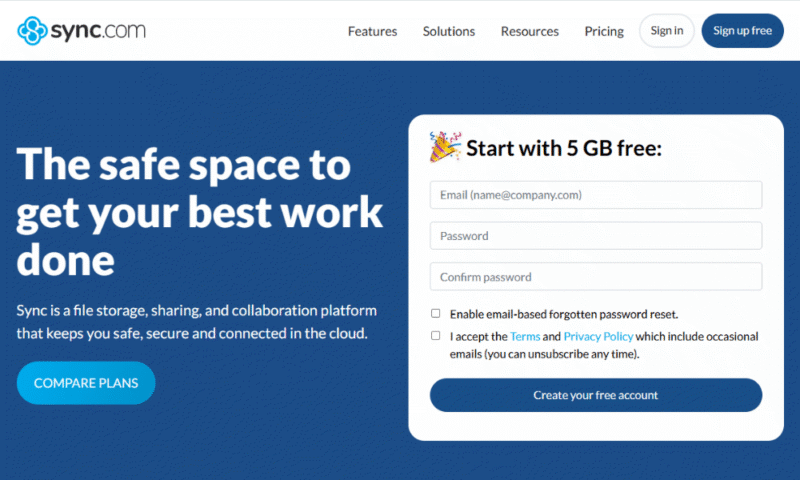
- Sign Up for Cloud Storage
First, sign up for your chosen cloud storage service. My top recommendation is Sync.com for its productivity tools and security.
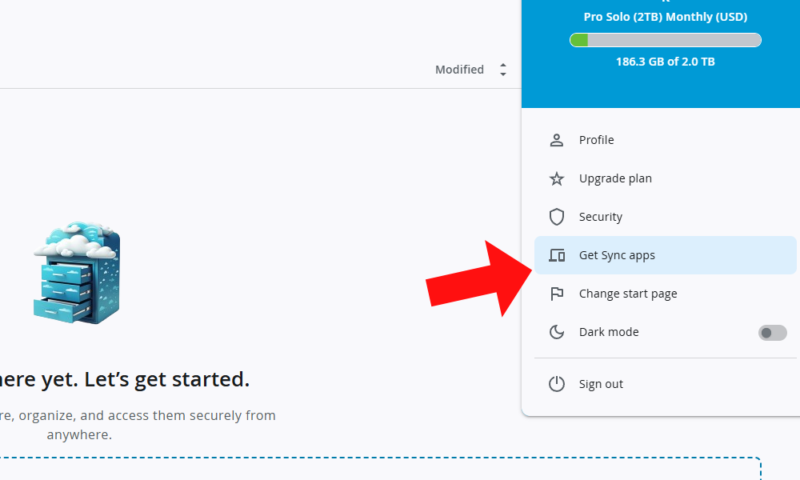
- Download the App (Optional)
If you want to set up automatic file sync on your Windows device, download the cloud storage provider’s app.
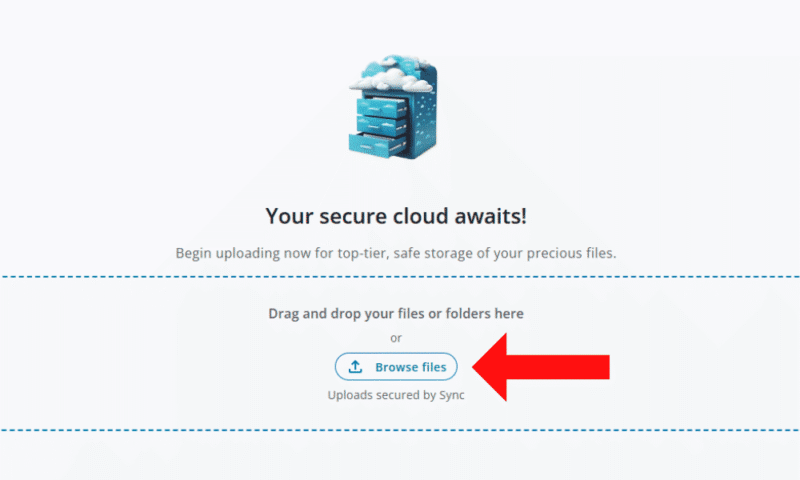
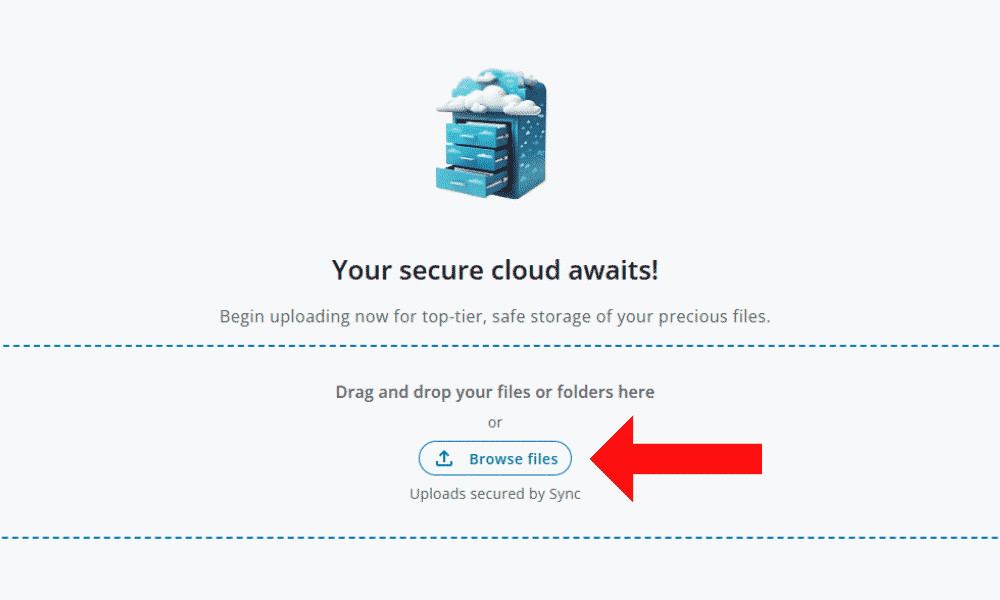
- Upload Your Files
Once you’ve finished the setup process, you can upload files to your storage, either through the browser client or via the Windows app.

Final Thoughts
Cloud storage is an essential tool for expanding your storage capacity in a safe and manageable way. Consider Sync.com for its strong security and Office 365 compatibility, or pCloud for its media file support. Internxt and Proton Drive are great options for open-source client-side encryption. Finally, OneDrive is still a great choice, but other more private options are available.
Which cloud storage service is your favorite? Which features do you look for in Windows storage? Would you recommend any other cloud storage services? Let me know in the comments, and thank you for reading.
FAQ: Best Cloud Storage for Windows
Yes, Windows comes preinstalled with OneDrive. OneDrive is a good cloud storage service — it’s affordable and includes Office 365.
OneDrive doesn’t have the best security features. Other cloud storage services, such as Sync.com, offer client-side encryption to keep your files completely safe.
Sync.com is the best OneDrive alternative. It has better security in the form of client-side encryption and offers more generous storage plans.