How to Put Parental Controls on iPhone and iPad in 2026
Apple’s screen time feature includes some nifty parental controls, including filters and the ability to limit the amount of time your child can spend on certain apps or the device as a whole. If you’re wondering how to put parent controls on iPhone and iPad, this guide has you covered.


Written by Sandra Pattison (Editor, Writer)
Reviewed by Samuel Chapman (Writer, Editor)
Last Updated:
All our content is written fully by humans; we do not publish AI writing. Learn more here.
Key Takeaways: How to Put Parental Control on iPad & iPhone
The default parental control app on iOS is Apple’s screen time feature, which lets you see how much time your child is spending on their device, as well as the time spent on particular apps. Here’s how to set parental controls on iPhone using screen time:
- Open the “screen time” feature in the “settings” app on both your device and your child’s.
- Tap “this is my iPhone/iPad” on your own device, and “this is my child’s iPhone/iPad” on your child’s device.
- Set up an access passcode on your child’s device.
Setting up iPhone and iPad parental controls can provide multiple benefits, such as limiting screen time, filtering content and preventing unauthorized purchases. Although there are plenty of third-party parental control app options for iPhone and Android devices, you can implement a few controls within Apple’s settings. In this guide, we’ll show you how to set parental controls on iPhone and iPad.
Apple screen time not only lets you enable restrictions for your kid’s iPhone or iPad, but also provides a complete report of how much time your child spends on the device. You can see which apps they use the most and the times they’re most active. It’s a good feature for setting downtime while also ensuring your child doesn’t come across anything inappropriate.
Don’t worry if you’ve birthed the next world’s most famous hacker, either. Screen time allows you to set a passcode to change the restrictions, so as long as you keep that under your hat, everything should be fine. Let’s get into the different features and how you can set them up on iOS.
How Do I Set Up Screen Time?
Before you set any restrictions, you’ll need to set up screen time itself. How you set it up will depend on whether the device is solely your child’s or you have a shared device.
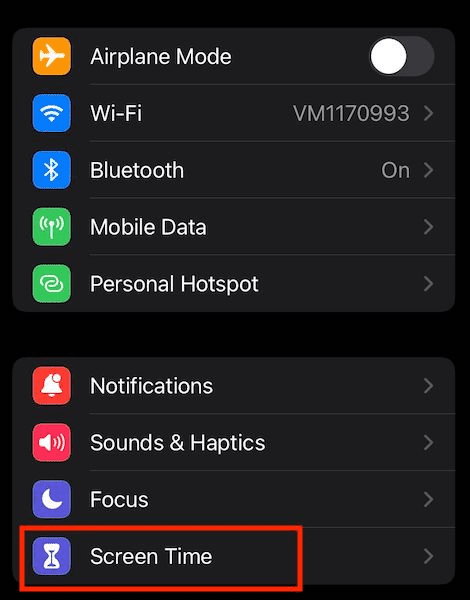
- Go to the Screen Time Settings Menu
Go to “settings” and tap on “screen time.”
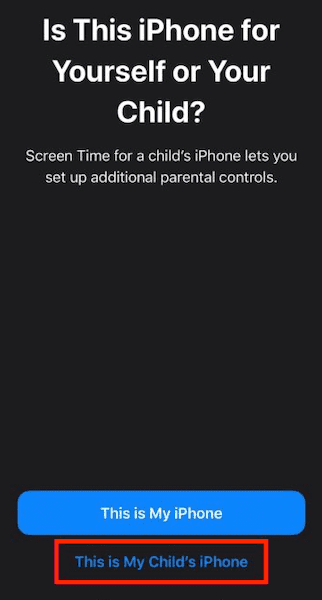
- Choose Whose Device It Is
Tap either “this is my iPhone/iPad” or “this is my child’s iPhone/iPad.”
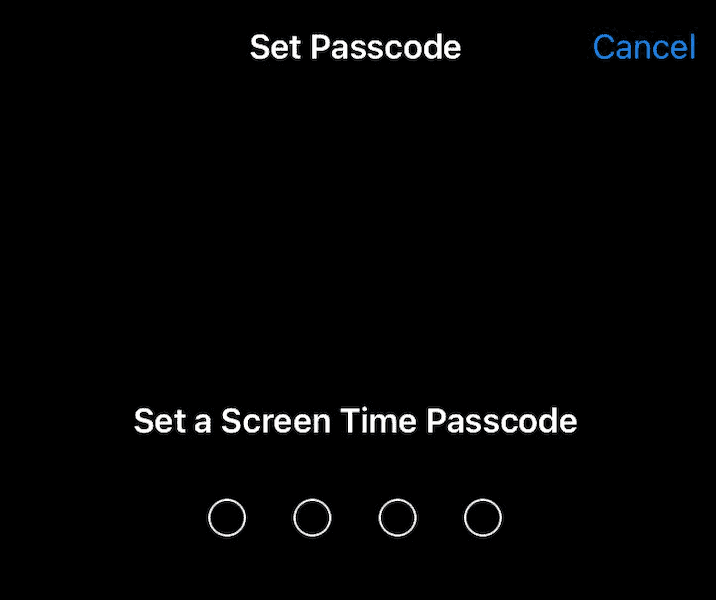
- Set Up a Passcode
For a child’s device, follow the prompts and you’ll be asked to set up a passcode. If it’s a shared device, you can tap “use screen time passcode” and set one up there. You’ll need to re-enter it to confirm.
How Can I Limit the Time My Child Spends on Their iPhone or iPad?
You can limit the time your child spends on their iPhone or iPad by using Screen Time, which shows you a report on how your child uses their device, including how much time they spend on certain apps. If you use family sharing, you can see your child’s reports from your own device.
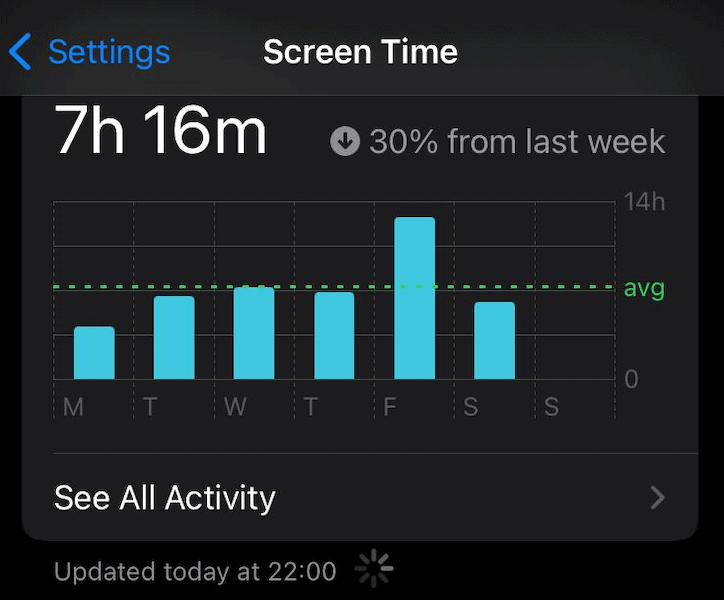
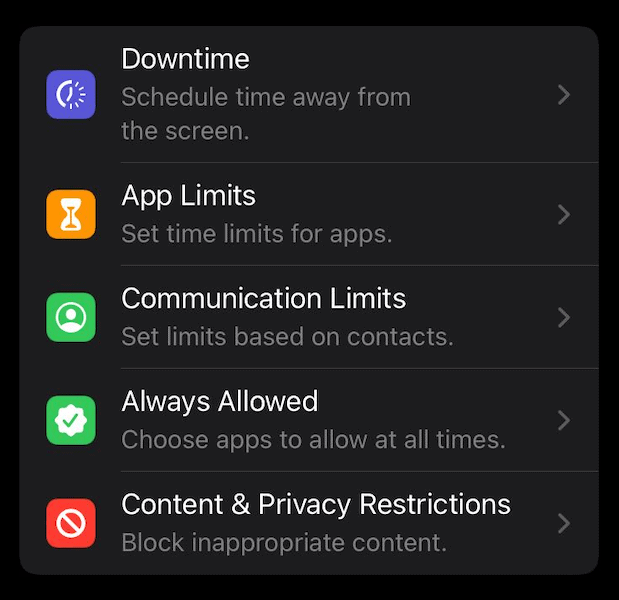
Screen time also lets you manage your child’s device time through a bunch of settings, allowing you to set specific downtime periods or limit time on certain apps. You’ll find all of the settings below by going to “settings” and then “screen time.”
How Do I Customize a Downtime Schedule?
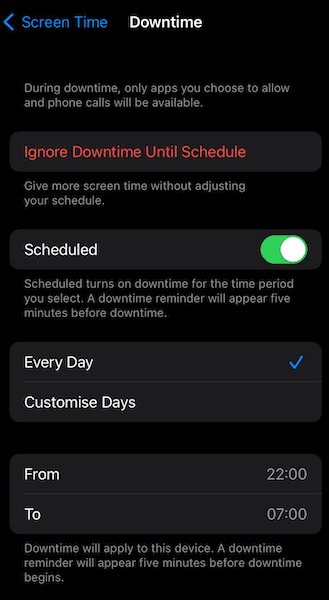
To customize a downtime schedule, go to the downtime settings where you can set specific periods when device usage is restricted. Simply tap the toggle to turn on “scheduled.” Then, choose whether to have the schedule take effect every day or on specific days, and set the times for downtime to start and finish.
When downtime is active, your child can only make phone calls and use apps you set to “allowed.” They’ll receive a reminder five minutes before downtime kicks in. Provided your device is signed in as the parent account, they will be able to ask for more time through the app. You’ll receive a notification for the request; it’s up to you if you approve it, though.
How Do I Set Time Limits for Specific Apps?
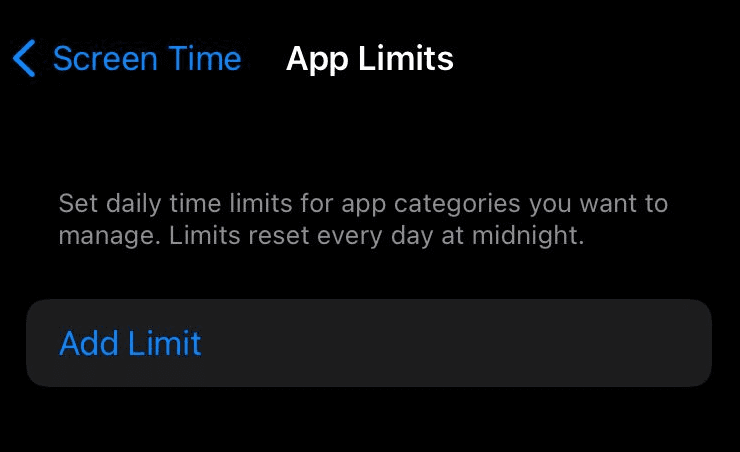
You can set time limits for specific apps by turning on “app limits,” which allows you to set daily time limits for certain apps or app categories, such as games or social media. All app limits refresh daily.
What Are Screen Time Communication Limits?
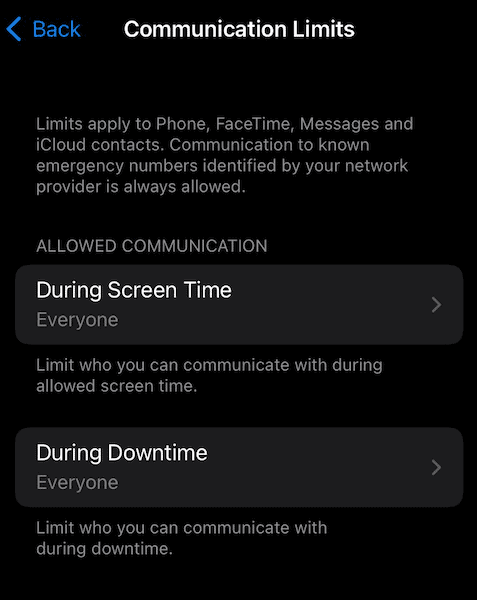
Screen Time communication limits are a feature that allows you to control who your children can communicate with both in and out of downtime. Communication limits only include phone, messages, FaceTime and iCloud contacts.
You’ll need something like the best parental control app to control communication through other apps, such as WhatsApp or Snapchat.
To ensure your child’s safety, limits don’t apply to recognized emergency service numbers by default. You can also allow communication with specific contacts, such as parents or guardians.
How Do I Choose Which Apps to Allow at All Times?
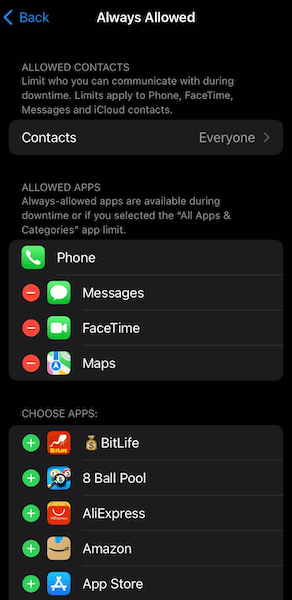
To choose which apps to allow at all times, use the “always allowed” setting which lets you select which apps your child can access at all times. Phone calls are always allowed by default for emergency purposes, but you can choose which contacts are allowed.
Messages, FaceTime and maps are also allowed by default, but you can remove them by tapping the red minus sign. Simply tap the green plus sign next to any apps you want to allow.
How Can I Protect My Child From Explicit Content?
There are multiple settings to help ensure your child isn’t exposed to explicit content. You can prevent access to content and apps by setting specific age ratings in the app, and even prevent your child from accessing explicit content using Siri web search. The steps below will show you how to restrict explicit content.
- Go to Screen Time Settings
Go to the settings menu and tap on “screen time.”
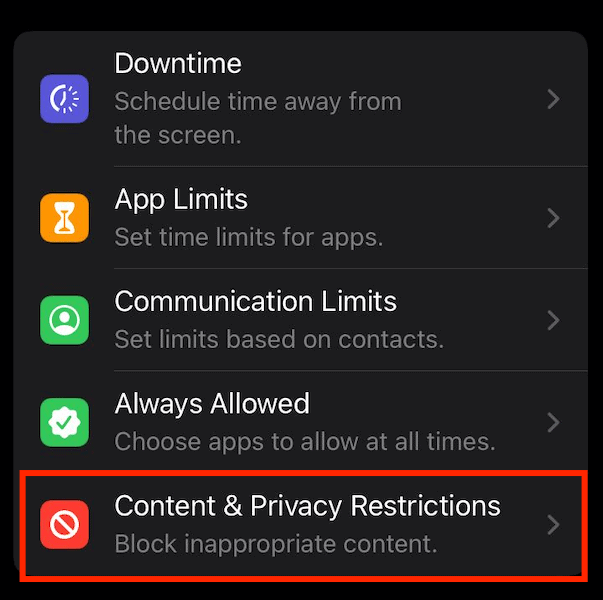
- Tap Content & Privacy Restrictions
Now tap “content & privacy restrictions.” Enter your screen time passcode if prompted.
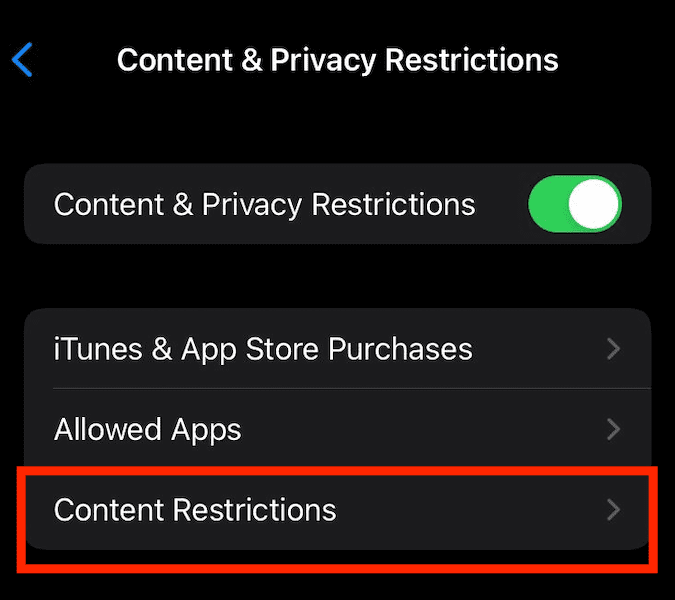
- Go to “Content Restrictions”
Tap on “content restrictions” to see the specific settings.
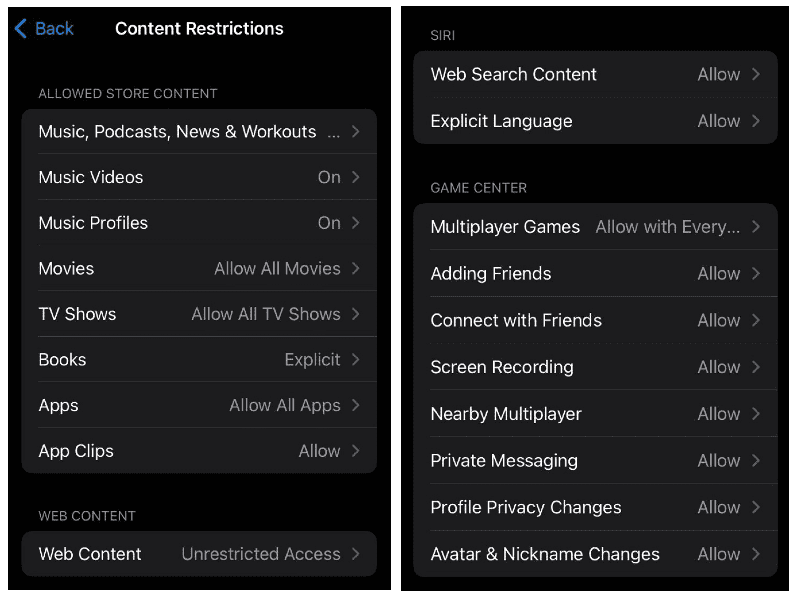
- Choose the Settings for Each Feature
Here you can specify settings for individual features, such as music, videos, books and apps. Simply tap on the feature you want to restrict and select the desired setting.
How Do I Restrict My Child From Certain Websites?
The following steps show you how to restrict your child from certain websites. With this setting, you can limit access to adult websites automatically (as well as add websites to an “always allow” or “never allow” list).
There’s also a more restricted allowlist option, in which websites on the list are the only sites your child is allowed to visit.
- Go to the Screen Time Settings Menu
Go to “settings” and tap “screen time.”
- Go to the Content & Privacy Restrictions Menu
Tap on “content & privacy restrictions” and enter your screen time passcode if prompted.
- Go to the Content Restrictions Settings
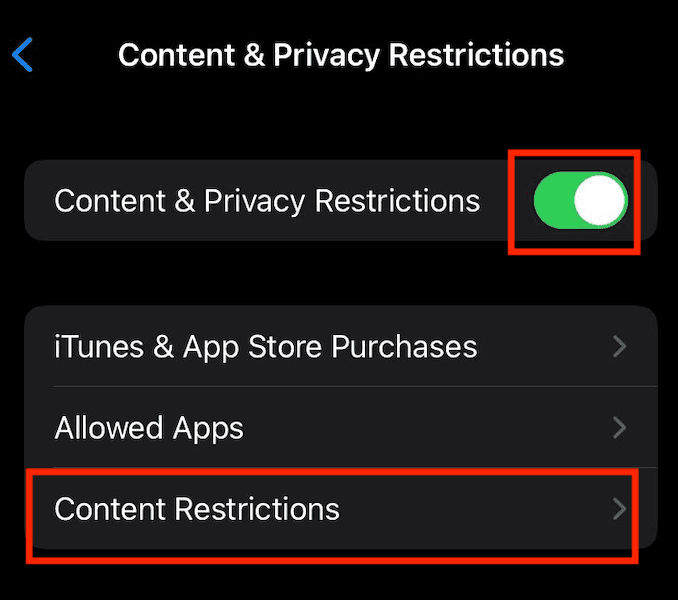
Tap the toggle button to turn on content and privacy restrictions, then tap “content restrictions.”
- Go to “Web Content”
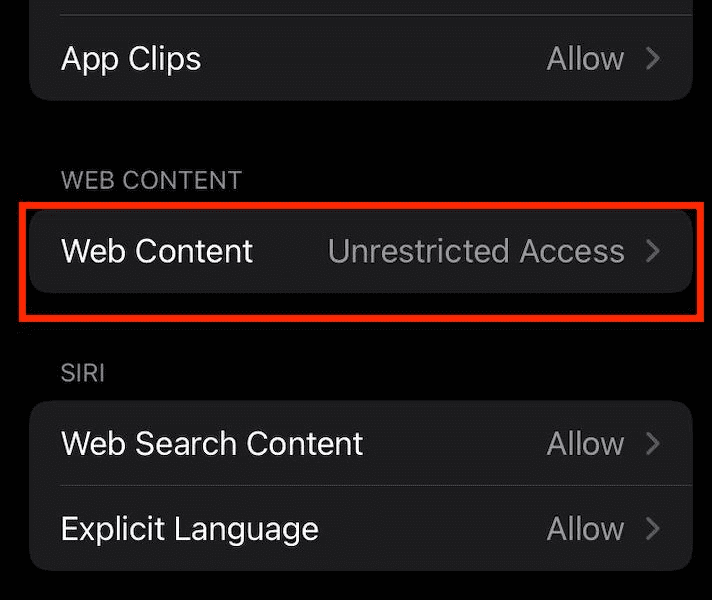
Scroll down and tap “web content.”
- Choose the Restrictions You Want to Set
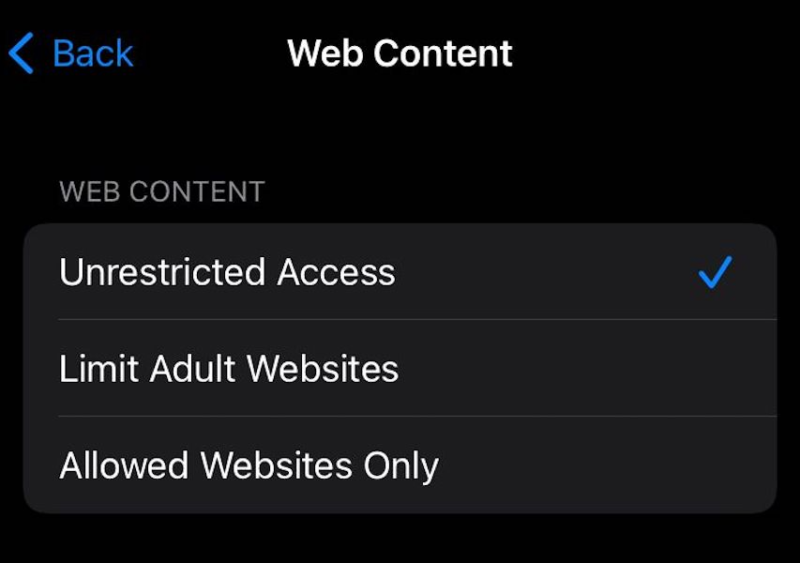
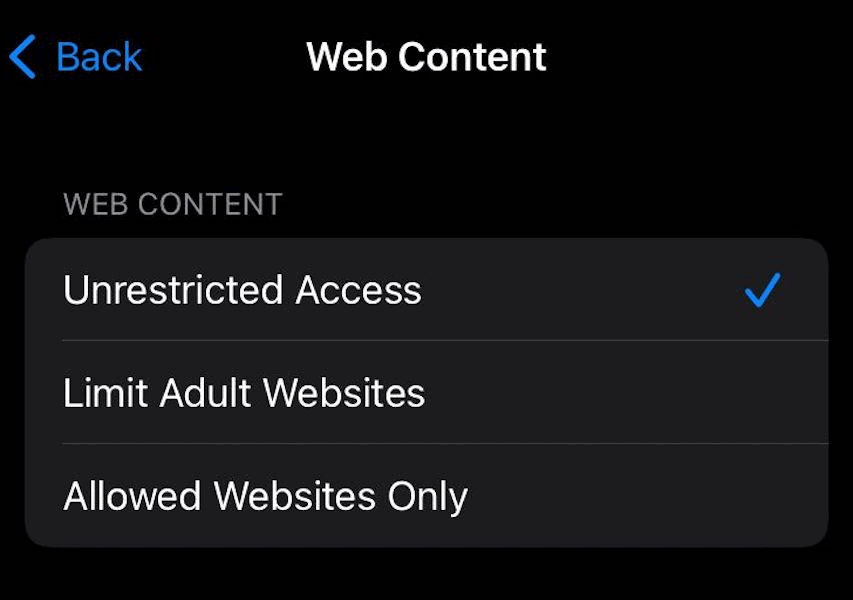
From here, you can choose “unrestricted access,” “limit adult websites” or “allowed websites only.” Tap on the setting you wish to implement. If you choose “allowed websites only,” you’ll need to add the websites you want to allow.
How Do I Prevent Purchases and Downloads on My Child’s Device?
There are two ways to prevent your child from purchasing and installing apps or making unauthorized in-app purchases. The first is controlled through the screen time settings. It either allows or stops your child from installing apps, deleting apps or making in-app purchases.
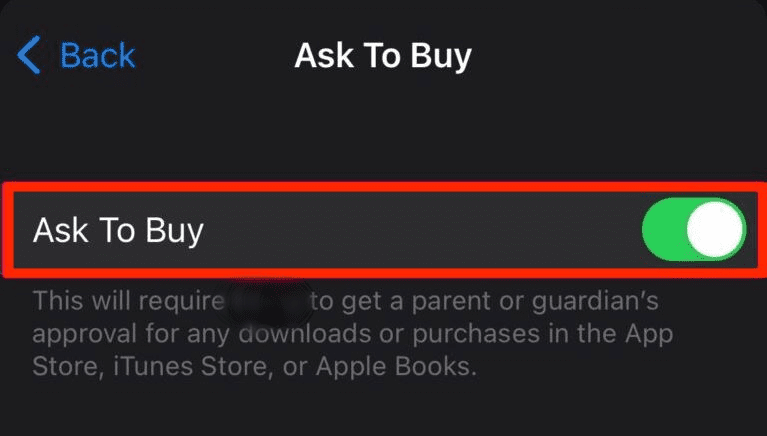
The second option allows your child to request permission for installing or purchasing an app, which requires you to have Apple’s family sharing feature set up. If you have set up the family sharing feature and your payment method is shared with your family, you can enable the “ask to buy” feature to keep on top of purchases and downloads.
With this feature, a request to download or purchase is sent to the family organizer (whoever set up the family sharing group). The organizer can then remotely approve or decline the request on their own device. To use the “ask to buy” feature, you need at least one child under 18 years old in your family sharing group.
We’ll go over the steps for setting up both options below.
- Go to Screen Time Settings
Go to “settings” and tap on “screen time.”
- Go to Content & Privacy Restrictions
Tap “content & privacy restrictions” and enter your screen time passcode if prompted.
- Go to the iTunes & App Store Purchases
Make sure the “content & privacy restrictions” toggle button is turned on. Tap “iTunes & app store purchases.”
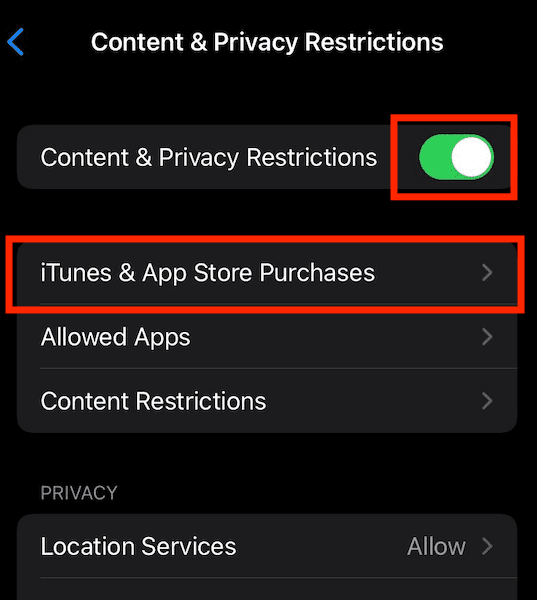
- Determine the Settings for In-App purchases and Deleting or Installing Apps
From here you can set “allow” or “don’t allow” for making in-app purchases, deleting apps and installing apps. You can also require a password before allowing any of those actions, and you can set up each one individually. For this example, we’ll choose to disallow in-app purchases. Tap “in-app purchases.”
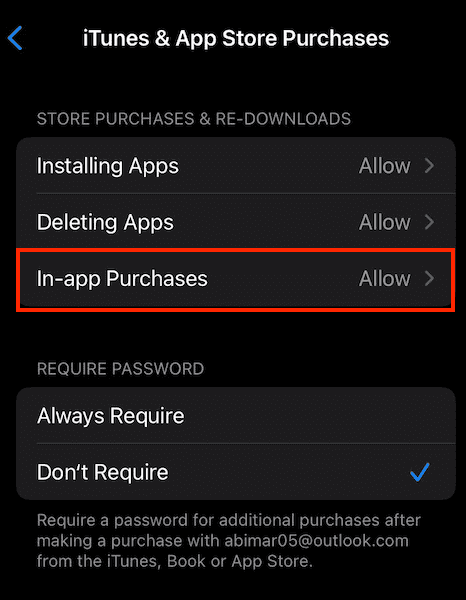
- Choose the Setting You Want
Choose “allow” or “don’t allow” for in-app purchases. Once you’re done, go back and either allow or don’t allow the others.
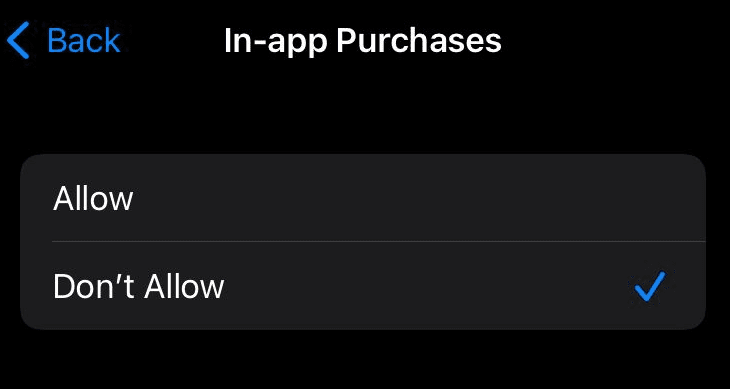
Prevent Downloads Using “Ask to Buy”
- Go to Your Apple ID
Go to “settings” and tap on your Apple ID.
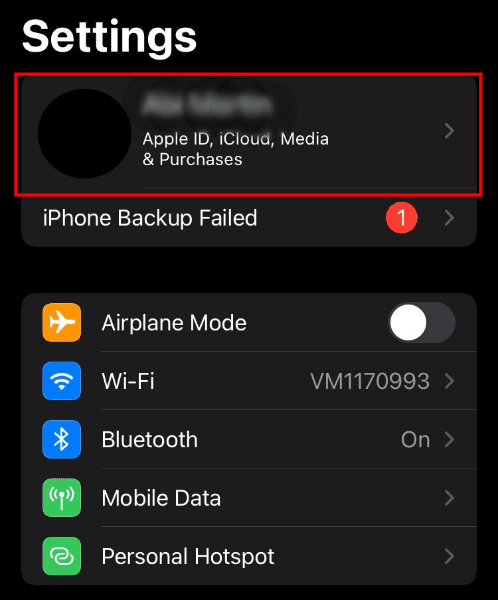
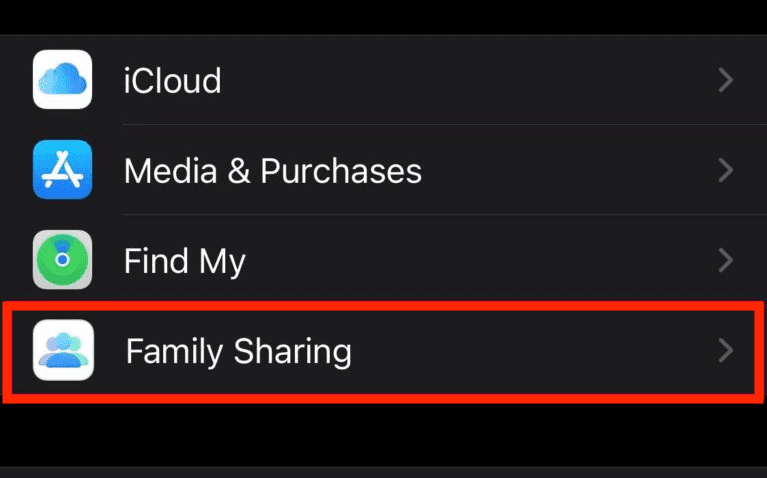
- Go to “Family Sharing”
Now, tap on “family sharing.”
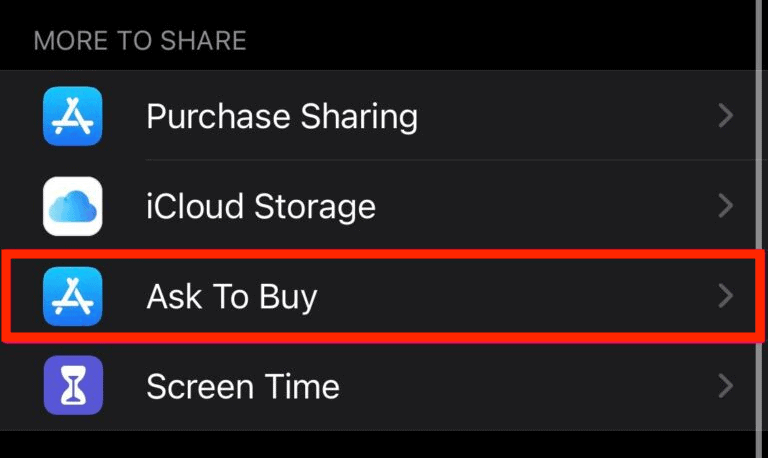
- Find “Ask to Buy”
Now scroll down and tap on “ask to buy.”
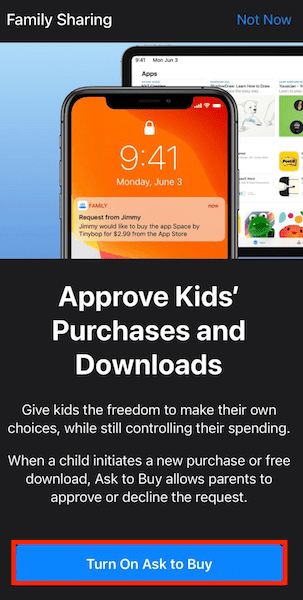
- Turn on “Ask to Buy”
To confirm that you want to turn the feature on, tap “turn on ask to buy.”
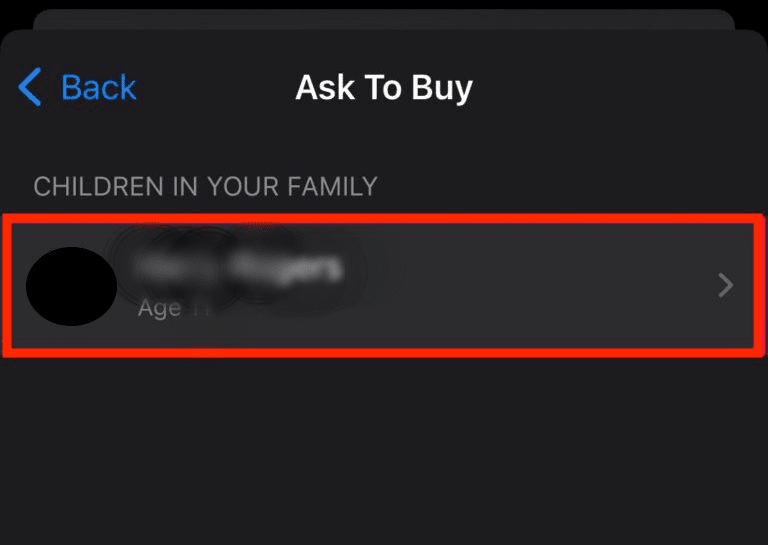
- Select the Child You Want to Add
Tap on the child’s account for which you want the “ask to buy” feature to apply.
- Toggle the “Ask to Buy” Button On
Now you just need to turn on “ask to buy” for your child. To do this, tap the toggle button on.
What Are the Best Third-Party Parental Control Apps?
The best third-party parental control apps serve as great additions to Apple’s built-in controls, offering enhanced features and monitoring capabilities. If you’re not sure where to start, these three are our favorites and all offer a money-back guarantee or free plan.
1. Surfshark


Surfshark’s security suite includes parental control tools that put your child’s privacy first. There’s no constant monitoring or logging of their online habits. Instead, you select which categories to block and Surfshark does it all automatically. Although it doesn’t need the VPN to be active, the content filters still work when connected to Surfshark VPN.
You also get an antivirus, tracker blocker and more with Surfshark One, for just $2.49 per month on the two-year plan. With the unlimited simultaneous connections, this is an affordable yet comprehensive way to protect your whole family’s devices. Read our Surfshark review to find out more.
- Unlimited GB bandwidth, Unlimited devices, Secure VPN, Ad blocker, Cookie pop-up blocker. Pricing for the annual and biennial plans only apply for the first payment. Renewal fees vary.
- Unlimited GB
- Unlimited
- Yes
- Everything in Starter, plus Antivirus protection, Identity protection, Email Breach and Credit Card Alerts, Online Alias Pricing for the annual and biennial plans only apply for the first payment. Renewal fees vary.
- Unlimited GB
- Unlimited
- Everything in One, plus Data removal Pricing for the annual and biennial plans only apply for the first payment. Renewal fees vary.
- Unlimited GB
- Unlimited
2. Qustodio
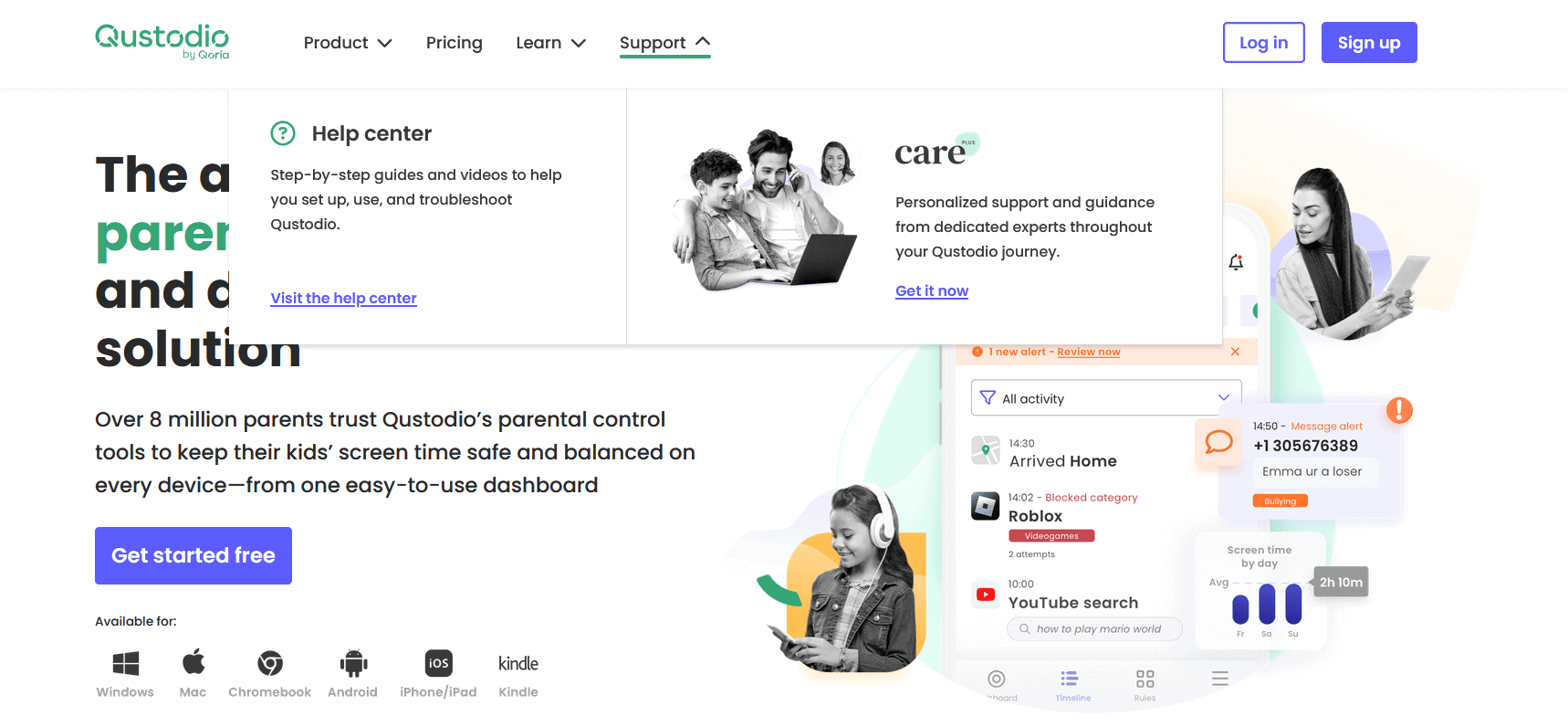

If you’re looking for more control over your child’s devices, Qustodio is the best tool for you. It offers screen time limits, content filtering, location tracking, message monitoring and more. There’s also a dashboard you can use to get regular reports on your child’s internet and app usage.
Overall, Qustodio requires a fair amount of work to set up and monitor, but it offers a lot of tools to make sure your child is safe online. If you want the Basic plan, it’ll cost you $54.95 per year. Upgrading to the Complete plan costs $99.95 per year. There’s also a free plan for managing a single device, too, if you want to test it out.
3. OurPact
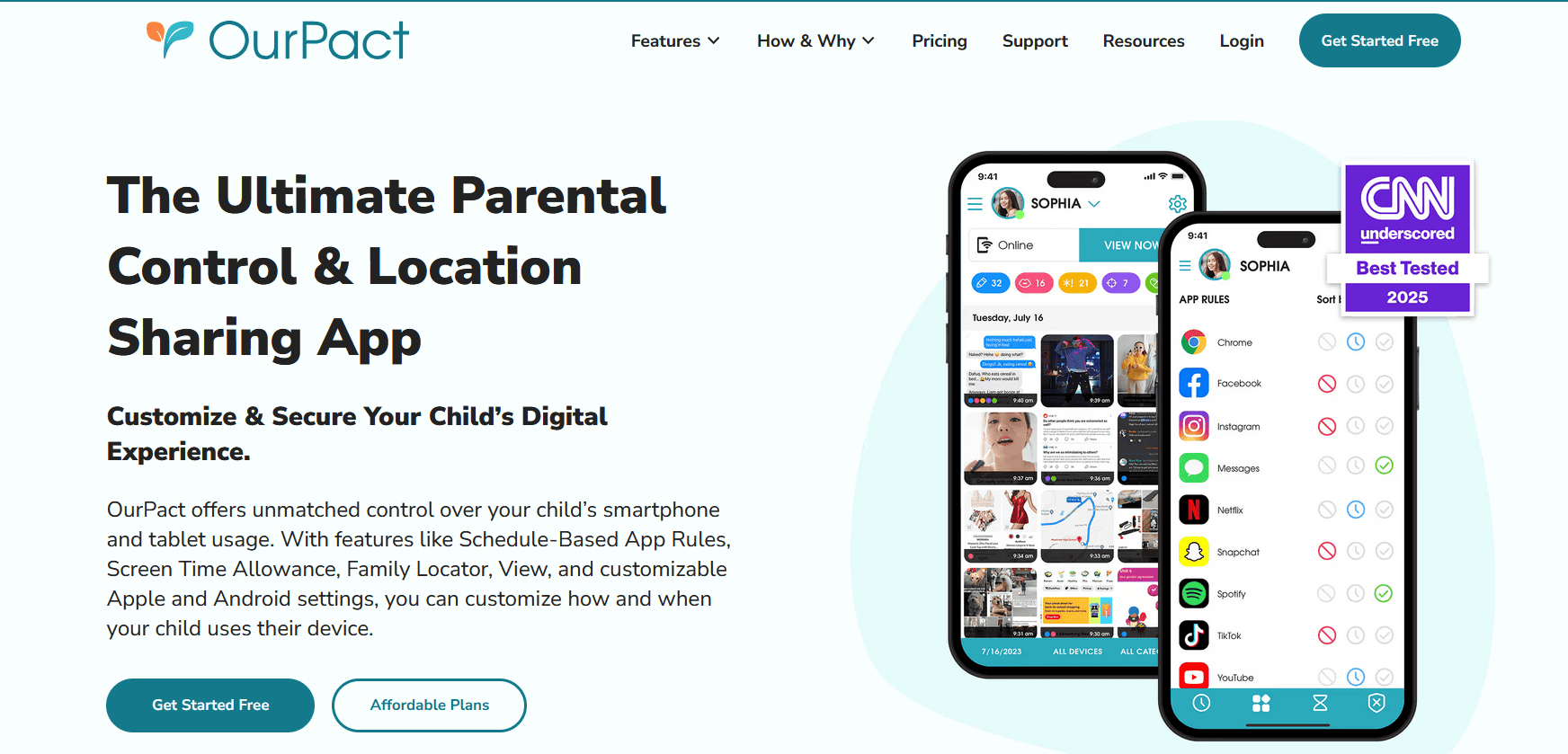
OurPact is a well-rounded parental control app that’s designed for iPhones. This includes blocking text messages on iPhone, a feature usually reserved for Android. It also offers the standard selection of tools, including website blocking, content filters, location tracking and screen time limits.
One of the more unique features of OurPact is the automatic screenshot captures. This allows you to take screenshots remotely and monitor them from the parent device. You can also set up a schedule for screenshots, and check them later. If you want to try out OurPact, there’s a free plan for managing a single device.
| Plan: | Price | Features |
|---|---|---|
| Premium | $6.99 per month $69.99 per year* | Unlimited schedules, Unlimited blocks, Unlimited grants, Unlimited app rules, Unlimited allowance, Unlimited family locator, Unlimited block texting, Unlimited app alerts, Up to 20 devices |
| Premium+ | $9.99 per month $99.99 per year* | Everything in Premium & screenshot captures |
Final Thoughts: Parental Control App Options
We hope this guide has helped you understand how to put parental controls on iPhone and iPad. No matter how old your child is, setting up parental controls on a device can help you keep your child safe from inappropriate content and set clear boundaries for screen time. Apple’s screen time feature provides many useful settings to help, and it’s easy to set up.
Just remember that no amount of parental controls can replace parental guidance and an open dialogue. Look at these tools as a helping hand toward your kids’ internet safety. Remember to check out some of the most worrisome social media addiction statistics, and explain to your child why parental control apps are important.
If you’re wondering if there are any ways kids can bypass parental control restrictions, check out our article on how to hack iOS screen time restrictions. Alternatively, if your child has reached an age where they’ve earned more digital independence, you can follow our step-by-step instructions on how to turn off parental controls on iPhone.
Do you use a parental control app? What do you think about Apple’s built-in screen time feature? Do you use it? Or do you prefer to use a third-party parental control iPhone app? Let us know in the comments below and, as always, thanks for reading.
FAQ
You can set a passcode to protect iOS parental controls, without which your child cannot access or change control settings. There are a few ways your child could circumvent them, such as changing the time zone to bypass a downtime schedule, but you can prevent this in the settings. Other than that, they’d have to do a factory reset, but that would also mean setting everything up all over again on the device.
In screen time’s communication limits setting, you can specify which contacts your child can use for receiving or sending messages or calls. You can also ensure that they’re only contacted by those in their contact list (which you can also manage), preventing unknown people from calling or messaging them.
Yes, by setting up Apple’s family sharing feature. You can add children and their Apple devices to the family account and remotely control filtering and settings for your child’s iOS device.
With Apple’s family sharing feature, you can add your child’s Apple device to a family account. That allows you to remotely turn on Screen Time. From there, you can control settings to keep your child away from inappropriate content and help them manage their time on their device.