The Best Way to Store Passwords & Best Password Managers to Use
Discover the best way to store passwords securely. Learn about top password managers, advanced security practices and how to protect your digital identity.



Written by Wisdom Sablah (Writer)
Reviewed by Kate Hawkins (Editor, Writer)
Facts checked by Simona Ivanovski (Fact-Checker, Formatter)
Last Updated:
All our content is written fully by humans; we do not publish AI writing. Learn more here.
Key Takeaways: These Are the Best Password Managers
- Proton Pass — A privacy-first password manager with end-to-end encryption and seamless integration with secure email services. Try Proton Pass for free.
- NordPass — A user-friendly password manager with XChaCha20 encryption, secure storage and convenient autofill.
- 1Password — A premium, feature-rich manager known for its intuitive interface, travel mode and strong security architecture.
Facts & Expert Analysis About the Best Way to Store Passwords Securely:
- Credential stuffing: Credential abuse accounts for 20% of data breaches; this involves the use of stolen, compromised or brute-forced usernames and passwords to gain unauthorized access to systems.1
- Human behavior is the weakest link: Users tend to create predictable passwords, which is why password generators and automated management tools significantly reduce the risk of brute-force and credential-stuffing attacks.
- AI and cyberattacks: AI-generated text in malicious emails has doubled in the past two years.1

There’s nothing more frustrating than forgetting a password right when you need it most. To avoid this, many people turn to note-taking apps or physical books, but these quick fixes can leave your credentials exposed to loss, theft or cyberattacks. In this guide, I’ll show you the best way to store passwords for security and convenience.
The short answer: Use a trusted digital password manager. It can generate strong, unique passwords; store them securely; and retrieve them instantly whenever you log in. Keep reading to discover the best password managers, what to look for when selecting one and essential practices to protect your digital identity.
-
05/04/2022 Facts checked
Rewrote the article; removed LastPass, added Bitwarden as a suggested password manager.
-
05/10/2026 Facts checked
We rewrote this article with new password manager suggestions and rankings.
-
10/14/2026 Facts checked
We’ve updated our ranking of the best password managers, with NordPass taking the number two spot on our list.
What Is the Best Way to Store Passwords?
The best way to store passwords is by using a password manager. It stores your credentials in an encrypted vault protected by client-side encryption, meaning only you can access your data.
Most modern password managers use industry-standard AES-256 encryption – or encryption with similar strength – along with a master password or biometric authentication to ensure your vault remains locked down at all times. In addition, password managers generate strong, unique passwords for each account and autofill them when needed. That way, you don’t have to reuse passwords.

Other methods, like unencrypted note-taking apps and physical books, are less secure. These files are often stored as plain text, making them easy targets for malware, phishing attacks or unauthorized access. If your device or book is compromised, your entire list of passwords can be exposed in seconds.
What Is the Best Way to Store Passwords on iPhone or Android?
The best way to store passwords on an iPhone is by using iCloud Keychain or a trusted third-party password manager. Similarly, Android users can rely on a dedicated third-party password manager for encrypted storage. These tools typically offer advanced features, including cross-platform syncing, password sharing and security audits.
How Can You Manage Passwords Securely?
You can manage passwords securely by adopting a centralized password management app that generates, stores and autofills unique credentials for every account. It syncs your passwords across all your devices so you can securely access your accounts whether you’re on your phone, laptop or tablet.
A solid password manager will also flag weak or reused passwords and alert you if your credentials are exposed in a data breach. Many tools include built-in security dashboards that give you a clear overview of your password health, making it easy to identify and fix vulnerabilities before they’re exploited.
What Is a Password Manager?
A password manager is an encrypted digital vault that securely stores, generates and organizes your login credentials behind a single master password.
Think of it as a highly secure safe. Instead of remembering dozens of passwords, you have to remember just one master key. The manager encrypts your data locally and decrypts it only when you authenticate.
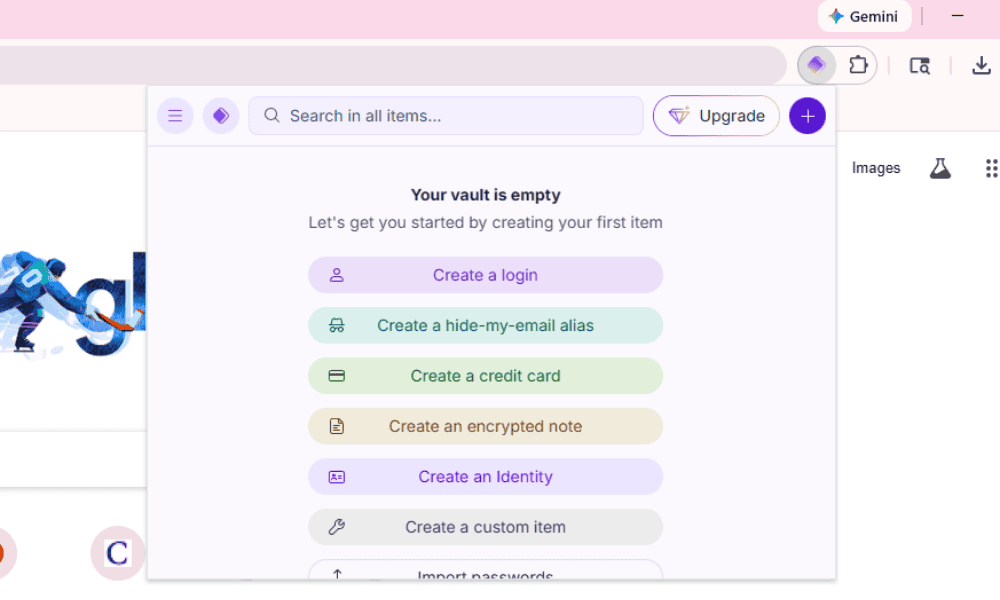
Most modern password managers also include features like:
- Breach alerts
- Secure password sharing
- Multi-factor authentication
- Autofill for websites and apps
What Is the Best Password Manager Software?
Based on my tests, the three best password managers are Proton Pass, NordPass and 1Password.


How Do You Choose the Best Password Manager?
The best password managers combine strong security with everyday convenience. The list below details the top criteria I used to choose the best password managers:
- Security architecture: Look for providers that use client-side encryption and industry-standard encryption protocols like AES-256. This ensures only you can access your stored data.
- Ease of use: A clean interface and reliable autofill functionality are essential. If a tool is difficult to use, you’re less likely to stick with it, which defeats the purpose.
- Cross-platform compatibility: Make sure the password manager works across all your devices: Windows, macOS, Android, iOS and browser extensions.
- Multi-factor authentication (MFA): A strong password manager should support MFA options like authenticator apps or biometrics, adding an extra layer of protection to your vault.
- Password generation and auditing: Built-in generators and security dashboards help you create strong passwords and identify weak or reused ones.
- Secure sharing and recovery options: If you need to share credentials or plan for emergencies, features like encrypted sharing and account recovery are crucial.
- Pricing and plans: Many password managers offer free tiers with basic functionality, while premium plans unlock advanced features.
What Are the Best Password Practices to Follow?
Best practices for passwords include using complex combinations, avoiding using personal information for password creation, and never reusing passwords. Some of the most important practices to adopt include the following:
- Use a unique password for every account: If you reuse a password from a breached account, attackers could access other accounts using the same credentials.
- Make passwords long and complex: Aim for at least 12 to 16 characters, combining uppercase letters, lowercase letters, numbers and symbols.
- Avoid personal information: Names, birthdays and common words are easy for attackers to guess using social engineering or brute-force methods.
- Use passphrases when possible: Instead of a single word, use a string of unrelated words (e.g., “River-Glass-Mango-Cloud”) to create something secure and easy to remember.
- Enable multi-factor authentication (MFA): Adding a second layer of verification, like a code from an authenticator app or biometric login, significantly reduces the risk of unauthorized access.
- Regularly update critical passwords: For sensitive accounts like email, banking or work systems, update passwords periodically or immediately after a suspected breach.
- Don’t share passwords casually: If you must share access, use a password manager’s secure sharing feature instead of sending credentials through email or messaging apps.
Why Should You Use a Strong Password Generator?
You should use a password generator because it creates complex, unpredictable combinations that are nearly impossible to crack. Humans tend to create predictable passwords. Generators eliminate this risk by producing random strings of letters, numbers and symbols.
How Do You Safely Migrate Passwords to a Digital Vault?
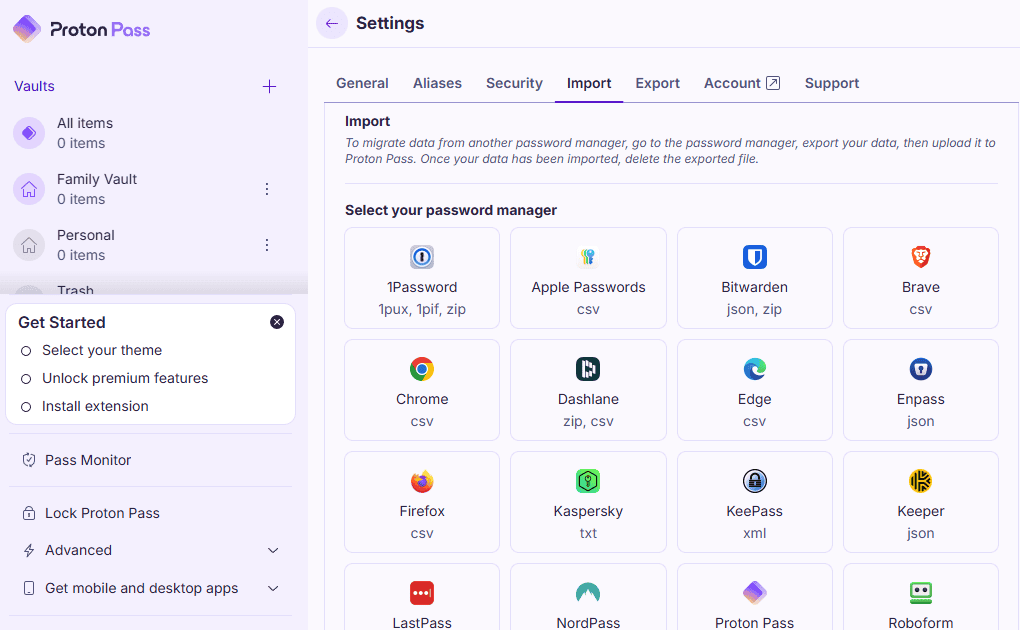
You can safely migrate passwords by exporting them to an encrypted file, importing them into your password manager and permanently deleting the original unencrypted file. Follow this step-by-step approach to migrate passwords safely:
- Export your existing passwords: Most browsers and password tools allow you to export saved credentials as a CSV file. Do this on a secure, trusted device.
- Import into your password manager: Use your password manager’s import feature to transfer all credentials directly into your encrypted vault.
- Verify your data: Double-check that all usernames, passwords and URLs have been imported correctly before proceeding.
- Delete the original file: Once the import is complete, permanently delete the CSV file or any temporary files. Empty your recycle bin to ensure the data cannot be recovered.
- Secure your vault: Enable multi-factor authentication (MFA) and ensure your master password is strong and unique.
- Run a security audit: Use your password manager’s built-in tools to identify weak, reused or compromised passwords and update them immediately.
How Can You Set Up Emergency Access for Your Passwords?
You can set up emergency access by using your password manager’s digital legacy feature to grant trusted individuals controlled access. You can appoint one or more trusted contacts – such as a spouse, family member or legal executor – and define how access is granted. Typically, the process works as follows:
- You invite a trusted contact through the password manager.
- They can request access to your vault when needed.
- A predefined waiting period (e.g., 24-72 hours) begins.
- If you don’t deny the request within that time frame, access is automatically granted.
This waiting period is critical. It prevents unauthorized or premature access while still ensuring your accounts can be recovered in genuine emergencies.
Final Thoughts
The best way to securely store a password is to use a password manager rather than unencrypted notes or physical books. I recommend Proton Pass, thanks to its robust security and ease of use. Other excellent, feature-rich options include NordPass and 1Password.
Have you had difficulties storing passwords? Do you have any questions after reading this article? Which password manager would you consider using? Share your thoughts in the comments below. As always, thanks for reading.
FAQ: How to Securely Store Passwords
The most secure way to store your passwords is to use a password manager that encrypts your data and protects it behind a strong master password.
The three-word password rule involves creating a passphrase using three unrelated words, making it both memorable and difficult to crack.
The 8-4 rule for passwords suggests using at least eight characters with a mix of four character types: uppercase letters, lowercase letters, numbers and symbols.
The best password storage is Proton Pass, a password manager that encrypts and securely stores all your credentials in a private digital vault.