Why Is My Firestick Not Working? Fire TV Remote Fix Guide
Cloudwards.net may earn a small commission from some purchases made through our site. However, any earnings do not affect how we review services. Learn more about our editorial integrity and research process.
Why Is My Firestick Not Working? Fire TV Remote Fix Guide
It’s easy to panic when a smart device doesn’t work, but I’ve put together the best ways to get your Firestick working again. These range from simple and obvious tips to some last-resort solutions to major problems. If you find your Firestick not working, these steps will help fix it.
Facts checked by Eugenie Tiu (Editorial Assistant)
Last Updated:
All our content is written fully by humans; we do not publish AI writing. Learn more here.
Key Takeaways: How to Fix Firestick Not Working
Turn Your TV On
Restart Your Fire TV Stick
Check the HDMI Port Connection on Your TV
Try a Different HDMI Port
Check Your Internet or WiFi Connection
Check the Batteries on Your Firestick Device or Remote
Plug Your Firestick Directly Into a Power Outlet
Wait 10 Minutes
Try a Different App
Update Your Amazon Fire TV Stick Firmware and Apps
Clear Your Amazon Fire Stick Cache
Restore the Factory Settings on Your Firestick Device
Facts & Expert Analysis: Amazon Fire TV Stick
Firestick software problems: A reset or update can easily fix software issues.
Hardware problems: Similar to poor connections or dead batteries, hardware problems can be hard to diagnose but are easy to fix, so they are always worth checking.
Streaming service issues: If it seems like there’s a problem with your device, it may actually be an issue with the streaming service, which can be solved only by waiting.
The Fire TV Stick is one of the top streaming devices. With it, you can access all of your favorite channels and apps, and even try out cloud gaming software. Plus, if your local streaming libraries are limited, setting up a Firestick VPN to access foreign content is easy.
However, like all tech, sometimes things go wrong. If this has happened to you and you find your Firestick not working, I will guide you through basic troubleshooting steps to solve the issue. I’ll also cover what to do if you find your Firestick remote not working, another common problem. You’ll be back to streaming your favorite shows in no time.
03/05/2023 Facts checked
Updated to use our new style and ensure factual accuracy.
01/02/2026 Facts checked
We rewrote this article to include extra ways to fix a broken Fire Stick and instructions on how to reset a Fire Stick remote.
How to Fix Firestick Not Working: 12 Ways
These 12 simple steps are some of the fastest ways to get your Fire Stick up and running again. Even if they don’t seem relevant to your issue, I recommend trying all of them. The solution to tech problems can sometimes be surprisingly simple.
1. Turn On Your TV and Firestick Device
I have occasionally turned on my TV screen and sat watching a black screen wondering why it hasn’t actually turned on. This may be obvious, but double check that you’ve pressed the power button.
2. Restart Your Fire TV Stick
If you’re having issues with a Fire TV device that’s already on, try turning it off. Give it a few seconds to make sure it properly powers down and then restart it.
3. Check the HDMI Port Connection on Your TV
HDMI plugs can sometimes come loose. Unplugging the Fire Stick and making sure you insert the plug fully and not at an angle can go a long way. Avoid the temptation to do this blind — get a flashlight so you can see the port. In addition, check that your TV isn’t set to the incorrect HDMI input. Simply go to your TV’s input settings and make sure the correct HDMI input is selected.
4. Try a Different HDMI Port
If reseating the HDMI cable doesn’t work, the cable or port may be broken. Try different ports on your TV to see if that fixes the issue. Using a different cable can also help, though Amazon recommends always using the included cable.
5. Check Your Internet or WiFi Connection
If you’re streaming, you’ll need a good internet connection. One way to make sure that your Fire Stick is connected properly is by using speed test software and checking that your download speed is above the recommended 5 Mbps for HD content. Slow speeds can lead to loading issues or errors due to a lack of signal.
6. Check the Batteries on Your Firestick Remote
Your Alexa remote will require batteries. Most people stick the included batteries in the remote and forget about them, but they will run out of juice eventually. To confirm that this isn’t the issue, use batteries you know are fully charged.
7. Plug Your Fire Stick Directly Into a Power Outlet
Fire Stick devices require an external power source. Many people plug their device into the USB port on the back of their TV, but this outlet might not provide enough power. Try plugging it into a proper power outlet using the included power adapter to get your Fire Stick working again.
8. Wait 10 Minutes
I know it’s annoying, but sometimes the best solution is just to wait. If the service you’re using has an outage — or if there’s an overloaded server — refreshing the page isn’t going to help. Turn the TV off, get some tea or coffee, and try again in 10 minutes.
9. Try a Different App
If simply waiting doesn’t help, the issue might stick around for longer. Test out different Fire Stick apps to see if the problem is with a specific app. Try watching shows on a different platform in the meantime.
10. Update Your Amazon Fire TV Stick Firmware and Apps
If none of your apps are working, it’s possible your Fire Stick is out of date. Go into the settings and check for updates to make sure you’re using the latest version of the software. You may need to restart your device after updating it.
11. Clear Your Amazon Fire Stick Cache
While you’re in the settings menu, I suggest clearing out the cache as well. This clears any data your apps have saved temporarily and forces them to reload.
12. Restore the Factory Settings on Your Firestick Device
As a last resort, you can always try a factory reset. Restoring factory settings will clear your apps, force you to sign back in and reset your settings to factory defaults. However, it will also reliably fix any software issue on your device. Make sure you’re not dealing with a server issue first, though, by checking the service on a different TV or device.
Firestick Remote Not Working
If your Fire Stick remote isn’t working, you can try to re-pair or reset it. This requires only a few button presses and fixes most issues with Alexa voice remotes.
How to Pair Firestick Remote From Scratch
Pairing a Fire TV remote is pretty easy, but you’ll need a way to control your Fire TV device to do this. The simplest way is to download the Amazon Fire TV app, which includes a remote and should automatically connect to your device.
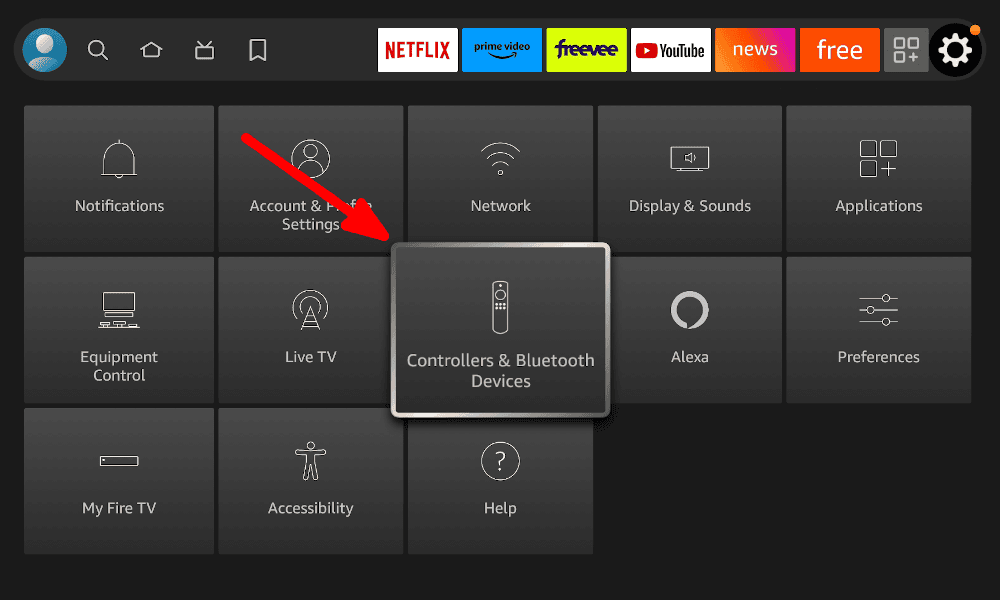
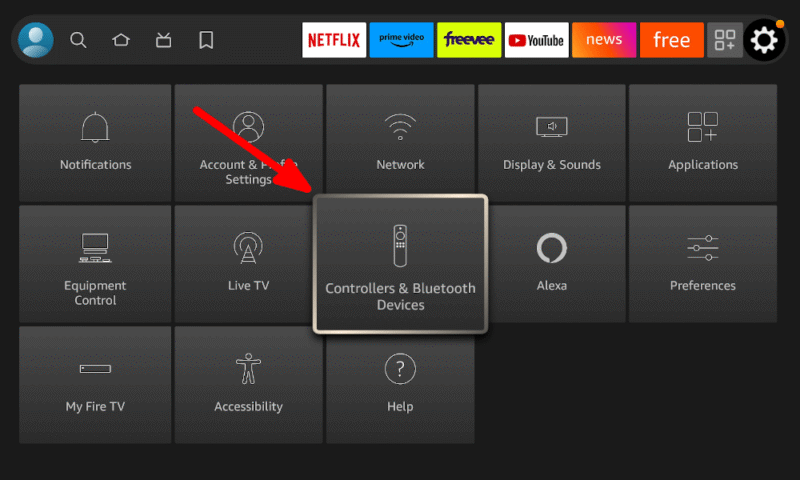
Go to the Controller Settings Page
In the Fire TV settings page, select “controller & bluetooth devices.”
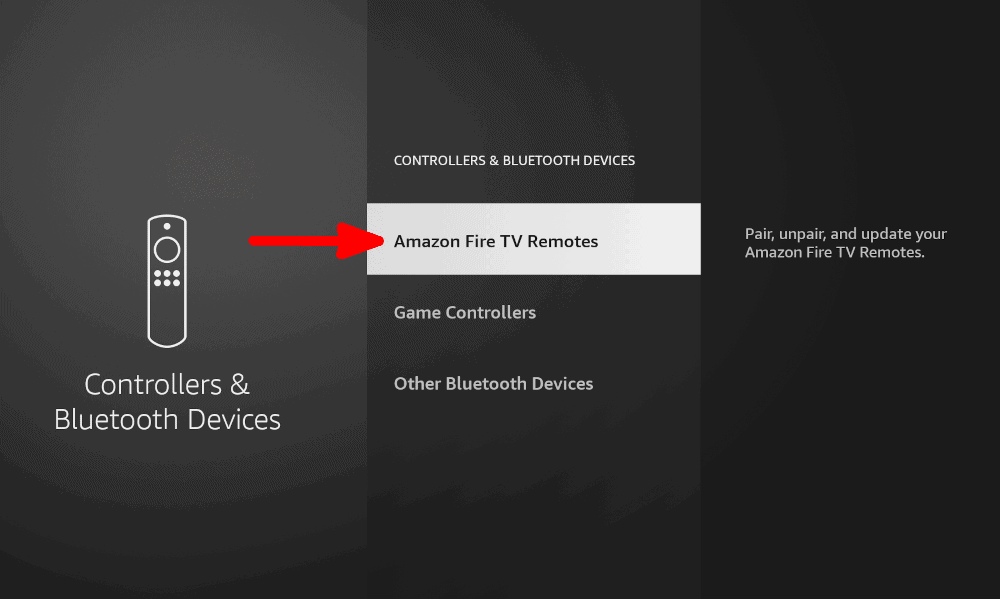
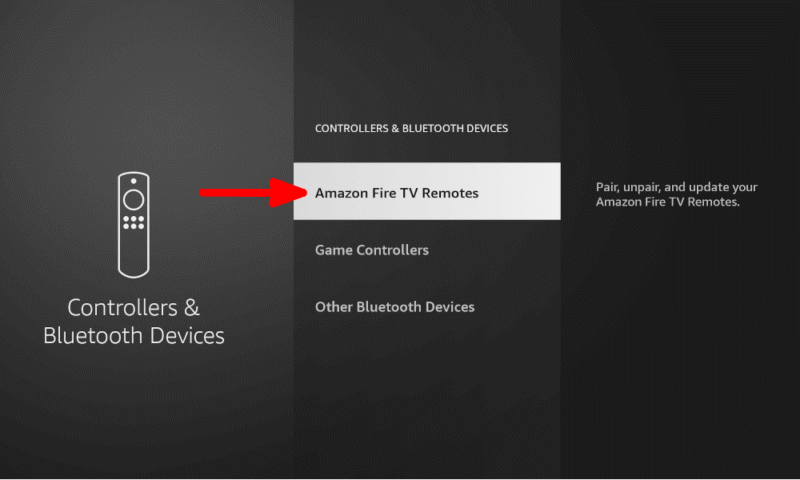
Select “Amazon Fire TV Remotes”
On the controller settings page, find the “Amazon Fire TV remotes” option and select it.
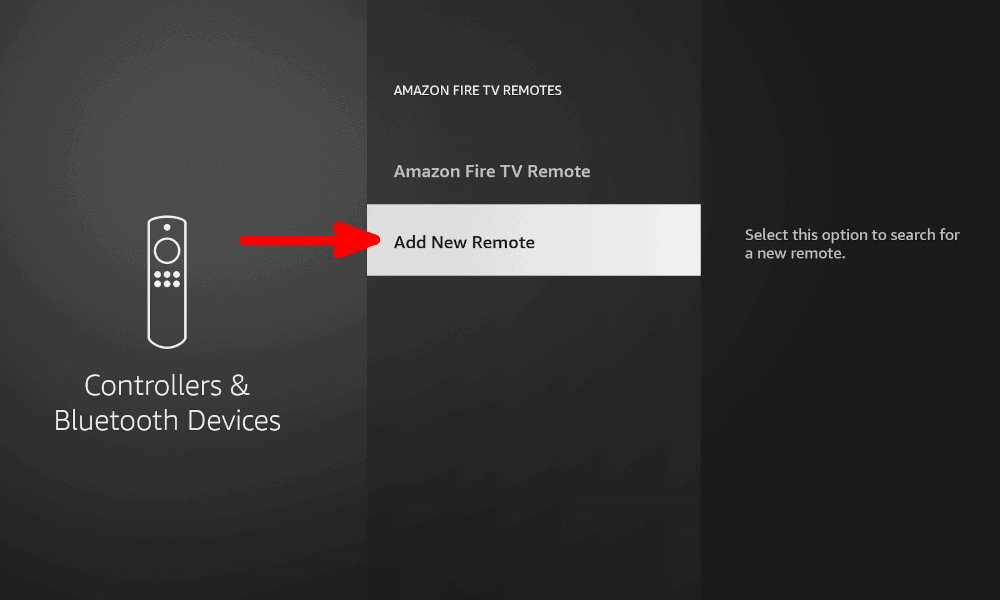
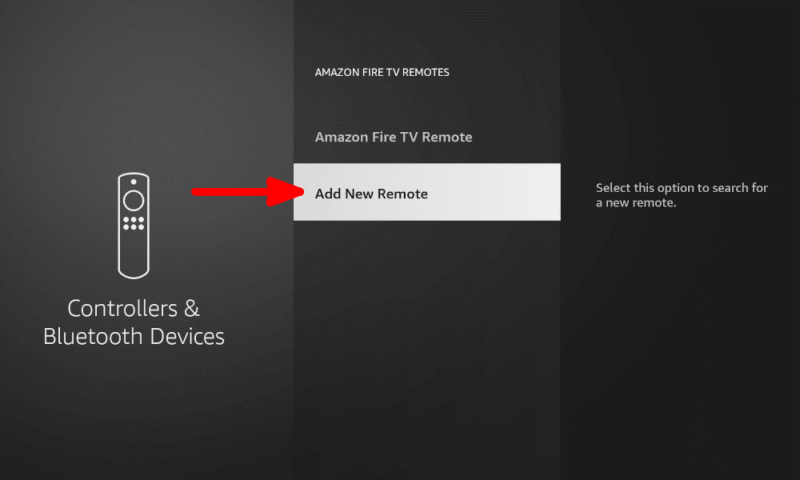
Add a New Remote
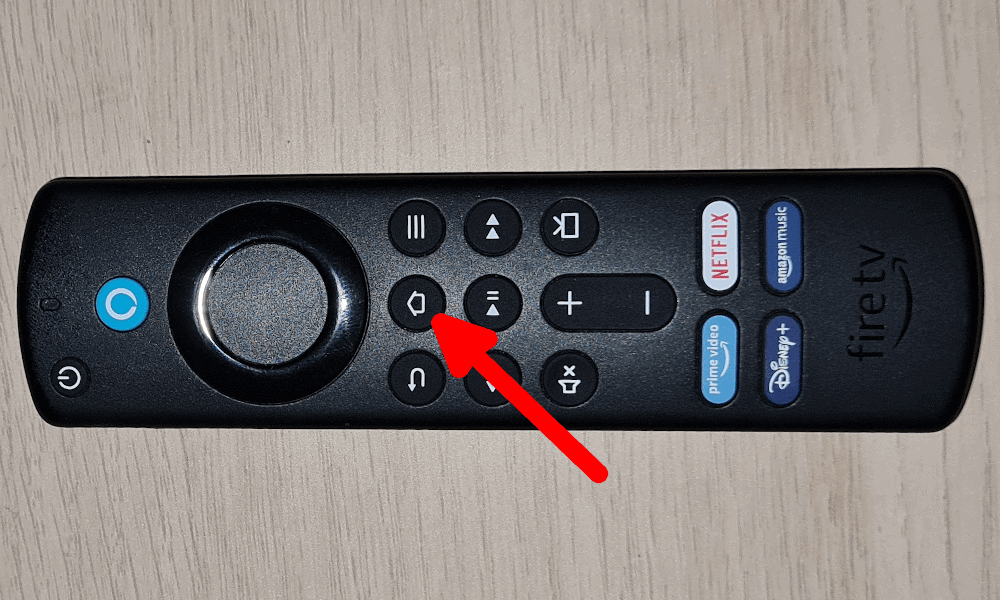
Select “add new remote” and then hold the home button down on the remote you want to connect.
How to Reset Firestick Remote
Carrying out a full reset of your Firestick remote is a little harder, but you can manage it in five short steps.
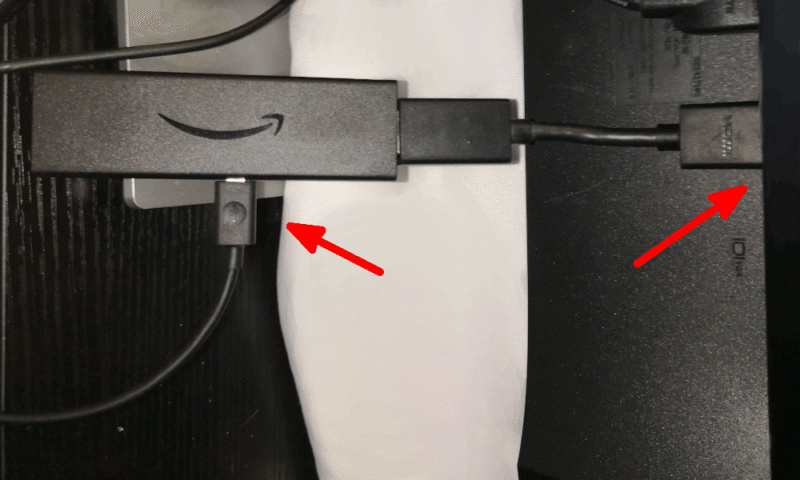
Unplug Your Fire TV Device
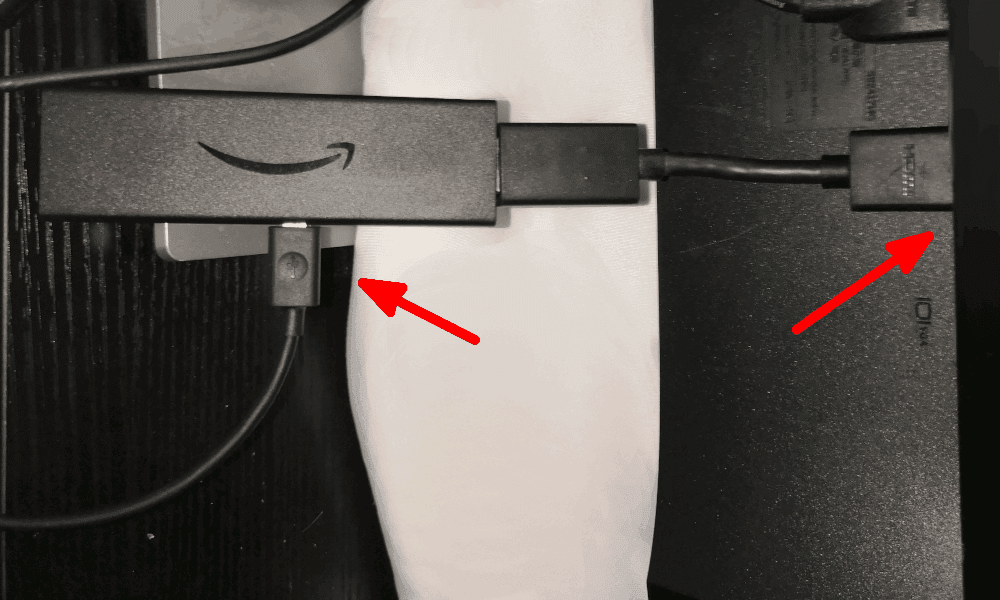
Unplug your Fire Stick from both the TV’s HDMI port and the power source, then wait 60 seconds.
Reset the Remote
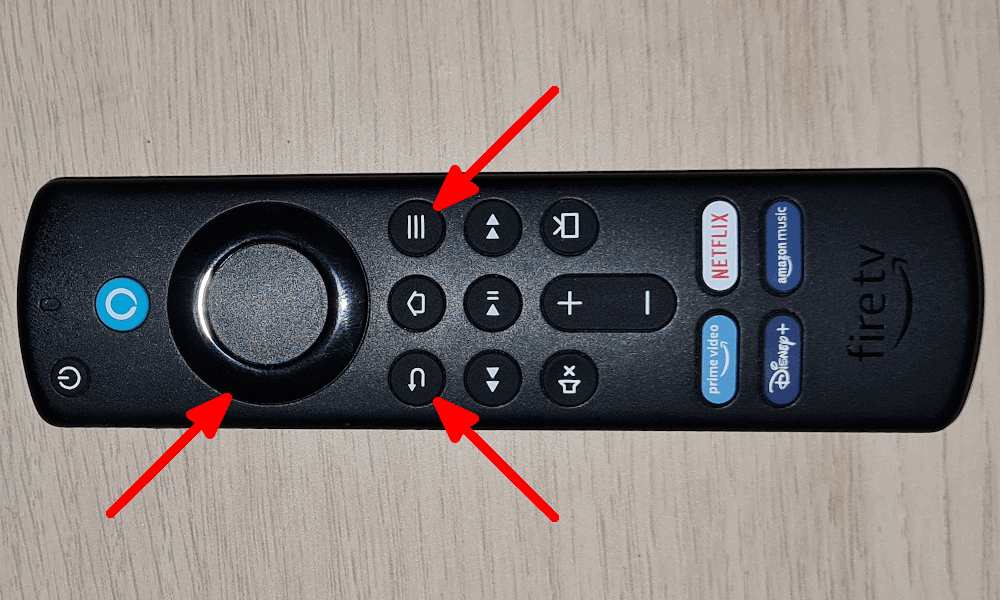
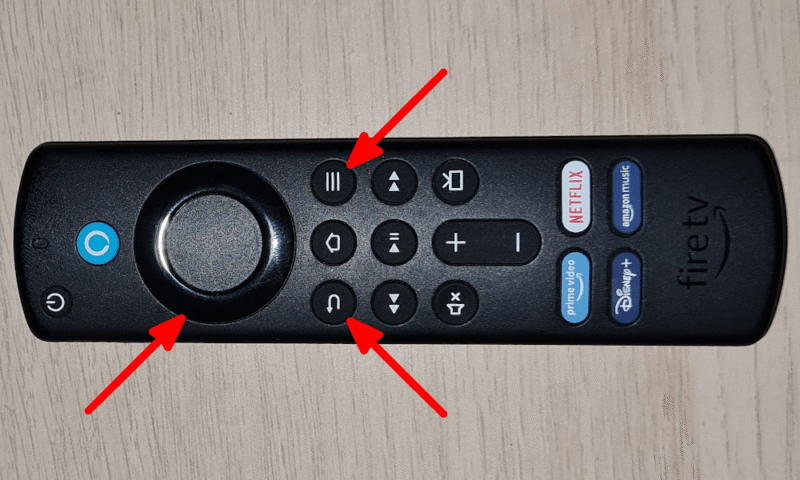
Hold down the left, menu and back buttons on your Alexa Remote for 12 seconds.
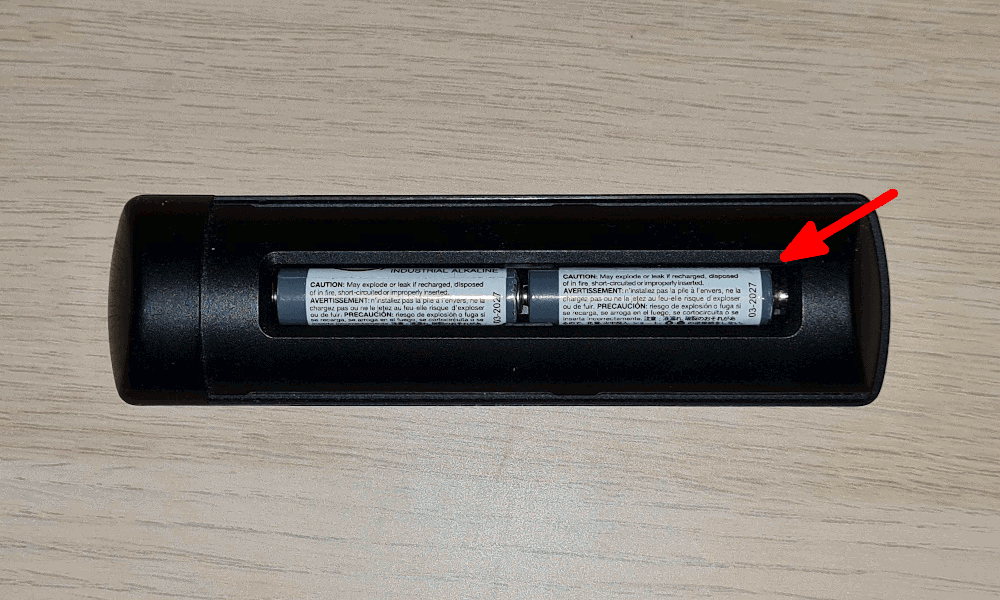
Remove the Remote Batteries
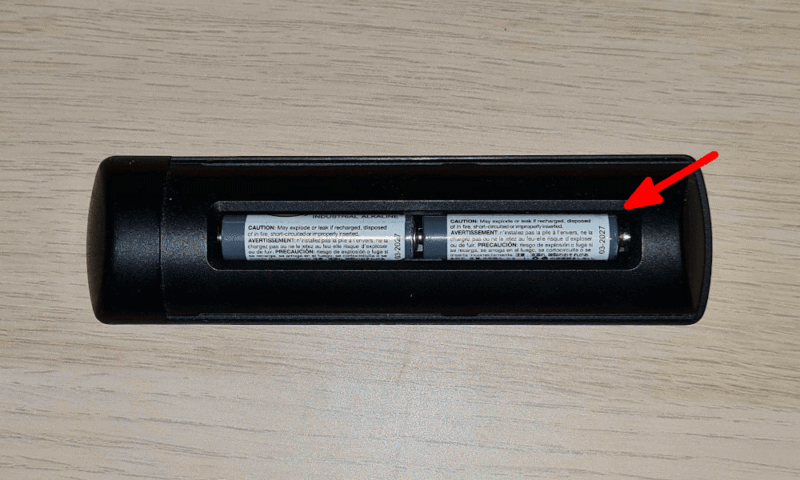
After releasing these three buttons, wait five seconds. Then, remove the back of the remote and take out the batteries.
Restart Your Fire TV
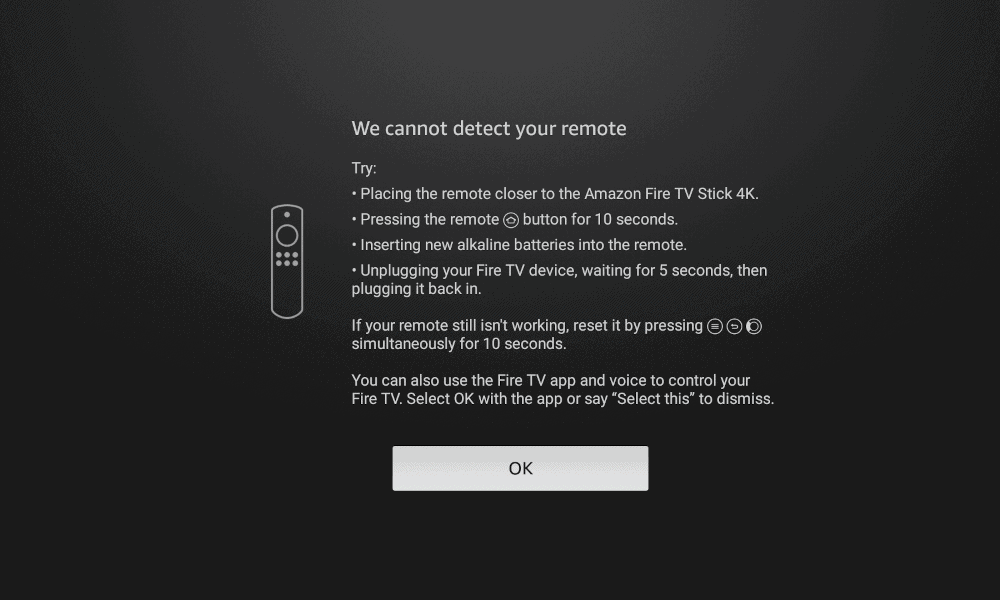
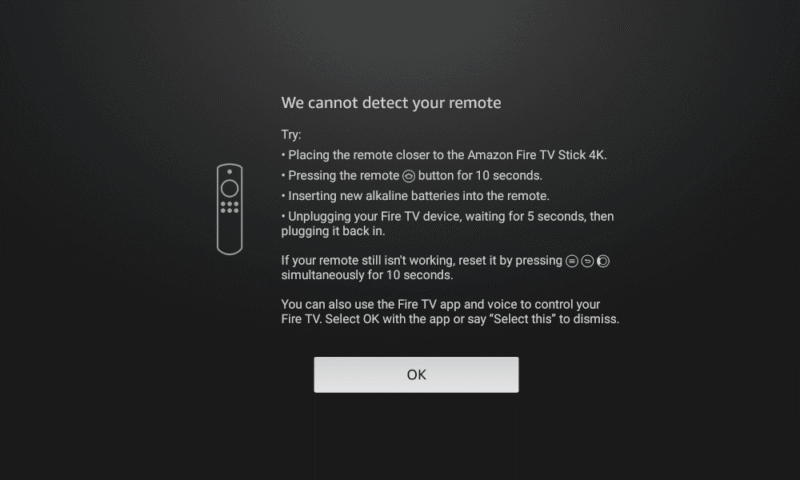
With the batteries still outside of the remote, plug your Fire Stick back into your TV and its power supply. Then, wait for an error screen to appear.
Replace the Batteries and Press the Home Button
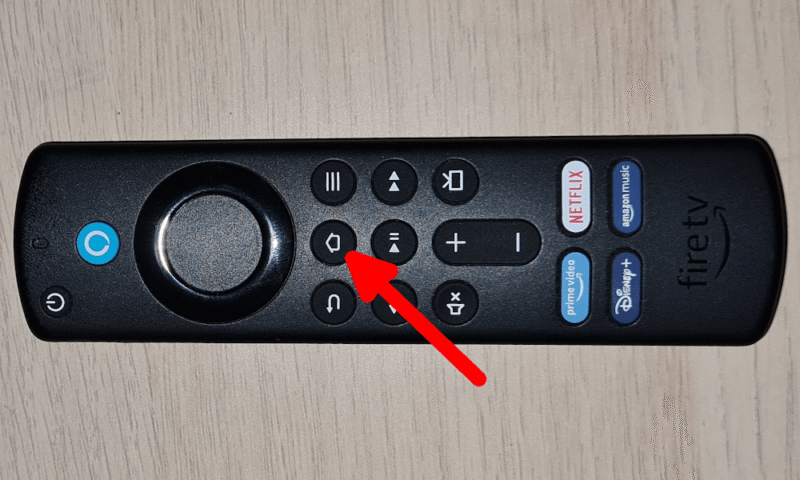
Once you see the error screen, put the batteries back into the remote, close the back and hold the home button for 10 seconds to reconnect your remote to your Fire Stick.
Why You Get a Firestick Black Screen
The most common reasons for a completely black screen are that your Fire TV device is off or isn’t outputting video correctly. The steps I went through at the start of this article should fix the issue. If you see only a black screen when you open an app, you may need to update your software, or there could be an issue with the streaming service.
Final Thoughts: Firestick Not Turning On Fixes
In my experience, Fire TV Sticks are fairly reliable devices that don’t tend to have issues. When I do have a problem, the simple steps I outlined in this article quickly fix it. I hope they’ve resolved your issue and helped get you back to streaming your favorite shows.
Did these troubleshooting steps help you solve your Fire Stick issue? Was your remote acting up or your internet connection slow? Did you have to contact Amazon support for further assistance? Let us know in the comments below. Thanks for reading!
FAQ: Amazon Fire Stick Not Working
You can know your Firestick is bad if none of the basic fixes have solved the issue and it persists after a factory reset. In that case, there’s a good chance it’s a hardware problem.
Typically, a Firestick will last for a few years. Amazon offers a one-year limited warranty on new Firesticks and guarantees software updates for four years after purchase, if you bought it from Amazon.
Your Firestick remote should connect to your TV automatically. If it doesn’t, you can either use your mobile device to pair it or perform a full reset of the remote.
With a handful of A-levels completed, Sapphire followed her passions for learning and informing others, finding a place among the Cloudwards.net team. Between writing about software and creating fantasy worlds, she’s either losing games of Civilisation or darting about the UK in search of inspiring views and learning about each area’s history.
Sandra Pattison is from the rolling hills of the United Kingdom where, when she’s not enjoying that one day of summer, she researches and writes on online security and censorship around the world. Writer by day, mother morning, noon and night, during her little free time she enjoys photography and likes to be spontaneous, but mostly ends up sipping tea with her pinky out.
After completing her master’s in human science at Osaka University, Eugenie has worn a variety of hats throughout her career. She has taken on several roles in education, sales, as well as marketing. Recently though, you can find her drinking three cups of decaffeinated coffee a day while fact-checking articles and building links for Cloudwards.