1Password Review
1Password is one of the top password managers, with a rich feature set, tight security and affordable pricing plans. I’ll go over the pros and cons in this 1Password review.

Key Takeaways: What Is 1Password & Is It Good to Use?
- 1Password uses both your account password and a secret key to secure your account.
- Although 1Password doesn’t have a free plan, you can try it free for 14 days without providing payment details.
- 1Password has a trustworthy reputation, with no history of user data breaches.
Top Use Cases for 1Password:
- Top-notch security: Client-side AES-256 encryption protects your 1Password account.
- Families and teams: Sign up for a family or team plan and get customizable access permissions with admin controls.
- Protection while traveling: 1Password’s travel mode allows journalists or frequent travelers to temporarily remove certain passwords from their devices for extra security.
1Password consistently ranks high on our list of the best password managers, thanks to its strong feature set, encryption model and dependable history. In this review, I’ll explore whether the service is easy to use, trustworthy and a good value.
-
05/20/2022 Facts checked
Cloudwards rewrote the review with updated features.
-
05/11/2026 Facts checked
We updated this article based on new testing results and verified that 1Password remains breach-free.
What Is 1Password & Who Is It For?
1Password is a suitable password manager for most users, but especially for families and teams who need advanced management controls. It’s easy to use, which also makes it a good choice for beginners. You can get an individual 1Password plan for $3.99 per month for a year.
- Release date: June 18, 2006
- Owner: AgileBits
- Operating systems: Windows, macOS, Linux, iOS, Android, browsers
- Platforms: Desktop, mobile
- Notable features: Travel mode, weak password alerts, password sharing
- Pricing: $3.99 per month for an annual plan
The Cloudwards Expert Opinion: 1Password
 The Cloudwards Expert Opinion: 1Password
After extensive testing, I find 1Password to be a very reliable password manager that autofills seamlessly on every site I visit. I appreciate how easy it is to share passwords with other people, even if they’re not 1Password users. It’s also quite affordable: You can get an individual plan for $3.99 per month for a year.
1Password Pros & Cons
Features: Authentication and Autofill
1Password includes the standard features you would expect from a password manager, such as autofill, a password generator and a security health checker. It also has extras such as travel mode, a username generator, password sharing and admin management.
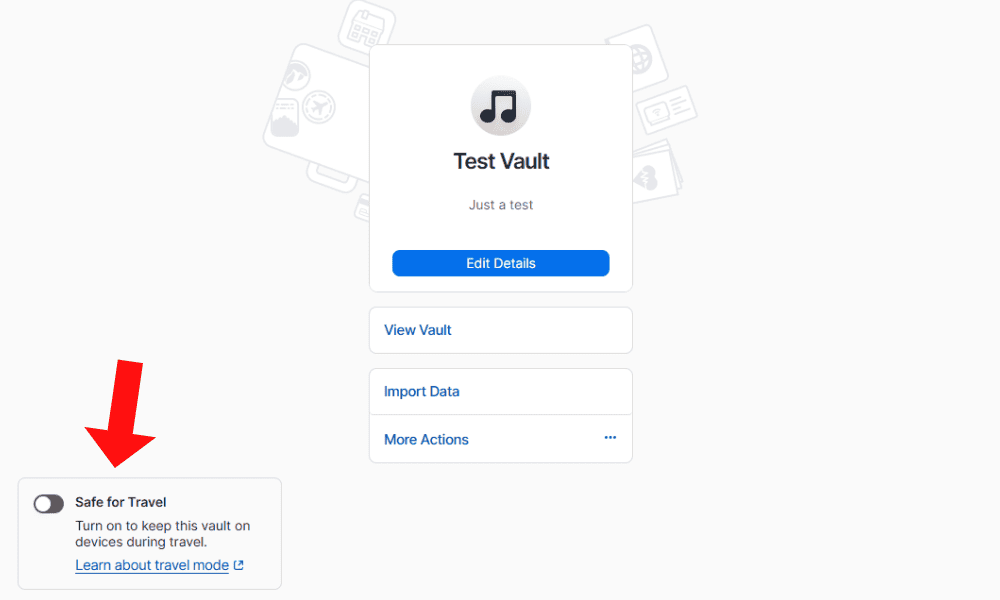
Travel Mode
You can mark certain 1Password vaults as safe for travel. When you turn on travel mode in your account manager, any vaults you haven’t marked will be deleted from your device. This means if anyone snoops around on your device, they won’t find those passwords even if you’re logged in to your 1Password account.
Password & Username Generator
1Password provides a password and username generator. The username generator helps you avoid reusing usernames on multiple accounts. In the event of a data breach on one site, your data won’t be linked to your accounts on other sites.
The password generator features smart mode, which creates a strong password based on a given site’s requirements. The generator can also create memorable or random passwords.
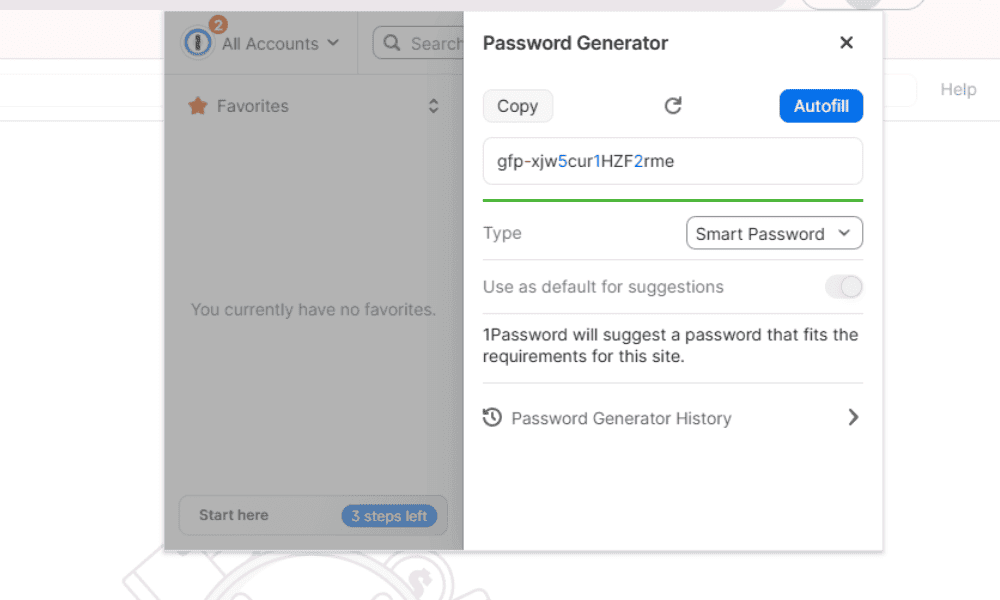
for increased account security.
Watchtower
1Password’s watchtower feature analyzes all your saved passwords and gives you a security score. It looks at factors such as reused or weak passwords, accounts that don’t have two-factor authentication (2FA) enabled and even accounts on unsafe websites.
Another useful feature is the compromised website tracker, which alerts you to data breaches on sites where you have an account so you can take steps to secure your data.
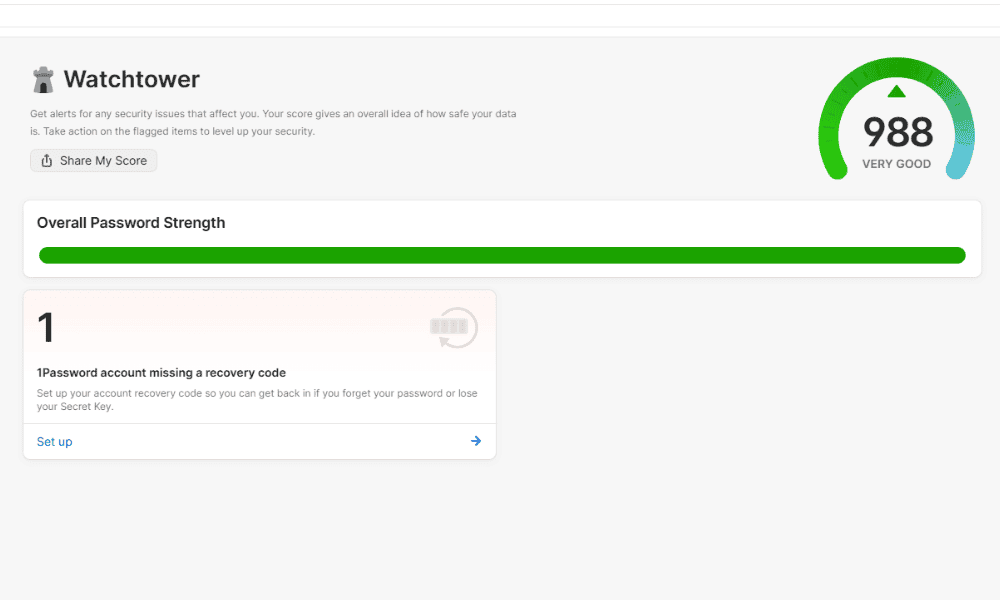
alerts you to weak or leaked account credentials.
1Password Features Overview
| Features |  |
|---|---|
| 2FA | |
| Encryption | AES-256 |
| Zero-knowledge | |
| 2FA keys | |
| Security analysis | |
| Multi-device sync | |
| Backup and recovery | |
| Mobile apps | |
| Password changer | |
| Password generator | |
| Browser extension | |
| Autofill | |
| Form auto-fill | |
| Browser UI | |
| Desktop UI | |
| Live chat | |
| Phone | |
| Help center | |
| Forums | |
| 24/7 support | |
| Free plan |
User-Friendliness & Hands-On Testing
1Password is easy to use, and the interface is similar across the mobile and desktop apps and the browser extension.
Mobile Apps
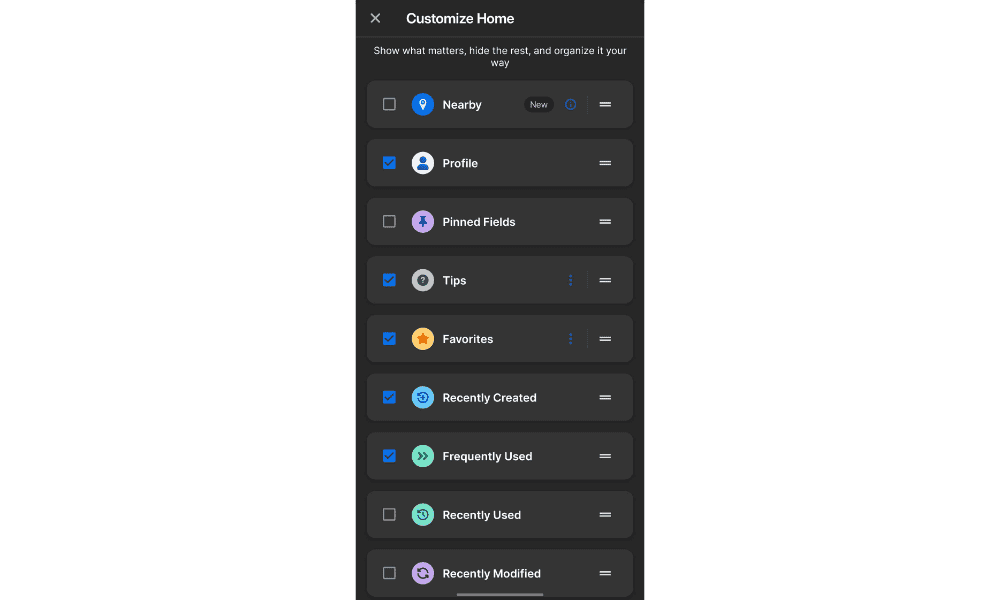
The 1Password mobile app is available on both iOS and Android, and it offers a simple interface for viewing your passwords and generating new ones. However, I was disappointed to discover that I couldn’t mark vaults as safe for travel on the mobile app; I had to do so on the desktop app.
Desktop Apps
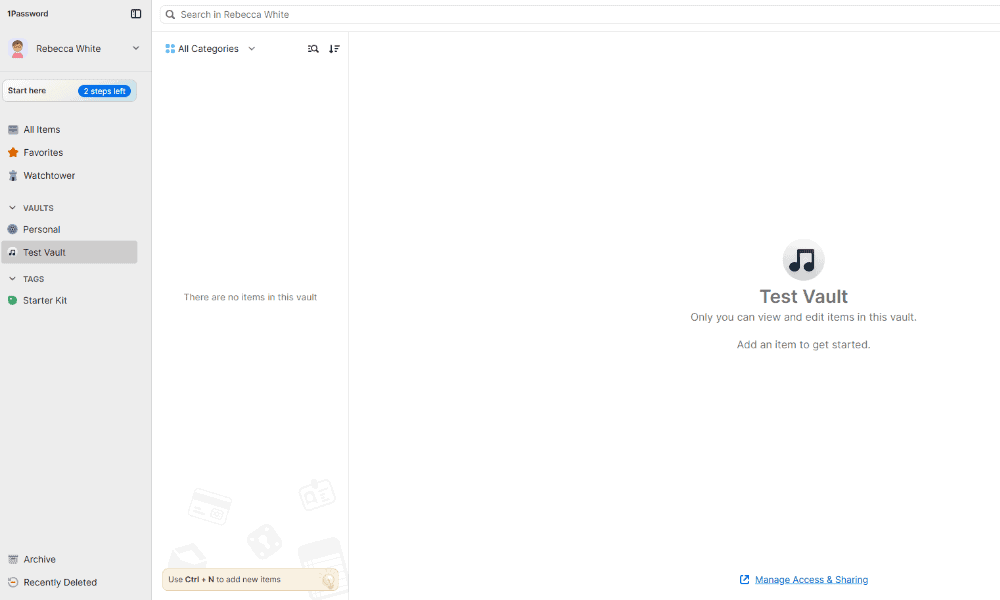
1Password’s desktop and web clients are available on Windows, macOS and Linux. They feature a clean sidebar that allows you to filter passwords by vault or by favorites. You can also filter passwords in these tabs by category, such as login, identity or payment cards.
1Password Browser Extension
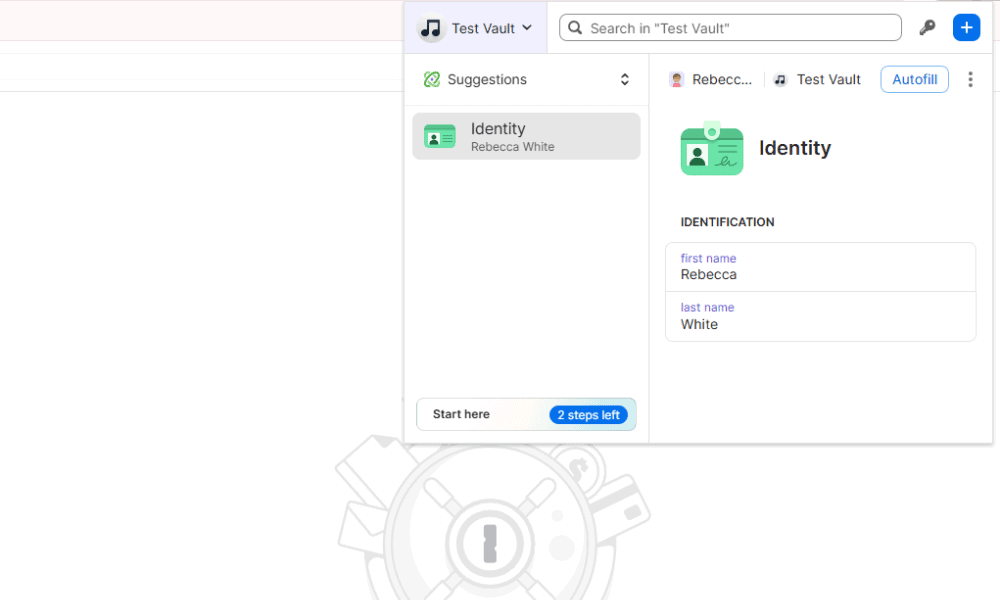
The 1Password browser extension works on Chrome, Firefox, Edge and Brave. It also comes with an autofill feature that worked well on every site I tried it on.
How to Use 1Password
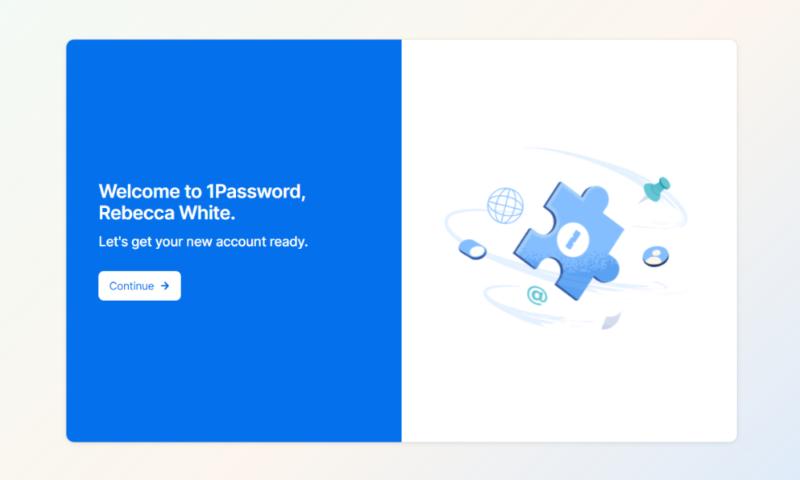
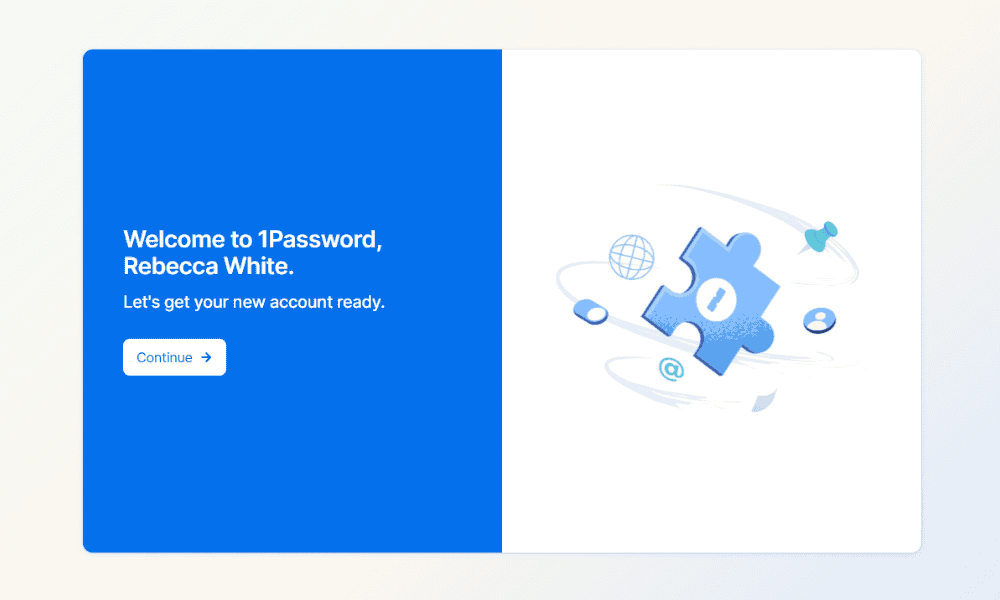
1Password is very user-friendly, offering a tutorial when you create an account that makes it easy to get started. Follow the steps below to start using 1Password.
- Set Up Your Account
Create a memorable, secure account password. You’ll need this whenever you log in to 1Password. You’ll be given a secret key upon account creation, which you’ll need to set up new devices.
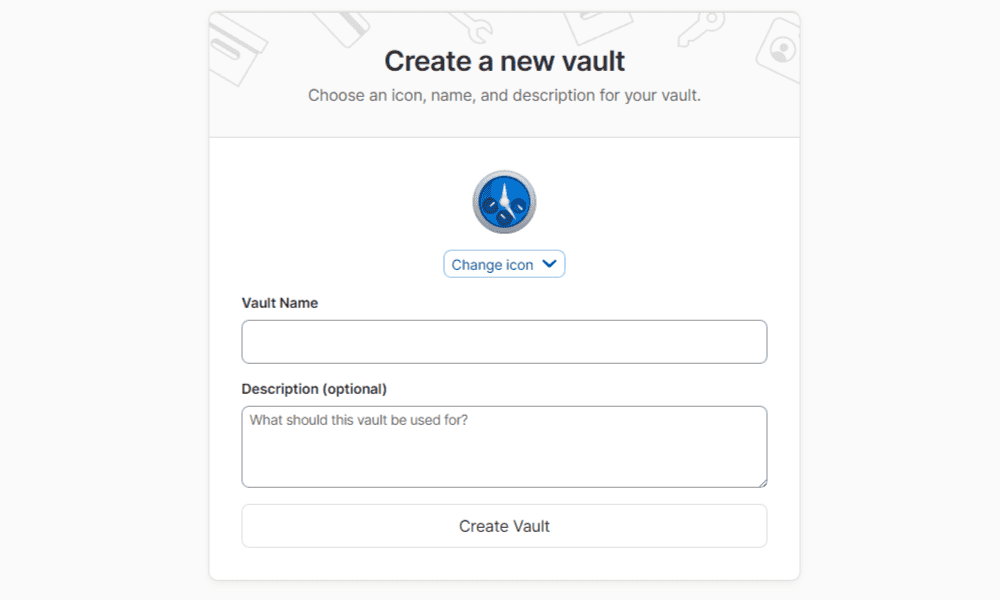
- Create Password Vaults
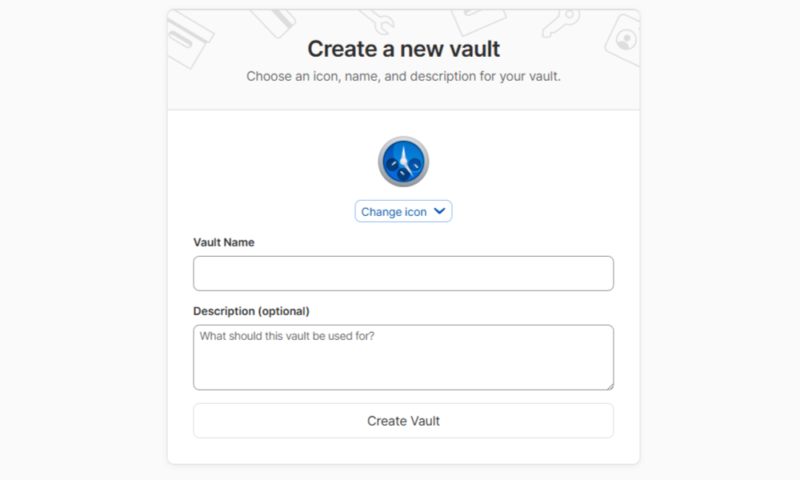
Set up password vaults to organize your passwords. Particularly sensitive passwords should go into a vault marked “not safe for travel.”
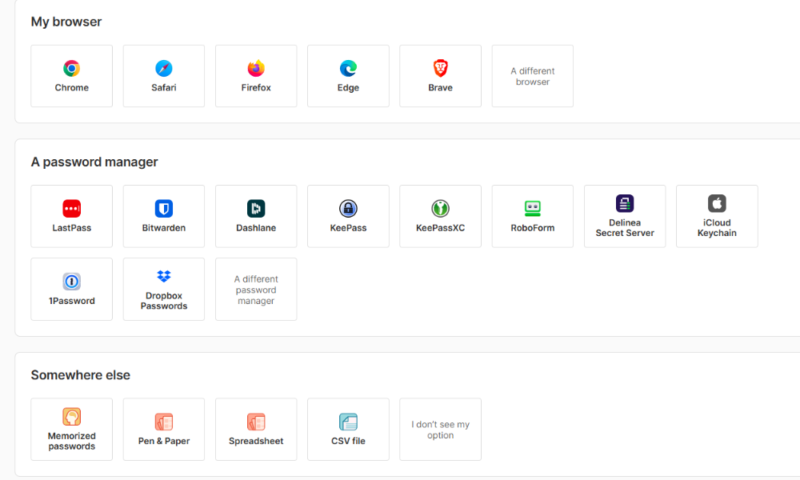
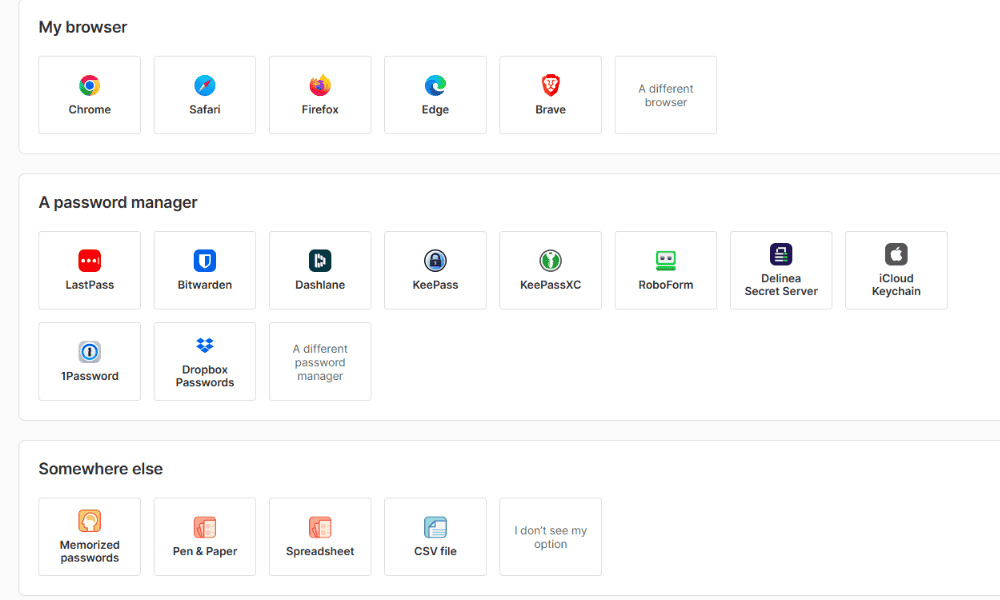
- Migrate Your Passwords
Export your data from your old manager and import your passwords into 1Password.
Security: Is 1Password Safe?
1Password is encrypted with client-side AES 256-bit encryption. This is a realistically unbreakable form of security, ensuring your passwords are never at risk of exposure if hackers manage to access 1Password’s servers. At the time of writing, 1Password has not had any data breaches, so it has a better track record than password managers such as LastPass.
On top of this, 1Password requires both your account password and your secret key to sign in on new browsers or apps. Even if your password is compromised, third parties will be unable to access your account without the secret key.
Third-Party Audits
1Password has ISO and SOC 2 certification. In addition, the third-party security firm Onica audited 1Password and confirmed its dedication to security. 1Password also has an open bounty program that allows third parties to track down security flaws.
Privacy: Can You Trust 1Password?
1Password is a highly trustworthy password manager. Beyond its dedication to preventing data breaches, it complies with the GDPR. Your personal data remains in your control, and you can delete it at any time.
Who Owns 1Password?
1Password is owned by AgileBits, a software company run by Dave Teare, Sara Teare, Roustem Karimov and Natalia Karimov, the original founders of 1Password.
Pricing: How Much Does 1Password Cost?
1Password has four main plans: Individual, Families, Teams and Business. You can get an Individual plan for $3.99 per month for a year for unlimited passwords on all your devices. The Families plan, at $5.99 per month for a year, supports up to five users and allows you to set up permanent sharing options with as many as five guests.
The Teams plan, at $19.95 per month, and Business plan, at $7.99 per user per month for a year, provide developer tools for more control. The Business plan also offers phone support.
Take a look at the table below for a breakdown of 1Password’s monthly pricing for annual plans.
- Unlimited storage, 1GB document storage
- Up to five users, Up to 5 additional guests
- up to 10 users per month; Actionable security alerts; Domain Breach Report
- per user per month; Includes Teams Starter Pack, plus: Integrates with Okta, Entra ID, OneLogin, Duo, and more; Advanced reporting, granular admin controls, end-to-end encryption; Friendly, expert phone support
Is There a 1Password Free Plan?
No, 1Password doesn’t have a free plan. However, a 14-day free trial is available that doesn’t require payment details.
Customer Support
1Password has 24/7 customer support with its virtual chatbot, as well as in-depth help articles and an email ticketing system. When I tested the chatbot, I found that it gave good answers instead of just linking to an article it deemed relevant, as most virtual chatbots tend to do.
Methodology: How I Tested 1Password
I looked at the following features when testing 1Password:
- Autofill: I installed 1Password’s extension and visited common sites to see if the autofill worked consistently.
- Password generator: I created new accounts and tested 1Password’s username and password generator to see how reliably it suggested and remembered new credentials.
- Security: I checked whether 1Password’s watchtower feature detected weak passwords accurately and alerted me to data breaches.
- Apps and extension: I looked at 1Password’s various apps and the browser extension to see if it was easy to use and switch between them.
1Password Alternatives
If 1Password isn’t the right choice for you, these alternatives may be more suitable.
Proton Pass vs 1Password

Proton Pass has similar security to 1Password, with client-side AES 256-bit encryption and no history of data breaches. While 1Password has better features, such as travel mode, Proton has a generous free plan that you can use to save unlimited passwords. Read our Proton Pass review to learn more.
1Password vs LastPass

LastPass also offers a free plan for unlimited passwords but for only one device. It also has a history of data breaches, though, so security-focused users will be better off with 1Password. Read our LastPass review for more information.
Community Feedback: 1Password Reviews on Reddit & Social Media
1Password has favorable reviews on Reddit, with many users praising the number of features available for the price. One user mentioned that 1Password’s secret key was a deciding factor, as it makes the service more secure than alternatives.
The Verdict: Is 1Password Good?
1Password is a very good password manager, especially if you need family or team password management. The extra features, like the username generator and travel mode, take security a step further than other password managers. 1Password is also quite affordable, at just $3.99 per month for an annual plan.
What’s your favorite password manager? Have you tried 1Password? If so, what’s your favorite feature? Let me know in the comments, and thank you for reading.
FAQ: 1Password Password Manager Review
Any service can be the target of a cyberattack. However, 1Password’s secure history demonstrates that it remains vigilant to prevent data breaches.
If you lose the password to your 1Password account, you can recover it if you’ve set up an emergency kit. Unfortunately, due to its client-side security, 1Password cannot recover your account for you.
No, 1Password doesn’t have a free version. However, it does have a 14-day free trial.